Image Graph
 suffername87 downloads
Explore and connect images and their regions in your vault.
- Overview
- Scorecard
- Updates6
Explore your image vault, mark regions, and connect images with labeled relationships.
Features
- A whole-vault workspace with thumbnails at every zoom level.
- Rectangle and polygon regions that stay inside their parent images.
- Connections between images, regions, or both.
- Free-form YAML properties on connections, with
relationas the visible label. - Optional arrows in either direction or both directions.
- Image metadata and tags in ordinary companion Markdown notes.
- Exploration from one image through one, two, or three connection steps.
- Separate expansion of neighbors, pinned images, and path highlights.
- Editable Canvas exports and visual snapshots.
- Explicit image extraction from a region, with source references.
- Regions drawn with the Image Annotation plugin, shown in the graph and opened in that plugin.
Start
- Open Image Graph: Open workspace from the command palette.
- Select an image.
- Open its context menu to draw a region or explore its connections.
The context menu opens with a right click or a long press. The graph starts with the whole vault. Regions do not become separate images unless you choose the extraction action.
The first overview builds small thumbnails in the background. The status bar shows progress. Later sessions reuse these thumbnails from the vault.
Controls
| Action | Control |
|---|---|
| Move the view | Drag, scroll, or hold Space while dragging |
| Zoom | Ctrl or ⌘ and scroll, or pinch |
| Select an image, region or connection | Click or tap |
| Select several images | Shift-click, or shift-drag a band |
| Move images | Press M, then drag one to carry the whole selection |
| Nudge the selection | Arrow keys, five steps with Shift |
| Resize a region | Select it, then drag one of its grips |
| Context actions | Right click or long press |
| Draw a rectangle | R |
| Draw a polygon | G, select corners, then select Finish polygon |
| Connect a selection | C |
| Explore an image | E |
| Open properties | I |
| Every shortcut | ? |
Keyboard controls apply inside the graph. Text fields retain normal typing behavior. In the whole vault, moved images snap to a grid by their top-left corner. Navigation does not move images or rebuild their thumbnails.
Properties
The Properties panel pairs a property name with its content.
For example, name a property creator and enter the person's name as its content.
Choose Text for words, Number for quantities, or List for several items, such as tags.
You do not need to write YAML.
Each connection includes a property named relation.
Its content, such as “resembles,” appears beside the connection.
Additional properties can describe confidence, sources, or other details.
Image properties and tags live in companion Markdown notes. When an image first needs saved metadata or annotations, the plugin creates its companion note. Opening the vault does not create a note for every image.
Explore connections
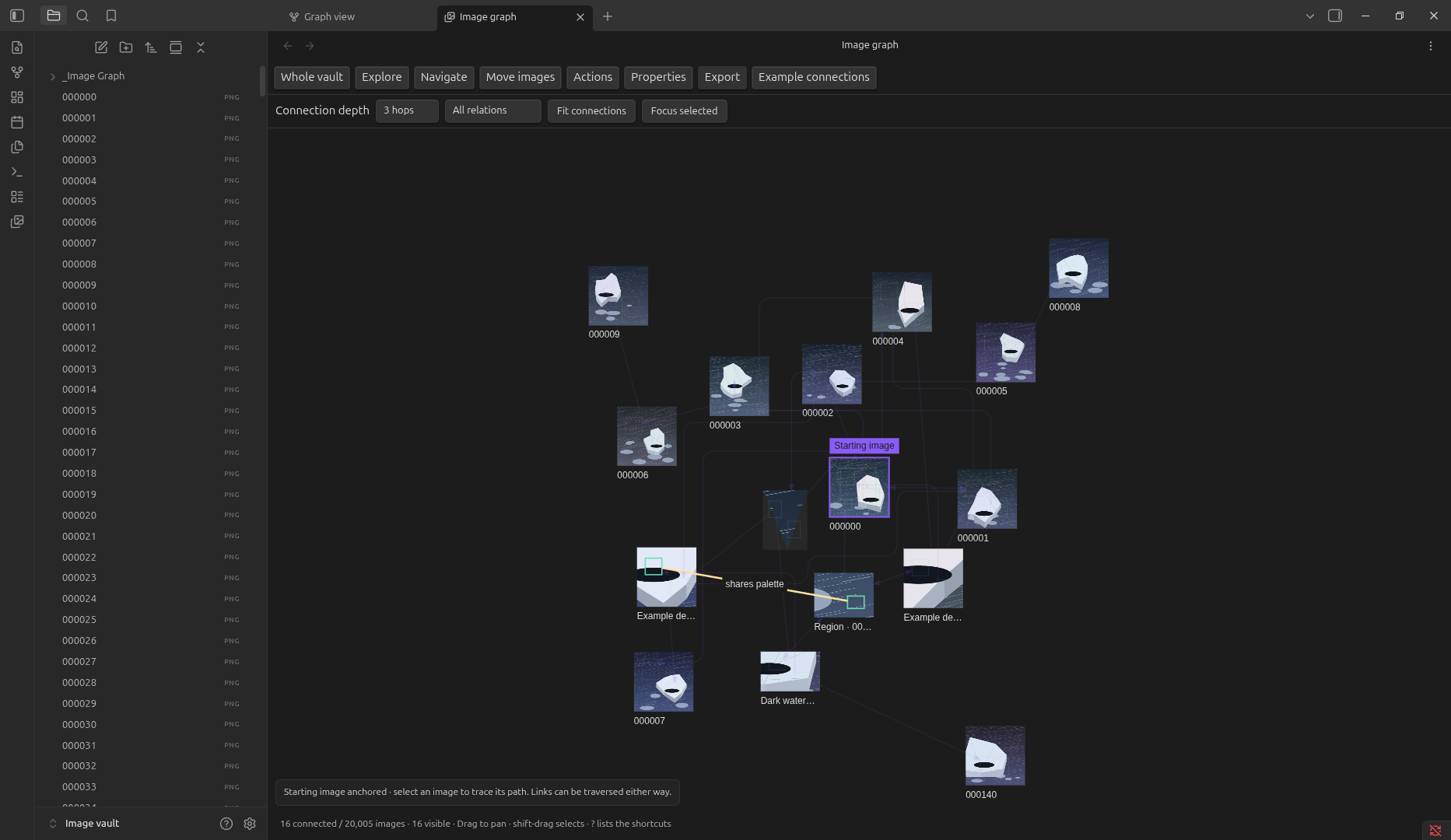
Exploration centers on one image, or on every image you selected. With several starting images none is anchored, so you can arrange all of them and draw connections in a smaller space. The depth control includes its neighbors and their connections. Paths can enter one region and continue through another region of the same image. The relation filter highlights matching connections without hiding the surrounding three-hop paths. Choose Focus selected for a closer view of an image.
Exploration follows connections in either direction. Arrowheads still show each connection's stated direction. A path through several images does not assert a direct relationship between its ends.
Exploration uses a temporary force layout organized into hop bands. The starting image stays centered when you fit the connections. Background connections and region outlines stay faint. Selecting an image or hovering over a connection reveals relevant labels. Labels avoid images, captions, and other labels. Crowded labels stay hidden. Extracted images use region names as captions. Full filenames remain in Properties. Returning to the whole vault restores its arrangement and viewport.
See the current exploration layout.

Export
An editable Canvas contains image cards, relation labels, and arrows. Native Canvas connections attach to image cards rather than regions inside them.
A visual snapshot contains the current viewport as a PNG inside a Canvas. It preserves region outlines and connection endpoints. Its individual elements are not editable.
Both exports are independent snapshots. Canvas edits do not update the graph. Editable exports reference the original image files.
Example connections
The command Create example connections between twelve images creates an illustrative network. These connections are examples, not claims inferred from image content. Their properties identify them as examples.
With Image Annotation
If the Image Annotation plugin is installed, its regions appear on their images with a dashed outline. Select one to open its region note, open it in Image Annotation, connect it, or extract it as an image. Edit or delete those regions in Image Annotation. The graph reads its index and never writes to it.
Storage and compatibility
See the storage guide for file locations and recovery behavior. See workflow recordings for each workflow as a separate clip with its written steps. See development contracts to build from source, and rendering performance for measured frame costs. Physical mobile testing and multi-device conflict testing remain separate from desktop verification.
Credits and license
Created by Micah. Support development.
MIT license. See LICENSE.