HK Code Block
 heekangpark10k downloads
Improve the display of code blocks in reading view with titles, line numbers, line highlights, and more.
- Overview
- Scorecard
- Updates8
Obsidian plugin developed by Heekang Park
[ English | 한국어 ]
With HK CodeBlock, you can add various features to code blocks.
Inspired from Prism.js's plugin, Better Code Block, Code Block Enhancer.
Features
Title
You can add title to the code block like this.
```python title:"Title of the code block"
print("Hello world")
```
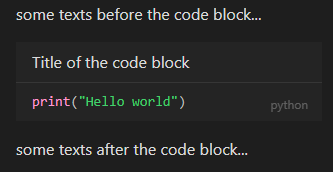
You must put the title in quotes. You can use both single and double quotes.
Collapse
You must use the title feature to use the collapse feature. You can collapse the code block like this.
```python title:"Title of the code block" collapse
print("Hello world")
```
Or like this.
```python title:"Title of the code block" collapse:true
print("Hello world")
```
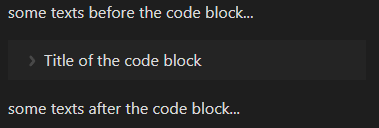
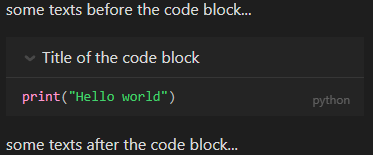
If you want to explicitly expand the code block, you can do it like this.
```python title:"Title of the code block" collapse:false
print("Hello world")
```
Line Numbers
You can add line numbers to the code block like this.
```python linenos
print("Hello world")
```
Or like this.
```python linenos:true
print("Hello world")
```
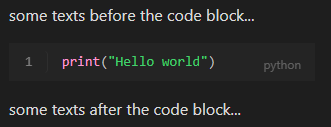
If you don't specify any options, the line numbers will start from the value set in the settings (default: 1). If you want the line numbers to start from a specific value, you can do it like this.
```python linenos:10
print("Hello world")
```
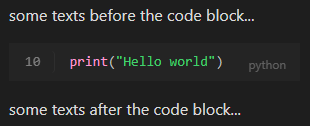
You can also use negative values.
```python linenos:-10
print("Hello world")
```
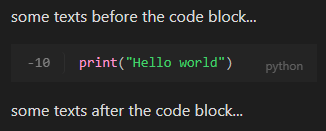
If you want to explicitly hide the line numbers, you can do it like this.
```python linenos:false
print("Hello world")
```
Line Highlight
You can highlight specific lines in the code block with commas like this.
```python highlight:"2-4,8,10"
print("line 1")
print("line 2")
print("line 3")
print("line 4")
print("line 5")
print("line 6")
print("line 7")
print("line 8")
print("line 9")
print("line 10")
print("line 11")
```
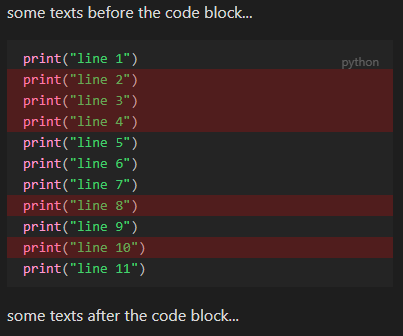
You must put the line numbers in quotes. You can use both single and double quotes. You can also use a dash to specify a range of line numbers.
If you use the line numbers feature and set the line numbers don't start from 1, you must enter the line numbers to be highlighted according to that.
```python linenos:10 highlight:"10,11"
print("Hello world")
print("I love you")
print("Wow")
```
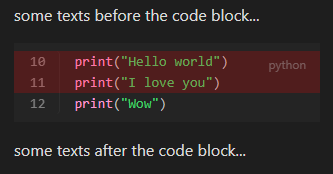
Language Indicator
You can add the language indicator to the code block like this.
```python language
print("Hello world")
```
Or like this.
```python language:true
print("Hello world")
```
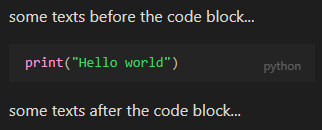
The displayed language is following the language of the code block by default, but if you want, you can specify it explicitly. In this case, you can change the language displayed while keeping the syntax highlighting done by the language of the code block.
```python language:"javascript"
print("Hello world")
```
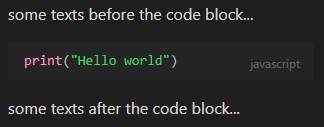
You must put the language in quotes. You can use both single and double quotes.
If neither the language of the code block nor the language specified by the language option is specified, the language displayed is the value set in the settings (default: "plain text").
If you want to explicitly hide the language indicator, you can do it like this.
```python language:false
print("Hello world")
```
Copy Button
You can add a copy button to the code block like this.
```python copybtn
print("Hello world")
```
Or like this.
```python copybtn:true
print("Hello world")
```
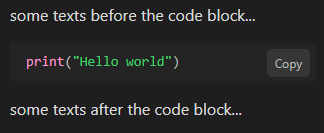
If you want to explicitly hide the copy button, you can do it like this.
```python copybtn:false
print("Hello world")
```
Prompt
You can add a prompt to the code block like this.
```bash prompt
mkdir test
```
Or like this.
```bash prompt:true
mkdir test
```
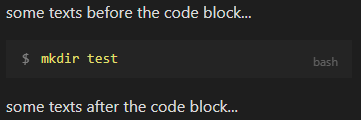
If you don't specify any options, the prompt will be the value set in the settings (default: "$"). If you want to use another prompt, you can do it like this.
```bash prompt:"#"
mkdir test
```
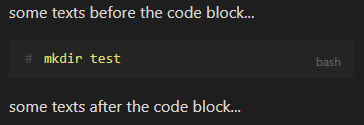
You must put the prompt in quotes. You can use both single and double quotes.
If there is a "" character at the end of the line, the prompt will not be displayed on the next line.
```bash prompt
docker run -it \
    ubuntu:latest
```
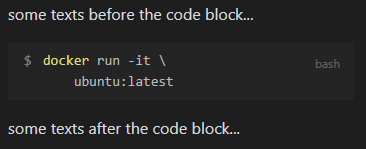
If you want to explicitly hide the prompt, you can do it like this.
```bash prompt:false
mkdir test
```
Result
You can add a result to the code block like this.
```python
print("Hello world!")
```

```result
Hello world!
```
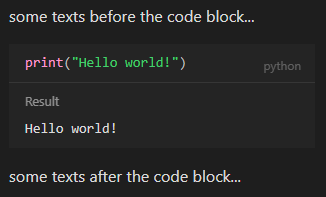
Note that the Result Code Block must be placed immediately after the Code Block to which the result belongs. You must not put any other components between them.
Also note that the result code block is not dynamically generated. Result code blocks are just simple plain-text code blocks. You must enter the result manually.
You can use line numbers, line highlight features only in the result code block. Other features will be ignored even if you specify them.
```python
print("Hello world!")
```

```result linenos
Hello world!
```

```result highlight:"1"
Hello world!
```
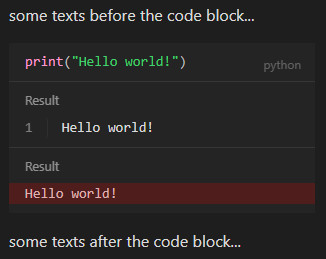
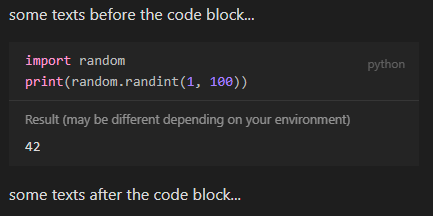
The prompt of the result code block is the value set in the settings by default (default: "Result"). If you want to use another prompt, you can do it like this.
```python
import random
print(random.randint(1, 100))
```

```result prompt:"Result (may be different depending on your environment)"
42
```
Settings
You can change the default settings of each feature of HK Code Block in the settings.
Title
- Use Title
- default off, but on when specified : the title will only be shown if the title statement is specified
- always off : the title will never be shown
Collapse
- Use Collapse
- always on : the code block will always be collapsible
- default on, but off when specified : the code block will always be collapsible, but will not be collapsed if collapse statement is specified as false
- default off, but on when specified : the code block will only be collapsible if the collapse statement is specified as true
- always off : the code block will never be collapsible
- Default Collapse State : the default collapse state of the code block
Line numbers
- Use Line Numbers
- always on : line numbers will always be shown
- default on, but off when specified : line numbers will always be shown, but will not be shown if linenos statement is specified as false
- default off, but on when specified : line numbers will only be shown if the linenos statement is specified as true
- always off : line numbers will never be shown
- Default Line Number Start : the default line number start of the code block (default: 1)
- Show Line Number Splitter : whether to show the line number splitter (default: true)
Line Highlight
- Use Line Highlight
- default off, but on when specified : line highlight will only be shown if the line highlight statement is specified
- always off : line highlight will never be shown
- Line Highlight Color : The background color of the highlighted line. Note that the given color will be applied with 0.2 opacity. (default: #ff0000)
Language Indicator
- Use Language Indicator
- always on : language indicator will always be shown
- default on, but off when specified : language indicator will always be shown, but will not be shown if the language indicator statement is specified as false
- default off, but on when specified : language indicator will only be shown if the language indicator statement is specified as true
- always off : language indicator will never be shown
- Default Language : the default language name of the code block if the language is not specified. (default: "plain text")
Copy Button
- Use Copy Button
- always on : copy button will always be shown
- default on, but off when specified : copy button will always be shown, but will not be shown if the copy button statement is specified as false
- default off, but on when specified : copy button will only be shown if the copy button statement is specified as true
- always off : copy button will never be shown
Prompt
- Use Prompt
- always on : prompt will always be shown for languages specified in the "Prompting Languages" option
- default on, but off when specified : prompt will always be shown for languages specified in the "Prompting Languages" option, but will not be shown if the prompt statement is specified as false
- default off, but on when specified : prompt will only be shown if the prompt statement is specified as true
- always off : prompt will never be shown
- Prompting Languages : The languages that will be prompted by default. You can specify multiple languages by separating them with enters. (default: "bash")
- Default Prompt : The default prompt of the code block. (default: "$")
Result
- Use Result
- enable : use the result feature
- disable : do not use the result feature
- Default Result Prompt : The default prompt of the result code block. (default: "Result")
Developers
- Debug Mode
- true : enable debug mode. Log messages will be displayed in the console.
- false : disable debug mode.
License
MIT License
Known Issues
- Some features may not work properly depending on the theme you are using.
- Currently on 2023-02, I checked that the following themes are working properly.
- Default Theme
- Minimal Theme
- Obsidian Nord
- Sanctum
- Shimmering Focus
- Wasp
- Typewriter
- Red Graphite
- Most of the theme problem is caused by the usage of
!importantkeywords in the theme CSS. HK Code Block does not use!importantkeywords at all in order to avoid conflicts with other themes or plugins. If you want to use HK Code Block plugin with those themes, you should modify the theme CSS files, or by using!importantkeywords, you should explicitly increase the priority of the HK Code Block CSS rules.
- Currently on 2023-02, I checked that the following themes are working properly.
Bug Report, Feature Request
If you find any bugs or have any feature requests, please report them on the GitHub Issues. Thank you!
Changelog
Versions are controlled by the rule below.
- Version x.y.z
- x : increased when huge changes are made(ex. change of logic, etc.)
- y : increased when features are newly added or changed
- z : increased when bug fixes are made
0.1.0
- Initial release
0.2.0
- Add features
- Add collapse feature
0.2.1
- Bug fix
- Fix that prompted code blocks with multiple lines always show horizontal scrollbars
0.3.0
- Bug fix
- Fix that code blocks inside other elements(ex. li) are not rendered properly
- Add features
- Now you can use
-symbols in the highlight statement so that you can easily highlight multiple, continuous lines.
- Now you can use
0.3.1
- Bug fix
- Fix that the titles of continuous code blocks inside other elements(ex. li) are not rendered properly
- Fix that an additional empty line is inserted at the end of the code block when the code block is inside other elements(ex. li)
0.3.2
- Bug fix
- Add some margin-top to the code block
0.4.0
- Follow pull request guide comments
- change "Use Result" setting from dropdown to toggle
- remove
asstatement
- etc
- rename file names
0.4.1
- css update
- make css more explicit