Hexcrawl
 Vasilii Negrebetskii37 downloads
Render zoomable, pannable hexcrawl maps from a folder of hex notes via a `hexcrawl` code block.
- Overview
- Scorecard
- Updates3

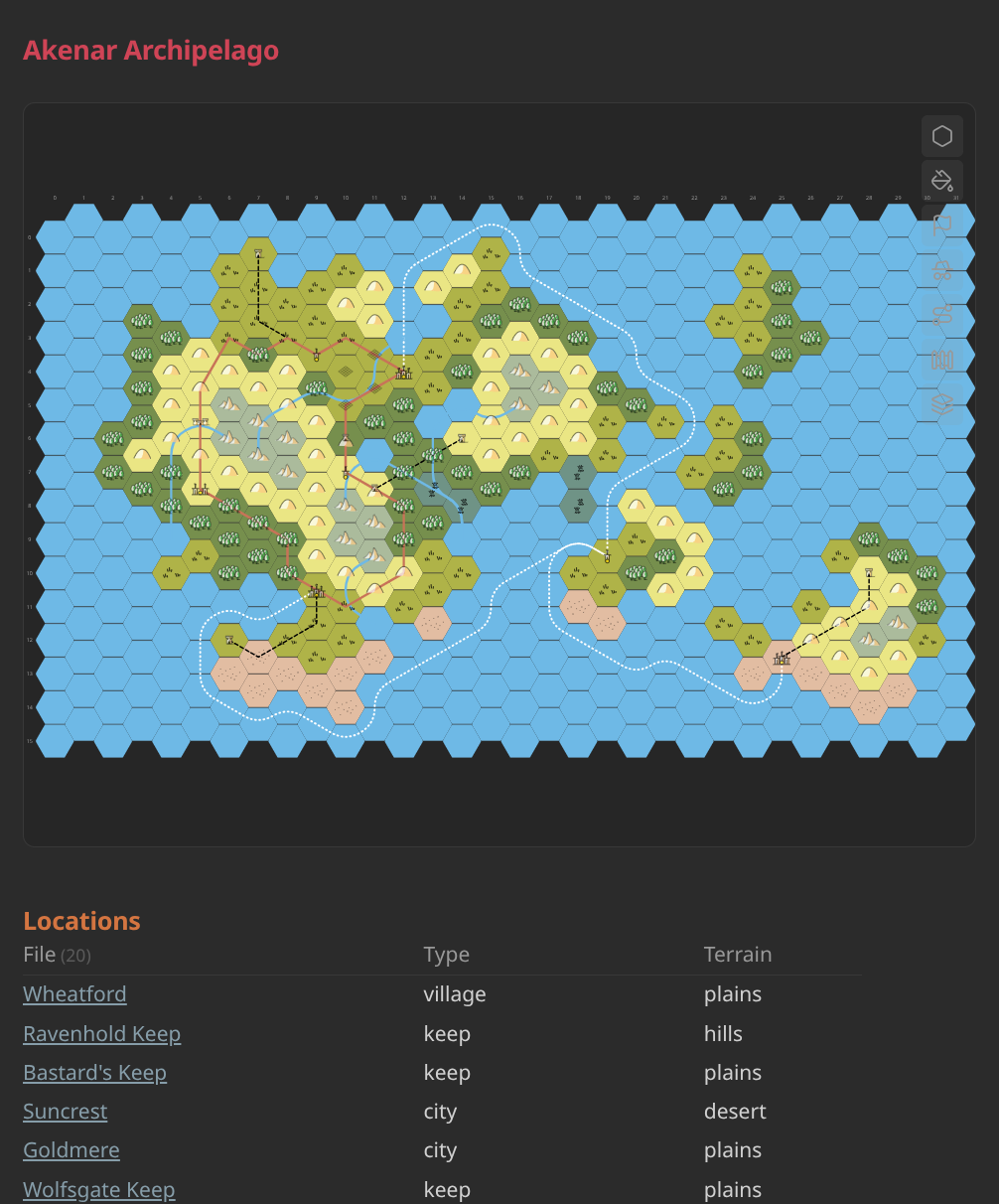
Turn a folder of notes into a fully interactive, easily editable hex map. Drop a hexcrawl code block into any note, point it at a folder, and every note with hex-q/hex-r frontmatter becomes a hex on the map. The map itself isn't a static picture: paint terrain, drop icons, and draw paths straight onto it with the built-in toolbar.
Features
Notes as hexes — coordinates live in frontmatter; click a hex to open its note.
No fixed schema — add whatever properties your campaign needs instead of being boxed into a predefined set of fields.
No bespoke views — browse, filter, or query hexes with the tools you already use (Bases, Dataview, search).
Pan & zoom — scroll to zoom on the cursor, drag to pan, auto-fit on load.
Editing toolbar — fill terrain, place icons, draw paths directly on the map, and more.
Customizable visuals — load third-party icon packs of your choice, define various terrain palettes, configure as many path types as you need.
A couple of great similar plugins exist for Obsidian too: Hexmap World Creator, Hex Cartographer, Text Mapper. They're more mature, and may fit your use case better. However, Hexcrawl aims to stand out by focusing on flexibility of use and visuals, keeping things simple and staying close to Obsidian's own primitives.
Quick start
```hexcrawl
folder: Hexes
orientation: pointy
cols: 10
rows: 8
```
And a hex note anywhere in that folder:
---
hex-q: 3 # column (0-based)
hex-r: 2 # row (0-based)
hex-terrain: forest
---
Reference
Editing on the map
A toolbar pinned to the top-right corner of every rendered map lets you edit it directly, with no frontmatter to hand-write:
| Tool | What it does |
|---|---|
| Brush | Paint a terrain onto hexes one click at a time; pick "Eraser" to clear it. |
| Bucket | Flood-fill connected same-terrain hexes with a new one. |
| Icon | Drop an icon from the palette's icon folder onto a hex, or erase it. |
| GM Icon | Same as Icon, but for hex-gm-icon — its own layer, always rendered above everything else. |
| Path | Draw a new road/river by clicking hexes in order, or click an existing path to move, add, or remove its points. |
| Border | Draw a new border/barrier by clicking near a shared hex edge to start it, or click an existing border to extend either end (via the add-edge dots) or right-click an end edge to remove it. |
| Layers | Toggle terrain, borders, paths, icons, and GM icons on or off independently. |
Every change is written straight to the affected note's frontmatter (or creates a new path note), so the map and the notes never drift apart.
Code block options
| Key | Required | Default | Description |
|---|---|---|---|
folder |
yes | — | Vault-relative path to the folder containing hex notes (scanned non-recursively). |
cols |
yes | — | Number of columns to render. |
rows |
yes | — | Number of rows to render. |
orientation |
no | pointy |
pointy or flat. Pointy-top hexes stagger by row; flat-top hexes stagger by column. |
stagger |
no | odd |
Which row (pointy) or column (flat) is the shifted one. |
hexSize |
no | 40 |
Hex radius (center to vertex) in pixels. |
height |
no | 500 |
Height of the visible map panel, in pixels. Width fills the note. |
coords |
no | false |
Show q/r coordinate labels along the top and left axes. |
palette |
no | default global palette | Name of a global palette (e.g. palette: Wikipedia), or an inline mapping for a one-off palette scoped to this block. |
paths |
no | — | Vault-relative path to a folder of path notes (roads, rivers, ...). |
borders |
no | — | Vault-relative path to a folder of border notes (barriers, walls, ...). |
gmIconMode |
no | default |
How hex-gm-icon is rendered: default (hex center, like a regular icon) or mini (half-size, top-left of the hex). |
Palettes
Manage named palettes vault-wide from Settings → Hexcrawl. Add, duplicate, delete, mark a default, and edit each one's terrain/path/border entries and icons folder (with a picker and live preview). Leave a palette's icons folder empty to use the plugin's bundled icon pack; set one to use only icons from that vault folder instead — the two are never combined.
A hexcrawl block picks one with palette: <name>, or omits it to use the default.
The same shape also works inline, scoped to a single block:
palette:
  icons: TTRPG/Icons
  terrain:
    forest:
      color: "#3F7A52"
      icon: forest
    hills:
      color: "#D68F4E"
  paths:
    road:
      color: "#A9895F"
      dash: dashed
    river:
      color: "#4A90C2"
      width: 4
      spline: true
  borders:
    barrier:
      color: "#f50000"
      width: 4
      dash: solid
| Terrain key | Required | Description |
|---|---|---|
color |
no | Hex fill color. |
icon |
no | Filename basename (no extension) looked up in the palette's icons folder, or the bundled icon pack if none is set. |
| Path key | Required | Default | Description |
|---|---|---|---|
color |
no | var(--text-muted) |
Stroke color. |
width |
no | 3 |
Stroke width in pixels. |
dash |
no | solid |
solid, dashed, or dotted. |
spline |
no | false |
Smooth curve vs. straight segments, unless a note overrides it. |
| Border key | Required | Default | Description |
|---|---|---|---|
color |
no | var(--text-muted) |
Stroke color. |
width |
no | 3 |
Stroke width in pixels. |
dash |
no | solid |
solid, dashed, or dotted. |
edgeOffset |
no | 0 |
Pixels the edge is shifted toward the first hex of each pair — for building two-sided borders. |
hex-icon on a note always wins over the palette's icon. A hex-terrain, path-type, or border-type with no palette match falls back to being used directly as a CSS color.
Hex note frontmatter
| Frontmatter key | Required | Description |
|---|---|---|
hex-q |
yes | Column coordinate (integer). |
hex-r |
yes | Row coordinate (integer). |
hex-terrain |
no | Looked up against the palette's terrain names; falls back to a literal CSS color (e.g. #4a7c3f, green) if no match. Omit for an uncolored hex. |
hex-icon |
no | Icon basename (no extension) from the active palette's icons folder (or its bundled pack, if none is set). Overrides the palette's own icon for hex-terrain. |
hex-gm-icon |
no | Icon basename, looked up the same way as hex-icon. Rendered on its own layer, above everything else, per the block's gmIconMode. |
A note missing or non-integer hex-q/hex-r is ignored.
Paths (roads, rivers, etc)
Each path is its own note in the block's paths folder. The note's title doubles as its name unless path-name is set:
---
path-type: road
path-hexes:
  - [2, 3]
  - [3, 3]
  - [3, 4]
path-spline: true
---
| Frontmatter key | Required | Description |
|---|---|---|
path-hexes |
yes | Ordered list of [q, r] pairs (at least 2). The path is drawn through each hex's center, in order. |
path-type |
no | Looked up against the palette's path types; also applied as a CSS class (hexcrawl-path-{type}) for custom styling. |
path-spline |
no | Overrides the type's default curve/straight rendering for this path. |
Borders (barriers, walls, etc)
Unlike a path, a border isn't drawn through hex centers — it runs along the shared edges between neighboring hexes, which is why border-hexes is a list of hex pairs rather than a flat list: each pair names the two hexes on either side of one edge. Consecutive pairs must share exactly one hex, head-to-tail, with the previous pair — this is also what lets a border turn a corner around a single hex, pivoting on it for two edges in a row. Each note is its own border, in the block's borders folder, with its title doubling as its name:
---
border-type: barrier
border-hexes:
  - [[0, 0], [1, 1]]
  - [[1, 1], [0, 1]]
---
| Frontmatter key | Required | Description |
|---|---|---|
border-hexes |
yes | Ordered list of hex pairs (at least 1). Each pair's two hexes must be neighbors, and each pair must continue head-to-tail from the previous one. |
border-type |
no | Looked up against the palette's border types; also applied as a CSS class (hexcrawl-border-{type}) for custom styling. |
A pair may name a hex just outside the grid — that's how a border caps the map's outer boundary, rather than a sign the border is invalid. A border with any pair failing validation (not neighbors, not head-to-tail, or entirely off-grid) is skipped on load, with an error logged and shown as a Notice.
Only the first or last edge of a border can be removed (via right-click, in the Border tool); removing the only remaining edge deletes the whole note.
Contributing
Contributions via bug reports, bug fixes, documentation, and general improvements are always welcome. For more major feature work, make an issue about the feature idea / reach out to me so we can judge feasibility and how best to implement it.
Local development
npm install
npm run dev            # watch build
Preparing for creating pull requests
If you plan on doing pull request, we would also recommend to do the following in advance of creating the pull request:
npm run build          # production build (type-checks first)
npm test               # run unit tests
npm run lint           # eslint
npm run format:check   # prettier --check
Install the pre-commit hook once per clone so typecheck/lint/format issues are caught before you push (same checks CI runs):
pre-commit install
Inspiration & Credits
- Alex Schroeder's Text Mapper and its port for Obsidian.
- The Great Antarctic Hexcrawl pt. 9.
- Hexagonal Grids by Amit Patel.
- This plugin uses the Gnomeyland icons pack by Gregory B. MacKenzie for the default terrain palette (see Palettes). The Gnomeyland icons are licensed under the Creative Commons Attribution-ShareAlike 4.0 International License.