Handwritten Notebook
 Otho133 downloads
Create handwrited notes in a notebook styled format with unlimited pages. You can also import and export PDF files.
- Overview
- Scorecard
- Updates13
Handwritten Notebook
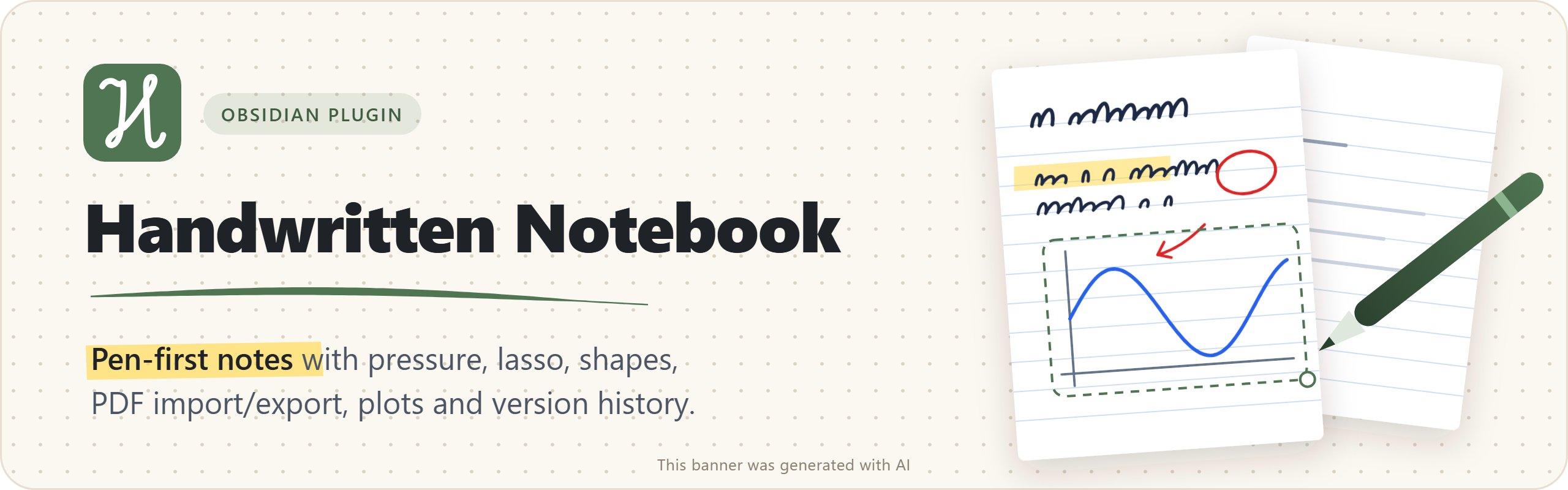
Write by hand on real pages in Obsidian - pressure ink, shapes, PDFs and a calculator,
in notes that stay readable even without Obsidian.
Try the live demo · Website · Install · User guide · View in Obsidian Community
Made with AI. This project is entirely vibe-coded using Claude Code.
This plugin started with frustraion with the current tools. I wanted handwritten notes along side regular ones hence the obsidian extension (I love markdown <3). I have been vibecoding it bc of lack of time, studies and stuff but after thinking about it for a long while I decided to plublish it for others to use. Bc of its vibecoded nature there are gonna be bugs and rough edges so any and all feedback is deeply appreciated.
Features
| Feature | |
|---|---|
| Pen, highlighter, eraser | Pressure ink with opacity, a flat highlighter, an eraser that cuts strokes |
| Shapes | Lines, arrows, rectangles, ellipses - dashes, fills, separate outline and fill colours |
| Lasso selection | Move, scale, rotate, recolour, group, lock - even onto another page |
| Pages panel | Thumbnails grouped into sections; jump to, reorder, duplicate and restyle pages |
| Page styles | Portrait, landscape or one endless page; dots, lines, grid, Cornell, music staff and more |
| Images and PDFs | Paste and crop images, import a PDF and write on it |
| Calculator and plots | Scientific calculator with units and matrices, editable function plots |
| Export and history | PDF export with bookmarks, printing, automatic version history |
| Tablets and OLED | Palm rejection, pinch zoom, pen side button, dark paper, burn-in protection |
Install
- Community plugins: Settings → Community plugins → Browse → search Handwritten Notebook → Install → Enable.
- Beta via BRAT: install BRAT → Add beta plugin →
otho-dll/Obsidian-Handwriting. - Manually: copy
main.js,manifest.jsonandstyles.cssfrom the latest release into<vault>/.obsidian/plugins/handwritten-notebook/and enable the plugin.
Quick start: right-click a folder → New handwritten note (or the command Create new handwritten note). The pen draws, fingers scroll and zoom, and everything saves automatically.
User guide
Click a section to expand it.
- Using the plugin: Writing and selecting · Pages and navigation · Images, PDFs and maths
- Keeping your work: Export and history · Your data and privacy
- Setting it up: Settings and controls · For developers
Writing and selecting
Tools, eraser options, shapes, the lasso and keyboard shortcuts
Tools
| Tool | |
|---|---|
| Pen | Pressure-sensitive ink, three thicknesses, colour palette, opacity 100 / 75 / 50 / 25 %. Jitter is smoothed, sharp corners stay sharp. |
| Highlighter | Transparent marker with flat ends. Overlapping strokes don't get darker. |
| Eraser | Cuts strokes where you rub. Same size on screen at every zoom; rub quickly and it grows up to 4×. The pen's eraser end and side button work too. |
| Shapes | Line (optionally an arrow), rectangle, ellipse. |
| Selection | Freehand lasso or rectangle. |
Tap the active tool again for its options - thickness, opacity (pen), what the eraser erases, the shape options or the selection mode. Colours sit on the toolbar; in a narrow window they move into a panel under the colour button.
Eraser options
For shapes and for the highlighter separately: Off (left alone), Whole (touching removes all of it) or Part (cuts out only what you rub over). Filled shapes and arrows are always removed whole.
Shapes
- Line styles: solid, dashed, dotted, dash-dot.
- Fill: outline only, solid, light fill with outline, or light fill only.
- Outline and fill colours are separate: with a fill on, the Outline / Fill fields before the palette pick which one the palette changes. Right-click or long-press Fill to match the outline again.
- Hold Shift for straight angles, squares and circles.
Selection
- Draw around strokes and images, or tap one (it is selected with its whole group).
- Drag to move - also onto another page. Corner handle: scale. Round handle: rotate (Shift = 15° steps).
- The palette recolours the selection; tap the selection tool again for thickness.
- Selection options (toolbar button or right-click): group / ungroup, lock, bring to front / send to back, align, rotate 90°, duplicate, copy, cut, delete.
- Locked items can't be selected, moved or erased - right-click the page → Unlock.
Keyboard shortcuts
| Keys | |
|---|---|
| Ctrl/Cmd + Z, Ctrl/Cmd + Y | undo, redo |
| Ctrl/Cmd + C / X / V | copy / cut / paste the selection or an image |
| Delete / Backspace | delete the selection |
| Escape | clear the selection; close the page style / pages panel |
| Ctrl/Cmd + mouse wheel | zoom |
| Shift while drawing a shape / rotating | straight angles, squares, circles / 15° steps |
Pages and navigation
Scrolling and zoom, the pages panel, page style, titles and contents
Scrolling and zoom
- Fingers / trackpad: one finger scrolls (with inertia), two fingers pinch-zoom. Mouse: wheel scrolls, Ctrl + wheel zooms.
- Zoom button (e.g. 135%): - / +, Fit width, 100% and up to four favourite zoom levels. Open notes at … makes every note open at that zoom.
- Zoomed in, you can push the page further sideways - bring its edge under your hand.
- Notes remember where you stopped and open there.
- The current page has an accent frame, the other pages are slightly dimmed, and its number (12 / 40) sits beside it - tap it to open the pages panel.
Pages panel
Open it with the Pages button, ⋯ → Pages panel, or right-click / long-press a page.
- Sections: pages are grouped by their titles; tap a header to fold it. Search jumps to a page number or a title.
- Tap a thumbnail to go there; drag it (or long-press and drag) to move it.
- Long-press / right-click a thumbnail: add page before / after, duplicate, title, style, move to…, delete.
- Select several pages for Style, Duplicate, Move to… or Delete.
- Contents tab lists the titled pages. Columns: 1, 2 or 3.
- Every change can be undone from the Undo message; deleting pages first saves a version.
Page style
⋯ → Page style…, right-click a page, or the pages panel. Apply it to this page, all pages (also used for new pages), another page or the selected pages.
- Size: portrait A4, landscape A4, or endless - one page that grows as you write (up to 16 A4 pages).
- Pattern: dots, lines, grid, blank, Cornell, isometric, lines + margin, checklist, millimetre paper, music staff.
- Paper colour: presets or any colour. Use note default removes a page's own style.
Page titles and contents
Right-click a page → Page title… (also in the pages panel and as a command). Titled pages start sections in the pages panel, appear in the Contents tab, are found by Go to page… and become bookmarks in exported PDFs.
Images, PDFs and maths
Images and screenshots, PDF import, calculator, function plots
Images and screenshots
- Paste (Ctrl+V), drag and drop, or ⋯ → Insert image….
- Move, scale and rotate like strokes; right-click → Crop image….
- Screenshot (Windows): starts the Snipping Tool and inserts the capture.
PDF import
Each PDF page becomes a page of the note with the PDF as its background - write on lecture slides, worksheets or papers. Landscape PDF pages become landscape pages. Uses the PDF engine built into Obsidian (offline).
Calculator
Toolbar button or command. A compact Basic tab and a Scientific tab with complex numbers, matrices, integrals, derivatives, equation solving and a unit converter. Click a result to copy it.
Function plots
⋯ menu or command. Functions, parametric and polar curves, or data points with a fitted curve. Options include One period, π-based ticks, a clean style without a grid and size presets. Plots are inserted as images and stay editable (right-click → Edit plot).
Export and history
PDF export, printing, version history, PDFs without Obsidian
Export to PDF
⋯ → Export to PDF (or the command). Choose where to save it each time, or set a default: next to the note, a vault folder, or - on desktop - a folder on your computer. Page sizes, patterns, images and PDF backgrounds are kept; page titles become bookmarks. Resolution: Settings → Files and export.
Printing
⋯ → Print… On desktop the system print dialog opens with one sheet per page (endless pages are cut into A4 sheets). On phones and tablets plugins can't open a print dialog, so the note is exported to PDF - print it from your PDF viewer.
Version history
Versions are saved automatically: while you work (at most every N minutes), when you close the note, before pages are deleted and before an older version is restored. Identical and empty versions are never stored.
⋯ → Version history… lists versions by day with a preview: restore (can be undone), open as a copy, save a version now or delete. The last 24 hours keep every version, older days keep one per day. Retention and a size limit per note: Settings → Version history.
PDF without Obsidian (hnote2pdf.py)
A small Python script (3.8+, no extra packages; Pillow optional) turns .hnote notes into vector PDFs on any computer.
- Settings → Files and export → Save hnote2pdf.py, or the command Copy terminal line to convert this note to PDF with Python.
- Run it:
python3 hnote2pdf.py "Lectures/Physics/Lecture 1.hnote"          # → Lecture 1.pdf next to the note
python3 hnote2pdf.py "Lecture 1.hnote" -o ~/Desktop/lecture.pdf
python3 hnote2pdf.py MyVault -r -o ~/PDF/                         # every note in a folder, recursively
python3 hnote2pdf.py ".Lecture 1.hnote-data/history/20261019-212953_0f315cad_auto.hnote.gz"   # an old version
Options: --no-pattern, --pressure 0.7 / --no-pressure, --vault PATH. The file format is described at the top
of the script and in src/tools/README.md.
Your data and privacy
Where notes and images are stored, what the plugin does and doesn't do
Where your data lives
Lectures/Physics/Lecture 1.hnote                  ← the note (plain JSON)
Lectures/Physics/.Lecture 1.hnote-data/           ← hidden folder of this note
    attachments/        images, plots, imported PDF pages
    history/            versions (gzip) + images only old versions use
    meta.json
- The hidden folder moves, renames and is deleted together with the note - the two contain everything.
- Images the note no longer uses move to
history/attachmentsand are removed once no version needs them. - Prefer Obsidian's attachment folder? Settings → Files and export → Where to keep pasted images and PDF pages. Some sync services (e.g. Obsidian Sync) skip hidden folders.
Privacy
- No network requests, no telemetry. PDF import uses the PDF engine bundled with Obsidian.
- Writes only
.hnotenotes, their hidden.<name>.hnote-datafolders and - when you ask -hnote2pdf.py. Files outside the vault only when you pick a folder on your computer for PDF export (desktop). - Reads only
.hnotefiles, never your Markdown notes. The vault file list is used to find other notes (so a renamed note can't take over another note's folder) and to offer folders for PDF export. - Clipboard only when you ask: copy / paste, a screenshot, a calculator result or the
hnote2pdf.pycommand - and while waiting for a Snipping Tool screenshot you started. - Desktop-only extras: saving PDFs outside the vault, the Windows Snipping Tool, and reading images from the system clipboard. Everything else works on desktop, tablets and phones.
Settings and controls
Toolbar, pen and touch, OLED care, all settings, commands
Toolbar and the ⋯ menu
Settings → Toolbar decides what is on the toolbar:
- Tools - eraser, highlighter, selection, shapes, undo / redo (the pen and the colours always stay).
- Shortcut buttons - calculator, zoom, contents, plot, insert image, pages panel, page style, screenshot, import / export PDF, print, version history, fit to width. Reorder (‹ ›), remove (×) or add from Available.
Everything else is in the ⋯ menu (nothing appears twice), together with quick switches for pen pressure and palm rejection.
Pen and touch
- Pen pressure on / off and strength.
- Palm rejection: Auto ignores touch while the pen is near or was just used, and large contacts; Strict - fingers never scroll.
- Pinch to zoom: a sliding hand only scrolls, a resting hand (3+ contacts) does nothing. Can be turned off.
- Long-press menu: hold a finger still for the page menu.
- Pen side button: page menu, undo, redo, Snipping Tool (Windows) or nothing.
OLED care
- Dark paper on screen - light pages shown dark with light ink (display only, files and exports unchanged).
- Fade the toolbar while writing - comes back when the pen or cursor gets close.
- Pixel shift - the view moves by 1-2 px every few minutes.
- Dim when idle - after 1-30 minutes; the first tap only wakes it.
All settings
| Section | What you can set |
|---|---|
| Pen and touch | pressure, palm rejection, pinch zoom, long-press menu, pen side button, eraser on shapes / highlighter, selection mode |
| Colors | five quick colours for the pen and for the highlighter |
| Pages and view | default pattern and paper, favourite zooms, zoom when opening, pages panel side and columns |
| Toolbar | tools and shortcut buttons |
| Files and export | where images are stored, the Python converter, new-note naming, PDF location and resolution |
| Version history | on / off, interval, retention, space limit per note |
| Performance | canvas sharpness, low-latency ink |
| OLED care | dark paper, fading toolbar, pixel shift, dim when idle |
| Advanced | debug logging, performance overlay |
Commands (Ctrl/Cmd + P)
| Command | |
|---|---|
| Create new handwritten note | |
| Open calculator | |
| Insert function plot into handwritten note | |
| Export current note to PDF / Print current note | |
| Show version history / Save a version now | |
| Go to page… / Set title of the current page | |
| Zoom to favourite zoom (repeat to cycle) / Save current zoom as favourite | |
| Move images of the current note into its hidden folder | for notes created before the hidden folder existed |
| Remove unused images from the current note's hidden folder | |
| Save the PDF converter script / Copy terminal line to convert this note to PDF with Python |
For developers
Project layout, scripts, releasing
Project layout
src/main.ts             plugin + the view (lifecycle, loading / saving notes)
src/styles.css          all styles
src/view/*.ts           view features as mixins (input, navigation, selection, currentPage, pagesPanel, toolbar, versions, …)
src/format.ts           file format versions and migrations (v1 → v4)
src/pageFormat.ts       page sizes (A4, landscape, endless)
src/templates.ts        page patterns (shared geometry for screen, thumbnails, PDF)
src/math/               calculator, expression parser, units, function plots
src/tools/hnote2pdf.py  standalone converter; src/tools/embed_script.py copies it into src/converterScript.ts
scripts/                esbuild.config.mjs (build), build-site.mjs (website), deploy.mjs (copy the build into a vault)
site/                   website + live demo: content.mjs (texts and links), render.mjs, site.css, shim/ (fake Obsidian API)
manifest.json           plugin manifest - stays in the repository root, Obsidian reads it from there
.github/workflows/      release.yml: GitHub release on a version tag · pages.yml: the website on every push to master
build/                  build output (not committed)
Scripts
npm install
npm run dev           # build into build/ and rebuild on change
npm run build         # production build into build/
npm run typecheck     # TypeScript check
npm run lint          # ESLint with Obsidian's review rules (eslint-plugin-obsidianmd)
npm run embed         # after changing src/tools/hnote2pdf.py
npm run deploy:local  # build and copy build/* into the vault folder set in .vault-plugin-dir
npm run site:dev      # website + live demo on http://localhost:8080 (rebuilds on change)
npm run site:build    # website into build/site/
Releasing
Set the same version in manifest.json and package.json, then push a tag with that version (no v prefix).
release.yml builds the plugin and creates the GitHub release. The website (pages.yml) is published on every push
to master.
License
MIT - free to use, change and share, also commercially, as long as the copyright notice and the license text are kept.