Grid Board
 Ivan Sushkin2 downloads
See your notes and their links on a grid, grouped by folder.
- Overview
- Scorecard
- Updates2
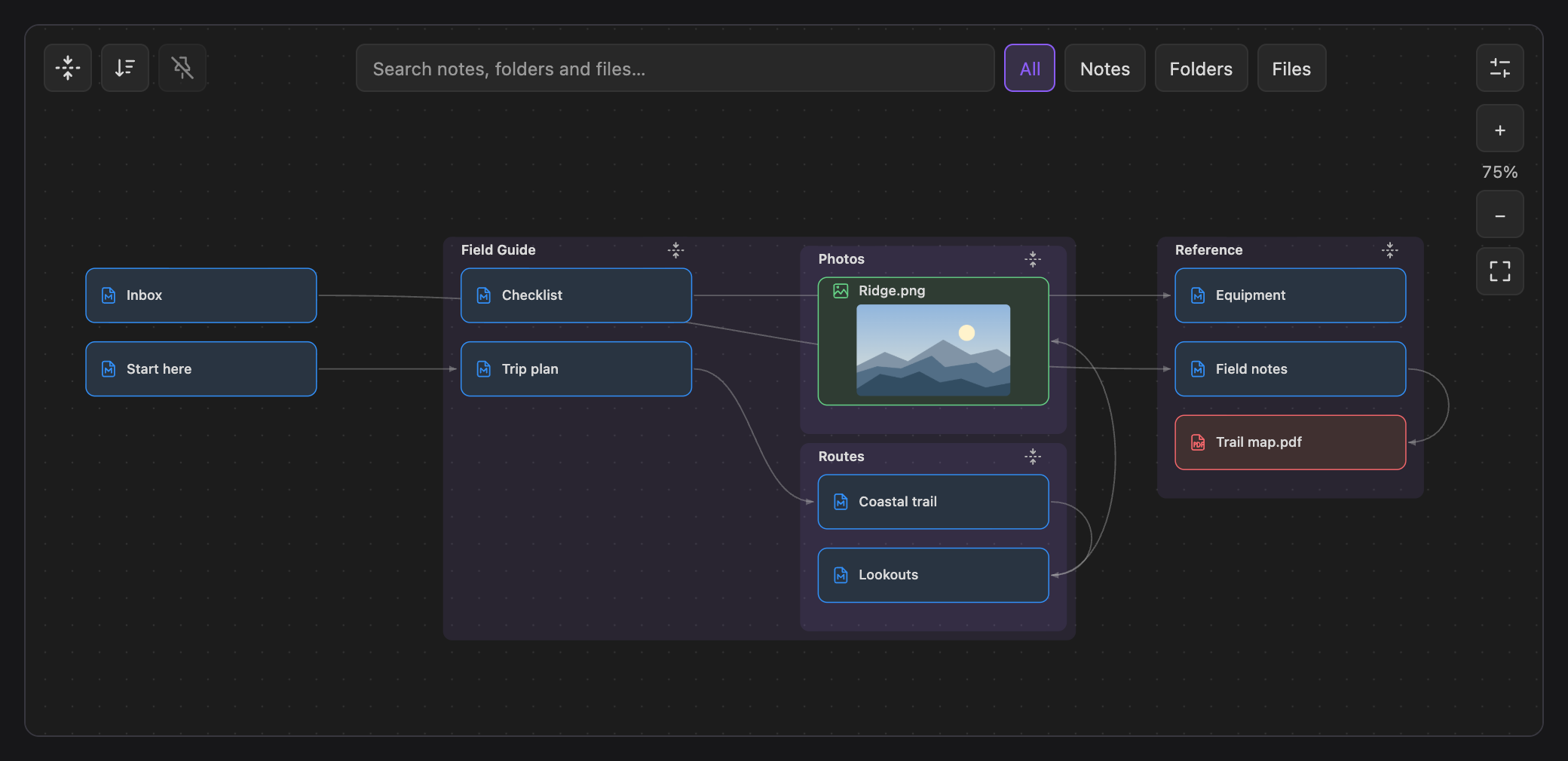
Grid Board is an alternative to Obsidian’s built-in Graph view that maps your vault by folder. Notes and attachments are grouped on a fixed grid, with columns for each level of folder depth. Arrows show links between files, including across folders.
Use the map to see how a project is organized, find the note or attachment you need, and follow its links to related material.
English · Русский
Installation
Build Grid Board from a local copy of this repository with Node.js 22 and npm.
npm ci
npm run build -- --no-install
Create
.obsidian/plugins/gridboard/inside your vault. Copymain.js,manifest.json, andstyles.cssfrombuild/release/into that folder.Restart Obsidian and enable Grid Board in Settings → Community plugins.
Getting started
- Run Grid Board: Open graph from the command palette.
- Use the search field at the top of the graph to find a note by name or path.
The All, Notes, Folders, and Files filters sit next to it.
Matches are highlighted in place. Press
Cmd+Fon macOS orCtrl+Fon Windows and Linux to focus search in the active Grid Board tab. PressEnterin the field to center and focus the topmost match at the current zoom. When matches are at the same height, Grid Board selects the leftmost one. - Click a card to open the file. Drag the background to pan. Scroll or use the zoom buttons below the settings button on the right to change the scale. Use Fit graph to window below the zoom buttons to see the whole graph.
Hover over a card to highlight linked files. Here, Trip plan has eight
highlighted links, including one to the Ridge.png image.
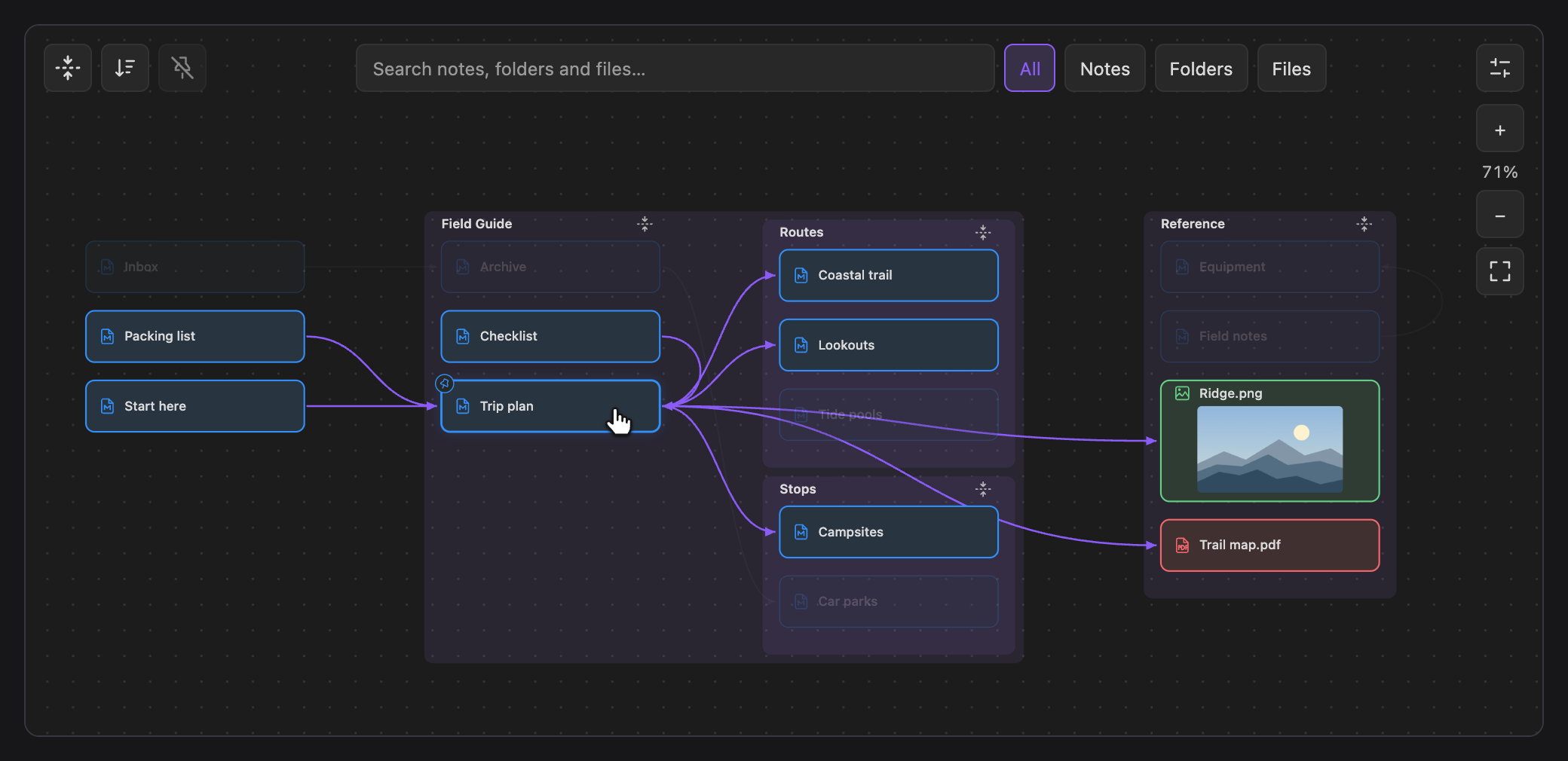
Click the pin at the card's top-left corner to keep its connections highlighted. The outline pin appears on hover or keyboard focus. You can pin several cards and use Clear all pins in the quick actions toolbar to reset them. Pins last until you close the graph tab. Right-click a file or folder to open its Obsidian context menu.
Open files beside the graph
By default, each file Obsidian can display opens in its own tab to the right while the graph stays visible. Open the same file again to switch to its tab. If you close the group, Grid Board recreates it the next time you open a file. To turn this off, go to Behavior in the graph settings or in Settings → Grid Board and switch off Split screen when opening notes and files.
Keyboard navigation
| Keys | Action |
|---|---|
Tab and Shift+Tab |
Enter the graph at the last focused item or leave the graph. The current file has a separate stop for its pin. |
Arrow keys, Home, and End |
Focus a neighboring item or jump to the first or last item. After pressing Enter in search, these keys move among matches. |
Enter on a card, Space on its pin |
Open the file or toggle its pin. |
Shift+F10 or the context menu key |
Open the menu for the focused file or folder. Escape closes the menu and returns focus. |
Escape from a search result |
Return to search. Press it again to clear the query and restore the previous view and zoom. |
Shift with the arrow keys, +, −, and 0 |
Pan, change the zoom, or fit the graph to the window. |
Layout and appearance
- Choose Sort files in the upper-left corner of the graph to order notes and attachments in each folder and at the vault root. Sort by file name, extension, modification time, or creation time in either direction. Markdown comes first in ascending extension order and last in descending order. Files within each extension group are ordered by name. Folder positions stay in place, and the initial order is by name from A to Z.
- Switch between cards and compact lists for one folder or all folders.
- Use Layout balance to arrange folder blocks in one column, one row, or somewhere in between. Adjust Block spacing to change the gaps between them.
- Customize folder and file type colors for the current Obsidian theme. Reset colors for current theme restores the colors inherited from Obsidian.
- Turn on Show image previews to see thumbnails in expanded folders and at the vault root.
Language and vault settings
Grid Board follows Obsidian’s language by default and falls back to English. You can choose Interface language in the plugin settings. The interface is available in English, Русский, Қазақша, Беларуская, O‘zbekcha, 简体中文, 繁體中文, and 日本語.
Settings are shared across vaults in the same Obsidian profile by default. Turn off Share settings between vaults to use separate preferences. Turning it back on makes the current vault’s preferences the shared settings. Previously saved per-vault preferences are restored when you turn sharing off again.
Local data
Grid Board uses Obsidian’s local file list and resolved link metadata to build the graph. Image previews use local vault files. Grid Board stores its preferences locally, works offline, and collects no telemetry.
Demo and development
After building, open build/index.html in a browser to try the graph with sample
notes. See user scenarios (in Russian) for workflows
in Obsidian and technical documentation (in Russian)
for implementation details.
License
MIT.