Gemini Helper
 TAKESHI MORITA19k downloads
AI chat, workflow automation, semantic search (RAG), LLM Wiki (OKF), and dashboards with reading memos powered by Google Gemini. Works on both desktop and mobile.
- Overview
- Scorecard
- Updates200
Free and open-source AI assistant for Obsidian with Chat, Workflow Automation, and RAG powered by Google Gemini.
This plugin is completely free. You only need a Google Gemini API key (free or paid) from ai.google.dev.
Highlights
- AI Chat - Streaming responses, file attachments, vault operations, slash commands
- Usage Tracking - Shows approximate API tokens and cost for each chat and workflow run
- Agent Skills - Reusable skills extend the chat; Obsidian Markdown, Canvas, and Bases are built in, while Dashboard Hub contributes its matching Dashboard skill dynamically
- External Skills - Install versioned skills from the official
takeshy/llm-hub-skillsrepository - Workflow Builder - Automate multi-step tasks with visual node editor and 24 node types
- MCP Support - Use MCP tools in workflows and render MCP UI resources inside Obsidian
- RAG - Retrieval-Augmented Generation for intelligent search across your vault
- OKF Knowledge Sources - Add Open Knowledge Format bundles with on-demand document loading
- AI Folder Access - Limit which folders AI can read automatically when you do not want whole-vault access
- Encryption - Encrypt chat history and workflow logs
- Edit History - Track and restore AI-made changes with diff view
- Dashboard Hub Integration - Supply Gemini models, Chat, Base generation, text rewriting, and Workflow execution to the separate Dashboard Hub plugin
- Discussion Hub Integration - Use Gemini Helper's configured text models in shared multi-model conversations provided by Discussion Hub
API Key
This plugin requires a Google Gemini API key. You can choose between:
| Feature | Free API Key | Paid API Key |
|---|---|---|
| Basic chat | ✅ | ✅ |
| Vault operations | ✅ | ✅ |
| Web Search | ✅ | ✅ |
| RAG | ✅ (limited) | ✅ |
| Workflow | ✅ | ✅ |
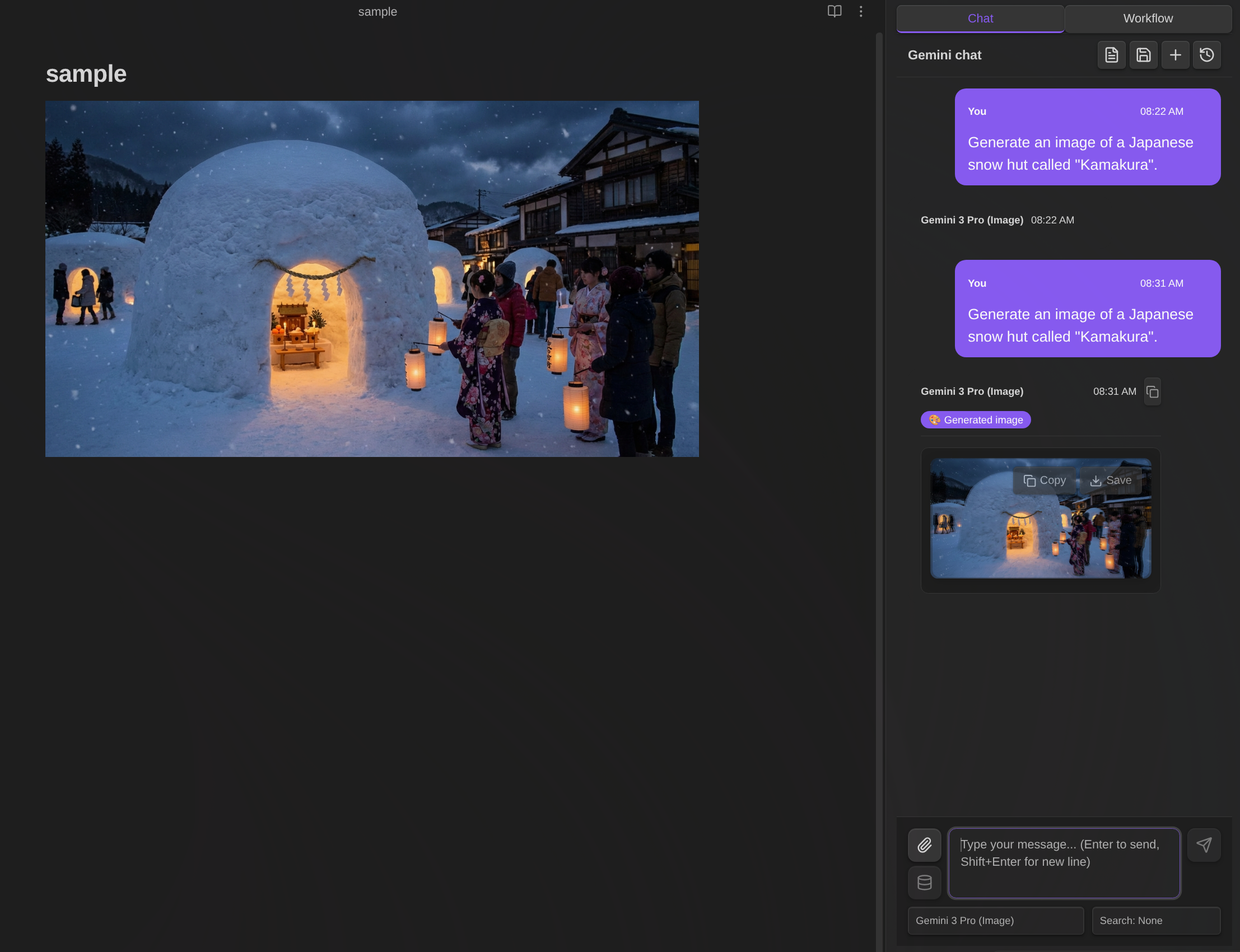
| Image Generation | ❌ | ✅ |
| Models | Flash, Gemma | Flash, Pro, Image |
| Cost | Free | Pay per use |
Free API Key Tips
- Rate limits are per-model and reset daily. Switch models to continue working.
- RAG sync is limited. Run "Sync Vault" daily - already uploaded files are skipped.
AI Chat
The AI Chat feature provides an interactive conversation interface with Google Gemini, integrated with your Obsidian vault.
Opening Chat
- Click Gemini icon in ribbon
- Command: "Gemini Helper: Open chat"
- Toggle: "Gemini Helper: Toggle chat / editor"
Chat Controls
- Enter - Send message
- Shift+Enter - New line
- Stop button - Stop generation
- + button - New chat
- History button - Load previous chats
- Expand / shrink button - Toggle the sidebar between its normal width and a wider reading layout
- Save as note button - Export the current conversation as compact Markdown. Re-saving the same chat overwrites its exported note
Voice Input and Read-Aloud
Read answers aloud — Turn on Read responses aloud in the Vault tool menu. While it is on, a chip above the input says so and its ✕ switches it off. Each assistant bubble also has a speaker button to read that answer on demand, or stop one mid-sentence. Reading speed is adjustable right under the switch, and in Settings → Chat (0.5x to 5x; how fast a voice actually goes varies by voice - Windows voices typically stop speeding up past about 4x). While reading is on, the system prompt asks the model for a short spoken answer instead of Markdown, headings, lists, code or URLs.
Send dictated text — Turn on Send dictated text automatically in Settings to submit when pasted or dictated text ends with the send phrase (send it in English, editable per language). It works with OS dictation, Aqua Voice and similar tools.
Voice conversation — Install speech-popup and a microphone button appears above the send button. It always just opens the popup, so a popup you closed is one click away. While a conversation runs:
- Speak, then send from the popup. speech-popup marks what it pastes with
⟦voice-chat⟧(show --append), so the chat submits it as your message; an ordinary clipboard paste is left in the composer, and so is one that arrives while an answer is still being generated. - The answer is read aloud (turned on with the conversation), and the popup reopens about 2.5 seconds after the reading stops, so your own speech is not recorded back.
- Turning read-aloud off with its chip keeps the conversation going: the popup still reopens after each answer, silently.
- To finish: say the send phrase without dictating anything else (
I'm done speakingby default). speech-popup closes as it always does, the chat receives an empty turn and reads it as "I'm done", so nothing has to be clicked. Pressing Enter on an empty popup, the ✕ on the voice conversation chip, and opening another chat end it too. - Finishing leaves the popup open. What it pastes afterwards keeps its words and loses the marker: the text lands in the composer without being sent, which is how you dictate a long message in several parts and send it yourself.
- If Obsidian's PATH does not find the app, set the full path in Settings → Chat → speech-popup command. Failures are reported with the command and its own error.
- On Flatpak Obsidian, allow the host portal once with
flatpak override --user --talk-name=org.freedesktop.Flatpak md.obsidian.Obsidian, then set the binary's full host path (for example/home/you/.local/bin/speech-popup) as the command above; the plugin sends its commands throughflatpak-spawn --host. Snap has no equivalent portal - use the AppImage or the Flatpak.
Watch the voice conversation demo on YouTube
Slash Commands
Create reusable prompt templates triggered by /:
- Define templates with
{selection}(selected text) and{content}(active note) - Optional model and search override per command
- Type
/to see available commands
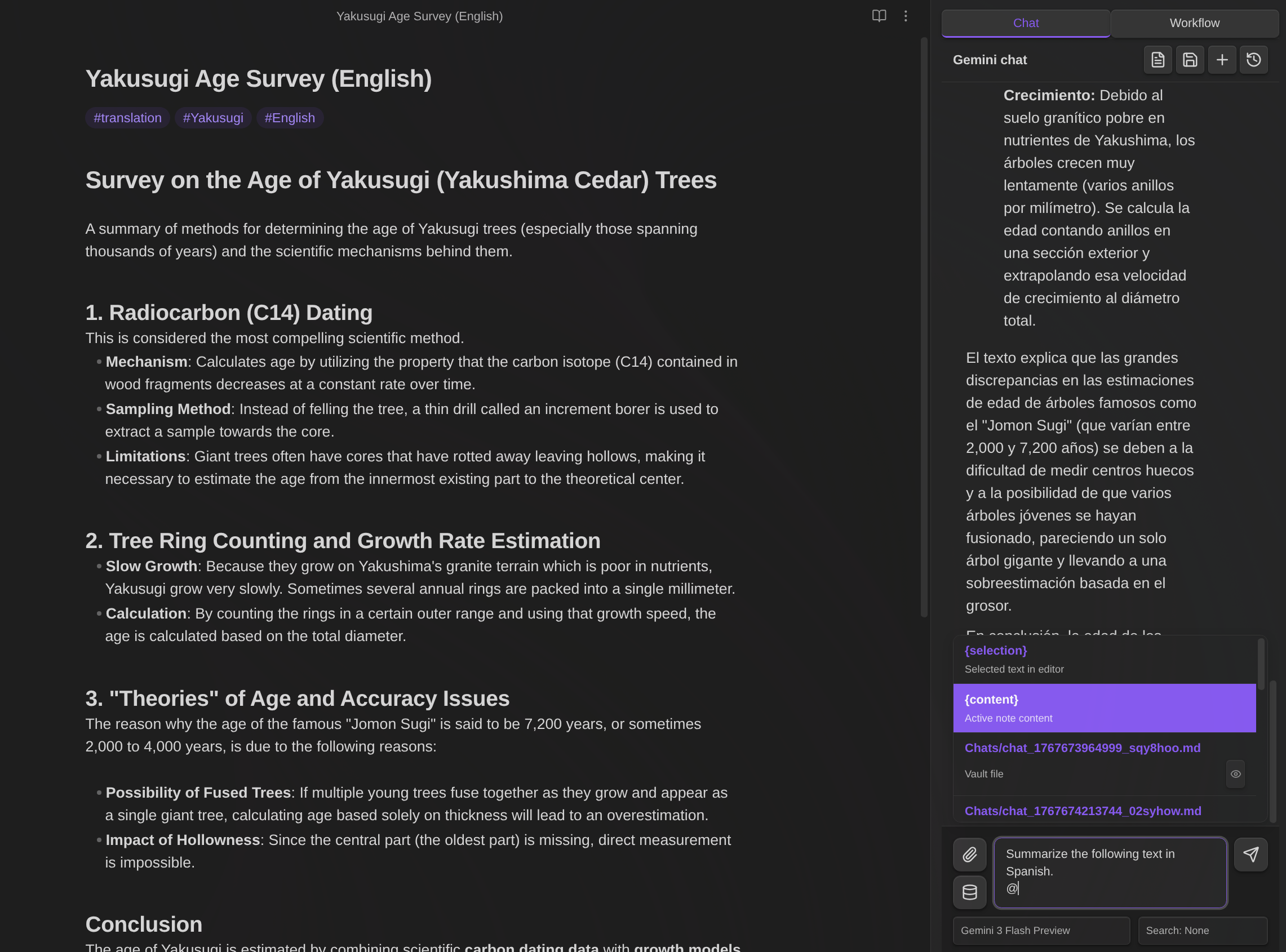
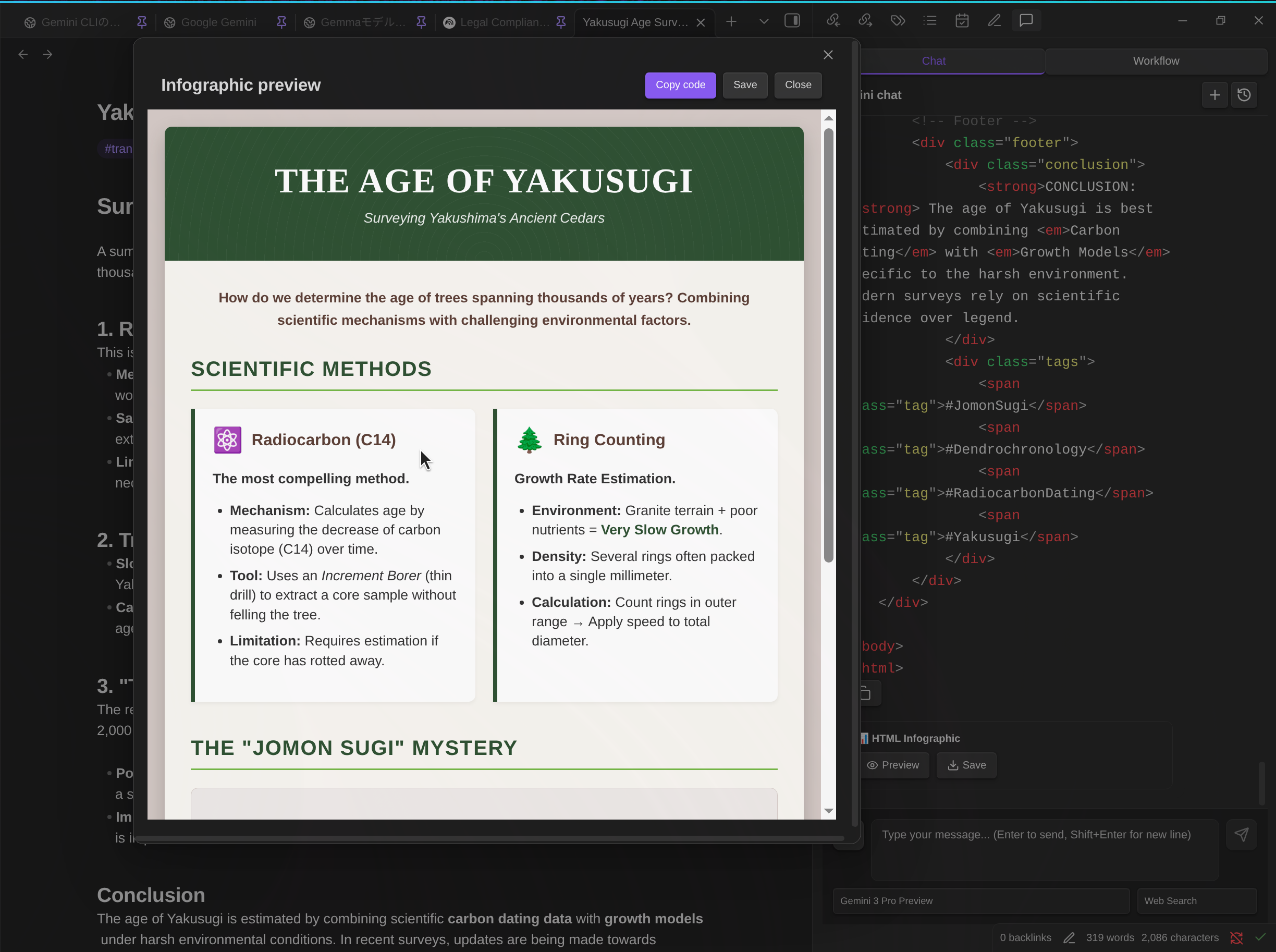
Default: /infographic - Converts content to HTML infographic
@ Mentions
Reference files and variables by typing @:
{selection}- Selected text{content}- Active note content- Any vault file - Browse and insert (path only; AI reads content via tools)
[!NOTE] How
{selection}and{content}work: When you switch from Markdown View to Chat View, the selection would normally be cleared due to focus change. To preserve your selection, the plugin captures it when switching views and highlights the selected area with a background color in the Markdown View. The{selection}option only appears in @ suggestions when text was selected.Both
{selection}and{content}are intentionally not expanded in the input area—since the chat input is compact, expanding long text would make typing difficult. The content is expanded when you send the message, which you can verify by checking your sent message in the chat.
[!NOTE] Vault file @mentions insert only the file path — the AI reads content via tools.
File Attachments
Attach files directly: Images (PNG, JPEG, GIF, WebP), PDFs, Text files, Audio (MP3, WAV, FLAC, AAC, Opus, OGG), Video (MP4, WebM, MOV, AVI, MKV)
Function Calling (Vault Operations)
The AI can interact with your vault using these tools:
| Tool | Description |
|---|---|
read_note |
Read note content |
create_note |
Create new notes |
propose_edit |
Edit with confirmation dialog |
propose_delete |
Delete with confirmation dialog |
bulk_propose_edit |
Bulk edit multiple files with selection dialog |
bulk_propose_delete |
Bulk delete multiple files with selection dialog |
search_notes |
Search vault by name or content |
list_notes |
List notes in folder |
rename_note |
Rename/move notes |
create_folder |
Create new folders |
list_folders |
List folders in vault |
get_active_note_info |
Get info about active note |
get_rag_sync_status |
Check RAG sync status |
bulk_propose_rename |
Bulk rename multiple files with selection dialog |
Vault Tool Mode
When the AI handles notes in Chat, it uses Vault tools. Control which vault tools the AI can use via the Database icon (📦) below the attachment button:
| Mode | Description | Tools Available |
|---|---|---|
| Vault: All | Full vault access | All tools |
| Vault: No search | Exclude search tools | All except search_notes, list_notes |
| Vault: Off | No vault access | None |
When to use each mode:
- Vault: All - Default mode for general use. The AI can read, write, and search your vault.
- Vault: No search - Use when you want to search only with RAG, or when you already know the target file. This avoids redundant vault searches, saving tokens and improving response time.
- Vault: Off - Use when you don't need vault access at all.
Note: RAG, Web Search, Vault tools, and MCP can all be used simultaneously via the Interactions API.
AI Folder Access
In Settings → Workspace → Folders AI can access automatically, you can optionally choose which folders the AI may read automatically. Use this when there are directories you do not want the AI to read unless you explicitly attach or reference files.
- Leave empty to allow the AI to access the whole vault through automatic vault operations
- Enter vault-relative folders such as
PublicorShared/Docs, separated by commas - Root folder access is not specified with
/,., or an empty path. Empty means no folder restriction, which allows the whole vault .and..path segments are rejected- This setting limits automatic vault operations in Chat and AI command workflows. It does not limit RAG retrieval, manual file attachments, MCP tools, scripts, or direct workflow note nodes
- For files the AI should never read, use Encryption instead of relying only on folder scope
Safe Editing
When AI uses propose_edit:
- A confirmation dialog shows the proposed changes
- Click Apply to write changes to the file
- Click Discard to cancel without modifying the file
Changes are NOT written until you confirm.
Edit History
Track and restore changes made to your notes:
Automatic tracking - All AI edits (chat, workflow) and manual changes are recorded
File menu access - Right-click on a markdown file to access:
- Snapshot - Save current state as a snapshot
- History - Open edit history modal
Command palette - Also available via "Show edit history" command
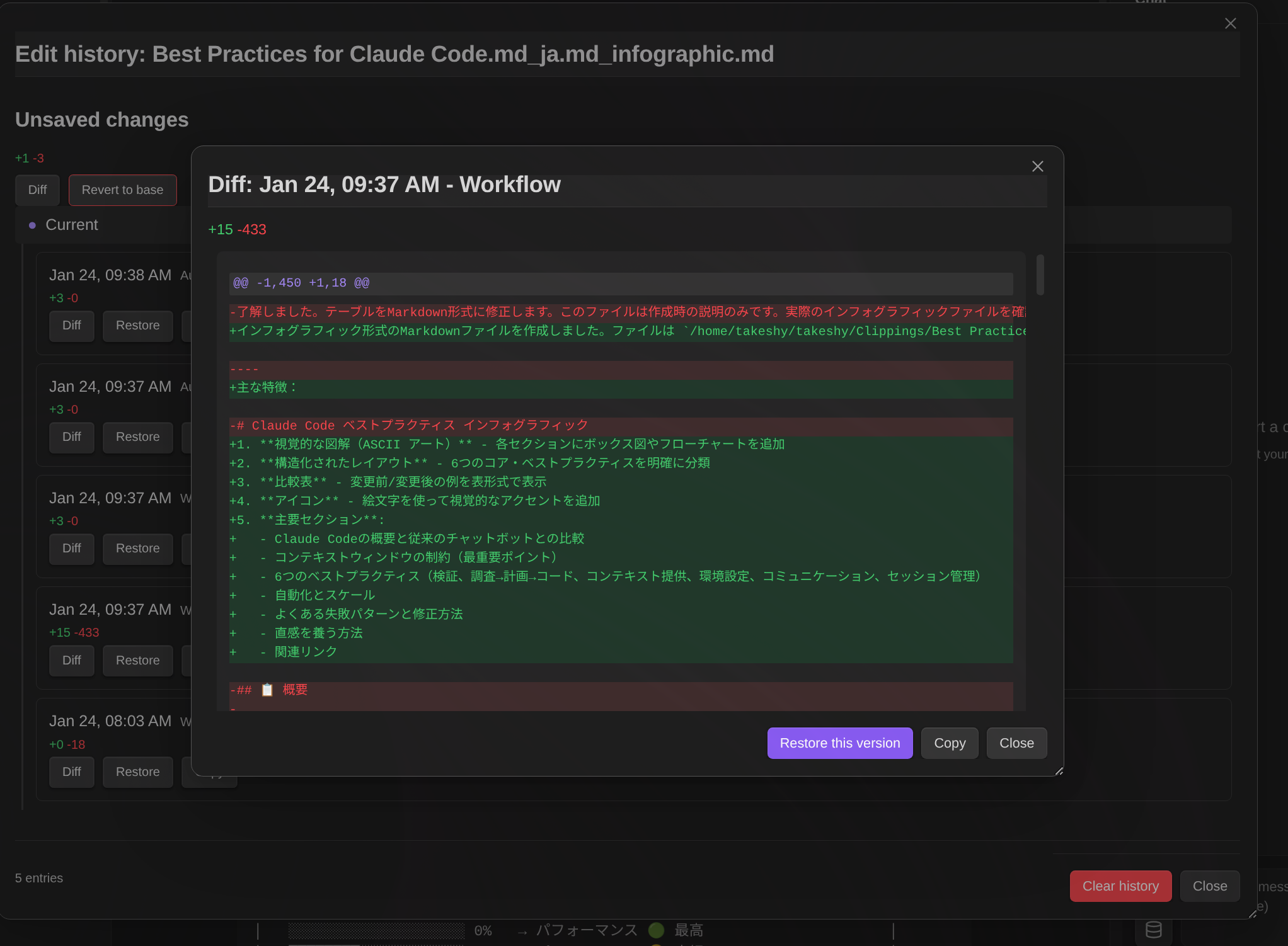
Diff view - See exactly what changed with color-coded additions/deletions
Restore - Revert to any previous version with one click
Copy - Save a historical version as a new file (default name:
{filename}_{datetime}.md)Resizable modal - Drag to move, resize from corners
Diff display:
+lines existed in the older version-lines were added in the newer version
How it works:
Edit history uses a snapshot-based approach:
- Snapshot creation - When a file is first opened or modified by AI, a snapshot of its content is saved
- Diff recording - When the file is modified, the difference between the new content and the snapshot is recorded as a history entry
- Snapshot update - The snapshot is updated to the new content after each modification
- Restore - To restore to a previous version, diffs are applied in reverse from the snapshot
When history is recorded:
- AI chat edits (
propose_edittool) - Workflow note modifications (
notenode) - Manual saves via command
- Auto-detection when file differs from snapshot on open
Storage: Edit history is stored in memory and cleared on Obsidian restart. Obsidian's built-in file recovery covers persistent version tracking.
RAG
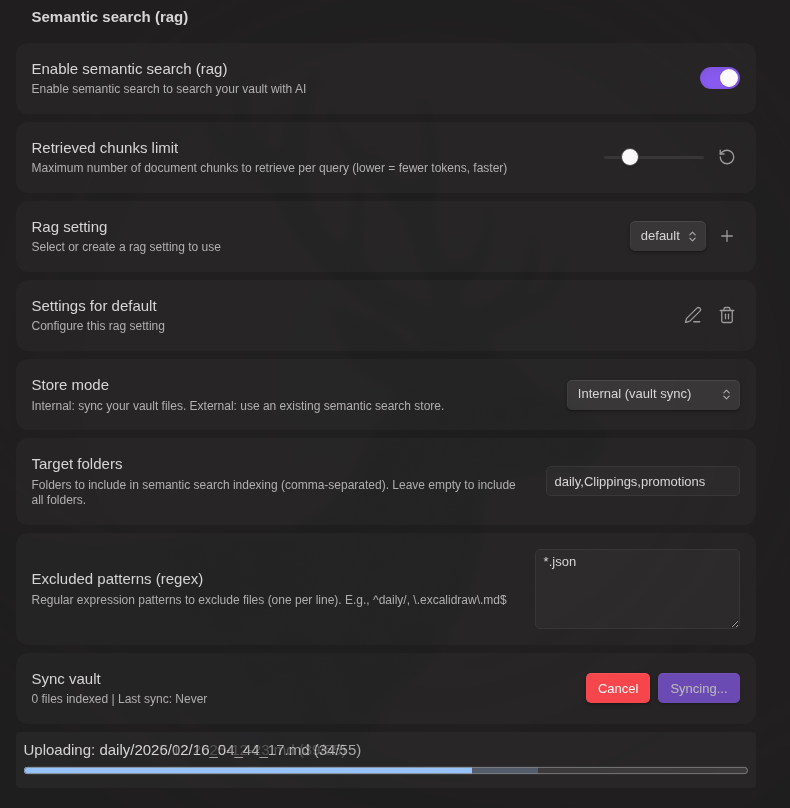
Retrieval-Augmented Generation for intelligent vault search:
- Supported files - Markdown, PDF, Office documents (Doc, Docx, XLS, XLSX, PPTX)
- Internal mode - Sync vault files to Google File Search
- External mode - Use existing store IDs
- Incremental sync - Only upload changed files
- Target folders - Specify folders to include
- Exclude patterns - Regex patterns to exclude files
MCP Servers
MCP (Model Context Protocol) servers provide additional tools that extend the AI's capabilities beyond vault operations.
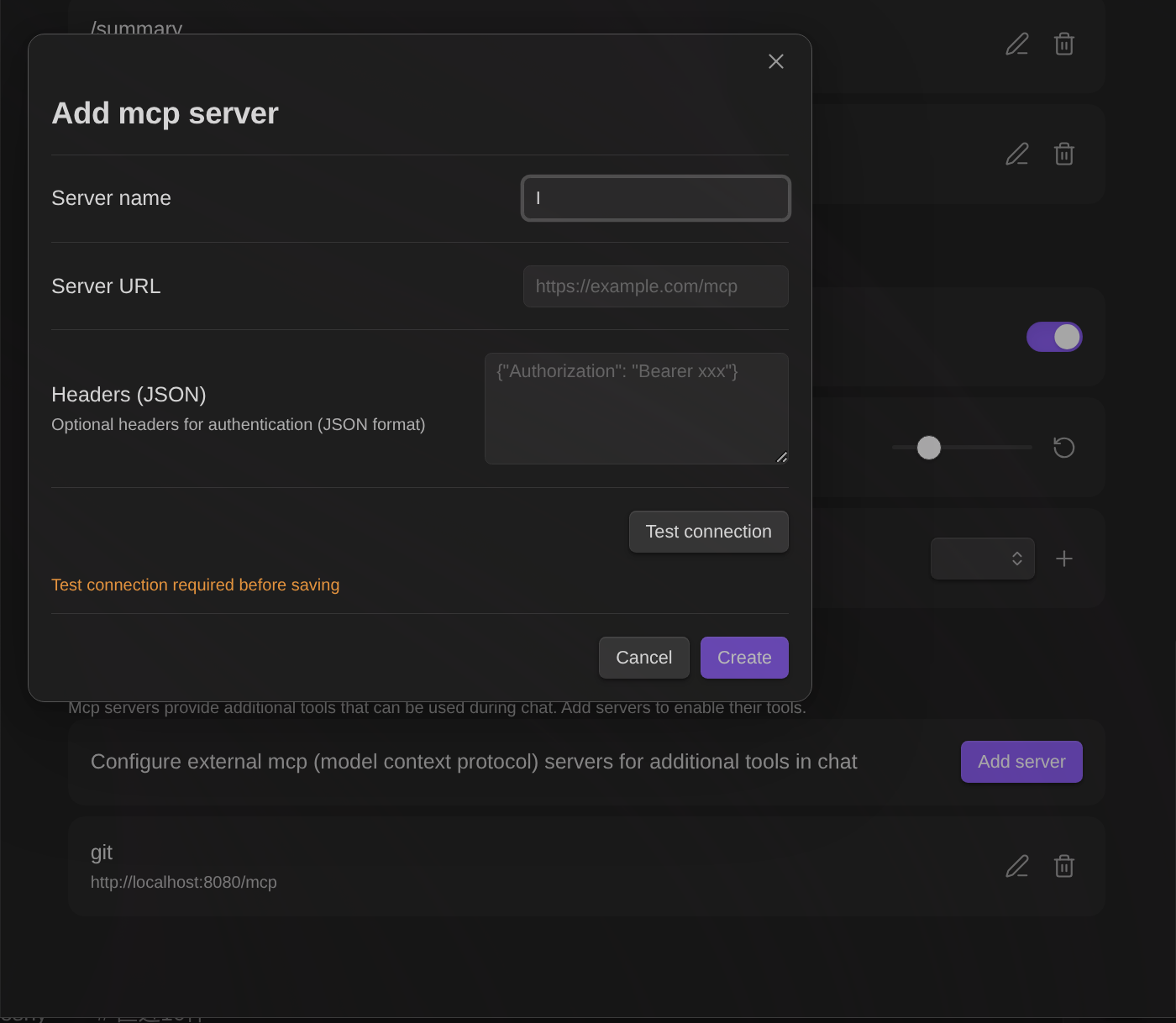
Setup:
- Open plugin settings → MCP Servers section
- Click Add server
- Enter server name and URL
- Configure optional headers (JSON format) for authentication
- Click Test connection to verify and retrieve available tools
- Save the server configuration
Note: Test connection is required before saving. This ensures the server is reachable and displays available tools.
Using MCP tools:
- In Chat: Click the Database icon (📦) to open tool settings. Enable/disable MCP servers per conversation.
- In Workflows: Use the
mcpnode to call MCP server tools.
Tool hints: After successful connection test, available tool names are saved and displayed in both settings and chat UI for easy reference.
Agent Plugins
Gemini Helper supports Agent Plugins v1.0.0 from public GitHub repositories. Open Settings → Agent plugins, enter owner/repository or a GitHub URL, then preview and install the package. Packages are pinned to the reviewed commit and stored under .gemini-helper/agent-plugins/; plugin data is kept separately under .gemini-helper/agent-plugin-data/.
Installed plugin skills appear in the chat skill selector as <plugin>.<skill>. A plugin's tested Streamable HTTP MCP servers remain disabled by default and are enabled automatically only for a chat turn where a skill from that enabled plugin is active. Gemini Helper does not execute Agent Plugin stdio servers.
MCP Apps (Interactive UI)
Some MCP tools return interactive UI that allows you to interact with the tool results visually. This feature is based on the MCP Apps specification.
How it works:
- When an MCP tool returns a
ui://resource URI in its response metadata, the plugin fetches and renders the HTML content - The UI is displayed in a sandboxed iframe for security (
sandbox="allow-scripts allow-forms") - Interactive apps can call additional MCP tools and update context through a JSON-RPC bridge
- Apps initialize through the MCP Apps
ui/initializehandshake and receive results throughui/notifications/tool-result - Declared CSP resource and connection domains are enforced by the host; HTTPS scripts and styles are materialized by the host for Electron
srcdoccompatibility
In Chat:
- MCP Apps appear inline in assistant messages with an expand/collapse button
- Click ⊕ to expand the app to full screen, ⊖ to collapse
In Workflows:
- MCP Apps are displayed in a modal dialog during workflow execution
- The workflow pauses to allow user interaction, then continues when the modal is closed
Security: All MCP App content runs in a sandboxed iframe with restricted permissions. The iframe cannot access the parent page's DOM, cookies, or local storage. Only
allow-scriptsandallow-formsare enabled.
Agent Skills
Extend the AI with custom instructions, reference materials, and executable workflows. Skills follow the industry-standard agent skills pattern (e.g., OpenAI Codex .codex/skills/).
- Built-in skills - Obsidian-specific knowledge (Markdown, Canvas, Bases) included out of the box. Based on kepano/obsidian-skills
- Custom instructions - Define domain-specific behavior via
SKILL.mdfiles - Reference materials - Include style guides, templates, and checklists in
references/ - Workflow integration - Skills can expose workflows as function calling tools
- External skills - Install compatible skills from the official
takeshy/llm-hub-skillsrepository - Agent Plugins - Install portable Agent Plugins from public GitHub repositories, including namespaced skills and supported MCP servers
- Slash command - Type
/folder-nameto instantly invoke a skill and send - Selective activation - Choose which skills are active per conversation
- Context-aware skills - When a Dashboard, Canvas, or Base file is open, chat automatically uses the matching skill instead of the generic Markdown skill; Dashboard context is available when Dashboard Hub is enabled
- Clickable skill chips - Active skill chips in the input area and on assistant messages are clickable and jump to the matching
SKILL.md(built-in skills are shown as static labels) - Workflow error recovery - If a skill workflow fails during a chat, the failing tool call shows an Open workflow button that opens the file and switches the Gemini view to the Workflow / skill tab so you can immediately edit and re-run
Create skills the same way as workflows — select + New (AI), check "Create as agent skill", and describe what you want. The AI generates both the SKILL.md instructions and the workflow. To edit an existing skill, open its SKILL.md and click Modify skill with AI in the Workflow / skill tab — the AI updates both the instructions body and the referenced workflow together.
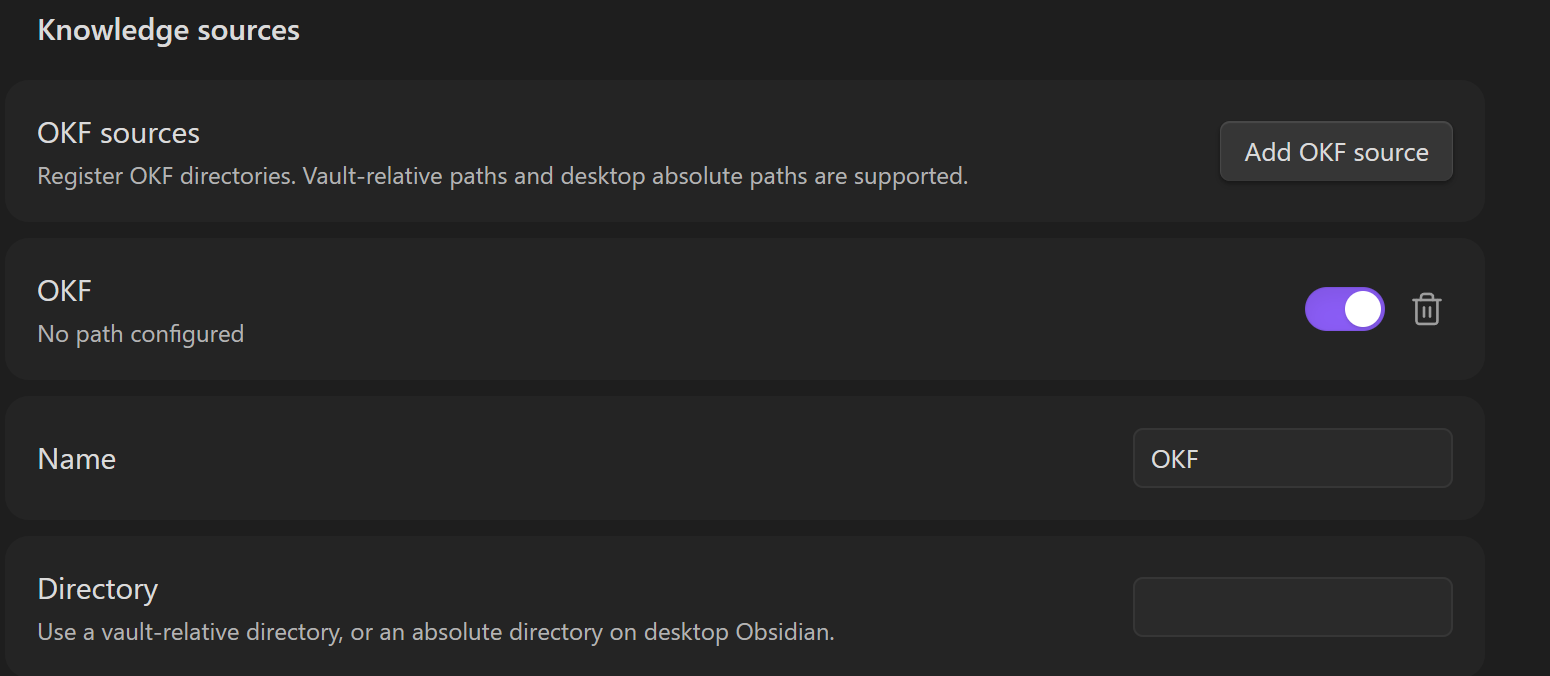
External skills are imported from the official repository and copied into your vault skills/ folder. The settings panel shows installable skills, installed versions, and per-skill update checks. Imported skills use the same selector, slash commands, references, and workflow execution as vault-authored skills.
Agent Plugin skills are installed as commit-pinned packages under .gemini-helper/agent-plugins/. They are namespaced by plugin name, loaded directly from the hidden package folder, and can activate tested plugin-managed Streamable HTTP MCP servers for the current chat turn.
For setup instructions and examples, ask Gemini Helper chat. The built-in OKF knowledge source contains the current Agent Skills reference.
OKF Knowledge Sources
Gemini Helper can read Open Knowledge Format (OKF) bundles as chat knowledge. Enable OKF in Settings → Knowledge sources, then point it at a vault-relative directory such as Knowledge or .Knowledge.
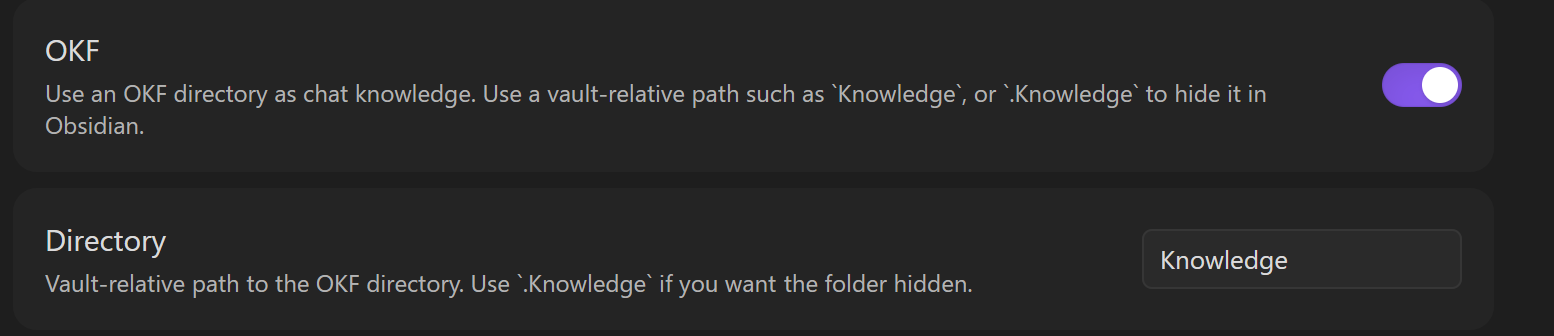
OKF is best for curated domain context: concepts, metrics, datasets, glossaries, and playbooks. Gemini Helper injects each active bundle's index and loads referenced documents on demand, while skills remain the place for reusable behavior, references, and executable workflows.
Gemini Helper also ships a built-in OKF bundle about its own features. Chat can use this built-in knowledge to answer questions about plugin setup, chat tools, skills, workflows, RAG, OKF, MCP, security, and troubleshooting without requiring a separate OKF directory.
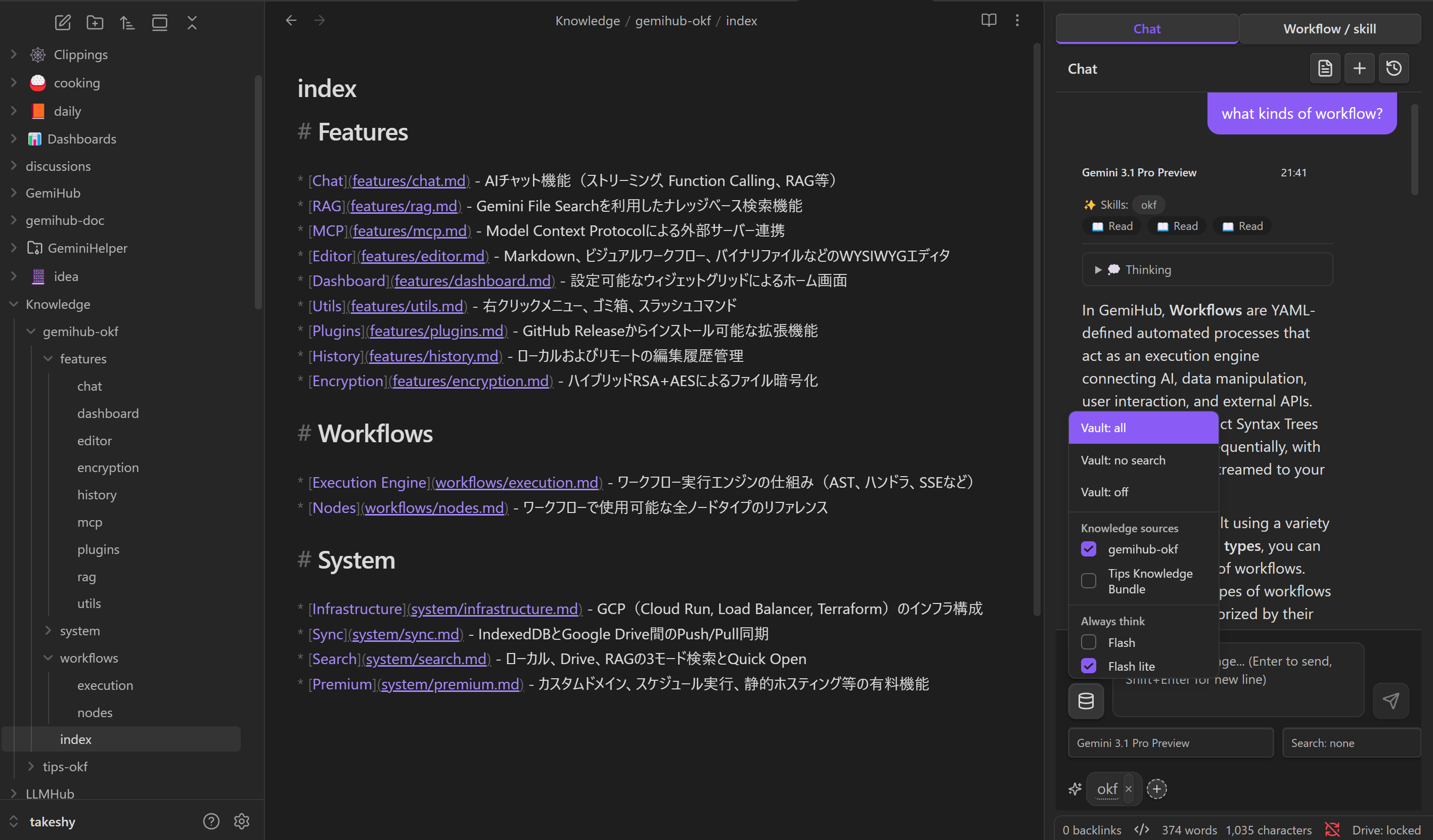
For OKF structure and limits, ask Gemini Helper chat or browse the English OKF bundle in
docs/okf/gemini-helper-help/.
Workflow Builder
Build automated multi-step workflows directly in Markdown files. No programming knowledge required - just describe what you want in natural language, and the AI will create the workflow for you.
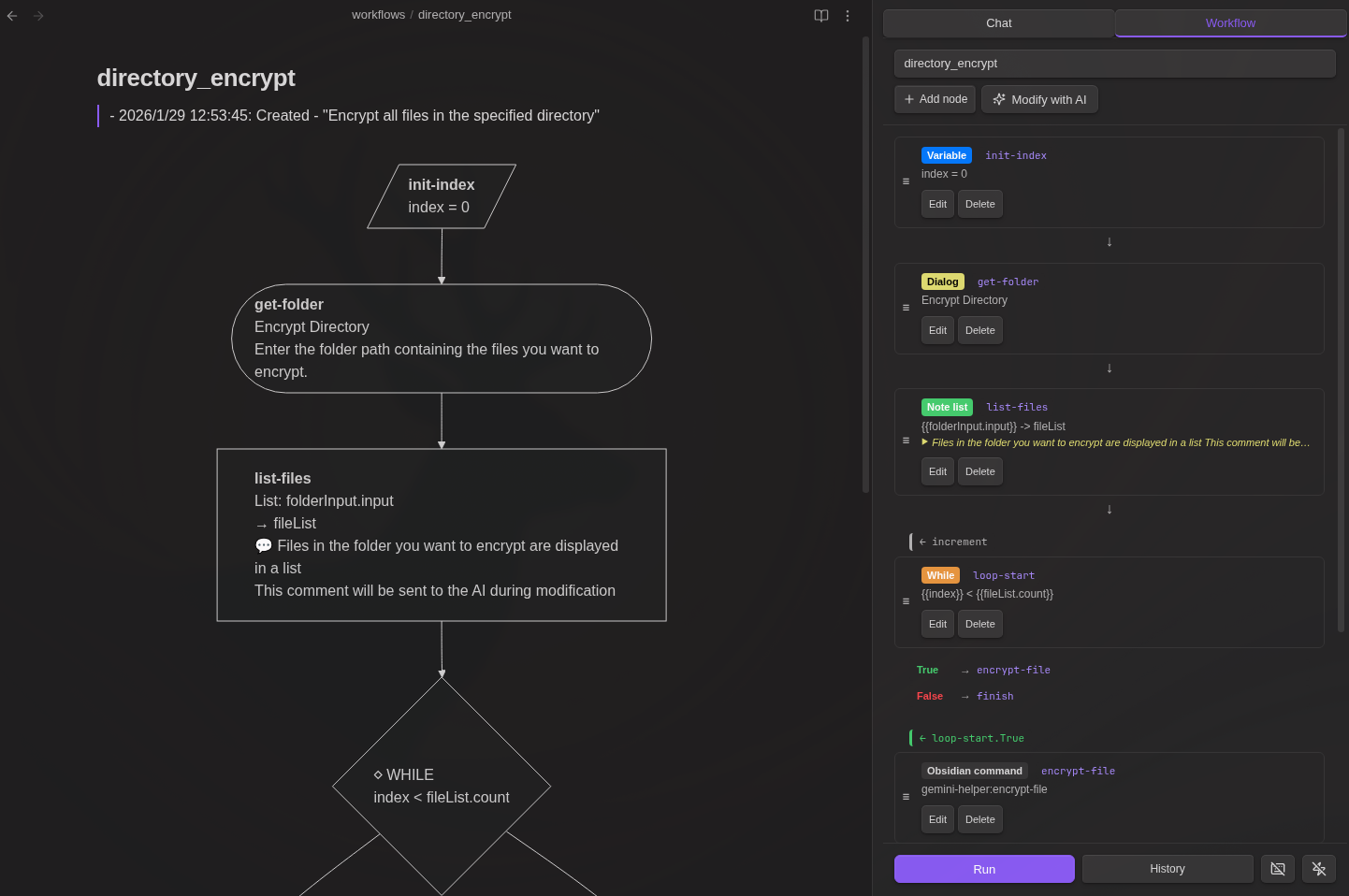
Running Workflows
From Sidebar:
- Open Workflow / skill tab in sidebar
- Open a file with a
workflowcode block (each file holds exactly one workflow — the filename is its display name) - Choose Browse all workflows from the dropdown to switch to another workflow file anywhere in the vault
- Click Run to execute
- Click History to view past runs
Migrating legacy files: If you open a file that still contains multiple
workflowcode blocks (from before the 1-file-1-workflow redesign), the panel shows a Split into individual files button that writes blocks 2..N to sibling files. Skill capabilities, hotkeys, and event triggers bound to the original path stay attached to the first workflow — rebind them manually if needed.
From Command Palette (Run Workflow):
Use the command "Gemini Helper: Run Workflow" to browse and execute workflows from anywhere:
- Open command palette and search "Run Workflow"
- Browse all vault files with workflow code blocks (files in
workflows/folder are shown first) - Preview the workflow content and AI generation history
- Select a workflow and click Run to execute
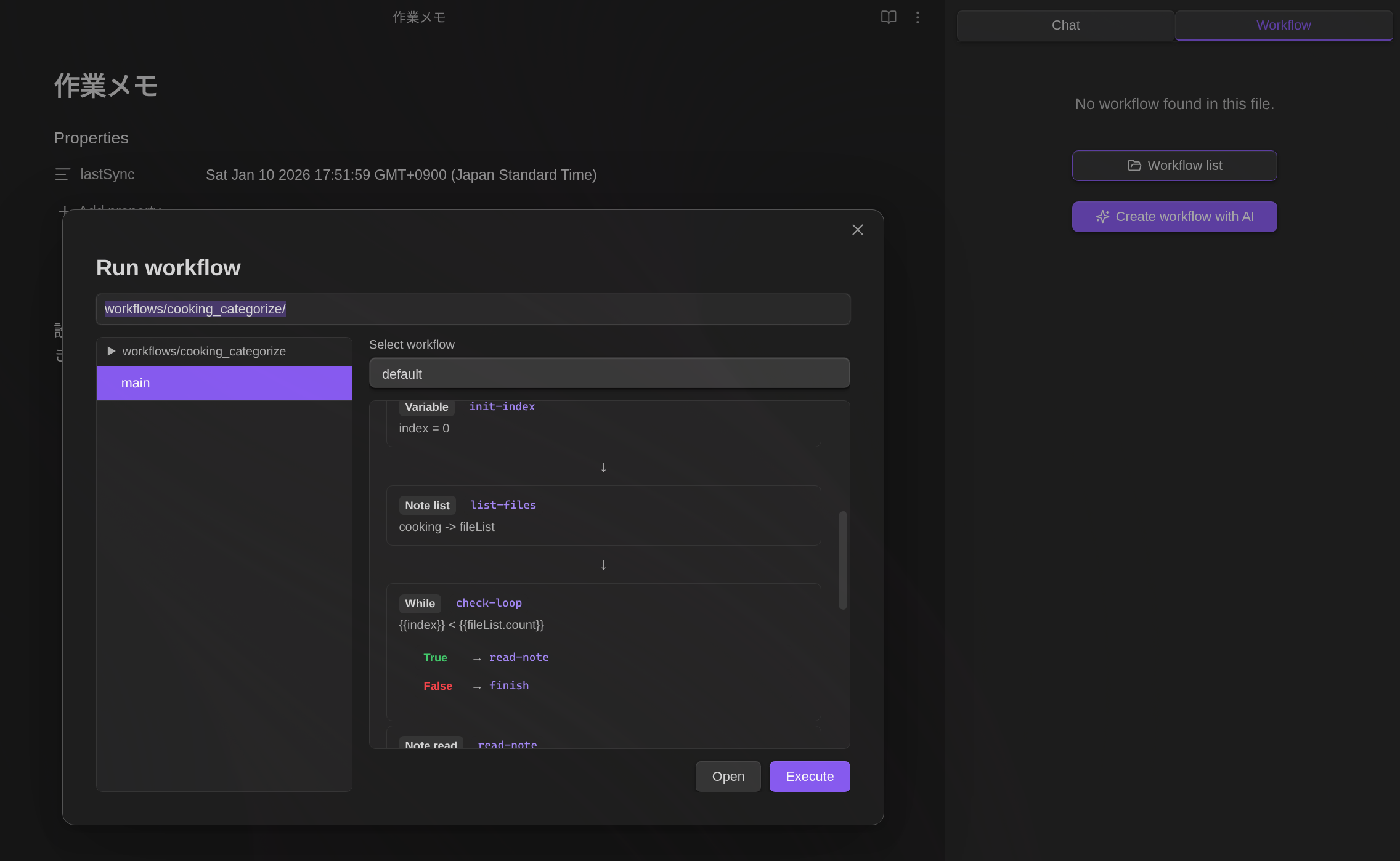
This is useful for quickly running workflows without navigating to the workflow file first.
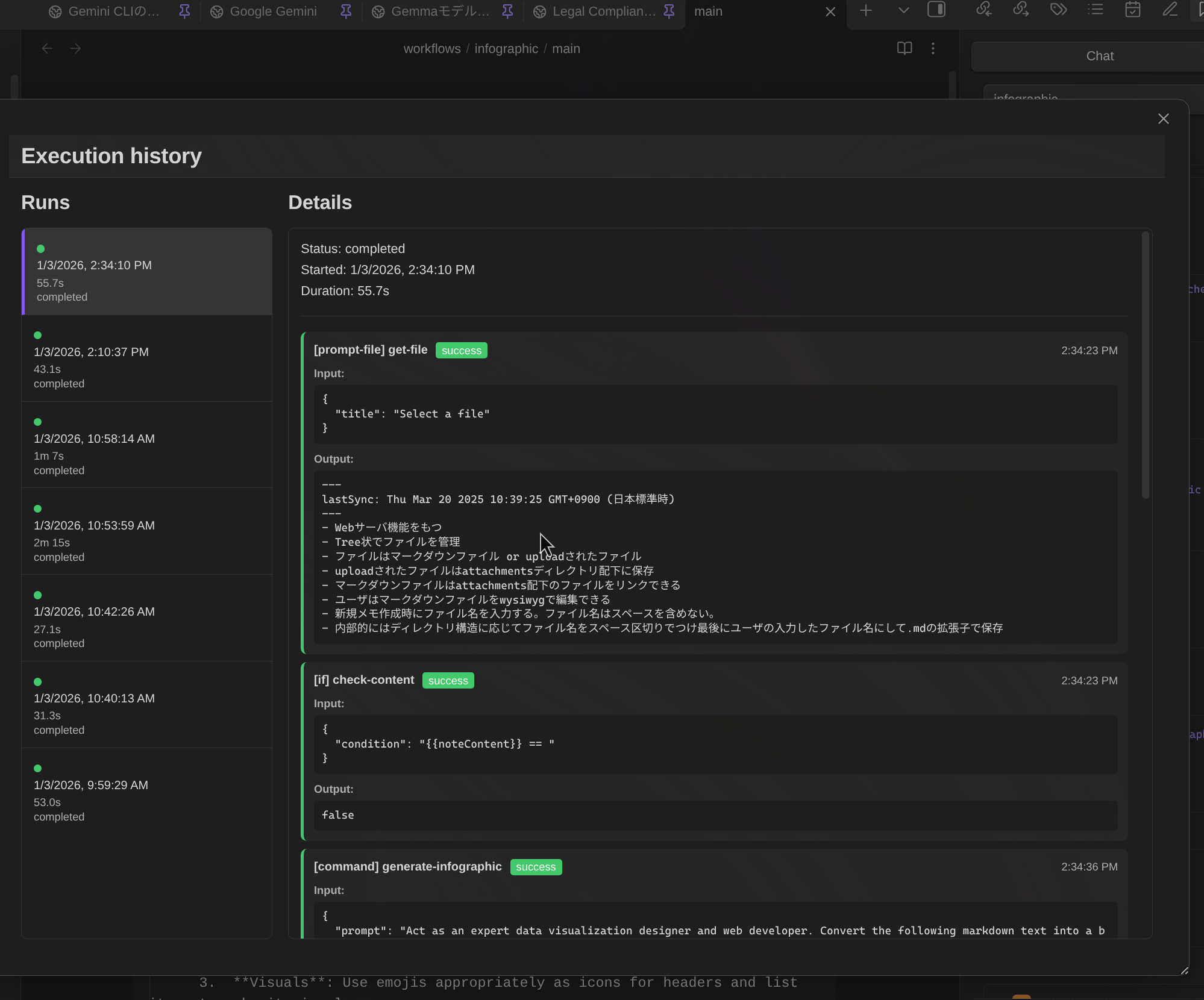
AI-Powered Workflow & Skill Creation
You don't need to learn YAML syntax or node types. Simply describe your workflow in plain language:
- Open the Workflow / skill tab in the Gemini sidebar
- Select + New (AI) from the dropdown
- Describe what you want: "Create a workflow that summarizes the selected note and saves it to a summaries folder"
- Check "Create as agent skill" if you want to create an agent skill instead of a standalone workflow
- Select a model and click Generate
- The AI produces a plain-language plan first — review it and click OK to proceed, Re-plan to give feedback and regenerate the plan, or Cancel to abort
- After generation, the AI runs a review over the result. If issues are found you can OK (with a confirmation prompt), Refine (regenerate using the review feedback), or Cancel. Clean reviews proceed automatically
- The workflow is saved once you accept the final preview
Tip: + New (AI) always defaults the output path to
workflows/{{name}}— each file can only hold one workflow, so the currently open file is never auto-filled as the target. If you pick a path that already contains a workflow, the modal asks you to choose a different one.
Create workflow from any file:
When opening the Workflow / skill tab with a file that has no workflow code block, a "Create workflow with AI" button is displayed. Click it to generate a new workflow (default output: workflows/{{name}}.md).
@ File References:
Type @ in the description field to reference files:
@{selection}- Current editor selection@{content}- Active note content@path/to/file.md- Any vault file
When you click Generate, file content is embedded directly into the AI request. YAML frontmatter is automatically stripped.
Tip: This is useful for creating workflows based on existing workflow examples or templates in your vault.
File Attachments:
Click the attachment button to attach files (images, PDFs, text files) to your workflow generation request. This is useful for providing visual context or examples to the AI.
Using External LLMs (Copy Prompt / Paste Response):
You can use any external LLM (Claude, GPT, etc.) to generate workflows:
- Enter the workflow name and description as usual
- Click Copy Prompt - the full prompt is copied to your clipboard
- Paste the prompt into your preferred LLM
- Copy the LLM's response
- Paste it into the Paste Response textarea that appears
- Click Apply to create the workflow
The pasted response can be either raw YAML or a full Markdown document with ```workflow code blocks. Markdown responses are saved as-is, preserving any documentation the LLM included.
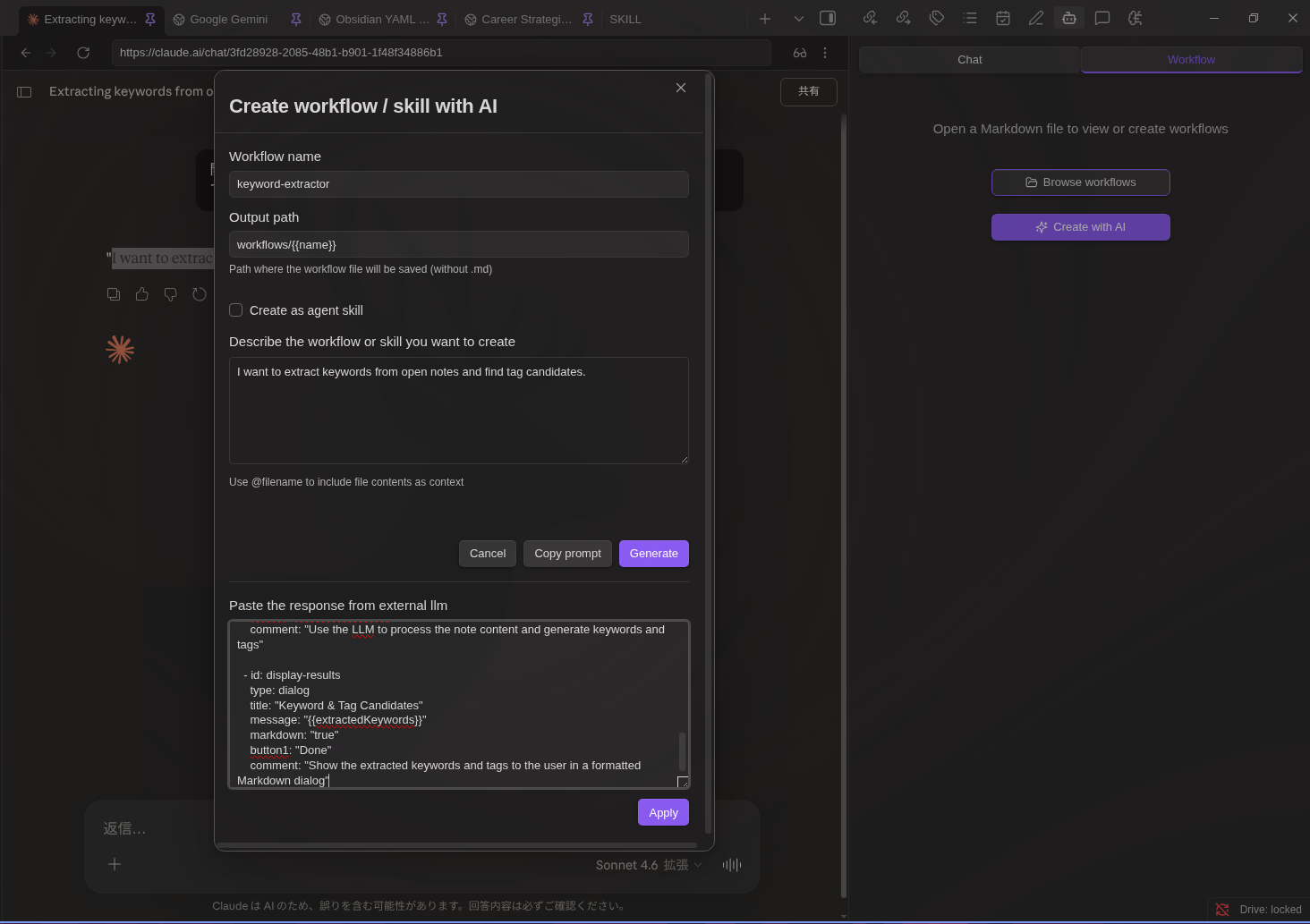
Modal Controls:
The AI workflow modal supports drag-and-drop positioning and corner resizing for a better editing experience.
Request History:
Each AI-generated workflow saves a history entry above the workflow code block, including:
- Timestamp and action (Created/Modified)
- Your request description
- Referenced file contents (in collapsible sections) Modify existing workflows the same way:
- Load any workflow
- Click the AI Modify button (sparkle icon)
- Describe changes: "Add a step to translate the summary to Japanese"
- The same plan → generate → review flow runs. You can Refine the review result as many times as you want; each Refine triggers a new generation pass and a fresh review so the review always matches the final YAML
- Review the before/after diff
- Click Apply Changes to update
Modify Skill with AI:
When the active file is a SKILL.md, the Workflow / skill tab shows a "Modify skill with AI" button instead of (or alongside) the regular workflow modifier. It edits the skill as a whole — both the SKILL.md instructions body and the referenced workflow file — in one pass, preserving the skill's frontmatter (name, description, workflow entries).
Execution History Reference:
When modifying a workflow with AI, you can reference previous execution results to help the AI understand issues:
- Click Reference execution history button
- Select an execution run from the list (error runs are highlighted)
- Choose which steps to include (error steps are pre-selected)
- The AI receives the step input/output data to understand what went wrong
This is especially useful for debugging workflows - you can tell the AI "Fix the error in step 2" and it will see exactly what input caused the failure.
Request History:
When regenerating a workflow (clicking "No" on the preview), all previous requests in the session are passed to the AI. This helps the AI understand the full context of your modifications across multiple iterations.
Manual Workflow Editing:
Edit workflows directly in the visual node editor with drag-and-drop interface.
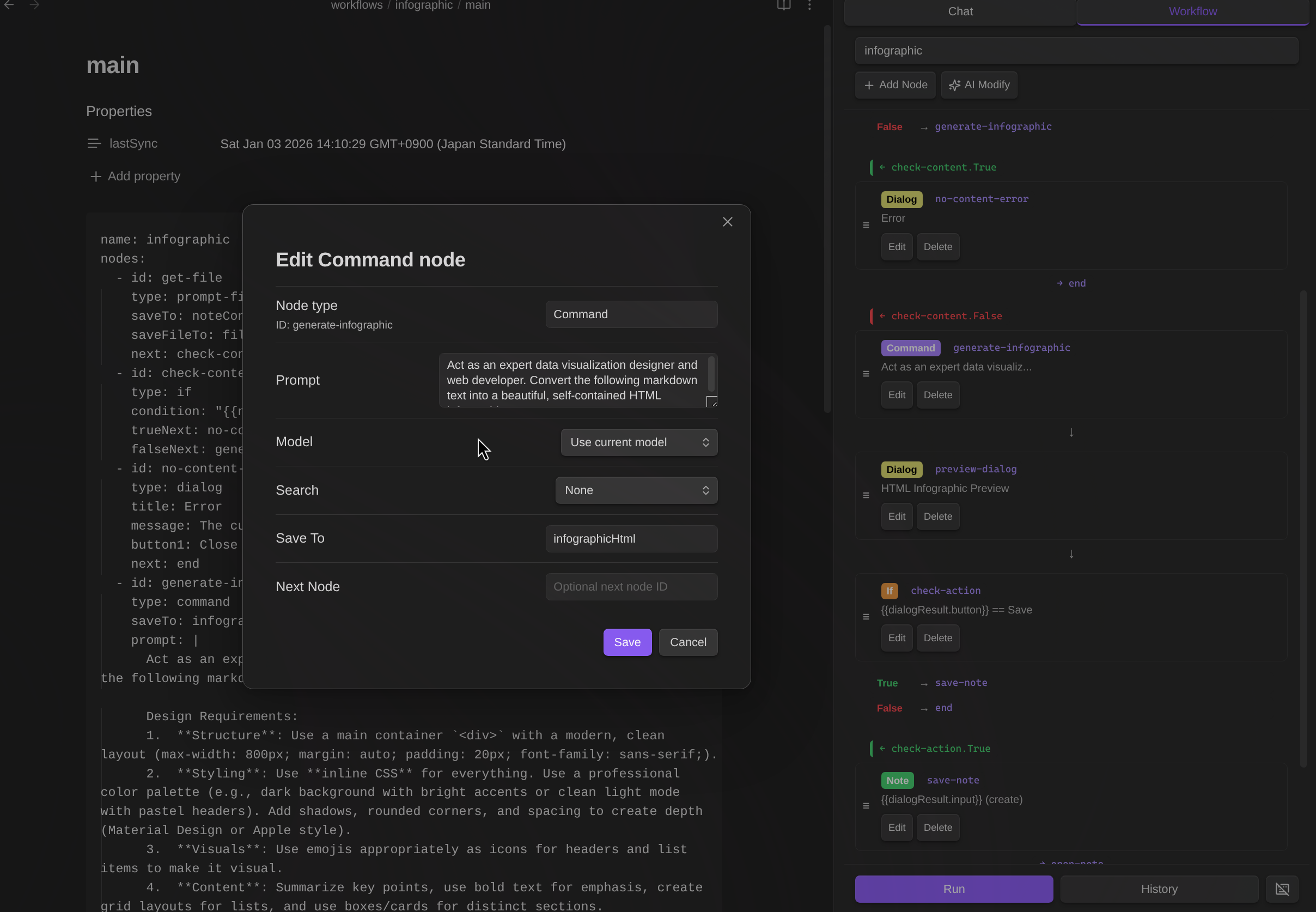
Reload from File:
- Select Reload from file from the dropdown to re-import workflow from the markdown file
Available Node Types
24 node types are available for building workflows:
| Category | Nodes |
|---|---|
| Variables | variable, set |
| Control | if, while |
| LLM | command |
| Data | http, json, script |
| Notes | note, note-read, note-search, note-list, folder-list, open |
| Files | file-explorer, file-save |
| Prompts | prompt-file, prompt-selection, dialog |
| Composition | workflow |
| RAG | rag-sync |
| External | mcp, obsidian-command |
| Utility | sleep |
For detailed node specifications and examples, ask Gemini Helper chat. The built-in OKF knowledge source contains the current workflow reference.
Hotkey Mode
Assign keyboard shortcuts to run workflows instantly:
- Open the workflow file (the filename becomes the hotkey's display name)
- Click the keyboard icon (⌨️) in the Workflow panel footer
- Go to Settings → Hotkeys → search "Workflow: [filename]"
- Assign a hotkey (e.g.,
Ctrl+Shift+T)
When triggered by hotkey:
prompt-fileuses the active file automatically (no dialog)prompt-selectionuses the current selection, or full file content if no selection
Event Triggers
Workflows can be automatically triggered by Obsidian events:
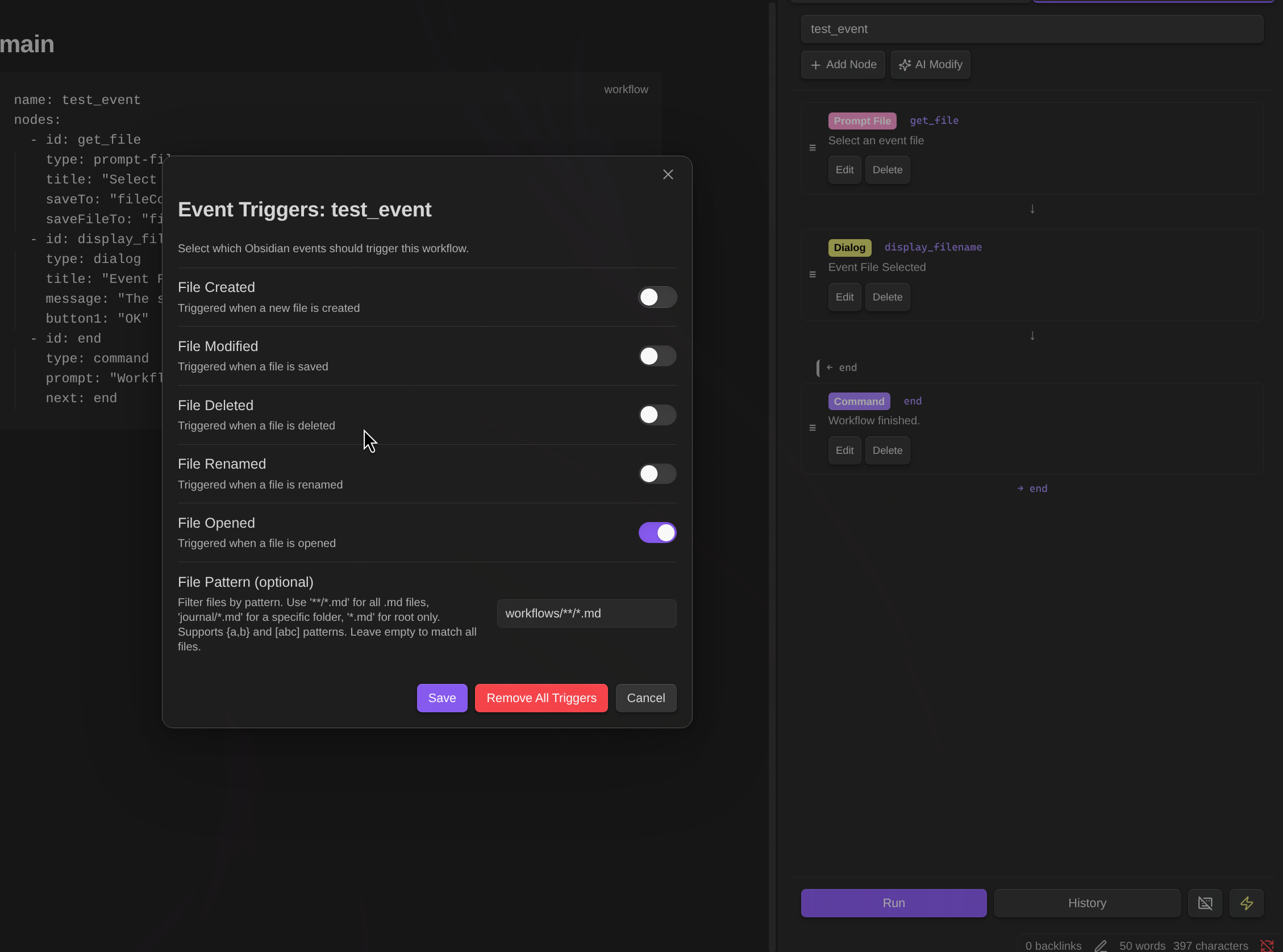
| Event | Description |
|---|---|
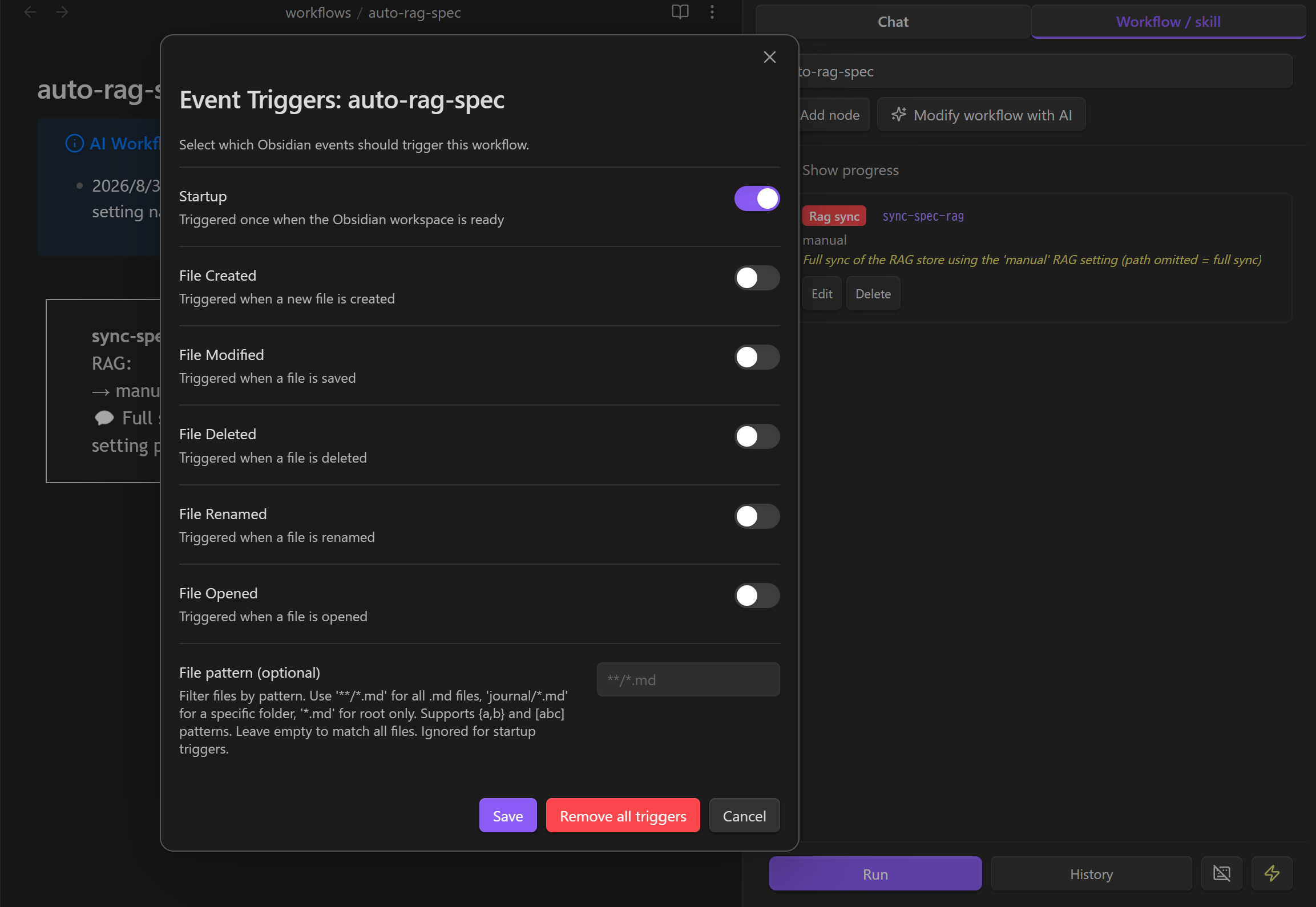
| Startup | Triggered once when the Obsidian workspace is ready |
| File Created | Triggered when a new file is created |
| File Modified | Triggered when a file is saved (debounced 5s) |
| File Deleted | Triggered when a file is deleted |
| File Renamed | Triggered when a file is renamed |
| File Opened | Triggered when a file is opened |
Event trigger setup:
- Open the workflow file (the filename is used as the trigger's display name)
- Click the zap icon (⚡) in the Workflow panel footer
- Select which events should trigger the workflow
- Optionally add a file pattern filter
Sync RAG when Obsidian starts
Create a workflow containing a rag-sync node and select the RAG setting to synchronize. The node performs a full checksum-based incremental sync; unchanged files are skipped.
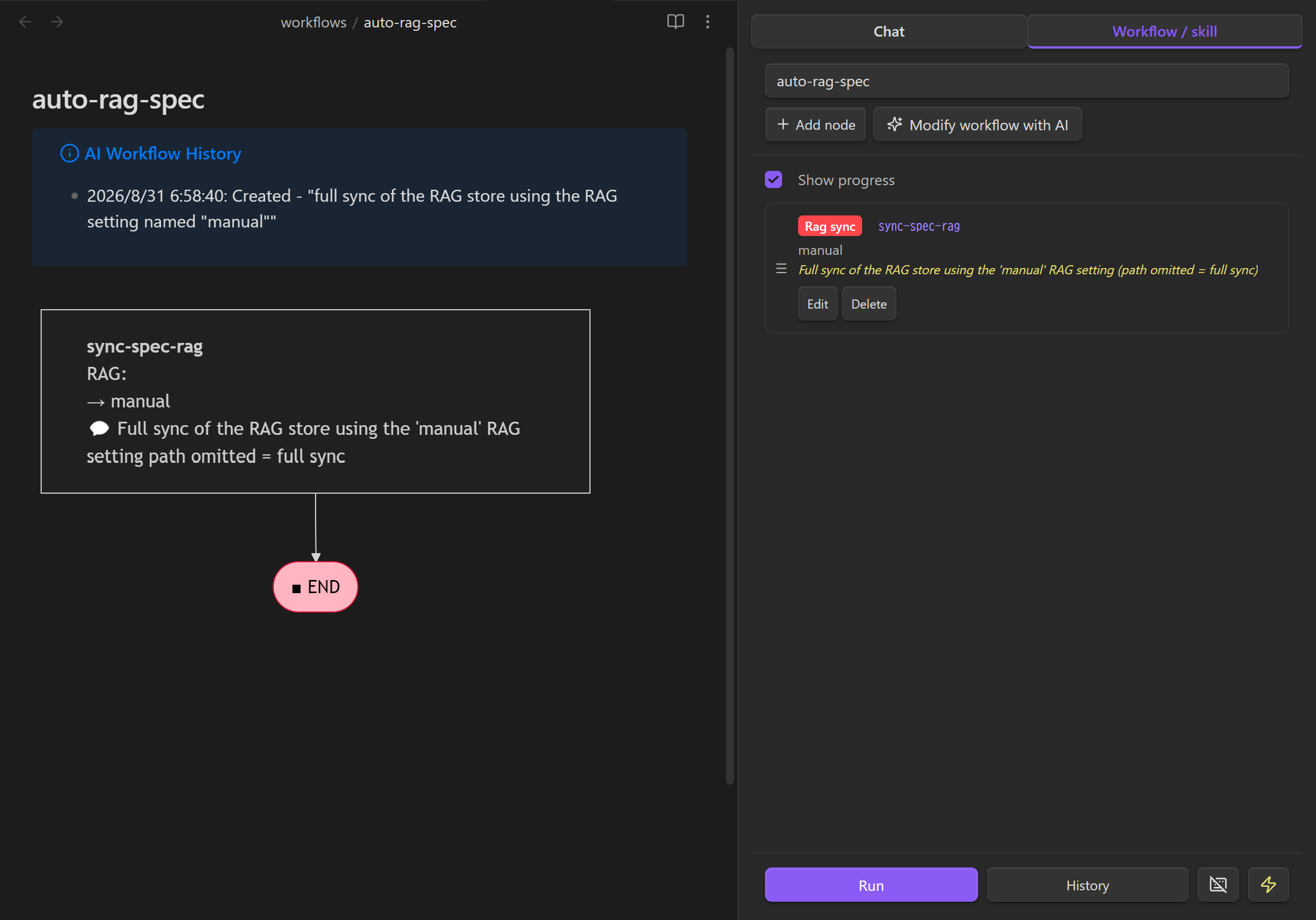
Open the event trigger dialog with the zap icon, enable Startup, and save. File patterns are ignored for startup triggers.
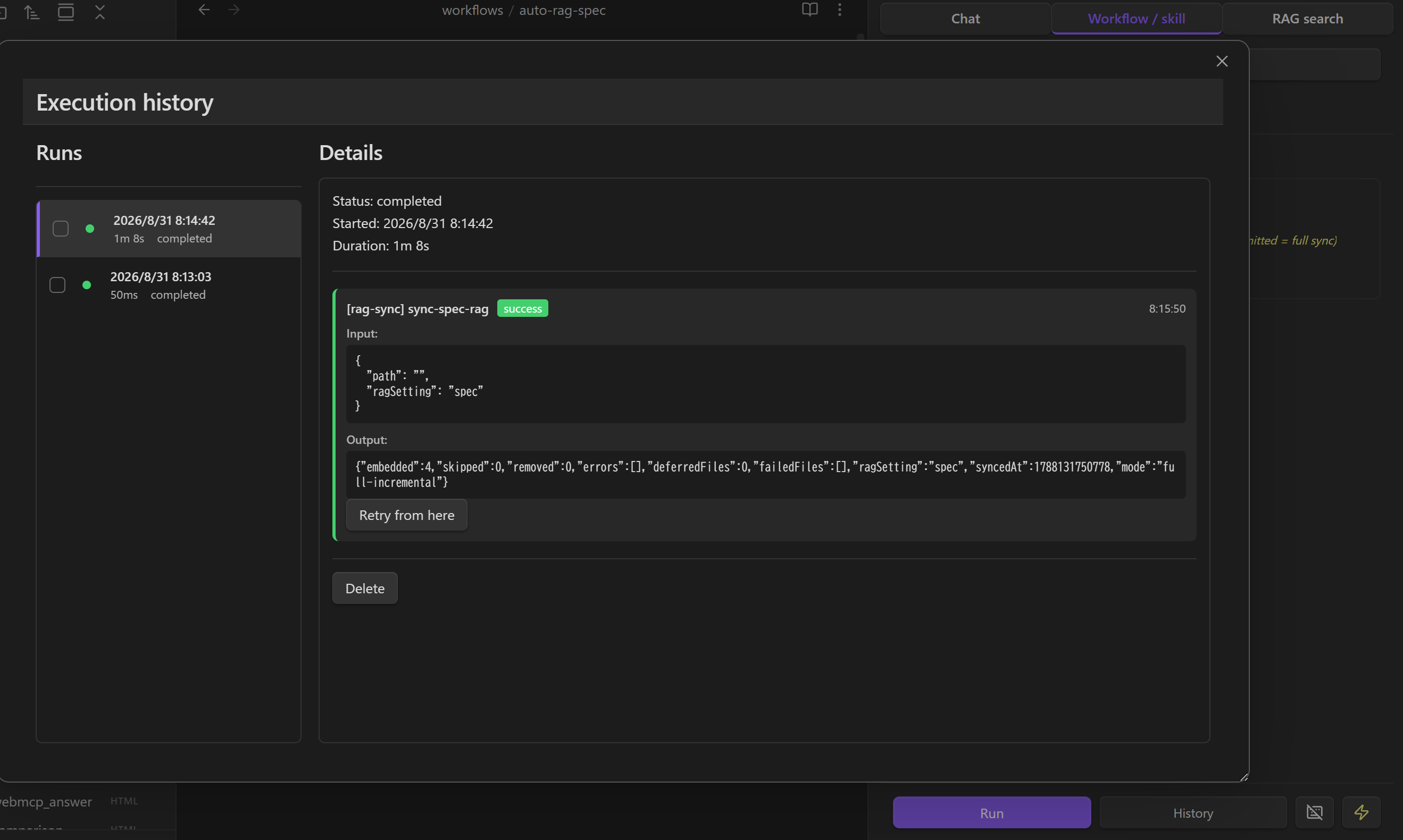
After startup, open History to confirm the sync result and inspect uploaded, skipped, deleted, or failed files.
File pattern examples:
**/*.md- All Markdown files in any folderjournal/*.md- Markdown files in journal folder only*.md- Markdown files in root folder only**/{daily,weekly}/*.md- Files in daily or weekly foldersprojects/[a-z]*.md- Files starting with lowercase letter
Event variables: When triggered by an event, these variables are set automatically:
| Variable | Description |
|---|---|
_eventType |
Event type: startup, create, modify, delete, rename, file-open |
_eventFilePath |
Path of the affected file (not set for startup) |
_eventFile |
JSON with file info (path, basename, name, extension) |
_eventFileContent |
File content (for create/modify/file-open events) |
_eventOldPath |
Previous path (for rename events only) |
Note:
prompt-fileandprompt-selectionnodes automatically use the event file when triggered by events.prompt-selectionuses the entire file content as the selection.
Dashboard Hub Integration
Dashboard functionality is provided by the separate Dashboard Hub plugin. When both plugins are enabled, Gemini Helper supplies Dashboard Hub with its configured Gemini models, Chat handoff, Base generation, text rewriting, and Workflow generation/execution. Dashboard Hub also contributes its dashboard Agent Skill to Gemini Helper at runtime.
Existing .dashboard files remain compatible. See the Dashboard Hub documentation for dashboard features, widgets, storage, and schema.
Discussion Hub Integration
Discussion Hub brings multiple AI providers into a shared conversation. When both plugins are enabled, Gemini Helper automatically registers its available non-image Gemini models with Discussion Hub. Responses are streamed into the discussion, and message attachments and the discussion system prompt are passed through to Gemini.
Configure your Google Gemini API key and API plan in Gemini Helper, then select a Gemini Helper model when creating or editing a Discussion Hub discussion. No additional integration settings are required.
Common
Supported Models
Paid Plan
| Model | Description |
|---|---|
| Gemini 3.7 Flash | Latest fast model, 1M context (recommended) |
| Gemini 3.1 Pro Preview | Latest flagship model, 1M context (recommended) |
| Gemini 3.1 Pro Preview (Custom Tools) | Optimized for agentic workflows with custom tools and bash |
| Gemini 3.5 Flash Lite | Low-latency, cost-effective model, 1M context |
| Gemini 3 Pro (Image) | Pro image generation, 4K |
| Gemini 3.1 Flash (Image) | Fast, low-cost image generation |
| Gemini 3.1 Flash Lite (Image) | Fastest, lowest-cost image generation, 1K |
Thinking mode: For supported Gemini models, choose the thinking level in the selector beside the model picker (
default/minimal/low/medium/high).defaultleaves the choice to the Gemini API. Gemini 3.1 Pro cannot disable thinking, so it offerslowas its lowest level; Gemma 4 and image models have no thinking selector. The setting is remembered per model, and prompts no longer change the thinking level automatically.
Free Plan
| Model | Vault Operations |
|---|---|
| Gemini 3.7 Flash | ✅ |
| Gemini 3.5 Flash Lite | ✅ |
| Gemma 4 (31B, 26B A4B MoE) | ✅ |
Installation
Community Plugins (Recommended)
- Open Settings → Community plugins in Obsidian
- Select Browse
- Search for
Gemini Helper - Install and enable the plugin
BRAT
Use BRAT if you want to test beta versions directly from this repository.
- Install BRAT plugin
- Open BRAT settings → "Add Beta plugin"
- Enter:
https://github.com/takeshy/obsidian-gemini-helper - Enable the plugin in Community plugins settings
Manual
- Download
main.js,manifest.json,styles.cssfrom releases - Create
gemini-helperfolder in.obsidian/plugins/ - Copy files and enable in Obsidian settings
From Source
git clone https://github.com/takeshy/obsidian-gemini-helper
cd obsidian-gemini-helper
npm install
npm run build
Configuration
API Settings
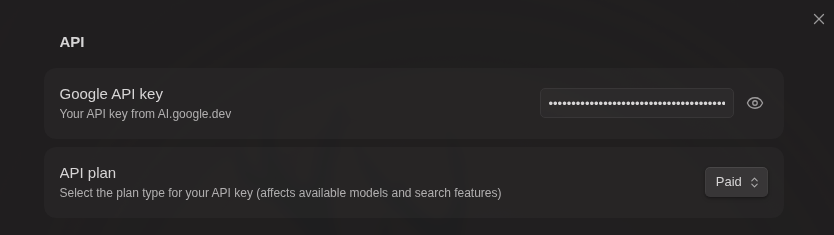
- Get API key from ai.google.dev
- Enter in plugin settings
- Select API plan (Free/Paid)
Workspace Settings
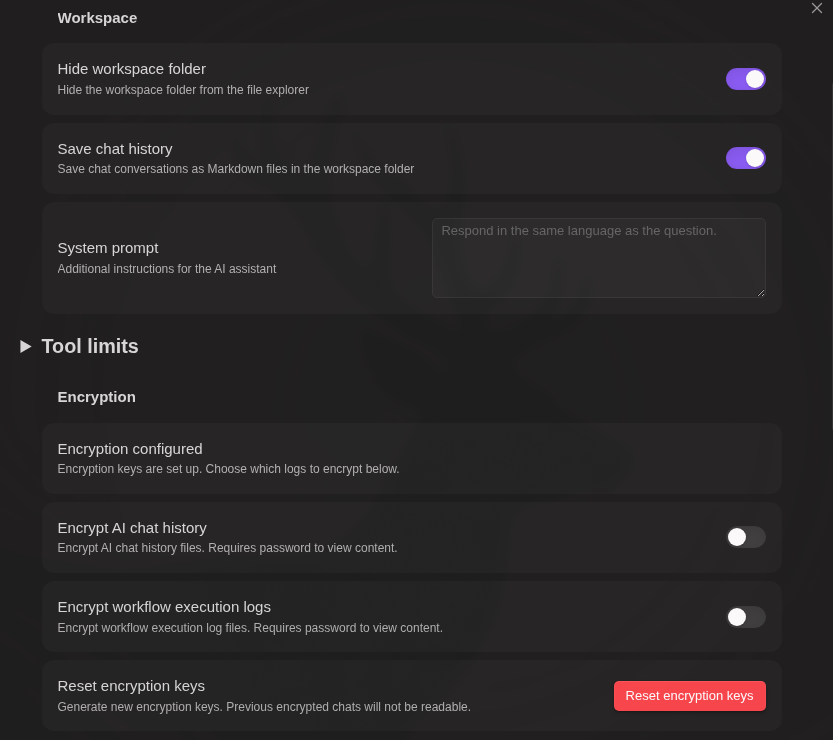
- Automatically save chat history - Keep restorable chat files in the workspace folder
- Maximum saved chat histories - Delete the oldest automatic histories above the limit. Existing users default to unlimited (
0); new installs default to100 - System Prompt - Additional AI instructions
- Folders AI can access automatically - Optional folder allowlist for automatic AI vault access. Leave empty to allow the whole vault; use Encryption for files the AI should never read
- Tool Limits - Control function call limits
Chat Settings
- Manual chat save folder - Vault-relative destination used by the Chat Save as note button. Leave blank to save in the vault root
- Manual exports use
YYYYMMDD-HHmmss_Chat title.mdand contain only compact conversation content, without history frontmatter or restoration metadata
Encryption
Set up the encryption keys used to protect chat history, workflow execution logs, and individual encrypted files.
Setup:
- Set a password in plugin settings (stored securely using public-key cryptography)
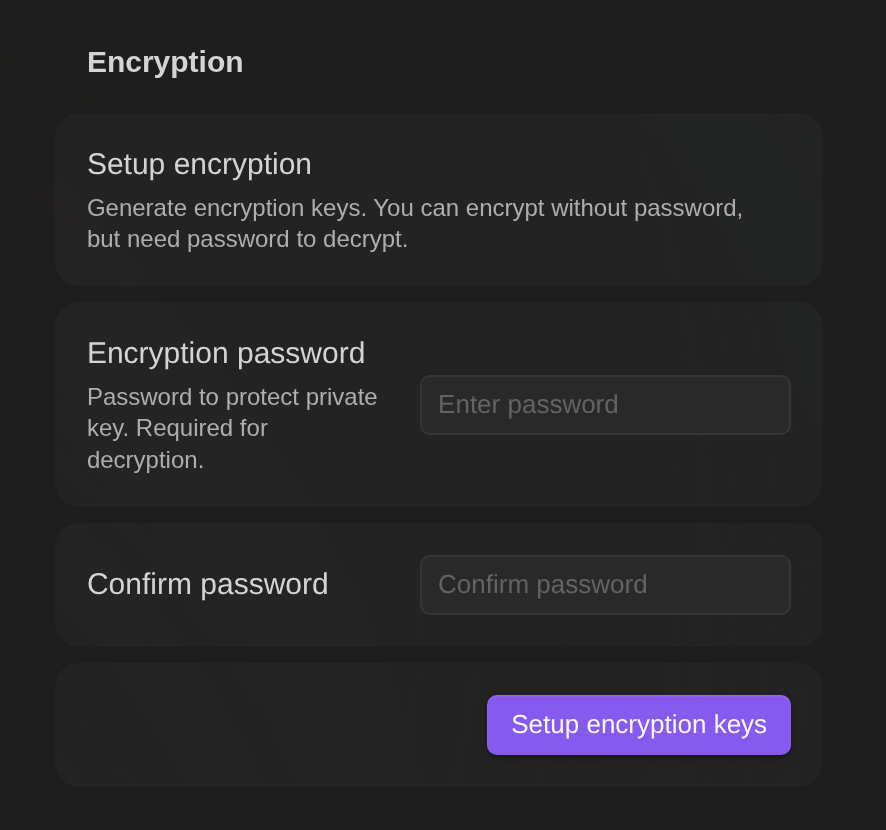
- After setup, optionally toggle automatic encryption for each log type:
- Encrypt AI chat history - Encrypt chat conversation files
- Encrypt workflow execution logs - Encrypt workflow history files
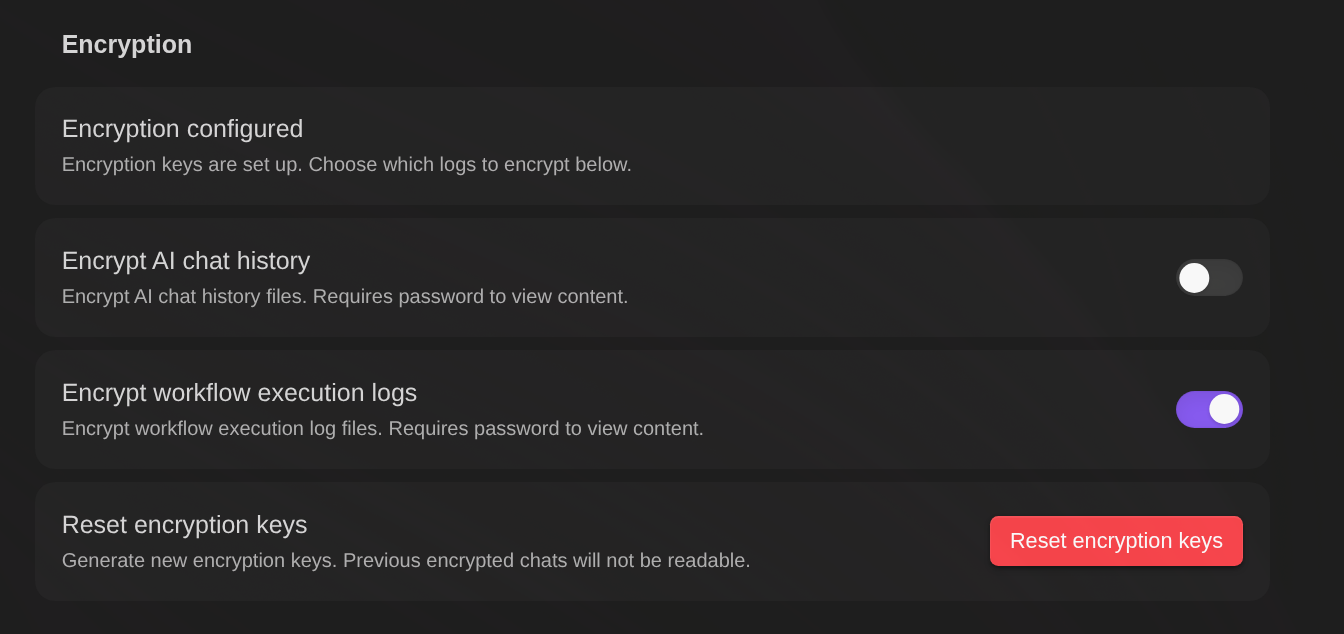
Each log setting can be enabled/disabled independently. The encrypted-file editor only requires the initial password/key setup; it does not require either log toggle.
Features:
- Separate controls - Choose which logs to encrypt (chat, workflow, or both)
- Automatic encryption - New files are encrypted when saved based on settings
- Password caching - Enter password once per session
- Dedicated viewer - Encrypted files open in a secure editor with preview
- Searchable metadata - Add an optional description and explicitly public key/value metadata without decrypting the file
- Decrypt option - Remove encryption from individual files when needed
How it works:
[Setup - once when setting password]
Password → Generate key pair (RSA) → Encrypt private key → Store in settings

[Encryption - for each file]
File content → Encrypt with new AES key → Encrypt AES key with public key
→ Save to file: encrypted data + encrypted private key (from settings) + salt

[Decryption]
Password + salt → Restore private key → Decrypt AES key → Decrypt file content
- Key pair is generated once (RSA generation is slow), AES key is generated per file
- Each file stores: encrypted content + encrypted private key (copied from settings) + salt
- Files are self-contained — decryptable with just the password, no plugin dependency
Python decryption script (click to expand)
#!/usr/bin/env python3
"""Decrypt Gemini Helper encrypted files without the plugin."""
import base64, sys, re, getpass
from cryptography.hazmat.primitives import hashes, serialization
from cryptography.hazmat.primitives.kdf.pbkdf2 import PBKDF2HMAC
from cryptography.hazmat.primitives.ciphers.aead import AESGCM
from cryptography.hazmat.primitives.asymmetric import padding

def decrypt_file(filepath: str, password: str) -> str:
    with open(filepath, 'r') as f:
        content = f.read()

    # Parse YAML frontmatter
    match = re.match(r'^---\n([\s\S]*?)\n---\n([\s\S]*)$', content)
    if not match:
        raise ValueError("Invalid encrypted file format")

    frontmatter, encrypted_data = match.groups()
    key_match = re.search(r'^key:\s*(.+)$', frontmatter, re.MULTILINE)
    salt_match = re.search(r'^salt:\s*(.+)$', frontmatter, re.MULTILINE)
    if not key_match or not salt_match:
        raise ValueError("Missing key or salt in frontmatter")

    enc_private_key = base64.b64decode(key_match.group(1).strip())
    salt = base64.b64decode(salt_match.group(1).strip())
    data = base64.b64decode(encrypted_data.strip())

    # Derive key from password
    kdf = PBKDF2HMAC(algorithm=hashes.SHA256(), length=32, salt=salt, iterations=100000)
    derived_key = kdf.derive(password.encode())

    # Decrypt private key
    iv, enc_priv = enc_private_key[:12], enc_private_key[12:]
    private_key_pem = AESGCM(derived_key).decrypt(iv, enc_priv, None)
    private_key = serialization.load_der_private_key(base64.b64decode(private_key_pem), None)

    # Parse encrypted data: key_length(2) + enc_aes_key + iv(12) + enc_content
    key_len = (data[0] << 8) | data[1]
    enc_aes_key = data[2:2+key_len]
    content_iv = data[2+key_len:2+key_len+12]
    enc_content = data[2+key_len+12:]

    # Decrypt AES key with RSA private key
    aes_key = private_key.decrypt(enc_aes_key, padding.OAEP(
        mgf=padding.MGF1(algorithm=hashes.SHA256()), algorithm=hashes.SHA256(), label=None))

    # Decrypt content
    return AESGCM(aes_key).decrypt(content_iv, enc_content, None).decode('utf-8')

if __name__ == "__main__":
    if len(sys.argv) != 2:
        print(f"Usage: {sys.argv[0]} <encrypted_file>")
        sys.exit(1)
    password = getpass.getpass("Password: ")
    print(decrypt_file(sys.argv[1], password))
Requires: pip install cryptography
Warning: If you forget your password, encrypted files cannot be recovered. Keep your password safe.
Tip: To encrypt all files in a directory at once, use a workflow. Ask Gemini Helper chat for the current
obsidian-commandworkflow example.
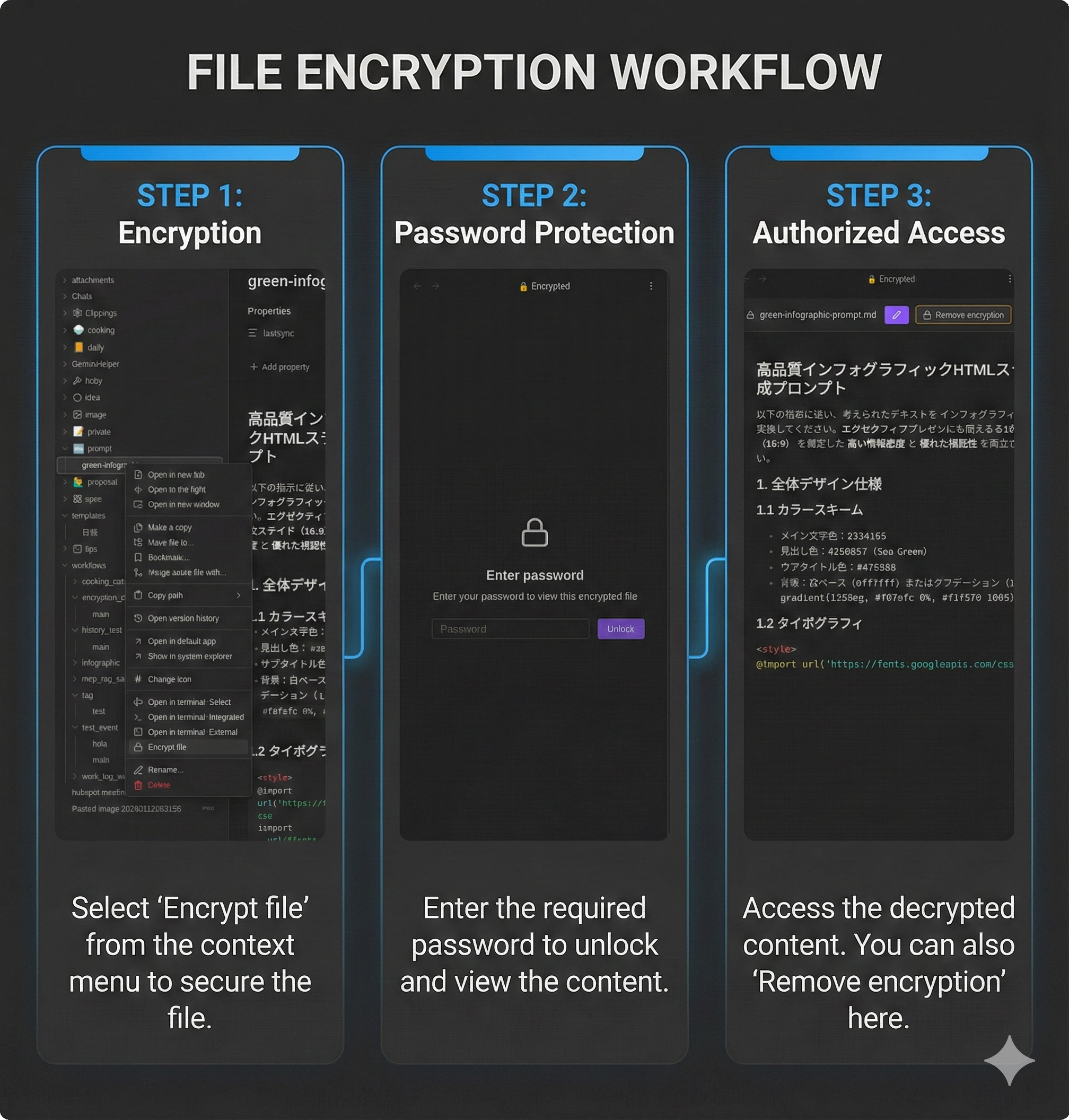
Security benefits:
- Protected from AI chat - Encrypted files cannot be read by AI vault operations (
read_notetool). This keeps sensitive data like API keys safe from accidental exposure during chat. - Workflow access with password - Workflows can read encrypted files using the
note-readnode. When accessed, a password dialog appears, and the password is cached for the session. - Store secrets safely - Instead of writing API keys directly in workflows, store them in encrypted files. The workflow reads the key at runtime after password verification.
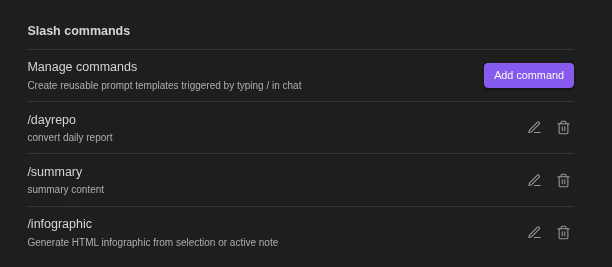
Slash Commands
- Define custom prompt templates triggered by
/ - Optional model and search override per command
Requirements
- Obsidian v0.15.0+
- Google AI API key
- Desktop and mobile supported
Privacy
Data stored locally:
- API key (stored in Obsidian settings)
- Chat history (as Markdown files, optionally encrypted)
- Workflow execution history (optionally encrypted)
- Encryption keys (private key encrypted with your password)
Data sent to Google:
- All chat messages and file attachments are sent to Google Gemini API for processing
- When RAG is enabled, vault files are uploaded to Google File Search
- When Web Search is enabled, queries are sent to Google Search
Data sent to third-party services:
- Workflow
httpnodes can send data to any URL specified in the workflow
MCP servers (optional):
- MCP (Model Context Protocol) servers can be configured in plugin settings for workflow
mcpnodes - MCP servers are external services that provide additional tools and capabilities
Security notes:
- Review workflows before running -
httpnodes can transmit vault data to external endpoints - Workflow
notenodes show a confirmation dialog before writing files (default behavior) - Slash commands with
confirmEdits: falsewill auto-apply file edits without showing Apply/Discard buttons - Sensitive credentials: Do not store API keys or tokens directly in workflow YAML (
httpheaders,mcpsettings, etc.). Instead, store them in encrypted files and usenote-readnode to retrieve them at runtime. Workflows can read encrypted files with password prompt.
See Google AI Terms of Service for data retention policies.
License
MIT
Links
Related Plugins
Since v1.11.0, this plugin focuses exclusively on Gemini-related features. CLI support has been removed. A new plugin obsidian-llm-hub has been created with CLI and multiple LLM provider support (OpenAI, Claude, OpenRouter, Local LLM).
| Plugin | Description |
|---|---|
| obsidian-gemini-helper | Gemini-focused (RAG via File Search API) |
| obsidian-llm-hub | Multi-LLM support, Desktop Only (RAG via Embedding, supports gemini-embedding-2-preview) |
| obsidian-local-llm-hub | Local LLM only (RAG via local embeddings only) |
| obsidian-discussion-hub | Shared multi-model discussions using models supplied by compatible AI plugins |
Support
If you find this plugin useful, consider buying me a coffee!
MCP approval and read-only Vault tools
MCP calls require approval by default. The dialog shows the server, tool, and arguments with Allow once, Always allow this tool, and Deny. Closing denies the call. Enable Always approve in server settings to skip all confirmations, or remove an allowed tool and save to require approval again. Workflow command and mcp nodes support confirm: "false" for automatic execution. Vault read-only mode permits search and reading while external MCP and skill tools keep separate permissions. Connection testing locks editing and saving and keeps errors visible for correction. HTTP transport is supported; local stdio command parsing does not apply.