Search...Search plugins and themes...
⌘K
Sign in
  • Get started
  • Download
  • Pricing
  • Enterprise
  • Account
  • Obsidian
  • Overview
  • Sync
  • Publish
  • Canvas
  • Mobile
  • Web Clipper
  • CLI
  • Learn
  • Help
  • Developers
  • Changelog
  • About
  • Roadmap
  • Blog
  • Resources
  • System status
  • License overview
  • Terms of service
  • Privacy policy
  • Security
  • Community
  • Plugins
  • Themes
  • Discord
  • Forum / 中文论坛
  • Merch store
  • Brand guidelines
Follow us
DiscordTwitterBlueskyThreadsMastodonYouTubeGitHub
© 2026 Obsidian

File Order

lukasbachlukasbach45k downloads

Use number-prefixes in your file names to define a custom order, and drag-and-drop the files to update that order.

Add to Obsidian
  • Overview
  • Scorecard
  • Updates11

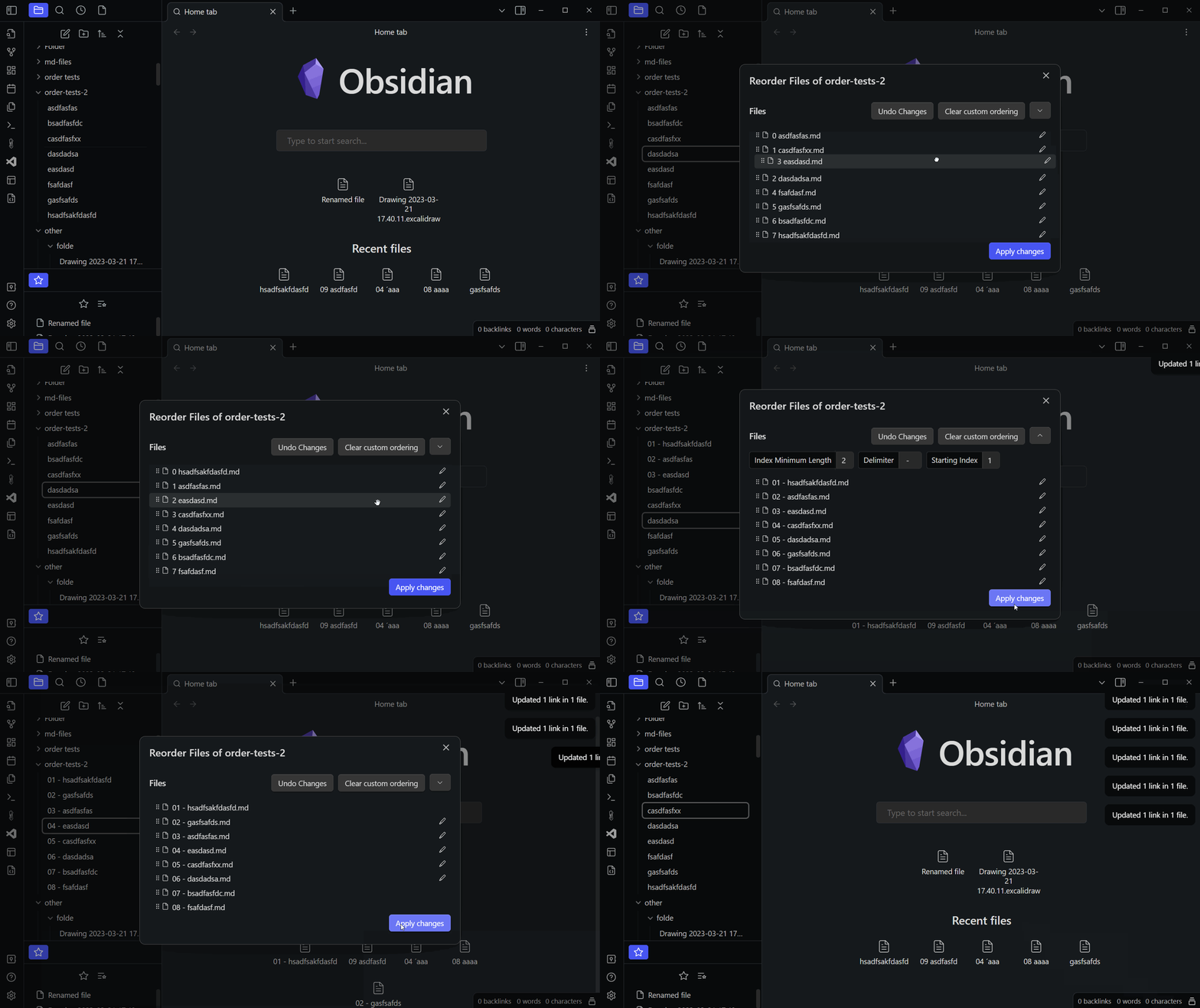
Use number-prefixes in your file names to define a custom order, and use drag-and-drop in the file explorer to update that order.

  • Find the Plugin "File Order" in the community plugin list in obsidian to install.

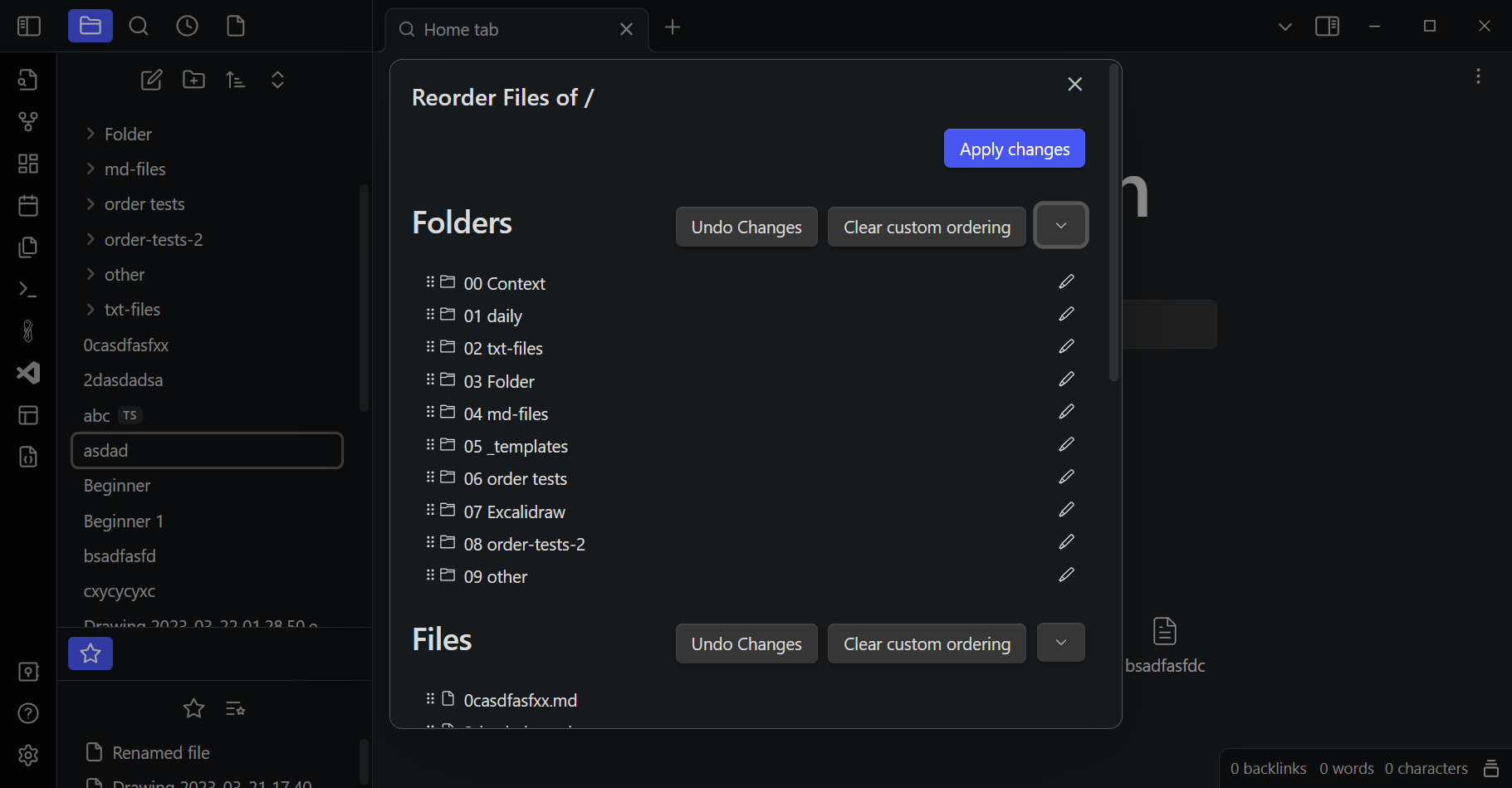
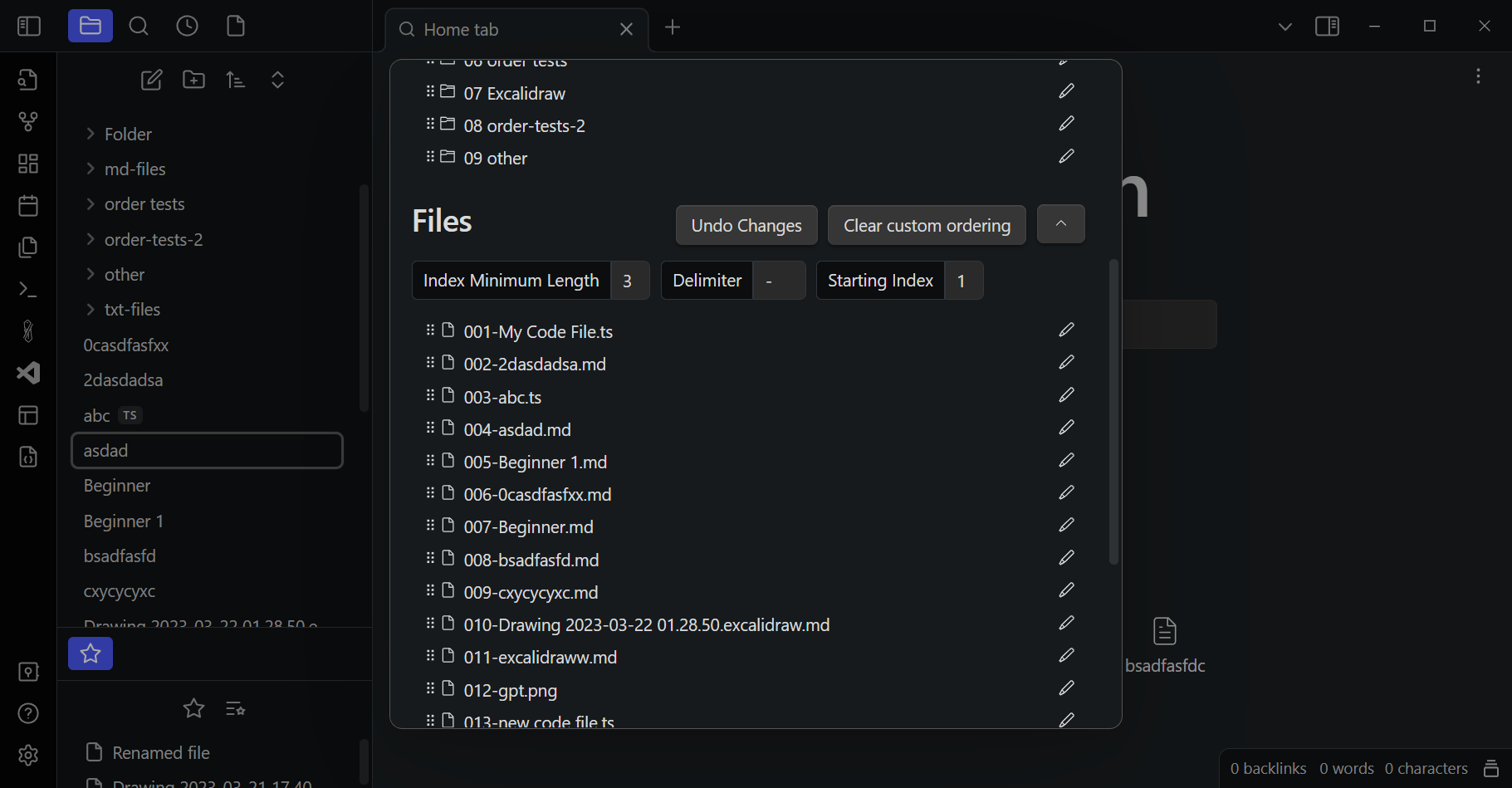
To use, after installation you can right-click on any folder or item and click on "Reorder items" to open the reorder dialog. There, you can drag and drop items to customize their order. By clicking in the down-arrow next to the "Files" or "Folders" title, you can access additional options. There you can customize a minimum prefix length (e.g. have all prefix numbers be at least 3 characters long), customize the delimiter (a single space by default, but can be anything) or the starting index.

Reordering items will automatically update all references to any files you are reordering.

You can also always clear a custom ordering you made in the past, which will remove the prefixes from the file names and restore the default ordering.

When you open the reorder dialog another time in the future on a folder, which you have customized before, the plugin will automatically infer these options from the set file names. This means that the plugin maintains no settings itself, every ordering information used is stored in the file names themselves, meaning you can continue to use the ordered files even after you uninstall the plugin, and the plugin will also be able to read and allow you to edit orderings you have created manually in the past.

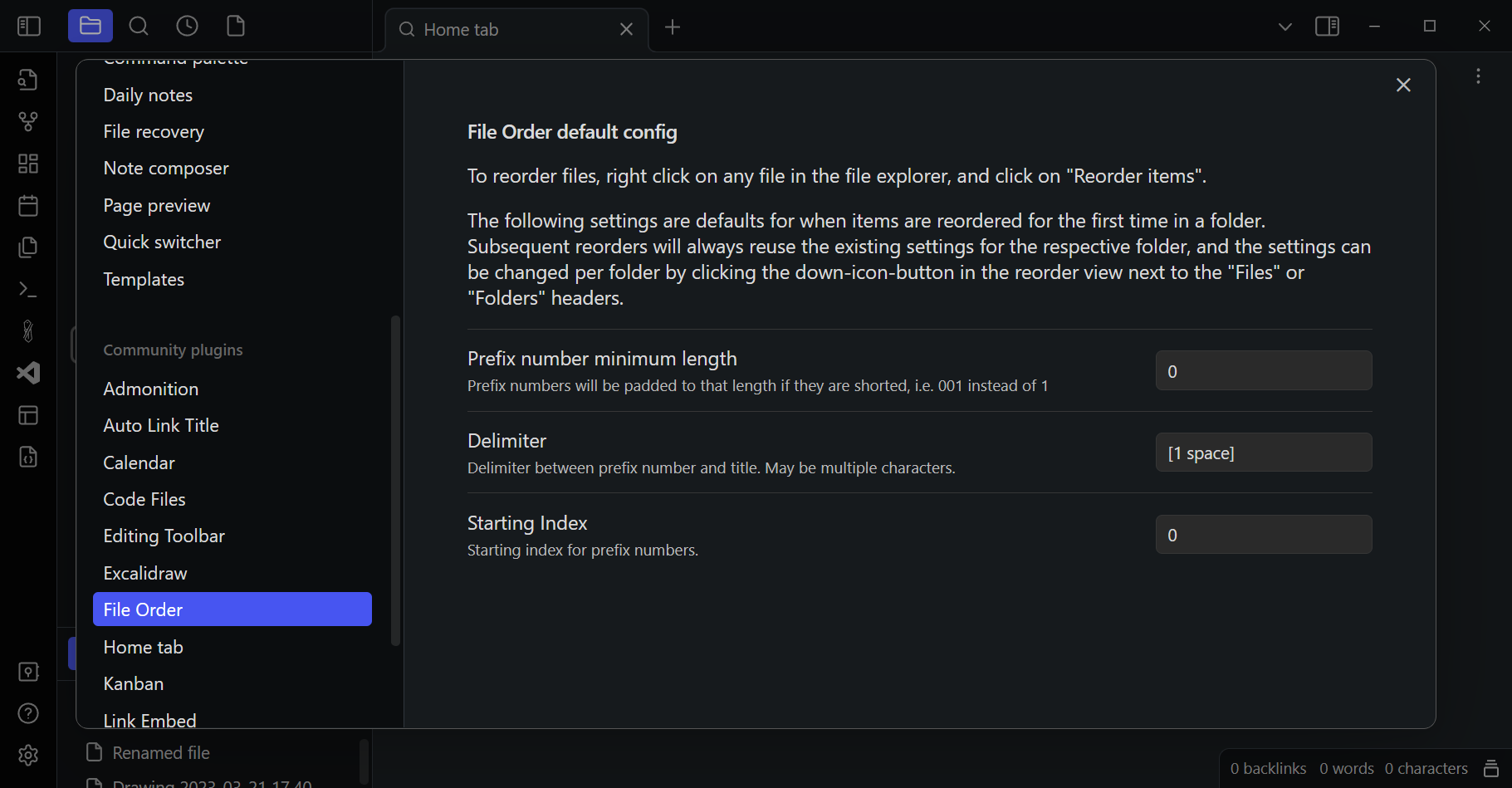
In the plugin settings, you can also define default values for prefix length, delimiter and starting index.
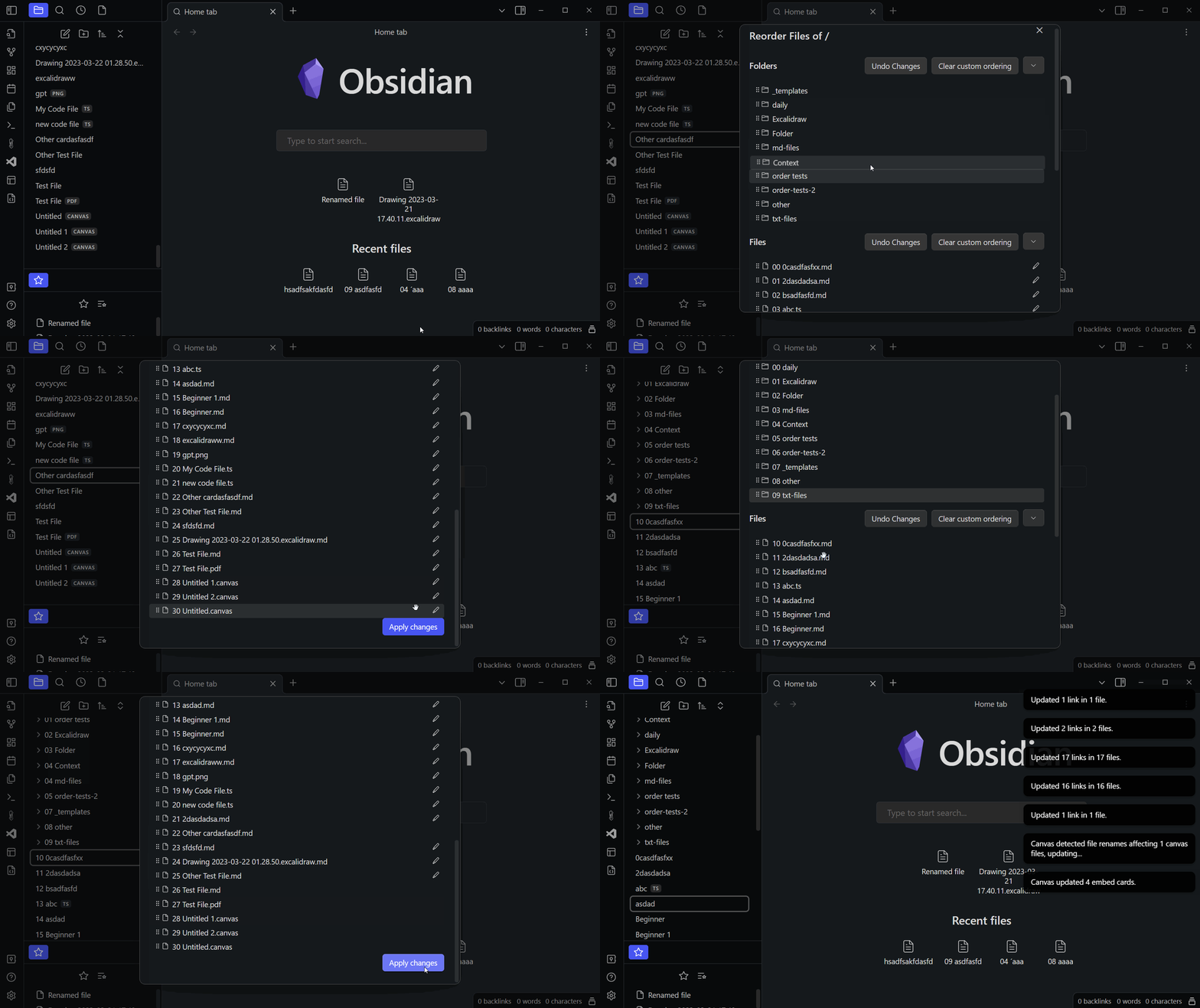
obsidian-order-files-demo1.gif

obsidian-order-files-demo2.gif

Screenshots

img.png

img_1.png

img_2.png

Contributing

To make changes to this plugin, first ensure you have the dependencies installed.

yarn

Development

To start building the plugin with what mode enabled run the following command:

yarn dev

Note: If you haven't already installed the hot-reload-plugin you'll be prompted to. You need to enable that plugin in your obsidian vault before hot-reloading will start. You might need to refresh your plugin list for it to show up.

Releasing

Run yarn release to release a new version.


This plugin was generated by (create-obsidian-plugin)[https://www.npmjs.com/package/create-obsidian-plugin]

69%
HealthExcellent
ReviewCaution
About
Order files and folders with number-prefixes and reorder them by dragging items in the file explorer. Update all file links automatically when names change and store ordering in filenames so order persists after uninstall. Clear custom prefixes to restore default sorting.
Files
Details
Current version
0.0.14
Last updated
3 months ago
Created
3 years ago
Updates
11 releases
Downloads
45k
Compatible with
Obsidian 0.15.0+
Platforms
Desktop, Mobile
License
MIT
Report bugRequest featureReport plugin
Sponsor
GitHub Sponsors
Author
lukasbachlukasbach
lukasbach.com
GitHublukasbach
  1. Community
  2. Plugins
  3. Files
  4. File Order

Related plugins

Notebook Navigator

A better file browser and calendar inspired by Apple Notes, Bear, Evernote and Day One.

Local REST API & MCP Server

Unlock your automation needs by interacting with your notes over a secure REST API.

QuickAdd

Quickly add new notes or content to your vault.

Recent Files

Display a list of recently opened files.

Omnisearch

Intelligent search for your notes, PDFs, and OCR for images.

Claudian

Embeds Claude Code/Codex as an AI collaborator in your vault. Your vault becomes agent's working directory, giving it full agentic capabilities: file read/write, search, bash commands, and multi-step workflows.

Image Converter

Convert, compress, resize, annotate, markup, draw, crop, rotate, flip, align, drag-resize, rename with variables, and batch process images: WEBP, JPG, PNG, HEIC, TIF

Text Extractor

A (companion) plugin to facilitate the extraction of text from images (OCR) and PDFs.

Flexplorer

Enhance the file explorer with custom sorting, pinning, and hiding.

Advanced URI

Control everything with URI.