File Ignore
 feng66114k downloads
Controls file indexing by managing dot prefixes on files/folders to truly hide/exclude them, providing a .gitignore-like experience.
- Overview
- Scorecard
- Updates9
An Obsidian plugin that controls file indexing by managing dot prefixes (hidden attributes) on files/folders, providing a .gitignore-like experience.
Motivation
- I use Next.js to manage my blog, writing and publishing through Obsidian. However,
/node_moduleswas a headache as Obsidian indexed everything, causing extremely slow startup. - Leveraging Obsidian's default behavior of not indexing "dot-prefixed hidden files", I developed this plugin to change indexing behavior by modifying file names.
- Before using the plugin, opening the repository took about 10s; after using it, it opens almost instantly.
Related Scenarios
When your Obsidian vault contains numerous non-note files (like code repositories, attachments, caches):
- 🐢 Slow Startup & Performance Bottlenecks: Obsidian tries to index all files (including
node_modules,.git, large attachment folders), leading to long startup times, high RAM and CPU usage, and sluggish operations. - 🔍 Cluttered Workspace: Global search results get polluted by irrelevant content from
node_modules, etc.; the graph view becomes crowded and hard to read due to numerous non-note files. - ⚙️ Limited Built-in Exclusion: Obsidian's built-in "Exclude files" option often fails to truly prevent performance hits from indexing and isn't convenient to configure.
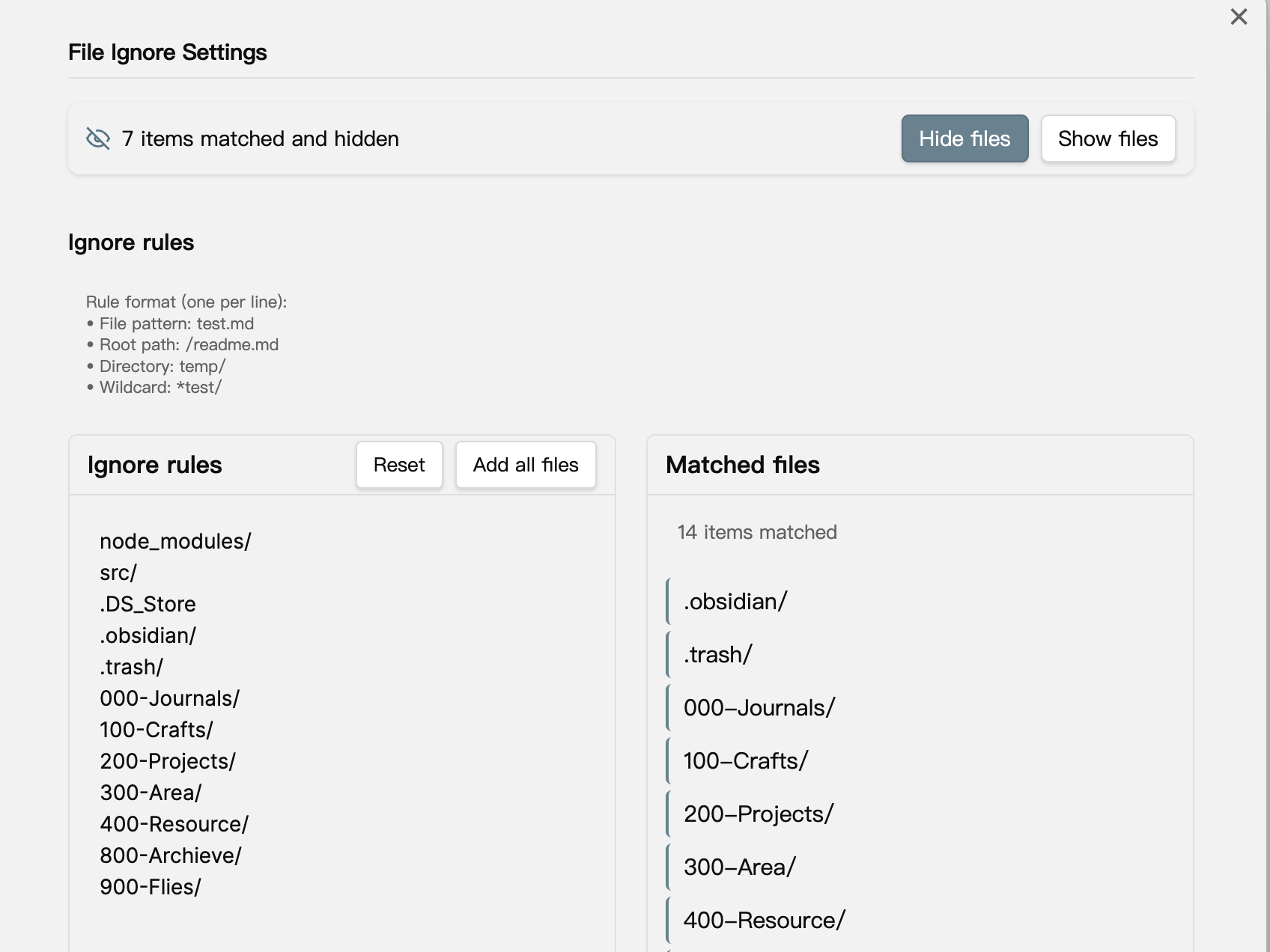
🚀 Features
- File Filtering: Specify files or folders to ignore based on rules.
- Hide Files: Add a dot (.) prefix to matched files/folders, making them invisible to Obsidian.
- Show Files: Remove the previously added dot prefix, restoring visibility.
- .gitignore-Style Patterns: Use familiar patterns for configuration.
- Index Control: Prevent Obsidian from indexing and processing irrelevant content.
⚙️ Usage
Matching Rules
Supports the following matching patterns:
- Specific file:
test.md - Root directory file:
/readme.md - Entire folder:
temp/ - Wildcard matching:
*test/(e.g.,/_build/,/cache*/)
Operations
After configuring rules in the plugin settings page, you can:
- Click "Hide Files": Builds a rename plan, shows a preview, and then adds a "." prefix to matching files/folders.
- Click "Show Files": Builds a rename plan, shows a preview, and then removes the "." prefix from matching files/folders.
- If a batch is interrupted, use the Recovery action in settings to undo the already-completed part safely.
How to Configure?
Configure your ignore rules in Obsidian's Settings -> Community plugins -> File Ignore settings page.
🛠️ Installation
- Open
Settings>Community pluginsin Obsidian. - Ensure
Safe modeis off. - Click
Browse community plugins. - Search for "File Ignore".
- Click
Install. - Once installed, click
Enable.
🔍 Tips
Recommended to use with the Show-Hide-Files plugin for better management (viewing or manipulating) of files hidden by this plugin.
🔒 Safety Notes
- Important: File Ignore works by renaming files and folders on disk. It is not a native Obsidian exclude API.
- Hide/Show now builds a rename plan before execution and skips protected areas such as
.obsidian/,.git/, and.trash/automatically. - When the destination name already exists (for example, both
foo.mdand.foo.mdare present), the plugin aborts the rename and emits an audit log instead of overwriting either file. - Nested children are skipped when their parent directory is already scheduled for renaming, which avoids double-processing the same subtree.
- The latest batch is persisted so interrupted runs can be undone from the settings page.
- Each rename records a
[file-ignore][audit]line in the developer console, making it easy to trace which paths were changed if something looks wrong.
🧪 Debugging & Troubleshooting
- Open
Settings → Community plugins → File Ignore. - Enable Debug logging to stream detailed diagnostics.
- Use
View → Toggle Developer Toolsand inspect the Console tab; look for[file-ignore][audit]entries detailing hide/show batches, skipped items, and failures. - Disable the toggle after finishing—normal operation stays quiet unless a warning or error occurs.
🤝 Support
If you encounter any issues or have suggestions for improvements, please visit our GitHub repository to create an issue.
I'm chenfeng — besides Obsidian plugins I build small, permission-light Mac apps, like Command Reopen, which fixes Cmd+Tab for minimized windows.
You can also support me by buying me a coffee: Buy Me A Coffee
📄 License
This project is open-sourced under the MIT License - see the LICENSE file for details.