FastForwardLink
 idanlib520 downloads
Fast-forward multiple links to a single target note. Create custom link shorthands (like `ps` > `photoshop`) to create synonyms, streamline navigation, and keep your vault organized.
- Overview
- Scorecard
- Updates4
Obsidian lets you link notes. Great.
But real people don't always use the same terms consistently:
- abbreviations
- acronyms
- nicknames
- alternate spellings
- inside jokes
So you might write:
javascriptjsecmascript
...while meaning the exact same thing.
By default, Obsidian treats these as separate notes.
Over time, that creates:
- duplicate notes
- fragmented knowledge base
- inconsistent linking
- friction while writing naturally
FastForwardLink solves this by turning alias notes into lightweight redirects.
Write naturally. Land on the right note — fast.

FastForwardLink Plugin Demo
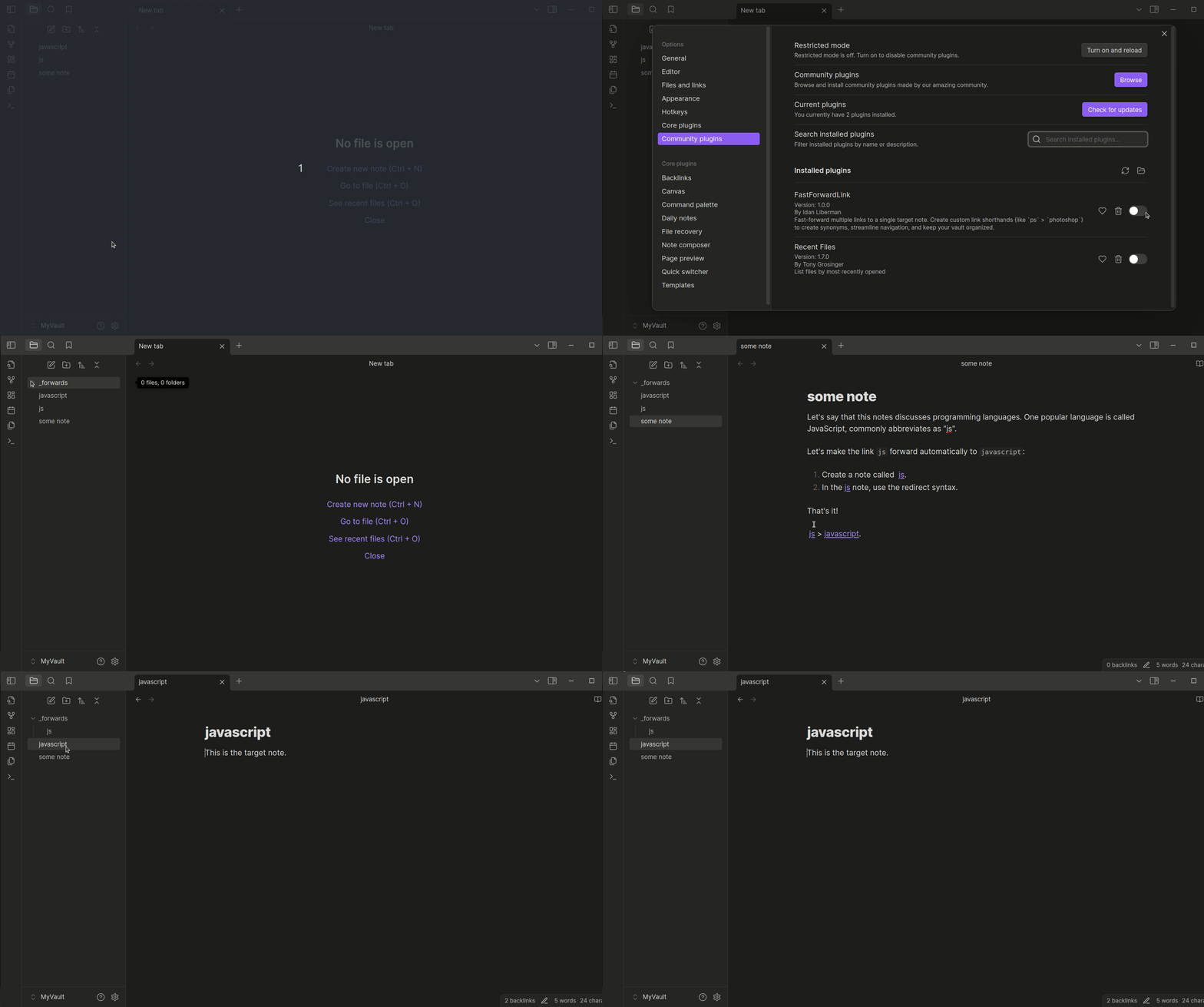
FastForwardLink lets multiple note names point to the same canonical note. Write naturally without fragmenting your vault structure:
js→javascriptps→photoshop
How It Works
Suppose you have a note called javascript.
Elsewhere in your vault, you naturally write:
[[js]]
Normally, Obsidian would create a brand-new js note. But with FastForwardLink:
- Create a note called
js - Add redirect syntax inside it
- Opening
jsautomatically forwards tojavascript
Here are some examples of how you might set up FastForwardLink:
ps>photoshopjs>javascripttay tay>taylor swifte=mc2>Einstein's special theory of relativityfavorite film>bill and ted's bogus journey
Features
Multiple Links, One Target: Set multiple links to redirect to a single target note for quick navigation between related topics or abbreviations. Organize synonyms or alternate spellings for easier access.
Quick-Paste Command: Set target notes on the fly without breaking your writing flow. In the Obsidian command palette, select Paste redirect syntax onto selection to quickly create a forwarding link.
Organized Vault: Streamline vault navigation by unifying concepts, perfect for efficient, clutter-free notes.
Easy Management: Forwarding notes are automatically moved to a designated folder for easy review, management, or removal.
Flexible Forwarding Options:
- Open the target note in the same tab.
- Open the target note in a new tab while remaining on the original note.
- Open the target note in a new tab and switch to it automatically.
Remove Forwarding Notes in One Click: Easily delete all redirecting notes with a single click using plugin settings.
Installation
Download the plugin directly from Obsidian's community plugins. Just search for FastForwardLink.
You can also install manually by doing the following:
Download the following plugin files:
data.jsonmain.jsmanifest.json
Copy these files to your vault's plugins folder at
{VaultFolder}/.obsidian/plugins/FastForwardLink.In Obsidian, go to Settings > Community Plugins and enable FastForwardLink.
The plugin is now ready for use.
Create a Fast-Forward Link
To create a fast-forwarding link:
- Create or open the note you want to fast-forward to a target note. For example, a note titled
ps. - In the note, type the target note's title wrapped in the forwarding syntax:
::>[[target-note]]. For example, to forward frompstophotoshop, include::>[[photoshop]]in thepsnote.
Clicking the ps link in any note now opens the photoshop note.
Quick-Paste Syntax
Yup, typing sucks. Fortunately, there's a command to help you quickly paste the redirect syntax into your code:
- Press
Ctrl + Pto open the Obsidian command palette. - Search for and select the command Paste Redirect Syntax onto Selection.
The command wraps the selected text in the fast-forward syntax.
[!TIP] > Add a hotkey to trigger this command! We recommend
Ctrl + Alt + R(PC) orCmd + Opt + R(macOS).
Version Updates
Version 1.1
Some improvements include:
- You can now temporarily bypass forwarding with a designated command. In Obsidian's command palette, search for "FastForwardLink".
- Source code refactored and better organized for future contributors.
- Better robust event and error handling and messaging.
Bugs and Contact
Found a bug? Well, we can't have those!
Please open an issue in the plugin's GitHub repository or contact the developer directly.
Known Bugs
When "Open the target note in a new tab" is enabled and the fast-forwarding note has not yet been moved to the
_forwards_folder, some additional tabs are opened. This is likely due to internal timing issues in the Obsidian-OS interaction.When the fast-forwarding note is in the
_forwardsfolder, plugin behavior is as expected.
Supporting this plugin
If you enjoy using FastForwardLink, consider supporting its development by buying me a coffee or a cheesy slice!