Double-Click Image Opener
 atman-33541 downloads
Open images with your system's default application by double-clicking.
- Overview
- Scorecard
- Updates2
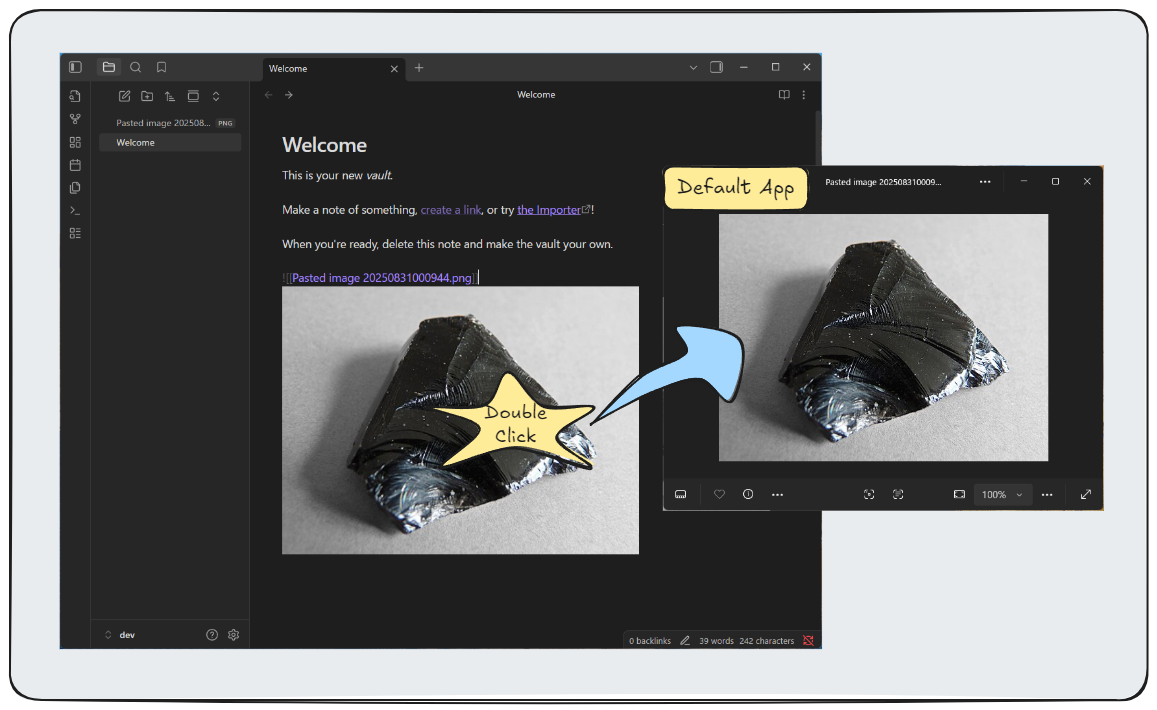
A lightweight Obsidian plugin that allows you to open images in your default system application by double-clicking them.
Features
- Double-click any image to open it in your default system image viewer
- Works across all view modes (Reading, Live Preview, Source)
- Supports all common image formats (PNG, JPG, GIF, WebP, SVG, etc.)
- Cross-platform support (Windows, macOS, Linux)
How to Use
- Install and enable the plugin in Obsidian settings
- Double-click any image in your vault
- The image opens in your default system image viewer
Installation
From Obsidian Community Plugins
- Open Obsidian Settings
- Go to Community Plugins
- Search for "Double-Click Image Opener"
- Install and enable the plugin
Manual Installation
- Download the latest release
- Extract files to
.obsidian/plugins/double-click-image-opener//.obsidian/plugins/double-click-image-opener/ + +- main.js +- manifest.json +- styles.css - Enable the plugin in settings
Settings
- Show success notifications: Display notification when image opens (optional)
Access via: Settings → Community Plugins → Double-Click Image Opener
Troubleshooting
Images don't open?
- Check that the plugin is enabled
- Verify the image file exists
- Ensure you have a default image viewer set
Permission errors?
- Check file permissions
- Try opening the image manually first
License
MIT License - see LICENSE file for details.
HealthGood
ReviewSatisfactory
About
Open images in your default system viewer by double-clicking them inside Obsidian. Support common image formats (PNG, JPG, GIF, WebP, SVG) across Reading, Live Preview and Source modes on Windows, macOS and Linux.Details
Current version
1.0.1
Last updated
7 months ago
Created
Last year
Updates
2 releases
Downloads
541
Compatible with
Obsidian 0.15.0+
Platforms
Desktop only
License
MIT