Current View
 Lucas Ostmann12k downloads
Automatically set the view mode (Reading, Live Preview, Source) for notes using folder rules, file patterns, or frontmatter
- Overview
- Scorecard
- Updates35
Automatically control view modes (Reading, Live Preview, Source) for your notes based on smart rules and patterns.
✨ Features
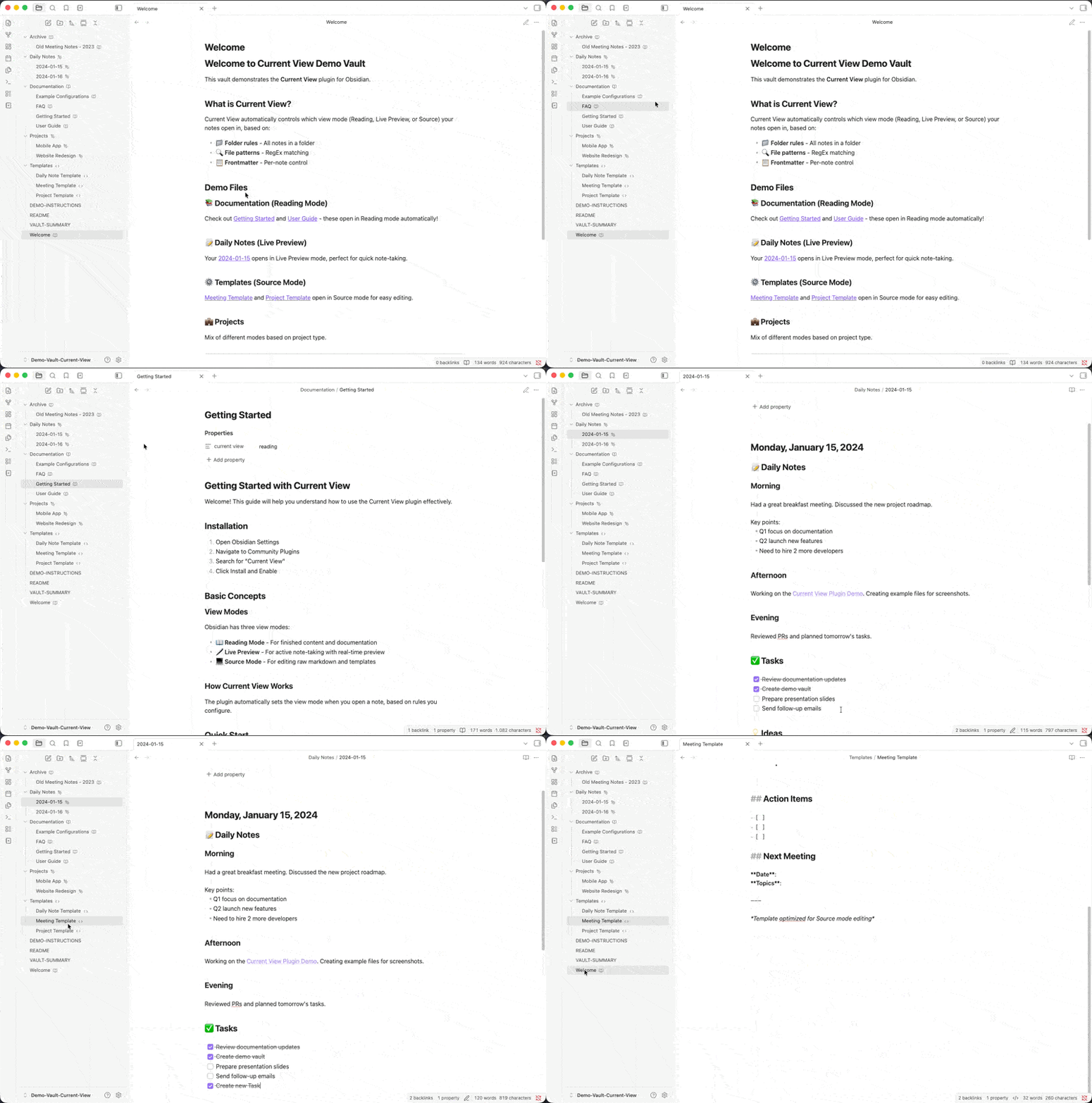
📖 Automatic View Mode Control
Automatically applies the right view mode when opening notes based on your rules:
- Reading mode for documentation and finished content
- Live Preview for active note-taking
- Source mode for templates and technical notes
🎯 Flexible Rule System
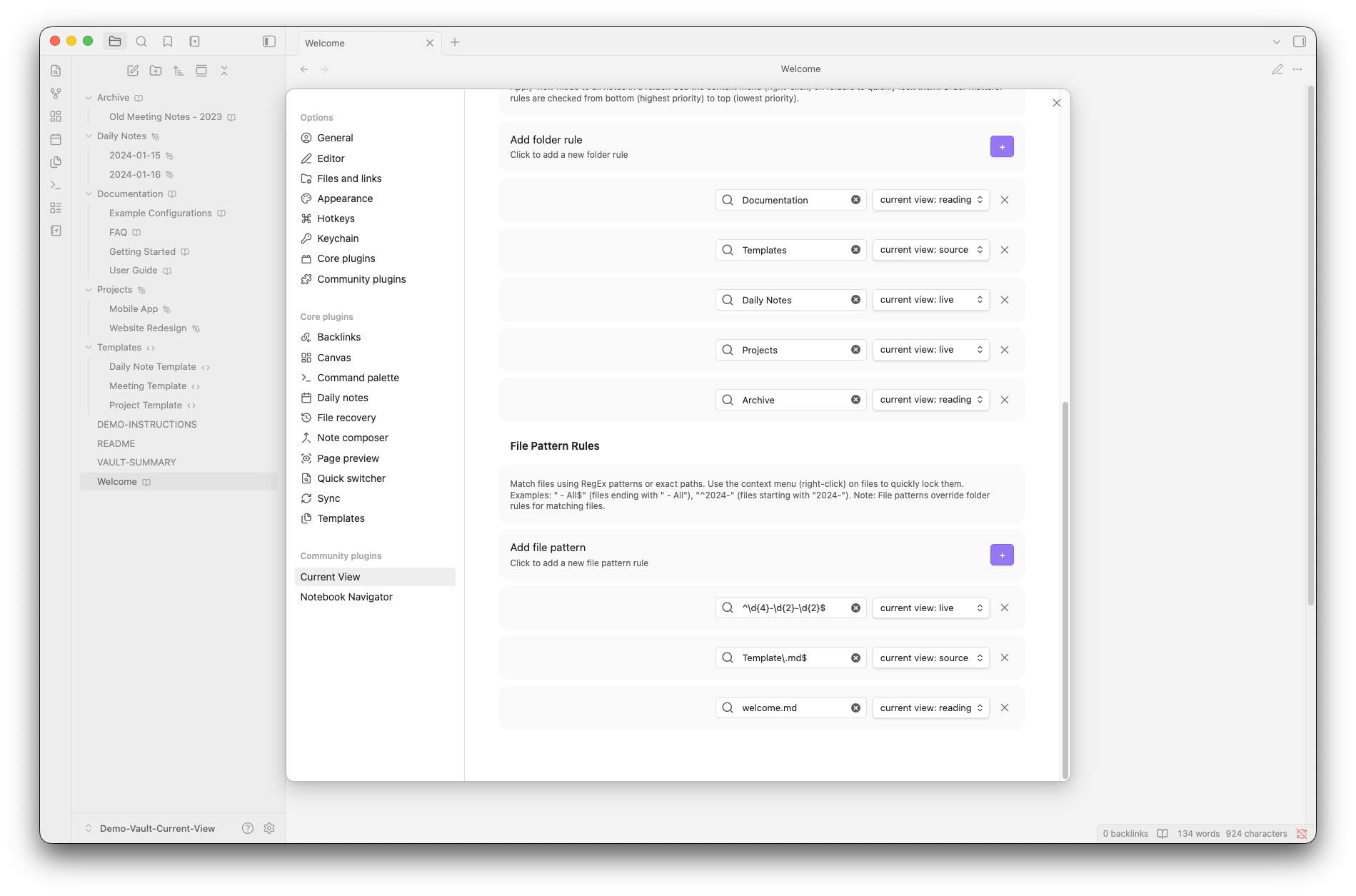
Configure view modes based on:
- 📁 Folder paths – All notes in
Templates/open in Source mode - 🔍 File patterns – Match files using RegEx (e.g., all daily notes)
- 🏷️ Tag rules – Match notes by Obsidian tags (e.g., all notes tagged
sentopen in Reading mode) - 📋 Frontmatter – Per-note control with custom metadata field
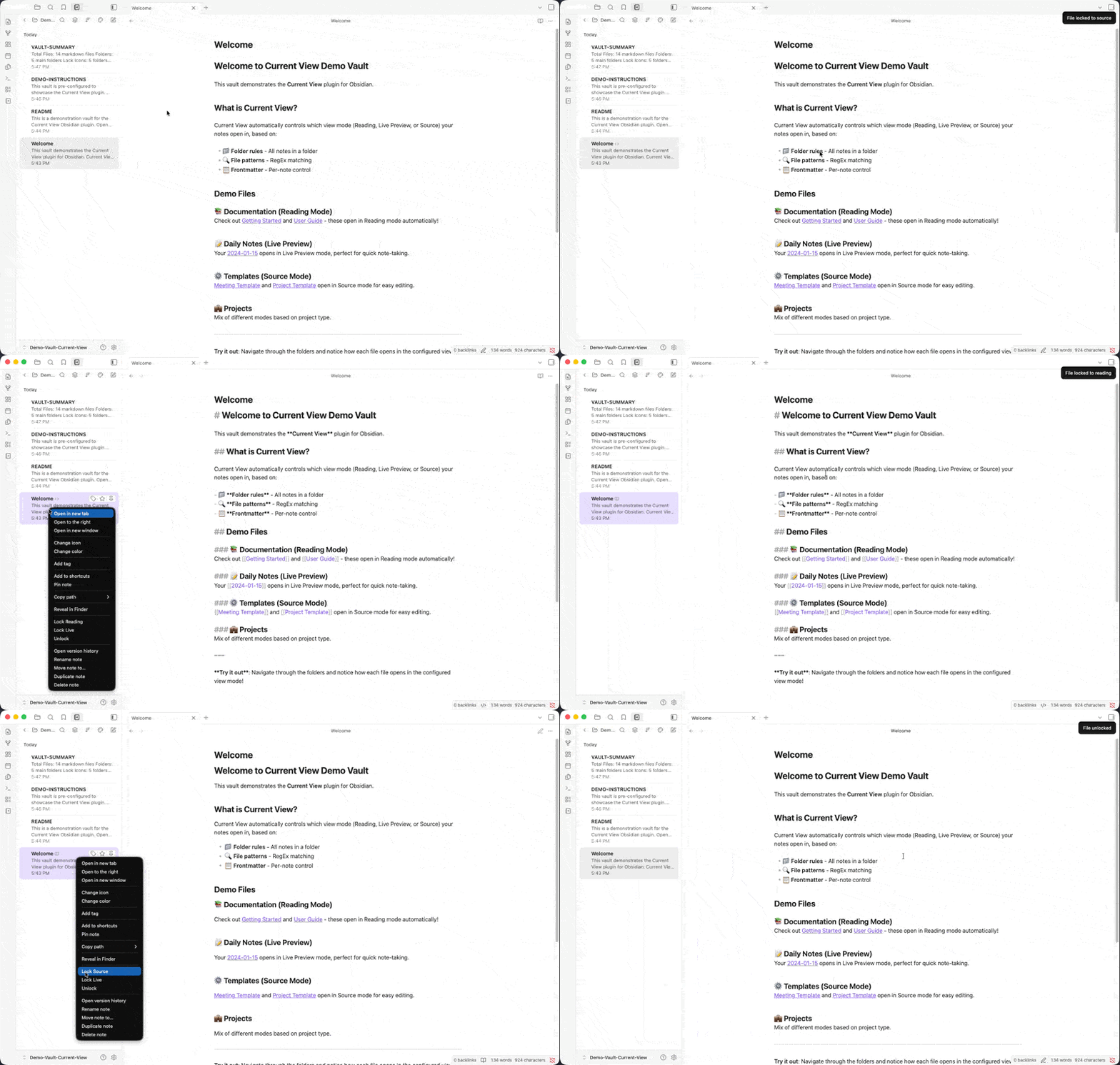
🔒 Quick Lock from Context Menu
Right-click any file or folder in the File Explorer or Notebook Navigator to instantly lock it to a specific view mode.
🏷️ Visual Lock Indicators
See at a glance which files and folders are locked with inline icon badges:
- 📖 Book icon – Locked to Reading mode
- 🖊️ Pen icon – Locked to Live Preview
- 💻 Code icon – Locked to Source mode
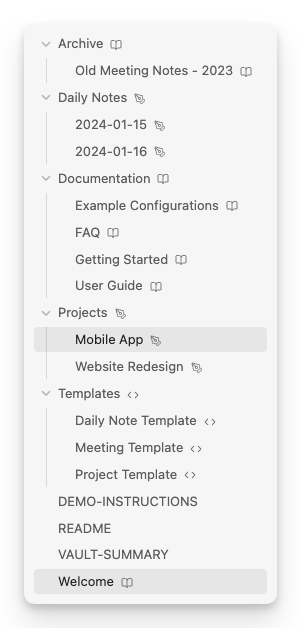
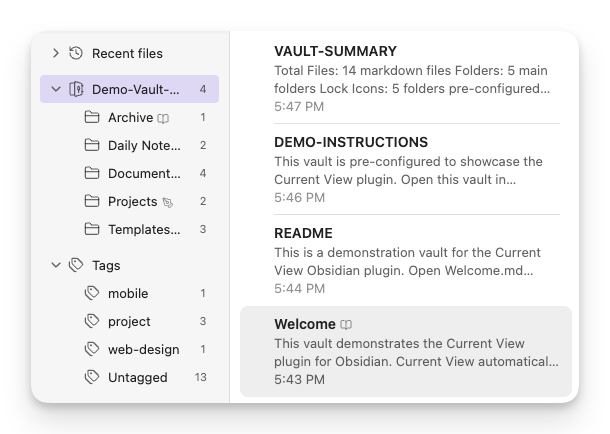
Lock icons in File Explorer (left) and Notebook Navigator (right)
🔌 Notebook Navigator Integration
Full support for Notebook Navigator plugin:
- ✅ Context menu integration using official API (v1.2.0+)
- ✅ Lock icons in both navigation pane and file list
- ✅ Real-time updates when locking/unlocking
🧠 How It Works
View Mode Priority
When you open a note, Current View checks for view mode rules in this order:
1. Frontmatter         →  Per-note override
2. File Pattern Rules  →  Exact path match or RegEx pattern
3. Tag Rules           →  Any matching tag in frontmatter
4. Folder Rules        →  Deepest matching folder wins
5. Obsidian Default    →  Your global Obsidian setting
Example:
- You have a folder rule:
Templates/→ Source mode - You open
Templates/meeting-note.md - The note has frontmatter:
current view: reading - Result: Opens in Reading mode (frontmatter wins)
Example with tag rule:
- You have a tag rule:
sent→ Reading mode - You open a note with
tags: [sent]in its frontmatter - Result: Opens in Reading mode (tag rule applies automatically)
📑 Usage Examples
Frontmatter Control
Add a frontmatter field to any note for per-note control:
---
current view: reading     # Options: reading, source, live
---
You can customize the frontmatter key in plugin settings (e.g., change it to view-mode or display).
Common Use Cases
📚 Documentation vault:
# Lock all files in Docs/ to Reading mode
Folder: Docs/
Mode: reading
🗓️ Daily notes:
# Match pattern like "2024-01-15.md"
Pattern: ^\d{4}-\d{2}-\d{2}\.md$
Mode: live
⚙️ Templates:
# All templates open in Source mode for editing
Folder: Templates/
Mode: source
📬 Published/sent notes:
# Notes tagged with 'sent' or 'published' open in Reading mode
Tag: sent
Mode: reading
Any note with tags: [sent] in its frontmatter will automatically open in Reading mode.
⚙️ Settings
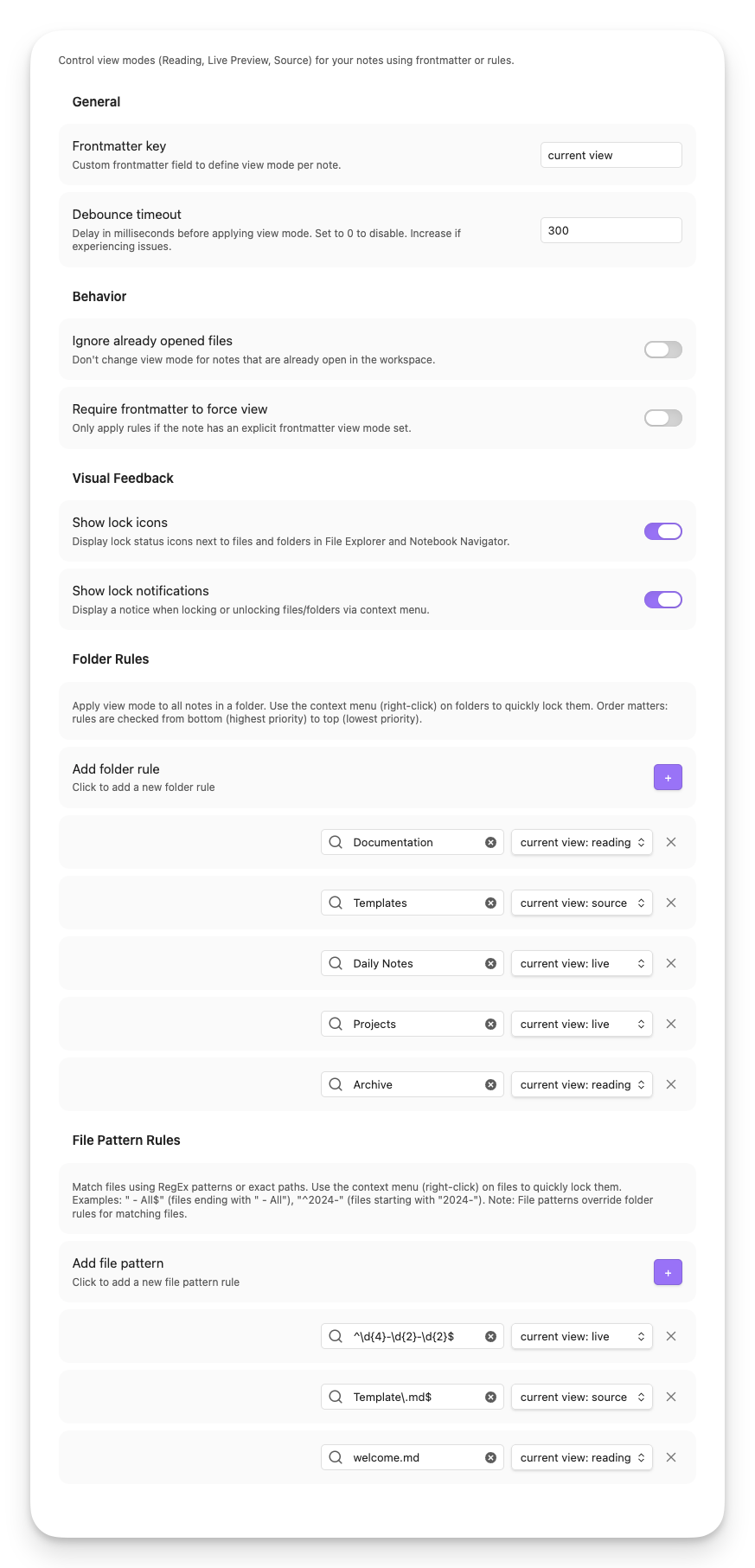
Core Settings
| Setting | Description | Default |
|---|---|---|
| Frontmatter key | Which frontmatter field to read for view mode | current view |
| Debounce timeout | Delay (ms) before applying view mode to prevent rapid switching | 0 |
Behavior Options
| Setting | Description | Default |
|---|---|---|
| Ignore opened files | Don't change view mode for notes already open in workspace | false |
| Ignore force view when not in frontmatter | Only apply rules if frontmatter explicitly sets a view mode | false |
Visual Feedback
| Setting | Description | Default |
|---|---|---|
| Show explorer icons | Display lock icons next to files/folders in File Explorer and Notebook Navigator | true |
| Show lock notifications | Show notice when locking/unlocking via context menu | true |
Rules Configuration
- Folder Rules: Apply view mode to all notes in a folder (context menu locks write here)
- Tag Rules: Apply view mode to notes that have a specific tag
- File Patterns: RegEx patterns or exact file paths (context menu file locks write here)
📦 Installation
From Obsidian Community Plugins (Recommended)
- Open Settings → Community Plugins in Obsidian
- Click Browse and search for "Current View"
- Click Install, then Enable
Via BRAT
Use BRAT only if you want to test beta builds before they are released in the Obsidian Community Plugins directory.
- Install BRAT plugin
- In BRAT settings, click Add Beta Plugin
- Enter:
LucEast/obsidian-current-view - In BRAT, choose the latest beta release (for example
1.6.3-beta.1) - Enable the plugin in Community Plugins
Beta Channel Notes
- Stable releases use plain versions like
1.6.3and are distributed through the Obsidian Community Plugins directory. - Beta releases use versions like
1.6.3-beta.1and are distributed through GitHub Releases for BRAT testers. - Obsidian does not fully support semantic version pre-release handling for community plugins. If you install
1.6.3-beta.1via BRAT, Obsidian may not automatically switch you to the stable1.6.3release later. - If you test beta builds, treat BRAT as a separate release channel.
Return From Beta To Stable
If you want to leave the beta channel and go back to the normal Community Plugins release track:
- Open BRAT and switch this plugin to the stable release if available there
- Or uninstall the BRAT-managed beta version
- Reinstall Current View from Settings → Community Plugins
- Future stable updates should continue normally from the Community Plugins directory
Manual Installation
- Download the latest
main.js,manifest.json, andstyles.cssfrom Releases - Create folder:
<vault>/.obsidian/plugins/obsidian-current-view/ - Copy the downloaded files into this folder
- Reload Obsidian and enable the plugin in Settings → Community Plugins
🔗 Compatibility
Supported Plugins
- Notebook Navigator (v1.2.0+) – Full integration with context menus and lock icons
- File Explorer – Native Obsidian file explorer support
Requirements
- Obsidian v1.0.0 or higher
🛠 Development
Setup
git clone https://github.com/LucEast/obsidian-current-view.git
cd obsidian-current-view
npm install
Build Commands
npm run dev          # Watch mode - auto-rebuild on changes
npm run build        # Production build
Testing
npm run test         # Run unit tests once
npm run test:watch   # Watch mode during development
npm run coverage     # Generate V8 coverage report
Architecture
See CLAUDE.md for development guidelines and architecture overview.
🤝 Contributing
Contributions are welcome! Please feel free to submit a Pull Request.
- Fork the repository
- Create your feature branch (
git checkout -b feature/amazing-feature) - Commit your changes using conventional commits (
git commit -m 'feat: add amazing feature') - Push to the branch (
git push origin feature/amazing-feature) - Open a Pull Request
💡 Support
If you encounter issues or have feature requests:
🙏 Acknowledgments
- Built for Obsidian
- Integrated with Notebook Navigator by Johan Sanneblad
- Inspired by the Obsidian community's need for better view mode control
📝 License
MIT – Free to use and modify.