Cortex Graph
 Bastian Ziemann5 downloads
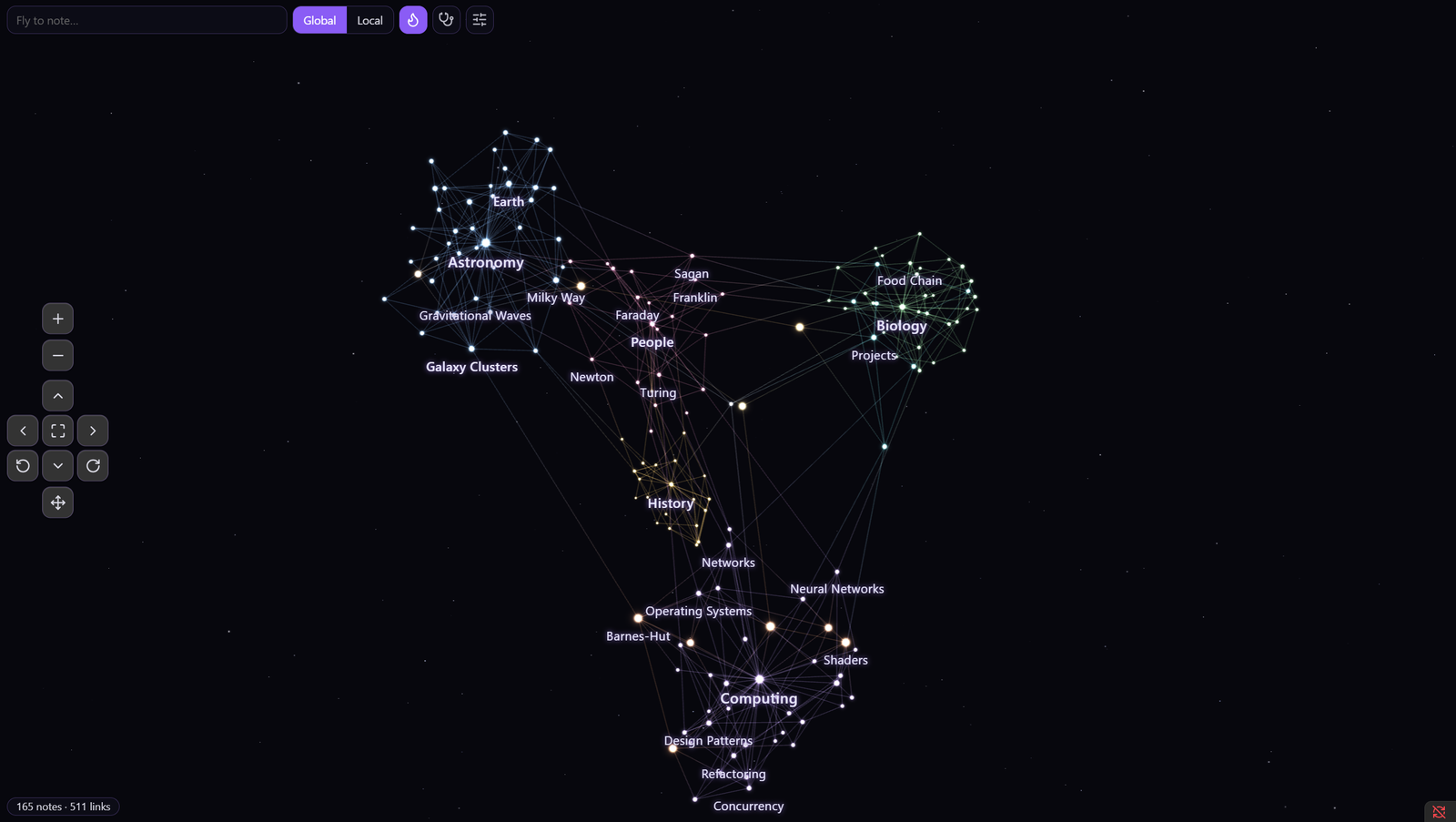
3D graph with glowing nodes: live updates, time lapse with video export, folder colors in the explorer, link suggestions, base forms like sphere, pyramid or brain, activity heat, shortest paths and touch controls.
- Overview
- Scorecard
- Updates49
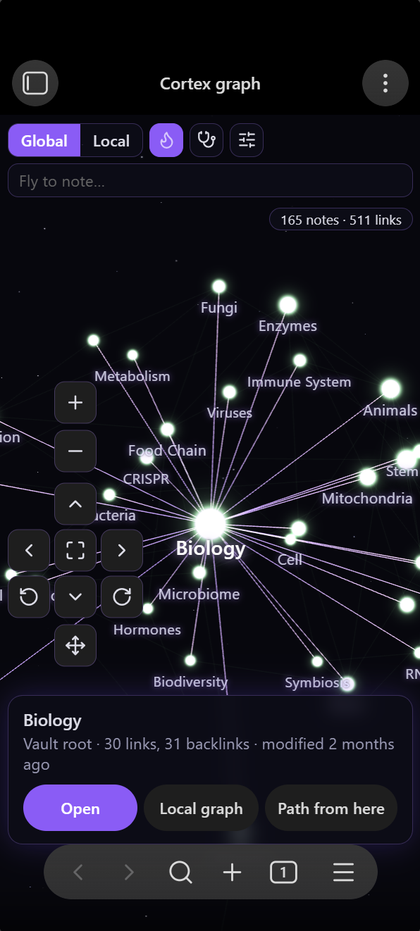
A 3D graph view for Obsidian with glowing nodes – made for exploring a large vault, not just looking at it. Works on desktop and mobile (touch controls included).
Features
- 3D or flat layout with glowing nodes, deep-space or theme background, light and dark mode.
- Live updates – new notes and links appear immediately, the layout stays stable.
- Native Obsidian integration
- click to select and highlight neighbours, double-click (or Ctrl/Cmd-click) to open
- hover preview (Page preview core plugin, with Ctrl/Cmd by default)
- right-click shows the normal file menu
- Local graph that follows the active note (depth 1–3), also in the sidebar.
- Explorer hover – hovering a file in the file explorer lights up its node, hovering a folder lights up all notes inside.
- Time lapse and tag filter – watch your vault grow by creation date, modification date or any date property; limit the time range, filter by tag, set the speed (1 s = 1 minute / hour / day / week / month).
- Video export – REC button records the time lapse with names and date caption; afterwards preview it and choose Save as…, Save in vault or Discard (or save automatically, see settings).
- Saved views – store camera, mode, filters and time range under a name and bring them back with one click.
- Folder galaxies – hovering or opening a folder in the explorer shows a glowing cloud with the folder name.
- Keep folders together – notes are tied to their folder (invisible or as thin lines), so notes without links stay with their folder.
- Tooltip on hover with folder, links, backlinks, tags and last change.
- Hide folders – right-click a folder → Hide in graph.
- Activity heat – recently edited notes glow warmer and pulse, so you see at a glance where work is happening.
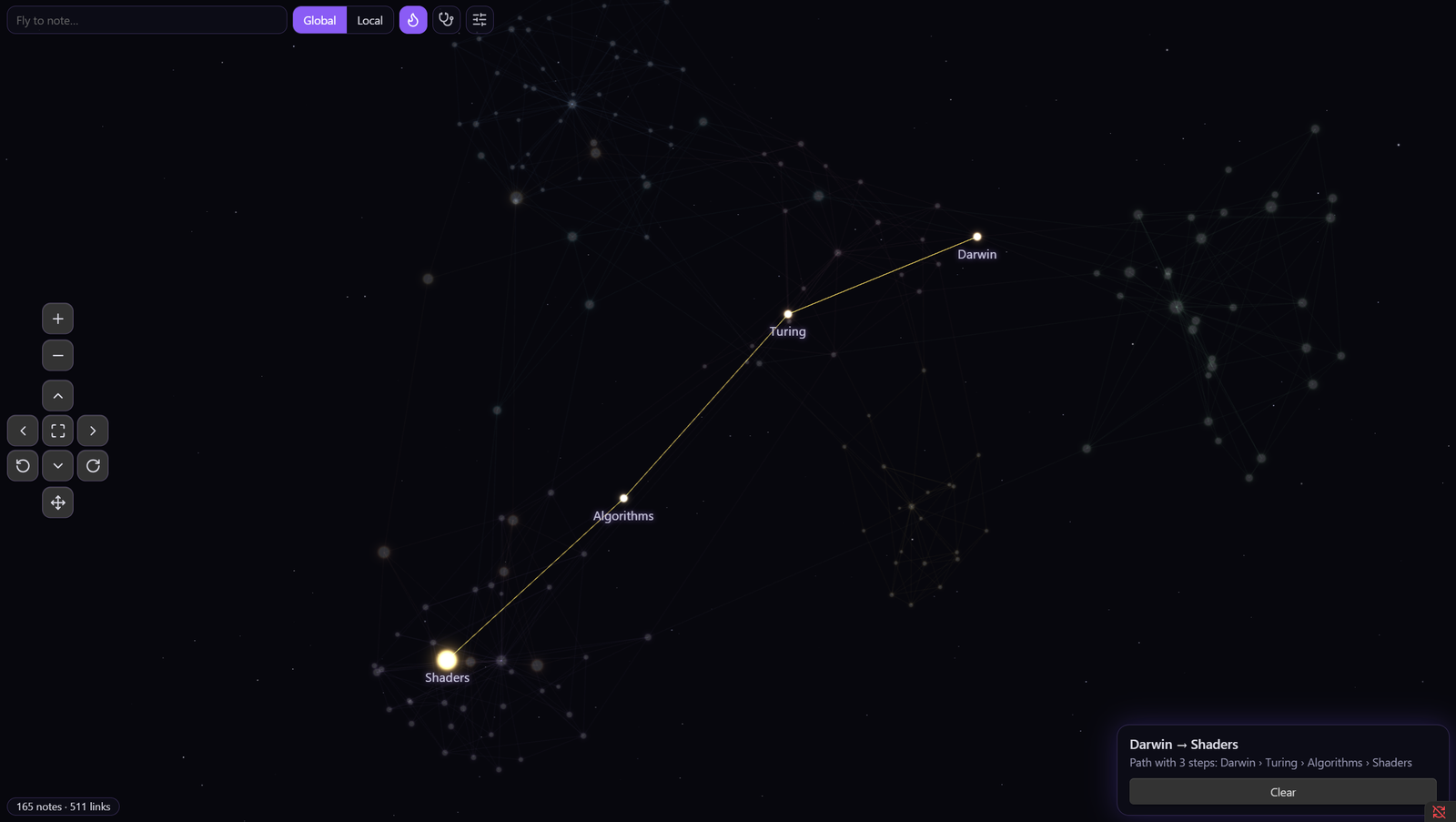
- Shortest path between two notes – pick "Path from here", then the target. Also available as a command.
- Fly-to search – type a name, the camera flies to the note.
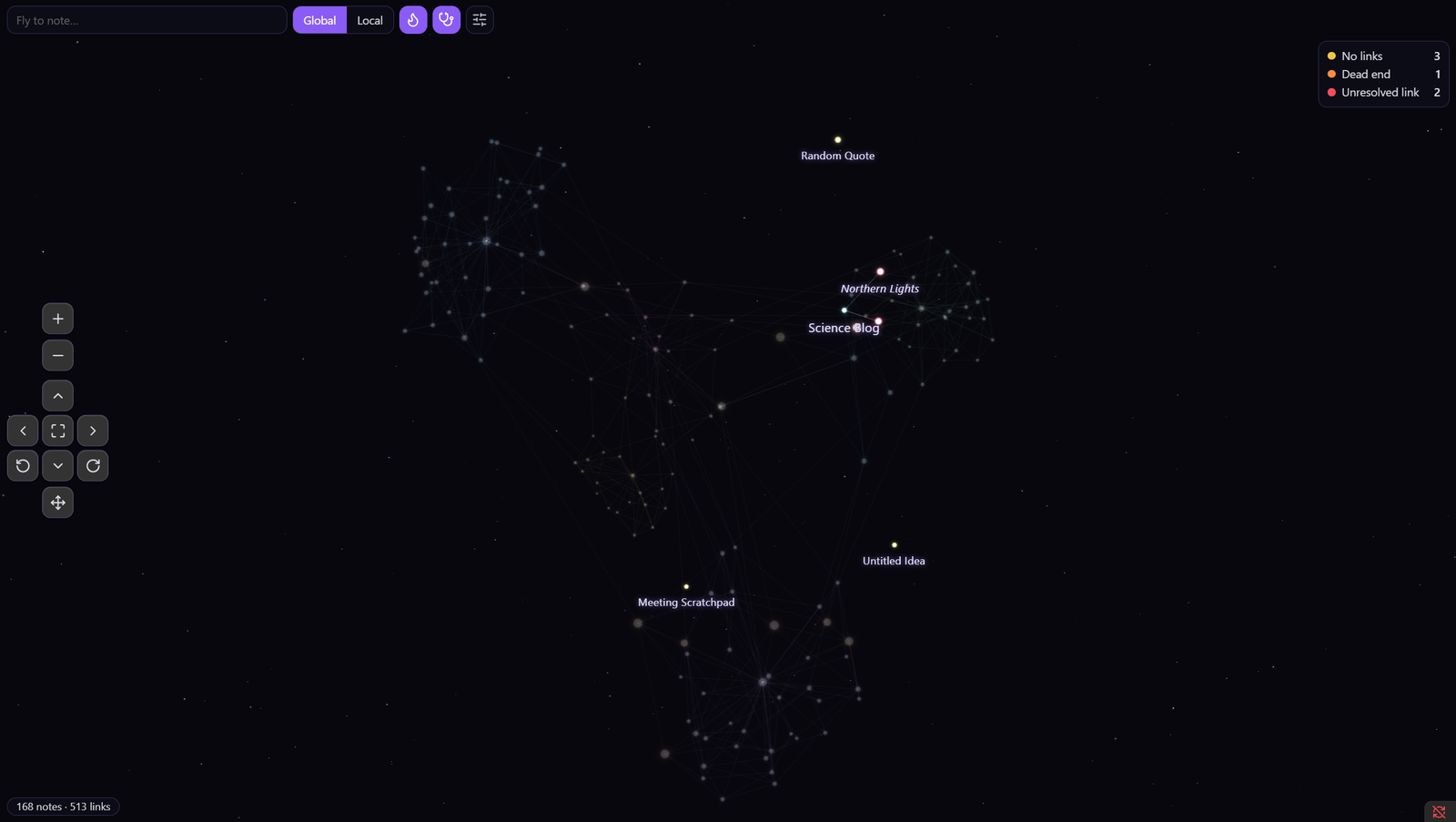
- Link health check – notes without links, dead ends and unresolved links are colored, with counts.
- Link suggestions – inside the link check: notes that mention another note's name or alias without linking it are marked; select one to see dashed suggestion lines and link with one click.
- Create and link in the graph – right-click empty space for a new note, right-click a node for a new linked note, Shift + drag from one node to another to add a link.
- Live activity – notes changed outside the editor (e.g. by an AI agent via MCP or CLI) flash orange; tools can also log reads/writes to
.cortex/activity.jsonl({"op":"read","path":"..."}per line) to make reads visible. - Review – highlight notes changed today, since Obsidian started, in the last 7 days or externally.
- Faded corners – notes untouched for a configurable number of days get paler and smaller.
- Controls – keyboard and mouse bindings shown and editable in the panel (two keys per action, drag buttons, wheel direction, rotation speed).
- Base form – keep the whole graph inside a sphere, pyramid (one base corner per top-level folder, core at the apex), cube or a brain (side view), with top-level folders gathered in their own regions (brain: one lobe per folder, biggest folder frontal).
- Labels – choose the font and a glow, shadow or background in the note's folder color.
- Look – glowing nodes with separate sliders for node brightness (intensity) and glow (radius); thin lines with their own brightness.
- Node shapes – circle, ring, star, diamond, square: per folder or note (right-click → Appearance…, also sets weight), via the
formproperty, or automatically by importance with a percentage slider per shape. - Camera focus – a click flies to the note; a click on empty space returns to the previous view.
- Automatic priority – names and font sizes follow the importance of a note, not just its link count: links across projects and areas count fully, links inside one project (e.g. chapters of a split document) only a little. A
priorityproperty (1–5 or low/medium/high) and folder weights refine it. - Folder appearance – right-click a folder: pick its color and weight (normal, important, primary). Primary folders get bigger nodes and names regardless of links.
- Colored file explorer – top-level folders (and optionally their notes) are tinted in the graph colors.
- Uses your graph view settings – color groups and path filters of the core graph view are applied (optional).
- Obsidian-like controls – center/repel/link forces, link distance, node size, size by connections, glow, line thickness, font size, font growth and bold labels by connections, label thresholds.
- Navigation buttons for zoom, pan, rotate and fit; keyboard: arrows/WASD, +/−, Q/E, 0 or F.
- Built for large vaults – the force layout runs in a web worker with a Barnes-Hut octree.
- English and German interface.
| Path between two notes | Link health check | Mobile |
|---|---|---|
 |
 |
 |
Controls
| Action | Mouse | Touch |
|---|---|---|
| Rotate | drag background | one finger |
| Pan | right/middle drag or Shift + drag | two fingers |
| Zoom | wheel | pinch |
| Move a node | drag the node | drag the node |
| Select / open | click / double-click | tap / double-tap |
| File menu | right-click | buttons in the info card |
Live activity from AI tools
Cortex Graph shows what an AI agent is doing in your vault: notes it writes flash orange, notes it reads flash cyan.
- Writes are detected automatically – any change made outside the Obsidian editor (MCP server, CLI agent, sync, scripts).
- Reads cannot be seen by Obsidian, because tools read files directly from disk. They become visible when the tool logs them.
The log format
The plugin watches <vault>/.cortex/activity.jsonl. Append one JSON object per line:
{"op":"read","path":"30 Wissen/Blender.md"}
{"op":"write","path":"20 Projekte/Plan.md"}
path may be vault-relative or absolute. Anything can write these lines – a hook, an MCP server, a shell script. The file is trimmed automatically when it grows past 256 KB.
Claude Code
- Download
tools/cortex-activity-hook.mjsand save it as.cortex/cortex-activity-hook.mjsin your vault (Node.js 18+). The plugin itself does not ship or write this script – Show reads by AI tools → Set up… links here and shows the snippet with your vault path. - Copy the shown snippet into
~/.claude/settings.json:
{
  "hooks": {
    "PostToolUse": [
      { "matcher": "Read|Write|Edit|MultiEdit",
        "hooks": [{ "type": "command", "command": "node \"/path/to/vault/.cortex/cortex-activity-hook.mjs\"" }] }
    ]
  }
}
The script finds the vault by itself (nearest folder with .obsidian) and ignores files outside vaults, so it can stay enabled globally.
Other tools
- Tools with hooks can call the same script and pass
{"tool_name":"Read","tool_input":{"file_path":"..."}}on stdin (any tool name other thanReadcounts as a write). - MCP servers can append the lines directly after each tool call – a few lines of code.
Commands
- Open graph – opens the global graph in a new tab.
- Open local graph in sidebar – follows the active note.
- Find path between two notes
- Rearrange layout
Settings
Layout (3D/flat), background (space/theme), node colors (graph view groups, folders, single color), graph view filters, notes without links, names, auto-rotation, single click opens note, activity half-life and local graph depth. Forces and appearance are adjusted live in the panel inside the view.
Privacy
The plugin works entirely offline. It reads your notes' link structure through Obsidian's metadata cache
and the core graph view settings (graph.json). It does not use the network.
Layout positions are stored in the plugin folder (positions.json).
Installation
From Obsidian: Settings → Community plugins → Browse → "Cortex Graph".
Manual: copy main.js, manifest.json and styles.css from the latest release into
<vault>/.obsidian/plugins/cortex-graph/ and enable the plugin.
Development
npm install
npm run dev     # watch build
npm run build   # production build
npm run lint
Releases are built by GitHub Actions when a tag matching the manifest.json version is pushed.
License
MIT © BZi Studio. Bundles three.js (MIT).