Structured Copy: Files & Folders
 seardnaschmid892 downloads
Copy the contents of files and folders in a structured JSON format.
- Overview
- Scorecard
- Updates2
The Recursive Item Copy plugin for Obsidian enhances your note-taking and organization experience by allowing you to easily copy the contents of files and folders in a structured JSON format. This plugin is particularly useful for:
- Backing up specific parts of your vault
- Sharing structured content with others
- Analyzing the structure and content of your notes
- Migrating content to other systems or applications
Features
- Copy the contents of a single file, multiple files, or entire folder structures
- Preserve the hierarchical structure of folders and files
- Include file contents in the copied data
- Output data in a clean, structured JSON format
- Timestamp each copy operation for easy tracking
- Remove duplicate entries when copying multiple items
How to Use
Installation
- Open Obsidian Settings
- Go to "Community Plugins" and disable Safe Mode
- Click "Browse" and search for "Recursive Item Copy"
- Install the plugin and enable it
Copying File or Folder Contents
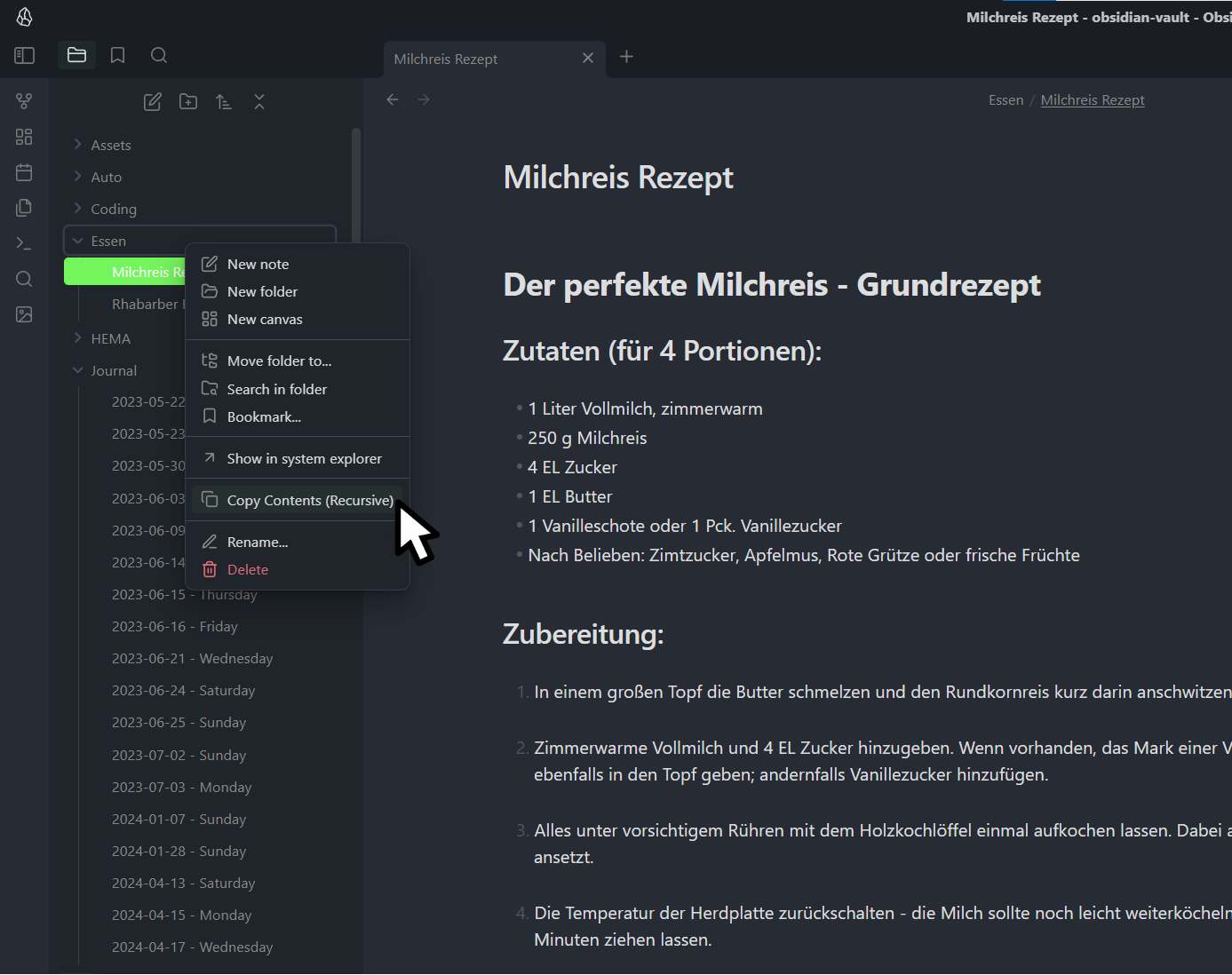
- Right-click on any file or folder in your Obsidian vault
- In the context menu, click on "Copy Contents (Recursive)"
- For multiple selections, use the "Copy Contents of Selected Items (Recursive)" option
- The plugin will process the selected item(s) and copy the structured data to your clipboard
Using the Copied Data
- Paste the copied content into any text editor or application that accepts JSON
- The copied data will include the full path of each item, its content (for files), and maintain the folder structure (for folders)
Output Format
The copied data is in JSON format and includes:
items: An array of copied files and folderstype: Either "file" or "folder"path: The full path of the item in your vaultcontent: The content of the file (for file types)
timestamp: The date and time when the copy was made
Example output:
{
  "items": [
    {
      "type": "folder",
      "path": "Essen"
    },
    {
      "type": "file",
      "path": "Essen/Milchreis Rezept.md",
      "content": "# Der perfekte Milchreis - Grundrezept\n\n## Zutaten (für 4 Portionen):\n\n- 1 Liter Vollmilch, zimmerwarm\n- 250 g Milchreis\n..."
    },
    {
      "type": "file",
      "path": "Essen/Rhabarber Kuchen Rezept.md",
      "content": "### Zutaten\n\n#### Für die Streusel\n\n- 125 Gramm Butter kalt in Stückchen\n- 125 Gramm Weizenmehl\n..."
    }
  ],
  "timestamp": "2024-08-24T19:41:50.729Z"
}
Use Cases
- Backup: Quickly create a structured backup of specific parts of your vault.
- Sharing: Share a structured representation of your notes, including content and organization.
- Analysis: Use the JSON output to analyze the structure and content of your notes programmatically.
- Migration: Use the structured output to migrate your notes to other systems or applications.
Technical Details
The plugin is implemented in TypeScript and uses Obsidian's Plugin API. Key components include:
ItemTypeenum to distinguish between file and folder typesFileSystemIteminterface to represent both files and foldersCopyInfointerface for the final copy information structure- Methods for handling file menu events, processing file contents, and managing folder structures
Feedback and Support
If you encounter any issues or have suggestions for improvements, please visit our GitHub repository [insert link here] to submit an issue or contribute to the project.
Enjoy recursive copying of your Obsidian content!
75%
HealthGood
ReviewSatisfactory
About
Copy files and folders recursively into a structured JSON representation, preserving folder hierarchy and including file contents and full paths. Include timestamps, remove duplicate entries across selections, and copy results to the clipboard for backup, sharing, or migration.Details
Current version
1.0.10
Last updated
Last year
Created
2 years ago
Updates
2 releases
Downloads
892
Compatible with
Obsidian 0.15.0+
Platforms
Desktop, Mobile
License
MIT