Search...Search plugins and themes...
⌘K
Sign in
  • Get started
  • Download
  • Pricing
  • Enterprise
  • Account
  • Obsidian
  • Overview
  • Sync
  • Publish
  • Canvas
  • Mobile
  • Web Clipper
  • CLI
  • Learn
  • Help
  • Developers
  • Changelog
  • About
  • Roadmap
  • Blog
  • Resources
  • System status
  • License overview
  • Terms of service
  • Privacy policy
  • Security
  • Community
  • Plugins
  • Themes
  • Discord
  • Forum / 中文论坛
  • Merch store
  • Brand guidelines
Follow us
DiscordTwitterBlueskyThreadsMastodonYouTubeGitHub
© 2026 Obsidian

Copy Image Hotkey

aliir74aliir7441 downloads

Cmd+C copies the actual image when an image embed is selected in source mode.

Add to Obsidian
  • Overview
  • Scorecard
  • Updates1

Cmd+C (or Ctrl+C) copies the actual image to your clipboard when an image embed is selected in an Obsidian note — instead of copying the wikilink text.

Why

By default, selecting ![[my-photo.png]] in source mode and pressing Cmd+C copies the literal text ![[my-photo.png]]. If you want to paste the image into another app (Slack, Mail, Figma, etc.), you have to right-click and "Copy image" from the rendered preview, which breaks flow.

This plugin makes Cmd+C just work: select the image embed, copy, paste anywhere.

Demo
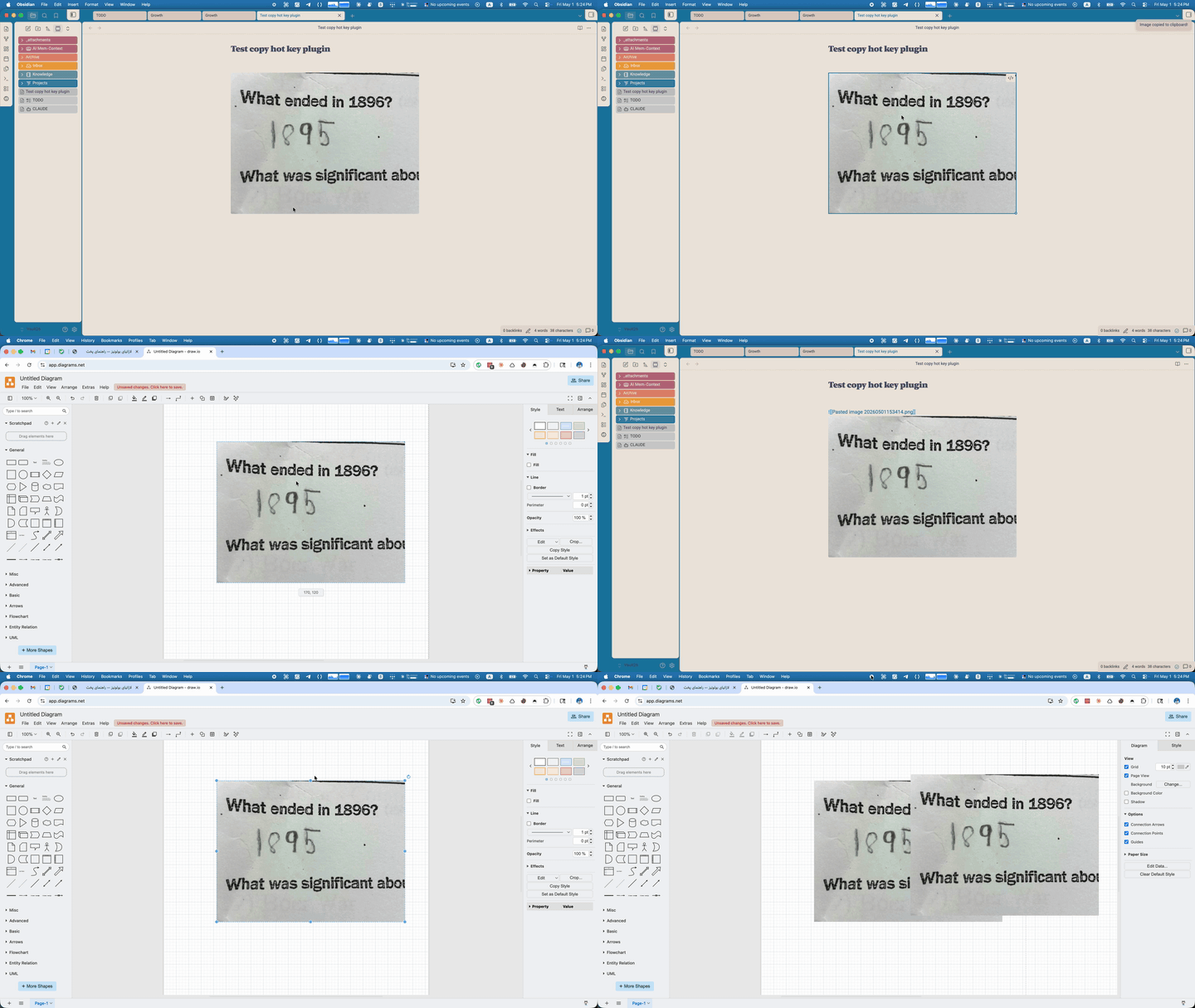
demo

How it works

The plugin listens for the system copy event. When the current selection is either:

  1. text matching ![[filename.ext]] (source mode), or
  2. a rendered <img> element (Live Preview),

it intercepts the copy, reads the image binary from your vault, and writes it to the clipboard as the correct MIME type. SVGs are written as text. Everything else is written as Blob.

Supported formats: PNG, JPG/JPEG, GIF, BMP, TIFF, WebP, SVG.

Install

From the Obsidian community plugins (post-approval)

  1. Settings → Community Plugins → Browse
  2. Search for "Copy Image Hotkey"
  3. Install and enable

Pre-approval (via BRAT)

While the plugin is awaiting community-plugin approval, install via BRAT:

  1. Install and enable BRAT from the community plugin browser
  2. BRAT settings → "Add Beta plugin"
  3. Paste: aliir74/copy-image-hotkey
  4. Enable Copy Image Hotkey under Settings → Community Plugins

Manual install

  1. Download main.js, manifest.json, and styles.css from the latest release
  2. Drop them into <your-vault>/.obsidian/plugins/copy-image-hotkey/
  3. Reload Obsidian → Settings → Community Plugins → enable Copy Image Hotkey

Notes

  • Desktop-only (uses the navigator.clipboard.write API with ClipboardItem).
  • The plugin doesn't bind a custom hotkey — it intercepts the existing system copy. If you've remapped copy elsewhere, the plugin will still trigger off whichever key fires the copy event.

License

MIT — see LICENSE.

91%
HealthExcellent
ReviewSatisfactory
About
Copy the actual image file to your clipboard with Cmd/Ctrl+C when an image embed is selected in Obsidian. Paste the image into other apps intact; supports PNG, JPG/JPEG, GIF, BMP, TIFF, WebP and SVG.
ImagesAttachments
Details
Current version
0.1.2
Last updated
3 weeks ago
Created
3 weeks ago
Updates
1 release
Downloads
41
Compatible with
Obsidian 1.4.0+
Platforms
Desktop only
License
MIT
Report bugRequest featureReport plugin
Author
aliir74aliir74
github.com/aliir74
GitHubaliir74
  1. Community
  2. Plugins
  3. Images
  4. Copy Image Hotkey

Related plugins

Image Context Menus

Image context menus (mostly on right click): Copy to clipboard, Open in default app, Show in system explorer, Reveal file in navigation, Open in new tab.

Ink

Hand write or draw directly between paragraphs using a digital pen, stylus, or Apple pencil.

Local Images Plus

A reincarnation of Local Images to download images in Markdown notes to local storage.

Paste image rename

Rename image after pasting, support name pattern and auto renaming.

Image auto upload

Upload images from your clipboard by PicGo.

Imgur

Upload images from your clipboard to imgur.com and embeds uploaded image to your note.

Unofficial Supernote by Ratta Integration

View Supernote notes, generate markdown from note and capture screen mirror.

Image Manager

Insert, rename, and sort images within your notes.

Local images

Find all links to external images in your notes, download and save images locally, and adjust the image links in your notes to point to the saved image files.

S3 Image Uploader

Self-host images on AWS S3.