Cookbook
 ed60 downloads
Browse and filter your recipe notes, plan cooking sessions, and generate shopping lists sorted by store aisle.
- Overview
- Scorecard
- Updates2
An Obsidian plugin to browse your recipe notes, filter them by frontmatter properties, and generate categorised shopping lists.
Features
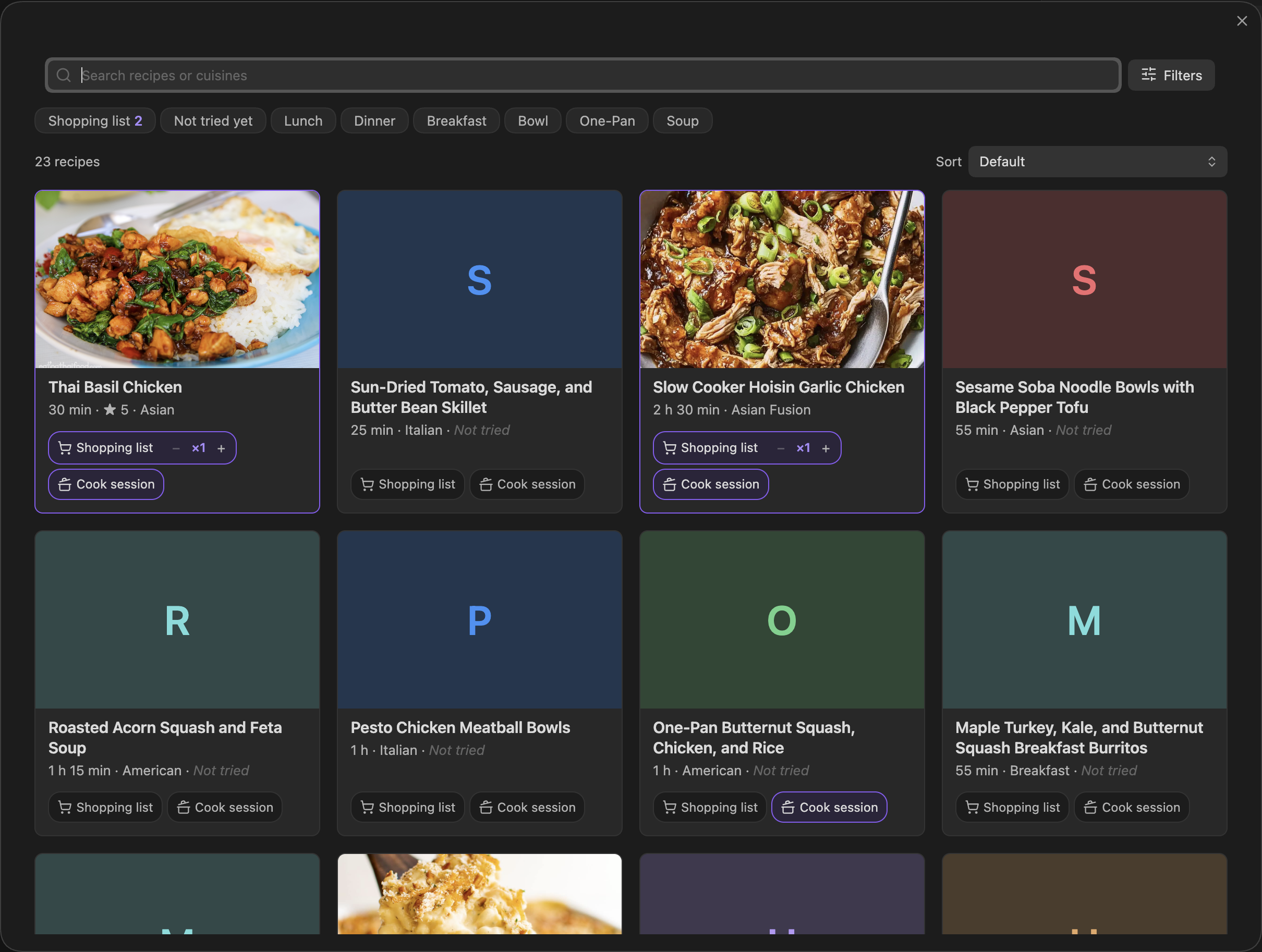
- Recipe grid — view all your recipe notes in a card layout with cover images and frontmatter fields
- Filters — filter recipes by any frontmatter property; supports string matching and numeric comparisons (
<,=,>) - Ingredient filters — filter recipes by ingredient with autocomplete; supports "must contain" and "excludes" with AND/OR logic
- Dietary group filters — one-click filters for named ingredient groups (Dairy, Gluten, Nuts, etc.); fully customisable
- Shopping list toggle — mark the recipes you plan to make this week; their ingredients go on the shopping list (saved as
cook-soonin the note's frontmatter) - Serving multiplier — scale any recipe before generating the shopping list (×2, ×3, etc.) directly from the recipe card, detail view, or ribbon menu
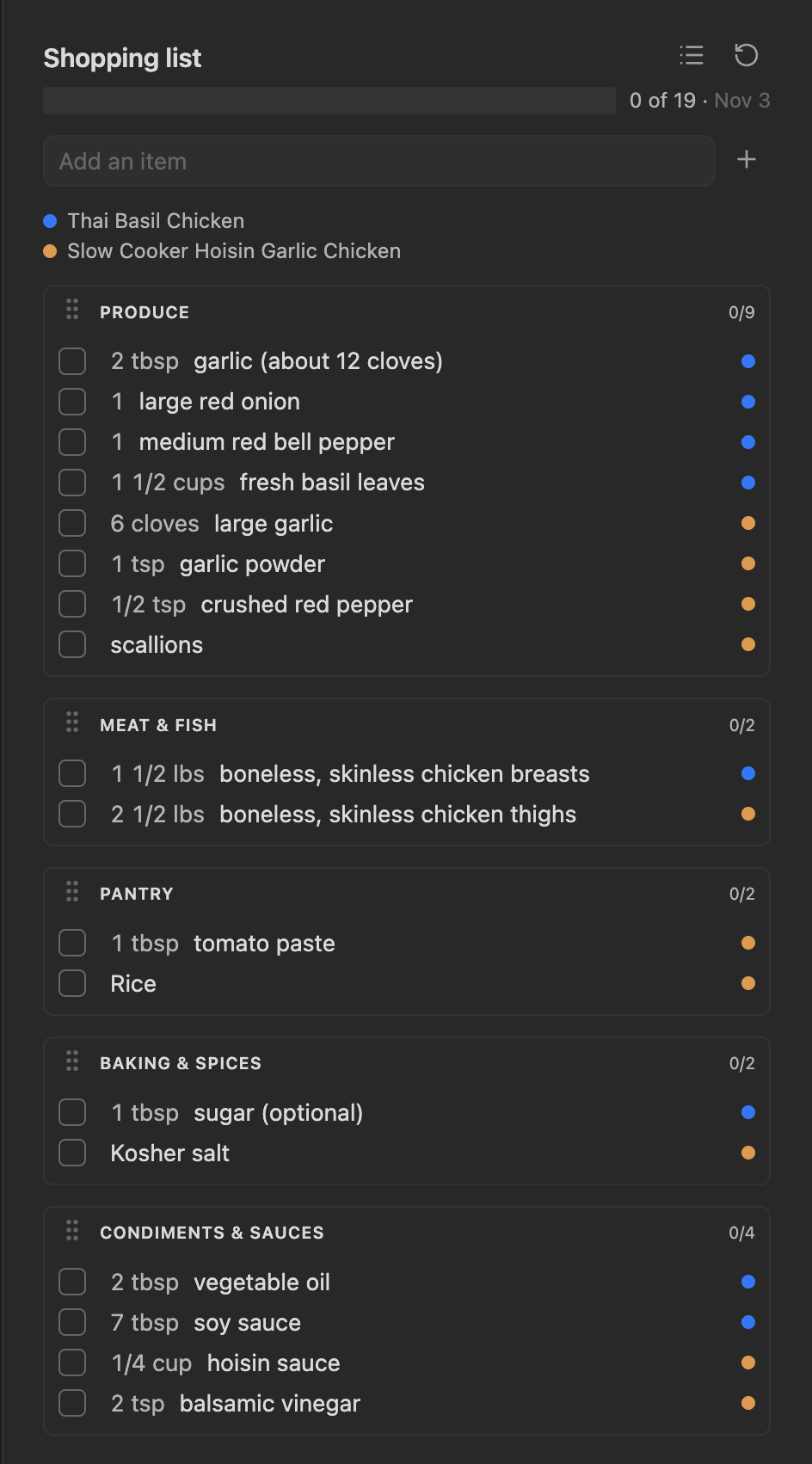
- Shopping list — generate a categorised, grouped shopping list from the recipes you've marked
- Smart ingredient parsing — quantities, units, and fractions are extracted automatically; ingredients are aggregated across recipes with unit-aware conversion
- Custom items — add one-off items to the shopping list manually; they're filed by your ingredient list
- Store layouts — give each shop numbered aisles (and move single ingredients where that shop keeps them); the list sorts itself into that shop's order
- Drag to reorder — rearrange shopping list categories by dragging
- Recipe detail — click any recipe card to read the full note rendered inside Obsidian
- Technique tags — tag prep on ingredient lines (
#prep/dice,#prep/mince); a check command finds typos and untagged prep - Ingredient list — one list where each ingredient has a category, dietary groups, other names and a staple flag; a names panel adds the ingredients your recipes use and suggests duplicates to merge
- Cooks well with — the recipe detail lists the recipes that share the most distinctive ingredients, and the browser can sort by overlap with the recipes marked for your cook session
- Cooking sessions — mark recipes for the Cook session and generate one note with the combined equipment, a prep list grouped by technique, every recipe's steps in a cook order you can arrange by hand, and store/reheat instructions
How It Works
Cookbook reads notes in your vault and treats any note tagged #recipe (configurable) as a recipe. Frontmatter properties are used for display and filtering.
Example recipe note
Ingredients are read from checkboxes (- [ ]) anywhere in the note body. Each checkbox line becomes one shopping list item.
---
tags: [recipe]
title: Spaghetti Bolognese
cook-time: 45
servings: 4
cover: https://example.com/bolognese.jpg
---

## Ingredients

- [ ] 2 cloves garlic
- [ ] 500g beef mince
- [ ] 1 tin chopped tomatoes
- [ ] 200g spaghetti
- [ ] olive oil

## Steps

Your steps here...
Both unchecked [ ] and already-checked [x] boxes are picked up — the checked state in your note does not affect the shopping list.
Quantities and units
The plugin parses quantities and units from the start of each ingredient line. Supported formats:
- [ ] 2 cups flour              →  2 cups flour
- [ ] 1/2 tsp salt              →  1/2 tsp salt
- [ ] 1 1/2 cups milk           →  1 1/2 cups milk
- [ ] 100g butter               →  100 g butter
- [ ] 6 Tbsp. butter            →  6 tbsp butter    (abbreviation period ignored)
- [ ] 2-3 cloves garlic         →  2 cloves garlic  (takes lower of range)
- [ ] 1 1/2 - 2 cups basil      →  1 1/2 cups basil (ranges of fractions too)
- [ ] 4 garlic cloves           →  4 cloves garlic  (trailing count unit)
- [ ] 1 (14-ounce) can milk     →  1 can milk       (size aside ignored)
- [ ] ~6 cups broccoli          →  6 cups broccoli  (strips ~ marker)
- [ ] olive oil                 →  olive oil        (no quantity)
Recognised units:
| Kind | Units |
|---|---|
| Volume | tsp, tbsp, cup/cups, pt, qt, gal, ml, l, fl oz |
| Weight | g, kg, oz, lb/lbs |
| Count | clove, can, tin, jar, stick, bunch, slice, piece, package, pinch, dash, head, sprig, stalk, sheet |
Volume and weight units convert into each other within their kind. Count units never convert — they only add up when the unit is the same, so 2 cloves and 1 head of garlic stay as separate lines.
Preparation notes
Anything after a | is treated as a preparation note rather than part of the ingredient name:
- [ ] 1 large red onion | cut into 1-inch strips
A trailing comma clause is also read as preparation when it begins with a preparation word (chopped, divided, rinsed, to taste, optional, …):
- [ ] 4 garlic cloves, chopped        →  4 cloves garlic     + note "chopped"
- [ ] 7-8 Tbsp soy sauce, to taste    →  7 tbsp soy sauce    + note "to taste"
Commas that are simply part of the name are left alone — 1 1/2 lbs boneless, skinless chicken breasts keeps its full name.
Alternatives belong in parentheses: everything from or onward is dropped when matching, so write chicken broth (or vegetable broth) rather than chicken or vegetable broth, which would match as chicken.
Technique tags
Tag the prep a line needs with #prep/<technique>. Tags can go anywhere on the line; they are lifted off before parsing and shown as part of the prep note.
- [ ] 2 cups butternut squash | #prep/peel #prep/dice small   →  butternut squash  + note "peel, dice · small"
- [ ] 1 medium shallot | #prep/mince                          →  medium shallot    + note "mince"
Techniques are a fixed list in settings (peel, halve, seed, quarter, dice, chop, mince, slice, shred, grate, zest, juice, rinse by default), in the order prep is done. Each one also lists the words that mean it, so an untagged 4 garlic cloves, minced still counts as mince. Run Check recipe technique tags to find unknown tags (usually typos) and untagged prep; untagged lines can be fixed with one click.
Because they are ordinary Obsidian tags, selecting #prep/dice searches every recipe that dices something, and the browser offers a technique filter.
The ingredient list
Settings → Ingredients is the one place an ingredient is described. Each ingredient has:
- a category (Produce, Dairy & Eggs…), which files it on the shopping list
- dietary groups (Dairy, Gluten…), used by the dietary filters
- other names —
scallionalso answers togreen onionandspring onion. Lines using any of its names merge on the shopping list, count as overlap and match ingredient filters - a staple flag for things nearly every recipe uses
The default categories, in default walking order, are Produce, Bakery, Deli, Meat & Fish, Dairy & Eggs, Pantry, Baking & Spices, Condiments & Sauces, Drinks, Frozen and Household & Other (for things like toothpaste). The list button above the ingredients adds any starter ingredients you don't have.
Search the list by name, category or tag (Dairy, staple). Categories, Dietary groups and Staples sit at the top of the page; renaming or deleting a category or group updates every ingredient, store aisle and the current shopping list.
Find duplicates and missing ingredients scans your recipes. Names that aren't in the list get an Add button, which creates the ingredient with a best guess at its category and groups for you to check. Likely duplicates — apple / red apple, ceasar / caesar — can be merged, which makes one name another name of the other.
Cooks well with
Two recipes overlap on the distinctive ingredients they share. Staples (salt, oil, dried herbs…) and the Pantry and Baking & Spices categories are ignored, since they say nothing about shopping or prepping together. Staples are set under Ingredients → Staples, ignored categories under Overlap. The recipe detail shows the top three matches with the shared ingredients, and Sort → Overlap with cook session recipes in the browser puts the recipes that best extend your current session first.
Cooking sessions
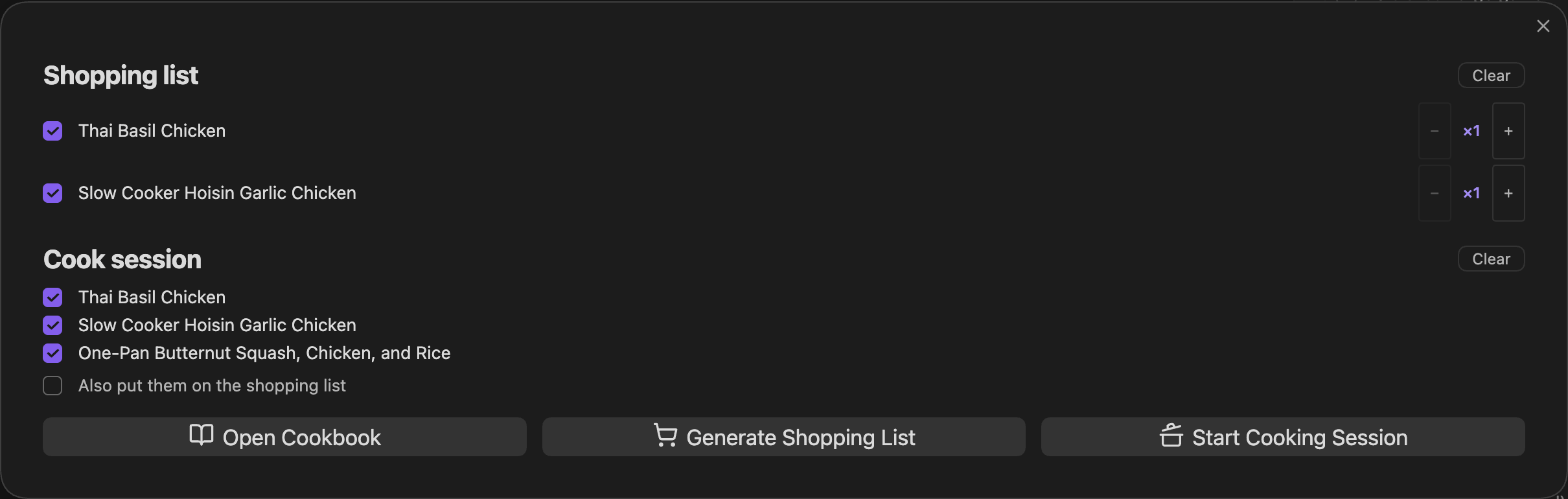
Select Cook session on recipes you want to batch-cook (saved as cook-together: true; separate from the shopping list). Start cooking session in the ribbon menu, or the command, writes Cook session YYYY-MM-DD.md in the session folder:
- Recipes — a colored dot per recipe, with timings and how long each keeps
- Equipment — the combined
equipmentlists - Prep list — one section per technique in prep order, each ingredient merged across recipes, with each recipe's dot and amount, so all the peeling happens before all the dicing
- Cook order — numbered steps, with meanwhile steps under the step they run alongside
- Store and reheat — from each recipe's
## Store itand## Reheat itsections - My notes — yours; kept when the session is regenerated
Arranging the cook order. Each --- block of a recipe is one step. Starting a session opens the arrange window: drag steps (or use the arrows) into the order you'll cook them, and tick Meanwhile on a step to do it while the step above runs, e.g. soak the cashews while the oats bake. Save cook order rewrites the note. The order is stored in the note's cook-plan frontmatter, so regenerating keeps it; steps from new or edited recipes are added at the end. Reopen the window from the Arrange the cook order link at the top of the note, or the Arrange cook order command. Before arranging, recipes run one after another: lowest oven-temp first, longest cook-time first, stovetop last. A step moved ahead of an earlier step of its own recipe is flagged, not blocked.
The ribbon option Also put them on the shopping list sends the same recipes to the shopping list. Optional recipe properties used here: oven-temp, equipment, fridge-days, freezer-months, prep-time, cook-time, serving-size.
Serving multiplier
Each recipe on the shopping list has a − ×1 + stepper on the recipe card (inside its Shopping list chip), in the detail view, and in the ribbon menu. Setting a recipe to ×2 doubles all its quantities in the generated shopping list.
Aggregation across recipes
When you generate a shopping list from several recipes, identical ingredients (matched case-insensitively) are merged into a single line:
- Same unit — quantities are summed directly (
1 cup flour+2 cups flour=3 cups flour) - Different units, same type — converted to a common base and summed (
1 cup milk+4 tbsp milk≈1 1/4 cups milk) - Incompatible units (e.g. cups vs grams) — kept as separate entries
- No unit — aggregated by name only
- The source recipe titles are combined and shown as a label under the item so you know where it came from
Names are compared after stripping wikilinks, parentheticals and leading descriptors, so shredded cheddar cheese and cheddar cheese become one line. The wording of whichever line came first is what you see.
Categorising items
A line is filed by the ingredient it names. A line that is exactly an ingredient's name (or another name) is that ingredient; otherwise the longest ingredient name found in it wins, matching whole words only.
That is what keeps full-fat coconut milk in Pantry (coconut milk is longer than milk) and horseradish cheddar cheese in Dairy & Eggs (radish doesn't match inside horseradish). Lines only merge when they name the same ingredient exactly, so blueberries and raspberries stay two lines.
Items that match no ingredient fall into Uncategorized at the bottom of the list.
Store layouts
A store layout says where things are in one shop; categories say what an ingredient is. Open a store under Settings → Cookbook → Store layouts:
- Numbered aisles — give an aisle a number, pick the categories shelved there, and under Also here pick single ingredients this shop keeps there whatever their category (soy sauce in International, say). On the shopping list, numbered aisles come first, in number order.
- Categories not in an aisle — everything else, in the order you walk it. Drag to reorder here, or drag categories in the shopping list itself; the order is saved into the active store.
A store with no numbered aisles is simply its category order. With more than one store, a picker appears in the shopping list header and switching re-sorts the list. Duplicate store is the quick way to start a new shop from one you already know.
Filtering recipes
The recipe browser supports multiple filter types that can be combined:
Frontmatter filters — filter by any property on your recipe notes. String properties use exact match; numeric properties support <, =, >.
Ingredient filters — search for recipes that must contain (or exclude) a specific ingredient. Type to get autocomplete suggestions drawn from your actual recipe notes. Multiple ingredients can be added to a single filter, with an AND/OR toggle to control how they combine.
Dietary group filters — pre-built groups let you filter by broad ingredient categories with a single click:
| Group | Examples |
|---|---|
| Dairy | milk, butter, cream, cheese, yogurt… |
| Meat & Poultry | chicken, beef, pork, bacon, lamb… |
| Fish | salmon, tuna, cod, anchovy, haddock… |
| Shellfish | shrimp, prawn, crab, mussel, scallop… |
| Eggs | egg, egg white, mayonnaise, meringue |
| Tree Nuts | almond, walnut, cashew, pistachio… |
| Peanuts | peanut, peanut butter, satay… |
| Soy | soy sauce, tofu, tempeh, edamame, miso… |
| Sesame | sesame, tahini, sesame oil, halva… |
| Gluten | flour, wheat, bread, pasta, barley… |
Fish and shellfish are separate groups, as are tree nuts and peanuts — they are distinct allergens, and someone reacting to shrimp can still eat salmon.
Look-alikes and "free-from"
Every ingredient named in a line counts towards its dietary groups, so butter and almonds is both Dairy and Tree Nuts. A name that sits inside a longer one doesn't count: coconut milk, peanut butter and rice noodles are ingredients of their own, without Dairy or Gluten, so they keep milk, butter and noodle from matching.
A line that says it's free of a group — gluten-free flour, dairy-free yogurt — doesn't count for that group. The group's name is the word, so no list is needed.
Add, rename or remove dietary groups under Ingredients → Dietary groups, and tag ingredients on the Ingredients page. You can also use frontmatter flags on individual recipes (e.g. isVegan: true) and filter on those directly using the frontmatter filter.
Using the plugin
- Click the utensils icon in the ribbon to open the quick-access menu
- Select Browse recipes to browse and filter your recipes
- Select Shopping list on the cards (or in the detail view) of the recipes you plan to make
- Optionally adjust the serving multiplier (
− ×1 +) on any of them to scale its quantities - Back in the ribbon menu, click Generate Shopping List to build a shopping list from those recipes
- The Shopping List panel opens in the right sidebar — check off items as you shop
Ribbon menu — shows the recipes on your shopping list and quick actions:
Recipe browser — filter and browse your recipes in a card grid:
Shopping list — categorised ingredients from the recipes you've marked:
Commands
| Command | Description |
|---|---|
| Browse recipes | Opens the recipe browser |
| Open shopping list | Opens the shopping list sidebar panel |
| Start cooking session | Writes today's session note for the recipes marked for the cook session and opens the arrange window |
| Arrange cook order | Rearranges the steps of the open session note |
| Check recipe technique tags | Lists unknown technique tags and untagged prep |
Settings
Every setting is described where you change it, under Settings → Cookbook. By default, recipes are notes tagged #recipe anywhere in the vault, and the plugin uses the frontmatter keys cook-soon, cook-together and cover.
| Section | What it covers |
|---|---|
| Recipes | Which notes are recipes (folder, tag, ignored paths), the properties shown on cards, and the frontmatter keys for the Shopping list toggle and the cover image. A cover can be a URL, a vault path, a wikilink or a markdown image. |
| Shopping list | Preferred units, hiding checked items, saving the list to a note, and the Ingredients and Store layouts pages. |
| Cooking sessions | The frontmatter key for the Cook session toggle, the session folder, and prep techniques with their tag prefix. |
| Overlap | Categories left out of Cooks well with. |
What Cookbook reads and writes
- Reads your Markdown notes to find recipes (notes tagged
#recipe). With a recipes folder set, only that folder is scanned. - Writes only: the shopping list and cook session flags in a recipe's frontmatter, cook session notes in the session folder, and the shopping list note if you choose to save it to one.
- Network: none of its own. Cover images given as web addresses load from the web, as any image in a note does.
Installation
Community plugins (recommended)
- Open Obsidian Settings → Community plugins
- Search for Cookbook
- Click Install, then Enable
Manual
- Download
main.js,styles.css, andmanifest.jsonfrom the latest release - Copy them to
<your vault>/.obsidian/plugins/cookbook/ - Enable the plugin in Obsidian Settings → Community plugins
Support
Always wondered if I could make a dollar from a project. If you find this plugin useful, you can support development here: