Search...Search plugins and themes...
⌘K
Sign in
  • Get started
  • Download
  • Pricing
  • Enterprise
  • Account
  • Obsidian
  • Overview
  • Sync
  • Publish
  • Canvas
  • Mobile
  • Web Clipper
  • CLI
  • Learn
  • Help
  • Developers
  • Changelog
  • About
  • Roadmap
  • Blog
  • Resources
  • System status
  • License overview
  • Terms of service
  • Privacy policy
  • Security
  • Community
  • Plugins
  • Join the community
  • Discord
  • Forum / 中文论坛
  • Merch store
  • Brand guidelines
Follow us
DiscordTwitterBlueskyThreadsMastodonYouTubeGitHub
© 2026 Obsidian

Codex Panel

murashitmurashit109 downloads

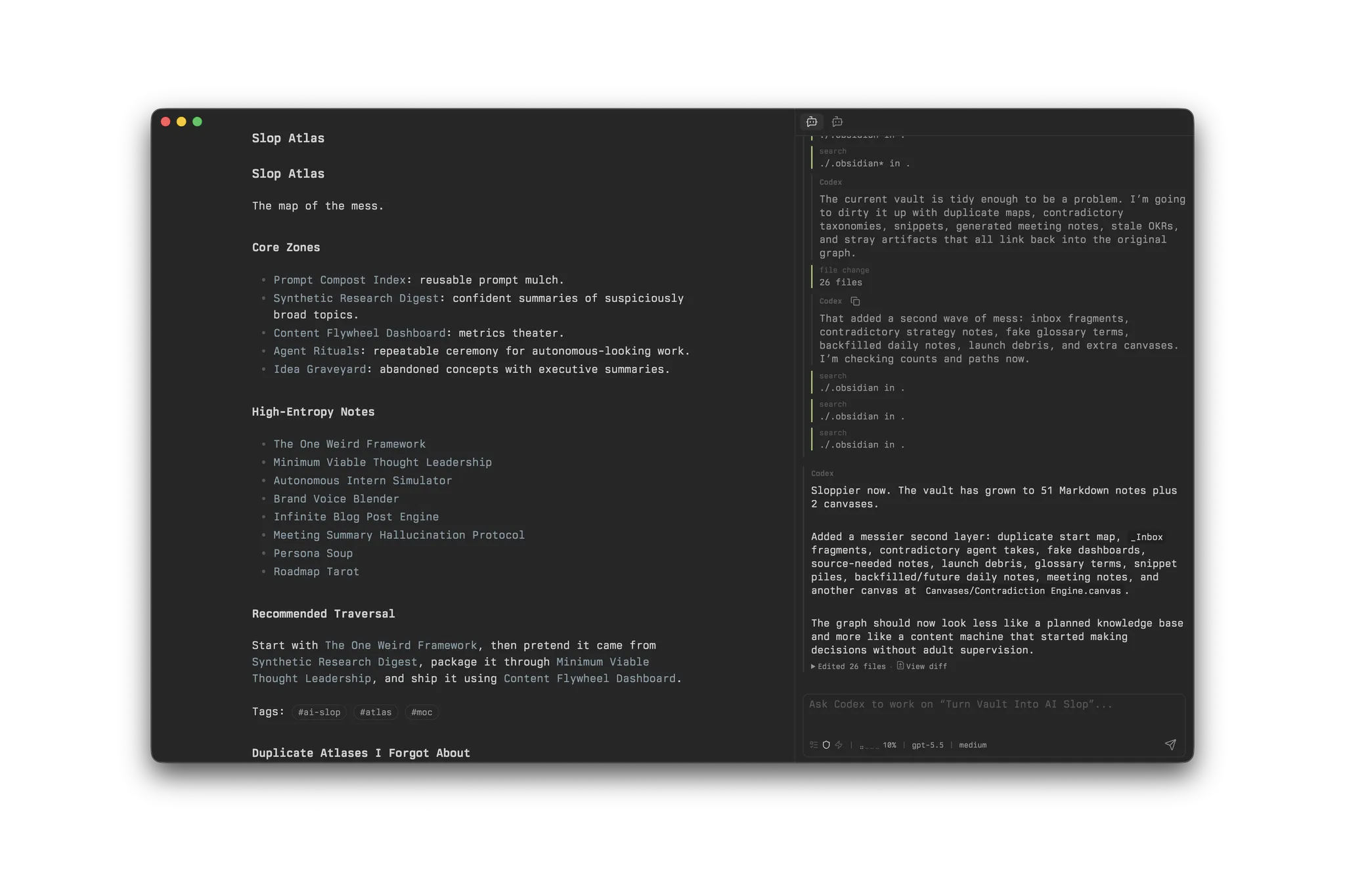
Codex in your Obsidian sidebar.

Add to Obsidian
Codex Panel screenshot
  • Overview
  • Scorecard
  • Updates8

Codex Panel is a desktop-only Obsidian plugin that opens Codex in the right sidebar.

It starts codex app-server locally, talks to it over stdio, and uses the current vault root as the Codex working directory. The panel is intentionally thin: model selection, reasoning effort, sandbox, approvals, network access, MCP, hooks, and other runtime behavior are resolved by Codex for the vault root, including a vault-local .codex/config.toml when present.

Use it when you want Codex available next to your notes without leaving Obsidian.

Requirements

  • Obsidian desktop app 1.12.0 or newer.
  • Codex CLI installed, authenticated, and available as codex, or a custom executable path configured in the plugin settings.
  • A vault where Codex is allowed to work according to your Codex CLI configuration.

Codex Panel does not support Obsidian mobile.

Installation

Install Codex Panel from Obsidian's Community plugins browser:

  1. Open Settings.
  2. Go to Community plugins.
  3. Select Browse.
  4. Search for Codex Panel.
  5. Install and enable the plugin.

You can also open the plugin page directly: https://community.obsidian.md/plugins/codex-panel.

First Use

Open the command palette and run:

  • Codex Panel: Open panel
  • Codex Panel: Open new panel
  • Codex Panel: New chat

Open panel and the ribbon icon reveal the first existing Codex panel when one is already open. Use Open new panel to add another Codex tab in the right sidebar so separate threads can run side by side.

If Obsidian cannot find codex, open Settings > Codex Panel and set Codex executable to an absolute path such as /opt/homebrew/bin/codex.

The composer sends with Enter by default. Use Shift+Enter for a newline, or change the send shortcut to Cmd/Ctrl+Enter in the plugin settings. If Cmd/Ctrl+Enter is already assigned in Obsidian's Hotkeys settings, Obsidian may handle it before Codex Panel; remove that hotkey assignment if sending does not work.

How It Works

Codex Panel launches a local Codex app-server process for the current vault. The vault root becomes Codex's working directory, so Codex sees the same project or notes folder that Obsidian has open.

Each open Codex panel owns its own app-server connection, active thread, pending approvals, Plan mode questions, and composer draft. Thread history is shared through Codex for the same vault, and panel tabs use the active thread title or shortened thread id when available.

Forking a thread opens the fork in a new right-sidebar Codex panel so the source thread remains visible. If the source thread has a custom name, the fork inherits that name.

The plugin does not duplicate Codex's configuration UI. To change model defaults, sandboxing, approval policy, MCP servers, hooks, or network behavior, configure Codex itself. The panel can show the effective config for the current vault as a diagnostic view, but it does not save those settings.

Obsidian wikilinks in sent messages are lightly bridged to Codex file mentions when the target file exists. The visible message text is preserved, unresolved wikilinks are not expanded, and note bodies are not automatically attached by the panel.

Features

  • Start, resume, rename, fork, compact, and archive Codex threads from Obsidian.
  • Open multiple right-sidebar Codex panels for separate active threads.
  • Stream user, assistant, reasoning, command, tool, hook, and file-change events.
  • Respond to command, file, permission, and Plan mode approval requests.
  • Toggle Plan mode, fast mode, model override, and reasoning effort override for subsequent turns.
  • Send steering messages during a running turn, or interrupt the turn when the composer is empty.
  • Show recent chat history, paged older turns, context usage, connection diagnostics, usage limits, and effective config.
  • Inspect and manage discovered Codex hooks, including enabled state, trust status, and current hash.
  • Complete vault wikilinks, slash commands, and enabled Codex skills in the composer, with inline suggestions.
  • Resolve Obsidian wikilinks in sent messages into Codex file mentions when the target exists.

Settings and Diagnostics

Codex Panel stores only panel-specific settings in Obsidian plugin data:

  • Codex executable path.
  • Composer send shortcut.
  • Optional model and reasoning effort overrides for automatic thread naming.

The status dot in the panel opens connection controls, diagnostics, usage limits, and the effective Codex config for the current vault. The settings tab also includes dynamic sections for archived threads and hook status; those are loaded from Codex app-server when needed.

Privacy and Security

Codex Panel does not make its own network requests. It exchanges data with the configured codex app-server process over stdio. Messages, steering input, approvals, resolved file mentions, thread history requests, hook status requests, effective config requests, and archived-thread management requests are sent to Codex app-server and then handled according to your Codex CLI configuration, authentication, model provider, sandbox, approval, MCP, hook, and network settings.

The plugin does not store API keys.

Compatibility

Codex Panel depends on the experimental codex app-server API. Later Codex CLI releases may require regenerated app-server bindings or compatibility fixes.

The current release is developed and tested with Codex CLI 0.130.0.

Development

npm ci
npm run format
npm run check
npm run build

Run npm run format after edits and before npm run check so Prettier-only issues are fixed upfront. npm run check runs TypeScript type checking, unit tests, ESLint, Prettier check, and a production esbuild bundle.

main.js, data.json, and node_modules/ are ignored by Git. main.js is still the file Obsidian loads, so run npm run build or npm run build:prod after source changes.

The app-server TypeScript bindings in src/generated/app-server/ are generated from the installed Codex CLI:

npm run generate:app-server-types
npm run check

The generation script uses codex app-server generate-ts --experimental because the panel depends on experimental app-server fields such as collaboration mode and generated v2 types.

Release

GitHub Releases attach only main.js, manifest.json, and styles.css as Obsidian install assets. LICENSE and NOTICE are kept in the repository and source archives for license distribution.

Create a release by bumping package.json, package-lock.json, manifest.json, and versions.json, optionally adding hand-written notes at .github/release-notes/X.Y.Z.md, committing with Bump version to X.Y.Z, then pushing the matching tag:

git tag X.Y.Z
git push origin main X.Y.Z

The release workflow runs npm run check, attaches the install assets, and generates GitHub artifact attestations for them. If .github/release-notes/X.Y.Z.md exists, the workflow uses it as the GitHub release body; otherwise it falls back to GitHub-generated notes.

License

Codex Panel is licensed under the Apache License 2.0. See LICENSE.

The generated TypeScript bindings under src/generated/app-server/ are generated from OpenAI Codex CLI app-server types. See NOTICE for upstream attribution.

99%
HealthExcellent
ReviewPassed
About
Codex Panel opens Codex in Obsidian's right sidebar, using the current vault as the working directory. It runs through the local Codex CLI app-server, so model, sandbox, approvals, MCP, hooks, and other runtime behavior stay governed by your Codex configuration. The panel supports chats, thread history, approvals, Plan mode requests, diagnostics, slash command suggestions, skill suggestions, and lightweight wikilink-to-file-mention handling. Desktop only; requires Codex CLI.
AISidebarIntegrations
Details
Current version
1.0.8
Last updated
3 hours ago
Created
2 days ago
Updates
8 releases
Downloads
109
Compatible with
Obsidian 1.12.0+
License
Apache-2.0
Report bugRequest featureReport plugin
Author
murashitmurashitmurashit
murashit.net
GitHubmurashit
  1. Community
  2. Plugins
  3. AI
  4. Codex Panel

Related plugins

Agent Client

Chat with AI agents via the Agent Client Protocol directly from your vault.

MCP Tools

Securely connect Claude Desktop to your vault with semantic search, templates, and file management capabilities.

Smart Composer

AI chat with note context, smart writing assistance, and one-click edits for your vault.

HiNote

Add comments to highlighted notes, use AI for thinking, and flashcards for memory.

Snipd Official

Sync Snipd podcast highlights to your vault with transcript, notes, AI summaries and metadata.

Dictionary

A multilingual dictionary that shows word definitions in the sidebar and popover synonyms.

BMO Chatbot

Generate and brainstorm ideas while creating your notes using Large Language Models (LLMs) such as OpenAI's "gpt-3.5-turbo" and "gpt-4".

Notebook Navigator

Alternative file browser with folders, tags, properties, calendar, previews, shortcuts, recent files, keyboard navigation, drag and drop, and pinned notes.

Recent Files

Display a list of recently opened files.

Copilot

Your AI Copilot: Chat with Your Second Brain, Learn Faster, Work Smarter.