Chroma Key Paste
 Aziz Zahran403 downloads
Automatically removes the background color from pasted images.
- Overview
- Scorecard
- Updates5
Easily remove the background from your pasted images directly within Obsidian. Perfect for screenshots, diagrams, and making your notes look clean, seamless, and professional.
Features
- One-click background removal: Right-click any image and select "Remove background"
- Live preview: See exactly what the result looks like before saving
- Eyedropper tool: Click anywhere on the live preview to pick the exact color you want to remove
- Color inverter: Flip the colors of your image with one toggle (great for dark mode diagrams)
- Auto-detect background color: Samples the top-left pixel, or pick your own hex code
- Adjustable tolerance: Fine-tune how aggressively the color is removed
- Edge softening: Smooth alpha blending for cleaner cutouts
- Organized vault: Processed images are saved to a dedicated
chroma/folder
See it in action
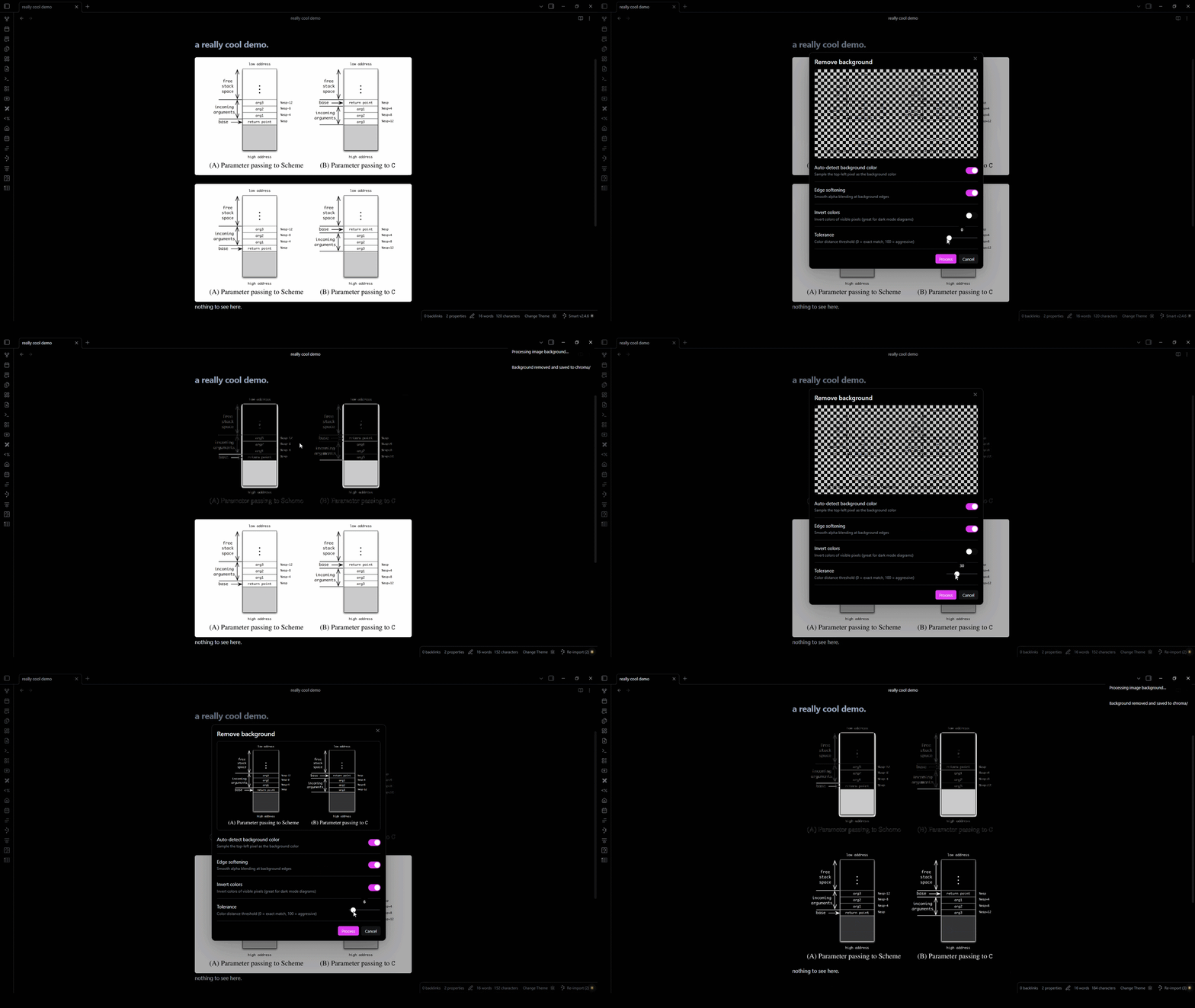
How to use
- Paste an image into your note as usual.
- Right-click the image embed (e.g.,
![[Pasted image.png]]) and select "Remove background". - Adjust the settings in the live preview modal to your liking.
- Click Process: The background is removed, saved as a new transparent PNG, and the link in your editor is automatically updated!
[!WARNING] In some cases, the "Remove Background" may not appear in the context menu unless the cursor is on an image link.
Customizing the defaults
Go to Settings → Chroma Key Paste to configure the default settings for the processing modal:
- Auto-detect background color: On/Off
- Target color: The hex color to remove (e.g.,
#FFFFFF) - Default tolerance: 0 (exact match) to 100 (very aggressive)
- Edge softening: On/Off
- Invert colors: On/Off
Organizing processed images
- The plugin automatically saves your new transparent images into a
chroma/folder to keep your vault tidy. - Want to rename or move the folder? Go ahead! The plugin automatically tracks the folder if you rename or move it anywhere inside your vault.
Contributing
Contributions are always welcome! If you'd like to help improve Chroma Key Paste:
- Fork the repository
- Clone your fork locally (
git clone https://github.com/YOUR_USERNAME/obsidian-chroma-key.git) - Run
npm installto install dependencies - Run
npm run devto start the build in watch mode - Make your changes and test them in Obsidian
- Commit your changes and open a Pull Request!
Support
Please consider supporting the plugin. There are many hours of work and effort behind it. The two easiest ways to support the plugin are either by starring ⭐ the repository or by donating any amount on Ko-fi ❤️. Thank you!
Got a bug or a feature request? Feel free to open an issue on the repository.