Cheatsheet Exporter
 Nathan35 downloads
Export a note as a dense, double-sided A4 cheatsheet PDF.
- Overview
- Scorecard
- Updates6
Export your Obsidian note as a dense, double-sided A4 cheat sheet PDF for exams, made for college and university students.
Your theme, LaTeX, images and tables are kept, and nothing else needs to be installed.
Demo
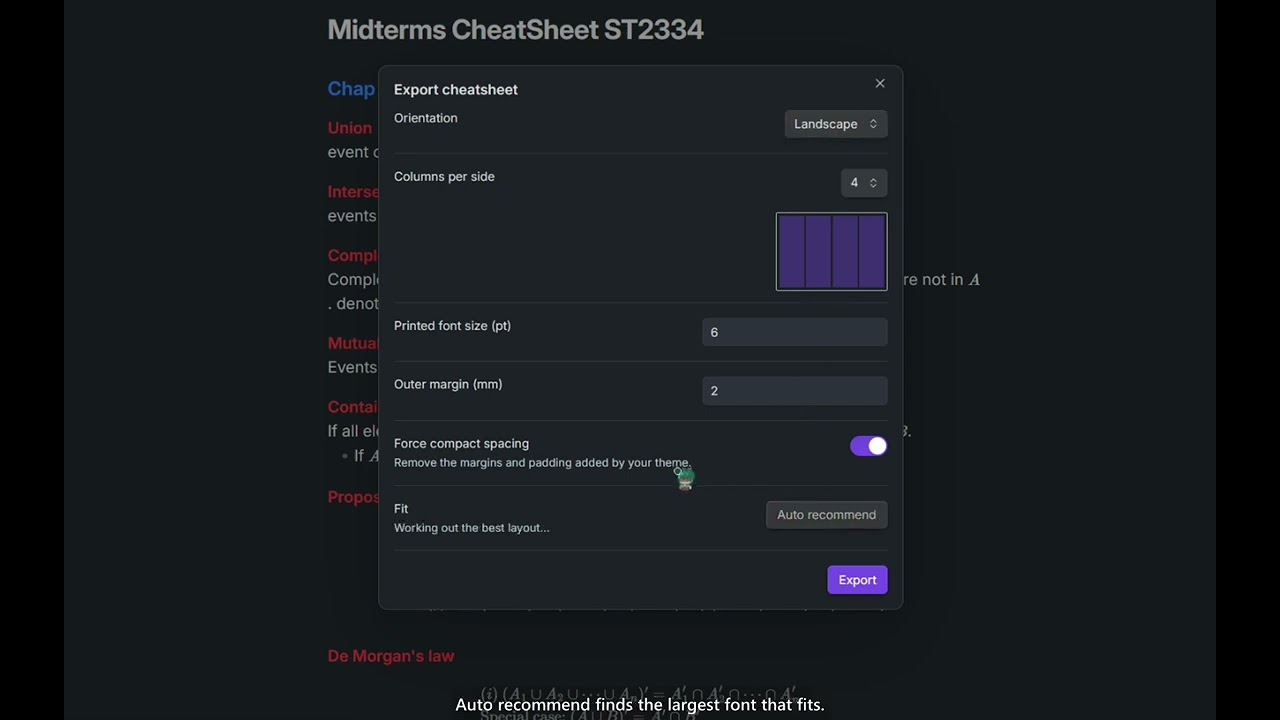
Click the image to watch the 30 second demo on YouTube.
How to use
Install the plugin and Enable it under Settings → Community plugins.
Open the note you want to export. It has to be the note that is currently open.
Open the command palette with
Ctrl + Pon Windows orCmd + Pon macOS, then search for and run Cheatsheet Exporter: Export current note as cheatsheet.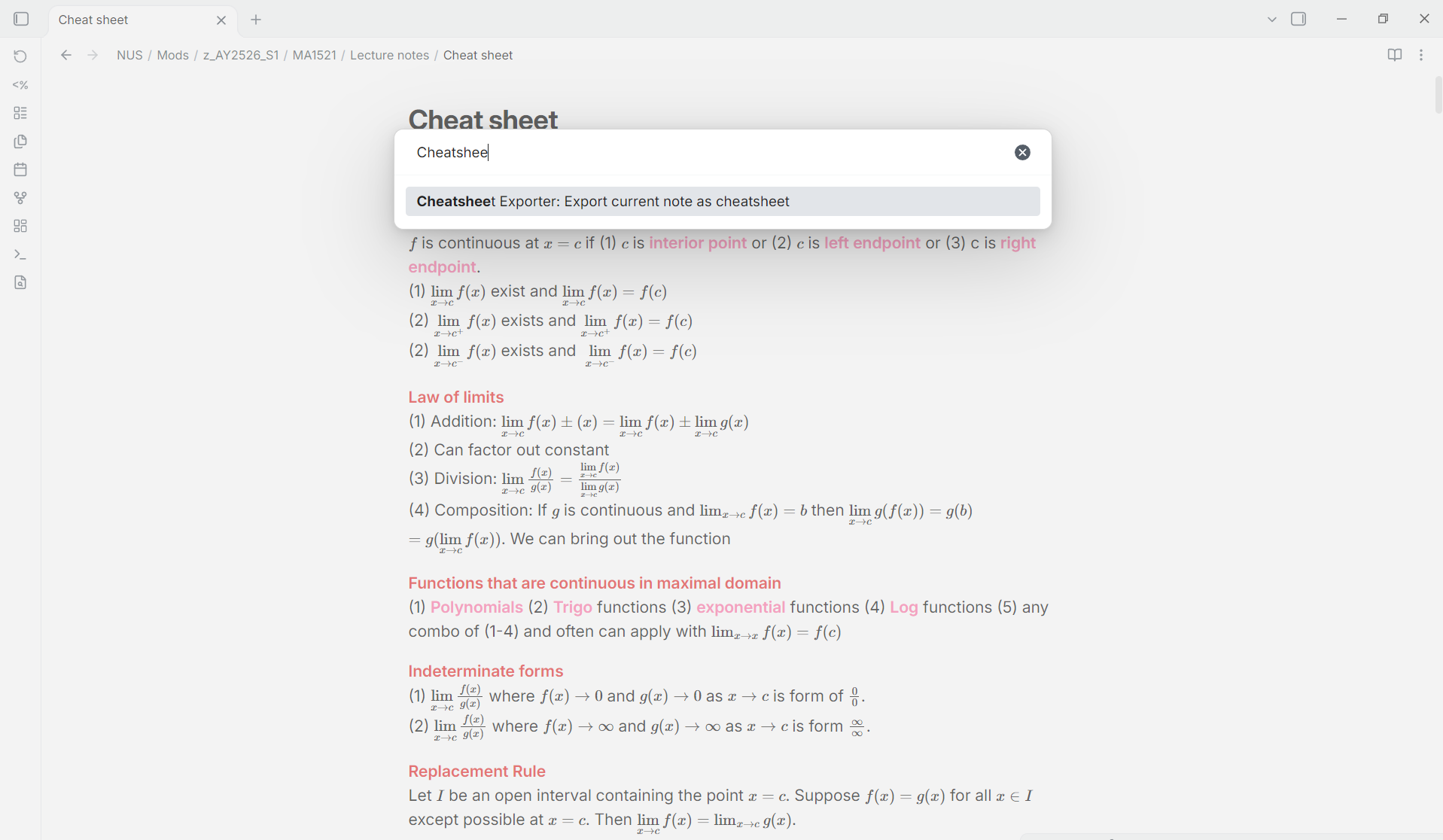
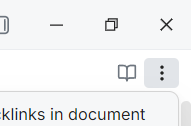
Alternatively, click the three dots in the top right of the note:
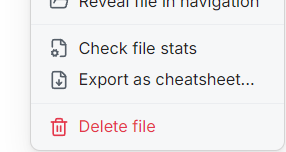
then choose Export as cheatsheet...:
Pick your desired orientation and columns per side.
Adjust the font size until it fits, or press Auto recommend to fill in the layout that allows the largest font with nothing cut off. This could take a few seconds for large notes. I recommend at least 6 pt, otherwise the words are barely visible when printed.
Press Export and choose where to save the PDF. The save dialog starts next to your note, named
<note name> - cheatsheet.pdf. The PDF then opens in your default PDF app.
Printing
The sheet prints on white paper even if your theme has a coloured background, which saves ink. Turn on Print theme background under Advanced options to keep your theme's page colour. Highlights, code and callouts keep their colours either way, unless you turn on Greyscale, which prints every colour as a shade of grey. A theme with no light mode can print on a dark page or with faint text, so the dialog warns you to switch to a theme with a light mode first.
Print at actual size, not "fit to page", or the font size won't match what you chose. For double-sided printing, flip on the short edge for landscape and on the long edge for portrait.
If your note doesn't fit
The plugin warns you but never changes your content to make it fit:
- A note too long for one sheet still exports in full, and the notice says how many sides it needs.
- Formulas or tables wider than their column get cut off on paper, and the dialog and notice say how many. Use fewer columns or a smaller font.
- Force compact spacing, on by default under Advanced options, removes the margins and padding your theme adds, which often saves a lot of space, depending on your Obsidian theme and custom styling.
Tips
Start with Auto recommend, which picks the largest font that fits.
Keep Force compact spacing on before lowering the font.
More columns make lines narrower, which suits short lines but not wide formulas or tables.
At 6 pt, keep the note under about 18,000 characters (shown in Obsidian's status bar).
Split long formulas across lines with
aligned:$$ \begin{aligned} \operatorname{Var}(X) &= E[(X-\mu)^2] \\ &= E[X^2] - (E[X])^2 \end{aligned} $$Keep tables to 2–3 columns, or use a list instead.
Avoid deeply nested bullet points, since each level takes up column width.
Use H4 headings or bold text instead of H1 and H2.
Keep code lines short if your theme doesn't wrap code blocks.
Compatibility and privacy
Desktop only, because PDF export uses Electron. It has been tested on Windows.
The plugin makes no network requests and has no accounts, ads or telemetry. It reads the note you export and writes the PDF where you choose in the save dialog. That can be outside your vault, and it's the only file the plugin writes there. It never reads files outside your vault.
Install manually
Download main.js, manifest.json and styles.css from the latest release into <vault>/.obsidian/plugins/cheatsheet-exporter/, then enable the plugin under Settings → Community plugins.
Develop
npm install
npm test
npm run build
License
MIT. The bundled libraries, including pdf-lib, are listed with their licences in THIRD_PARTY_NOTICES.txt.