Camera Capture
 David Galevski63 downloads
Take a photo with your device's camera from the editor menu and embed it at the cursor.
- Overview
- Scorecard
- Updates3
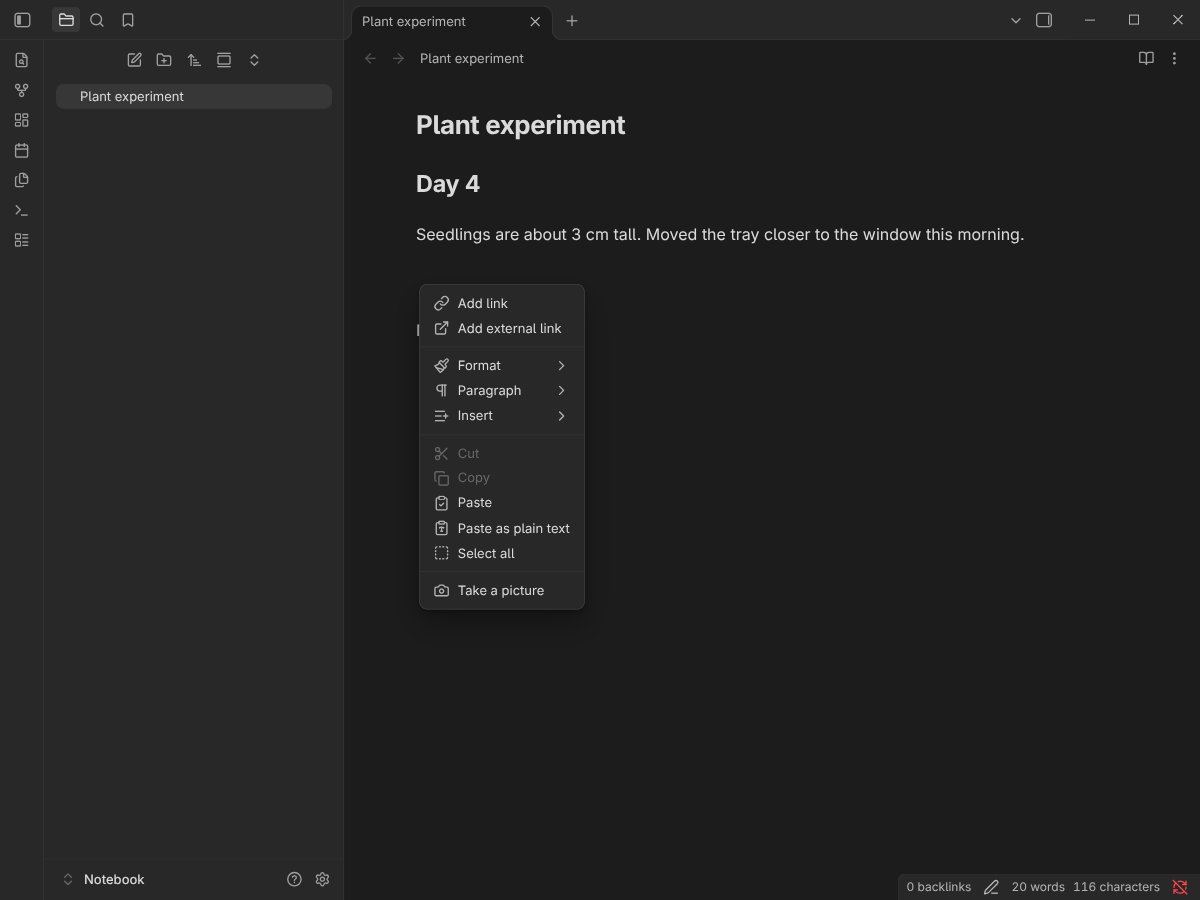
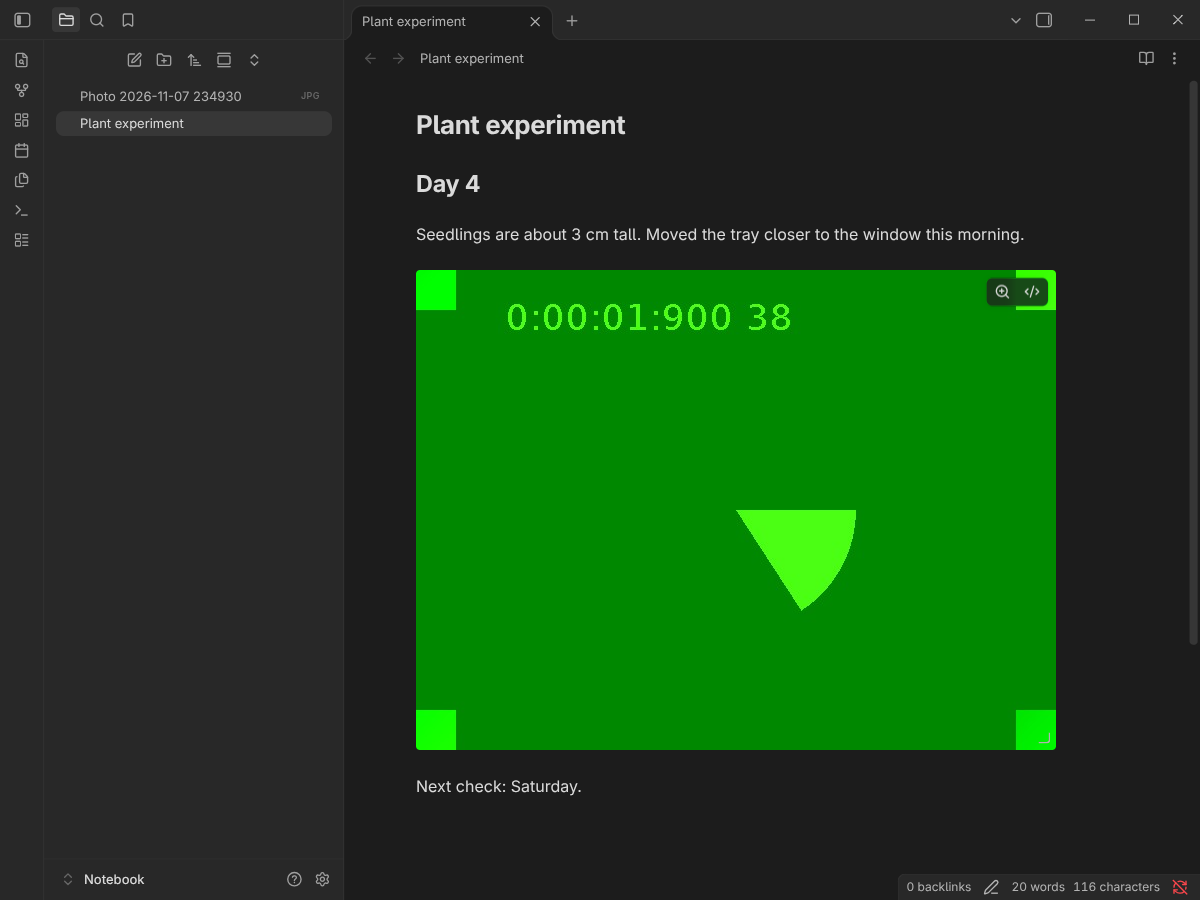
Take a photo without leaving your note. Right-click where the photo should go, choose Take a picture, and Camera Capture saves the photo to your vault and embeds it at the cursor.
Features
- Right where you are. The photo is embedded at the exact cursor position where you opened the menu, mid-line included. Selected text is left alone.
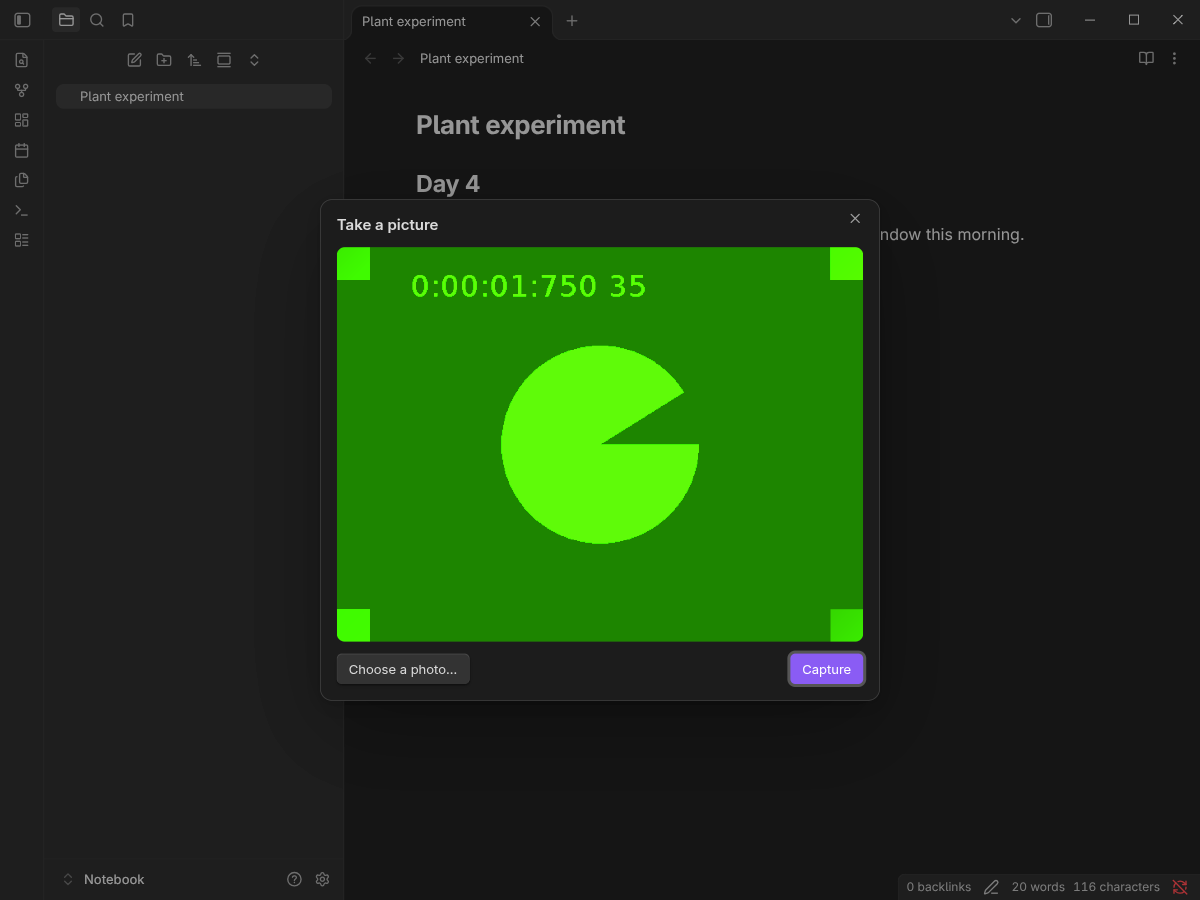
- Review before inserting. On desktop you get a live preview, then Capture, then Retake or Insert.
- Uses your phone's camera app on mobile. Android and iOS open the system camera, so you get its focus, flash and lens controls.
- Or choose a photo. Choose a photo… in the capture window picks an existing image and embeds it the same way. It's useful when the camera isn't available.
- Follows your vault settings. Photos go to your Default location for new attachments, and links use your wikilink or Markdown preference, the same as pasted images.
- Optional photo folder. Send all photos to one folder instead. It's created if it doesn't exist.
- Never overwrites. Two photos taken in the same second get distinct names.
- Private by design. No network, no telemetry. The camera is only on while the capture window is open. See Privacy.
How to use
- Put the cursor where the photo should go and right-click (or long-press on mobile).
- Choose Take a picture.
- Desktop: frame the shot and click Capture (or press Enter). Then Insert, or Retake to try again. Click Choose a photo… to use an existing image instead, or press Esc to cancel. Mobile: take the photo in your camera app and confirm it.
The photo is saved as Photo YYYY-MM-DD HHmmss.jpg (chosen images keep their own format, e.g. .png) and embedded as ![[Photo 2026-11-05 093012.jpg]] (or  with Markdown links).
Tip: the command Camera Capture: Take a picture does the same thing. Assign it a hotkey in Settings → Hotkeys, or add it to the mobile toolbar in Settings → Mobile.
Settings
| Setting | Default | What it does |
|---|---|---|
| Photo folder | (empty) | Folder for new photos. Leave it empty to use Obsidian's Settings → Files and links → Default location for new attachments. |
| JPEG quality | 0.9 | Compression for desktop webcam photos, from 0.5 (smaller files) to 1 (best quality). Phone photos are saved exactly as your camera app made them. |
Installation
From Community plugins
Once the plugin is in the directory: open Settings → Community plugins → Browse, search for Camera Capture, then select Install and Enable.
With BRAT (beta)
- Install BRAT from Community plugins.
- Run BRAT: Add a beta plugin for testing and enter
becutandavid/obsidian-camera-capture. - Enable Camera Capture in Settings → Community plugins.
Manually
- Download
main.js,manifest.jsonandstyles.cssfrom the latest release. - Put them in
<your vault>/.obsidian/plugins/camera-capture/. - Reload Obsidian and enable Camera Capture in Settings → Community plugins.
Compatibility
- Obsidian 1.5.7 or later.
- Desktop: Windows, macOS and Linux. Mobile: Android and iOS / iPadOS.
- On desktop, the system's default camera is used.
[!NOTE] macOS: Obsidian for Mac (checked with 1.15.0) can open the camera but doesn't receive its video. Its signed app lacks Apple's camera entitlement, which only Obsidian can add. The capture window detects this and offers Choose a photo…, so you can take the photo with Photo Booth or your iPhone and insert it from there. Live capture will work on Mac once Obsidian ships the entitlement.
Privacy
Camera Capture makes no network requests and collects no telemetry.
- Desktop: the webcam is turned on when the capture window opens. It turns off as soon as the window closes, whether you insert, cancel or press Esc.
- Mobile: the photo is taken by your device's own camera app and handed to Obsidian.
- Storage: photos are written only into your vault. Nothing is stored anywhere else.
Troubleshooting
"Camera access denied": Obsidian needs permission to use the camera.
- macOS: System Settings → Privacy & Security → Camera, turn on Obsidian, then restart Obsidian.
- Windows: Settings → Privacy & security → Camera, turn on Let desktop apps access your camera.
- Android / iOS: allow camera access for Obsidian in your system settings.
"No camera found" on Linux with the Flatpak: the Obsidian Flatpak can't see webcams by default. Allow it once, then restart Obsidian. You can do this either way:
- Without a terminal: install Flatseal, select Obsidian, and turn on Devices → All devices.
- With a terminal:
flatpak override --user --device=all md.obsidian.Obsidian
macOS: "Obsidian for Mac can't receive camera video yet": see the note under Compatibility. Use Choose a photo… in the meantime.
"The camera isn't sending video": the camera opened but sent no picture. Close other apps that might be using it, reopen Obsidian, or use Choose a photo….
"Camera is in use by another app": close the other app (video calls, browser tabs) and try again.
The photo is black: check for a lens cover or privacy shutter, and make sure there's enough light. A dark photo also comes out dark straight from the camera.
"Photo saved to …. The note changed during capture, so it wasn't inserted.": you switched notes, or the note changed, while the camera was open. The photo is safe in your vault. Drag it into the note, or type ![[ and pick it.
Something else? Open an issue and include your platform and Obsidian version.
Contributing
Bug reports and pull requests are welcome. See CONTRIBUTING.md for the development setup, tests and the release process.
License
MIT © David Galevski