
- Overview
- Scorecard
- Updates3
[!NOTE] This is a fork of the original Liam Cain Calendar Plugin that brings the plugin on par with modern Obsidian. The original plugin, in fact, is not updated since 2022, that is, a geological era in Obsidian-time.
There are other alternatives, but my goal is to keep this as clean and lean as possible. At least while we wait we get a core Calendar plugin. :D
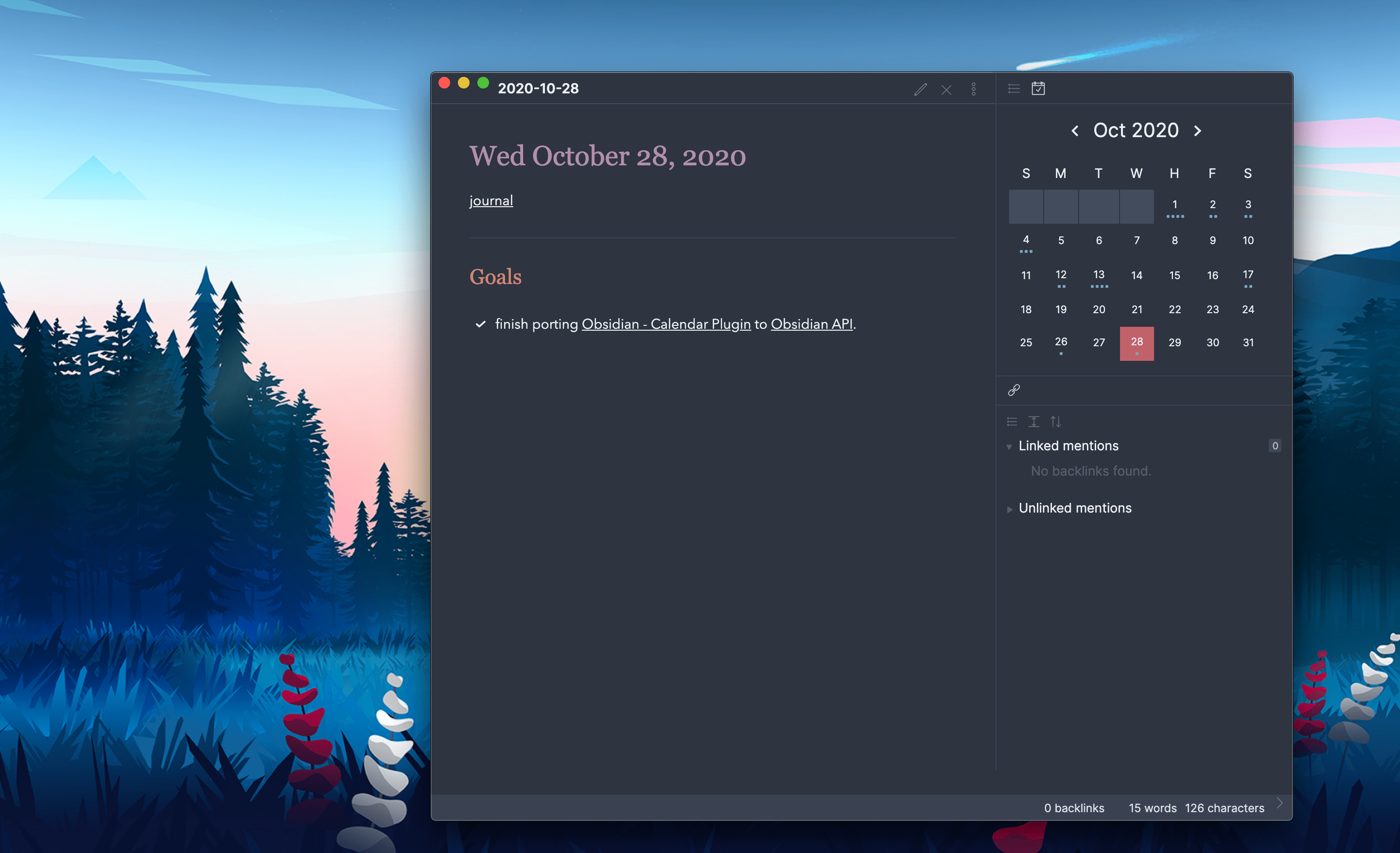
This plugin for Obsidian creates a simple Calendar view for visualizing and navigating between your daily notes.
Usage
After enabling the plugin in the settings menu, you should see the calendar view appear in the right sidebar.
The plugin reads your Daily Note settings to know your date format, your daily note template location, and the location for new daily notes it creates.
Features
- Go to any daily note.
- Create new daily notes for days that don't have one. (This is helpful for when you need to backfill old notes or if you're planning ahead for future notes! This will use your current daily note template!)
- Visualize your writing. Each day includes a meter to approximate how much you've written that day.
- Use weekly, monthly, quarterly and yearly notes for an added organization layer! They work just like daily notes, but have their own customization options. (This replaces the Periodic Notes plugin: see Periodic notes.)
Settings
- Start week on [default: locale]: Configure the Calendar view to show Sunday or Monday as the first day of the week. Choosing 'locale' will set the start day to be whatever is the default for your chosen locale (
Settings > About > Language) - Words per Dot [default: 250]: Starting in version 1.3, dots reflect the word count of your files. By default, each dot represents 250 words, you can change that value to whatever you want. Set this to
0to disable the word count entirely. Note: There is a max of 5 dots so that the view doesn't get too big! - Confirm before creating new note [default: on]: If you don't like that a modal prompts you before creating a new daily note, you can turn it off.
- Show Week Number [default: off]: Enable this to add a new column to the calendar view showing the Week Number. Clicking on these cells will open your weekly note, if weekly notes are enabled.
- Weekly / Monthly / Quarterly / Yearly notes [default: off]: Enable each kind of periodic note and set its format, template and folder. Daily notes keep using the settings of Obsidian's core Daily Notes plugin.
Customization
The following CSS Variables can be overridden in your obsidian.css file.
/* obsidian-calendar-plugin */
/* https://github.com/liamcain/obsidian-calendar-plugin */

#calendar-container {
  --color-background-heading: transparent;
  --color-background-day: transparent;
  --color-background-weeknum: transparent;
  --color-background-weekend: transparent;

  --color-dot: var(--text-muted);
  --color-arrow: var(--text-muted);
  --color-button: var(--text-muted);

  --color-text-title: var(--text-normal);
  --color-text-heading: var(--text-muted);
  --color-text-day: var(--text-normal);
  --color-text-today: var(--interactive-accent);
  --color-text-weeknum: var(--text-muted);
}
In addition to the CSS Variables, there are some classes you can override for further customization. For example, if you don't like how bright the title is, you can override it with:
#calendar-container .year {
  color: var(--text-normal);
}
Note: It's especially important when overriding the classes to prefix them with
#calendar-containerto avoid any unexpected changes within Obsidian!
Caution to Theme Creators
If you use "Inspect Element" on the calendar, you will notice that the CSS classes are quite illegible. For example: .task.svelte-1lgyrog.svelte-1lgyrog. What's going on here? The classes that begin with svelte- are autogenerated and are used to avoid the calendar styles affecting any other elements in the app. That being said: ignore them! Those CSS classes are likely to change from release to release, and your overrides will break. Just target the human-readable part of the class names. So to override task.svelte-1lgyrog.svelte-1lgyrog, you should use #calendar-container .task { ... }
Compatibility
obsidian-calendar-plugin currently requires Obsidian v0.9.11 or above to work properly.
Installation
You can install the plugin via the Community Plugins tab within Obsidian. Just search for "Calendar."
FAQ
What do the dots mean?
Each solid dot represents 250 words in your daily note. So 4 dots means you've written a thousands words for that day! If you want to change that threshold, you can set a different value for "Words Per Dot" in the Calendar settings.
The hollow dots, on the other hand, mean that the day has incomplete tasks in it. (Note: There will only ever be 1 hollow dot on a particular day, regardless of the number of remaining tasks)
How do I change the styling of the Calendar?
By default, the calendar should seamlessly match your theme, but if you'd like to further customize it, you can! In your obsidian.css file (inside your vault) you can configure the styling to your heart's content.
Can I add week numbers to the calendar?
In the settings, you can enable "Show Week Numbers" to add a "week number" column to the calendar. With weekly notes enabled, click on the week number to open a "weekly note".
How do I hide the calendar plugin without disabling the plugin?
Just like other sidebar views (e.g. Backlinks, Outline), the calendar view can be closed by right-clicking on the view icon.

I accidentally closed the calendar. How do I reopen it?
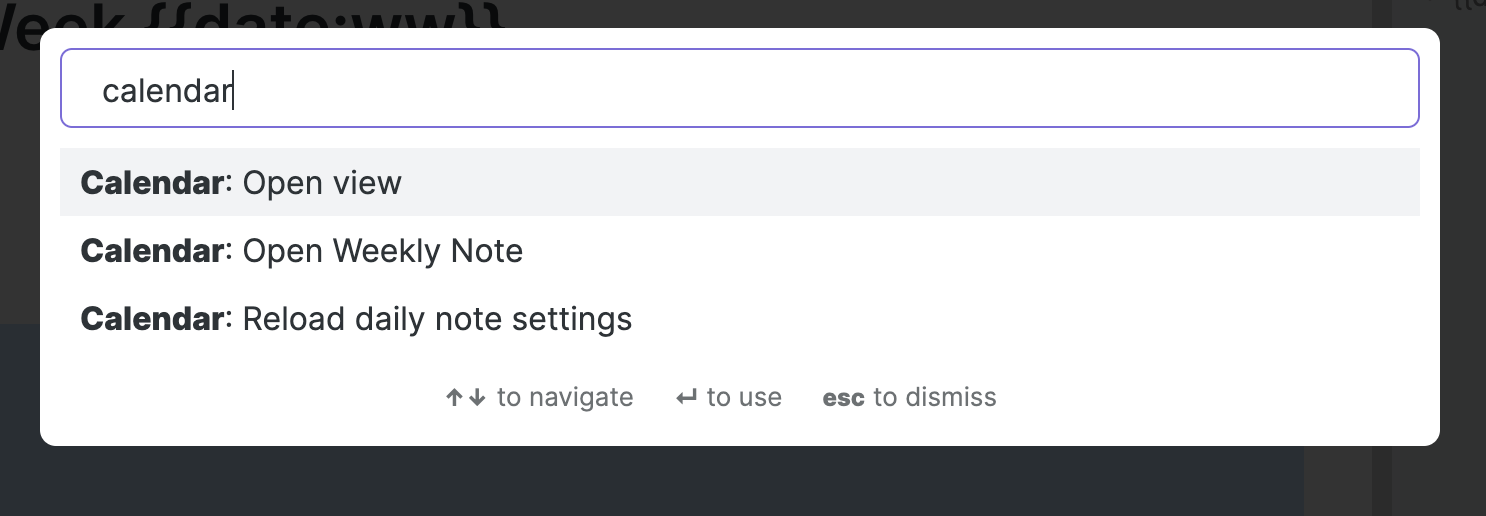
If you close the calendar widget (right-clicking on the panel nav and clicking close), you can always reopen the view from the Command Palette. Just search for Calendar: Open view.
How do I have the calendar start on Monday?
From the Settings menu, you can toggle "Start week on Monday".
How do I include "unformatted" words in my weekly note filenames?
If you want the weekly note format to include a word (e.g. "Week 21 of Year 2020") you can do so by surrounding the words with [] brackets. This tells moment to ignore the words. So for the example above, you would set your format to [Week] ww [of Year] gggg.
I don't like showing the week numbers but I still want to use weekly notes. Can I still use them?
Yes. Enable weekly notes in the settings and open the current one from the command palette with Calendar Reborn: Open this week's note.
Protips
Embed your entire week in a weekly note
If you add the following snippet to your weekly note template, you can a seamless view of your week in a single click.
## Week at a Glance

![[{{sunday:gggg-MM-DD}}]]
![[{{monday:gggg-MM-DD}}]]
![[{{tuesday:gggg-MM-DD}}]]
![[{{wednesday:gggg-MM-DD}}]]
![[{{thursday:gggg-MM-DD}}]]
![[{{friday:gggg-MM-DD}}]]
![[{{saturday:gggg-MM-DD}}]]
Hover Preview
Just like the Obsidian's graph and internal links, the calendar supports page previews for your daily notes. Just hover over a cell while holding down Ctrl/Cmd on your keyboard!
The calendar can be moved (and pinned!) anywhere
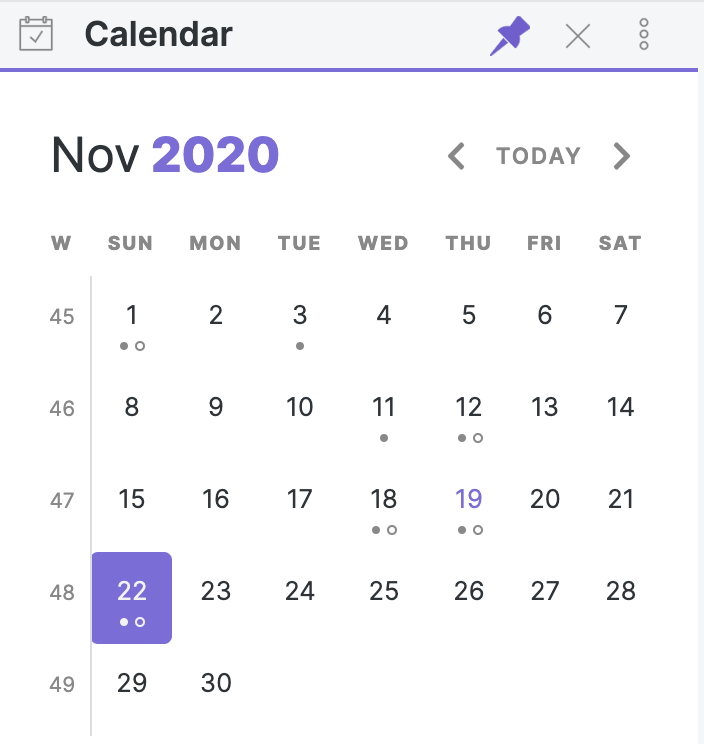
Just because the calendar appears in the right sidebar doesn't mean it has to stay there. Feel free to drag it to the left sidebar, or (if you have the screen real estate for it) into the main content area. If you move it out of the sidebar, the view can even be pinned; great for more advanced tile layouts!
Open daily notes in a new split
If you Ctrl/Command-Click on a note in your calendar, it will open daily note in a new split. Useful if you want to open a bunch of daily notes in a row (especially if you have the Sliding Panes plugin enabled!)
Reveal open note on calendar
If you open a note from a different month, you might want to see it on the calendar view. To do so, you can run the command Calendar: Reveal open note from the command palette.
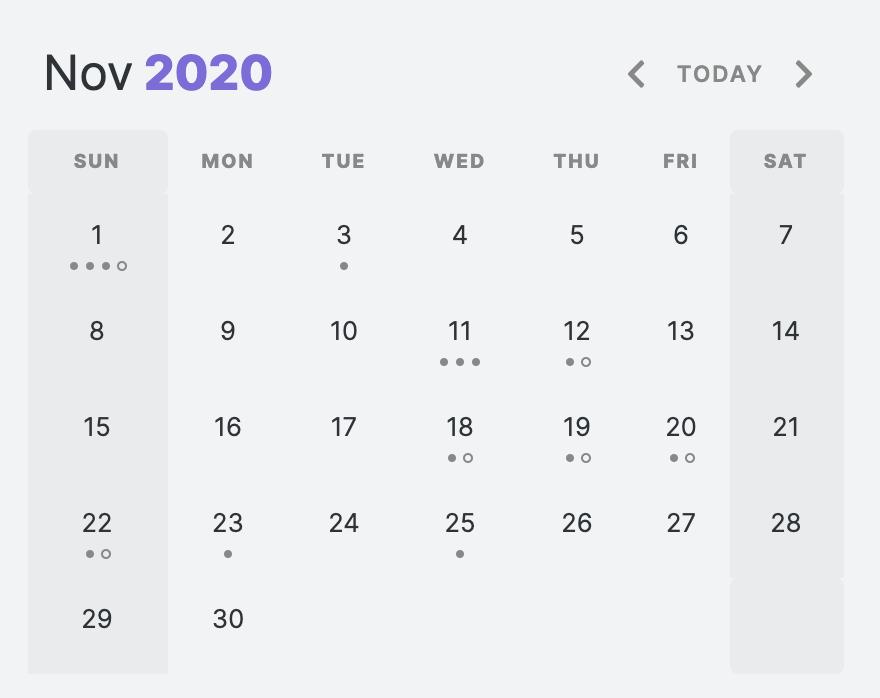
Add custom styling for weekends
If you want to style weekends to be distinguishable from weekdays, you can set the var(--color-background-weekend) to be any color you want.
Periodic notes
Calendar Reborn manages weekly, monthly, quarterly and yearly notes itself, so the Periodic Notes plugin is no longer needed. Daily notes follow the settings of Obsidian's core Daily Notes plugin.
Migrating from Periodic Notes
If Periodic Notes is enabled when Calendar Reborn first loads, its weekly, monthly, quarterly and yearly settings are imported and a notice tells you that you can disable and uninstall it. Weekly note settings from older versions of the Calendar plugin are carried over too. If Periodic Notes also managed your daily notes, check that the core Daily Notes plugin uses the same format, folder and template.
Usage
Enable each kind of note in the settings. Each one has 3 settings:
- Format: The date format for the note's filename. Weekly notes default to
gggg-[W]ww: if you useDDin the week format, this will refer to first day of the week (Sunday or Monday, depending on your settings). - Template: The template for new notes. Weekly notes support extra template tags.
- Folder: The folder new notes go into. By default they are placed in your vault root.
You can open them:
- Weekly notes: by clicking the week number (with "Show week number" on).
- Monthly / yearly notes: by clicking the month or the year in the calendar's title.
- From the command palette:
Open this week's note(and month, quarter, year). While one of these notes is open,Open next …andOpen previous …move to the adjacent period, creating the note if needed.
Template Tags
| Tag | Description |
|---|---|
sunday, monday, tuesday, wednesday, thursday, friday, saturday, sunday |
Because weekly tags refer to main days, you can refer to individual days like this {{sunday:gggg-MM-DD}} to automatically insert the date for that particular day. Note, you must specify the date format! |
title |
Works the same as the daily note {{title}}. It will insert the title of the note |
date, time |
Works the same as the daily note {{date}} and {{time}}. It will insert the date and time of the first day of the week. Useful for creating a heading (e.g. # # {{date:gggg [Week] ww}}). |
See it in action
- Nick Milo provides a nice plugin walkthrough
- Santi Younger demos how Calendar + Periodic Notes can be used for weekly review
- Filipe Donadio uses the calendar to plan his day
Say Thanks 🙏
If you like this plugin and would like to buy me a coffee, you can!
Like my work and want to see more like it? You can sponsor me.