Calendar Plus
 Matt Maiorana4k downloads
Calendar view with integrated daily, weekly, monthly, quarterly, and yearly notes. An update of the Calendar plugin.
- Overview
- Scorecard
- Updates34
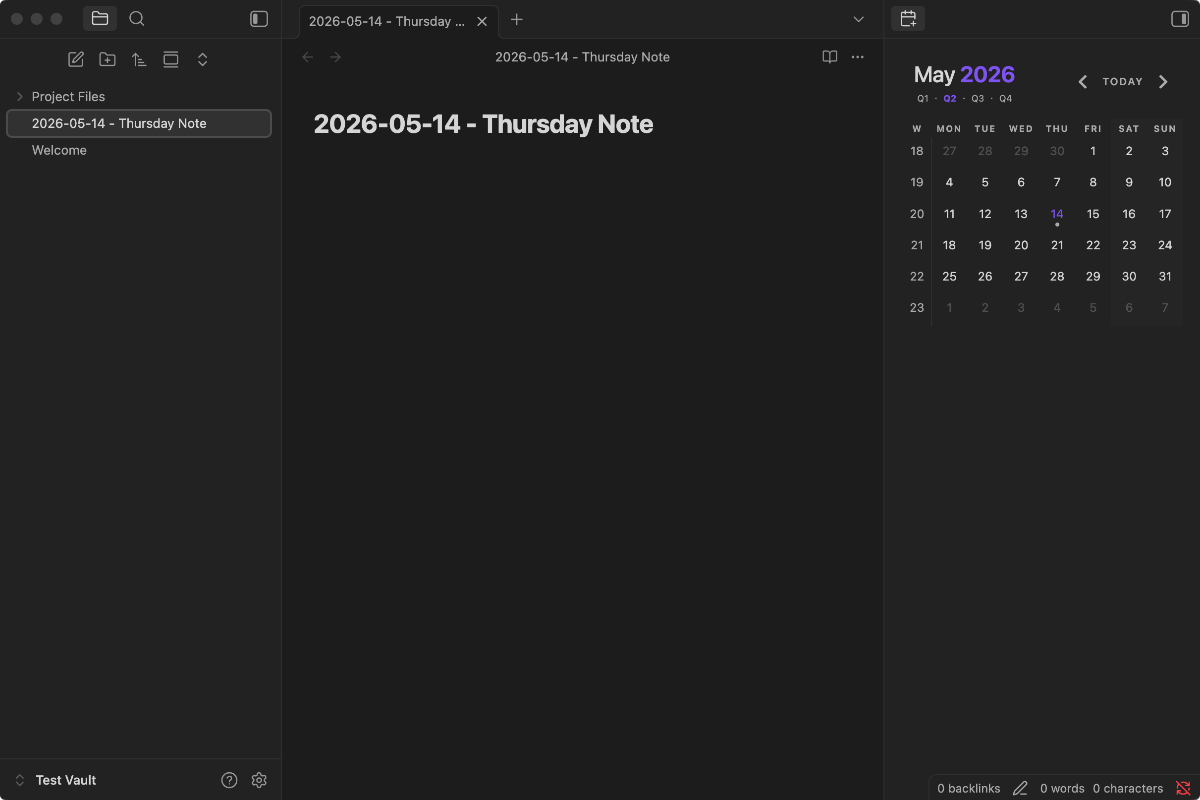
Calendar Plus is a sidebar calendar for Obsidian with daily, weekly, monthly, quarterly, and yearly periodic notes built in. It's an update to Liam Cain's original Calendar plugin, with a few notable updates and differences:
- Periodic notes are integrated. Daily, weekly, monthly, quarterly, and yearly notes are configured directly in Calendar Plus — no separate Periodic Notes plugin required.
- Month, year, and quarter labels are clickable. Click the labels in the calendar header to open or create the corresponding periodic note, the same way day and week-number cells work.
- Dots default to "a note exists." By default, a dot on a day or week-number cell simply indicates that the corresponding note exists. If you prefer richer indicators, the Dot style setting can show word-count dots and an open-task dot for daily and weekly notes.
- A second daily note per day. Right-click any day cell (or Option/Alt + click) to open or create a second daily note alongside the primary one — useful for call notes, separating work and personal notes, keeping a journal, or anything else you want to keep separate. It has its own folder, date format, and template.
- Featured images. Optionally show a daily or weekly note's image — a frontmatter banner/cover or the note's first embedded image — as the calendar cell background, great for keeping a visual journal.
- A year navigator. An optional history button in the calendar header opens a 12-month grid for quickly jumping between months and years.
There are also many bug fixes that bring both the calendar view and periodic note functionality up to modern Obsidian plugin standards.
Features
- A calendar view for navigating your vault by date.
- Built-in periodic notes for daily, weekly, monthly, quarterly, and yearly periodicities. Each periodicity has its own folder, filename format, and optional template — no separate Periodic Notes plugin required.
- Click a day cell to open or create that day's note. Click a week-number cell to open or create the weekly note. Click the month, year, or quarter labels in the calendar header to open or create the corresponding monthly / yearly / quarterly note.
- Second daily notes: right-click any day cell (or Option/Alt + click) to open or create a second daily note for that date. It has its own folder, date format, and template — completely independent of the primary daily note. A second dot (at half opacity) appears on day cells where a second daily note exists.
- Featured images: optionally show a daily or weekly note's image (from its frontmatter, or its first embedded image) as the calendar cell background. Opt-in.
- Year navigator: an optional history button in the header opens a compact 12-month grid for jumping between months and years, with a dot on each month that contains any note. Opt-in.
- By default, a filled dot on a day cell means a periodic note exists for that day, and a dot on a week-number cell means a weekly note exists. The optional Dot style setting can switch this to word-count dots plus an open-task dot for daily and weekly notes.
- The calendar view can live anywhere. Drag it to the left sidebar, into the main content area, pin it as a tab, or pop it into its own window — Calendar Plus preserves the placement across plugin reloads.
- Theme-friendly: the calendar inherits Obsidian's CSS variables and respects the active theme out of the box.
Installation
From within Obsidian (recommended once listed in the community-plugin directory): Settings → Community plugins → Browse → search "Calendar Plus" → Install → Enable.
From a GitHub release (fallback): download main.js, manifest.json, and styles.css from a GitHub release, copy them into your vault at <vault>/.obsidian/plugins/calendar-plus/, then enable Calendar Plus from Settings → Community plugins.
From source: see the Development section below.
Calendar Plus uses a separate plugin id, view type, and ribbon icon from the original Calendar plugin, so the two can coexist during a transition.
Usage
After enabling the plugin, the calendar appears in the right sidebar. You can drag it elsewhere or pin it — the placement is remembered.
Daily notes are enabled by default for new installs. Weekly, monthly, quarterly, and yearly notes start disabled; toggle each on as needed.
Configure each periodic-note type independently from Settings → Calendar Plus → Periodic notes:
- Enable turns the note type on. Enabling Weekly notes also shows the week-number column.
- Date format is a Moment.js format string used for note filenames.
- Folder is where notes for that periodicity are created. Leave blank for the vault root.
- Template file is an optional path to a template note.
A note on folders in the date format. Your Date format may contain / to sort notes into subfolders — e.g. YYYY/MM-MMMM/YYYY-MM-DD files each day under a year/month folder. Just keep one rule in mind: the filename (the part after the last /) has to identify the period on its own. Calendar Plus reads the date back from the filename, not from the folder names, so any date component that lives only in a folder is ignored. Concretely, the filename needs every part coarser than the note's own period:
- Daily → year, month, and day (e.g.
…/YYYY-MM-DD) - Weekly → week-year and week number (e.g.
…/gggg-[W]ww) - Monthly → year and month · Quarterly → year and quarter · Yearly → the year
✅ YYYY/MM/YYYY-MM-DD — folders organize; the full date is still in the filename
⚠️ YYYY/MM/DD — year and month live only in folders, so every month's 15 would be read as the same day
(Folders are optional — a flat format like YYYY-MM-DD is perfectly fine and needs nothing special.)
Calendar Plus owns its own settings for all five periodic-note types and doesn't read from Obsidian's core Daily Notes plugin or other periodic-notes plugins.
Settings
General
- Start week on: choose the first day of the week. "Locale default" uses your system locale.
- Ctrl/Cmd + Click Behavior: when Ctrl/Cmd-clicking any calendar item — a day cell, week-number cell, or the month/quarter/year header label — open the note in a new tab or in a new split.
- Confirm before creating new note: show a confirmation modal before creating a new note. Turn off for one-click creation.
- Change week number side: show week-number cells on the right side of the calendar instead of the left. (Shown under Weekly notes when Weekly notes are enabled.)
- Shade weekend columns: tint weekend day columns so they stand out from weekdays. Off by default.
- Weekend days: when weekend shading is enabled, choose which days count as weekend (default Saturday + Sunday). Independent of Start week on — week start controls column order, not which columns are shaded.
- Dot style: choose what the dots on day and week cells represent. "Note exists" (default) shows a single dot when the corresponding daily/weekly note exists. "Word count and open tasks" shows filled dots based on word count plus one hollow dot when the note has open
- [ ]/* [ ]tasks. - Words per dot: when Dot style is set to "Word count and open tasks", this controls how many words count as one filled dot (default 250). Dots are capped at 5 per cell.
- Show Today button on mobile: shows the Today button in the mobile calendar header. Off by default. Desktop always shows the Today button.
- Show history navigator button: adds a history button to the calendar header that opens a compact 12-month grid for quickly jumping between months and years. Click a month to jump to it; use the year arrows to change years. A dot marks each month that has any daily, weekly, or monthly note. Off by default.
Periodic notes
Each of the five note types — Daily, Weekly, Monthly, Quarterly, Yearly — has its own Enable toggle, Date format, Folder, and Template file setting.
Second daily notes
An optional second daily note per day, accessed by right-clicking a day cell (or Option/Alt + click). Configure it independently under Settings → Calendar Plus → Periodic notes → Second daily notes:
- Enable turns the feature on.
- Date format is a Moment.js format string for filenames. Defaults to
YYYY-MM-DD, the same as the primary daily note — change this or use a different folder to keep the two sets of notes distinct. - Folder is where second daily notes are created. Leave blank for the vault root.
- Template file is an optional path to a template for new second daily notes.
When enabled, right-clicking any day cell shows a context menu. If neither note exists yet, the menu offers Create daily note and Create second daily note. When the primary daily note exists, Open daily note and Delete daily note appear at the top; when the second daily note exists, Open second daily note and Delete second daily note are shown (deletions respect your Obsidian trash preference). If the primary note exists, its standard file actions appear below. You can also Option/Alt + click a day cell to open its second daily note, or create one if it doesn't exist yet (add Cmd/Ctrl to open it in a new tab or split). A half-opacity dot marks day cells that have a second daily note, alongside any primary-note dots.
Featured images
Optionally show a note's image as the calendar cell background, turning your calendar into a visual journal. Configure under Settings → Calendar Plus → Featured images:
- Enable turns featured images on for daily-note cells.
- Frontmatter properties is a comma-separated, priority-ordered list of frontmatter properties to check for an image path (default
banner, image, cover). The first property that points to a vault image wins; if none match, the note's first embedded image is used. Vault images only — external URLs are ignored. - Show for weekly notes also applies featured images to weekly-note cells.
A dark gradient keeps the date number and dots readable over any image, and the selected day shows a translucent accent overlay so the image stays visible.
Advanced
- Override locale: force a specific locale for date formatting, independent of your system locale.
FAQ
Does Calendar Plus replace the original Calendar plugin?
It's intended to. Calendar Plus uses a separate plugin id, view type, and ribbon icon from the original Calendar plugin, so the two can coexist if you want to run them side-by-side during a transition. Calendar Plus owns its own settings for all five periodic-note types and does not read settings from Obsidian's core Daily Notes plugin or the original Periodic Notes plugin.
What do the dots mean?
By default, a filled dot on a day cell means a periodic note exists for that day, and a dot on a week-number cell means a weekly note exists. If you'd like dots to reflect word count and open tasks instead, switch the Dot style setting to "Word count and open tasks" — daily and weekly notes will then show filled dots based on word count plus one hollow dot when the note has open - [ ] or * [ ] tasks.
What is a second daily note for?
It's a second note you can create for any day, separate from your primary daily note. Common uses: call notes, separating work and personal notes, keeping a journal, or anything else you'd rather not mix into your main daily note. Both notes are navigable from the calendar. Enable it under Settings → Calendar Plus → Periodic notes → Second daily notes and configure a distinct folder or filename format to keep the two sets of files separate.
What are featured images?
When enabled, Calendar Plus shows a daily or weekly note's image as that calendar cell's background — great for journaling, giving you a photo-per-day view of your month. The image comes from a frontmatter property (it checks banner, then image, then cover by default — all configurable), or the note's first embedded image if none is set. Only images stored in your vault are used. Turn it on under Settings → Calendar Plus → Featured images.
What is the history navigator?
It's an optional history button in the calendar header that opens a compact 12-month grid, so you can jump between months and years without clicking the month arrows repeatedly. Click a month to jump to it, or use the year arrows to change years; a dot marks each month that contains any daily, weekly, or monthly note. Enable it with Show history navigator button under Settings → Calendar Plus.
How do I add week numbers to the calendar?
Enable Weekly notes in the Calendar Plus settings. Week-number cells appear automatically; clicking one opens or creates the weekly note for that week.
How do I have the calendar start on Monday?
From the Settings tab, use the Start week on dropdown.
How do I hide the calendar without disabling the plugin?
Right-click the calendar's view icon in the sidebar and choose Close. Reopen it later from the Command Palette: Calendar Plus: Open view.
How do I include literal words in a weekly note filename?
Wrap the words in [] brackets in your Moment.js format string. For example, [Week] ww [of Year] gggg produces filenames like Week 21 of Year 2020. The brackets tell Moment.js to treat the enclosed text literally instead of as format tokens.
The plugin fails to load on mobile — how do I fix it?
If you see a "failed to load" error (the console shows main.js couldn't be opened), the plugin's code file is missing on that device — usually because it arrived via Obsidian Sync, which carries the plugin's settings but not always its program file. Fix it by installing the plugin directly on that device: Settings → Community plugins → Browse → search "Calendar Plus" → Install (or reinstall). That downloads the plugin's files straight to the device instead of relying on Sync.
Tips
Embed each day of a week in a weekly note
Add this snippet to your weekly note template to embed each day's note:
## Week at a Glance

![[{{sunday:gggg-MM-DD}}]]
![[{{monday:gggg-MM-DD}}]]
![[{{tuesday:gggg-MM-DD}}]]
![[{{wednesday:gggg-MM-DD}}]]
![[{{thursday:gggg-MM-DD}}]]
![[{{friday:gggg-MM-DD}}]]
![[{{saturday:gggg-MM-DD}}]]
Keep meeting notes separate from your daily note
Enable Second daily notes under Settings → Calendar Plus → Periodic notes and set its Folder to somewhere like Meetings and its Template file to your meeting-note template. Right-click any day cell (or Option/Alt + click) to create or open that day's meeting note without leaving the calendar. Both notes show dots on the day cell, so you can see at a glance which days have meetings.
Hover preview
Hold Ctrl or Cmd while hovering a day cell to preview the corresponding daily note.
Open in a split
Ctrl/Cmd-click any calendar item — a day cell, a week-number cell, or a month/quarter/year header label — to open the note in a new tab or new split, depending on the Ctrl/Cmd + Click Behavior setting.
Jump to today
Click the Today button in the calendar header to jump back to the current month. If Daily notes are enabled, this also opens or creates today's daily note. The Today button is shown on desktop by default and is hidden on mobile unless Show Today button on mobile is turned on.
Reveal an open periodic note on the calendar
Run Calendar Plus: Reveal active note from the Command Palette to scroll the calendar to the month containing the currently-open periodic note.
Style weekends differently
Set --color-background-weekend in your obsidian.css to any color to distinguish weekend columns.
Weekly-note template tags
When a weekly note is created from a template, Calendar Plus expands these tags:
| Tag | Description |
|---|---|
{{sunday:fmt}} through {{saturday:fmt}} |
Inserts the date of that day of the current week, formatted with fmt. Specify the format explicitly (e.g. {{sunday:gggg-MM-DD}}). |
{{title}} |
The note's filename. |
{{date:fmt}}, {{time:fmt}} |
The date / time of the first day of the week, formatted with fmt. |
Customization
Calendar Plus exposes CSS variables you can override in your obsidian.css:
#calendar-container {
  --color-background-heading: transparent;
  --color-background-day: transparent;
  --color-background-weeknum: transparent;
  --color-background-weekend: transparent;

  --color-dot: var(--text-muted);
  --color-arrow: var(--text-muted);
  --color-button: var(--text-muted);

  --color-text-title: var(--text-normal);
  --color-text-heading: var(--text-muted);
  --color-text-day: var(--text-normal);
  --color-text-today: var(--interactive-accent);
  --color-text-weeknum: var(--text-muted);
}
To override specific calendar classes, prefix them with #calendar-container so the change doesn't leak into the rest of Obsidian:
#calendar-container .year {
  color: var(--text-normal);
}
Note for theme authors: if you inspect the calendar's DOM, you'll see class names with autogenerated suffixes such as .day.svelte-abc123.svelte-abc123. The svelte-… portion is generated at build time, changes between releases, and is not a stable styling API. Target only the human-readable part of the class — .day, .week-num, .month, etc. — and prefix with #calendar-container so your overrides apply to Calendar Plus specifically.
Compatibility
Calendar Plus 1.7.14 and later require Obsidian 1.8.7 or newer. Users on older Obsidian builds can remain on Calendar Plus 1.7.13 through Obsidian's version-compatibility mechanism.
Development
npm ci          # install dependencies from the lockfile
npm run build   # type-check, lint, and bundle to main.js
main.js is generated by the build and shouldn't be edited directly. See CHANGELOG.md for release history and FUTURE_PLANS.md for deferred work.
Changelog
See CHANGELOG.md for release-by-release notes.
License
Calendar Plus is released under the MIT License.
Credits
Calendar Plus began as a fork of Liam Cain's Obsidian Calendar plugin, draws on ideas from Liam Cain's Periodic Notes plugin, and was inspired by FBarrca's Obsidian Calendar fork. It has since evolved into its own integrated calendar + periodic-notes plugin.
Thanks also to the Obsidian developer community for the plugin API and documentation.