Calendar Blocks
 Alexander Kramarev114 downloads
Renders date and date-range code blocks as calendars.
- Overview
- Scorecard
- Updates5
Calendar Blocks is an Obsidian plugin for rendering dates and date ranges as calendars.
Examples
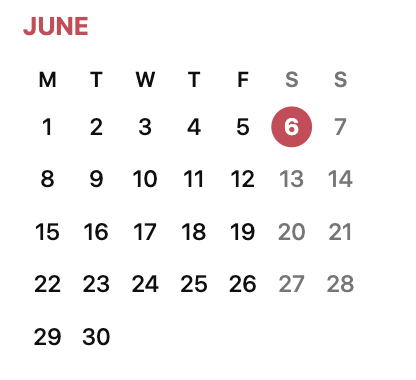
Single date
```date
2026.06.06
```
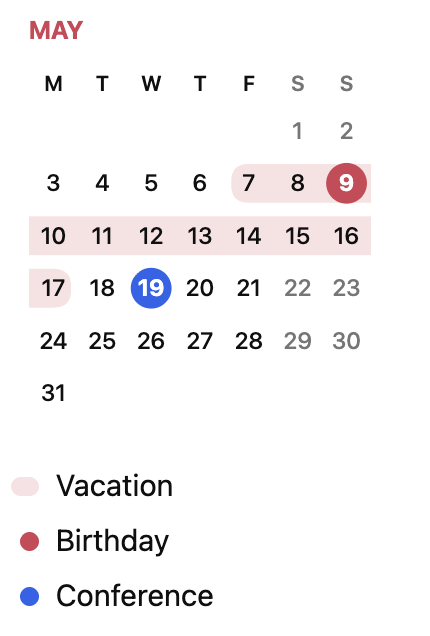
Legend
```dates
Vacation: 7 May 2027 - 17 May
Birthday: 9 May
Conference: 19 May
```
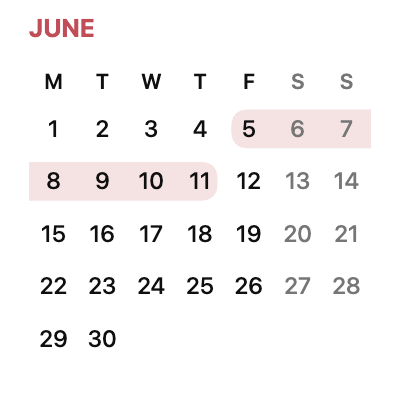
Range within one month
```date
2026.06.05 - 2026.06.11
```
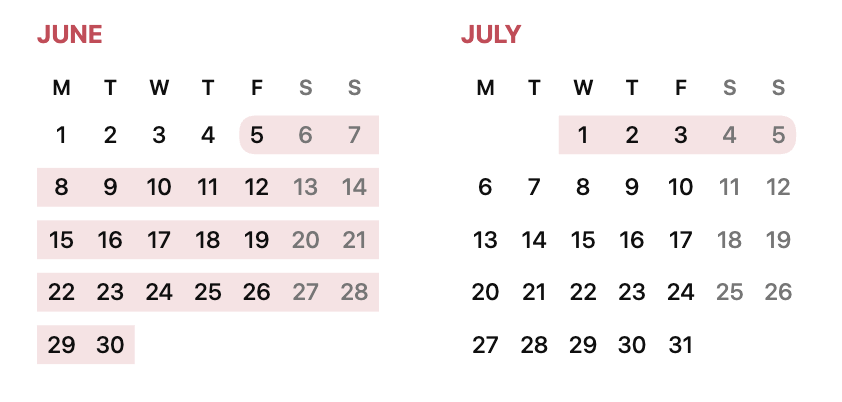
Range across adjacent months
```date
2026.06.05 - 2026.07.05
```
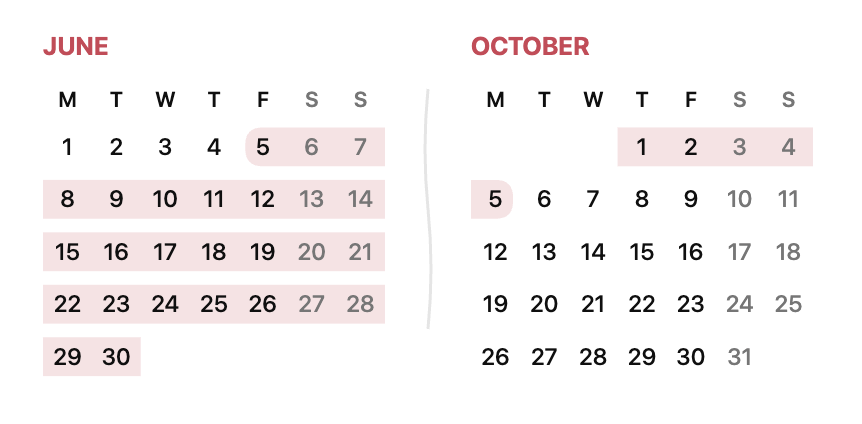
Range with omitted months
```date
2026.06.05 - 2026.10.05
```
Usage
Use a fenced date code block for a single date:
```date
2025.07.27
```
The dates block name is supported as an alias and has identical behavior.
Use a hyphen between two dates for a range:
```date
2025.07.27 - 2025.08.03
```
Multiple ranges and dates
Put each range or single date on its own line in the same block:
```dates
2026.06.05 - 2026.06.11
2026.06.09 - 2026.06.15
2026.06.10
2026.07.03 - 2026.08.05
```
All entries appear together. Ranges and single dates use two independent pools of the same 40-color palette, each starting with red, blue, and green in source order. The first single date and the first range are both red; adding a single date does not advance the range colors, and vice versa. A range with identical endpoints collapses into a single date: it uses a circle, a color from the single-date pool, and a circle in the legend. Each entry keeps its color across weeks and months. Overlapping ranges retain their translucent layers, so their colors blend at intersections. Single dates appear as colored circles above all ranges, regardless of line order. Blank lines are ignored; an invalid entry reports its line number and rejects the whole block.
A block accepts up to 40 entries in total; adding a 41st range or single date shows an error. Blank lines do not consume colors or count toward the limit.
Months are shown once, in chronological order, adding the endpoint months of each range and the months of single dates. Long ranges still show their first and last months, with a wave at each gap. Additional months form rows of two calendars and stack vertically in narrow panes.
Legend
Add a label followed by a colon before a range or single date:
```dates
Vacation: 1 Mar - 9 Mar
Conference: 5 Mar - 7 Mar
Birthday: 8 Mar
```
The legend appears below all calendars, with one labeled entry per line and a marker on the left. Ranges use a pill about 1.47 times as wide as a single-date circle, matching the range's color and transparency. Single dates use solid circles. Markers share a column and align to its right edge, keeping all labels aligned. Unlabeled entries are omitted from the legend but still consume a color from their type's pool. If no entries have labels, no legend is shown. Labels support plain text, including spaces and Unicode.
Supported date formats
Dates accept one- or two-digit days and months:
- Year first:
2026.03.02,2026-03-02,2026/3/2. - Day first:
02.03.2026,2/3/2026(always day/month/year). - Month names in the system locale and Obsidian language, case-insensitive:
full names, abbreviations (with or without a trailing period), and grammatical
forms used in dates, such as
1 марта,1 март, or1 мар.in Russian. English names (2 Mar 2026,2 March 2026) are always accepted. - Without a year:
2.3,02/03,2 Mar.
For the first entry, when a single date or both range endpoints omit their years, the plugin uses the source note's creation year (Obsidian's file creation timestamp). It does not use the current year or the last modification year. If both range years are omitted, the creation year determines the start year and the end may roll into the next year. If the source note is unavailable, specify the year of the first single date or either endpoint of the first range explicitly.
A range end without a year uses the start's year, advancing to the next year
when its month/day would fall before the start. For example,
28 Dec 2005 - 1 Jan ends on January 1, 2006, independently of the note's creation
year. Conversely, 28 Dec - 1 Jan 2006 starts on December 28, 2005: an omitted
start year uses the end's year, moving back one year if its month/day would fall
after the end. Explicit years are always respected.
For subsequent entries, a single date without a year (or the start of a range with both years omitted) uses the year that places it closest to the interval from the earliest to the latest previously resolved date in the block. Dates inside that interval have zero distance; ties choose the earliest occurrence. This takes precedence over the note creation year. Each resolved entry expands the interval, and blank lines do not reset it. A yearless February 29 uses the nearest valid leap year. Explicit years and inference from the other endpoint of the same range retain priority.
For example, Vacation: 7 May 2027 - 17 May followed by Birthday: 9 May
puts all dates in 2027. With 30 Dec 2010 - 7 Jan, the range ends in 2011;
a following 9 Jan resolves to 2011, while 5 Dec resolves to 2010.
For example, in a note created in 2026:
```date
1 Mar - 4 Apr
```
This selects March 1 through April 4, 2026. Formats can be mixed within a
range; hyphens, en dashes and em dashes are accepted as separators. Invalid
calendar dates and reversed ranges with explicit years are rejected. Ranges
crossing New Year can omit the end year, for example 31 Dec 2026 - 1 Jan.
Settings
Calendars use the grid-free Minimal design with narrow weekday labels and a filled circle for a single selected date.
Enable Stretch calendar in the Calendar Blocks settings to make calendars use the full available note width. It is disabled by default, preserving the compact layout.
Show today is enabled by default. It marks the current local date with a red,
hand-drawn open oval in any displayed month and refreshes after the day changes.
The marker is chosen pseudorandomly from four variants with different gaps and
stroke thicknesses. The current local date, the source filename (including its
extension), and the date/dates block's order in the note determine the choice.
Rerendering, resizing, or switching settings keeps the same variant for that
combination. Block order comes from the source text, independently of render order.
Turn it off to hide the mark. The editable SVG resource is
src/assets/today-marker.svg; it is embedded in
the plugin bundle during the build, alongside today-marker-2.svg,
today-marker-3.svg, and today-marker-4.svg.

Installation
Manual installation from Releases
Open the latest release and download the attached
main.js,manifest.json, andstyles.cssfiles. Do not download GitHub's automatically generated source code archives.Create this directory inside your Obsidian vault:
<vault>/.obsidian/plugins/calendar-blocks/Copy the three downloaded files directly into that directory. The resulting layout must be:
<vault>/.obsidian/plugins/calendar-blocks/
├── main.js
├── manifest.json
└── styles.css
Reload Obsidian, open Settings → Community plugins, and enable Calendar Blocks.
Build
npm ci
npm run build
Copy the contents of build/ to:
<vault>/.obsidian/plugins/calendar-blocks/
Then reload Obsidian and enable Calendar Blocks in the community plugins settings.
Publishing
Before publishing, run npm test, npm run build, and git diff --check.
Keep the version in manifest.json, package.json, and package-lock.json
in sync, and record its minimum Obsidian version in versions.json.
The minimum supported Obsidian version is 1.5.7, which introduced the
Vault.getFileByPath API used to resolve the source note.
Create a Git tag that exactly matches the manifest version, without a v
prefix (for example, 0.1.1). Pushing that tag runs CI and publishes a GitHub
release with only main.js, manifest.json, and styles.css as attached assets.
Append a concise, readable bullet to CHANGELOG.md when committing
a change. Keep it as a flat list, with one entry per line and no version sections.
CI generates the release description from added bullet lines in the changelog
diff since the previous release tag, preserving file order and removing duplicates.
The first release, or the first release with a changelog, includes all its entries.
Both current tags (0.1.1) and legacy tags (v0.1.0) delimit the diff.
Before publishing the release, CI generates GitHub build provenance attestations for the three individual plugin assets. The signing permissions are restricted to the release job, which runs only for version tags after tests and the build succeed. Verify downloaded assets with the GitHub CLI:
gh attestation verify main.js --repo pochemuto/calendar-blocks
gh attestation verify manifest.json --repo pochemuto/calendar-blocks
gh attestation verify styles.css --repo pochemuto/calendar-blocks
The initial directory submission is made through Obsidian Community after signing in and connecting the repository owner's GitHub account. Subsequent updates use GitHub releases. See the official submission guide.
License
MIT.
Visual regression tests
npm test runs unit tests and 56 screenshot comparisons (28 cases in light and
dark themes). Visual tests require a running Docker engine. The first run
downloads the pinned Playwright image. Local runs and CI use the same Linux
arm64 image, Chromium version, bundled Noto Sans font, locale, timezone and
pixel density; no host fonts or Obsidian installation are needed.
npm ci
npm test
# Run just one suite:
npm run test:unit
npm run test:visual
# Filter visual cases:
npm run test:visual -- --grep omitted-months
Reference PNGs live in tests/test-data/visual/linux/ and belong in Git.
Every pixel must match: both the color threshold and allowed differing pixel
count are zero. An additional decoded RGBA comparison includes antialiased
pixels that Playwright's comparator can ignore. Missing references fail a normal test run. On failure,
test-results/ contains expected, actual and diff images, and
npm run test:visual:report opens the HTML report. CI uploads these artifacts.
After an intentional visual change, explicitly regenerate references:
npm run test:visual:update
# Or update only the affected cases:
npm run test:visual:update -- --grep legend
Review the changed PNGs before accepting them, then rerun npm test.
The input fixtures live in tests/test-data/visual/*.md. Each scenario has one
Markdown file (for example, adjacent-months.md) shared by all platforms and
themes. It contains one fenced date or dates block and embeds light and dark
reference images for every platform directory using relative links. Screenshot
paths follow <platform>/<case>-<theme>.png, for example
linux/adjacent-months-light.png and linux/adjacent-months-dark.png.
Open the Markdown file on GitHub to see all inputs and outputs together.
The test runner automatically runs each scenario in both light and dark themes;
Playwright selects the screenshot directory for the platform it runs on.
Optional fixture settings go in YAML frontmatter at the start of the file:
---
width: 280
locale: ru
stretch: true
showToday: true
---
Defaults are width 640, locale en-US, stretching disabled, and Show today enabled.
The source note creation year is fixed at 2026, and the browser clock is fixed at
October 26, 2026, 12:00 UTC. Marker randomness uses a fixed seed of 7 for
each fixture, so today's marker produces stable screenshots. Set markerSeed in
fixture frontmatter to cover another variant reproducibly.
To add a scenario in both themes, add
<name>.md with the input, settings and image links for all platforms and themes,
then run npm run test:visual:update. There is no separate case list in code.
Unit tests validate the Markdown format, all screenshot embeds and their
relative paths, existing PNG targets, and a matching Markdown file for every
reference image across every platform directory. Broken, missing, duplicate or
swapped image links fail tests. Adding another platform requires its light and
dark screenshot embeds in each existing scenario, with no duplicate input files.
Keep the Docker image version in tests/visual/run.mjs aligned with the exact
@playwright/test dependency. Browser or font upgrades may require reviewed
reference updates.
The harness uses the production parser, renderer and stylesheet with fixed Obsidian theme variables. It covers responsive container queries, highlight layers, legends, localization, month lengths, year boundaries, stretching and all 40 selection colors. These tests exercise the shared calendar rendering; Live Preview/Reading integration and third-party Obsidian themes still need manual checking in Obsidian.