Browser Bookmark
 notenerd639 downloads
An independent bookmarks sidebar that opens saved links in Obsidian's built-in Web Viewer, so you never have to leave the app to browse.
- Overview
- Scorecard
- Updates6
An independent bookmarks sidebar for Obsidian that opens saved links in Obsidian's own built-in Web Viewer, so browsing stays inside the app instead of handing off to your system browser.
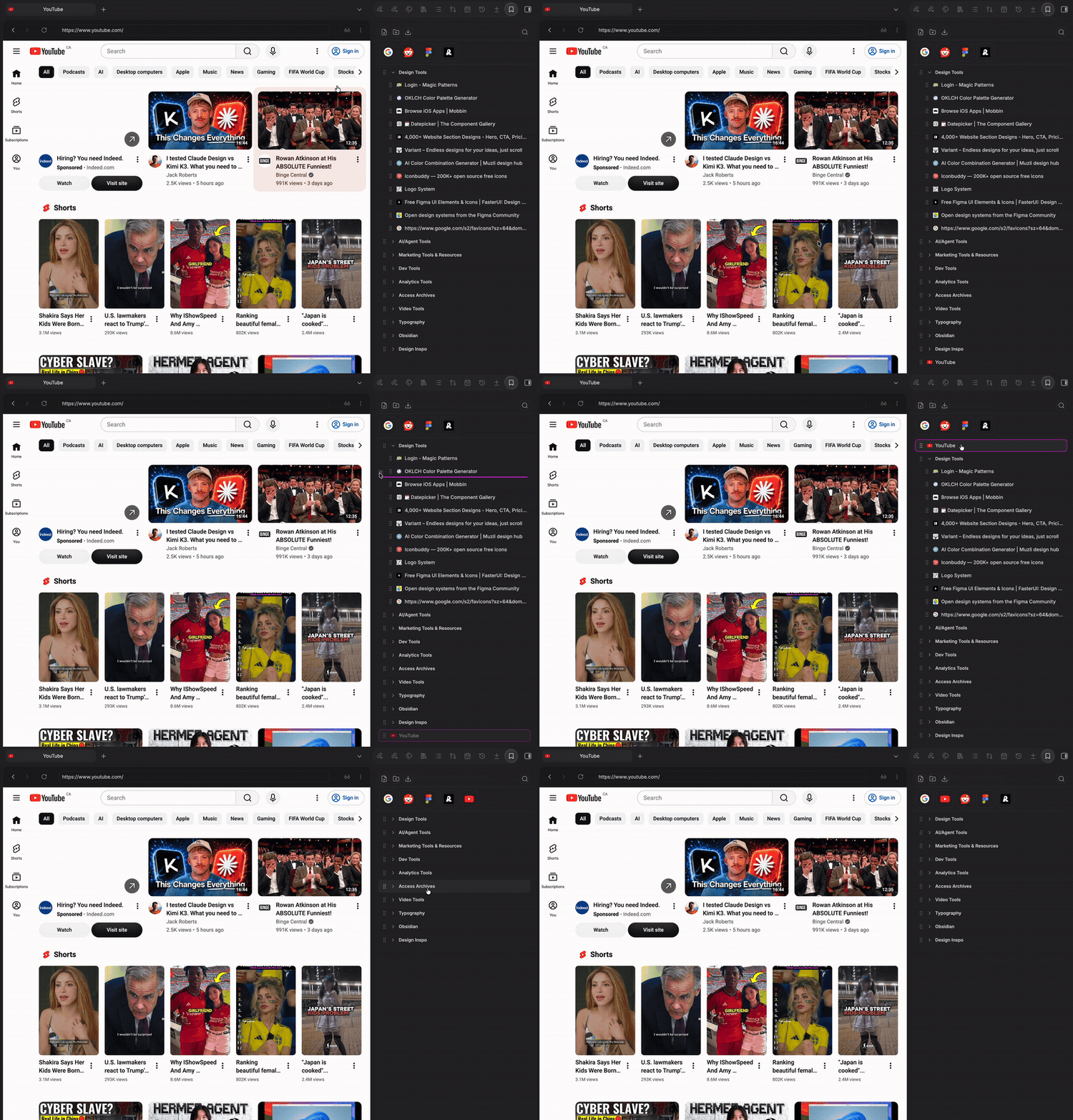
Why
Obsidian already ships a Web Viewer core plugin for reading links without leaving the app. This plugin is the bookmarks manager to go with it: a persistent sidebar panel that stays visible while you browse, rather than a bookmarks-and-browser hybrid that disappears the moment you click a link.
Features
Organizing bookmarks
- Folders, nested to any depth, with drag-and-drop reordering and re-filing (drag onto a folder to move something into it, drag between rows to reorder).
- Search: the search icon in the toolbar toggles a filter box; typing narrows the tree to matching bookmarks (title, URL, and description) and auto-expands any folder containing a match.
- Keyboard navigation: click a row to focus it, then Arrow keys move up/down, Right/Left expand/collapse folders, Enter opens or toggles, F2 renames, Delete removes.
- Real favicons for every bookmark (with a plain globe icon fallback), toggleable in settings. Any bookmark's icon can also be overridden with a custom Lucide icon name or a custom image URL, with a live preview in the edit dialog.
- Optional descriptions: add a short note to any bookmark and it shows below the title in a smaller, muted line, handy for remembering what a link was actually for.
- Duplicate-URL detection: adding or editing a bookmark shows a non-blocking warning if that URL is already saved elsewhere.
- Drag a link from a note straight into the sidebar to bookmark it: onto a folder to file it there, or onto empty space to add it at the root.
Pinned bookmarks
Right-click any bookmark → Pin to top to add it to a compact row of icon-only buttons above the tree (Arc-style). Drag to reorder; right-click → Unpin to send it back to the root of your tree. The row only appears once something's pinned; there's no empty placeholder.
Opening bookmarks
Every bookmark opens in Obsidian's Web Viewer, as a new tab, a split pane, or a new window (set the default in settings, or override per-click from the right-click menu). If the Web Viewer core plugin is off, unavailable, or you're on mobile, it falls back to your system browser automatically.
For sites that don't render well in an embedded browser no matter what, the right-click menu also has:
- Open in system browser: a one-off override that skips Web Viewer entirely for that click.
- Always open externally: a per-bookmark toggle so that specific bookmark always opens in your system browser from then on, by single click or otherwise.
- Copy link and Copy as Markdown link: for pasting the URL (or a ready-made
[title](url)) somewhere else instead of opening it at all.
Importing and exporting bookmarks
Click the import/export icon in the toolbar:
- Import from a browser export: Chrome, Firefox, Safari, and Edge all export to the same standard HTML bookmarks format; pick that file and it imports directly.
- Import from Arc: no file picker needed. Arc has no standard export, so this reads its internal data file directly from the usual install location and imports your pinned items (Arc's "unpinned" tabs are closer to open/recent tabs than deliberate bookmarks, so those are left out by design).
- Export bookmarks: writes your whole tree (including pinned bookmarks, under a "Pinned" folder) to the same standard HTML format, so it can be imported into any of the browsers above, or back into this plugin elsewhere.
Importing gives you a preview first, showing bookmark/folder counts, an editable destination folder name, and a list of what's about to be created, before anything is written. Everything lands in one new folder so an import never mixes into your existing bookmarks.
Companion commands
- Bookmark current web viewer page: grabs the title/URL of whatever's open in the Web Viewer and prefills the add-bookmark dialog.
- Intercept external links in notes (optional, off by default): clicking an external link in a note opens it in the Web Viewer instead of your system browser.
Settings
| Setting | Description |
|---|---|
| Open bookmarks in | Where a click opens the Web Viewer: new tab, split pane, or new window |
| Intercept external links in notes | Route external link clicks in notes through the Web Viewer |
| Show favicons | Turn off to always show a plain globe icon instead |
| Show ribbon icon | Show/hide the ribbon icon that opens the sidebar |
Installation
Manual installation
- Download
main.js,manifest.json, andstyles.cssfrom the Releases page. - Create a folder named
browser-bookmarkinside.obsidian/plugins/in your vault. - Place the downloaded files into that folder.
- Reload Obsidian and enable Browser Bookmark in Community plugins.
- Also enable Obsidian's core Web viewer plugin (Settings → Core plugins) so there's something for bookmarks to open into.
Development
npm install
npm run dev    # watch mode with source maps
npm run build  # production bundle
License
MIT, see LICENSE.