Brain Map
 Jaroslav Krčál232 downloads
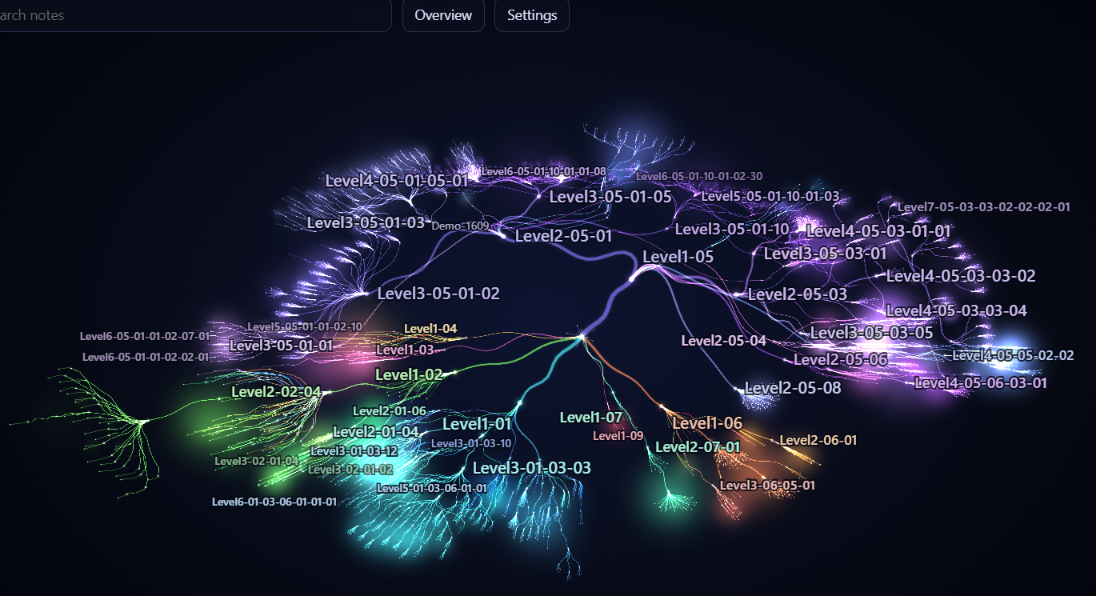
Mind map of your vault, drawn like a neural network: folders as branches, notes as leaves, links between them.
- Overview
- Scorecard
- Updates8
English · Čeština
Brain Map
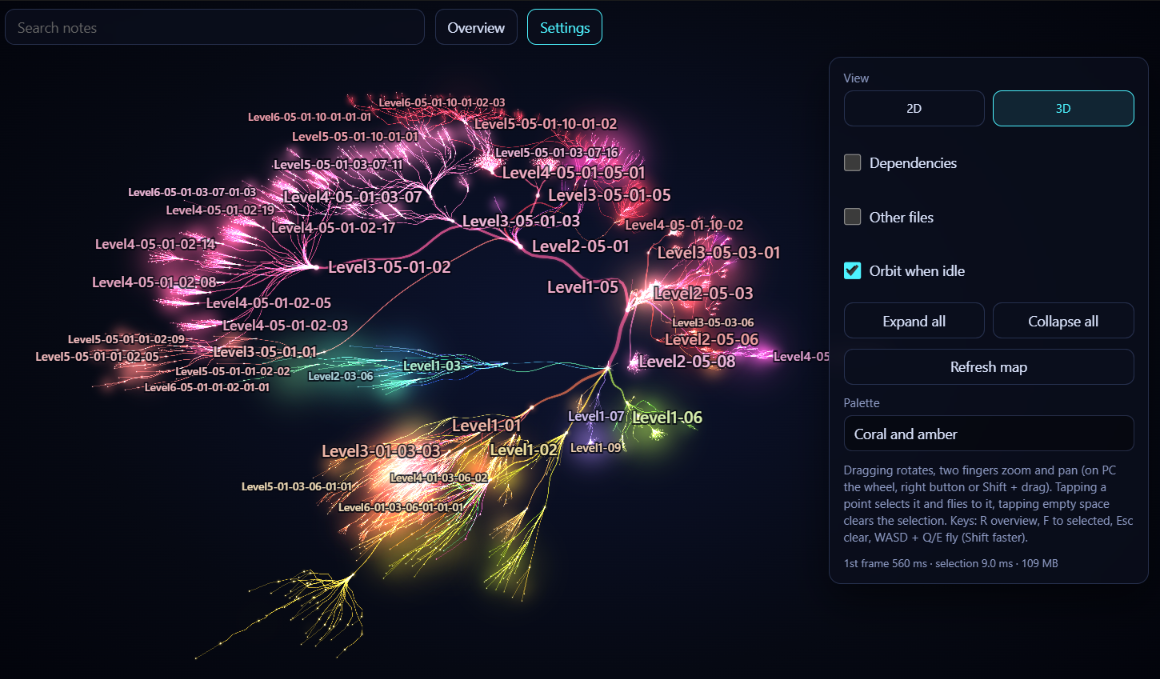
Brain Map draws your Obsidian vault like a neural network: folders form branches, notes form leaves, and links connect them. Explore the structure in 2D or 3D, find a note by name, and open it from the map.
Watch the 34-second demo video
Features
| Feature | What it does |
|---|---|
| Vault map | Shows folders, notes and links from your vault in 2D or 3D. |
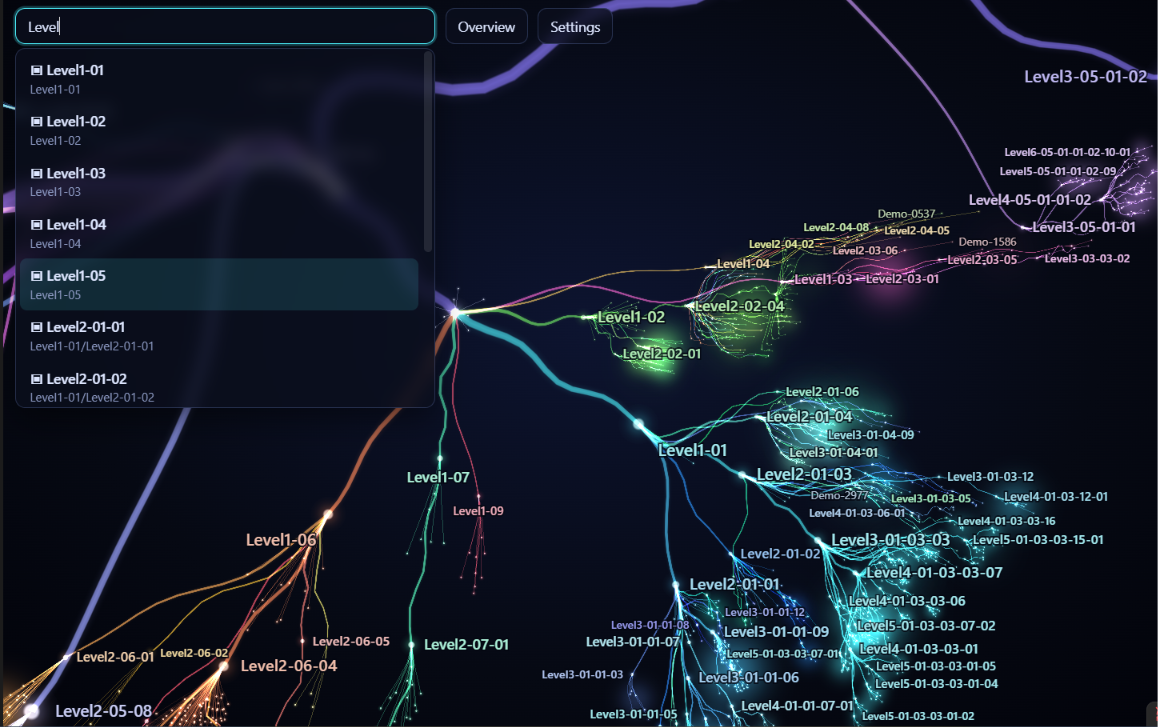
| Search | Finds folders and files by name and flies to the selected result. |
| Branches | Collapse folders below the vault root, or use Expand all and Collapse all. |
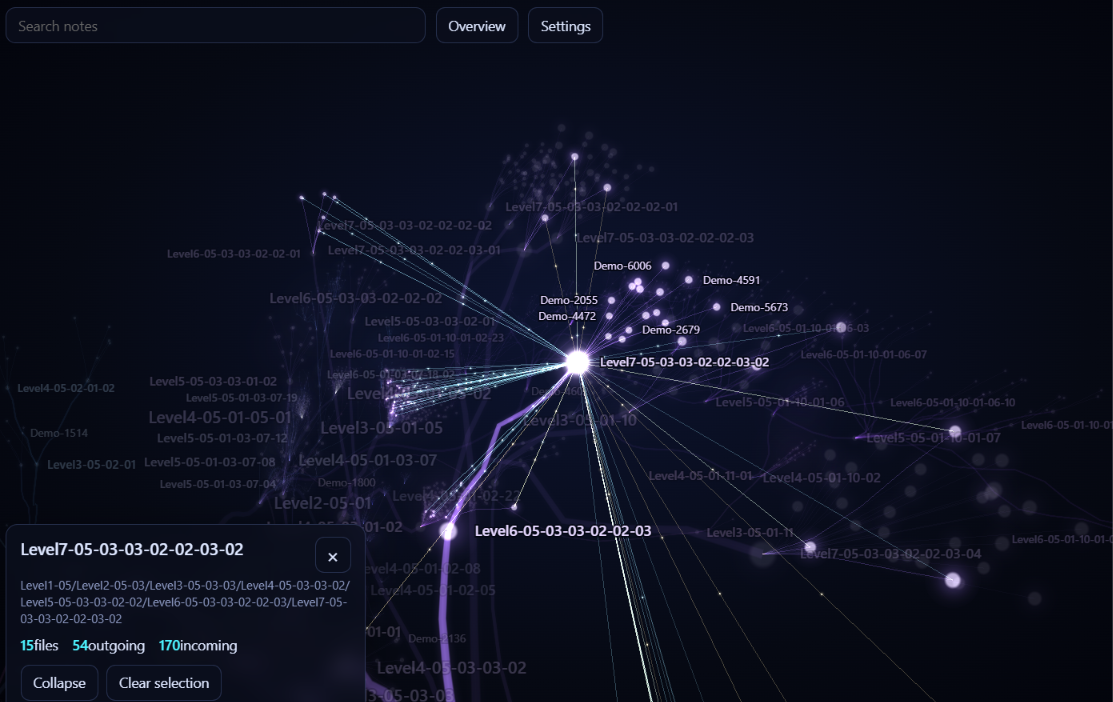
| Selection panel | Shows the node name, path and incoming/outgoing link counts; folders also show their direct children, subfolders and non-note files included. Use Open note for files or Collapse / Expand for folders below the vault root. |
| File and link lists | Click a nonzero count for direct children or linked notes; select an entry to fly there and use Back to return. Lists show up to 500 entries. |
| Link highlight | Selecting a node draws its outgoing and incoming links in two colours, with pulses in the link direction, even with Dependencies off. |
| Other files | Optionally includes PDFs, images and other files, with links from notes. |
| Colours | Choose Aurora, Neon night, or Coral and amber. |
| Tags | Tags from frontmatter and inline #tags (case-insensitive, nested #a/b is one tag). The selection panel lists a note's tags; a selected tag shows its notes, with fly-to and Back. On the map, tags sit just outside the map's outline in 2D and around it in 3D, linked in crimson. Search offers tags too; a query starting with # finds only tags. |
Installation
Requires Obsidian 1.8.7 or later.
Open Settings → Community plugins → Browse, search for Brain Map, install it and enable it.
Controls
| Action | How |
|---|---|
| Open the map | Click the brain ribbon icon or run Brain Map: Open map. |
| Switch 2D / 3D | Open Settings in the map and choose 2D or 3D under View. |
| Select a node (2D / 3D) | Click or tap a node to select it and fly to it. Click or tap empty space to clear the selection. |
| Open a file | In 2D, double-click, double-tap or hold a file for 550 ms. In either view, select it and press Open note in the panel. |
| Collapse or expand a folder | For folders below the vault root: in 2D, double-click, double-tap or hold a folder for 550 ms. In either view, use Collapse or Expand in its selection panel. |
| Pan and zoom in 2D | Drag to pan; use the wheel or pinch with two fingers to zoom. |
| Rotate, pan and zoom in 3D | Drag to rotate; right-drag or Shift-drag to pan; use the wheel to zoom. On touchscreens, drag with one finger to rotate and use two fingers to pan and zoom. |
| Keyboard in 3D | With the canvas focused, R shows the overview, F flies to the selection and Esc clears it. WASD + Q/E move the camera; hold Shift to move faster. Esc also clears the selection in 2D. |
| Browse files and links | Click or tap a count in the selection panel, then an entry. Back returns to the previous node; Clear selection clears this history. Esc or a click outside the list closes it. |
| Search (2D / 3D) | Type at least two characters in Search notes; select a result or press Enter for the first one. |
| Return to an overview or detail | Overview shows the whole map. With the whole map in view and a node selected, the button turns into Detail and flies back to the node. Neither changes collapsed folders or the selection. |
| Play vault history | Press the wand button in the map toolbar to watch folders and files appear in the order they were created, in 20-60 seconds depending on vault size. The view jumps to the overview first and stays still while the map fills in; 3D orbiting pauses for the replay. A speed slider under the wand sets files per second and shows the time left; the map remembers your choice. Space pauses, a second click stops. The creation date comes from created or date in frontmatter, otherwise from the file's timestamps. |
| Refresh the tree | After adding, deleting, moving or renaming files, press Refresh map in the map's Settings, use the refresh icon in the map's header, or run Brain Map: Refresh map. Links between existing nodes update when Obsidian resolves them. |
Settings
Display controls are in the map's Settings panel; the plugin settings tab also includes Excluded folders and Excluded tags. The interface is in English.
| Setting | What it does | Default |
|---|---|---|
| View | Switches between 2D and 3D. | 3D |
| Palette | Changes branch colours. | Aurora |
| Depth (3D) | In 2D, scales and dims distant nodes so the map looks layered. The real 3D view is under View. | On |
| Dependencies | Shows links between notes and, with Other files enabled, links to those files: Off, 25 %, 50 %, 75 % or 100 % of the links with at least one end in view, strongest first. Zooming in on a branch shows its own links. | Off |
| Other files | Includes files other than Markdown notes. | Off |
| Orbit when idle | Rotates the 3D view after a period without input. | On |
| Tag links | When a note is selected, shows only its tags and the links to them. | Off |
| All tags | Shows every tag on the map; links appear only for the selected node. | Off |
| Excluded folders | One per line: a name excludes folders of that name anywhere; a path such as Projects/Old excludes only that folder from the vault root; a leading or trailing slash is ignored. Applies when you leave the field; hidden paths are always excluded. |
_templates, Clippings, node_modules, __pycache__ |
| Excluded tags | One tag per line, without #; excluded tags disappear from the map, search and the panel. |
Empty |
Mobile and tablet
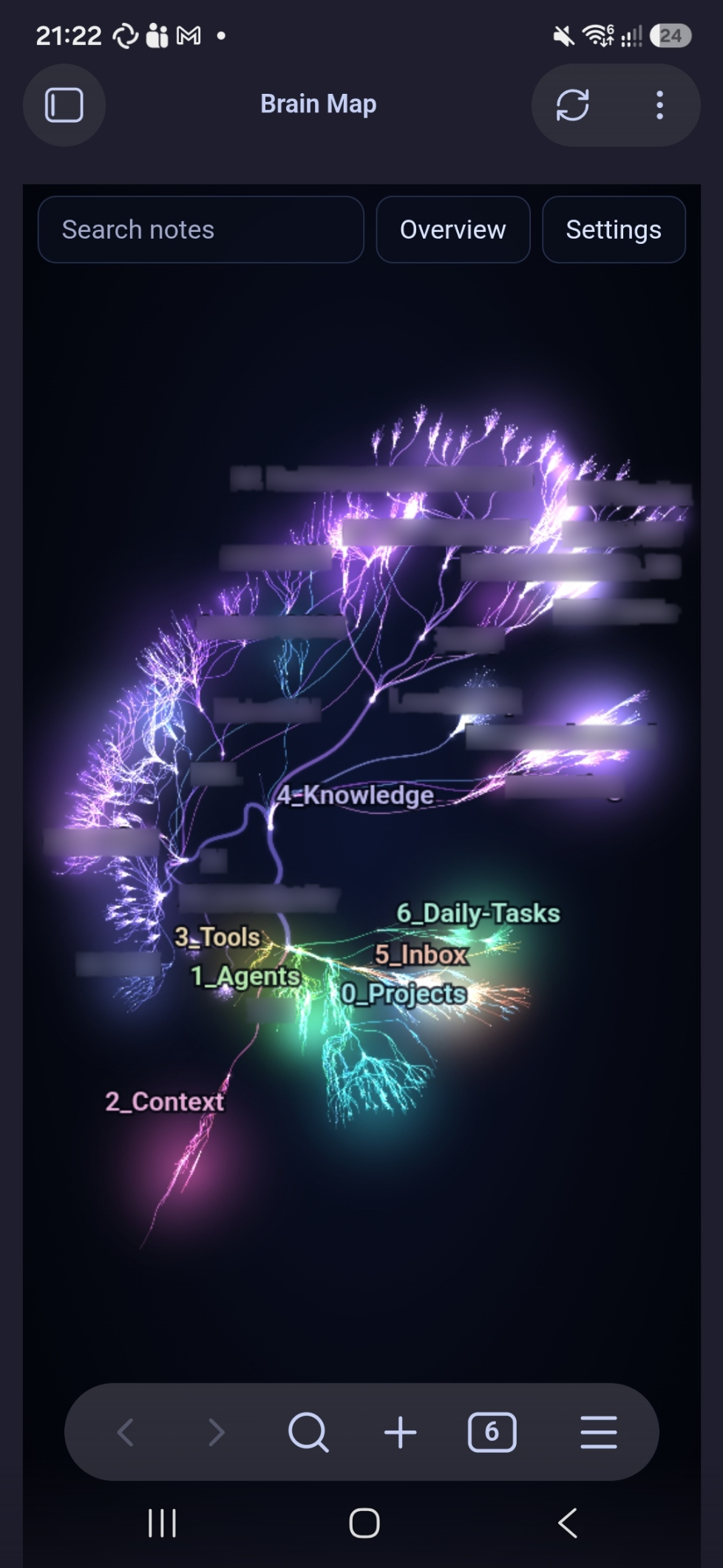
Use the touch gestures above on a phone or tablet. Opening a file on mobile replaces the map in the same tab; use Obsidian's Back navigation to return to the saved view and selection. On desktop, files open in a new tab.
Privacy
Brain Map makes no network requests. It builds the map from vault file paths and Obsidian's resolved link metadata.
Changing display options, excluded folders or collapsed branches saves the settings in the plugin's data.json.
Only the Brain Map: Export diagnostics command writes diagnostics, and it requires an open map. It writes diagnostika.json in the plugin folder, including the vault name, file paths, excluded folders, resolved links, app version, platform flags and view geometry. Check the file before sharing it: names and paths may be private.
The same command writes geometry to Brain-Map-diagnostika.md at the vault root. It updates a note marked as its own, or chooses a numbered name if that name is already taken by another file or folder. The geometry note contains no note text or file paths; as a vault note, it may be included in your sync.
Known limitations
- The folder and file tree is a snapshot. Use Refresh map for structural changes.
- Search matches names, not note contents, and shows at most 12 results.
- Dependencies in 3D draws at most 3,000 curves; the percentage then applies to that limit. In 3D the selection updates once the camera stops. The count next to the option shows drawn of in view.
- 3D requires WebGL. If it is unavailable, the map stays in 2D.
Changelog
0.2.3-0.2.4 - History playback has a speed slider in files per second under the wand, shown only while it plays. The camera goes straight to the overview and no longer moves during playback, and 3D orbiting pauses until it ends. 0.2.4 replaces a CSS selector that Obsidian flags as slow, so the toolbar layout no longer costs extra style recalculation.
0.2.2 - Dependencies have a density option (Off / 25 / 50 / 75 / 100 %) instead of the switch, and only links with an end in view count, so zooming in shows the local links. Earlier "on" becomes 50 %. A new install opens in 3D with links off. 2D panning and zooming with links on is faster.
0.2.1 - Vault history: the wand button plays how folders and files appeared over time, in 2D and 3D, with automatic zoom that ends on the overview. Tags are now a metallic red. The checkboxes in the map's Settings show a single box in Obsidian.
0.2.0 - Tags on the map: from frontmatter and inline #tags, with Tag links and All tags in Settings, tags in search and in the selection panel, and Excluded tags in the plugin settings. Tags follow the shape of the map in 2D and 3D and are linked in crimson.
Older revisions
- 0.1.10 - In 2D the selected note keeps its highlight and links when you zoom out, right-button panning in 3D is twice as fast on desktop, the palette list is readable on Windows, and releases are built from a lockfile.
- 0.1.9 - Clickable file and link lists with Back, and fixes for the community directory review.
- 0.1.8 - First public version.
- 2D and 3D vault maps with folder branches and links.
- Name search, animated navigation and a selection panel.
- Optional attachments, three palettes and folder exclusions.
- Touch controls and restoration of the map after opening a note on mobile.
- Overview / Detail navigation and an English interface.
- 0.1.7 - Added Overview in 2D, centred the selection when returning from 3D, restored the 3D camera after Back, and moved the performance readout (first frame, selection, memory) into Settings.
- 0.1.6 - Made the 2D/3D switch visible and added Refresh map to the map's Settings panel.
- 0.1.5 - Added the 3D view with rotation, camera controls and a return to 2D when WebGL is unavailable.
- 0.1.4 - Added optional non-Markdown files and links to attachments.
- 0.1.3 - Clicking or tapping a node in 2D now selects it and flies to it.
- 0.1.2 - Fixed unwanted zooming out when rotating a phone.
- 0.1.1 - Kept the node panel above the mobile toolbar and left room for the map while searching with the keyboard open.
- 0.1.0 - First non-public version: a 2D map of the vault.
License
MIT. Copyright (c) 2026 Jaroslav Krčál.