Better Export PDF
 l1xnan341k downloads
Export your notes to PDF, supports export preview, add bookmarks outline and header/footer.
- Overview
- Scorecard
- Updates53
English | 中文
Better Export PDF is an Obsidian PDF export enhancement plugin that adds the ability to export bookmarks outline, export preview and add page numbers to PDF compared to the official PDF export function.
Features
Compared to the official Export PDF feature:
- 🚀Support export preview
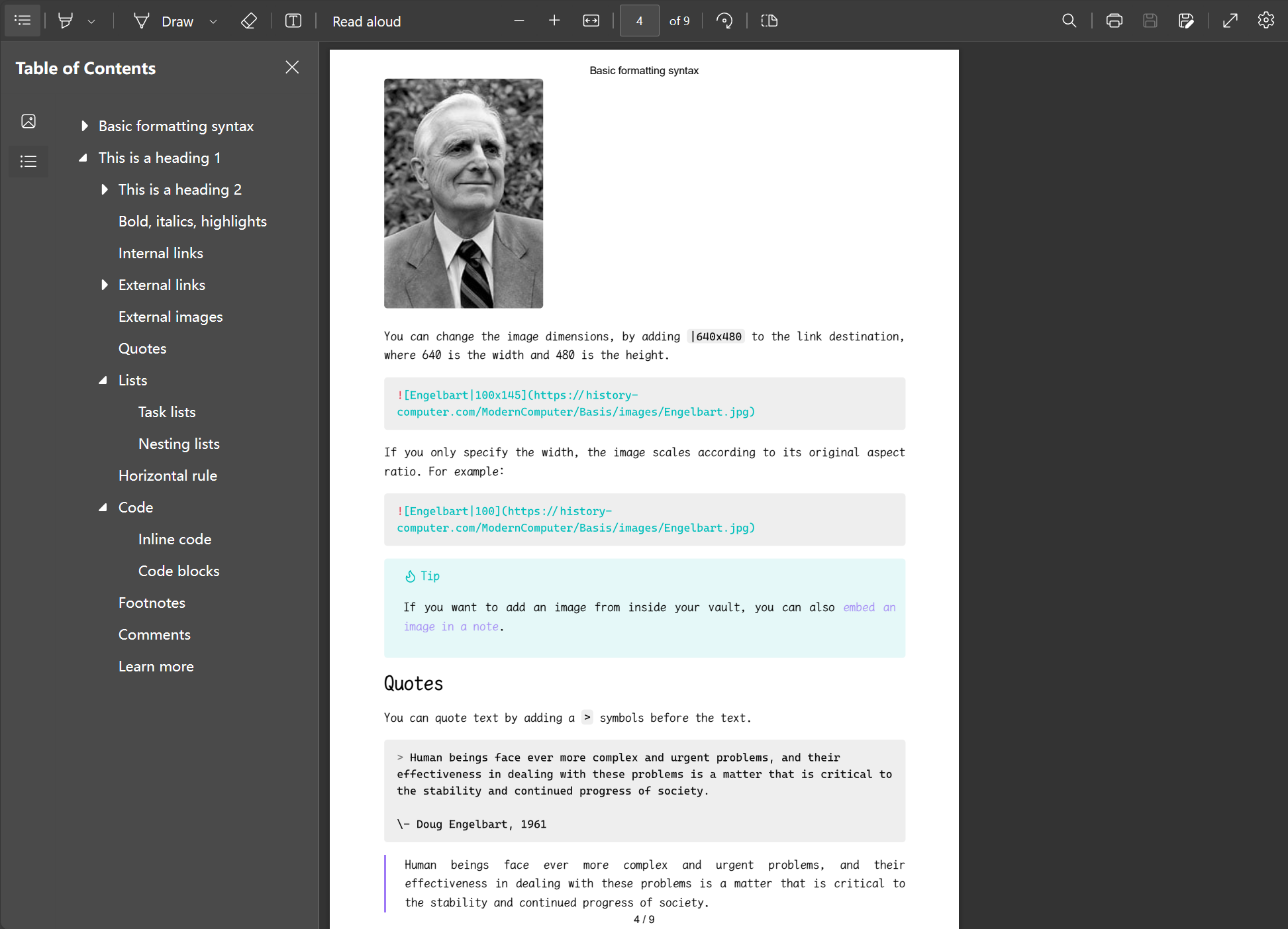
- 🎉Export the outline bookmarks
- 🛩️Customize the margins
- ✨Export the page numbers
- 💥Support add PDF metadata from front matter
- 🎇Export internal links within file
- 🎈Export multiple Markdown files(folder or specified files) into one PDF file
- 🌸Batch export multiple PDF files
- 🍬Support exporting PDFs in any size, and can export all content onto a single page
- ... ...
Installation
In Obsidian go to Settings > Third-party plugins > Community Plugins > Browse and search for Better Export PDF.
Manual installation
- Download the .zip file from the latest Release, or from any other release version.
- Unzip into:
{VaultFolder}/.obsidian/plugins/ - Reload Obsidian and enable the plug-in.
or use the BRAT Plugin.
Usage
- Select export target:
- In the upper right corner of the current Markdown view, click More options and select
Better Export PDF; - Open the command panel and select
Better Export PDF: Export Current File to PDF.
- In the upper right corner of the current Markdown view, click More options and select
- In the dialog box that is displayed, modify the configuration.
- Click
Export, select the export path, and if you don't need to modify the configuration, you can directly press theEnterkey to trigger the export operation.
Set the header and footer
Set page numbers using the Header Template and Footer Template, for example:
<div style="width: 100vw;font-size:10px;text-align:center;">
  <span class="pageNumber"></span> / <span class="totalPages"></span>
</div>
See details <webview>.printToPDF(options).
It can be any HTML fragment, such as adding a base64 image:
<div style="width: 100vw;font-size:10px;text-align:center;">
  <img height="10px" width="10px" src="data:image/svg+xml;base64,xxx..." />
  <span class="title"></span>
</div>
Document level header/footer templates can also be configured in frontMatter:
headerTemplatefooterTemplate
Customize the export style
If you want to further customize the PDF export style, you can add custom CSS in the Appearance > CSS Snippet, such as custom fonts and sizes:
@media print {
  body {
    --font-interface-override: "Times New Roman" !important;
    --font-text-override: "Times New Roman" !important;
    --font-print-override: "Times New Roman" !important;
    --font-monospace-override: "Consolas" !important;
    --font-text-size: 20px !important;
    font-family: "Times New Roman" !important;
  }
}
Select Disabled CSS Snippts
First, enable the Select CSS snippets option in the plugin configuration. This will allow you to see the CSS snippets option in the modal for exporting PDFs. From there, you can choose CSS snippets that have not been globally enabled in the Appearance > CSS Fragments section.
Add PDF metadata
PDF Metadata can be added to through frontMatter of the configuration document. Supported field items are:
titleauthorkeywordscreated_atupdated_atcreatorproducer
Export multiple Markdown files
Quick export
Select the folder in the sidebar, right-click the menu Export folder to PDF, you can export the entire folder contents to a PDF file.
Note: This does not guarantee the file export order.
Custom export
Create a new table of contents note, add something like the following, need to add a toc: true document property:
---
toc: true
---

## Table of Contents

[[Note1|Title1]]
[[Note2]]
[[Note2]]
This allows the plugin to export the notes in the order of the internal links. The anchor point of the exported PDF table of contents supports clicking to jump.
Note: When exporting with a Table of Contents file, right click on that toc-file and select Better Export PDF. Do not use Export Folder to PDF.
Folder batch export
Select the folder in the sidebar, right-click the menu Export each file to PDF, you can batch export each file of the entire folder to PDF file.
Export as One Page
In the export dialog, select Custom for Page Size and set Margin to None. Set the page size according to the document's requirements.
Note: You can adjust the concurrency number during the rendering phase when exporting multiple files via Plugin Settings > Limit Concurrency. This can help reduce resource consumption or increase the speed. The default value is 5.
Preview
Export preview
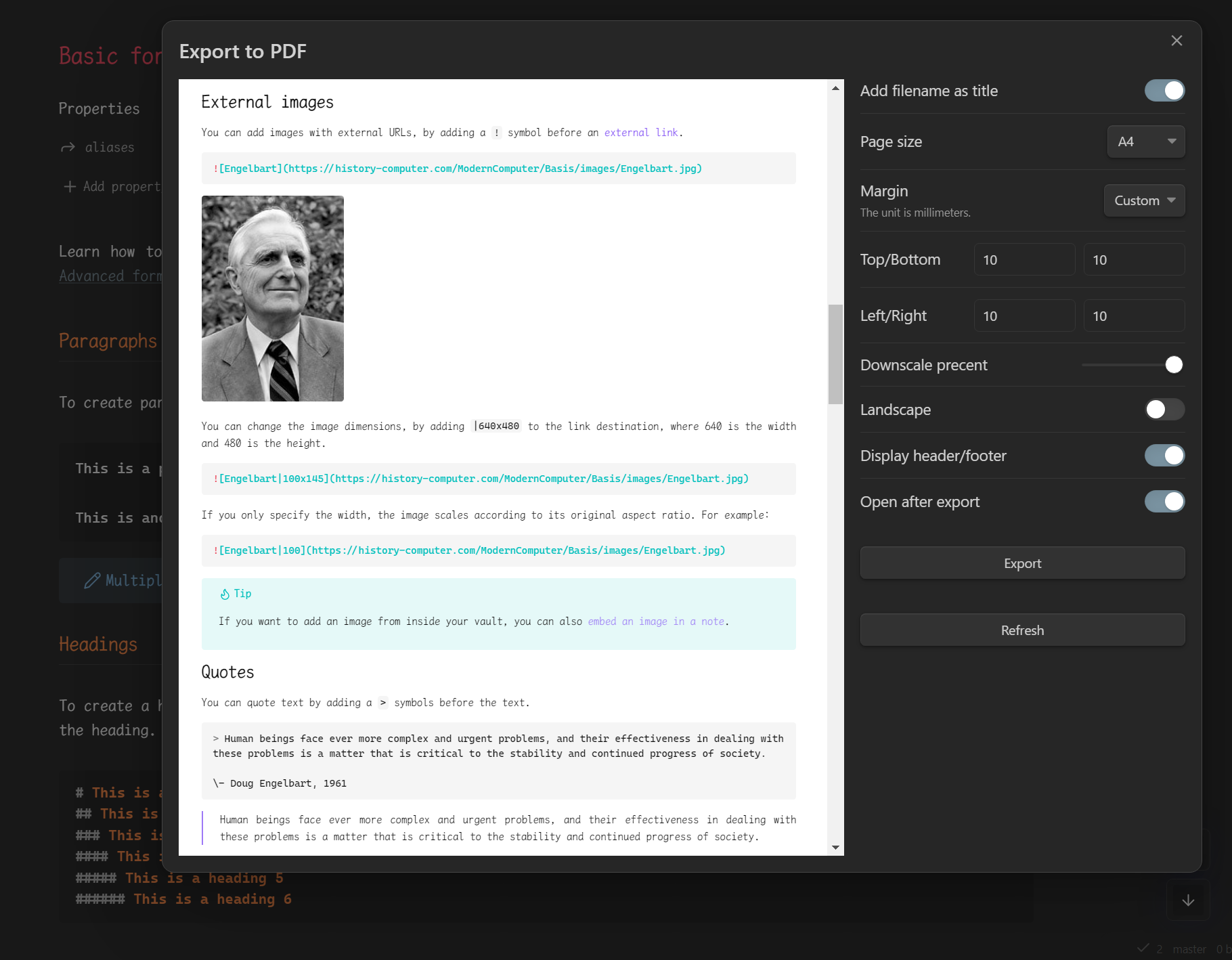
Effect picture
TODO
- Automatically adds internal link content to footnotes/appendices;
- Support pagedjs beautification;
- Support print preview;
- Export multiple Markdown files into one PDF file;
- Improves default
@media printcss style; - Support add PDF metadata from front matter;
- Export internal links within file;
Support This Plugin
This plugin takes a lot of work to maintain and continue adding features. If you want to fund the continued development of this plugin you can do so here: