AtLine AI
 ergesmema235 downloads
Ask any LLM questions about your notes inline using custom triggers.
- Overview
- Scorecard
- Updates2
Ask any LLM questions about your notes inline using custom triggers.
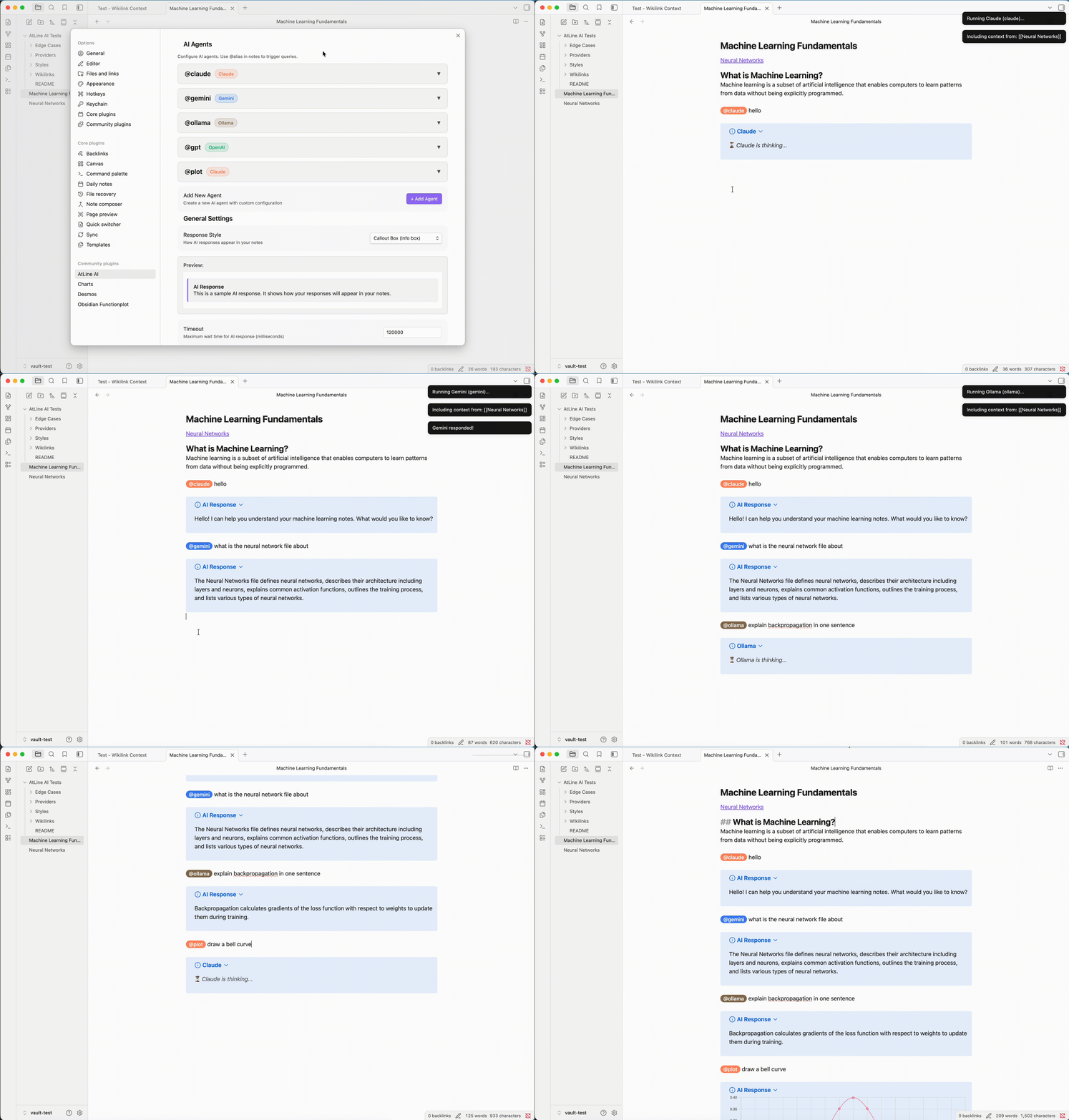
Set a hotkey in Settings → Hotkeys → AtLine AI to trigger a response (e.g. Cmd+Enter on Mac).
Desktop only. This plugin uses Node.js APIs and is not available on Obsidian Mobile.
Quickstart
- Install the plugin (see Installation)
- Choose your connection method:
- API mode: Go to Settings → AtLine AI → API Keys and add your API key (Anthropic, OpenAI, or Google)
- CLI mode: Install the CLI tool (e.g.,
npm install -g @anthropic-ai/claude-code) and authenticate
- Set a hotkey: Settings → Hotkeys → search "AtLine AI" → assign your preferred shortcut
- In any note, type:
@claude What is this note about? - Press your hotkey
The AI response appears inline below your question.
Features
- Multiple AI providers: Claude, Google Gemini, Ollama (local models), OpenAI, and a dedicated chart/plot agent
- Flexible connection modes: Use CLI tools or direct API keys — no CLI required for API mode
- Streaming responses: See AI responses appear in real-time as they are generated
- Linked notes context: Automatically include
[[wikilinked]]notes as context for the AI - Inline responses: Answers appear directly in your note as blockquotes, callouts, plain text, or code blocks
- Customizable agents: Create multiple agents with different providers and system prompts
- Configurable hotkey: assign any shortcut via Settings → Hotkeys
- Works alongside other typing plugins without conflicts
Installation
Via BRAT (recommended for beta testing)
- Install the BRAT plugin from the Obsidian community plugins
- Open BRAT settings and click Add Beta Plugin
- Enter:
https://github.com/ergesmema/obsidian-atline-ai - Enable AtLine AI in Settings → Community Plugins
Manual installation
- Download the latest release and extract it into your vault's
.obsidian/plugins/folder - Enable the plugin in Settings → Community Plugins
Requirements
- Obsidian v0.15.0 or higher
- Desktop only (Windows, macOS, Linux)
Choose CLI or API mode per provider:
| Provider | CLI mode | API mode |
|---|---|---|
| Claude | Claude CLI (npm install -g @anthropic-ai/claude-code) |
Anthropic API key |
| Gemini | Gemini CLI (requires Node.js 20+) | Google AI API key |
| OpenAI | Codex CLI | OpenAI API key |
| Ollama | Ollama running locally (http://localhost:11434) |
— |
| Plot | Uses whichever provider the @plot agent is configured with | — |
API mode requires no CLI installation — just add your API key in settings.
Usage
Basic usage
- Open any note in Obsidian
- Type an agent trigger followed by your question:
@claude What is the main topic of this note? @gemini Summarize this section @ollama Explain this concept @gpt Help me rewrite this paragraph @plot Draw a bar chart: Q1=120, Q2=95, Q3=140, Q4=200 - Press your configured hotkey (set in Settings → Hotkeys → AtLine AI)
- The AI reads your note and responds inline
The plugin searches up to 20 lines above your cursor to find the nearest @agent trigger, so you can place your cursor anywhere after the query.
Command palette
- Place your cursor on or below a line with an agent query
- Open the command palette (Cmd/Ctrl+P)
- Run AtLine AI: Run AI agent on current line
Configuration
Go to Settings → AtLine AI to configure:
- AI agents: Create and customize multiple agents with different providers and system prompts
- Connection mode: Choose CLI or API mode per agent
- API keys: Add your Anthropic, OpenAI, or Google AI API keys
- Include linked notes: Automatically include
[[wikilinked]]notes as context - Response style: Choose how responses are displayed — blockquote, callout, plain, code, or custom
- Hotkey: Choose your preferred keyboard shortcut
- Timeout: Maximum wait time for AI responses (default: 2 minutes)
- Ollama settings: Configure Ollama base URL and model
- CLI paths: Configure paths to Node.js and CLI executables
Configuring agents
Each agent has:
- Alias: The trigger word (e.g.,
claude,gemini,gpt, or any custom word) - Provider: Which AI service to use
- Connection mode: CLI or API
- Model: Which model to use (e.g.,
claude-sonnet-4-20250514,gpt-4o) - System prompt: Custom instructions for how the AI should behave
- Include linked notes: Whether to include
[[wikilinked]]notes as context
Troubleshooting
Plugin not responding
- Check Obsidian's developer console (Cmd/Ctrl+Shift+I) for errors
- Verify the appropriate CLI is installed for your provider
- For Ollama: ensure Ollama is running at the configured base URL
Claude / Gemini / OpenAI not working
If using API mode:
- Verify your API key is entered correctly in Settings → AtLine AI → API Keys
- Use the Test button next to your API key to verify it works
- Check that your API account has credits or quota available
If using CLI mode:
- Verify CLI is installed:
which claude,which gemini, orwhich codex - Check that you are authenticated with the CLI
- Test the CLI independently in your terminal
- For Gemini CLI: Requires Node.js version 20 or higher
- Check CLI paths in settings: Go to Settings → AtLine AI → CLI Paths and ensure all paths are correct
- Default paths use system PATH (e.g.,
node,claude). For custom installations, use absolute paths:- Homebrew:
/usr/local/bin/node - NVM:
~/.nvm/versions/node/v20.x.x/bin/node
- Homebrew:
Ollama not working
- Verify Ollama is running:
curl http://localhost:11434/api/tags - Check that the model name in settings matches an installed model
- Verify the base URL in settings is correct
Timeout errors
- Increase the timeout value in plugin settings
- Check your internet connection (for Claude/Gemini/OpenAI)
- For local models (Ollama): check system resources
Network and privacy
This plugin can send note content to external AI services depending on which provider you use:
| Provider | Service | Privacy policy |
|---|---|---|
| Claude (API mode) | Anthropic API | anthropic.com/privacy |
| Gemini (API mode) | Google AI API | ai.google.dev/terms |
| OpenAI (API mode) | OpenAI API | openai.com/policies/privacy-policy |
| Ollama | Localhost only | No data leaves your machine |
| CLI mode (any) | Routed through the respective CLI tool | See provider above |
What is sent: the content of your active note, any [[wikilinked]] notes you have enabled for context, and your query. No data is collected by this plugin itself.
To keep your notes private, use Ollama with a local model.
Roadmap
v1.2 - Context enhancements
- Selection-only mode (AI only sees highlighted text)
- Folder-wide context option
- Conversation history within a note
v1.3 - Response improvements
- Edit and regenerate responses
- Save favourite prompts/templates
v1.4 - More providers
- Mistral AI support
- Custom API endpoints
Have a feature request? Open an issue!
Contributing
Contributions are welcome! You can:
- Suggest features: Open an issue or join Discussions
- Report bugs: Include steps to reproduce and error messages from the developer console
- Submit code: See CONTRIBUTING.md for guidelines
License
MIT