Arrows
 artisticat9k downloads
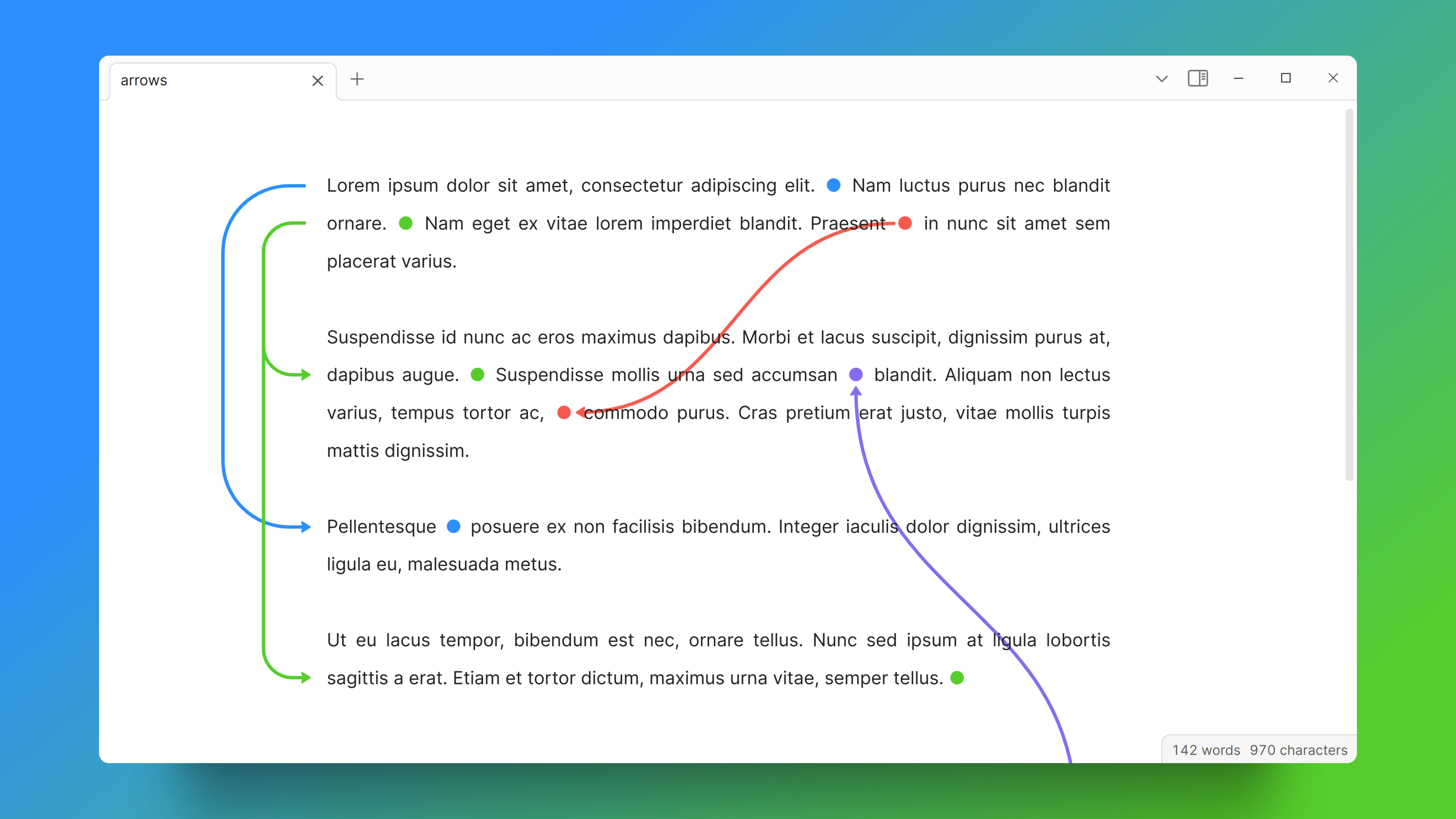
Draw arrows across different parts of your notes, similar to on paper.
- Overview
- Scorecard
- Updates1
A plugin for Obsidian that lets you draw arrows in your notes, similar to how you might draw arrows across different parts of your notes on paper.
Works in Live Preview mode only.
Usage
Drawing arrows
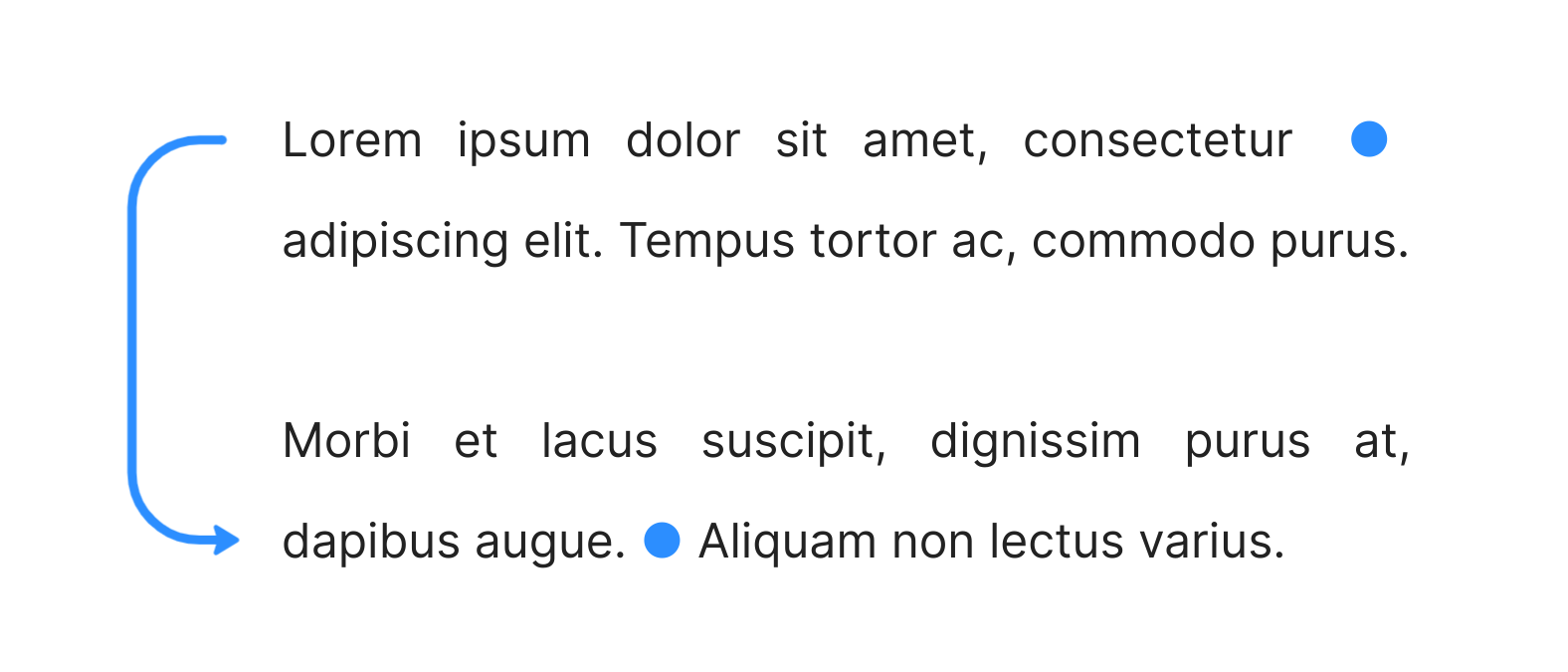
Type {arrow-identifier|color} to mark the start of an arrow, e.g. {my-arrow|#1e90ff}.
Then, type {arrow-identifier} elsewhere to mark the end of the arrow; in this case, {my-arrow}.
An arrow will be drawn from the start identifier to the end identifier along the margin.
Lorem ipsum dolor sit amet, consectetur {my-arrow|#1e90ff} adipiscing elit. Tempus tortor ac, commodo purus.

Morbi et lacus suscipit, dignissim purus at, dapibus augue. {my-arrow} Aliquam non lectus varius.
Diagonal arrows
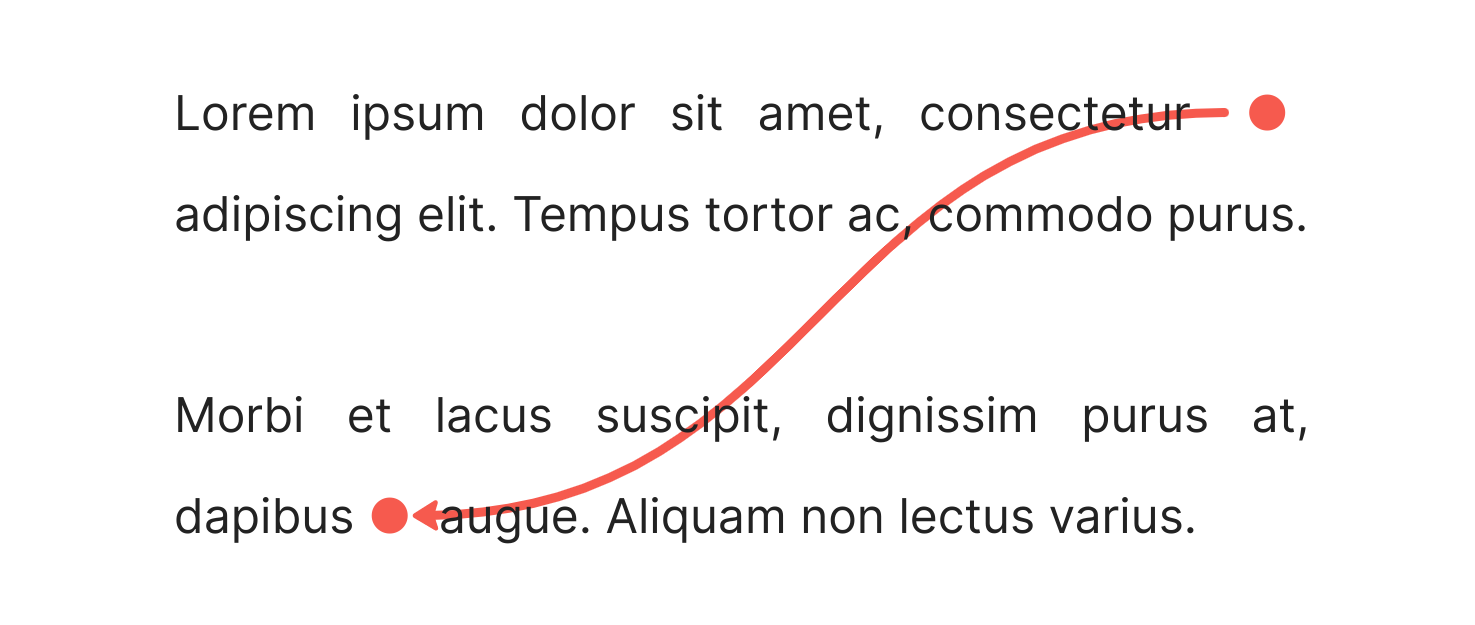
To create a diagonal arrow, append "|diagonal" to the start identifier of the arrow, e.g. {my-arrow|#ff5555|diagonal}.
Lorem ipsum dolor sit amet, consectetur {my-arrow2|#ff5555|diagonal} adipiscing elit. Tempus tortor ac, commodo purus.

Morbi et lacus suscipit, dignissim purus at, dapibus {my-arrow2} augue. Aliquam non lectus varius.
Drawing more arrows
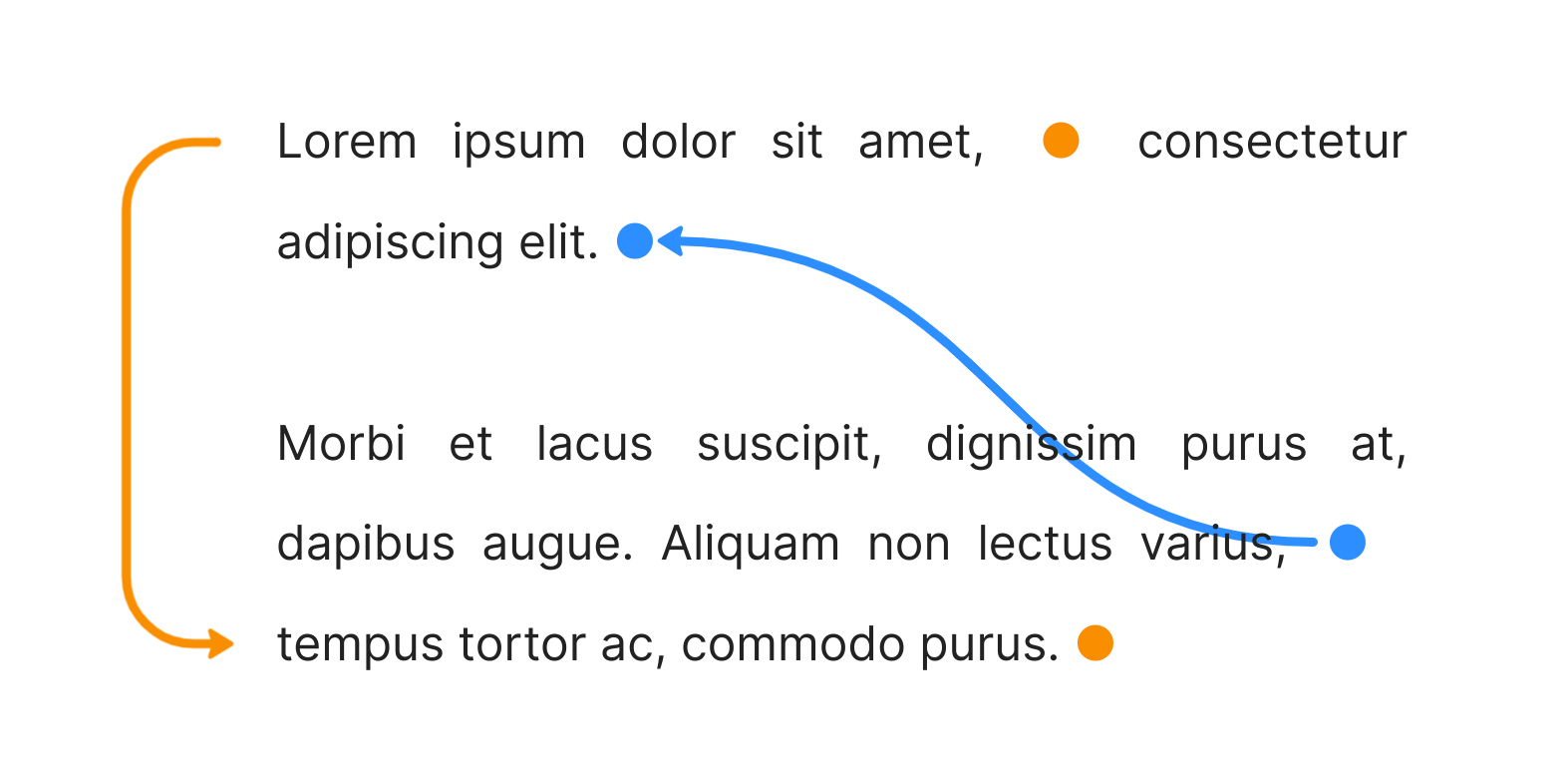
You can add more arrows by using different arrow identifiers, e.g. {this-is-another-arrow|orange}:
Lorem ipsum dolor sit amet, {this-is-another-arrow|orange} consectetur adipiscing elit. {my-arrow3}

Morbi et lacus suscipit, dignissim purus at, dapibus augue. Aliquam non lectus varius, {my-arrow3|#1e90ff|diagonal} tempus tortor ac, commodo purus. {this-is-another-arrow}
Multi-arrows
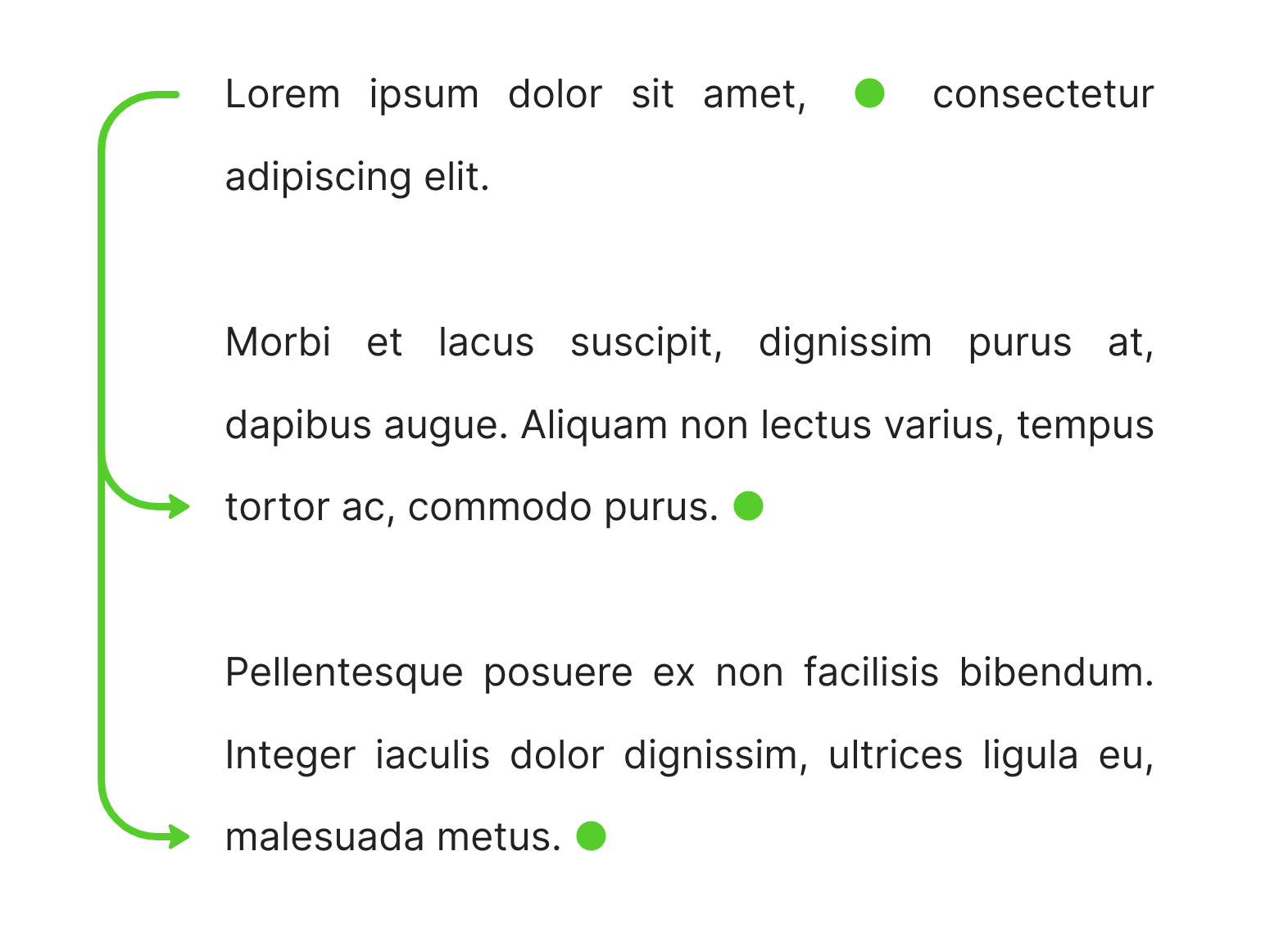
You can have multiple end identifiers corresponding to a single start identifier. An arrow will be drawn for each:
Lorem ipsum dolor sit amet, {multi-arrow|limegreen} consectetur adipiscing elit.

Morbi et lacus suscipit, dignissim purus at, dapibus augue. Aliquam non lectus varius, tempus tortor ac, commodo purus. {multi-arrow}

Pellentesque posuere ex non facilisis bibendum. Integer iaculis dolor dignissim, ultrices ligula eu, malesuada metus. {multi-arrow}
Adjusting margin arrows
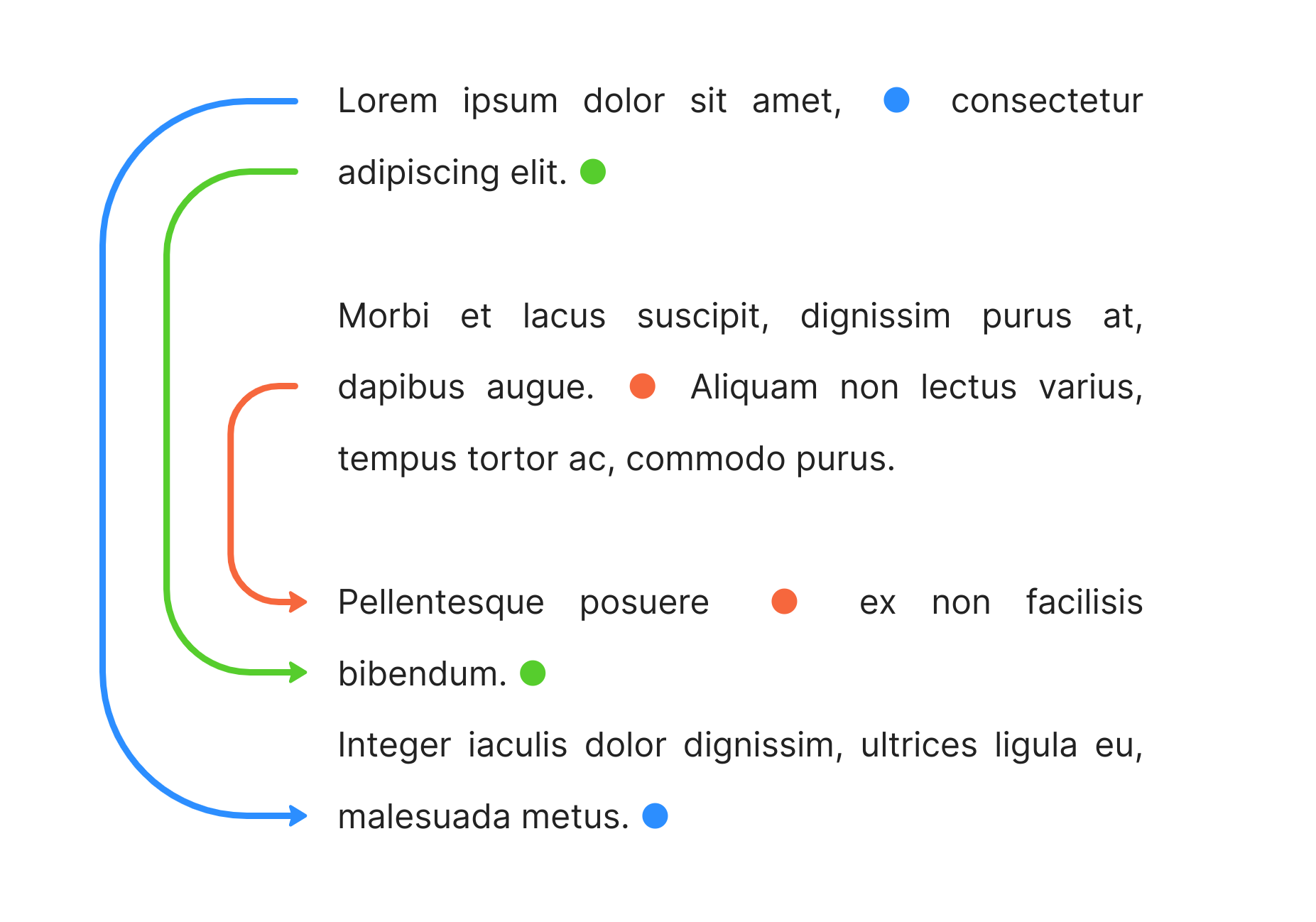
Adjust the x-position of margin arrows by appending "|x-pos" to the start identifier, where x-pos is a number between 0 and 30, e.g. {my-arrow|blue|10}.
Lorem ipsum dolor sit amet, {first|dodgerblue|20} consectetur adipiscing elit. {second|limegreen|10}

Morbi et lacus suscipit, dignissim purus at, dapibus augue. {third|tomato} Aliquam non lectus varius, tempus tortor ac, commodo purus.

Pellentesque posuere {third} ex non facilisis bibendum. {second}
Integer iaculis dolor dignissim, ultrices ligula eu, malesuada metus. {first}
Arrowheads
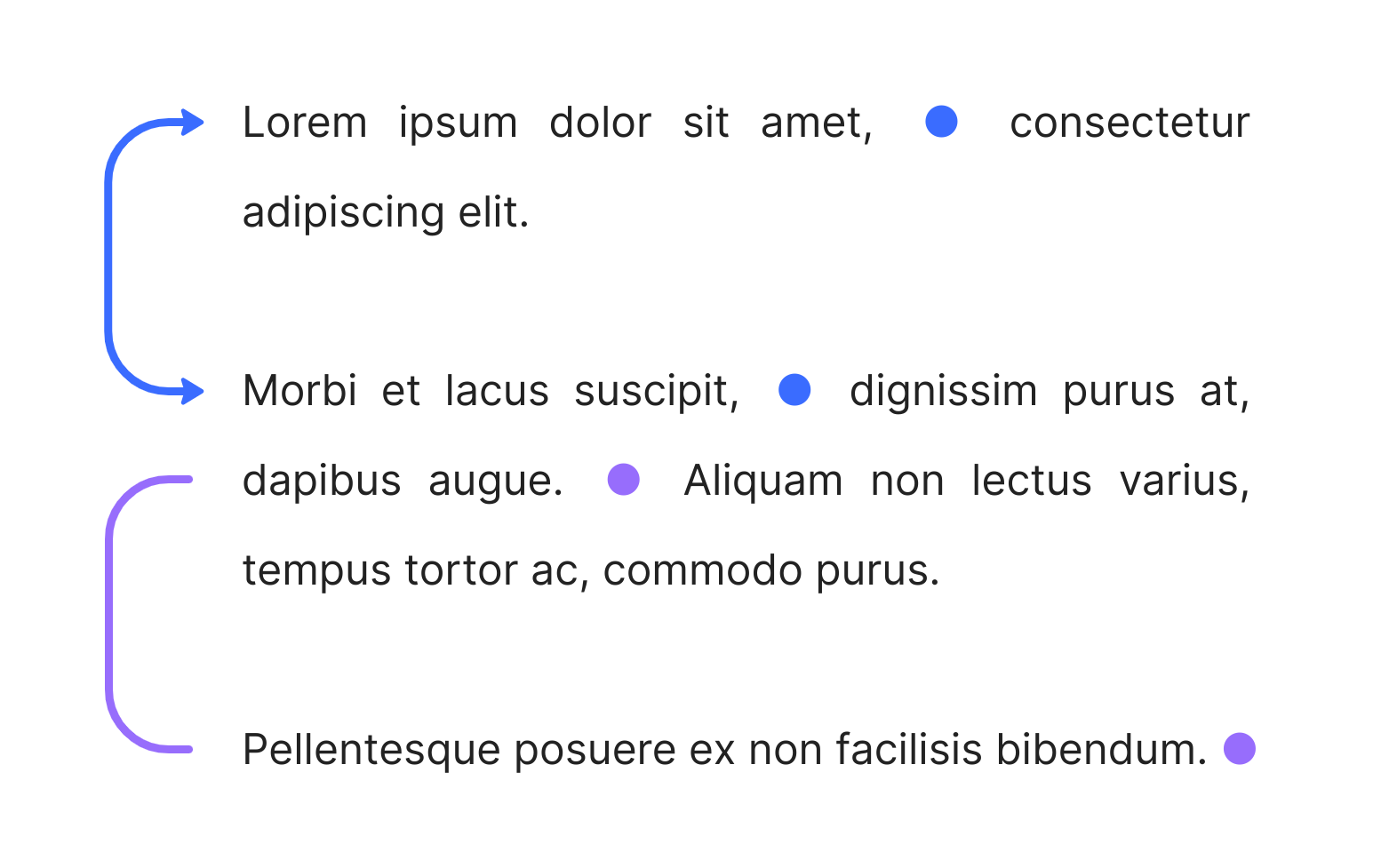
Add an arrowhead to the start of an arrow by appending "|arrow" to the start identifier.
Remove the arrowhead at the end of an arrow by appending "|no-arrow" to the end identifier.
Lorem ipsum dolor sit amet, {double-arrow|#3d6eff|arrow} consectetur adipiscing elit.

Morbi et lacus suscipit, {double-arrow} dignissim purus at, dapibus augue. {line|#9d6efa} Aliquam non lectus varius, tempus tortor ac, commodo purus.

Pellentesque posuere ex non facilisis bibendum. {line|no-arrow}
Navigating between arrows
When the cursor is moved outside of the {arrow-identifier} syntax, the syntax will be rendered as a small circle ● for a tidier look.
You can click on any arrow identifier ● to automatically scroll to the next matching identifier. This lets you quickly navigate between arrow start/end positions in a long document.
Full arrow syntax
Write
{arrow-identifier|color|opacity|type|x-position|arrowhead}to denote the start of an arrow, where:arrow-identifieris a string that acts as the arrow's identifiercoloris any valid color in CSS notation, e.g.red,#ff0000opacity(optional) is a float between 0 and 1, e.g.0.6. Defaults to 1.type(optional) is either "diagonal" or "margin". Defaults to "margin".x-position(optional) is an integer between 0 and 30. Sets the x-position of margin arrows. Defaults to 0.arrowhead(optional) is either "no-arrow" or "arrow". Use "arrow" to add an arrowhead to the start of the arrow. Defaults to "no-arrow".
{arrow-identifier}to denote the end of an arrow.- Write
{arrow-identifier|no-arrow}instead to remove the arrowhead from the end of the arrow.
- Write
Arrows will be drawn from each start identifier to all corresponding end identifiers.
Limitations
Works in Live Preview mode only.
Contributing
Any contributions and PRs are welcome!
Acknowledgements
This project uses the leader-line library to draw arrows.