Vim Marker Sharpener
 artemdvoryadkin676 downloads
Text formatting commands in Vim mode. Supports applying styles (bold, italic, etc.). Works correctly in visual mode with selected text.
- Overview
- Scorecard
- Updates5
Just a Teaser
[!Tip]
This plugin works correctly with text selection
in VIM mode:
- VISUAL
- VISUAL LINE
Vim Marker Sharpener
There are tons of plugins that do similar things or even the same. So why create this one?
This plugin works properly in VIM VISUAL mode.
You can configure your vimrc and use a leader key combo to format selected text as bold, italic, and more via a command list.
If you're not a VIM user, check out what the plugin can do — it enhances the basic text formatting functionality.
We Couldn't, Now We Can
- Commands for formatting as bold – highlight – italic – strikethrough – code – comments
- Combine multiple formatting styles
- Remove formatting from a selected block
- Delete formatting
- Format a word in
NORMALmode - ...and more I forgot to mention
Here's How It Works
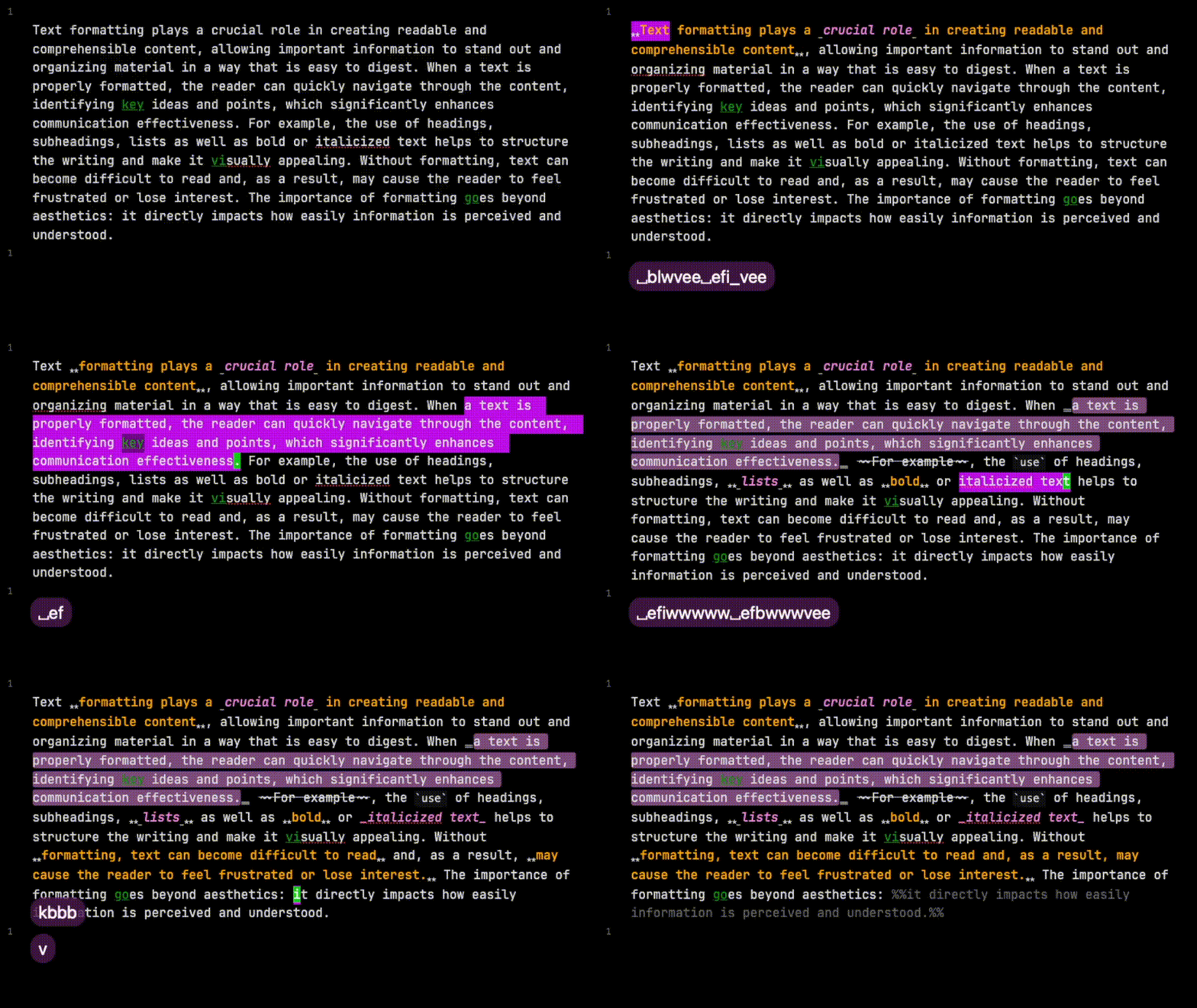
Planned Features
- Proper support for non-vim selection mode
-
clear formatcommand - Jump to next formatting
- Format the formatting (meta!)
- Format part of a sentence, or the whole sentence
Installation & Usage
For regular users, the plugin also works — you just need to bind the plugin's commands to hotkeys and enjoy the formatting process.
For ❤️ Vimers ❤️
The plugin shines when you create a .vimrc file. To do this, install this plugin:
- Vimrc Support https://github.com/esm7/obsidian-vimrc-support
Implements
.vimrcbehavior.
By default, the file should be located at:path/to/VaultName/.obsidian.vimrc— this is configurable in Vimrc Support settings.
You’ll need to create a VIM command for each plugin command.
Here’s an example .vimrc to format text as bold.
In VISUAL or VISUAL LINE mode, pressing !b or <Space>b will format the selected text as bold.
In normal mode, use <Space>efb.
" bold
exmap toggleBoldCommand obcommand vim-marker-sharpener:toggle-bold
map <Space>efb :toggleBoldCommand<CR>
vmap <Space>b :toggleBoldCommand<CR>
vmap !b :toggleBoldCommand<CR>
And here's a full example of my .vimrc for all commands:
" bold
exmap toggleBoldCommand obcommand vim-marker-sharpener:toggle-bold
map <Space>efb :toggleBoldCommand<CR>
vmap <Space>b :toggleBoldCommand<CR>
vmap !b :toggleBoldCommand<CR>

" highlight
exmap toggleHighlightCommand obcommand vim-marker-sharpener:toggle-highlight
map <Space>efh :toggleHighlightCommand<CR>
vmap !h :toggleHighlightCommand<CR>
vmap <Space>h :toggleHighlightCommand<CR>

" italic
exmap toggleItalicCommand obcommand vim-marker-sharpener:toggle-italic
map <Space>efi :toggleItalicCommand<CR>
vmap !i :toggleItalicCommand<CR>
vmap <Space>i :toggleItalicCommand<CR>

" strikethrough
exmap toggleStrikethroughCommand  obcommand vim-marker-sharpener:toggle-strikethrough
map <Space>efs :toggleStrikethroughCommand<CR>
vmap !s :toggleStrikethroughCommand<CR>
vmap <Space>s :toggleStrikethroughCommand<CR>

" code
exmap toggleCodeCommand obcommand vim-marker-sharpener:toggle-code
map <Space>efc :toggleCodeCommand<CR>
vmap !c :toggleCodeCommand<CR>
vmap <Space>c :toggleCodeCommand<CR>

" comments
exmap toggleCommentComment obcommand vim-marker-sharpener:toggle-comment
map <Space>efm :toggleCommentComment<CR>
vmap !m :toggleCommentComment<CR>
vmap <Space>m :toggleCommentComment<CR>