
- Overview
- Scorecard
- Updates3
SVG Editor for Obsidian brings an SVG-edit based vector editor directly into your vault. It lets you create, open, edit, and save .svg files without leaving Obsidian.
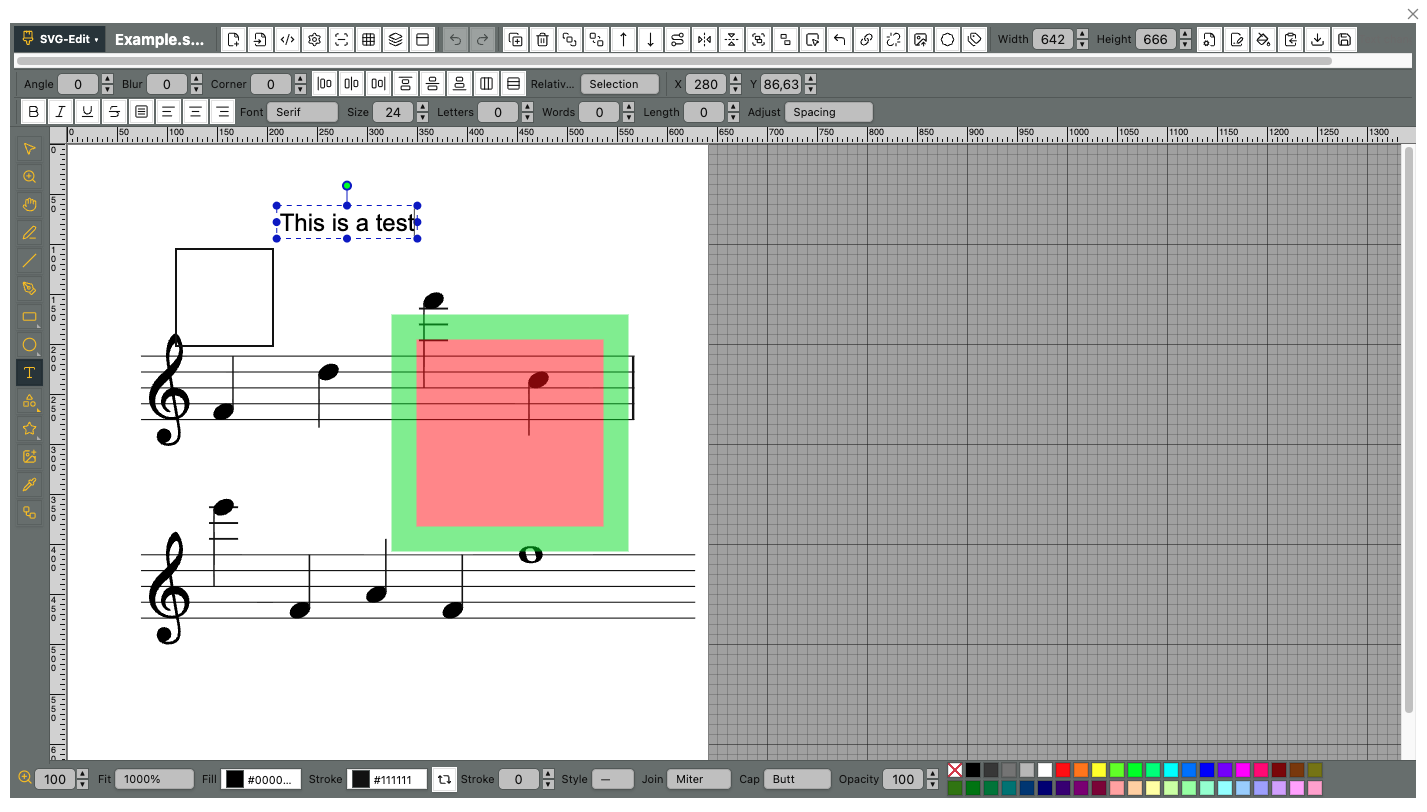
Features
- Direct SVG editing: Open
.svgfiles from the file menu, the ribbon icon, commands, or the pencil button on the SVG. - Edit button: Rendered SVGs show a small pencil button in the upper-right corner. Click it to open that SVG directly in the editor. This is enabled by default and can be disabled in the plugin settings.
- Drawing tools: Selection, rectangles, ellipses, lines, freehand paths, text, connectors, panning, zooming, and more.
- Shape library: Includes categories such as Basic, Arrows, Flowchart, Music, Mathematics, Animals, Objects, Symbols, and more.
- Rulers and grid: Use rulers, grid display, snapping, and multiple units including px, cm, mm, in, pt, and pc.
- Layers and overview: Manage layers, visibility, ordering, and use the overview panel for navigation.
- Styling controls: Edit fills, strokes, opacity, markers, gradients, line joins, line caps, and other SVG properties.
- Source editing and export: Edit SVG XML directly, use dynamic sizing, and export images from the editor.
- Draft safety: Changes are buffered as drafts before they are saved back to the vault file.
Usage
Create a new SVG
- Click the ribbon icon.
- Or run
SVG Editor: Create new SVGfrom the command palette.
Edit an existing SVG
- Right-click an SVG file in the file explorer and choose
Edit with SVGEdit. - Or focus an SVG file and click the ribbon icon.
- Or hover over a rendered SVG in a note and click the pencil button in its upper-right corner.
- Right-click an SVG file in the file explorer and choose
Use the editor
- Use the left toolbar for drawing and selection tools.
- Use the top and bottom toolbars for object properties, fill/stroke settings, zoom, source editing, export, and document options.
- Save to write the edited SVG back to the vault file.
Settings
- Show inline edit button: Shows or hides the pencil button on rendered SVGs. Enabled by default.
- Default document size: Controls the width and height used when creating new SVG files.
Technical Details
This plugin uses SvgCanvas from SVG-edit inside an Obsidian modal instead of embedding a separate iframe editor. The plugin integrates with Obsidian files (TFile), menus, commands, settings, and Markdown rendering so SVGs can be edited as normal vault files.
Disclaimer
I vibecode my plugins—and the scope of this work exceeds my programming skills. Because of this, there is always a residual risk when using them. I do this primarily to bridge certain gaps in my own workflow. Should these plugins ever become obsolete because a professional developer used them as inspiration to code something truly solid and sophisticated, I would be absolutely thrilled.