Simple Map
 daniel-fiuk228 downloads
Upload your own maps and plant pins on important locations, each linking back to your notes.
- Overview
- Scorecard
- Updates1
Are you a writer, a world builder, or a really dedicated Dungeon Master or note taker? Do you want to manage and locate your notes on a map of your choosing? Introducing Simple Map for Obsidian! Upload any image to your Obsidian vault and create an interactive map where you can link to notes that call back to a specific location.
Features
- Locally create interactive maps from images in your vault
- Pan and zoom around your map
- Supports infinitely panning maps on both axes
- Pin notes to your maps
- Limit which notes appear on which maps by defining unique map IDs
- Customize pin icons and sizes
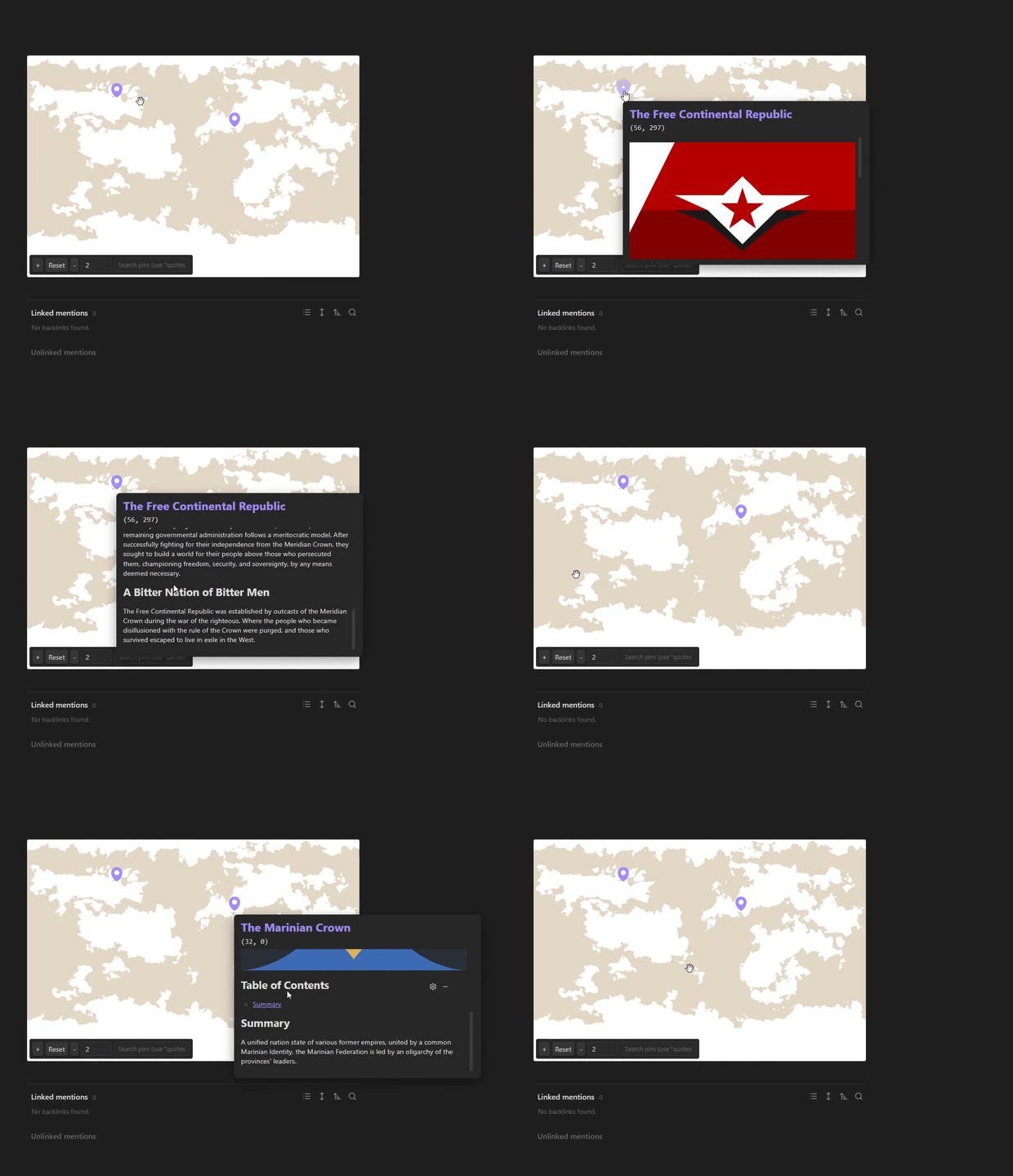
- Hover over pins to preview your notes
- Filter Pins on your map using the search bar
How to create your own map
Add the 'simple-map' code block to your note and give it an image for your desired map.
simple-map code block
```simple-map
map: world map.svg
```
This plugin is explicitly designed for use with SVG files for the best image quality and sharpness at higher zoom levels, but is also compatible with the file types PNG, JPG, JPEG, WEBP, and GIF.
Panning and zooming
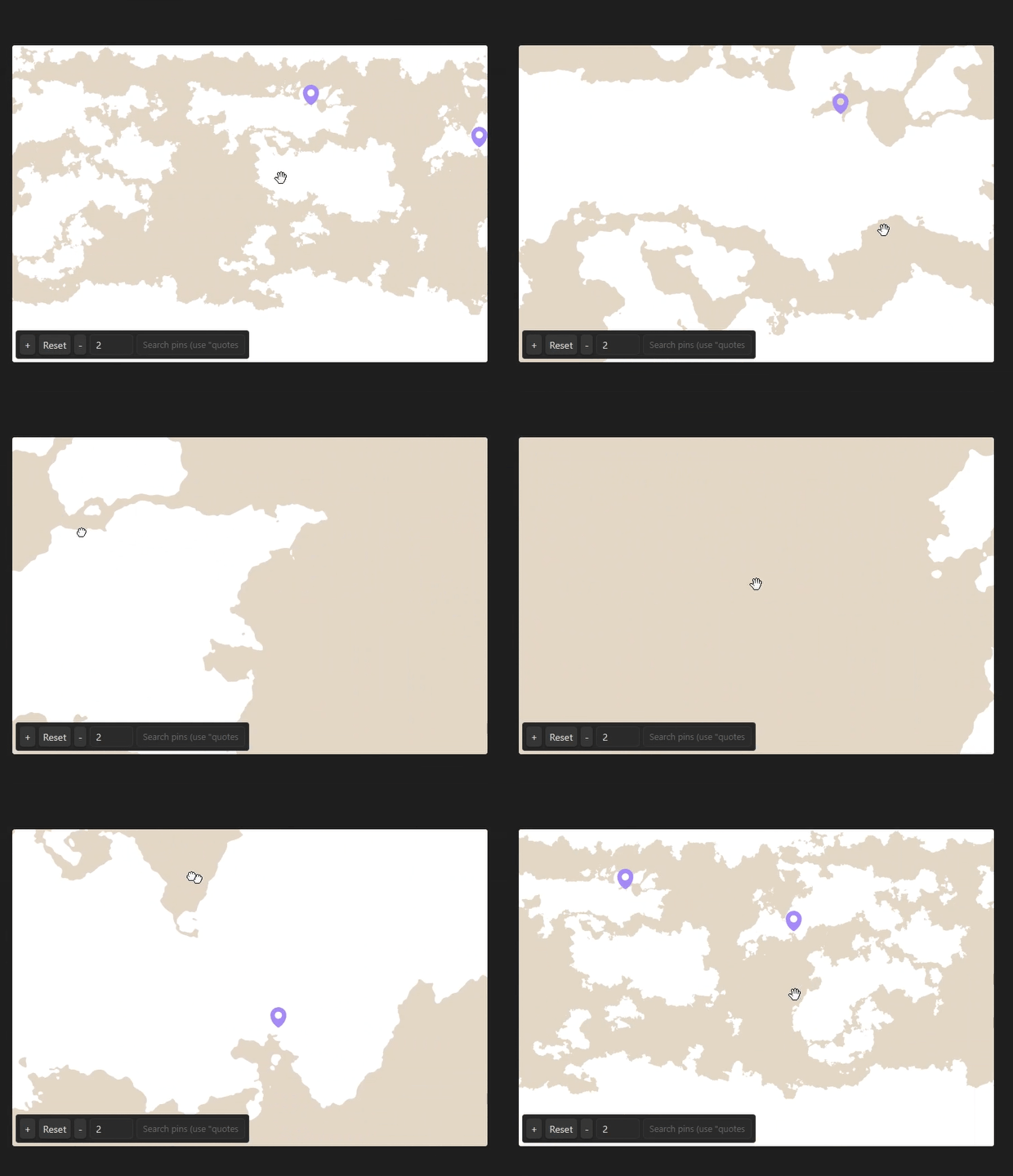
Using the mouse, you can click and drag to pan around your map. By scrolling with the mouse wheel, you can zoom in and out of your map. The toolbar gives you the ability to define how fast you zoom by updating the zoom step increment. Using the toolbar, you can also zoom in and out of the center of your current view and reset your zoom back to its initial position and zoom level.
You can set a default pan and zoom for your map, as well as the zoom range for how far in and out you can zoom by defining these parameters.
simple-map code block
```simple-map
map: world map.svg
zoom range: (1, 100)
default zoom increment: 2
default zoom level: 2
default location: (0, 316)
```
Infinite wrapping maps
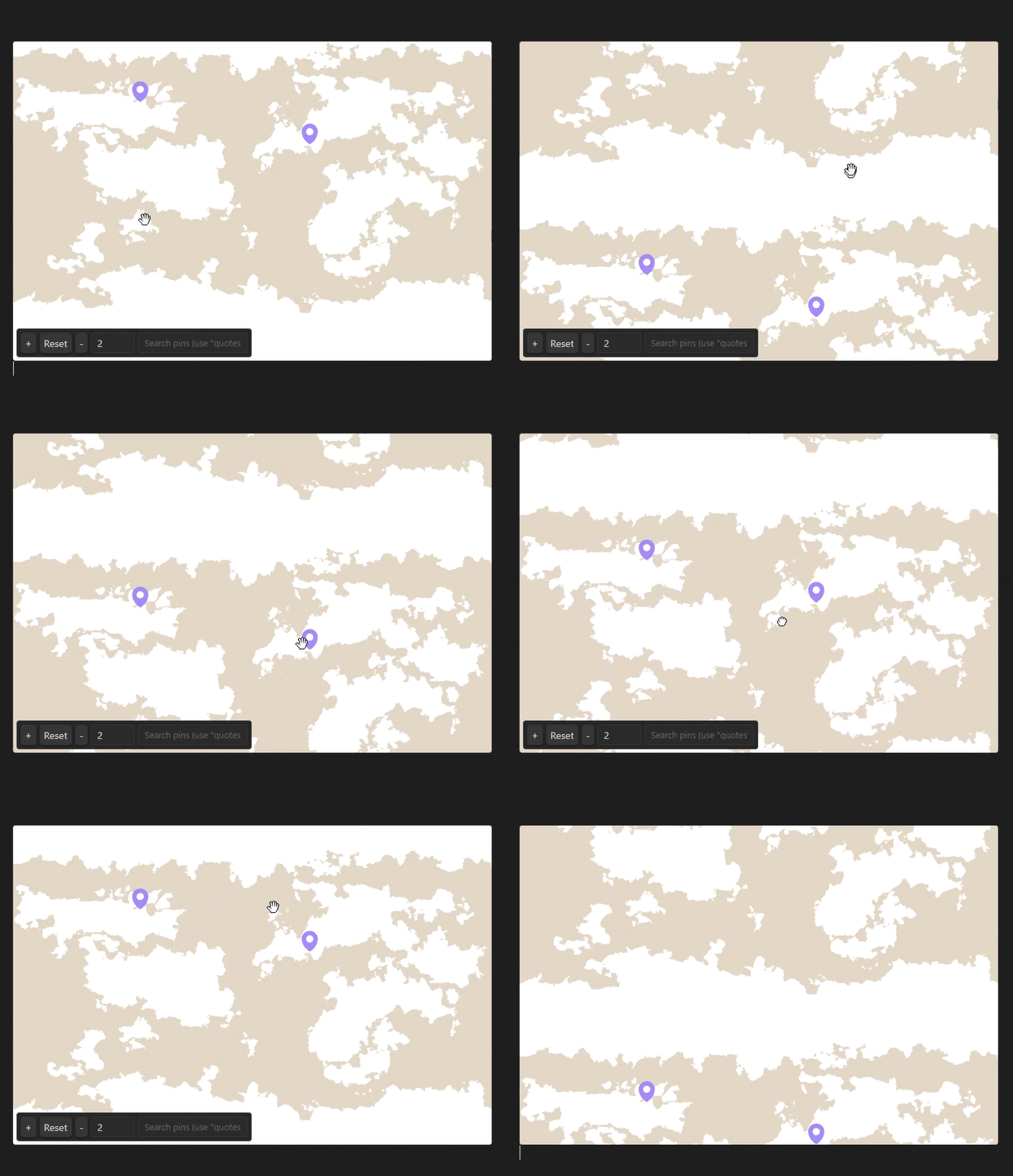
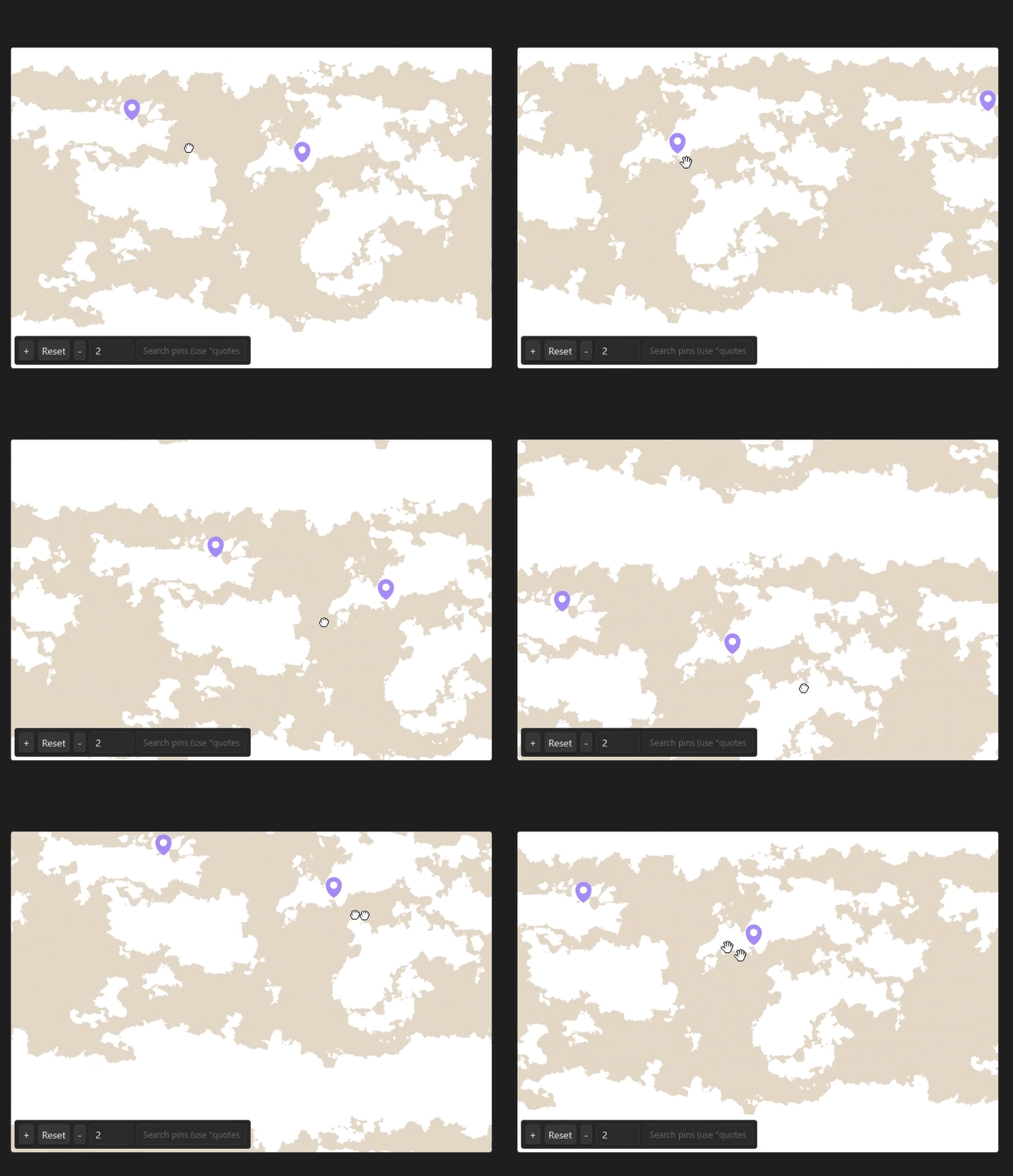
You can set up a repeating map by simply defining a repeat parameter for horizontal, vertical, or even both axes wrapping.
simple-map code block
```simple-map
map: world map.svg
repeat: x
```
Coordinate Customization
By default the map assumes a default latitude and longitude for your map. (-90, 90) latitude and (0, 360) longitude. This scales with the aspect ratio of your map by default so that a coordinate of (90, 0) would correspond to the very top left corner of your map, and (-90, 360) would map to the very bottom right. You can customize your coordinate space by defining the latitude and longitude ranges, as well as define a custom prime meridian for your worlds.
simple-map code block
```simple-map
map: world map.svg
latitude range: (-90, 90)
longitude range: (0, 360)
prime meridian offset: (0, 222.75)
```
Pins
To add a pin to your map, simply add sm-location to your frontmatter.
pin note front matter
---
sm-location: (lat, lng)
---
Pin Filters
You can filter for which pins are rendered to a map by defining a map ID. Think of this like a lock and key. A pin will only appear on maps where it has a matching ID.
simple-map code block
```simple-map
map: world map.svg
id: My Map ID
```
pin note front matter
---
sm-location: (lat, lng)
sm-id: My Map ID
---
Pin Icon Customization
You can change the pin icons by uploading your own from the vault, same as you would your map.
pin note front matter
---
sm-location: (lat, lng)
sm-pin-icon: my pin icon.svg
---
You can also change the size of the pins that appear on your map by setting the pin size parameter on your map. This parameter utilizes standard css to define the width of your pins, and auto adjusts the height to maintain the aspect ratio.
simple-map code block
```simple-map
map: world map.svg
pin size: 24px
```
Preview Notes
You can preview your notes directly from your map with images and functioning links.
Filter using Search
You can search through your pins by simply typing in the search bar. Names, Tags, Alieses, and all other frontmatter properties you create can be used as filters to find specific pins on your map. Using quotation marks and "and / &&" or "or / ||" key words, you can search for multiple filters/queries. (i.e. "fation" or "building", "landmark" and "battle", etc.)