Semble Collect
Organize and interact with web links in your notes using Semble.
- Overview
- Scorecard
- Updates3
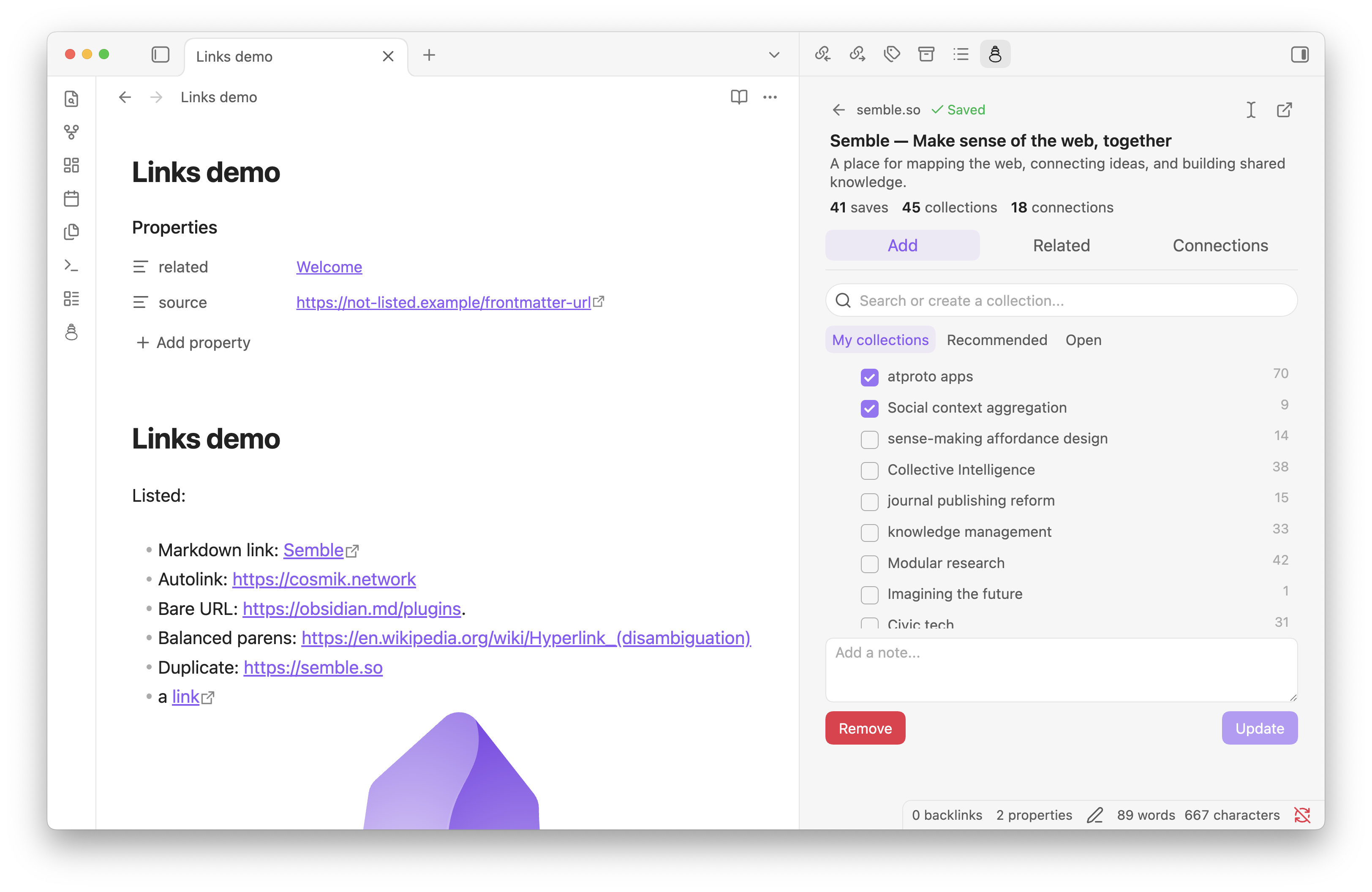
See every web link in your note at a glance, and work with them on Semble without leaving Obsidian.
The plugin adds a pane to the sidebar that lists the web links in the note you're working on, the way Outline lists headings. Click a link to save it to your Semble library and collections, browse related links, and connect it to other links.
Getting started
Install
Install this plugin from Obsidian's community plugin list.
Connect your Semble account
- Create an API key on your Semble API keys page.
- In Settings → Semble, set API key to a secret that contains your key. You can create the secret right from that field.
- Click Check connection. You should see "Connected to Semble as @your-handle".
Your key is stored in Obsidian's Keychain, not in the plugin's settings file, so it isn't copied around when you sync your vault.
Open the pane
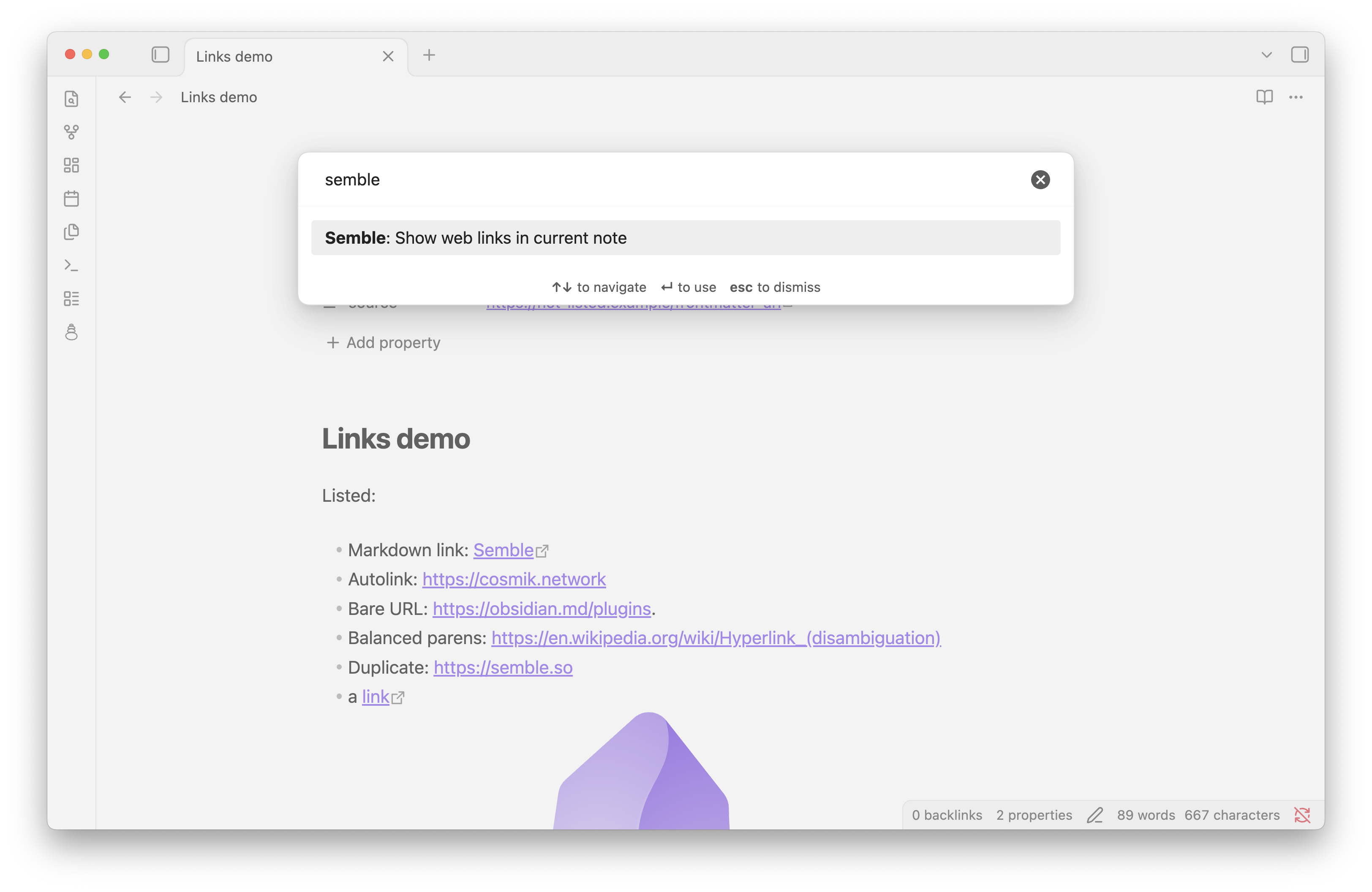
When you first enable the plugin, it adds its pane to the right sidebar. Look for the Semble icon, a stack of stones, among the sidebar's tabs. You can move the pane anywhere, like any other pane. If you close it, click the same icon in the ribbon, or run Semble: Show web links in current note from the command palette, to bring it back.
The link list
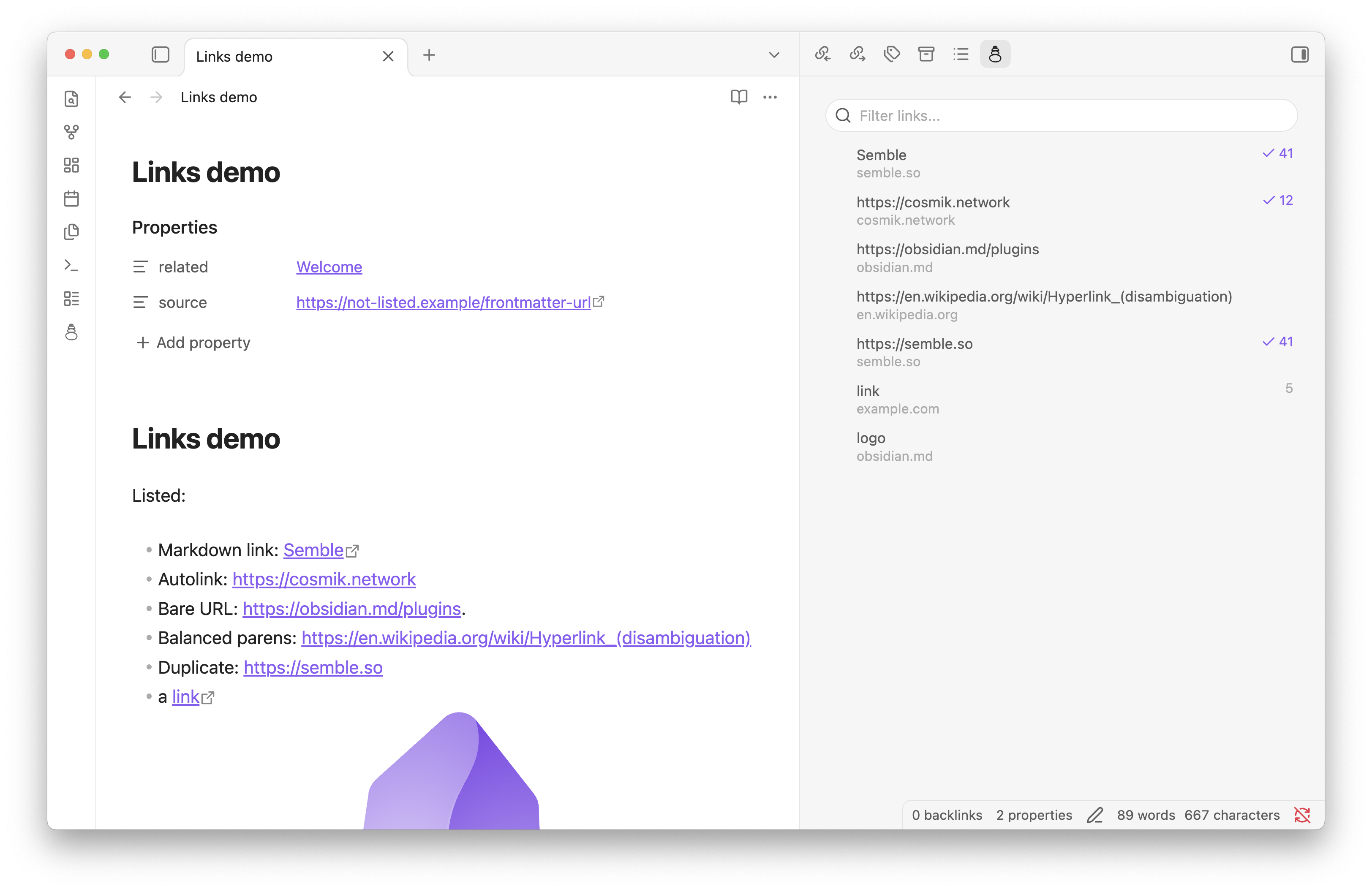
The pane follows the note you're working on and updates as you type. It lists:
- links like
[text](https://…)and<https://…> - plain
https://…URLs - remote images
It skips links to other notes, mailto: and obsidian:// links, and anything inside code or frontmatter.
- Save counts: the number on the right is how many people have saved the link on Semble. It shows in your accent colour with a checkmark if the link is in your library, and doesn't show at all if no one has saved it.
- Filter: use the box at the top to narrow the list.
- Click a link to open its Semble view (below).
- Ctrl/Cmd-click opens the link on Semble.
- Right-click to open it on Semble, jump to where it is in the note, or copy the URL.
Links open on their Semble page (semble.so/url?id=…) rather than on the site itself. Links to Semble collections open directly.
The link view
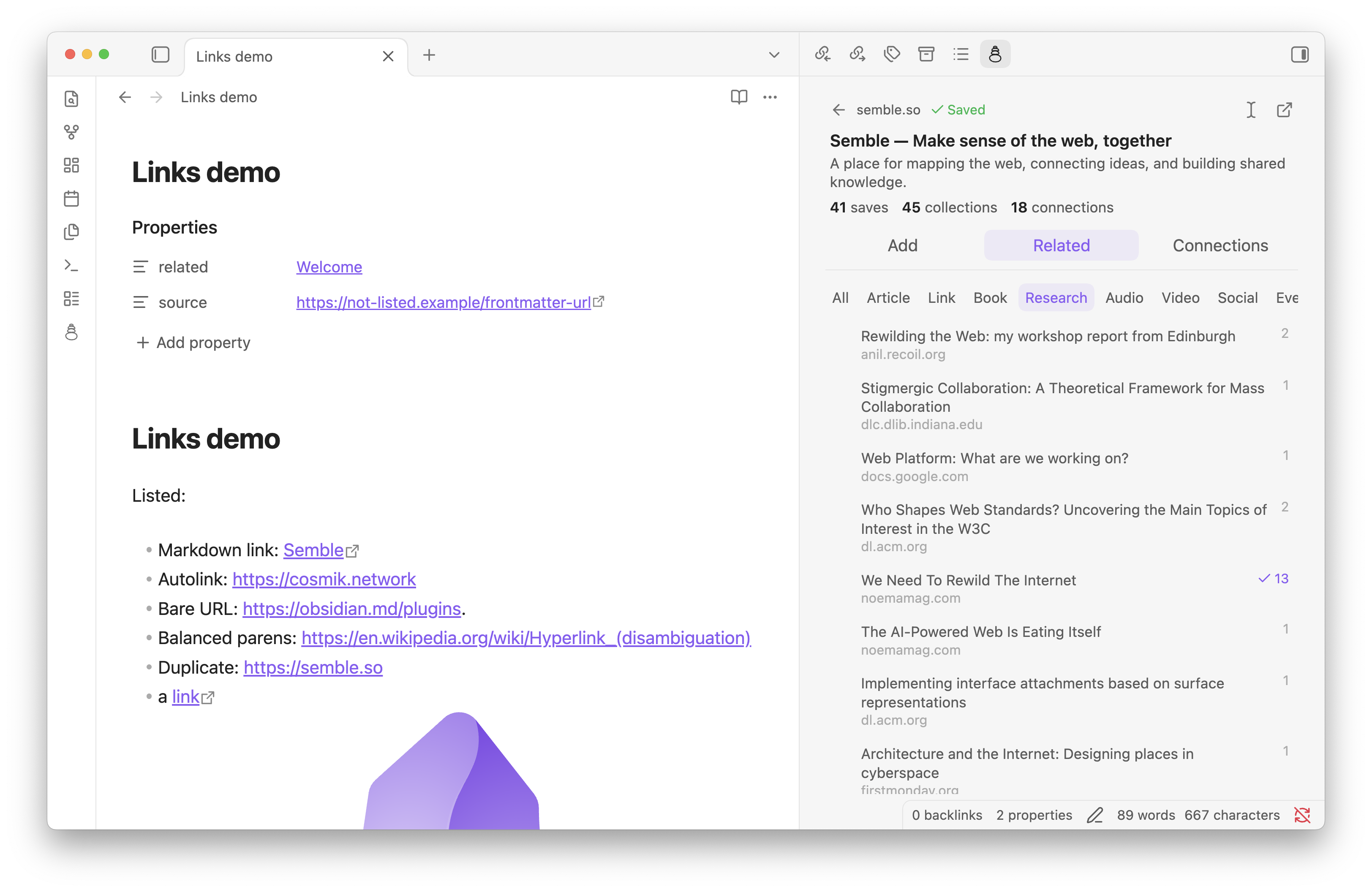
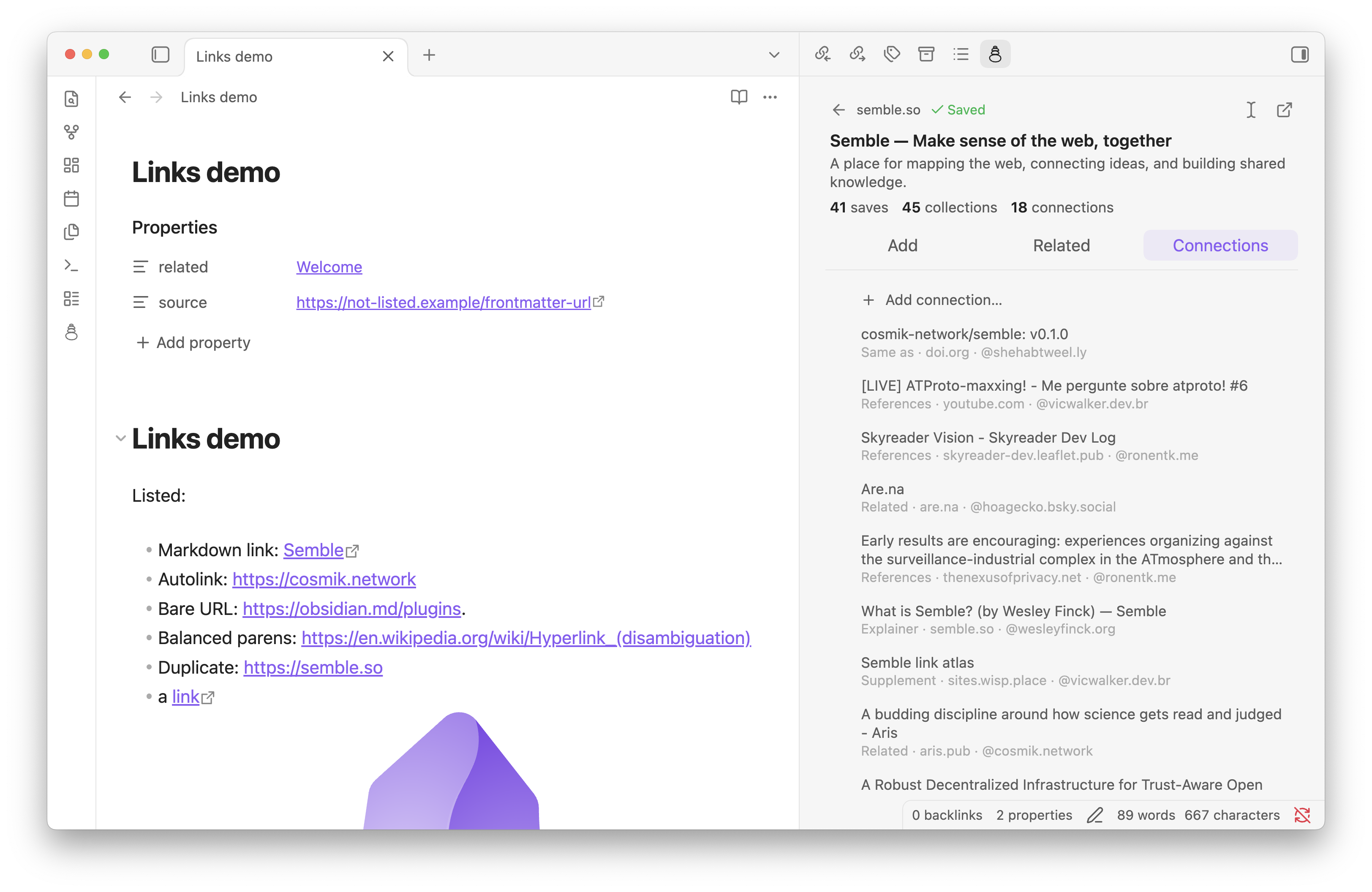
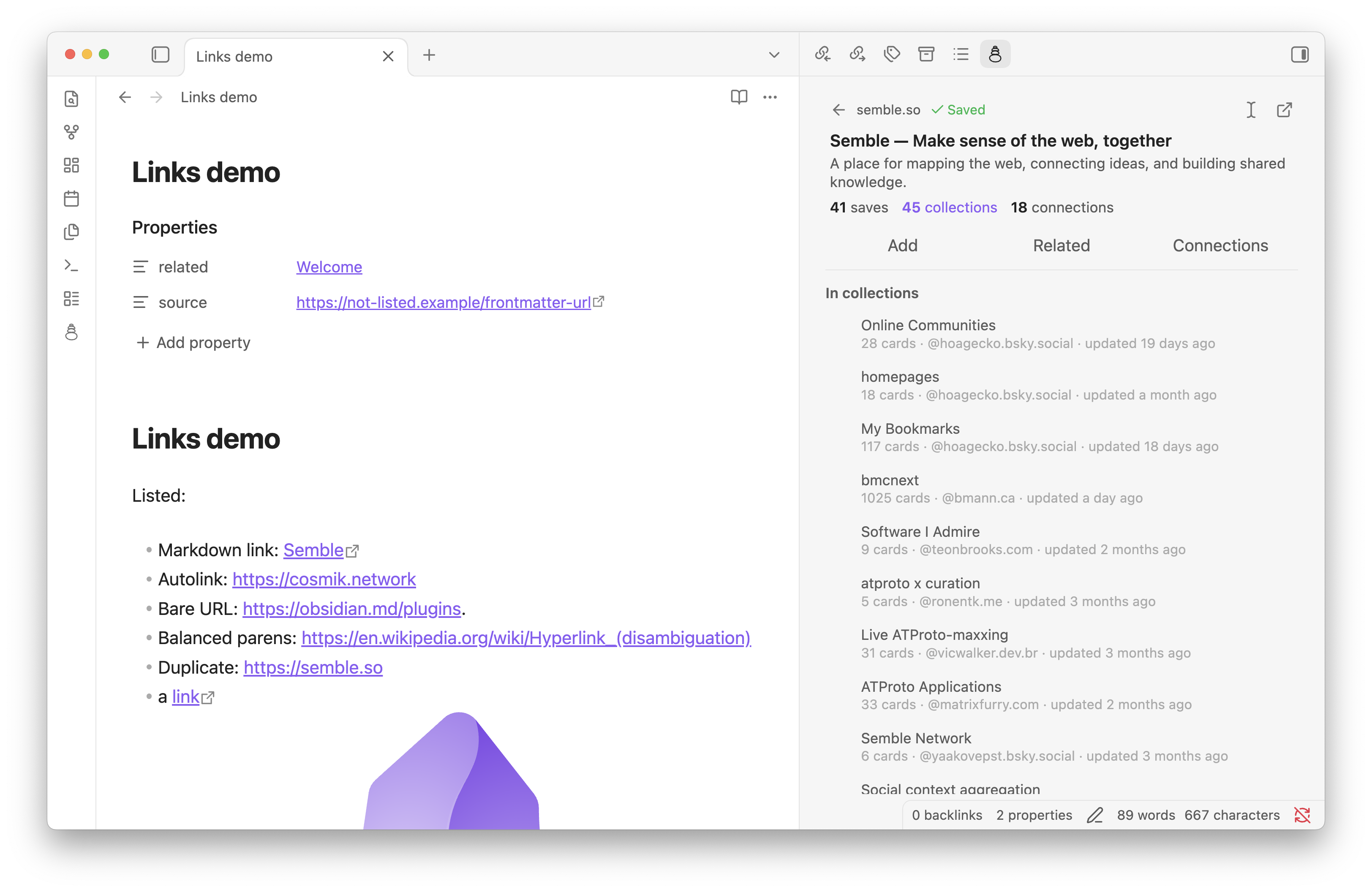
Clicking a link shows it as it is on Semble:
- Top bar: a back arrow to return to the list, the site (with a checkmark if the link is in your library), and buttons to jump to the link in your note or open it on Semble.
- Header: the title and description.
- Stats: how many saves, collections and connections it has. Click saves to see who saved it, or collections to see which collections it's in. Click a person or a collection to open them on Semble. Click connections to go to the Connections tab.
Below the header are three tabs. Each link opens on the tab you used last.
- Add: pick collections and add a note, then click Add to library. If the link is already saved, click Update after making changes, or Remove to take it out of your library.
- Switch between My collections, Recommended (collections with similar links) and Open (collections anyone can add to).
- Search for a collection by name. If none matches, you can create one with that name.
- Related: links Semble considers similar, with their save counts. Filter by type, such as article, book or video.
- Connections: how this link relates to others, such as Supports, Opposes or Related. Hover a connection to see its direction and note. Right-click one of your own connections to delete it.
- Add connection… at the top opens a form. Choose the other link from the other links in your note, or paste any URL.
- Pick the type of connection. Use the swap button to change its direction.
- Add an optional note.
Everything opens instantly once it has been loaded. The plugin quietly checks Semble in the background and updates anything that changed, so changes you make on semble.so show up too.
Network use and privacy
The link list works offline. Everything that involves Semble needs a Semble account and an API key.
When you've added an API key, the plugin talks to Semble's API (api.semble.so), sending your key with each request. Semble's privacy policy covers how it handles this data. The plugin sends:
- Links in the note you have open, to get their save counts, and to show a link's details, related links, connections, who saved it and which collections it's in.
- Your Semble library and collections, to show them in the Add tab.
- Changes you make, such as saving a link, adding a note, creating a collection or adding a connection. These are published to your Semble account.
Only the web links themselves are sent, never the rest of your note's text or any other notes. Without an API key, the plugin makes no network requests. Links you open go to their page on semble.so in your browser.
Settings
| Setting | What it does |
|---|---|
| API key | The secret in Obsidian's Keychain that holds your key |
| Check connection | Checks the key with Semble and shows which account it is |
Known limitations
- Only Markdown notes are scanned. Canvas files and PDFs show an empty list.
- URLs in a note's properties (frontmatter) aren't listed.
- Reference-style links (
[text][ref]with[ref]: https://…elsewhere) are listed as a plain URL, at the line where[ref]is defined. www.example.comwithouthttps://isn't detected.- The Add tab shows up to 100 of your collections. Search to find others.
- The Connections tab shows the 50 most recent connections.
Development
See DEVELOPMENT.md for setup, how the plugin works, and releasing.