Roam Backlinks
 马自立238 downloads
Edit backlinks in place, block by block, just like in Logseq and Roam Research, with breadcrumbs that expand context, relevance sorting, co-mention filters and PDF export with backlinks.
- Overview
- Scorecard
- Updates7
Edit your backlinks in place, block by block, the way Logseq and Roam Research do it.
Obsidian's backlinks panel shows a line or two of plain text around each link. If you have used Logseq or Roam Research, you miss the real thing: the whole block, its children, where it sits in the note, and the ability to fix it right there. This plugin brings that experience to Obsidian's own backlinks panel and the backlinks at the bottom of notes.
Contents
- The core: backlinks you can read and edit like in Logseq and Roam Research
- Finding your way through many backlinks
- Word stats
- Export to PDF with backlinks
- How it compares
- Settings
- Commands
- Installation
- Notes
- Feedback and updates
- License
The core: backlinks you can read and edit like in Logseq and Roam Research
- Whole blocks, not snippets. A linked list item is shown with all its children; a linked heading with its whole section. A child that links here again is folded into its parent instead of being listed twice.
- Breadcrumbs. A grey line above each block shows its path: the headings and parent blocks it sits under. Click a level to expand the context in place, one level at a time, until you see the whole section.
Cmd/Ctrl-click opens the note at that line;Shift-click opens it in the right sidebar. - Edit in place. Click anywhere in a block to edit its Markdown and write it back to the note, without leaving the page you are on.
Cmd/Ctrl+EnterorCmd/Ctrl+Ssaves,Esccancels, clicking outside saves if you changed something. Bold, italic, code and highlight shortcuts work,Tab/Shift+Tabindent, and typing(["with text selected wraps it (press[twice for a[[link]]). - Rendered Markdown. Lists, bold, links and tasks render as in reading view. Links are clickable and show hover previews; checkboxes can be ticked and are written back.
- Folding like Logseq. First-level children are listed; deeper children fold behind a
…you can click open. Long lists collapse into… N more. Anything that links to the current note is always revealed. - Block reference counts. Blocks with a
^idshow how many times they are referenced. - Shift-click to stack. Links, blocks, breadcrumbs and note titles open stacked in the right sidebar, so you can compare several pages side by side. List blocks zoom in with the Zoom plugin when installed. Each note stacks below the last one in the sidebar, also after restarting Obsidian. Right-click a sidebar note's tab, or open its ⋯ menu, for the same menu as Logseq's sidebar: close, close the other notes or all of them; collapse, collapse the others or all of them; expand, expand all; open in the main area. A collapsed note keeps only its tab; click the tab to expand it again. Which notes are collapsed is remembered after restarting Obsidian. Emacs Logseq Inspired Outline, which adds Shift-click for links in the editor, carries the same sidebar code: with both plugins installed only one copy runs, and notes opened from either one stack in the same column.
Finding your way through many backlinks
- Sorted by relationship. Pages come first, ranked by how close they are to the current note: mutual links, then links from properties, then the number of mentions. Each page shows why it ranks there.
- Daily notes grouped by date. Daily notes come after pages, newest first. The last 12 months are grouped by month, older ones fold by year. Folder and date format are read from the core Daily notes plugin, or set your own.
- Co-mention filter (like Roam). See which other pages are mentioned alongside this one, ranked so that specific pages beat ones that appear everywhere. Click to show only blocks with a page,
Shift-click to exclude it. - Group. Cluster the backlinks by their strongest co-mentioned pages to scan the themes at a glance.
- Word stats, per note. Turn on “Words” for a note to see the distinctive words in its backlinks and the word pairs that tend to appear together, then click one to show only those blocks. See Word stats.
- Filter by name. When a note has aliases, see which name each backlink uses and filter by it.
- Text filter for the backlinks at the bottom of notes.
- Unlinked mentions that don't jump. Clicking “Link” converts the mention without refreshing or re-sorting the panel, so you keep your place. Optional case-sensitive matching per note through a property.
Word stats
The co-mention filter shows which pages come up alongside this one. Word stats show which words do, including ones you never turned into links.
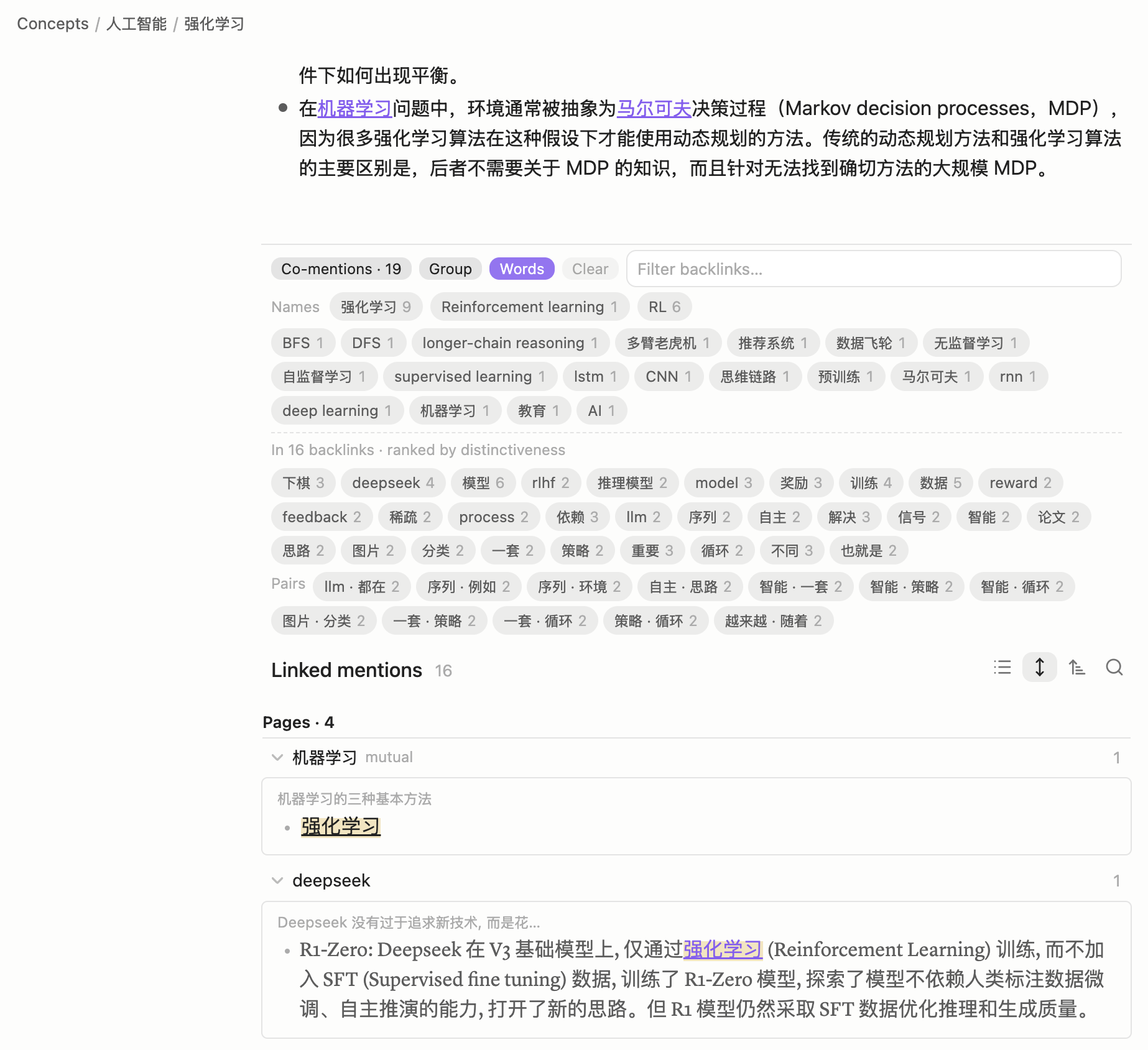
Where to find it. Click Words in the backlinks toolbar (the row with Co-mentions, Group and Clear), in the sidebar panel or in the backlinks at the bottom of a note, or run Toggle word stats for the current note. It is off by default and each note remembers its own switch, so it only runs on the notes where you turn it on. A panel opens under the toolbar:
- a header with the number of backlinks counted;
- distinctive words, up to 30, most distinctive first. The number on each word is how many backlinks contain it; hover to see its score;
- Pairs, up to 12: two words that often appear in the same backlink, with how many backlinks they share.
Using it. Click a word to show only the backlinks that contain it. Click more words to keep only the backlinks that contain all of them; click a word again to drop it. Click a pair to show only the backlinks that contain both words. Clear resets everything. Word filters combine with the co-mention and text filters.
How words are ranked. A word ranks high when many of this note's backlinks contain it and few other notes in the vault do:
score = backlinks containing the word × log(1 + notes in the vault ÷ notes containing the word)
For example, in a vault of 5,000 notes, on a note about clothes: coat is in 20 backlinks and in 40 notes overall, so it scores about 20 × 4.8 ≈ 97. Good is in 60 backlinks but in 3,000 notes, so it scores about 60 × 1.0 ≈ 59. Good is more frequent, but it is everywhere and says nothing about this note, so coat ranks first.
- A word counts once per backlink, however often it repeats there.
- The note's own name and aliases are left out.
- Words found in only one backlink are skipped, unless the note has fewer than 5 backlinks.
- No model, no download, no index file. The first time word stats are shown after Obsidian starts, the plugin reads your notes once in the background to count how many notes contain each word (a few seconds for thousands of notes) and keeps the counts in memory only. Until then the header says “counting the vault…” and words are ranked by backlink count alone.
How pairs are ranked. By local mutual information: how much more often the two words share a backlink than you would expect from how common each one is, so two words don't pair up just because both are common. A pair needs at least 2 shared backlinks.
What counts as a word. Text is split by the browser's built-in word segmenter (Intl.Segmenter), with your note names and aliases as an extra dictionary, so Chinese and other languages without spaces work, and names such as brands stay whole. Links (they belong to the co-mention filter), tags, URLs, code, block IDs, key:: value properties, numbers and common stop words are ignored. Everything is computed on your device.
Export to PDF with backlinks
Obsidian's own Export to PDF dialog gains two groups of options:
- Include backlinks. Every passage that links to the note is appended after it, grouped by source note in the same order as the panel, each with its breadcrumb path. A concept note exports together with everything your vault says about it.
- Layout. Refined typography, body and heading fonts (only the ones installed on your machine are listed), font size and accent color. Only the exported PDF is affected.
How it compares
Several plugins improve backlinks, and they are worth a look: Better Backlinks, Context Trees, Better Search Views and Auto-expand backlinks show more context or build a separate view. This plugin focuses on making Obsidian's own panel work like Logseq and Roam Research: whole blocks you can expand by breadcrumb and edit in place, plus the sorting, filtering and PDF export that make a large vault manageable.
Settings
Every feature can be turned off in Settings → Roam Backlinks: blocks, editing, sorting, filtering, word stats, navigation and PDF export. You can also choose the font for backlink blocks (Lyon Text by default, falling back to your text font), folders whose in-note backlinks are hidden, and a folder to list separately (for example an AI-maintained wiki).
Commands
- Jump to backlinks of the current note (no default hotkey): scrolls to the backlinks at the bottom of the note and focuses the filter box, or reveals the sidebar panel.
- Toggle case-sensitive unlinked mentions for this note: writes the property to the current note.
- Toggle word stats for the current note.
Installation
From Community plugins (once approved): search for “Roam Backlinks”.
Manually: download main.js, manifest.json and styles.css from the latest release into <your vault>/.obsidian/plugins/roam-backlinks/, then enable the plugin.
With BRAT: add MatsuriMW/roam-backlinks.
Notes
- The plugin changes the built-in backlinks panel and Export to PDF dialog at runtime. It does not modify Obsidian's files; disabling the plugin restores everything. Because it builds on Obsidian's internal views, a future Obsidian update may require a plugin update. If an update changes those internals, the affected features turn themselves off with a notice (details in the developer console) and the rest keep working.
- Editing writes only the block you edited. If the note changed elsewhere in the meantime and the block can no longer be found, nothing is written and you are told.
- The interface follows Obsidian's language: Chinese for Chinese, English otherwise.
- Tested on desktop. It should work on mobile, but that is less tested; PDF export is desktop only, as in Obsidian.
Feedback and updates
To follow new features, send feedback or keep up with progress, follow me on Twitter: @Matsurimywaifu.
License
MIT © MatsuriMW
中文说明
在 Obsidian 里获得和 Logseq、Roam Research 一致的反链编辑体验。
Obsidian 自带的反链面板只给链接前后一两行纯文本。用过 Logseq 或 Roam Research 的人会想念真正的反链:整块内容、它的子块、它在原文里的位置,以及就地改掉它的能力。这个插件把这套体验带进 Obsidian 自己的反链面板和正文底部的反链。
目录
核心:像 Logseq、Roam Research 一样看反链、改反链
- 以块为单位:命中的列表项连同全部子块一起显示,命中的标题显示整节;母块已经显示过的引用,子块里不再重复列一条。
- 面包屑:每块上方一行灰字,列出它所在的标题和各级母块。点某一级就地展开上下文,可以一级级点到最外层;⌘ 点跳到原文那一行,Shift 点在右侧栏打开。
- 就地编辑:点块里任意位置,就地编辑这一块的 Markdown 并写回原笔记,不用离开当前页面。⌘↩ / ⌘S 保存,Esc 取消,点框外改过就自动保存;支持加粗、斜体、行内代码、高亮快捷键,Tab 调缩进,选中文字输入成对符号会包裹(连按两次 [ 变成 [[双链]])。
- 按 Markdown 渲染:链接可点、可悬停预览,复选框可以直接勾。
- 像 Logseq 一样折叠子块、块引用计数、Shift 点在右侧栏叠放(装了 Zoom 插件时列表块会聚焦进去;一页接在上一页下面,重启后也接得上。右键侧边栏笔记的标签或点它的「⋯」,是和 Logseq 侧边栏一样的菜单:关闭、关闭其他、全部关闭;折叠、折叠其他、全部折叠;展开、全部展开;在主区打开。折叠的笔记只留标签,点一下标签就展开;折叠了哪几页,重启 Obsidian 后照旧。Emacs Logseq Inspired Outline 给正文里的双链加了 Shift 点,它里面有同一份侧边栏代码:两个插件都装时只跑一份,叠在同一列)。
反链多了也找得到
- 页面按关系紧密度排在前(互链 > 属性里链过来 > 提到次数),日记在后按日期从新到旧,最近 12 个月按月分段,更早的按年折叠。日记的文件夹和日期格式读核心插件「日记」的设置,也可以自己填。
- 共现筛选(Roam 式)、分组、按别名筛选、正文底部的文字筛选框。
- 按页开的词频:对某一页点「词频」,列出它反链里的特征词和常一起出现的词对,点一下只看含它们的块。详见下面「词频」一节。
- 「转为链接」后面板不刷新、不重排,阅读位置不变;可以按笔记设置区分大小写。
词频:反链里都在说什么
共现筛选告诉你哪些页面常和这一页一起出现;词频告诉你哪些词常和它一起出现,包括你从没加过双链的词。
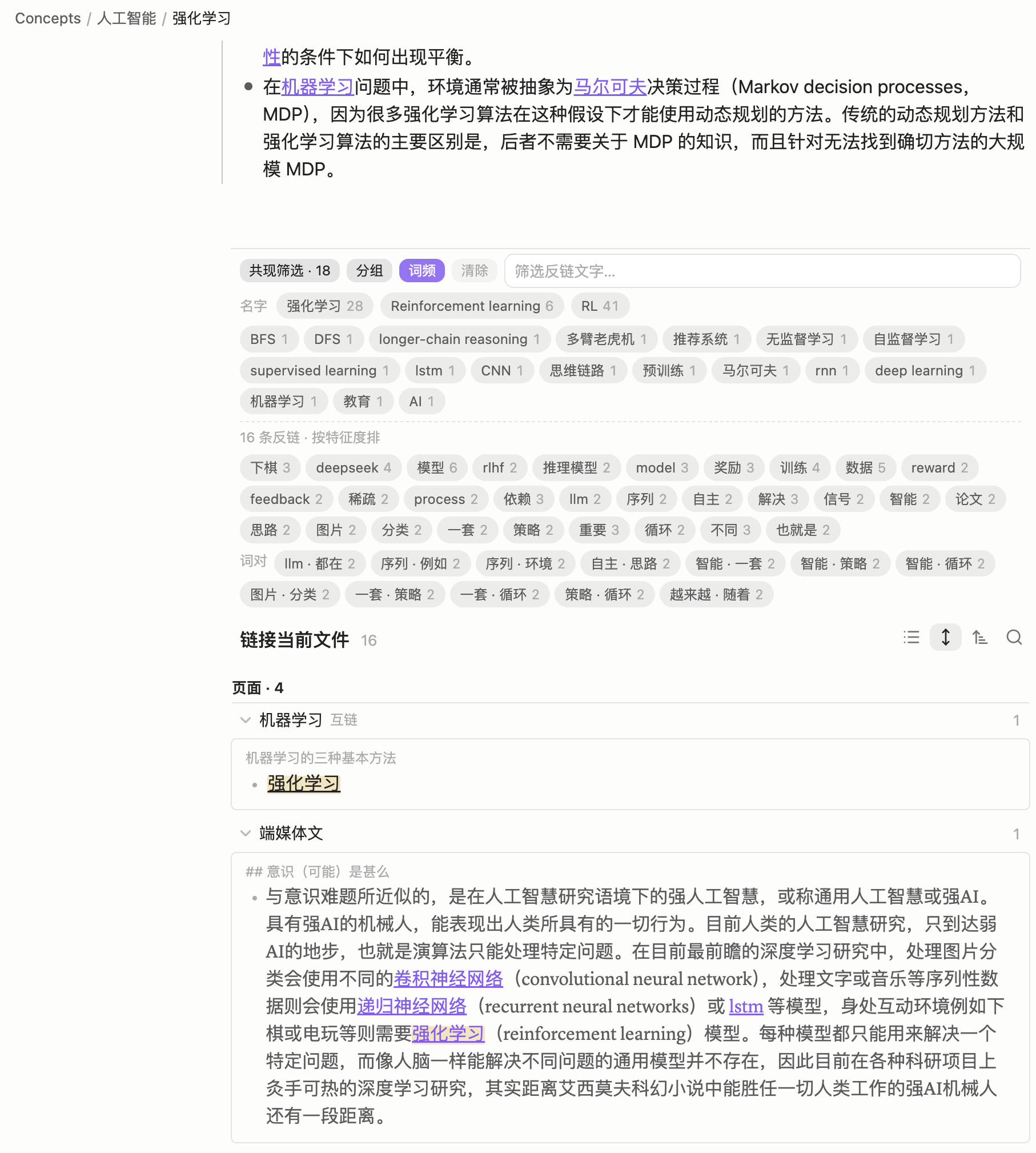
- 在哪里:反链工具栏(「共现筛选 · 分组 · 词频 · 清除」那一排)里点「词频」,右侧栏的反链面板和正文底部的反链都有;也可以用命令「开关当前页的词频」。默认不开,每页单独记住开关,只在你打开的页上计算。打开后工具栏下面多出一块:第一行是统计了几条反链;然后是特征词(最多 30 个,越靠前越能代表这一页;词后的数字是它出现在几条反链里,悬停能看特征度);再往下是词对(最多 12 对,经常出现在同一条反链里的两个词,数字是同时出现的条数)。
- 怎么用:点一个词,只看含它的反链;再点别的词,只看同时含这几个词的;再点一次取消。点一个词对,只看两个词都有的反链。「清除」全部复原。词频筛选可以和共现筛选、文字筛选叠加。
- 特征词怎么排:一个词在这一页的反链里出现得越多、在全库别处出现得越少,排得越前:
特征度 = 含这个词的反链条数 × log(1 + 全库笔记数 ÷ 含这个词的笔记数)。例:全库 5000 篇,在「打扮」页,「大衣」出现在 20 条反链里、全库只有 40 篇有,特征度 ≈ 20 × 4.8 ≈ 97;「喜欢」出现在 60 条反链里,但全库 3000 篇都有,特征度 ≈ 60 × 1.0 ≈ 59。「喜欢」更常见,但哪儿都有,说明不了这一页的特点,所以「大衣」排在前面。同一条反链里重复多次只算一次;这一页自己的名字和别名不算;只在一条反链里出现的词不上榜(反链不到 5 条时除外)。不用模型、不下载、不建索引文件:每次启动 Obsidian 后第一次显示词频时,在后台把全库读一遍,数出每个词出现在几篇笔记里(几千篇的库几秒钟),结果只存在内存里。这期间第一行显示「正在统计全库…」,先只按出现在几条反链里排。 - 词对怎么排:按局部互信息,看两个词同时出现的条数比按它们各自多常见所预计的多出多少,所以两个词不会只因为各自都常见就凑成一对。至少要同时出现在 2 条反链里。
- 怎么分词:用系统自带的分词器(
Intl.Segmenter),再拿库里的页面名和别名当词典,品牌、人名、术语这类专名不会被拆开。双链(交给共现筛选)、标签、网址、代码、块 ID、key:: value属性、数字和常见虚词不算。全部在本机计算。
导出 PDF 带上反链:自带的「导出为 PDF」对话框里多出「包含反链」和「排版」(精致排版、字体、字号、强调色)。一篇概念页能连同库里所有提到它的地方一起导出。
所有功能都能在设置里单独开关。界面语言跟随 Obsidian:中文界面显示中文,其余显示英文。
插件在运行时改动自带的反链面板和「导出为 PDF」对话框,不改 Obsidian 本身的文件,停用即还原。Obsidian 更新如果改了这些内部结构,对不上的功能会自动关掉并提示一次(详情在开发者控制台),其余功能照常。
安装:社区插件市场搜索「Roam Backlinks」(审核通过后);或者从 最新 Release 下载 main.js、manifest.json、styles.css 放进 <库>/.obsidian/plugins/roam-backlinks/;或者用 BRAT 添加 MatsuriMW/roam-backlinks。
想追踪后续功能、反馈问题、关注后续进展,欢迎关注我的 Twitter:@Matsurimywaifu。