SwiftGlossa
 swiSwift1k downloads
Highlight keywords with regex + custom CSS. Matching highlights auto-built from vault — add interlinear notes, counts, remarks & info. Click keywords to search. Floating notes (in-app/standalone).
- Overview
- Scorecard
- Updates62
义父/Patron daddy:莫问归期6666
SwiftGlossa
SwiftGlossa highlights keywords with regex + custom CSS and indexes them into a searchable highlight database — click any keyword to surface every match vault-wide. Keywords are the bones, CSS the skin, the database the flesh; floating notes are a paper wristband of always-visible questions. (Formerly Regex CSS Highlighter)/SwiftGlossa 用正则+自定义 CSS 高亮关键词并建立可搜索的高亮数据库——点击任意关键词即可浮现全库匹配。关键词是骨头,CSS 是皮肤,数据库是血肉;悬浮笔记是常显问题的纸带手环。(原 Regex CSS Highlighter)
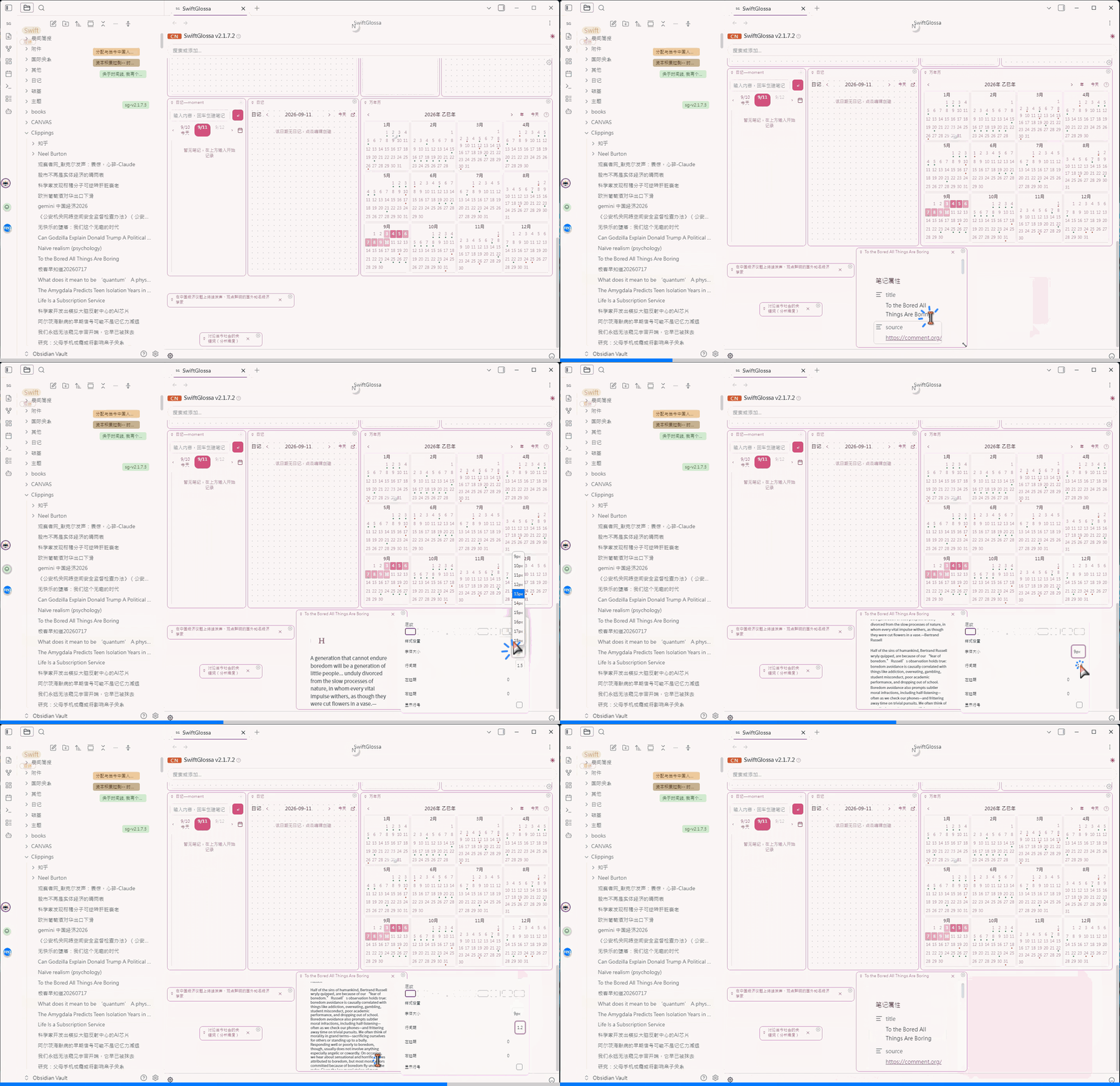
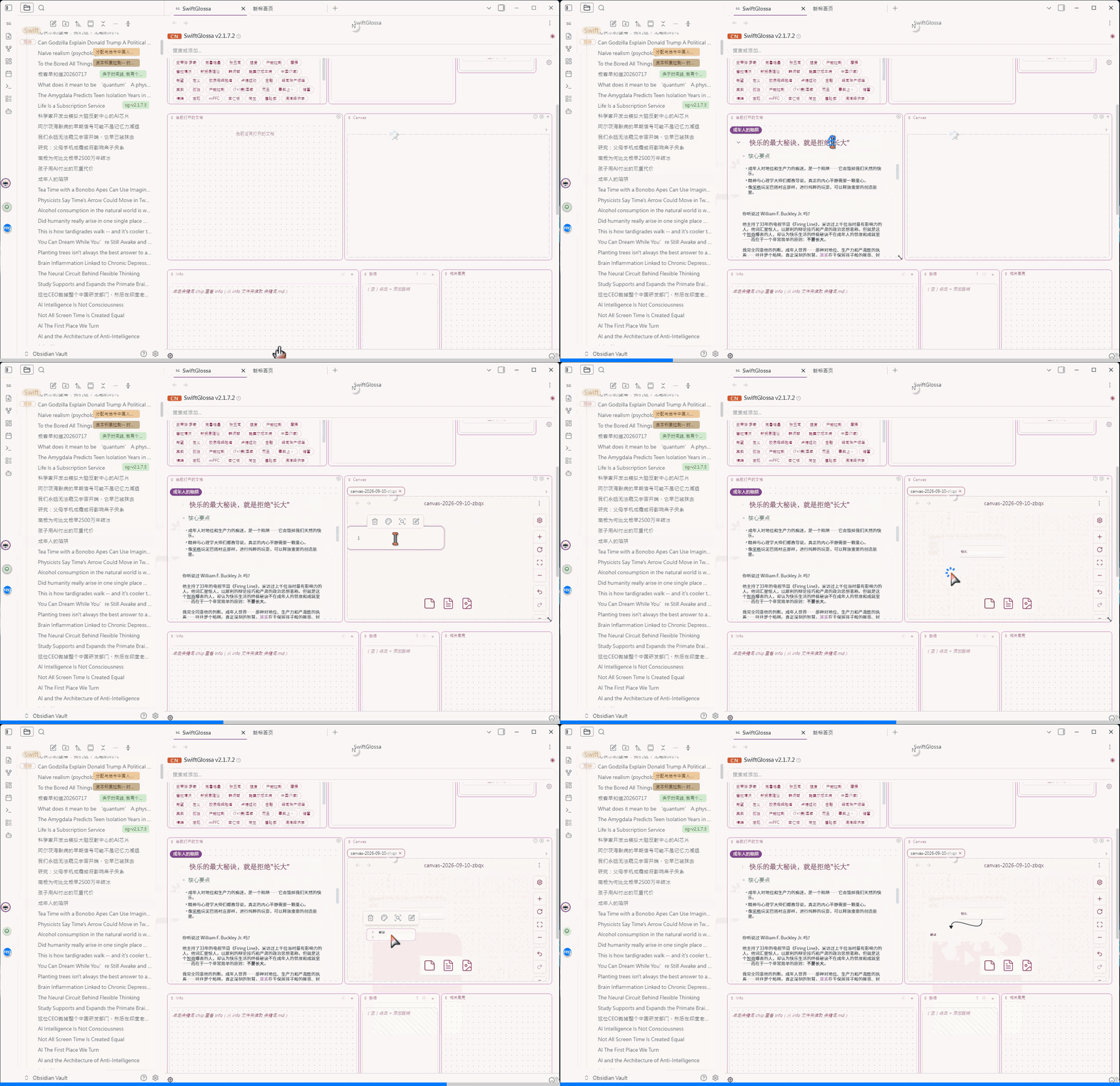
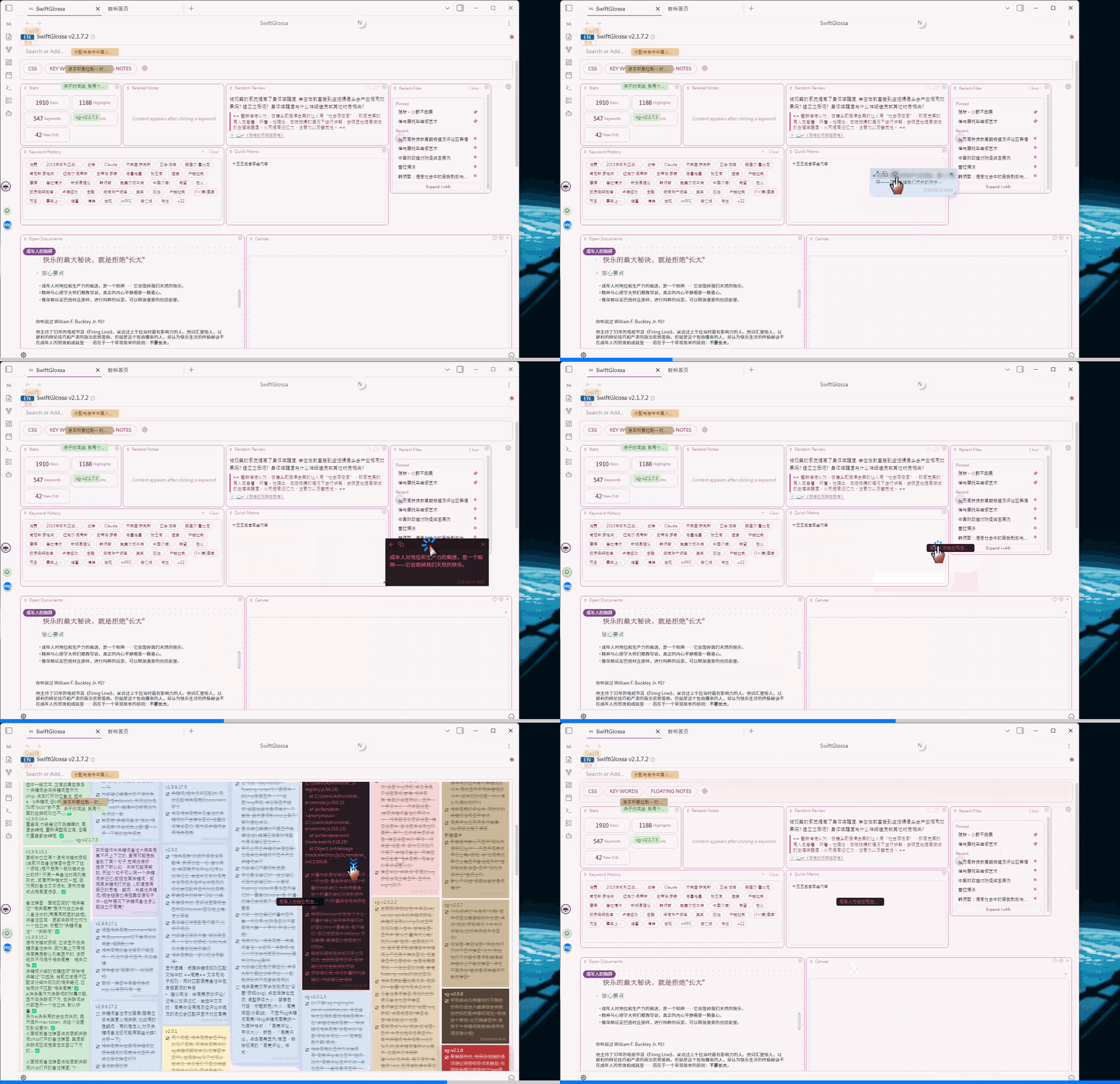
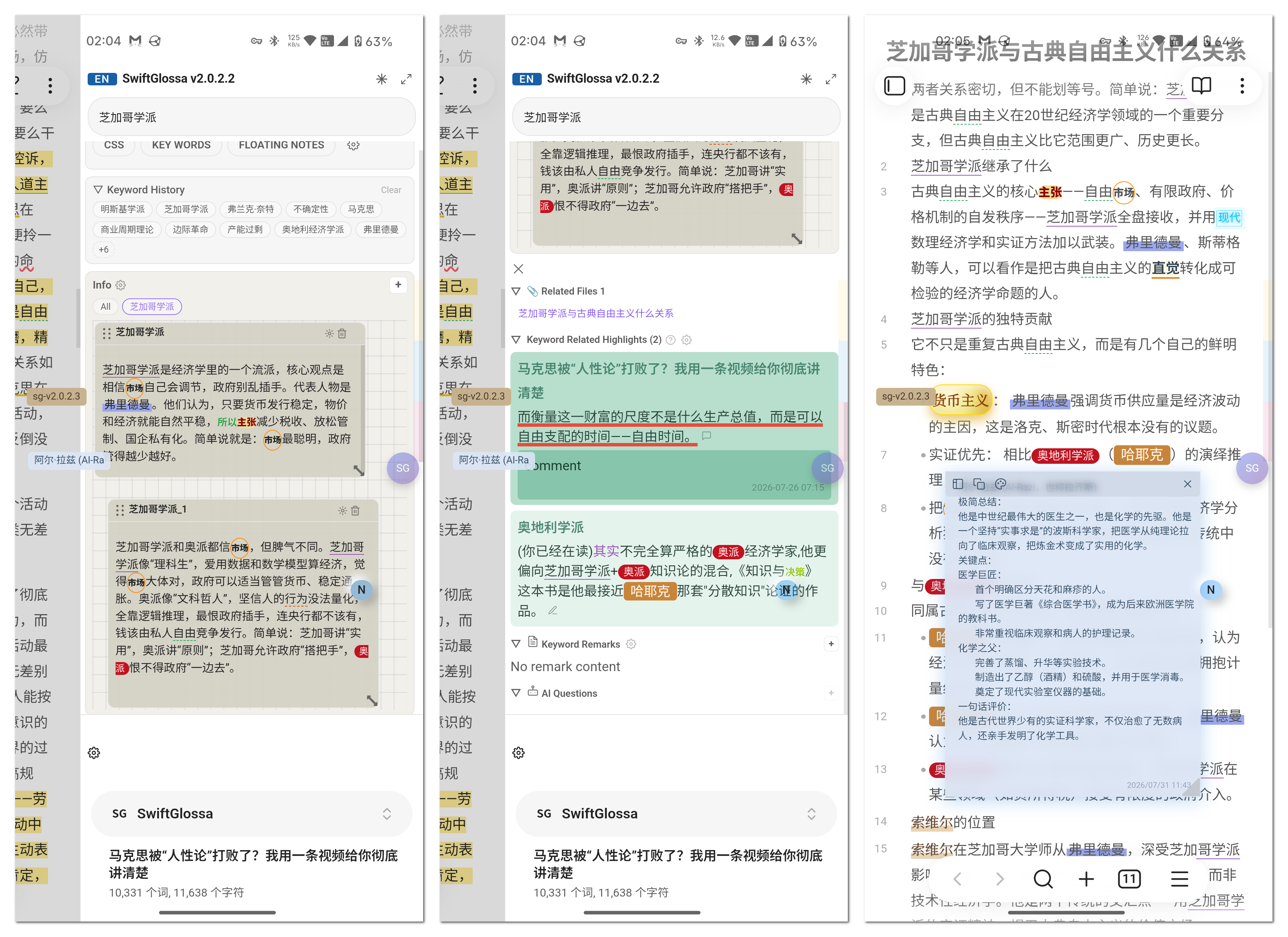
Features
Features / 功能特性
🎨 Style Highlighting / 样式高亮
Style Highlighting / 样式高亮
- Regex Matching + CSS Styles / 正则匹配 + CSS 样式 — Match text using regular expressions and apply custom CSS styles to matched content / 使用正则表达式匹配文本,为匹配内容应用自定义 CSS 样式
- Style Category Management / 样式分类管理 — Styles organized by groups, with support for adding, editing, and deleting / 样式按分组分类,支持添加、编辑、删除样式
- Instant Style Application / 样式即时生效 — Styles take effect immediately after adding/editing/deleting, no restart required / 添加/编辑/删除样式后无需重启,立即在笔记中生效
- Floating Style Buttons / 样式悬浮按钮 — Right-click a style button to create a draggable floating button with adjustable size and opacity / 右键样式按钮可创建可拖动的悬浮按钮,支持调整大小和透明度
- Style Button Context Menu / 样式按钮右键菜单 — Copy class name, copy full style, float display, and other quick actions / 复制类名、复制完整样式、悬浮显示等快捷操作
Add Style / 添加样式
D:\Documents\Obsidian Vault.obsidian\plugins\Regex-Css-Highlighter\main.js
📱 Mobile Adaptation / 移动端适配
Mobile Adaptation / 移动端适配
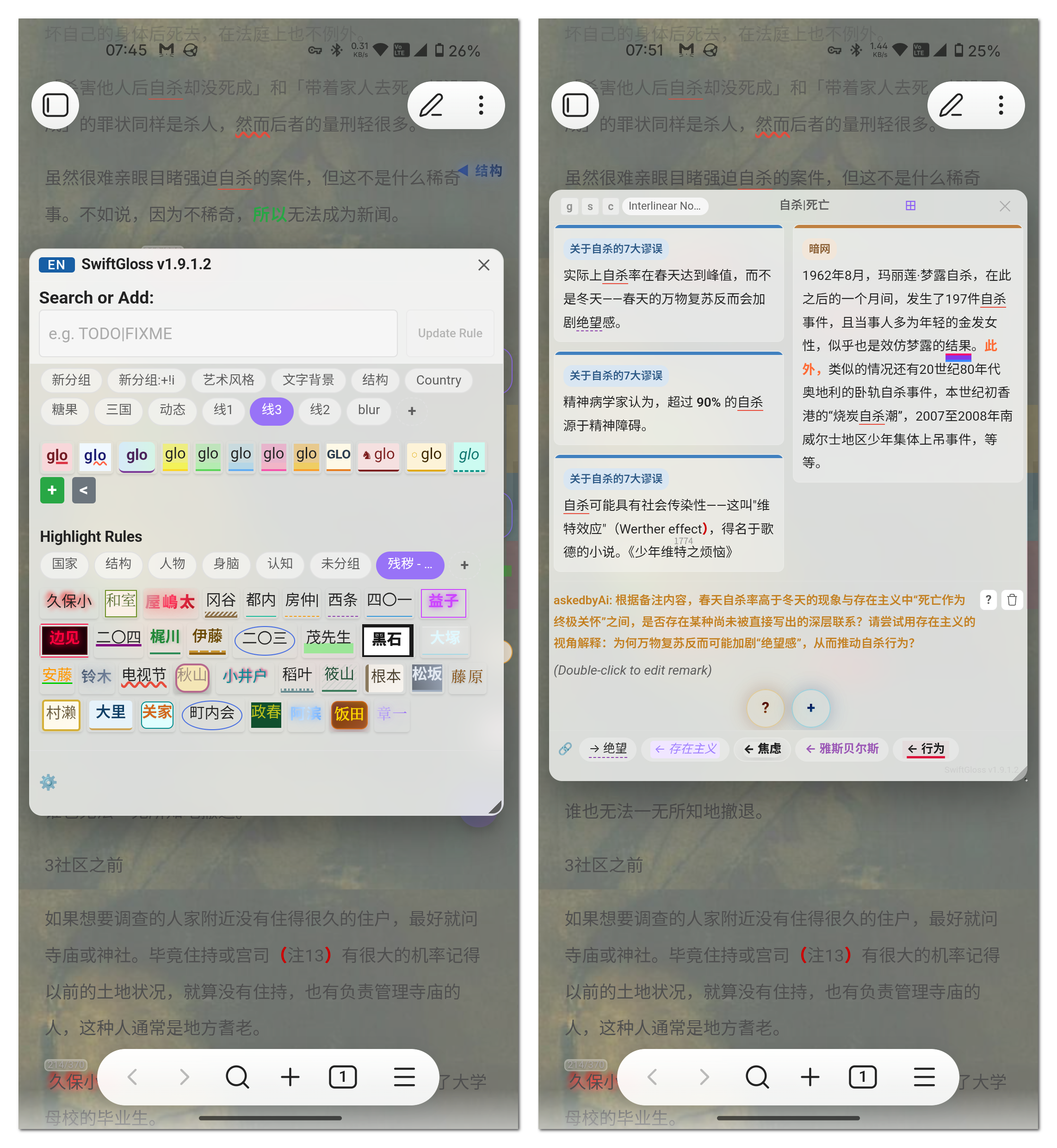
📌 Notes / 备注功能
Notes / 备注功能
- Text Notes / 文本备注 — Add notes to highlighted text with Markdown rendering support / 为高亮文本添加备注,支持 Markdown 渲染
- Image Support / 图片支持 — Note popup supports uploading images and pasting from clipboard / 备注弹窗支持上传图片和粘贴剪贴板图片
- Table Rendering / 表格渲染 — Notes support Markdown tables with borders and zebra striping / 备注支持 Markdown 表格,带边框和斑马纹样式
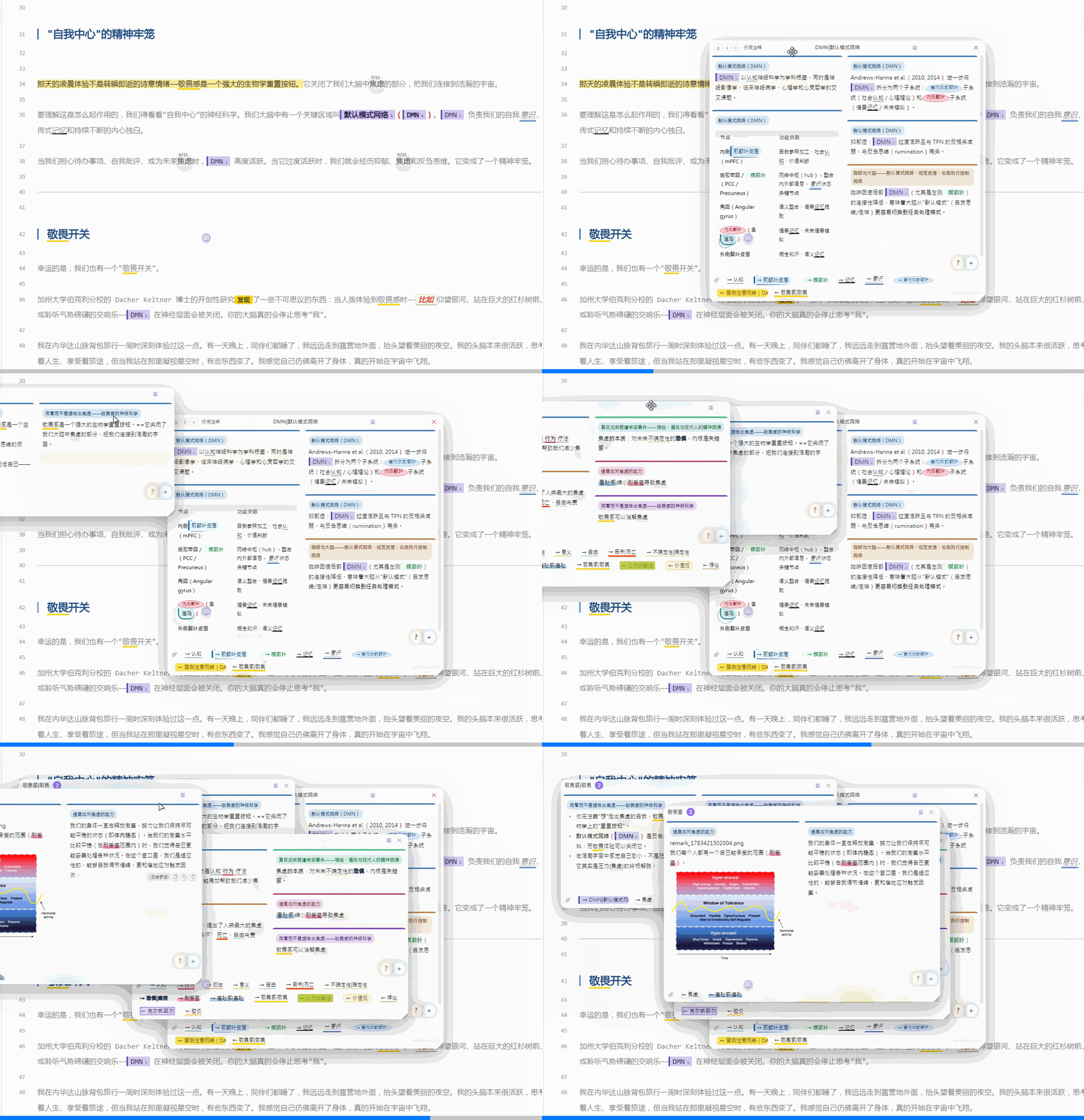
floating notes
floating notes

Installation / 安装
Installation
Search for "Regex Css Highlighter" in Obsidian Settings → Community Plugins → Browse to install directly. 在 Obsidian 设置 → 社区插件 → 浏览 中搜索 "Regex Css Highlighter" 直接安装。
Manual Installation / 手动安装
- Download
main.jsandmanifest.json/ 下载main.js、manifest.json - Create a
Regex-Css-Highlighterfolder in your Obsidian vault's.obsidian/plugins/directory / 在 Obsidian 库的.obsidian/plugins/目录下创建Regex-Css-Highlighter文件夹 - Place the downloaded files in that folder / 将下载的文件放入该文件夹
- Enable "Regex Css Highlighter" in Obsidian Settings → Community Plugins / 在 Obsidian 设置 → 社区插件中启用 "Regex Css Highlighter"
Changelog / 更新日志
v2.2.3 (2026-09-13)
- Fixed Group Expansion on Chip Delete / 修复chip删除后分组展开 — Fixed bug where deleting a keyword via chip expanded all collapsed groups / 修复通过chip删除关键词时所有折叠分组展开的bug
- Selected Text Auto-Fill / 选中文本自动填入 — Open-panel shortcut with selected text now auto-fills regex input / 打开面板快捷键有选中文本时自动填入正则输入框
- Removed AI Reply Window / 移除AI回复窗口 — Removed AI question/reply block from remark popup / 从备注弹窗移除AI提问/回复板块
- Removed AI Assistant Command / 移除AI助手命令 — Removed AI Assistant command from hotkey settings / 从快捷键设置移除AI助手命令
v2.2.2 (2026-09-12)
- i18n Translation / 国际化翻译 — Translated remaining untranslated strings: related section, regex settings, random review help / 翻译剩余未翻译字符串:关联版块、正则设置、随机回顾提示
- Removed Sections / 移除版块 — Removed remark, keyword chips, AI question sections from panel / 从面板移除备注、关联词、AI提问版块
- Removed Heading Style / 移除标题样式 — Removed heading style feature, heading level label, and settings group / 移除标题样式功能、标题层级标签及设置分组
- Removed Floating Ball Options / 移除悬浮球选项 — Removed format replace, add remark, AI reply, switch mode, hide buttons; fixed to always-show / 移除格式替换、添加备注、AI回复、模式切换、隐藏按钮;固定为常显模式
- Cleaned Settings / 清理设置 — Removed redundant display options from settings panel / 从设置面板移除冗余显示选项
v2.1.9 (2026-09-12)
- Merged Related Section / 合并关联版块 — Combined related docs, highlights, threads, and random review into a single "关联" section with zone-based rendering / 将关联文档、高亮、脉络、随机回顾合并为单一"关联"版块,使用zone渲染
- Removed Sections / 移除版块 — Removed parking lot, focus, and quick memo sections / 移除停车场、最近关注、随手记版块
- SVG Drag Handle / SVG拖拽手柄 — Replaced full-width title bar drag with 6-dot SVG grip handle; header bar no longer draggable except from grip / 拖拽手柄改为6点SVG图标,标题栏非手柄区域不可拖拽
- Font/Line-Height Slider / 字体行距滑块 — Changed font size and line height from dropdowns to range sliders in dragged-file and diary sections / 拖拽文件和日记版块的字体大小/行间距改为滑块控件
- Drag File Open Button / 拖拽文件打开按钮 — Added open-in-new-tab button to dragged file section headers / 拖拽文件版块标题栏添加新标签页打开按钮
- Diary Backlinks / 日记反向链接 — Added show-backlinks-in-tab toggle in diary section settings / 日记版块设置添加在标签页中显示反向链接开关
- Gan-Zhi Fix / 干支纪年修复 — Fixed Gan-Zhi year calculation using mid-year solar date / 修复干支纪年计算,改用年中 solar 日期
- Canvas Scroll Passthrough / Canvas滚动透传 — Canvas section passes wheel events to parent when no file loaded / Canvas无文件时滚轮事件冒泡到父容器
- Related Section Optimizations / 关联版块优化 — Empty states collapsed to single-line hints, highlight settings merged into related section menu, random review hidden when highlights present / 空状态折叠为单行提示,高亮设置合并到关联版块菜单,有高亮时隐藏随机回顾
v2.1.8 (2026-09-10)
- Open Docs Chip Close / 当前文档chip关闭按钮 — Added close button (×) to open docs chips; closes leaf for open files, removes from list for dragged files / 当前文档chip添加关闭按钮,主工作区文档关闭标签页,拖入文件从列表移除
- Section Background / 版块背景色 — Info cards, open docs, diary content background now use panel background color / info卡片、当前文档、日记版块背景改为面板背景色
- Dragged Doc Background / 拖入文档背景 — Dragged-in doc background forced to panel color via JS inline style / 拖入文档背景用JS内联样式强制设为面板背景色
- Diary cm-scroller Padding / 日记编辑器边距 — Diary cm-scroller padding follows left/right margin settings / 日记cm-scroller边距跟随左右边距设置
- Info Card Dblclick / info卡片双击 — Double-click now selects text instead of opening document / 双击改为选中文字而非打开文档
v2.1.7 (2026-09-08)
- Calendar Section / 万年历版块 — Added calendar with month/year views, lunar dates, solar terms, festivals, Gan-Zhi years / 新增万年历版块,支持月/年视图、农历、节气、节日、干支纪年
- Calendar Fixes / 万年历修复 — Fixed month switch title, year view separator, week bar after restart, today highlight / 修复切换月份标题、年视图分隔、重启后星期栏、今天高亮
- Diary Section / 日记版块 — Added diary with real-time preview, font/line settings; daily activity summary written to diary / 新增日记版块,支持实时预览、字体设置;当天活动汇总写入日记
- Canvas DnD Fix / Canvas 拖入修复 — Fixed dragging .canvas files into canvas section / 修复拖入 .canvas 文件到 Canvas 版块
- Canvas Mobile Fix / Canvas 手机修复 — Fixed sidebar scroll, card move, long-press on mobile / 修复手机端侧边栏滚动、版块移动、长按问题
- Card Close Button / 卡片关闭按钮 — Added close button to CSS/keyword group cards / CSS、关键词分组版块添加关闭按钮
- Related Highlight Dark Mode / 相关高亮深色模式 — Fixed unreadable text in dark mode / 修复深色模式下文字看不清
- Floating Notes in Diary / 悬浮笔记写入日记 — Floating notes written to date diary / 悬浮笔记写入对应日期日记
- Canvas + Button / Canvas 加号按钮 — Canvas + button changed to SVG icon / Canvas 加号按钮改为 SVG 图标
- Canvas Help Button / Canvas 帮助按钮 — Added ? button with operation guide / 添加帮助按钮和操作说明
- Calendar Title Removal / 万年历标题移除 — Removed redundant calendar title / 移除冗余万年历标题
- English Calendar / 英文万年历 — English mode hides lunar/festivals/Gan-Zhi / 英文模式隐藏农历/节气/干支
- Quick Note Font Settings / 快速笔记字体设置 — Added font size/line height settings / 添加字体大小/行距设置
- Quick Memo Font Settings / 随手记字体设置 — Added font size/line height settings / 添加字体大小/行距设置
- Open Docs DnD / 当前文档拖入文件 — Drag files to display in-place without new tabs / 拖入文件直接在版块显示,不打开新标签页
- Open Docs Font Settings / 当前文档字体设置 — Added font size/line height settings / 添加字体大小/行距设置
v2.1.6 (2026-09-05)
- Ribbon Button Opens in Tab / 功能区按钮标签页打开 — Left ribbon SG button now opens panel in a new tab by default / 左侧功能区 SG 按钮默认在新标签页打开面板
- Quick Memo Section / 随手记版块 — Added Quick Memo section: a plain-text scratchpad with auto-save / 新增随手记版块:纯文本中转区,内容自动保存
- Canvas Chip Close Persistence / Canvas chip 关闭持久化 — Closed canvas chips no longer reappear after switching tabs / 关闭的 canvas chip 切换标签页后不再重新出现
v2.1.5.1 (2026-09-05)
- Ribbon Button Default Tab / 功能区按钮默认标签页 — Left ribbon SG button now opens panel in a new tab by default / 左侧功能区 SG 按钮默认在新标签页打开面板
- Quick Memo Section / 随手记版块 — Added Quick Memo section: a plain-text scratchpad with auto-save / 新增随手记版块:纯文本中转区,内容自动保存
v2.1.5 (2026-09-05)
- Button Overlap Fix / 按钮重叠修复 — Fixed overlap between section buttons (New, Refresh, Clear) and auto background-pattern gear icon / 修复版块按钮(新建、刷新、清空)与自动底纹齿轮重叠问题
- Canvas Title Fix / Canvas 标题修复 — Added title span in mindmap section header to prevent misidentifying button text as title / 思维导图版块标题栏添加标题 span,防止误选按钮文字为标题
- Keyword-Canvas Auto Match / 关键词自动匹配 Canvas — Clicking or searching a keyword auto-loads a
.canvasfile with matching basename / 点击或搜索关键词时自动查找并加载同名.canvas文件 - Translation Completion / 翻译补全 — Added i18n keys for canvas drop hint, regex section title, add button, name placeholder / 补全"拖入 canvas 文件或新建"、"正则文本版块"、"+ 添加"等翻译
- New Install Defaults / 新装默认设置 — Info, Open Docs, Canvas sections default to unchecked for new installations / 新安装时 Info、当前打开的文档、Canvas 版块默认不勾选
v2.1.4 (2026-09-02)
- Card Move Bug Fix / 卡片移动修复 — Fixed card movement bugs in main panel, Info, and Parking Lot sections / 修复主面板、Info、停车场中卡片移动bug
- Main Panel Removal Fix / 主面板移除修复 — Fixed main panel not fully removed; fixed clicking keyword in Keywords tab expanding all keywords / 修复主面板未完全移除bug;修复点击关键词tab中的关键词展开了所有关键词bug
- New Sections / 新增版块 — Added Recently Created, Recent Focus, Random Review, Quick Note, and Stats Overview sections / 添加"最近创建文档"、"最近关注"、"随机回顾"、"快速笔记"、"统计概览"版块
- Tab Button Fix / 标签页按钮修复 — Fixed "Open in New Tab" button not working / 修复"在新标签页打开sg"按钮点击无效bug
- Keyword Click Sync / 关键词点击同步 — Clicking keyword in Keywords tab now updates related files, threads, and info / 关键词tab中的关键词点击后同步更新相关文件、脉络、info
- Settings Button Fix / 设置按钮修复 — Fixed settings button disappearing after grid recreation / 修复区域切换后设置按钮消失bug
- New Install Defaults / 新装默认设置 — Hover no-popup enabled, color theme defaults to Rouge, most sections disabled by default / 新装默认勾选"悬停关键词不触发弹窗",配色默认"胭脂粉",大部分版块默认不勾选
- Section Display Logic / 版块显示逻辑 — Changed visibility checks from
!== falseto=== true; placeholder cards respect section toggles / 版块显示判断改为=== true;占位卡片遵循版块开关 - Duplicate Setting Removal / 重复设置移除 — Removed duplicate quick note folder setting from Obsidian settings panel / 移除设置面板中重复的快速笔记文件夹设置
- Instant Refresh / 即时刷新 — Section toggles refresh immediately; refreshModalContent destroys old grid before re-render / 版块开关即时刷新;重新渲染前销毁旧grid
- Background Pattern Removal / 底纹移除 — Removed background pattern setting from panel settings popup / 移除面板设置中的底纹选项
v2.1.3 (2026-08-12)
- Popout Window Button Fix / 独立窗口按钮修复 — Hide "Pop Out" button in standalone window via
leaf.getRoot()detection; removed CSS!importantthat persisted after popout close / 用leaf.getRoot()检测独立窗口并隐藏弹出按钮;移除关闭后残留的 CSS 规则 - Parking Lot Button Fix / 停车场按钮修复 — Parking lot +button always clickable without requiring a keyword / 停车场+按钮无需关键词即可点击
- Card Resize Fix / 卡片调整修复 — Vertical card resize no longer snaps back after releasing mouse / 纵向调整不再弹回
- Translation Fix / 翻译补全 — Added missing English translations for card labels, empty states, and lock layout / 补全卡片名称、空状态提示等英文翻译
v2.1.2 (2026-08-06)
- Keyword History Regex Fix / 历史关键词正则修复 — Keywords with regex patterns now correctly appear in keyword history; filter uses
_extractPlainTextand_regexMatch/ 含正则的关键词现在能正确显示在历史关键词中;过滤使用_extractPlainText和_regexMatch - Threads Selection Clear / 脉络选区清空 — Selecting non-keyword text clears threads; typing matching keyword + Enter updates threads / 选中非关键词文本清空脉络;输入匹配关键词按Enter更新脉络
- Threads Settings Popup / 脉络设置弹窗 — Threads settings opens popup with click-outside-to-dismiss / 脉络设置改为弹窗式(点击外部关闭)
- Display Settings / 显示设置 — Added "Show Parking Lot" and "Show Threads" toggles / 新增"显示停车场"和"显示脉络"开关
- Input History Fix / 输入历史修复 — Typing keyword + Enter adds to history (matching and new rule cases) / 输入关键词按Enter加入历史关键词
v2.1.1 (2026-08-06)
- Help Text Fix / 帮助文本修复 — Removed the floating note intro paragraph from the main panel "?" button help text in both Chinese and English / 移除主面板"?"按钮帮助文本中的悬浮笔记介绍段落(中英文)
v2.1.0 (2026-08-06)
- Input Box Enter Behavior / 输入框Enter行为 — Typing a keyword and pressing Enter shows it as a chip with applied style preview; typing a non-keyword and pressing Enter twice adds it as a rule with random highlight (respects random group filter) / 输入关键词按Enter显示为chip并预览样式;输入非关键词按两次Enter添加为规则并随机应用高亮(遵循随机分组设置)
- Threads Settings Popup / 脉络设置弹窗 — Threads settings gear button opens a popup window with click-outside-to-dismiss (same as Info) / 脉络设置齿轮按钮改为弹窗式(点击外部自动关闭),与Info版块一致
- Threads Inline Settings / 脉络内联设置 — Palette scheme grid + editable threads.md textarea with debounced save / 配色方案网格 + threads.md可编辑文本框,防抖保存
- Threads Default Hidden / 脉络默认不显示 — Threads only shows matching entries when a keyword is selected / 脉络仅在选中关键词时显示匹配条目
- Threads Filter & Background / 脉络过滤与背景 — Fixed plugin instance reference; filter excludes disabled rules; items use palette-controlled background / 修复插件实例引用;过滤器排除禁用规则;条目背景色由配色方案控制
- Parking Lot Multi-Folder / 停车场多文件夹 — Multiple folders + specific files via textarea; chips show each source with click-to-toggle / 多文件夹+特定文档;chip行显示每个来源可点击切换
- Parking Lot Height & Position / 停车场高度与位置 — Fixed height with drag-to-resize handle; remembers position on re-render / 固定高度可拖拽调整;重新渲染时保持原位置
- Parking Lot No Preset / 停车场不预设提示词 — Initialization starts empty instead of auto-filling presets / 初始化保持空数组,不自动填充预设
- Preset Notes Removed / 移除预设笔记 — Removed two preset floating notes; new installs start with empty notes / 移除两条预设悬浮笔记;新安装从空笔记开始
- Mobile Floating Note Toolbar / 手机悬浮笔记操作栏 — Touch-to-toggle instead of timer-based auto-hide / 点击切换操作栏,不再计时隐藏
- Help Button Unification / 帮助按钮统一 — All "?" buttons use floating note display with language-specific content / 所有"?"按钮统一用悬浮笔记显示,按语言区分内容
- Debug Log Reduction / 调试日志精简 — Guarded console.log with enableDebugLog setting / console.log用enableDebugLog开关保护
v2.0.9 (2026-08-04)
- Release Assets Fix / 发布资源修复 — Re-release with proper GitHub release assets (main.js + manifest.json); previous v2.0.7/v2.0.8 releases had 0 assets causing Obsidian "missing files" error / 重新发布并附带正确的GitHub Release资源(main.js + manifest.json);之前v2.0.7/v2.0.8版本发布时未上传资源文件,导致Obsidian提示"缺少文件"
v2.0.8 (2026-08-04)
- Mobile Sidebar Keyword Persistence / 手机端侧边栏关键词持久化 — Swiping from sidebar back to editor no longer clears matching keywords; they persist until the next keyword is clicked or the input is manually cleared / 手机端从侧边栏右滑回编辑器不再清空匹配关键词;持续显示直到下个关键词被激活或手动清空输入框
v2.0.7 (2026-08-04)
- Info Font Color / Info字体颜色 — Added text color setting to info section color scheme (covers title, button, chip text); dark mode auto-uses "深夜" preset for proper contrast / Info板块配色方案新增字体颜色设定(覆盖标题、按钮、chip文字);深色模式自动对应"深夜"预设
- Mobile CSS Style Preview / 手机端CSS样式预览 — Tapping a style button under CSS tab now pops up a floating style preview (same as desktop pin button) instead of directly applying as a file rule / 手机端CSS tab下点击样式按钮弹出悬浮样式预览(与桌面版pin按钮一致),不再直接应用为当前文件规则
- Mobile Reading Mode g/l / 手机阅读模式g/l — Selecting non-keyword text in reading mode now shows g/l button; removed broken touch-tracking check / 阅读模式下选中非关键词文本显示g/l按钮;移除失效的触摸追踪检查
- Preset Prompt Length / 预设提示词字数 — Added "150字内 / within 150 chars" suffix to all 4 preset prompts / 4个预设提示词末尾添加"150字内"
- First Install Collapsed Note / 首装折叠笔记 — Intro floating note appears in collapsed/thumbnail state on first install / 首次安装介绍悬浮笔记以折叠/缩略状态显示
- First Install Sidebar Only / 仅首装打开侧边栏 — Right sidebar auto-opens only on first install (mobile), not every reload / 右侧面板仅在首次安装时自动打开(手机端),不再每次重载都打开
- Save Error Fix / 保存错误修复 — Fixed "fontSizeInput is not defined" error when saving popup settings / 修复弹窗设置保存时"fontSizeInput is not defined"错误
- Long-press Scroll Restore / 移除长按限制恢复滑动 — Removed document-level touchmove preventDefault that blocked scrolling on mobile / 移除document级touchmove阻止默认行为,恢复手机端正常滑动
- Keyword Group Chip Highlight / 输入关键词高亮分组chip — Input box keyword highlights its corresponding group chip for quick identification / 输入框关键词高亮对应分组chip,便于快速识别
v2.0.6 (2026-08-03)
- Sidebar/Main Panel Init Guard / 侧边栏与主面板初始化守卫 — onOpen waits for plugin onload (settings/rulesUpdateEmitter) before rendering, fixing sidebar crash and empty main panel on fresh install/update (view restored before async onload completes) / onOpen 等待插件 onload(settings/rulesUpdateEmitter)完成后再渲染,修复新装/更新时侧边栏报错和主面板空白(view 在 async onload 完成前被恢复)
- Intro Floating Note / 介绍悬浮笔记 — New install auto-pops a bilingual intro floating note with usage guide; old consultation note removed (also cleaned for existing users) / 新装自动弹出中英双语介绍悬浮笔记(含用法指南);移除旧版咨询笔记(已安装用户更新后也清除)
v2.0.5 (2026-08-03)
- GridStack Resources Embedded / GridStack资源内嵌 — Inlined gridstack.min.css and gridstack-all.min.js into main.js, fixing info cards collapsing to single column and missing resize handle on fresh install (missing external files caused GridStack load failure) / 将gridstack.min.css和gridstack-all.min.js内嵌进main.js,修复新装时info卡片单列显示且右下角无调整大小按钮(外部文件缺失导致GridStack加载失败)
v2.0.4 (2026-08-03)
- AI Prompt Panel Rewrite / AI提示词面板重写 — Multi-select chips with combined prompts, removed reply length setting (users set length in prompt text) / 多选chip组合提示词,移除回复长度设定(用户直接在提示词中写长度)
- Preset Prompts in Settings / 预设提示词移至设置 — 4 preset prompts moved to info settings under custom prompts, fully editable/deletable / 4个预设提示词移到info设置自定义提示词下,可编辑删除
- Preset Prompt i18n / 预设提示词国际化 — Preset prompts auto-translate on language switch; editing a preset converts it to custom / 预设提示词语言切换时自动翻译;编辑后变为自定义
- New Install Defaults / 新装默认值 — showInfoSection defaults to true; floating notes include consultation info preset (hidden) / 显示Info板块默认开启;悬浮笔记包含咨询信息预设(隐藏)
v2.0.3 (2026-08-03)
- GridStack 24-Col CSS Fix / GridStack 24列CSS修复 — Injected dynamic
.gs-24CSS rules for widget width/left positioning (gridstack.min.css only had.gs-12rules, causing widgets to collapse) / 注入24列CSS规则修复卡片宽度坍缩(gridstack.min.css仅有12列规则,导致卡片宽度为0) - Drag Handle SVG / 拖动手柄SVG — Replaced text character with 6-dot SVG icon, unified desktop/mobile / 用6点SVG图标替换文字字符,桌面/手机统一
- Info Color Scheme / Info配色方案 — Custom color pickers (section bg + card bg) + 6 presets, card header transparent / 自定义颜色选择器+6组预设,卡片标题栏透明
- Info Section Grid / Info板块网格 — Toggleable grid background matching gridstack cell size / 可切换网格背景,尺寸与gridstack步长一致
- Card Drag Fix / 卡片拖动修复 — Drag limited to handle only, fixes mobile scroll / 拖动仅通过手柄,修复手机滚动
- Floating Ball Style Edit / 悬浮球样式编辑 — Right-click options menu (class name + display text or custom CSS) / 右键选项菜单(类名+显示文字或自定义CSS)
- Multi-line Remark / 多行备注 — Inline remark editing uses textarea, Esc saves / 内联备注用textarea,Esc保存
- New Install Defaults / 新装默认值 — Rule source badge, remark badge, hover mode default off; remark badge setting moved to display group / 规则来源标记、备注提示符、悬停模式默认关闭;备注提示符移至显示组
v2.0.2.2 (2026-08-02)
- GridStack.js Integration / GridStack.js集成 — Replaced masonry CSS columns with GridStack.js for free drag-and-drop resizable card layout / 用GridStack.js替换masonry布局,实现自由拖拽调整大小的卡片布局
- Inline Resource Loading / 内联资源加载 — GridStack JS/CSS loaded via adapter.read() and injected inline to bypass CSP / 通过adapter.read()读取并内联注入,绕过CSP限制
- Layout Persistence / 布局持久化 — Layout saved as {x,y,w,h} per card in infoGridLayout / 每张卡片布局保存为{x,y,w,h}到infoGridLayout
- Resize Freedom / 自由调整 — disableOneColumnMode, 8 resize handles, alwaysShowResizeHandle, minW=1 / 禁用单列模式,8方向手柄,始终显示,最小1列
- Hover Info at Top / 悬停info置顶 — Info section moved to top of hover popup / Info板块移至悬停弹窗顶部
- Sidebar Info Restoration / 侧边栏info恢复 — Modal info section recreated after hover popup closes / 悬停弹窗关闭后重建面板info板块
- Non-Keyword Info Hiding / 非关键词info隐藏 — Info section hidden when selecting non-keyword text / 选中非关键词时隐藏info板块
- Non-Keyword Style Chip Hiding / 非关键词样式chip隐藏 — Editing chip hidden for non-keyword via _refreshUpdateChip / 选中非关键词时隐藏样式chip
- English Translation Fix / 英文翻译修复 — "关键词"→"keyword" in 3 English strings / 3处英文翻译修复
v2.0.2.1 (2026-08-01)
- Hover Mode Translation / 悬停模式翻译 — Added English translation for hover mode setting / 补充悬停模式设置英文翻译
- CSS Context: Copy Full Style / CSS右键:复制完整样式 — Replaced "Add as Global Rule" with "Copy Full Style" / "添加为全局规则"替换为"复制完整样式"
- Group Toggle Inline / 分组toggle内联 — Toggle button inside groupGrid, hidden when collapsed, moves to visible grid / toggle放入grid内与规则同行,折叠隐藏,切换时动态移动
- Group Count Badge / 分组计数 — Count badge at end of each keyword group / 每个分组末尾添加计数badge
- Remark Settings / 备注设置 — Font/line-height sliders in remark title, removed from popup settings / 备注标题旁字体/行距设置,移除弹窗设置中对应项
- SVG Icon Fix / SVG图标修复 — Related keywords title uses innerHTML for SVG / 关联词标题改用innerHTML渲染SVG
- Emoji→SVG / emoji替换SVG — English translations use SVG icons instead of emoji / 英文翻译emoji替换为SVG
v2.0.2 (2026-08-01)
- Tooltip Disabled State / Tooltip禁用状态 — "Add as Global/File Rule" options grayed out when no text selected / 未选中文字时"添加为全局/文件规则"选项灰色不可点击
- Action Buttons Redesign / 操作按钮重设计 — c/i/g/l buttons: circular→pill on hover, purple accent (#7c6cf0) matching floating ball / 圆形→悬停药丸形,紫色accent呼应悬浮球
- Right-Side Expansion / 右侧展开方向 — Buttons expand text leftward when floating ball is on right / 悬浮球右侧时文字向左展开
- g/l Toggle Capsule / g/l胶囊切换 — Capsule toggle with circular sub-items, active item purple-highlighted / 胶囊toggle圆形子项,激活项紫底
v2.0.1.3 (2026-08-01)
- EditingChip Click Opens CSS Editor / 样式chip点击打开CSS编辑器 — Click editingChip opens CSSEditorModal instead of canceling / 点击editingChip打开CSS编辑器
- Switch Style No Collapse / 切换样式不再折叠 — Only opens style chip if not already pinned / 仅未展开时才点击styleChip
- Style Button Hover Tooltip / 样式按钮悬停提示 — Interactive tooltip with primary + expandable secondary options / 交互式tooltip含主要+可展开次要选项
- Remove Update Rule Button / 移除更新规则按钮 — No longer needed in input area / 输入框中不再需要
- EditingChip Hidden for Non-Rule Text / 非规则文本隐藏editingChip — Only shows when input matches editing rule regex / 仅输入匹配编辑规则时显示
- Global Rule Duplicate Prevention / 全局规则重复防护 — Shows notice instead of adding duplicate file rule / 提示而非添加重复文件规则
- Dynamic Rule Existence Check / 动态规则存在检查 — Dynamic check instead of stale closure variables / 动态检查而非过期闭包变量
- Highlight Dedup Safety Net / 高亮去重安全网 — Deduplicates allRules by regex+cssClass / 按regex+cssClass去重
- Sentence Rule Global Guard / 长句全局规则防护 — addGlobalRule rejects regex exceeding sentence threshold / 拒绝超过句子长度阈值的regex
- addGlobalRule Returns Boolean / 返回布尔值 — Callers show success notice only on true / 调用方仅true时显示成功提示
- Remove Duplicate Middle-Click / 移除重复中键处理器 — Keeps auxclick only, eliminates double Notice / 仅保留auxclick,消除双重Notice
- Direct push→addGlobalRule / 直接push改为addGlobalRule — Consistent sentence rule checking / 统一长句检查
- Complex Regex Keyword Highlighting / 复杂正则关键词高亮 — _buildKeywordRanges supports lookbehind/non-capturing groups / 支持lookbehind/非捕获组
- Click-Show Dblclick Edit Fix / 点击显示双击编辑修复 — Row click excludes remarkSpan / row click排除remarkSpan
- Remark Display Mode Instant Refresh / 评论显示方式即时刷新 — cloneNode + rebind on mode change / 切换时cloneNode+重新绑定
- Always Mode Display Fix / 常显模式修复 — Sets display='' instead of silent return / 设置display=''而非静默返回
- Remark Keyword Matching / 评论关键词匹配 — Keywords in comments show CSS styles and are clickable / 评论中关键词显示样式且可点击
- Float Button Empty JSON Fix / 悬浮按钮空JSON修复 — Checks empty content before JSON.parse / 解析前检查空内容
v2.0.1.2 (2026-07-29)
- Prompt Dialog Fix / prompt()对话框修复 — Replaced prompt() with InputModal in Electron / Electron中用InputModal替代prompt()
- Collapsed Note Disappear Fix / 折叠笔记消失修复 — renderGlobalNotesArea removes both card and mini / 渲染时同时移除card和mini
- Drag Auto-Expand Fix / 拖动自动展开修复 — Drag state guard in mini click handler / mini click添加拖动状态守卫
- Drag Position Save / 拖动位置保存 — Mini drag saves _collapsedPos and persists / mini拖动后保存位置并持久化
- Window Size Loss Fix / 窗口大小丢失修复 — 5-layer protection for 0px size data / 5层防护防止0px尺寸数据
- Mobile Chip First-Click Fix / 手机chip首次点击修复 — Capture-phase handler with timestamp guard / capture-phase handler加时间戳守卫
- Mobile Settings Bar Drag / 手机设置栏拖动 — Touch drag support on settings bar / 设置栏添加触摸拖动
- Panel Dblclick Scroll Fix / 面板双击跳顶修复 — Removed dblclick handlers that caused DOM rebuild and scrollTop reset / 移除导致DOM重建和scrollTop重置的dblclick handler
- Related Keyword Chip Click Fix / 关联词chip点击修复 — Changed to openKeywordWindow to prevent scroll reset / 改为openKeywordWindow防止滚动重置
- ScrollTop Preservation / scrollTop保持 — _preservedScrollTop property + setTimeout(0) restore / _preservedScrollTop属性+setTimeout(0)恢复
- Mini Note Touch/Click Fix / 迷你笔记触摸点击修复 — Unified touch/click with vibrate feedback + double-invocation guard / 统一touch/click加震动反馈和双重调用守卫
- Floating Ball Toggle as Checkbox / 悬浮球开关改复选框 — Native checkbox replaces chip, avoids touch/click competition / 原生checkbox替代chip避开touch/click竞争
- Settings Bar Click Exclusion / 设置栏click排除 — Handlers exclude popup/interactive elements / handler排除弹窗和交互元素
v2.0.1.1 (2026-07-28)
- Update Rule Button Redesign / 更新规则按钮重设计 — Moved inside regex input as compact pill, hidden by default, shown only after clicking a rule button / 移入输入框内部药丸形,默认隐藏,仅点击规则按钮后显示
- Update Rule Logic Fix / 更新规则逻辑修复 — currentEditingRule only set on rule button click, reset on input change / 仅点击规则按钮时设置,输入变化时重置
- Color Scheme Save as New / 配色方案保存为新方案 — "Save as New" adds new preset instead of replacing; auto-rename on ID conflict / 新增而非替换,ID冲突自动重命名
- Related Highlights Settings / 相关高亮设置 — Gear icon with settings popup for both types: font size, line height, uniform keyword style, click-to-show remarks / 两种相关高亮均添加设置:字体大小、行距、关键词样式统一、评论点击显示
- Related Highlights Renamed / 相关高亮改名 — "Non-Keyword Related Highlights" and "Keyword Related Highlights" / "非关键词相关高亮"和"关键词相关高亮"
- Uniform Keyword Style / 关键词样式统一 — Unify keyword styles to a single CSS class, fallback to original when empty / 统一关键词样式为指定CSS类名,空值用原样式
- Click-to-Show Remarks / 高亮评论点击显示 — Hide remark bubbles by default, show on click / 默认隐藏评论气泡,点击显示
- Chip Hover Mode for Groups / 分组悬停模式 — Keyword group chips respect hover mode setting / 分组chip受悬停模式控制
- Float Note Width Fix / 悬浮笔记宽度修复 — Removed maxWidth lock; restored max-width:480px / 移除maxWidth锁定,恢复max-width:480px
- Panel Card Height Fix / 面板笔记高度修复 — Removed _panelCardHeight mechanism, height auto-adapts / 移除_panelCardHeight,高度自适应
- Dblclick Edit Fix / 双击编辑修复 — Removed span[style] guard blocking dblclick / 移除span[style]守卫,双击可编辑
- chipBar Position Fix / chipBar位置修复 — Fixed chipBar moved out of chipContentSection / 修复chipBar被移出chipContentSection
- Keyword Click Fix / 关键词点击修复 — Keywords in related highlights open independent window / 关键词点击打开独立窗口
- saveSettings Error Fix / saveSettings错误修复 — Fixed saveSettings is not a function / 修复saveSettings未定义
v2.0.1.1 (2026-07-26)
- Mobile Floating Note Toolbar / 手机悬浮笔记操作栏 — Toolbar hidden by default on mobile, tap to toggle / 手机端操作栏默认隐藏,点击切换显示
- Collapsed Note Drag Fix / 折叠笔记拖动修复 — Desktop: drag mini no longer expands on release; collapsed state persisted across re-renders and restarts / 桌面端拖动mini不再展开;折叠状态持久化
- Mobile History Keywords Always Visible / 手机端历史关键词常显 — History section always visible on mobile; clear only clears chips; mobile clicks add to history / 历史区块常显,清空仅清chip,手机端点击添加历史
- Mobile Del Button / 手机端删除按钮 — Added "del" button below c/i/g/l near floating ball for quick rule deletion / 悬浮球旁添加del按钮快速删除规则
- Mobile Main Panel Scroll / 手机端主面板滚动 — Content area allows vertical scroll (pan-y) / 内容区域允许垂直滚动
- Mobile Main Panel Drag / 手机端主面板拖动 — Settings bar bottom supports touch drag (floating panel only); resize handle follows / 设置栏底部支持拖动;resize handle跟随
- Mobile Sidebar Match Fix / 手机端侧边栏匹配修复 — Closing and reopening main panel no longer breaks keyword match display / 关闭主面板后关键词匹配正常显示
- Floating Note Edit Style / 悬浮笔记编辑样式 — Removed border/radius from edit textarea; fills window size / 编辑框去掉边框圆角,自适应窗口
- Related Highlights for Rule Keywords / 规则关键词相关高亮 — Keywords with matching rules now show related highlights and backlinks / 有规则的关键词也显示相关高亮和反向引用
v2.0.1 (2026-07-26)
- SG Sentence Keyword Non-clickable / SG句子关键词不可点击 — Removed click handler from SG sentence keywords in related highlights (both main panel and keyword popup) to avoid redundant popup showing the same sentence / 移除相关高亮中SG句子规则关键词的点击事件,避免打开弹窗重复显示相同句子
v2.0.0 (2026-07-26)
- Related Highlights Tooltip Bilingual / 相关高亮提示双语 — Fully translated Related Highlights help tooltip to bilingual format (Display logic, Suggested usage, Remark style, etc.) / 相关高亮帮助提示完整双语翻译(显示逻辑、建议用法、备注样式等)
- Modal Initial Position Fix / 主面板初始位置修复 — Fixed main panel briefly appearing at top-left corner on first open by adding centered transform in constructor / 修复首次打开主面板时短暂出现在左上角,构造时添加居中transform
- Dark Theme Cursor Fix / 深色主题光标修复 — Added caret-color matching text color for floating notes in editing mode, fixing invisible cursor on dark color schemes / 添加与文本颜色匹配的caret-color,修复深色配色方案下光标不可见
- Note Undo Delete / 笔记误删恢复 — Deleted notes now show a 5-second pulse countdown button near the floating ball for undo recovery / 删除笔记后在悬浮球附近显示5秒脉冲倒计时按钮可恢复
- Sidebar Transform Fix / 侧边栏transform修复 — Properly clear transform CSS when moving modal to sidebar to prevent layout issues / 模态框移入侧边栏时正确清除transform防止布局异常
v1.9.9.17.5 (2026-07-26)
- Section Toggle Buttons / 区块折叠按钮 — Added ▽/▷ collapse toggle to Related Notes, Related Highlights, Keyword Remarks, Related Keywords, and AI Questions section headers; right-click to remember expand/collapse state / 在相关文档、相关高亮、关键词备注、关联词、AI提问标题前添加折叠按钮,右键可记住展开/折叠状态
- Related Highlights Help Icon / 相关高亮问号图标 — Added ❓ icon after "Related Highlights" header showing tips on display logic, usage suggestions, and remark style switching / "相关高亮"标题后添加问号图标,点击显示显示逻辑、建议用法、备注样式切换提示
- Related Highlights Match Remarks / 相关高亮匹配备注 — Search terms appearing in highlight comments/remarks now also trigger related highlights display / 搜索词出现在高亮备注中时也会显示相关高亮
- Keyword Window for No-Remark Keywords / 无备注关键词弹窗 — Clicking keywords without remarks now opens popup window showing related notes and highlights / 点击无备注关键词也能打开弹窗显示相关文档和相关高亮
- History Keywords Filter / 历史关键词过滤 — History keywords now only show rules-based keywords, default 10 items with expand button for more / 历史关键词仅显示规则中的关键词,默认10个,更多需展开
- AI Questions "+" Button Position / AI提问按钮位置 — Moved "+" button to title bar right side, consistent with Related Keywords layout / "+"按钮移至标题栏右侧,与关联词布局一致
- rule.links Safety Fix / rule.links安全修复 — Fixed TypeError when iterating rule.links that was undefined after delete operation / 修复rule.links被delete后迭代报错
v1.9.9.17.3 (2026-07-26)
- Related Highlight Keyword Style Fix / 相关高亮关键词样式修复 — Fixed keyword CSS style applied to entire entry instead of only matched keyword segments / 修复关键词样式被应用到整段高亮而非仅匹配片段
- Related Highlight Unified Background / 相关高亮统一背景 — Added consistent light yellow background to all related highlight entries / 所有相关高亮条目统一添加淡黄色背景
- Mobile Panel Resize Fix / 手机端面板resize修复 — Fixed duplicate resize handles; added touch support to setupModalResizeHandle; enlarged handle on mobile / 修复重复resize按钮,添加touch支持,手机端放大handle
- Mobile Sidebar Resize Handle Removal / 手机端侧边栏resize移除 — Sidebar no longer shows resize handle / 侧边栏不再显示resize按钮
- Mobile Mini Note Click Fix / 手机端迷你笔记点击修复 — Fixed touch events blocking click on mini notes; touchend directly restores card / 修复触摸事件阻止迷你笔记点击展开
- Mobile Inline Note Custom Resize / 手机端内嵌笔记自定义resize — Custom 20px touch resize handle replaces native CSS resize / 20px自定义触摸resize替代原生CSS resize
- Mobile Inline Note Collapse Button / 手机端内嵌笔记折叠按钮 — SVG collapse button in toolbar (equivalent to desktop middle-click) / 操作栏添加SVG折叠按钮
- Panel Lock State Fix / 面板锁定状态修复 — Locked panels can only be closed via close button on all platforms / 锁定面板在所有平台只能通过关闭按钮关闭
- Middle-Click Link Fix / 中键链接修复 — Fixed middle-click opening new window but not navigating to document / 修复中键链接未导航到文档
v1.9.9.17 (2026-07-25)
- AI Graph Button Position Fix / AI关系图按钮位置修复 — Moved ⬡ button back to related keywords block header / 将⬡按钮移回关联词标题栏
- AI Question Block Collapse / AI提问块折叠 — Added ▽/▷ collapse toggle in AI question block header / 在AI提问块标题栏添加折叠按钮
- No-Title Chip Removal / 无标题chip移除 — Removed residual no-title chip for AI-only groups / 移除AI分组残留的无标题chip
v1.9.9.16 (2026-07-24)
- Masonry Mode Button in Remark Block / 瀑布流按钮移至备注块内 — Moved masonry toggle to inside keyword remarks block; only affects remarks, not related notes/highlights / 瀑布流按钮移至关键词备注块内,仅作用于备注内容
- Auto Masonry Mode / 自动瀑布流模式 — New remarkMasonryAuto setting: 1 remark → list, multiple → masonry; manual override via button / 自动瀑布流设置,1条→列表,多条→瀑布流
- Remark & Keywords as Independent Blocks / 备注与关联词独立块 — Remark content wrapped as "关键词备注" block, keyword chips as "关联词" block / 备注内容与关联词分别包裹为独立块
- AI Relation Graph in Keywords Block / AI关系图移入关联词块 — Graph rendered inside keyword-chips-block, collapsed by default / 关系图在关联词块内部,默认折叠
- AI Graph Persistence Fix / AI关系图持久化修复 — Fixed _mermaidGraph lost on reload; graph renders after switching keywords / 修复关系图重启后消失,切换关键词后正确渲染
- AI Graph Max Tokens Setting / AI关系图Max Tokens设置 — New aiGraphMaxTokens setting (default 4096) in AI settings / AI设置面板新增Max Tokens
- Exclude Related Highlights / 排除相关高亮 — excludedRelatedNotesCategories now also excludes related highlights / 排除分组同时排除相关高亮
- Scroll Position Restore / 滚动位置恢复 — Panel preserves scroll when toggling masonry mode / 切换瀑布流时保持滚动位置
- Unified aiBtnContainer Sticky / 统一?+按钮粘底 — Both popup types use position:sticky for ?+ buttons / 两种弹窗统一sticky粘底
- CodeMirror Import Fix / CodeMirror导入修复 — Added @codemirror/state and @codemirror/view imports / 添加CodeMirror 6依赖导入
v1.9.9.15 (2026-07-24)
- Related Keywords Chip Fix / 关联词chip修复 — Sentence threshold no longer applies to related keywords; all display as compact keyword-chips / 句子长度阈值不再作用于关联词,统一渲染为关键词chip
- Inline Note Action Bar Drag / 内嵌笔记操作栏拖动 — Action bar blank area supports drag to move card / 操作栏空白区域可拖动移动卡片
- Color Scheme Sync Fix / 配色方案同步修复 — Fixed wrong selectors in
_syncNoteTheme; panel color changes now sync to inline notes / 修复配色方案切换时内嵌笔记颜色不同步 - Related Notes → Related Files / 相关笔记改为相关文档 — Renamed with document count displayed after title / 更名并显示文档数量
- Related File Name Truncation / 相关文档名称截断 — Long names auto-truncate with ellipsis; no horizontal scrollbar / 长文件名截断显示,无横向滚动条
- Settings Panel Drag / 设置面板拖拽 — Blank area supports drag on desktop and mobile / 空白区域支持拖拽移动
- Lookahead/Lookbehind Highlight Fix / lookahead规则高亮修复 —
意识(?!到|不)no longer incorrectly matches "意识到"/"意识不" / lookahead规则不再错误匹配排除文本 - Regex Rule Chip Display / 正则词chip显示修复 — Regex rules like
bc|dnow correctly show chips when selected / 正则词选中后正确显示chip - Chinese Class Name Scheme Fix / 中文类名配色方案修复 — Chinese class names like
.蓝眼泪now correctly show "Update" button / 中文类名按钮正确显示"更新" - Inline Note Scroll Fix / 内嵌笔记滚动修复 — Text area scrolls independently; timestamp fixed at bottom; no double scrollbar in edit / 文本独立滚动,时间戳固定底部,编辑无双滚动条
- Inline Note Edit Height Fix / 内嵌笔记编辑高度修复 — Card height locked during edit; actual height saved and restored after restart / 编辑时锁定高度,重启后恢复
v1.9.9.14 (2026-07-23)
- Sentence Length Threshold / 句子长度阈值 — Added Chinese char count (default 8) and English word count (default 3) settings to distinguish keyword vs sentence rules / 新增中文字数(默认8)和英文词数(默认3)阈值设置,区分关键词与句子规则
- Remark Keyword Chips / 备注区域关键词chips — Replaced pipe-separated keywords with clickable chips; default first keyword, click to switch; related highlights follow active chip / 替代"|"分隔为可点击chips,默认显示第一个,点击切换,相关高亮跟随chip
- SG Sentence Related Highlights / SG句子相关高亮 — Sentence rules shown as related highlights with source file name and jump; merged with OB highlights / 句子规则以相关高亮显示,带源文件名和跳转,与OB高亮合并
- g/l Button / g/l按钮 — Added g/l button for switching rules between global and file scope / 新增g/l按钮,在全局与文件规则间切换
- Unified c/i/g/l Buttons / 统一c/i/g/l按钮 — Plain text without border/background, vertical below floating ball; desktop and mobile unified / 纯文本无背景边框,纵向挂在悬浮球下方,桌面与手机统一
- Desktop Click-to-Show Buttons / 桌面端点击显示按钮 — Click highlighted keyword directly shows c/i/g/l buttons without selecting text / 点击高亮关键词直接显示按钮,无需选中文本
- Mobile Button Display / 手机端按钮显示 — c/i/g/l buttons shown on mobile when tapping keywords; removed desktop-only restriction / 手机端点击关键词也显示按钮,移除桌面端限制
- Cross-File Rule Matching / 跨文件规则匹配 — Selecting text searches other files' rules, matching long sentences from different files / 选中文本跨文件搜索规则,匹配其他文件的长句
- i Button Keyword Support / i按钮关键词支持 — i button passes clicked keyword to interlinear note input instead of requiring selection / i按钮传入关键词文本,不再要求选中文本
- Button Flash Fix / 按钮闪现修复 — Prevent
selectionchangefrom removing buttons immediately after click / 防止selectionchange在点击后立即移除按钮 - global-notes.json Auto-Repair / global-notes.json自动修复 — JSON parse failure auto-truncates to valid prefix; fixed
onunloadmissingdefaultFnGroupcausing corruption / JSON解析失败自动截断修复;修复onunload缺少defaultFnGroup导致损坏
v1.9.9.13 (2026-07-22)
- Palette Button Scroll Switch / 调色盘按钮滚轮切换 — Scroll wheel on palette button directly switches color scheme with name tooltip / 调色盘按钮上滚轮直接切换配色方案,显示方案名提示
- Shift+Scroll Theme Sync Fix / Shift+滚轮切换同步修复 — Fixed box-shadow, backdrop-filter, texture layer not updating on Shift+scroll scheme switch / 修复Shift+滚轮切换时box-shadow、毛玻璃、纹理层未更新
- Exclude Related Notes Fix / 排除相关笔记功能修复 — Fixed excluded groups being stored but never consumed; excluded group rules now skip related notes / 修复排除分组只存不消费;被排除分组规则不再显示相关笔记
- Smart Save Button Logic / 保存按钮智能逻辑 — "Update" when only class name or only values changed; "Add as New Scheme" when both differ / 仅改类名或仅改值显示"更新",都改显示"添加为新方案"
- i18n Translation / 国际化翻译 — Replaced ~90+ hardcoded Chinese with t(); added 70+ translation keys; removed 25+ Chinese fallbacks / 替换约90+处硬编码中文,新增70+翻译key,移除25+处fallback
- Cross-View Theme Sync / 跨视图配色同步 — Color scheme changes in panel/inline/popout instantly sync to all other views / 配色切换即时同步到所有视图
- Inline Right-Click Panel Sync / 内嵌右键面板同步 — Delete/show-hide/move-to-group in inline right-click menu now instantly refreshes panel / 内嵌右键删除/显隐/移动分组即时刷新面板
v1.9.9.12 (2026-07-22)
- Panel Remark Double-Click Fix / 面板备注双击编辑修复 — Added container-level dblclick delegation in
renderRemarkContentso all remark elements respond to double-click editing / 在renderRemarkContent中添加事件委托,所有备注元素均可双击编辑 - Color Scheme Name Tooltip / 配色方案名提示 — Shift+scroll on floating notes shows scheme id as temporary tooltip; inline cards + popout windows / 悬浮笔记Shift+滚轮切换配色时显示方案名;内嵌+独立窗口
- Inline Note Tooltip Position Fix / 内嵌笔记tooltip定位修复 — Tooltip uses
position:fixedondocument.bodyto prevent changing card position which caused window to disappear / tooltip改为fixed定位挂载body,避免误改卡片position导致窗口消失 - Inline Note Tooltip Cleanup / 内嵌笔记tooltip清理 — Tooltip stored on
card._schemeTipprevents duplicates on continuous scroll;card.remove()auto-cleans / tip存储在card属性避免重复创建;关闭时自动清理
v1.9.9.11 (2026-07-22)
- Custom Schemes Migration / 自定义方案迁移 — Moved
customColorSchemesfromglobal-notes.jsontocolor-schemes.json; old{bg,text}format converted to CSS rules / 自定义配色从global-notes.json迁移到color-schemes.json;旧格式转为CSS规则 - Smart Save Button / 智能保存按钮 — Hidden when no changes; "更新" for existing scheme edits, "保存为新方案" for new schemes; class name changes update correctly / 无变化隐藏;编辑显示"更新",新建显示"保存为新方案";类名变更正确更新
- Unified Color Schemes / 统一配色方案 — New notes cycle
colorSchemePresets; removed hardcoded theme arrays; all themes derived viaschemeToTheme/ 新建笔记循环配色预设;移除硬编码主题;统一用schemeToTheme推导 - Close Button Enhancement / 关闭按钮增强 — Tooltip "单击关闭/中键点击删除"; middle-click deletes note; inline + popout / tooltip提示操作;中键删除笔记;内嵌+独立窗口
- Mobile Fixes / 手机端修复 — Color scheme popup touch-draggable; inline display button visible on mobile / 配色弹窗触摸拖动;手机端显示内嵌按钮
- Related Keywords Per-Section / 相关词按分组显示 — Chips render per-rule before 3 buttons instead of merged at bottom / 相关词按关键词分组渲染在3按钮上方
- Remove + Button / 移除+按钮 — Removed "+" from color scheme popup header / 移除配色弹窗+按钮
- Bug Fixes / 错误修复 — Fixed
inputValueundefined,insertBeforeerror, middle-click closing panel / 修复未定义变量、insertBefore错误、中键关闭面板
v1.9.9.10 (2026-07-21)
- Color Scheme CSS Format / 配色方案CSS格式 — Scheme data refactored to standard CSS rules (
.scheme-id { background:...; color:...; }); id from class name; no class = invalid / 配色方案数据重构为标准CSS规则;id从类名提取;无类名无效 - Remove Scheme Grouping / 移除分组 — Removed
catfield and grouped rendering; flat 5-column grid / 移除cat字段和分组渲染;平铺5列网格 - Trim Class Names / 修剪类名 —
.sg-float-vintage-01→.vintage-01for cleaner editing / 类名修剪,更易编辑 - Editable Scheme Code / 可编辑方案代码 — Shared textarea replaces read-only
<pre>; real-time preview on edit; clicking swatch shows CSS / 共用textarea替代只读pre;编辑实时预览;点击色卡显示CSS - Add Scheme (+) Button / 添加方案+按钮 — "+" clears textarea for new input; "Save" parses CSS and adds to grid / "+"清空textarea;"保存"解析CSS并添加到网格
- Middle-Click Delete / 中键删除 — Middle-click swatch to delete scheme; confirmation with "don't ask again" / 中键点击色卡删除方案;确认弹窗含不再询问选项
- Swatch Selection Fix / 色卡选中修复 — Variable-based selection tracking replaces unreliable style matching / 变量追踪替代不可靠的style属性匹配
- Popout Palette Removed / 移除独立窗口配色按钮 — Non-functional palette button removed from popout titlebar / 移除不工作的独立窗口配色按钮
- Popout Texture z-index Fix / 独立窗口纹理修复 — Texture z-index -1→1; content z-index:2 for interaction / 纹理z-index修复;内容层z-index:2确保可交互
- Legacy Format Compat / 旧格式兼容 — Handles both CSS and legacy
{bg,text}formats / 兼容CSS和旧{bg,text}格式 - Custom Schemes Migration / 自定义方案迁移 — 6 existing custom schemes auto-migrated to CSS format / 6个自定义方案自动迁移为CSS格式
v1.9.9.9 (2026-07-20)
- SVG Action Buttons / SVG操作按钮 — Replaced emoji with SVG vector icons for inline/panel/popout notes; 24px touch targets; hover highlight; auto-adapts icon color to theme / emoji替换为SVG矢量图标;24px点击区域;悬浮高亮;颜色自适应主题
- Inline Note Action Bar / 内嵌笔记操作栏 — Top floating bar with semi-transparent background+blur; hidden during editing; double-click anywhere to edit; min-height 80px / 顶部悬浮栏,半透明+模糊;编辑时隐藏;任意位置双击编辑;最小高度80px
- Panel Note Action Bar / 面板笔记操作栏 — Same SVG style; theme-adaptive colors; timestamp at card bottom / 同样式SVG;颜色自适应;卡片底部时间戳
- Popout Window Buttons / 独立窗口按钮 — SVG icons in titlebar; always visible with theme-color background; no blur for clean drag area / 标题栏SVG图标;始终可见主题色背景;无模糊保持拖动清晰
- Default Group Display / 默认分组显示 — Right-click any group chip to set as default; persisted via
defaultFnGroup/ 右键分组chip设为默认;通过defaultFnGroup持久化 - Dynamic Masonry Columns / 动态瀑布流列数 — Column count adjusts by panel width (1 per 160px); ResizeObserver real-time update / 列数随面板宽度调整(每160px一列);ResizeObserver实时更新
- JSON Data Safety / JSON数据安全 — Fixed double-closing-brace corruption; auto-restore from backup / 修复双重闭合花括号损坏;自动从备份恢复
v1.9.9.8 (2026-07-20)
- Floating Note Data Safety / 悬浮笔记数据安全 — Sync save on unload, snapshot-based write to prevent race condition, backup to
.bak.jsonbefore write, auto-restore from backup when main file empty / 卸载时同步保存,快照防竞态覆盖,写入前备份,主文件为空自动恢复 - Floating Note Inline Display / 悬浮笔记内嵌显示 — Auto-adjust height to show full text; min-width 200px, max-width 480px; scrollable overflow; timestamp hidden during editing / 高度自适应全文;最小200px最大480px;超出可滚动;编辑时隐藏时间戳
- Floating Note Preview / 悬浮笔记预览 — Plain text replaces Markdown rendering to eliminate paragraph margins and properly display blank lines / 纯文本替代Markdown渲染,消除段落边距,空行正常显示
- Floating Note Edit Height / 悬浮笔记编辑高度 — Edit textarea auto-resizes by line count with 80px minimum, fixing single-line issue after restart / 根据行数自适应高度(最低80px),修复重启后编辑仅一行
- Panel Floating Notes Layout / 面板悬浮笔记布局 — 3-column masonry instead of fixed 2-column; action buttons (📌📋) on hover only; added copy button / 三栏瀑布流;按钮悬浮显示;添加复制按钮
v1.9.9.7 (2026-07-20)
- Floating Note Inline Display / 悬浮笔记内嵌显示 — Inline notes support Ctrl/Shift/Alt+scroll adjustments (opacity/theme/font size); edit area expands to card edges; cursor placed at text end on edit / 内嵌笔记支持Ctrl/Shift/Alt+滚轮调整;编辑区扩展到卡片边缘;编辑时光标放在末尾
- Floating Note Popout Window / 悬浮笔记独立窗口 — Always-on-top without parent window; close hides instead of deletes; back button returns to inline with preserved size; textarea overlay replaces contentEditable for reliable re-editing / 始终置顶无父窗口;关闭隐藏而非删除;返回按钮保持大小切回内嵌;textarea替代contentEditable修复再次编辑
- Floating Note Themes / 悬浮笔记配色 — 5 new color schemes; increased background opacity; inline uses same theme as popout; custom color editor in right-click menu (replaces unsupported prompt()) / 新增5组配色;提高不透明度;内嵌与独立窗口同配色;右键自定义配色编辑器
- Floating Note Pin/Copy Buttons / 悬浮笔记📌📋按钮 — Panel 📌 icon: left-click inline, middle-click popout; inline 📌 switches to popout; copy button (📋) on hover / 面板📌左键内嵌中键独立;内嵌📌切换独立;悬浮复制按钮
- Floating Note Timestamp & Markdown / 悬浮笔记时间戳与Markdown — Creation timestamp at bottom; inline notes render Markdown via Obsidian's MarkdownRenderer / 底部创建时间戳;内嵌笔记渲染Markdown
- Floating Note Groups / 悬浮笔记分组 — Note grouping in panel with default archive group; add/rename/delete groups; "Move to group" in right-click; rounded chip style / 面板分组功能;默认归档组;右键移动到分组;圆角chip
- Panel Right-Click Fix / 面板右键修复 — Right-clicking under chips pins to prevent auto-hide; mouseleave/mouseout excludes .menu targets / 右键时固定chip防隐藏;排除.menu目标
- New Note Defaults / 新笔记默认值 — 180×140px default size; cycling color schemes / 默认180×140px;循环配色
v1.9.9.6 (2026-07-20)
- Floating Notes Chip Close Fix / 悬浮笔记Chip关闭修复 — Moved fnContainer from inside chipBar to after chipBar, fixing mouseout being intercepted when leaving from bottom / 将fnContainer从chipBar内部移到外部,修复从下方离开时不自动关闭
- Floating Notes Chip Position Fix / 悬浮笔记Chip位置修复 — Added position correction in updateDisplay to keep fnContainer below chipBar after DOM rebuilds / 在updateDisplay中添加位置修正,确保DOM重建后fnContainer紧跟chipBar
v1.9.9.5 (2026-07-20)
- Keyword Bar Position & Visibility / 关键词栏位置与可见性 — keywordBar inside chipBar with
flex-basis:100%; only visible when style chip active / 移入chipBar内部,仅在style chip激活时显示 - Chip Bar Background Removed / 移除背景 — Removed background from chipBar, keywordBar, rules section / 移除chipBar等背景色
- Chip Event Delegation Fix / 事件委托修复 — Guard chipBar internal events from triggering
scheduleHide()/ 排除chipBar内部事件防止误触收起 - Chip mouseleave Fix / 离开事件修复 —
mouseleavechecksrelatedTargetto avoid hiding when mouse stays in chipBar / 检查relatedTarget防止chipBar内移动时收起
v1.9.9.4 (2026-07-20)
- Keyword Switch Bar / 关键词切换栏 — Added keyword button bar below CSS chip bar when multiple rules match; default shows exact-match keyword's styles, click to switch / 多规则匹配时在CSS chip bar下方显示关键词切换按钮,默认显示精确匹配样式,点击切换其他关键词
- Current Editing Rule Priority / 当前编辑规则优先级 —
currentEditingRuleprioritizes exact match over first-in-array, then longest match / 优先精确匹配,其次最长匹配 - Style Click State Update / 样式点击状态更新 — After clicking a style,
currentEditingRuleandhighlightMatchingRuleButtonsare updated in all branches, fixing file rule group not appearing / 样式点击后更新状态,修复全局规则点击其他样式后文件规则分组不显示 - Chip Event Delegation / Chip事件委托 — Changed to event delegation via
mouseover/mouseout+closest(selector), fixing collapsed groups after DOM rebuild / 改用事件委托,修复DOM重建后展开分组收起
v1.9.9.3 (2026-07-20)
- Regex Pipe Split Fix / 正则管道符分割修复 — Added
_splitRegexPipes()with bracket-depth awareness; replaced 31 occurrences ofregex.split('|')to correctly handle|inside lookbehind/lookahead/groups (e.g.,(?<!拉|欧)美国|United States) / 新增_splitRegexPipes()括号深度感知分割函数,替换31处regex.split('|'),修复lookbehind等括号内含|时被错误拆分的问题 - Remove Group Double-Click / 移除分组双击操作 — Removed double-click on style group title and collapsed tab pin-back / 移除双击样式分组标题移动到单显区、双击标签钉回常显的操作
- Remove PinToNormalDisplay Menu / 移除钉回常显右键选项 — Removed "Pin to normal display" context menu from collapsed category tabs / 移除折叠标签右键菜单中的"钉回常显区"选项
v1.9.9.2 (2026-07-20)
- Sidebar Panel Drag Fix / 侧边栏面板拖动修复 — Fixed title bar cursor and drag not being disabled when panel is in sidebar; changed static
_inSidebarto dynamicisInSidebar()check / 修复面板移入侧边栏后标题栏仍显示抓手指针且可拖动的问题,将静态_inSidebar改为动态isInSidebar()检测 - Keyword Click Group Auto-Switch / 关键词点击分组自动切换 — Clicking a new keyword now automatically switches to the matching rule/style group instead of staying on the manually selected group / 点击新关键词时自动切换到匹配的规则/样式分组,不再停留在手动选择的分组
- Panel Scroll Position Fix / 面板滚动位置修复 — Removed auto-scroll after showing inline remarks; now preserves scroll position so top chip bar stays visible / 移除备注显示后的自动滚动,改为保存恢复滚动位置,确保顶部chip栏不被滚出视口
- Global Notes Concurrent Write Fix / 全局笔记并发写入修复 — Added write lock to
saveGlobalNotes()to prevent file corruption from overlapping async writes / 为saveGlobalNotes添加写入锁,防止并发异步写入导致文件损坏
v1.9.9.1 (2026-07-19)
- Ungrouped i18n Fix / 未分组国际化修复 — Keywords chip "未分组" now uses i18n function, correctly showing "Ungrouped" in English mode / 关键词chip区域"未分组"改用t()函数,英文模式下正确显示"Ungrouped"
- Keywords Group Default Name / 关键词分组默认名称 — English default changed from "New Styles" to "new keywords group" / 英文默认名称从"New Styles"改为"new keywords group"
- CSS Group Default Name / CSS分组默认名称 — CSS chip "+" button presets "new Styles group" as default name / CSS chip"+"按钮预设名称改为"new Styles group"
- Sidebar SG Icon Auto-Show / 侧边栏SG图标自动显示 — New install auto-shows SG icon in right sidebar / 新装插件自动在右侧面板显示SG图标
- Main Panel Default Size / 主面板默认尺寸 — Default size changed to 800×500 / 默认尺寸改为800×500
- Ribbon Icon SG / 左侧功能区图标SG — Left ribbon icon now displays "SG" text / 左侧功能区图标改为显示"SG"文字
v1.9.9 (2026-07-19)
- Floating Note Mobile Drag / 悬浮笔记手机拖动 — Added touch event handlers to floating notes, enabling drag-to-move on mobile devices / 为悬浮笔记添加触摸事件处理,手机端可拖动位置
- Remark Buttons Size Reduction / 备注按钮缩小 — Reduced remark popup action buttons (?、+、⬡) diameter from 36px to 26px on desktop / 桌面版备注弹窗操作按钮直径从36px减至26px
v1.9.8.4 (2026-07-19)
- Popout Note Ctrl+Scroll Opacity Fix / 独立窗口Ctrl+滚轮透明度修复 — Fixed ipc-message args parsing and note.id type mismatch that prevented Ctrl+scroll from adjusting popout window opacity / 修复ipc-message参数解析偏移和note.id类型不匹配导致Ctrl+滚轮无法调整独立窗口透明度
- Popout Note Restore on Startup / 启动恢复独立窗口修复 — Popout windows now correctly restore on Obsidian startup; fixed
@electron/remoterequire order and render timing / 启动时独立窗口正确恢复,修复@electron/remote获取顺序和渲染时序 - Popout Note Empty Lines Fix / 独立窗口空行压缩修复 — Changed
textContenttoinnerTextin popout blur handler to preserve line breaks / 用innerText替代textContent保留换行符 - Chip-to-Popout Sync Fix / Chip编辑同步到独立窗口修复 — Editing a note in the chip panel now correctly syncs to the popout window / chip面板编辑笔记现在正确同步到独立窗口
- Popout Note Frosted Glass Style / 独立窗口毛玻璃样式 — Popout windows now use semi-transparent dark background simulating frosted glass effect / 独立窗口使用半透明深色背景模拟毛玻璃效果
- Popout Note Theme Switching / 独立窗口配色切换 — Shift+scroll cycles through 5 color themes (dark, light, green, purple, brown) / Shift+滚轮循环切换5套配色(深色、浅色、绿调、紫调、棕调)
- Popout Note Font Size Zoom / 独立窗口文本缩放 — Alt+scroll adjusts popout note text size (9-28px) / Alt+滚轮调整独立窗口文本字号(9-28px)
- Startup Performance Optimization / 启动性能优化 — Pinyin/interlinear data deferred; CSS reads unified (eliminated 3x redundancy); CSS parsing merged; rules migration save deferred / 拼音/行间注释延迟加载;CSS读取统一(消除3次冗余);CSS解析合并;规则迁移回写延迟
v1.9.8.3 (2026-07-18)
- Rule Group Buttons Visibility Fix / 规则分组按钮可见性修复 — All buttons in the user's active rule group now remain visible when moving the mouse downward / 手动切换规则分组后鼠标下移时该分组内所有按钮保持可见
- Rule Group Auto-Activate Guard / 规则分组自动激活守卫 — Auto-activate logic now skips when user has manually selected a different group / 自动激活逻辑在用户已手动选择其他分组时跳过
- Rule Group Chip Hover Cooldown / 规则分组Chip悬浮冷却 — Added cooldown after rule group chip hover-triggered activation / 规则分组chip悬浮触发激活后添加冷却期
v1.9.8.2 (2026-07-18)
- Style Group Switch Fix / 样式分组切换修复 — Switching to a different style group via hover no longer jumps back to the original group / 悬浮切换到其他样式分组时不再跳回原分组
- Group Chip Hover Cooldown / 分组Chip悬浮冷却 — Added cooldown after group chip hover-triggered click to prevent cascading group toggles / 分组chip悬浮触发click后添加冷却期,防止连锁切换分组
v1.9.8.1 (2026-07-18)
- Mobile Chip Toggle Fix / 手机端Chip切换修复 — Tapping an expanded top chip now correctly collapses it on mobile / 手机端点击已展开的顶部chip现在能正确收起
- No-Remark Keyword Window Fix / 无备注关键词窗口修复 — Keywords without remarks now correctly open the keyword detail window showing related notes and highlights / 无备注关键词现在能正确打开关键词详情窗口显示相关笔记和高亮
- Related Links Click Fix / 相关链接点击修复 — Related notes and highlights links now work on mobile; fixed
innerHTML +=destroying event listeners when no remarks exist / 相关笔记和高亮链接在手机端现在可正常点击,修复无备注时事件监听器被销毁的问题
v1.9.8 (2026-07-18)
- Panel Chip Bar Position Fix / 面板ChipBar位置修复 — Fixed rule group chips moving below remark section after updating rules / 修复更新规则后规则分组chips移到备注下方的问题
- Rule Click Input Restore / 规则点击输入框恢复 — After panel auto-refresh, clicking a rule button now correctly fills the regex into the input box / 面板自动刷新后点击规则按钮正确填入关键词到输入框
- Local Chip Name Translation Fix / 文件规则Chip名称修复 — Fixed file rule chip showing raw translation key instead of "当前文件" / 修复文件规则chip显示未解析翻译键的问题
- File Rules Load on First Open / 首次打开加载文件规则 — Right panel now loads current file rules on first open, file-name chip group appears immediately / 右侧面板首次打开时加载当前文件规则,文件名chip分组立即可见
- Collapse Setting Persistence / 折叠设置持久化修复 — Activating a rule group chip no longer overwrites the "默认折叠规则分组" setting / 激活规则分组chip不再覆盖"默认折叠规则分组"设置
- Chip Hover After Rule Delete / 删除规则后Chip悬浮修复 — Top chip bar hover behavior no longer breaks after deleting rules / 删除规则后顶部chip悬浮触发不再失效
- Rule Group Activation Fix / 规则分组激活修复 — Clicking a global rule button no longer jumps to the file-rules group / 点击全局规则按钮不再跳到文件规则分组
v1.9.7 (2026-07-18)
- Regex Pattern Matching for Related Content / 正则模式匹配相关内容 — Related notes and highlights now support regex patterns (e.g.
(?<!发展)中国); auto-extracts plain text fallback when full regex matching fails / 相关笔记和高亮现在支持正则模式关键词,正则匹配失败时自动提取纯文本回退匹配 - Panel Content Preserve on Navigation / 跳转后保持面板内容 — Clicking related notes/highlights links no longer refreshes the right panel; current keyword display is preserved after navigation / 点击相关笔记/高亮跳转后右侧面板不再刷新,保持当前关键词显示
- clearHighlights Memory Fix / clearHighlights内存修复 — Replaced array accumulation with DocumentFragment to prevent RangeError on large documents / 用DocumentFragment替代数组累积,防止大文档RangeError
- Enter to Search / 输入框Enter搜索 — Pressing Enter in the panel input field now searches for matching keywords and displays related notes and highlights / 面板输入框按Enter键直接搜索匹配关键词并显示相关笔记和高亮
v1.9.6.2 (2026-07-18)
- Regex Pattern Matching for Related Content / 正则模式匹配相关内容 — Related notes and highlights now support regex patterns (e.g.
(?<!发展)中国); auto-extracts plain text fallback when full regex matching fails / 相关笔记和高亮现在支持正则模式关键词,正则匹配失败时自动提取纯文本回退匹配 - Panel Content Preserve on Navigation / 跳转后保持面板内容 — Clicking related notes/highlights links no longer refreshes the right panel; current keyword display is preserved after navigation / 点击相关笔记/高亮跳转后右侧面板不再刷新,保持当前关键词显示
v1.9.6.1 (2026-07-17)
- Related Notes Middle-Click Fix / 相关笔记中键点击修复 — Middle-click on related note links now opens in background tab; blocked browser auto-scroll on middle-click / 相关笔记链接中键点击改为后台新标签页打开,阻止默认自动滚动
- Related Notes Expand All / 相关笔记展开全部 — The "+n" tag is now clickable; clicking expands all remaining note links / "+n"标签可点击,点击后展开所有剩余链接
v1.9.6 (2026-07-17)
- Panel Auto-Refresh / 面板自动刷新 — Right panel listens to
rulesUpdateEmitter; clicking l/g button or adding rules via floating ball instantly updates the panel / 右侧面板监听规则更新事件,点击l/g按钮或悬浮球添加规则后面板即时刷新 - Mobile Sidebar Remark / 手机端侧边栏备注 — New "Mobile Remark in Sidebar" setting; clicking keyword shows remarks in sidebar background with haptic feedback, swipe to view / 新增"手机端备注在侧边栏显示"设置,点击关键词在侧边栏后台显示备注,带震动反馈
- Mobile Sidebar Fix / 手机端侧边栏修复 — Fixed long-press/select text incorrectly closing sidebar panel on mobile / 修复手机端长按选中文本误关闭侧边栏面板
- Remark Text Selectable / 备注文字可选 — Remark area now supports text selection and drag-to-search / 备注区域支持文字选中拖放搜索
v1.9.5 (2026-07-16)
- Related Notes / 显示相关笔记 — New "Show Related Notes" setting; displays notes with matching filenames above remark area on keyword select/click; left-click opens new tab, middle-click opens background tab; works for non-rule text too / 新增"显示相关笔记"设置,选中/点击关键词时在备注上方显示相关笔记链接,左键新标签页打开,中键后台打开,非规则文本也支持
- Underline Count Support / 下划线样式计数支持 — Removed 3 exclusion points; underline-style keywords now display match counts normally / 移除3处排除逻辑,下划线样式关键词可正常显示计数
- Remark Add Button Fix / 备注添加按钮修复 — Rewrote "+" button save logic using
ruleSource(matching n-button pattern); fixed first-time remark addition failing for local rules in sidebar / 重写"+"按钮保存逻辑,修复侧边栏局部规则首次添加备注失败 - Sidebar Panel Group Collapse / 侧边栏分组折叠 — All style groups collapsed by default when no keyword matches, reducing visual clutter / 无关键词匹配时所有样式分组默认折叠
- Sidebar Button Hide / 侧边栏按钮隐藏 — "Move to Sidebar" and "Close" buttons hidden in sidebar mode; no longer reappear after language switch / 侧边栏模式隐藏按钮,切换语言后不再闪现
- Remark Filename Edit / 备注文件名编辑 — Double-click file name tag to edit filePath; Enter saves, Escape cancels / 双击文件名标签可编辑filePath
- AI Button Shape / AI按钮圆形化 — AI Ask, AI Graph, Add (+) buttons now 36px circles on desktop / AI提问、AI关系图、添加按钮桌面端统一为36px圆形
- Status Bar Hide / 状态栏隐藏 — Settings popup uses
display:noneto hide status bar / 设置弹窗改用display:none隐藏状态栏 - Debug Logs Removed / 调试日志移除 — Removed all 14
[SG-DEBUG]console.log statements / 移除全部14条调试日志
v1.9.4.3 (2026-07-15)
- Popup Mouse Tracking Fix / 弹窗鼠标追踪修复 — Replaced unreliable
relatedTargetdetection withmousemovebounds-box; addedpopup.containscheck for fixed badges / 将不可靠的relatedTarget改为mousemove包围盒检测,增加popup.contains覆盖fixed定位badge - Dynamic Z-Index / 动态Z层级 — Added
bringToFrontwith_topZcounter; all popups raise z-index on mousedown, fixing chip preview behind windows / 新增bringToFront动态提升z-index,修复chip预览显示在窗口下方 - AI Graph Height Fix / AI关系图高度修复 —
applyZoomsets SVG dimensions directly;tryFitwaits for actual content withrequestAnimationFrame; viewport height synced / 直接设SVG宽高,等待实际图形元素渲染,viewport高度同步 - SVG className Fix / SVG className修复 — Fixed crash on SVG
className(SVGAnimatedString) / 修复SVG元素className类型错误崩溃 - Scroll Position Preserve / 滚动位置保留 — Remark content re-render preserves scroll position / 备注内容重渲染保留滚动位置
- Image Hover Skip / 图片悬浮预览跳过 — No hover preview when image already at ≥95% natural size / 图片已100%显示时不再弹出悬浮预览
- Debug Logs Removed / 调试日志移除 — Removed all
[RemarkPopup]console logs / 移除所有调试日志
v1.9.4.2 (2026-07-14)
- AI Graph Async Render Fix / AI关系图异步渲染修复 — Fixed remark popup showing incomplete AI relationship graph on open; added MutationObserver to detect SVG appearance and re-apply zoom, plus
onRepositioncallback to recalculate popup position after graph is fully rendered / 修复备注弹窗打开时AI关系图显示不全的问题;新增MutationObserver监听SVG出现后重新应用缩放,并添加onReposition回调在图形渲染完成后重新计算弹窗位置
v1.9.4.1 (2026-07-14)
- Interlinear Note Regex Key Fix / 行间注释正则Key修复 — Fixed interlinear note using matched text as key instead of full regex; remark popup now uses ruleRegex as key / 修复行间注释以匹配文本而非完整正则作为key的问题,备注弹窗现在使用ruleRegex作为key
- Interlinear Note Regex Rendering / 行间注释正则渲染 — Rendering now splits regex keys by
|to match each alternative separately / 渲染时按|分割正则key分别匹配,支持多分支正则模式 - Interlinear Note Auto-Migration / 行间注释自动迁移 — When rule regex changes, old key is automatically found and migrated to new key / 规则正则变更后自动查找旧key并迁移到新key
- List Mode Title Size Fix / 列表模式标题大小修复 — Adjusted remark popup list mode file title from 12px to 10px to match masonry mode / 备注弹窗列表模式文档标题从12px调整为与瀑布流一致的10px
v1.9.4 (2026-07-12)
- Mermaid Parser Rewrite / Mermaid解析器重写 — Rewrote
_sanitizeMermaidline parser with cross-line node tracking and bracket definition helpers; correctly handles chained edges and bracket node definitions / 重写行解析器,新增跨行节点追踪和辅助函数,正确处理链式边和带括号定义的节点 - AI Graph Anti-Weak-Relation / AI关系图防牵强关系 — Added context snippets for related keywords in prompt; new rule forbids creating edges for incidental word usage / 新增关联依据上下文片段,严禁为偶然用词建边
- AI Graph Bilingual Prompt / AI关系图双语Prompt — Auto-detects remark language and selects Chinese or English prompt accordingly; Japanese/Korean use English prompt / 自动检测备注语言选择对应Prompt,日语韩语用英文Prompt
- Graph Zoom Height Fix / 关系图缩放高度修复 — Zoom height now calculated from SVG viewBox on initial render, no manual zoom needed / 缩放高度改用viewBox计算,初始渲染即正确适配
- Graph Scrollbar Fix / 关系图滚动条修复 — Removed unnecessary vertical scrollbar from graph viewport / 移除关系图区域不必要的垂直滚动条
- Masonry Mode i18n / 瀑布流模式国际化 — Replaced hardcoded Chinese text with i18n key for masonry mode tooltip / 瀑布流模式提示文字改为i18n调用
v1.9.3.4 (2026-07-11)
- Random Group All Styles / 随机分组全部样式 — Fixed floating ball random highlight with group filter showing "no unused styles"; now picks from all styles in the group / 修复悬浮球随机分组提示"没有可用的未使用样式",现在从分组内所有样式中随机选取
- Open Doc Button Style / 打开文档按钮样式 — Changed open document button icon to document+🔍 matching SwiftMatch / 打开文档按钮图标改为与SwiftMatch一致的文档+🔍样式
- Paste Remark Button / 粘贴备注按钮 — Added paste button between open document and copy buttons; appends to existing remark / 在打开文档与复制按钮间新增粘贴按钮,已有内容时追加
- Paste in Edit Mode / 编辑状态粘贴修复 — Fixed paste button losing textarea focus; now inserts at cursor position / 修复编辑态粘贴导致失焦,现在在光标位置插入
v1.9.3.3 (2026-07-09)
- Remark Badge Wrong Target Fix / 备注n按钮错位修复 — Fixed clicking "n" badge adding remark to wrong popup when another keyword's popup is already open / 修复点击"n"按钮添加备注时,若其他关键词弹窗已打开,备注会错误添加到已打开弹窗
- Multiple Remark Popups / 多备注弹窗共存 — Different keywords' remark popups can stay open simultaneously / 不同关键词的备注弹窗可同时打开
v1.9.3.2 (2026-07-09)
- Floating Group Middle-Click Global / 悬浮分组随机模式中键全局 — Middle-click floating group button with random mode applies as global rule, same as floating ball / 开启随机模式的悬浮分组按钮中键点击应用为全局规则,与悬浮球一致
- Mobile Main Panel Drag / 手机端主面板拖动 — Touch drag support on main panel title bar for mobile / 主面板标题栏添加触摸拖动支持
- Shortcut Delete Global Rule / 快捷键删除全局规则 — Remove style shortcut now deletes global rules too; confirmation when rule has remarks / 移除样式快捷键支持删除全局规则,有备注时确认
- Remark Popup Long-Press Close Fix / 备注弹窗长按关闭修复 — Fixed long-press close preventing subsequent remark popups / 修复长按关闭后备注弹窗不再触发
v1.9.3.1 (2026-07-09)
- Rename to SwiftGlossa / 更名为SwiftGlossa — Renamed from SwiftGloss to SwiftGlossa; plugin ID unchanged / 从SwiftGloss更名为SwiftGlossa;插件ID不变
v1.9.3 (2026-07-07)
- Desktop Chips Drag / 桌面端chips区拖动窗口 — Click empty area in bottom chips bar to drag popup on desktop (previously mobile-only) / 桌面端点击chips区空白处可拖动窗口(此前仅手机端)
- n Badge Position / n按钮位置上移 — Moved "n" remark badge upward to align with g/l badge / "n"按钮上移至与g/l按钮平行
- Interlinear Note Key Fix / 行间注释key修复 — Fixed remark popup using ruleRegex as key instead of plain text, causing duplicate notes / 修复备注弹窗行间注释key不一致导致重复注释
- Popup Close Button / 弹窗关闭按钮优化 — Hidden initially, shown after drag; red color / 初始隐藏,拖动后显示;红色
v1.9.2 (2026-07-07)
- Desktop c/i Button Style / 桌面端c/i按钮样式优化 — Enlarged buttons (28×28px), hover keeps visible, auto-hide timer pauses on hover / 增大按钮尺寸,鼠标悬浮保持显示,自动隐藏暂停
- Desktop c/i Button Right-click Edit / 桌面端c/i按钮右键编辑 — Right-click c/i buttons to edit display text, CSS class, or inline CSS / 右键c/i按钮可编辑显示文字、CSS类名、内联CSS
- Masonry Remark Edit & Paste / 瀑布流备注编辑与粘贴 — Double-click remark content to edit in masonry mode; clipboard image paste support / 瀑布流双击备注内容编辑;支持粘贴剪贴板图片
- Keyword Detail Image Render / 关键词详情图片渲染 — Fixed images not displaying in keyword detail window from bottom chips / 修复从底部chip打开的关键词详情窗口图片不显示
v1.9.1.4 (2026-07-06)
- Mobile c/i Buttons / 手机端c/i按钮 — Added "c" (add/remove count) and "i" (add/edit interlinear note) buttons to mobile highlight actions alongside l/g and n / 手机端点击高亮关键词时,在l/g和n按钮旁新增"c"(计数)和"i"(行间注释)按钮
- Desktop Rule Action Buttons / 桌面端规则操作按钮 — Selecting rule text auto-shows c/i buttons next to floating ball in both always and followSelection modes / 桌面端选中规则文本时自动在悬浮球旁显示c、i按钮
- Per-Platform Floating Ball Visibility / 悬浮球可见性按平台独立 — Split floatingBallHidden into per-platform storage so hiding on mobile doesn't affect desktop after sync / 悬浮球隐藏设置按平台独立存储,手机端隐藏不影响桌面端
v1.9.1.3 (2026-07-06)
- Fix AI Question Remark Lost / 修复AI问题备注丢失 — Fixed edited AI question remarks disappearing after closing and reopening popup: pre-save condition treated empty
filePathas falsy, now uses!== undefinedcheck / 修复编辑AI问题备注后退出再双击编辑时内容消失:预保存条件将空filePath当作falsy跳过,改为!== undefined检查
v1.9.1.2 (2026-07-06)
- Fix Add/AI Button / 修复添加/AI按钮 — Fixed "+" and "?" buttons not working in hover remark popup: auto-finds rule from list, re-reads links from DOM / 修复备注弹窗"+"和"?"按钮无效:自动查找规则,从DOM重新读取links
- Masonry Toolbar Fix / 瀑布流工具栏修复 — Restored hover toolbar with pointer-events control; dblclick toolbar to edit remark, dblclick search chip to edit search text / 恢复悬浮工具栏;双击toolbar编辑备注,双击搜索词chip编辑搜索词
- Button Order Swap / 按钮顺序对调 — Swapped "Open Document" and "Copy" button positions / "打开文档"和"复制"按钮位置对调
- Masonry Mode Persistence / 瀑布流模式持久化 — Masonry mode state saved to settings, persists across restarts / 瀑布流模式状态持久化,重启不丢失
v1.9.1.1 (2026-07-05)
- Frosted Glass Popups / 毛玻璃弹窗 — All popups now use frosted glass effect with
backdrop-filter:blur(16px) saturate(180%)+ semi-transparent background / 所有弹窗统一使用毛玻璃效果,替换原有实心背景 - Remove Popup Borders / 移除弹窗边框 — Removed all popup borders and border width/color settings, unified border-radius to 12px / 移除所有弹窗边框及边框宽度/颜色设置项,统一圆角为12px
- Transparent Inner Elements / 内部元素透明化 — Title bars, content containers, chips bars, masonry cards, dividers all use transparent/semi-transparent backgrounds / 标题栏、内容容器、chips区域、瀑布流卡片、分隔线全部改为透明/半透明背景
- Ribbon Icon Rename / 侧边栏按钮更名 — Changed sidebar ribbon icon tooltip to "SwiftGloss" / 侧边栏功能区按钮提示文字改为"SwiftGloss"
v1.9.1 (2026-07-05)
- Count Styles Hardcoded / 计数样式硬编码 — Hardcoded count badge CSS into main.js, fixing count badges not displaying on fresh installations / 将计数标记CSS样式硬编码到main.js中,修复新装插件时计数标记不显示的问题
v1.9.0 (2026-07-05)
- Masonry Layout Mode / 瀑布流模式 — New masonry/waterfall layout for remark popups: all entries mixed as cards with file name tags, color bar replacing dots, hover toolbar, search keyword placeholder + drag-drop, dynamic columns via ResizeObserver / 备注弹窗新增瀑布流布局:所有条目混排为卡片,文件名作为标签,顶部色条替代圆点,hover显示工具栏,搜索词占位+拖放支持,ResizeObserver动态栏数
- Remark Popup Code Reuse / 备注弹窗代码复用 — Extracted
renderRemarkContentshared function, both popups share content rendering, reducing ~774 lines of duplicate code / 提取renderRemarkContent共享函数,两个弹窗共享内容渲染逻辑,减少约774行重复代码 - Remark Link Fix After File Rename / 文件改名后备注链接修复 — Fixed remark links not updating after file rename / 修复文件改名后备注弹窗中引用的文件路径未更新的bug
v1.8.9.7 (2026-07-05)
- Remark Link Fix After File Rename / 文件改名后备注链接修复 — Fixed remark links not updating after file rename — moved links update logic outside the conditional guard, replaced
fileRulesMap iteration with_fileRulesDatatraversal, ensuring all links.filePath are correctly updated / 修复文件改名后备注弹窗中引用的文件路径未更新的bug:将 links 更新逻辑移出条件守卫,改用_fileRulesData遍历替代fileRulesMap 遍历,确保无论被重命名文件是否有自身规则、其他文件规则是否已加载,所有 links.filePath 都能正确更新
v1.8.9.6 (2026-07-04)
- Remove Mobile Reading Mode Line/Margin Setting / 移除手机版阅读模式行、边距设置 — Removed "Mobile Reading Mode Line & Margin" setting and applyMobilePreviewMargins method — now handled by another plugin / 移除"手机版阅读模式行、边距"设置项及 applyMobilePreviewMargins 方法,已改用其他插件实现
- Floating Ball Hide/Show / 悬浮球隐藏/显示功能 — Floating ball now hides when "Hide Floating Buttons" is clicked; added left ribbon icon to open main panel; added "Show/Hide Floating Ball" chip at top of floating ball settings / 点击"隐藏悬浮按钮"时同步隐藏悬浮球,添加左侧功能区按钮打开主面板,主面板设置-悬浮球选项顶部添加"显示/隐藏悬浮球"chip
- Remove Mobile Pinyin Pin Button / 移除手机版注音📌按钮 — Hidden the 📌 pin button after the "Pinyin" option in mobile floating ball menu / 手机端悬浮球菜单中"注音"选项后的📌按钮已隐藏
- Floating Ball Display Fix / 悬浮球显示修复 — Fixed "SG" text not centered when floating ball is re-shown — restored display to flex / 修复悬浮球重新显示时"SG"文本未居中的问题,恢复 display 为 flex
v1.8.9.5 (2026-07-04)
- Mobile Panel Interaction Fix / 手机端主面板交互修复 — Fixed critical mobile bug where long-pressing style/rule buttons caused browser selection mode, making the panel impossible to close — resolved by calling preventDefault on touchstart for interactive elements and manually handling tap-to-click / 修复手机端长按样式/规则按钮后浏览器进入选择模式导致面板无法关闭的严重bug,通过在交互元素 touchstart 上 preventDefault 阻止浏览器长按检测,并手动处理 tap 触发 click
- Mobile Close Button Fix / 手机端关闭按钮修复 — Close button now has rch-close-btn class, contextmenu event serves as fallback close channel after long-press / 关闭按钮添加 rch-close-btn 类名,contextmenu 事件作为长按后的备用关闭通道
- Mobile Outside-Click Close / 手机端外部点击关闭 — Document-level contextmenu listener as fallback outside-click close channel on mobile / document 级别 contextmenu 监听作为面板外部点击的备用关闭通道
- Drag Listener Leak Fix / 拖拽监听器泄漏修复 — Fixed anonymous mousemove/mouseup listener leak — converted to named references, properly cleaned up in onClose/onOpen / 将匿名 mousemove/mouseup 监听器改为具名引用,在 onClose/onOpen 中正确清理
- Context Menu Cleanup / 右键菜单清理 — Clean up residual context menu document event listeners in onClose / onClose 中清理残留的右键菜单 document 事件监听器
- Close Deadlock Fix / close() 死锁修复 — Removed _locked check in close(), mobile outsideClickHandler ignores _locked state / 移除 close() 中的 _locked 检查,手机端 outsideClickHandler 忽略 _locked 状态
- i18n Keys Completion / i18n key 补全 — Added missing i18n keys for main panel UI elements / 添加 main.localRule、main.globalRule 等缺失的中英文字典 key
- Mobile Context Menu Block / 手机端长按菜单屏蔽 — Desktop-only contextmenu registration for style/rule buttons, mobile only prevents default / 样式按钮和规则按钮的 contextmenu 注册用 _isDesktop 包裹
- Mobile Remark Option Hidden / 手机端备注选项隐藏 — Hide "Edit Remark" option and remark hover on mobile / 规则按钮右键菜单的"编辑备注"和备注悬浮在手机端隐藏
- Menu Item Order / 菜单项顺序调整 — "Move to Group" moved to top, "Move to Local Rule" placed in its submenu / "移动到分组"移到菜单顶部,"移动到当前文件规则"放入其子菜单
- Submenu Overflow Fix / 二级菜单溢出修复 — Desktop submenu bottom overflow check, mobile submenu expands downward with maxHeight / 桌面端子菜单添加底部溢出检查,手机端子菜单改为向下展开+maxHeight
v1.8.9.4 (2026-07-03)
- File Rule Path Leading Slash Fix / 文件规则路径前缀斜杠修复 — Auto-detects and removes leading
/from file rule keys on startup, fixing root-level file rules not loading — one-time migration / 启动时自动检测并移除库根文件夹下文件规则 key 的前缀/,修复根目录文件规则无法加载的问题,一次性迁移
v1.8.9.3 (2026-07-03)
- Legacy Remark Auto-Migration / 旧版备注自动迁移 — Automatically migrates legacy
rule.remarktolinkentries (filePath: "") on startup, clears the old field and persists changes / 启动时自动将旧版rule.remark迁移为link条目(filePath: ""),迁移后清空旧字段并持久化 - Global Rule Popup Shows File Rule Remarks / 全局规则弹窗显示文件规则备注 — Global rule remark popup now also shows file rule remarks for the same regex from all files, with an "l" badge after the file name / 全局规则备注弹窗中追加显示同 regex 的所有文件规则备注,文件名后标注"l"标记以区分来源
- File Rule Reference Remarks Read-Only / 文件规则引用备注只读保护 — File rule reference remarks are read-only in the global popup — no edit/delete toolbar shown / 来自文件规则的引用备注不显示编辑/删除工具栏,避免误操作
v1.8.9.2 (2026-07-02)
- Interlinear Note Font Size Persistence Fix / 行间注释字体大小持久化修复 — Fixed
injectInterlinearNoteStylesalways using default CSS instead of user-customized CSS, causing interlinear note styles to revert to defaults after restart / 修复injectInterlinearNoteStyles始终使用默认CSS而非用户自定义CSS,导致重启后行间注释字体大小等样式恢复默认的bug - Interlinear Note + Count Coexistence / 行间注释与计数共存 — When a keyword has both interlinear note and count, the note automatically moves below the keyword while count stays above;
has-counterclass added at creation time to avoid timing issues / 当关键词同时有行间注释和计数时,行间注释自动移至关键词下方、计数保持在上方,创建时即添加has-counter类避免时序问题
v1.8.9.1 (2026-07-02)
- Count Feature / 计数功能 — Added "c" count button to remark popup title bar and "Add Count" option to floating ball menu; clicking adds frosted-glass count badges (showing "position/total") to matched text, clicking again removes count / 备注弹窗标题栏添加"c"按钮,悬浮球菜单添加"添加计数"选项,点击后为匹配文本添加毛玻璃计数标记(显示"位置/总数"),再次点击移除计数
- Count Persistence / 计数持久化 — Count state persisted to settings, automatically restored after Obsidian restart / 计数状态保存到settings,重启Obsidian后自动恢复
- Reading Mode Count Fix / 阅读模式计数修复 — Fixed reading mode count: total computed from file content (not DOM), global index determined by paragraph text positioning, resolving inaccurate counts and scroll-dependent changes / 阅读模式总数从文件内容计算(非DOM),用段落文本定位确定全局序号,解决懒渲染下计数不准和滚动变化问题
- Translation Completion / 翻译补全 — Completed missing Chinese/English translations for floating.openMainPanel, floating.addRemark, floating.removeHighlight, floating.pinyin, floating.formatReplace, settings.heading, settings.popup / 补全 floating.openMainPanel、floating.addRemark、floating.removeHighlight、floating.pinyin、floating.formatReplace、settings.heading、settings.popup 等缺失的中英文翻译
- Random Mode Style Stacking Fix / 随机模式样式叠加修复 — Fixed floating group random mode adding new rule instead of replacing old one on second click, which caused two styles stacking / 修复悬浮分组随机模式第二次点击时新增规则而非替换旧规则,导致同一文本叠加两种样式的bug
v1.8.9 (2026-07-01)
- Floating Group Random Mode / 悬浮分组随机模式 — Added "Random Mode" to floating style group right-click menu; when enabled, clicking the group directly applies a random style to selected text, arrow removed, hover does not expand submenu / 悬浮样式分组右键菜单新增"随机模式",开启后点击分组直接随机应用组内样式到选中文本,移除箭头、鼠标悬浮不展开子菜单
- Remove Open File Link Settings / 移除打开文件链接设置 — Removed "Hide open file link after title" setting option and "Open data.json" link next to ⚙️ / 移除主面板设置-显示中的"不显示标题后面的打开文件链接"选项及⚙️后的"打开data.json"链接
- Remove Recent Rules Setting / 移除折叠时显示最近规则设置 — Removed "Show recent rules when collapsed" setting option from display settings / 移除主面板设置-显示中的"折叠时显示最近规则"选项
- Default Heading Style Disabled / 默认不启用标题样式 — New installations now default to disabling heading styles and heading level labels / 新装插件默认禁用标题样式和标题层级标签显示
- Default Group in Switchable Tabs / 默认分组显示在切换标签区域 — Auto-generated "New Group" now defaults to switchable tab area instead of always-visible area / 自动生成的"新分组"默认显示在切换标签区域("+"按钮前),而非常显区域
- English Preview Text Changed to gloss / 英文预览文本改为gloss — Default English preview text changed from "Preview" to "gloss" / 默认英文预览文本从"Preview"改为"gloss"
v1.8.8.5 (2026-07-01)
- Remove Style Usage Count / 移除样式使用次数(count)功能 — Completely removed
_count.jsoncount file generation and related code (updateStyleCountFile,loadStyleCountFile,loadAngle0Styles, 16 call sites, 6 i18n entries) / 完全移除_count.json计数文件生成机制及相关代码,包括updateStyleCountFile、loadStyleCountFile、loadAngle0Styles等函数,以及所有 16 处调用点和 6 条 i18n 条目 - In-Memory Unused Styles / 随机高亮改为内存计算 —
getUnusedStylesnow computes unused styles from in-memoryfileRulesandglobalRulesinstead of count files /getUnusedStyles不再依赖 count 文件,改为从内存中的fileRules和globalRules实时统计未使用样式 - Merge File Rules to Single JSON / 文件规则合并为单JSON — Merged all file highlight rules from individual
data/{encoded_name}.jsoninto singledata/file-rules.jsonusing original file paths as keys / 所有文件高亮规则从data/{编码文件名}.json合并到data/file-rules.json,key 使用原始文件路径,消除路径编码歧义 - Memory Cache + Debounce Write / 内存缓存+Debounce写入 —
saveFileRuleswrites to in-memory cache first, flushes to disk with 500ms debounce;loadFileRulesreads from memory with zero IO /saveFileRules先写入内存缓存,500ms debounce 后批量写磁盘,loadFileRules从内存读取零IO - Auto Migration / 自动迁移旧数据 — Auto-migrates scattered rule files to
file-rules.jsonon first launch, cleans up_count.jsonfiles, sets flag to avoid re-running / 首次启动时自动将零散规则文件迁移到file-rules.json,同时清理所有_count.json文件,迁移完成后设置标志位不再重复执行 - Simplified File Rename / 文件重命名简化 — File rename/move now operates on in-memory cache keys directly, no more filesystem-level rename / 重命名/移动文件时直接操作内存缓存 key,不再涉及文件系统级 rename 操作
v1.8.8.4 (2026-06-30)
- Disable Rule in Context Menu / 禁用规则移至右键菜单 — Moved disable/enable rule from Shift+right-click to right-click context menu / 移除Shift+右键禁用规则操作,将禁用/启用规则选项添加到规则右键菜单中
- Disable Rule Bug Fix / 修复禁用规则不生效 — Fixed rule disable not working due to shallow copy modifying clone instead of original rule object / 修复因浅拷贝导致修改副本而非原始规则对象,禁用规则提示成功但实际未生效的bug
- Remark Popup Grouped by File / 备注弹窗按文件分组显示 — Remark hover popup now groups remarks by source file with filename labels and color dots; falls back to external remark / 悬浮备注弹窗优先显示links中的备注(按文件分组、带文件名标签和色点),无link备注时回退显示外部remark
- Settings Bar Redesign / 设置栏底部固定改造 — Replaced collapsible settings panel with fixed bottom bar (⚙️ icon + chips); hover to show chips, click to open floating popup / 移除折叠式设置面板,改为⚙️图标+chip常驻面板底部,hover显示chips,点击chip弹出悬浮窗口
- Settings Chip Floating Popup / 设置chip悬浮窗口 — Settings chip opens floating popup; auto-switch on hover between chips; delayed close on mouse leave / 点击chip弹出悬浮设置窗口,chip间划过自动切换内容,鼠标离开延迟关闭
- Settings Bar Fixed at Bottom / 设置栏固定在面板底部 — Settings bar moved from contentEl to modalEl, always fixed at panel bottom / 设置栏从contentEl移至modalEl,始终固定在面板底部不随内容滚动
- Settings Popup Click Fix / 修复点击设置弹窗退出主面板 — Fixed clicking settings popup closing main panel by adding popup to outsideClickHandler exclusion list / 在outsideClickHandler排除列表中添加设置弹窗,避免点击弹窗关闭主面板
- Settings Popup Auto-Height / 设置弹窗自适应高度 — Removed max-height scroll limit; popup auto-sizes to content; MutationObserver repositions on content changes / 移除max-height滚动限制,弹窗自适应内容高度,内容展开时MutationObserver自动重新定位
- Wider Popup for CSS Settings / 拼音/行间注释弹窗加宽 — Wider popup (460
700px) for Pinyin and Interlinear Note settings to accommodate textareas / 拼音样式和行间注释样式的设置弹窗使用更宽尺寸(460700px)以容纳textarea
v1.8.8.3 (2026-06-30)
- Remove Ctrl+Enter Update Rule / 移除Ctrl+Enter更新规则 — Removed non-functional Ctrl+Enter shortcut (intercepted by Obsidian global hotkeys); replaced with "Update Rule" chip button next to input field / 移除无效的Ctrl+Enter快捷键(Obsidian全局快捷键拦截),改用输入框右侧"更新规则"chip按钮
- Update Rule Chip Button / 更新规则Chip按钮 — Added "Update Rule" chip button next to input; highlighted when a rule is selected, grayed out when no rule is selected / 输入框右侧新增"更新规则"chip按钮,点击规则按钮后高亮可用,无选中规则时灰色禁用
- showErrorMessage Call Fix / showErrorMessage调用修复 — Fixed TypeError from calling showErrorMessage with wrong number of arguments / 修复
showErrorMessage单参数调用导致styleOption.appendChild抛出TypeError的问题 - editRule Boolean Return / editRule返回布尔值 — editRule/editGlobalRule now return boolean; updateCurrentRule checks return value to avoid false success messages / 规则编辑失败时返回false,
updateCurrentRule检查返回值避免误报成功 - Rule Button Highlight Border Fix / 规则按钮高亮边框修复 — Fixed highlight border not clearing on global rule buttons; removed blue/orange fixed borders in favor of transparent / 清除高亮时同时清除全局规则按钮边框;移除蓝色/橙色固定边框改为透明
- Unified Theme Accent Highlight / 匹配高亮统一主题色粗边框 — Unified matching highlight to
2px solid var(--interactive-accent)for both rule and style buttons; removed scale/glow effects / 规则按钮和样式按钮的匹配高亮统一为主题色粗边框,移除scale/发光效果 - Rule Button Remark Hover / 规则按钮hover备注弹窗 — Added remark hover popup to global rule and history buttons, reusing editor remark popup styles / 全局规则按钮和history按钮添加备注hover弹窗,复用编辑区备注弹窗样式
- Auto-Expand Rule Group / 选中文本自动展开规则分组 — Auto-expand rule group chip when matching rule button is found, ensuring highlight is visible / 匹配规则按钮时自动展开其所在规则分组chip,确保高亮可见
- Style Button data-class Fix / 样式按钮data-class修复 — Fixed style buttons missing
data-classattribute, which was the root cause of style chips not auto-activating and style buttons not being highlighted / 修复样式按钮未设置data-class属性导致样式chip不自动激活、样式按钮不高亮的根本问题
v1.8.8.2 (2026-06-29)
- Chip Activation Rule Buttons Fix / Chip激活后规则按钮修复 — Fixed rule buttons disappearing after clicking group chip in highlight rules section; clear maxHeight restriction and restore button display on activation / 修复高亮规则区域点击分组chip后规则按钮消失的问题;激活分组时清除maxHeight限制并恢复按钮display
- Rule Deletion Index Fix / 规则删除索引修复 — Fixed wrong index used when deleting rules via right-click/middle-click; use globalRules index instead of allRules index / 修复右键/中键删除规则时使用allRules索引而非globalRules索引导致删除失败或删错规则的问题
- Global Rule Move Fix / 全局规则移动修复 — Fixed global rule not removed after moving to current file (was copying instead of moving) / 修复移动全局规则到当前文件时原全局规则仍保留的问题(复制而非移动)
- Deletion Message Fix / 删除提示修复 — Fixed file rule deletion showing "global rule deleted" message; now shows correct message based on rule type / 修复删除文件规则时显示全局规则删除提示的问题,现在区分文件/全局规则显示不同提示
- deleteRuleById TypeError Fix / deleteRuleById调用修复 — Fixed TypeError from calling deleteRuleById on plugin instead of modal instance / 修复
this.plugin.deleteRuleById应为this.deleteRuleById导致的TypeError - File Rule Move to Group Fix / 文件规则移到分组修复 — Fixed file rule reappearing after moving to group; convert to global rule and remove from file rules before assigning to group / 修复文件规则移到分组后刷新页面规则重新出现的问题;移到分组时先转为全局规则再从文件规则中删除
v1.8.8 (2026-06-24)
- Remark Popup Save Button / 备注弹窗保存按钮 — Added "s" button in popup title bar for saving remark as file; removed right-click context menu "Save as File" option / 备注弹窗标题栏新增"s"保存文件按钮;移除右键菜单的"保存为文件"选项
- Remark Popup Interlinear Note Field / 备注弹窗行间注释文本框 — Replaced "i" button with always-visible text field in title bar for interlinear note; supports double-click to edit and drag-drop text to set note / 备注弹窗标题栏新增常显行间注释文本框,替代原"i"按钮;支持双击编辑和拖放文本设置行间注释
- Remark Popup Title Bar Layout / 备注弹窗标题栏布局 — Buttons (g/l, s, inNote) grouped tightly on the left; keyword name stays centered with original width / 按钮左侧紧凑排列;关键词名居中保持原宽度
- Remark Popup Resize Handle / 备注弹窗调整大小手柄 — Added resize handle at bottom-right corner; supports mouse drag and mobile touch to adjust height / 右下角新增resize手柄,支持鼠标和手机触摸调整高度
- Chip Window Touch Resize / Chip弹窗触摸调整大小 — Added touch support to chip window resize handle; fixed onTouchEnd not resetting isResizing state / Chip弹窗resize手柄支持触摸;修复调整后点击弹窗移动右下角的bug
- Chips Bar Touch Drag / Chips区域触摸拖动 — Bottom chips area in both remark popup and chip window supports touch drag to move / 备注弹窗和chip弹窗底部chips区域支持触摸拖动移动弹窗
v1.8.7 (2026-06-23)
- Chip Window Max Height / Chip弹窗最大高度 — Added max-height limit to keyword-detail-window; long remarks scroll inside content area instead of expanding infinitely, preventing mobile freeze and bottom buttons being pushed off-screen / 给chip打开的关键词窗口添加max-height限制;长备注在内容区内滚动而非无限撑开,避免移动端卡死和底部按钮被推出视口
- Chip Window "+" and "?" Buttons / Chip弹窗"+"和"?"按钮 — Added floating "add remark" and "AI question" buttons at bottom of chip window, matching remark popup style / chip弹窗底部新增悬浮的添加备注和AI提问按钮,样式与首个弹窗一致
- Chip Window Double-click Edit / Chip弹窗双击编辑 — Double-clicking remark content in chip window now enters edit mode; blur saves and replaces in-place without rebuilding the window / chip弹窗中双击备注内容进入编辑模式;失焦保存后就地替换内容,不重建窗口
- Chip Window AI Question Buttons / Chip弹窗AI问题按钮 — Added "?" (break down question) and "delete" buttons to askedbyAi entries in chip window / chip弹窗askedbyAi条目添加"?"拆解按钮和"删除"按钮
- Chip Window Empty Remark Hint / Chip弹窗空备注提示 — Empty remark entries now show "(双击编辑备注)" placeholder text / 空备注条目显示"(双击编辑备注)"占位文字
- Chip Window Resize Beyond Default / Chip弹窗调整大小突破默认限制 — Drag-resizing chip window now syncs max-height, allowing users to expand height beyond the default limit / 拖动调整chip弹窗大小时同步更新max-height,允许用户将高度拖大超过默认值
- Chip Window Size Preservation / Chip弹窗大小保持 — After editing or adding remarks via AI/"+" buttons, chip window preserves user-adjusted size and position instead of resetting to defaults / 编辑或通过AI/"+"按钮添加备注后,chip弹窗保持用户调整的大小和位置,不再重置为默认值
- Remark Popup Width Fix / 备注弹窗宽度修复 — Fixed remark popup width unable to shrink after exiting edit mode; renderAllRemarks now resets minWidth lock / 修复退出编辑后备注弹窗宽度无法调小的问题;renderAllRemarks现在重置minWidth锁定
v1.8.6 (2026-06-23)
- AI Question Feature / AI提问功能 — Added "?" button next to "+" in remark popup; AI generates targeted questions based on keyword and related keyword remarks to help deepen understanding / 备注弹窗"+"按钮旁新增"?"按钮;AI根据关键词及关联词备注生成针对性问题,帮助深入理解
- AI Conversation Thread / AI对话线程 — Each AI question supports multi-turn dialog: "?" asks AI to break down the question, "↗" sends user's answer for feedback; thread persisted in
_aiThread/ 每个AI问题支持多轮对话:点"?"请AI拆解问题,点"↗"将回答反馈给AI;对话线程持久化存储 - AI Question Text Wrapping / AI提问文本换行 — Fixed long AI question text not wrapping in title bar / 修复AI问题标题长文本不换行问题
- AI Question Persistence / AI提问持久化 — Fixed AI question entries being deleted on popup close when user hasn't answered / 修复弹窗关闭时未回答的AI提问条目被误删
- DeepSeek Model Validation / DeepSeek模型校验 — Removed outdated model whitelist that caused false warnings during API test / 移除过时模型白名单,避免测试成功仍误报
- Preview Language Switch Fix / Preview语言切换修复 — Fixed English mode reverting "Preview" to Chinese "示例" after canceling style edit / 修复英文模式下编辑样式取消后"Preview"变"示例"
- Floating Group Arrow Fix / 悬浮分组箭头修复 — Fixed default-style floating group buttons appending duplicate arrows on each drag / 修复默认样式悬浮分组拖动时箭头不断追加
v1.8.5 (2026-06-22)
- Random Highlight Group Filter i18n / 随机高亮分组限制国际化 — Fixed hardcoded Chinese strings not translating in English mode; added missing i18n keys and English translations; updated description with usage hint about selecting text and clicking the floating ball / 修复英文模式下标题、描述、空提示未翻译的问题;补充i18n键和英文翻译;描述新增选中文本后点击悬浮球的使用说明
- Style Usage Count Badge Default Off / 样式使用次数角标默认关闭 — Changed default to disabled for new installations; added warning hint that enabling generates many count files in data folder / 新装插件默认不启用;添加警告提示启用后会在data中产生大量计数文件
- Panel Title Rename / 主面板标题更名 — Changed main panel title from "regex css highlighter" to "SwiftGloss" / 主面板标题从"regex css highlighter"改为"SwiftGloss"
v1.8.4 (2026-06-22)
- Interlinear Note + Style Coexistence Fix / 行间注释与样式高亮共存修复 — Reading mode now applies interlinear notes first then style highlights;
clearHighlightspreservesin-note-wrapperstructure; notes with styles display correctly without scrolling / 阅读模式先应用行间注释再应用样式高亮;clearHighlights保护in-note-wrapper结构不被破坏;有行间注释的关键词样式正常显示,无需滚动 - Mobile Pin Button Removal / 手机端移除📌按钮 — Removed 📌 float buttons from group/style buttons in main panel on mobile to prevent accidental taps / 手机端主面板中分组/样式按钮不再显示📌浮动按钮,防止误触
- SwiftSwitch Hint / SwiftSwitch提示 — Added hint in CSS Snippets settings: desktop only, restart required, recommend SwiftSwitch with plugin link / CSS Snippets设置区域添加提示:仅支持桌面端,启用后需重启,建议使用SwiftSwitch(含插件链接)
- Rule Edit Input Width / 规则编辑输入框宽度 — Double-click to edit rule name now enforces minimum 80px width so short rules remain readable / 双击编辑规则名时最小宽度80px,短规则也能看清文字
v1.8.3 (2026-06-21)
- Remark Popup Improvements / 备注弹窗改进 — Pinned popup no longer closes on outside click; scroll/resize no longer resets position; custom resize handle; "+" button for adding remarks / 固定后点击外部不关闭;滚动/调整窗口不跳回原位;自定义resize手柄;"+"按钮添加备注
- Keyword Detail Window Unification / Chip弹窗样式统一 — Chip popup style unified with remark popup; flex layout; entries show bullet+search tag+copy/open buttons; bottom chips with hover preview / Chip弹窗样式与备注弹窗统一;flex布局;条目显示圆点+搜索标签+复制/打开按钮;底部chips含悬浮预览
- Chip Color Fix / Chip颜色修复 — Keywords using
color:transparent+background-clip:textnow extract gradient color for chip text / 使用渐变文字样式的关键词现在从渐变色提取chip文字颜色 - Jump Highlight / 跳转高亮 — Jump-to-document highlights search text (marshmallow style); CM6 Decoration in edit mode, Range.surroundContents in read mode / 跳转文档后高亮搜索文本(棉花糖风格);编辑模式CM6 Decoration,阅读模式Range包裹
- Random Highlight Group Filter / 随机高亮分组限制 — Chips selector in floating ball settings to limit random styles to specific groups / 悬浮球设置中chips选择器限制随机样式仅从指定分组选择
- Interlinear Notes / 行间注释 — New feature: select text → floating input →
::before/CM6 Decoration display; independent storage; 6 presets + alignment + custom CSS / 新功能:选中文本→浮动输入框→伪元素/CM6显示;独立存储;6种预设+对齐方式+自定义CSS - Chip Popup Refinements / Chip弹窗细节 — Smaller bullets, compressed margins, user-select:text, drag-to-pin close, long-press ✕ closes all, editable search/rule name, mobile touch / 更小圆点、压缩间距、文字可选中、拖动后✕关闭、长按✕关闭全部、搜索词/规则名可编辑、手机触控
- Piped Regex Matching / 含|规则匹配 — Rules with
|now correctly matched in chips backlinks viaplainTextsarray / 含|的规则现在通过plainTexts数组正确匹配chips反向链接 - Interlinear Notes Refactor / 行间注释重构 —
in-note-wrapperreplaces per-character spans;!importantreset; inherits gradient styles; alignment setting /in-note-wrapper替代逐字span;!important重置;继承渐变样式;对齐方式设置 - Remark Popup Interaction / 备注弹窗交互 — No popup on text selection; delayed refresh after close; new "Hide popup on selection" setting / 选中文本不弹窗;关闭后延迟刷新;新增"选中文本时不弹出备注"设置
- Mobile Fixes / 手机版修复 — Short tap closes current / long press closes all; prefer live selection; mousedown excludes INPUT / 短按关闭当前/长按关闭全部;优先使用实时选区;mousedown排除INPUT元素
v1.8.2 (2026-06-19)
- Floating Ball Label / 悬浮球标签 — Changed floating ball text from "rch" to "SG" / 将悬浮球文字从"rch"改为"SG"
- Pinyin Submenu Pin Buttons / 注音子菜单📌按钮 — Added 📌 pin buttons to all pinyin submenu items (Add Pinyin Local/Global, Edit Pinyin File, Remove Pinyin) for floating display / 为注音子菜单所有选项(添加注音局部/全局、编辑注音文件、删除注音)添加📌按钮,支持悬浮显示
- Font Switch Hover Submenu / 切换字体悬停子菜单 — Changed "Font Switch" option from click-to-open to hover-to-open submenu, consistent with other submenu options; added 📌 pin buttons to font switch submenu items / 将"切换字体"选项从点击弹出改为悬停弹出子菜单,与其他选项操作一致;为字体切换子菜单项添加📌按钮
- Submenu Pin Button Fix / 子菜单📌按钮修复 — Fixed pinned submenu items showing raw option IDs instead of localized labels, and fixed click handlers not working when pinned as floating buttons / 修复📌钉住的子菜单项显示原始ID而非本地化名称,以及点击处理函数不生效的问题
- Global Rules Scroll Fix / 全局规则滚动修复 — Removed the independent scrollbar in the global rules section; now uses the main panel scrollbar for unified smooth scrolling / 移除全局规则区域的独立滚动条,统一使用主面板滚动条,滚动体验一致
v1.8.1 (2026-06-19)
- Single-Display Group Fix / 单显分组修复 — Fixed single-display groups being incorrectly moved to always-display area when highlighting matched styles; single-display groups now stay in their tab area with proper style button highlighting / 修复选中高亮关键词打开主面板时单显分组被错误移到常显区的问题;单显分组现在正确保持在标签区域,样式按钮正常高亮
- Single-Display Style Buttons Fix / 单显样式按钮修复 — Fixed style buttons always appearing collapsed when reopening the main panel with an active single-display group; buttons now correctly display as expanded / 修复重新打开主面板时单显分组激活但样式按钮总是折叠的问题;按钮现在正确显示为展开状态
- Single-Display Tab Arrow / 单显标签指示器 — Changed the active single-display tab indicator from a triangle arrow to a red horizontal line for clearer visual identification / 将单显标签激活指示器从三角形箭头改为红色粗横线,更清晰地标识激活状态
- Snippet Manager Disable / Snippet 管理器禁用 — When "Enable Snippet Manager" is unchecked, the snippets list and status bar option are now hidden in settings, fully disabling the feature / 不勾选"启用 Snippet 管理器"时,设置中的 snippets 列表和状态栏选项被隐藏,完全禁用该功能
v1.7.7 (2026-06-19)
- Snippet Manager / Snippet 管理器 — New CSS Snippets management feature with a frosted-glass popup window: toggle snippets on/off via chips, add/edit/delete/copy snippets, edit with external program, drag chips to reorder / 新增 CSS Snippets 管理功能,毛玻璃弹窗:通过 chips 切换启用/禁用,添加/编辑/删除/复制 snippets,外部程序编辑,拖拽排序
- Snippet Groups / Snippet 分组 — Organize snippets into collapsible groups; right-click to add/rename/delete groups; drag chips between groups; "Ungrouped" section for unassigned snippets / 将 snippets 组织到可折叠分组中;右键添加/重命名/删除分组;拖拽 chips 到分组;"未分组"区域显示未分配的 snippets
- Status Bar Button / 状态栏按钮 — Optional "CSS" button in the status bar for quick access to the snippet manager / 可选的状态栏"CSS"按钮,快速打开 snippet 管理器
- Enable Heading Styles / 启用标题样式 — Reversed "Disable Heading Styles" setting to "Enable Heading Styles" with inverted logic; heading styles are now enabled by default / 将"禁用标题样式"设置逆转为"启用标题样式",逻辑反转;标题样式默认启用
- Snippet Manager Toggle / Snippet 管理器总开关 — Added master switch to enable/disable the entire snippet manager feature / 添加总开关控制整个 snippet 管理器功能的启用/禁用
- Custom Input Dialog / 自定义输入弹窗 — Replaced unsupported Electron
prompt()with a custom frosted-glass input dialog for group naming / 用自定义毛玻璃输入弹窗替代 Electron 不支持的prompt(),用于分组命名
v1.7.6 (2026-06-17)
- Plugin Startup Performance Optimization / 插件启动性能优化 — Cached
require('fs')/require('path')at module level to eliminate repeatedrequirecalls; cachedstyles.csscontent to reduce 5 disk reads to 1; batched allsaveData()calls inonload()from 10+ async writes to at most 1; parallelized independent async operations (loadStyleCategories,loadGlobalRules,_preloadPinyinData) withPromise.all; eliminated duplicatestyle-categories.jsonreads insyncStylesToCategories; deferredcacheHoverStyles()to lazy-load on first use instead of blocking startup; fixed_preloadPinyinData()being called twice / 将require('fs')/require('path')缓存至模块级别,消除重复require调用;缓存styles.css内容,将5次磁盘读取减少为1次;将onload()中的saveData()调用从10+次异步写入合并为最多1次;使用Promise.all并行化独立异步操作(loadStyleCategories、loadGlobalRules、_preloadPinyinData);消除syncStylesToCategories中style-categories.json的重复读取;将cacheHoverStyles()延迟到首次使用时懒加载,不再阻塞启动;修复_preloadPinyinData()被重复调用的问题
v1.7.5 (2026-06-15)
- Remark Popup File Name Sync Fix / 备注弹窗文件名同步修复 — Fixed file name in remark popup not updating after renaming a note;
handleFileRenameOrMovenow updateslinks[].filePathin all rules (current file, global, and other files) and persists changes to disk / 修复重命名笔记后备注弹窗中文件名不更新的问题;handleFileRenameOrMove现在会更新所有规则(当前文件、全局、其他文件)中的links[].filePath并持久化到磁盘
v1.7.4 (2026-06-14)
- Dark Mode Title Visibility Fix / 深色模式标题可见性修复 — Removed hardcoded
#555color from "Single Display" and "Always Display" section titles, now uses default theme text color for proper visibility in dark mode / 移除"单显"和"常显"标题的#555硬编码颜色,现在使用默认主题文字颜色,深色模式下可正常显示 - Single-display Tab Arrow Indicator / 单显标签箭头指示器 — Added a downward-pointing triangle arrow below the active single-display tab, visually connecting the tab to the content panel below / 在激活的单显标签下方添加向下的三角箭头,视觉上连接标签与下方内容面板
v1.7.3.1 (2026-06-14)
- Release Asset Fix / Release 资源文件修复 — Fixed missing main.js and manifest.json in v1.7.2 GitHub release assets / 修复 v1.7.2 GitHub release 中缺少 main.js 和 manifest.json 的问题
v1.7.2 (2026-06-14)
- Group Button Default Style / 分组按钮默认样式 — Changed group button default style from blue background with white text to white background with black text; custom styles now properly override the default / 分组按钮默认样式从蓝底白字改为白底黑字;自定义样式现在可正确覆盖默认样式
- Single-display Tab Element Fix / 单显标签元素修复 — Changed single-display tab from
<button>to<h4>element, fixing custom styles (gradient backgrounds, custom colors) not applying correctly / 单显标签从<button>改为<h4>元素,修复自定义样式(渐变背景、自定义颜色)无法正确应用的问题 - Single-display Active State Persistence / 单显分组激活状态持久化 — Single-display group active state is now saved and restored when reopening the main panel / 单显分组的激活状态现在会被保存,重新打开主面板时自动恢复
v1.7.1 (2026-06-14)
- Remark Badge Click Popup Fix / 备注徽章点击弹窗修复 — Fixed remark popup not appearing immediately when clicking the "n" badge to add a remark while hover delay is non-zero; popup now shows instantly and is protected from accidental mouseout cancellation / 修复悬浮延迟非0时点击"n"徽章添加备注弹窗不立即显示的问题;弹窗现在立即显示且不受鼠标移出意外取消
- Default Settings for New Install / 新装插件默认设置 — New installs now default to: showRemarkBadge=true, remarkBadgeThreshold=2, popupLineHeight=1.5, popupBorderWidth=2, popupBorderColor=#ffffff / 新安装默认值:showRemarkBadge=true, remarkBadgeThreshold=2, popupLineHeight=1.5, popupBorderWidth=2, popupBorderColor=#ffffff
v1.7.0 (2026-06-10)
- Mobile Context Menu Fix / 手机版右键菜单修复 — Fixed long-press style button options freezing, clicks not responding, and options remaining visible after closing the main panel on mobile / 修复长按样式按钮选项卡死、点击无反应、关闭主面板后选项仍显示的问题
- Mobile Submenu Removal / 手机版移除子菜单 — Removed "Add as Heading Style" and "Move to Group" submenus on mobile (they rely on mouse hover events which don't work on touch devices) / 移除手机端"添加为标题样式"和"移动到分组"子菜单(依赖鼠标悬浮事件,手机无法操作)
- Remark Popup Hover Delay / 备注弹窗悬浮延迟 — Added setting to control how long the mouse must hover over matched text before the remark popup appears; moving the mouse away before the delay cancels the popup, preventing accidental triggers / 新增设置项,控制鼠标悬浮多久后显示备注弹窗,鼠标提前离开则取消显示,防止意外触发
- Add Group Instant Refresh / 添加分组即时刷新 — Fixed new groups not appearing in the main panel after adding; panel now refreshes immediately / 修复添加新分组后主面板不显示,需重新打开才显示的问题
v1.6.9 (2026-06-09)
- Single-display Group Pin Button Fix / 单显分组📌按钮修复 — Changed single-display tab 📌 button from inline to absolute positioning (matching always-visible groups), removed overflow:hidden that was clipping the button / 单显标签📌按钮改为绝对定位(与常显分组一致),移除overflow:hidden裁切问题
- Main Panel Dark Background Fix / 主面板暗色背景修复 — Injected !important CSS rule (.rch-transparent-bg) to forcefully override Obsidian's default modal-bg background, combined with MutationObserver for triple-layer protection / 注入!important CSS规则(.rch-transparent-bg)强制覆盖Obsidian默认modal-bg背景,配合MutationObserver三重保障
- Main Panel Lock Improvement / 主面板锁定功能完善 — Lock button now directly sets pointer-events on modal-bg and modal-container to allow editor interaction when locked; fixed previously ineffective CSS class approach / 锁定按钮直接设置modal-bg和modal-container的pointer-events穿透,允许操作编辑器;修复之前无效的CSS class方案
- Lock Focus Stealing Fix / 锁定焦点抢夺修复 — When locked, focusin events not triggered by user clicks on the panel are intercepted and focus is returned to the editor, preventing the panel from stealing focus / 锁定时拦截非用户点击触发的focusin事件,将焦点还给编辑器,防止面板抢夺焦点
- Resize Handle Follows Panel / 调整大小按钮跟随面板 — Right-bottom resize handle now updates position in real-time when dragging the main panel / 拖动主面板时右下角调整大小按钮实时更新位置
v1.6.8 (2026-06-08)
- Popup z-index Improvement / 弹窗层级优化 — Sub-modals (add group, rename, CSS editor, etc.) now appear above the main panel by raising their own z-index instead of lowering the main panel's, preventing Obsidian's sidebar divider from overlapping the panel / 子弹窗(添加分组、重命名、CSS编辑器等)现在通过提升自身z-index显示在主面板上方,而非降低主面板z-index,避免Obsidian侧边栏分割线覆盖主面板
v1.6.7 (2026-06-08)
- Sticky Title Bar / 标题栏固定 — Main panel title bar now stays fixed at the top when scrolling content / 主面板滚动时标题栏固定在顶部不动
- Scrollbar Position Fix / 滚动条位置修复 — Resizing the main panel no longer causes the scrollbar to jump to the left of the close button / 调整主面板大小时滚动条不再跳到关闭按钮左侧
- Removed Display Settings / 移除显示设置 — Removed "Main Panel Opacity" and "Main Panel Width" settings from Display section; Ctrl+scroll and Alt+scroll shortcuts still work / 移除"显示"项下"主面板透明度"和"主面板宽度"设置,Ctrl+滚轮和Alt+滚轮快捷键仍可使用
- Instant Group Toggle / 分组切换即时生效 — Toggling "Hide All Groups by Default" now immediately refreshes the panel instead of waiting for next open / 切换"默认隐藏所有分组"后立即刷新主面板,无需等待下次打开
- Popup z-index Fix / 弹窗层级修复 — CSS editor and remark editor popups now correctly appear above the main panel / CSS编辑器和备注编辑弹窗不再被主面板遮挡
- Cancel Button Optimization / 取消按钮优化 — Clicking "Cancel" in CSS editor no longer triggers unnecessary UI refresh / CSS编辑器点击"取消"不再触发不必要的UI刷新
- Toggle Collapse Performance / 折叠展开性能 — Expand/collapse operations no longer wait for file save, eliminating 1.7s delay after CSS editor closes / 展开/折叠操作不再等待文件保存,消除CSS编辑器关闭后1.7秒延迟
- Main Panel Open Speed / 主面板打开速度 — Deferred rendering of rules/settings sections, removed forced reflows, and batched font fixes for faster panel opening / 延迟渲染规则/设置区域,移除强制重排,批量字体修复,加快面板打开速度
v1.6.6 (2026-06-07)
- Rule Conversion Merge / 规则转换合并 — When converting a rule between global and local, if a rule with the same regex already exists in the target, the cssClass is overwritten and remark/links are merged instead of blocking the conversion / 全局/局部规则转换时,若目标已存在同regex规则,cssClass覆盖、remark和links合并,不再阻止转换
- Popup Rule Source Badge / 弹窗规则来源标记 — Added l/g (local/global) badge at the top-right corner of remark popup, always visible and clickable to convert rule source / 备注弹窗右上角添加l/g(局部/全局)按钮,始终置顶显示,点击可转换规则来源
- Remark Popup i18n / 备注弹窗国际化 — Translated hardcoded Chinese strings in remark popup (double-click to edit, no search text, no title, copy/open/delete remark) for English mode support / 翻译备注弹窗中硬编码的中文文本(双击编辑备注、无搜索词、无标题、复制/打开/删除备注),支持英文模式
- Updated Remark Demo GIF / 更新备注演示GIF — Replaced addremark.gif with new demo animation / 替换为新的备注功能演示动画
v1.6.5 (2026-06-03)
- Pseudo-element Style Support / 伪元素样式支持 — Add Style dialog now correctly previews and saves CSS rules with pseudo-elements (::before, ::after); pseudo-element rules are associated with their parent class / 添加样式窗口正确预览和保存含伪元素(::before, ::after)的CSS规则,伪元素规则关联到主类
- @keyframes Animation Support / @keyframes 动画支持 — Add Style dialog now correctly previews and saves CSS rules with @keyframes animations; animation rules are placed below the main style rules; @keyframes blocks are stripped before class parsing to prevent false matches from decimal values inside keyframe definitions / 添加样式窗口正确预览和保存含 @keyframes 动画的CSS规则,动画规则放在样式规则下方;解析前移除 @keyframes 块避免内部小数被误匹配为类选择器
- Remove Highlight Regex Matching Fix / 移除高亮正则匹配修复 — Fixed bug where rules containing regex escape characters (e.g.
\\.) could not be matched when removing highlights by selecting text; replaced direct string comparison with regex matching viatextMatchesRegex()helper function / 修复含正则转义字符(如\\.)的规则无法通过选中文本移除高亮的问题,改用textMatchesRegex()辅助函数进行正则匹配 - Remove Preview Checkboxes / 移除预览复选框 — Removed checkboxes from style preview in Add Style dialog; clicking "Add Style" now adds all parsed styles by default / 添加样式窗口移除预览前的复选框,点击"添加样式"默认添加全部解析到的样式
- README Add Style Demo / README 添加样式演示 — Added "Add Style" and "AI Create Style" demo GIFs to README in both English and Chinese sections / 在 README 中英文部分新增"添加样式"和"AI创建样式"演示 GIF
v1.6.4 (2026-06-03)
- Main Panel Group Button Style Customization / 主面板分组按钮样式自定义 — Added right-click context menu option to edit group button style class; supports custom CSS class preview and application / 右键菜单添加"修改分组样式"选项,可自定义分组按钮的CSS样式类,支持预览和应用
- Dark Mode Title Text Visibility Fix / 深色模式标题文字可见性修复 — Removed custom text colors from panel titles, style list/group labels, and settings text; now uses default theme colors for proper dark mode support / 移除主面板标题、样式列表/分组、设置等文字的自定义颜色,使用默认主题色,确保深色模式正常显示
- Pin Submenu Button Repositioned / "固定子菜单"按钮位置调整 — Moved "Pin Submenu" button to top-left corner of submenus to avoid blocking style buttons / 移动到子菜单左上角,避免遮挡样式按钮
- Submenu Direction Adaptation / 子菜单方向适配 — Floating group submenus now open to the left when the group is on the right side of the screen, preventing overlap with group buttons on mobile / 悬浮分组在右侧时子菜单向左展开,避免覆盖分组按钮
- Mobile Horizontal Scroll Fix / 手机端横向滚动修复 — Mobile now limits modal width to screen width even when desktop saved a larger modalWidth value; prevents horizontal overflow caused by cross-device settings sync / 手机端限制modalWidth不超过屏幕宽度,解决桌面端保存的大宽度值导致手机端溢出
v1.6.3 (2026-06-02)
- Fixed Callout Highlight Not Showing in Edit Mode / 修复编辑模式Callout高亮不显示 — Added
applyHighlightsToLivePreviewCalloutsmethod to apply DOM-based highlighting to callout widgets in live preview mode; ViewPlugin's update now schedules callout highlight via debouncedrequestAnimationFrame; scroll and layout-change events also trigger callout highlighting in source mode / 添加applyHighlightsToLivePreviewCallouts方法,对实时预览中的callout组件应用DOM高亮;ViewPlugin更新时通过防抖requestAnimationFrame调度callout高亮;滚动和布局变化事件也会触发callout高亮 - Fixed Overlapping Decoration Ranges / 修复装饰范围重叠 — Improved range sorting with secondary
tokey; added validation filter for invalid ranges; switched toDecoration.set(validRanges, true)to enable CodeMirror's internal sorting for safer handling of overlapping decorations from multiple rules / 改进范围排序,增加to作为次要排序键;添加无效范围过滤;使用Decoration.set(validRanges, true)启用CodeMirror内部排序,更安全地处理多规则重叠装饰 - Added Remark Demo GIF / 添加备注演示GIF — Added
addremark.gifto assets folder and referenced it in both English and Chinese Notes/备注功能 sections of README.md / 在assets文件夹添加addremark.gif,并在README中英文备注功能部分引用
v1.6.2 (2026-06-02)
- Custom Default Preview Text / 自定义默认预览文本 — Added "Default Preview Text" setting in Display section with separate Chinese/English input fields; when no text is selected, style buttons show custom text instead of default "示例"/"Preview" / 在显示设置中添加"默认预览文本"设置,支持中英文分别输入;未选中文本时样式按钮显示自定义文本
- Fixed Clickable Title Text for Rules Sections / 修复规则标题文字点击问题 — Clicking "Current File Rules" and "Global Rules" title text now correctly triggers expand/collapse; added pointer-events:none to h3 and description elements to ensure click events bubble properly / 点击"当前文件规则"和"全局规则"标题文字现在正确触发展开/折叠;添加pointer-events:none确保点击事件正确冒泡
- Highlight List Search No Data Fix / 高亮列表搜索无数据修复 — When column filters match no results, table header with search inputs is now preserved instead of being cleared; "No data" message appears in tbody while search remains functional / 列筛选无结果时保留表头搜索框,"无数据"提示显示在tbody中,搜索功能仍可用
- Visible Column Resizer / 列调整手柄可见 — Column resize handles in highlight list are now always visible with a subtle border color; hover highlights in accent color / 高亮列表列调整手柄始终可见,悬停时高亮显示
- Fixed Column Resize Affecting Other Columns / 修复列调整影响其他列 — Dragging a column resizer now only adjusts the current column and its right neighbor (one grows, one shrinks); other columns remain unaffected / 拖动列调整手柄只调整当前列和右侧相邻列,其他列不受影响
- Smooth Column Resizing / 流畅列调整 — Cached table width on mousedown instead of reading DOM on every mousemove; eliminated layout thrashing for smooth drag experience / mousedown时缓存表格宽度,避免每次mousemove读取DOM,消除布局抖动
- Highlight List Performance Optimization / 高亮列表性能优化 — Used DocumentFragment for batch DOM construction; replaced per-row event listeners with event delegation on tbody; eliminated duplicate filter computation in stats display / 使用DocumentFragment批量构建DOM;事件委托替代逐行监听;消除重复筛选计算
v1.6.1 (2026-06-02)
- Remark Badge Indicator / 备注标记指示器 — Added "Show remark indicator at top-right of highlighted text" setting under Remark Popup section; hovering highlighted text shows a small "n" badge, clicking it opens the Add Remark modal; includes character threshold option / 在备注弹窗设置中添加"在高亮文本右上角显示备注指示器";悬停高亮文本显示小"n"标记,点击打开添加备注弹窗;支持字数阈值选项
- Long Phrase Priority Matching / 长词组优先匹配 — When merging rules (e.g. "视角主义" + "视角主义真理观"), longer phrases now match first; added sortRegexByLength utility function applied to all regex matching logic / 合并规则时(如"视角主义"+"视角主义真理观"),更长的词组优先匹配;添加sortRegexByLength工具函数应用于所有正则匹配逻辑
- Fixed Remark Popup in Edit Mode Callouts / 修复编辑模式Callout中备注弹窗 — Remark popup now works correctly in CodeMirror edit mode for text inside callouts; changed from classList.contains to closest() for upward DOM traversal / 备注弹窗在CodeMirror编辑模式中正确处理callout内文本;改用closest()向上遍历DOM
- Remark Popup Setting Name Fix / 备注弹窗设置名称修复 — Renamed "确认后不自动关闭" to "鼠标离开不自动关闭"; remark popup now auto-closes after clicking confirm / "确认后不自动关闭"改为"鼠标离开不自动关闭";点击确认后自动关闭备注弹窗
- Global Highlight Rules Scrollbar / 全局高亮规则滚动条 — Added scrollbar to global highlight rules section when content exceeds viewport height / 全局高亮规则区域内容超出视口高度时添加滚动条
- Hide Open File Links Setting / 隐藏打开文件链接设置 — Added "Don't show open file links after panel titles" setting in Display section; controls visibility of "Open styles.css", "Open group file", "Open data.json" links / 在显示设置中添加"不显示标题后面的打开文件链接";控制"打开styles.css"、"打开分组文件"、"打开data.json"链接的可见性
- Localized Default Group Name / 本地化默认分组名称 — Default group name for new styles now follows plugin language (e.g. "New Group" in English mode) / 新样式的默认分组名称跟随插件语言(如英文模式下为"New Group")
- Floating Element Initial Position / 悬浮元素初始位置 — First-time hover on options/groups/style buttons now positions near the mouse cursor / 首次悬停选项/分组/样式按钮时在鼠标附近定位
- Language Switch Instant Refresh / 语言切换即时刷新 — Switching language now immediately refreshes the panel without needing to reopen / 切换语言后立即刷新面板,无需重新打开
- Fixed Arrow Position After Style Edit / 修复样式编辑后箭头位置 — Arrow indicator now stays inside the group style area after editing custom styles / 编辑自定义样式后箭头指示器保持在分组样式区域内
- Floating Group Button Positioning / 悬浮分组按钮定位 — Each floating group button appears near the mouse cursor with top-right corner aligned to mouse position; position info cleared on close / 每个悬浮分组按钮在鼠标附近出现,右上角对齐鼠标位置;关闭时清除位置信息
- Full-Width Clickable Panel Titles / 全宽可点击面板标题 — "Settings", "Current File Rules", "Global Rules" titles now have full-width clickable area and background shading for expand/collapse / "设置"、"当前文件规则"、"全局规则"标题具有全宽可点击区域和背景着色
v1.6.0 (2026-06-01)
- Floating Group No Longer Auto-Added to Floating Ball Menu / 悬浮分组不再自动添加到悬浮球菜单 — Floating a group via main panel group title hover button or right-click "Float This Group" now only creates floating buttons without automatically adding the group to the floating ball menu; users can manually add groups in the floating ball menu settings / 通过主面板分组标题悬停按钮或右键"悬浮此分组"创建悬浮按钮时,不再自动将分组添加到悬浮球菜单;用户可在悬浮球菜单设置中手动添加
v1.5.9 (2026-06-01)
- Default Language Changed to English / 默认语言改为英文 — New installations now default to English; Chinese users can switch via CN/EN button / 新安装默认使用英文;中文用户可通过CN/EN按钮切换
- Floating Ball Options Simplified / 悬浮球选项简化 — Format Replace, Ruby, AI Reply, Entity Extract, Font Switch, Mode Switch, Hide Floating Buttons, Show/Hide Text Styles are unchecked by default for new installations / 格式替换、注音、AI回复、实体提取、字体切换、模式切换、隐藏悬浮按钮、显示/隐藏文本样式在新安装中默认不勾选
- Heading Styles Disabled by Default / 标题样式默认禁用 — New installations have heading styles disabled to reduce visual clutter / 新安装默认禁用标题样式以减少视觉杂乱
- Floating Ball Menu Position Fix / 悬浮球菜单位置修复 — Menu now appears on the left side when floating ball is on the right half of the screen, avoiding overlap / 悬浮球在屏幕右半部分时菜单出现在左侧,避免重叠
- English Menu Text Wrapping Fix / 英文菜单文字换行修复 — Increased menu width and added nowrap to prevent English option text from wrapping to two lines / 增加菜单宽度并添加nowrap,防止英文选项文字换行
- Plugin Market Support / 插件市场支持 — Added versions.json for Obsidian plugin market compatibility; install directly by searching "Regex Css Highlighter" / 添加versions.json以兼容Obsidian插件市场;直接搜索"Regex Css Highlighter"安装
- README Updated / README更新 — Added demo GIFs, plugin market install instructions, removed keyboard shortcuts section, manual install moved to collapsible section / 添加演示GIF、插件市场安装说明,移除快捷键部分,手动安装移至折叠区域
- Changelog Migrated to CHANGELOG.md / 更新日志迁移至CHANGELOG.md — Version history moved from README.md to standalone CHANGELOG.md file / 版本历史从README.md迁移到独立的CHANGELOG.md文件
v1.5.8 (2026-06-01)
- Removed "About" Section / 移除"关于"部分 — Removed "About" section from bottom of main panel; version changelog migrated to CHANGELOG.md / 从主面板底部移除"关于"部分;版本更新日志迁移至CHANGELOG.md
- Cleaned Up Donation Code / 清理捐赠代码 — Removed showDonateImage class methods and standalone functions, setupDonateText function, donation button CSS styles, and related translation keys / 移除showDonateImage类方法和独立函数、setupDonateText函数、捐赠按钮CSS样式及相关翻译键
- Cleaned Up Unused Translation Keys / 清理未使用的翻译键 — Removed main.tab.about, settings.about, settings.updateHistory, settings.viewUpdates and other unused translation keys / 移除main.tab.about、settings.about、settings.updateHistory、settings.viewUpdates等未使用的翻译键
- Removed DONATE_QR_CODE Constant / 移除DONATE_QR_CODE常量 — Removed base64-encoded donation QR code image constant / 移除base64编码的捐赠二维码图片常量
v1.5.7 (2026-05-31)
- Internationalization Support / 国际化支持 — Added CN/EN language switch button in main panel, supports switching between Chinese and English interfaces / 在主面板添加CN/EN语言切换按钮,支持中英文界面切换
- Full i18n Coverage / 完整i18n覆盖 — All UI text including settings titles, floating ball options, and group style buttons fully internationalized / 所有UI文本包括设置标题、悬浮球选项、分组样式按钮完全国际化
- "Show/Hide Text Styles" Floating Ball Management / "显示/隐藏文本样式"悬浮球管理 — Added option to control whether this feature appears in the floating ball menu / 添加选项控制此功能是否出现在悬浮球菜单中
- Fixed Group Submenu Middle-click Auto-scroll / 修复分组子菜单中键自动滚动 — Middle-clicking to add global rule no longer triggers auto-scroll state / 中键添加全局规则不再触发自动滚动状态
- Highlight List Style Name Column / 高亮列表样式名称列 — Added style name column to highlight list; display text shown on separate line when present; visibility toggleable / 高亮列表添加样式名称列;存在显示文本时单独一行显示;可切换可见性
- Per-column Title Search / 按列标题搜索 — Added search box to each header, placeholder shows header text, supports real-time per-column filtering / 每个表头添加搜索框,占位符显示表头文本,支持实时按列筛选
- Removed "Add to Highlight List" Feature / 移除"添加到高亮列表"功能 — Removed style button right-click "Add to Highlight List" option and highlight list filters: show style name, filter by style name / 移除样式按钮右键"添加到高亮列表"选项和高亮列表筛选器:显示样式名称、按样式名称筛选
- Minimum Count Always Visible / 最少次数始终可见 — Removed mode dropdown; minimum count input always visible; Chinese label changed to "样式最少被应用 [X] 次" / 移除模式下拉框;最少次数输入框始终可见;中文标签改为"样式最少被应用 [X] 次"
v1.5.6 (2026-05-31)
- Floating Submenu Right-click Options / 悬浮子菜单右键选项 — Added "Edit Display Text", "Copy Class Name", "Copy Full Style" options to floating group submenu style right-click menu / 悬浮分组子菜单样式右键菜单添加"修改显示文本"、"复制类名"、"复制完整样式"选项
- Submenu Right-click Interaction Fix / 子菜单右键交互修复 — Fixed issue where submenu would hide when mouse moved to right-click menu options / 修复鼠标移动到右键菜单选项时子菜单会隐藏的问题
- Middle-click Add Global Rule / 中键添加全局规则 — Middle-clicking a style in floating group submenu adds selected text as global rule / 悬浮分组子菜单样式中键点击将选中文本添加为全局规则
- Rule Source Marker (g/l) / 规则来源标记(g/l) — Hovering matched rule text shows global/local marker "g/l", click to jump to corresponding rule; supports character threshold setting / 悬停匹配规则文本显示全局/局部标记"g/l",点击跳转到对应规则;支持字数阈值设置
- Edit Mode Marker Fix / 编辑模式标记修复 — Fixed bug where "g/l" marker was added as text content in edit mode / 修复编辑模式中"g/l"标记被添加为文本内容的bug
- Floating Submenu Class Name Tooltip / 悬浮子菜单类名提示 — Hovering floating group submenu style item shows class name tooltip / 悬停悬浮分组子菜单样式项显示类名提示
- Text Style Show/Hide / 文本样式显示/隐藏 — Added "Show Text Styles"/"Hide Text Styles" option to floating ball hover menu; when hidden, all text style matches are hidden / 悬浮球悬停菜单添加"显示文本样式"/"隐藏文本样式"选项;隐藏时隐藏所有文本样式匹配
v1.5.5 (2026-05-29)
- Hidden Position Data Retention / 隐藏位置数据保留 — Position data saved when hiding floating style buttons; automatically restored to original position when shown again / 隐藏悬浮样式按钮时保存位置数据;下次显示时自动恢复到原位置
- Main Panel Floating Display Button / 主面板悬浮显示按钮 — 📌 button appears on hover over main panel style buttons; click to float display that style / 主面板样式按钮悬停时出现📌按钮;点击悬浮显示该样式
v1.5.4 (2026-05-28)
- Clean Non-existent Styles / 清理不存在的样式 — Added "Clean non-existent styles in category file" function in Settings→Display; scans and removes styles that exist in style-categories.json but are missing from styles.css / 在设置→显示中添加"清理分类文件中不存在的样式"功能;扫描并移除style-categories.json中存在但styles.css中缺失的样式
- Group Submenu Scrollbar / 分组子菜单滚动条 — Added scrollbar to floating ball menu and floating option button group style submenus; prevents overflow when there are too many styles / 悬浮球菜单和悬浮选项按钮分组样式子菜单添加滚动条;防止样式过多时溢出
- Settings Title Light Blue Background / 设置标题浅蓝背景 — Added light blue background to all level titles in main panel settings for better visual hierarchy / 主面板设置中所有级别标题添加浅蓝背景,更好的视觉层次
v1.5.3 (2026-05-27)
- Mobile Reading Mode Line Height / 手机阅读模式行高 — Added line height setting in mobile "Display" settings; merged with margin settings as "Mobile Reading Mode Line Height/Margin" / 在手机"显示"设置中添加行高设置;与边距设置合并为"手机阅读模式行距/边距"
- Mobile Panel Opacity / 手机面板透明度 — Added main panel and button panel opacity settings in mobile "Display" settings / 在手机"显示"设置中添加主面板和按钮面板透明度设置
- Mobile Layout Settings Separation / 手机排版设置分离 — Mobile no longer applies desktop line height and margin settings; controlled by mobile-specific settings / 手机不再应用桌面行高和边距设置;由手机专用设置控制
- Mobile Auto-expand Fix / 手机自动展开修复 — Fixed bug where first style was incorrectly applied to text in mobile auto-expand mode / 修复手机自动展开模式下第一个样式被错误应用到文本的bug
- Title Settings Categorization / 标题设置分类 — Moved "Heading Level Label" and "Disable Heading Styles" to new "Title" settings category / 将"标题级别标签"和"禁用标题样式"移至新建的"标题"设置分类
- Count Info Fix / 计数信息修复 — Fixed bug where "Style Categories" and "File Count" count info were not displayed on the same line; removed link styles / 修复"样式分类"和"文件计数"计数信息不在同一行显示的bug;移除链接样式
- Floating Ball Menu Opacity / 悬浮球菜单透明度 — Floating ball menu supports Ctrl+scroll to adjust opacity; retained after restart / 悬浮球菜单支持Ctrl+滚轮调整透明度;重启后保留
- Right-click Menu Improvements / 右键菜单改进 — Right-clicking another style auto-closes previous menu; normal mode right-click menu adds "Move to Group" option / 右键另一个样式时自动关闭上一个菜单;普通模式右键菜单添加"移至分组"选项
v1.5.2 (2026-05-26)
- Settings Outline Reorganization / 设置大纲重组 — Changed settings from flat separator format to outline-style indented collapse/expand for better visual hierarchy / 将设置从平面分隔线格式改为大纲式缩进折叠展开,更好的视觉层次
- Show Recent Rules When Collapsed / 折叠时显示最近规则 — Added setting to control whether recently added rules are shown when main panel opens with no selected text and highlight rules collapsed / 添加设置控制主面板打开时无选中文本且高亮规则折叠时是否显示最近添加的规则
- Mobile Hide Font Switch / 手机端隐藏字体切换 — Hide font switch feature area on mobile devices / 在手机设备上隐藏字体切换功能区域
- Mobile Hide Open File Links / 手机端隐藏打开文件链接 — Hide "Open data.json file" link next to "Settings" title on mobile / 在手机端隐藏"设置"标题旁边的打开data.json文件链接
v1.5.1 (2026-05-25)
- Typography Settings / 排版设置 — Added line height, left margin, right margin settings in "Switch Body Font" popup; works in both edit and reading mode / 在"切换正文字体"弹窗中添加行高、左边距、右边距设置;编辑和阅读模式均生效
- Scroll Wheel Value Adjustment / 滚轮数值调整 — Line height and margin input boxes support mouse wheel quick adjustment / 行高和边距输入框支持鼠标滚轮快速调整
- Edit Mode Margin Fix / 编辑模式边距修复 — Fixed issue where left and right margins didn't work in edit mode / 修复编辑模式中左右边距不生效的问题
v1.5.0 (2026-05-25)
- Disable Heading Styles / 禁用标题样式 — Added "Disable Heading Styles" toggle in settings; when disabled, custom heading styles are not applied but heading level labels are retained; "Heading Styles" section hidden in main panel when disabled / 在设置中添加"禁用标题样式"开关;禁用时不应用自定义标题样式但保留标题级别标签;禁用时主面板隐藏"标题样式"区域
- Level Label Gradient Text Compatibility / 级别标签兼容渐变文字 — Fixed issue where level labels were invisible when using gradient text CSS snippets; reset inherited transparent text and background-clip properties in pseudo-elements / 修复使用渐变文字CSS片段时级别标签不可见的问题;在伪元素中重置继承的透明文字和background-clip属性
- Remove Usage Instructions / 移除使用说明 — Removed "Usage Instructions" content from main panel for cleaner interface / 从主面板移除"使用说明"内容,界面更简洁
v1.4.9 (2026-05-25)
- Instant Style Application / 样式即时生效 — Fixed issue where styles required Obsidian restart to display after adding/editing/deleting; new styles now take effect immediately / 修复添加/编辑/删除样式后需要重启Obsidian才能显示的问题;新样式现在立即生效
- Style Refresh Mechanism Optimization / 样式刷新机制优化 — Removed destructive forceStyleRefresh calls to avoid clearing newly injected CSS; after writing CSS file, directly update dynamic style element without re-reading / 移除破坏性的forceStyleRefresh调用,避免清除新注入的CSS;写入CSS文件后直接更新动态样式元素,无需重新读取
- CSS Read/Write Consistency Fix / CSS读写一致性修复 — Changed injectCSSContent to use vault.adapter.read for consistency with write API, avoiding cache desync / 将injectCSSContent改为使用vault.adapter.read以与写入API一致,避免缓存不同步
- Popup Refresh Acceleration / 弹窗刷新加速 — Removed multi-layer setTimeout delays (500ms+200ms) after adding styles; popup refreshes immediately / 移除添加样式后的多层setTimeout延迟(500ms+200ms);弹窗即时刷新
- Delete Style Instant Refresh / 删除样式即时刷新 — Removed 1-second delay after deleting style; immediately re-injects CSS and refreshes view / 移除删除样式后的1秒延迟;立即重新注入CSS并刷新视图
v1.4.7 (2026-05-24)
- System Font Switching / 系统字体切换 — Font switching now directly reads system installed fonts, no font files needed; eliminates CSP/OTS compatibility issues / 字体切换现在直接读取系统已安装字体,无需字体文件;消除CSP/OTS兼容性问题
- Font Favorites / 字体收藏功能 — Font list supports star favorites; favorite fonts pinned to top / 字体列表支持星标收藏;收藏字体置顶显示
- Font Search / 字体搜索 — Added search box in font selection popup for quick filtering and locating fonts / 在字体选择弹窗中添加搜索框,快速筛选和定位字体
- Font List Style / 字体列表样式 — Card layout, SVG star icon, "In Use" label, hover interaction optimization / 卡片式布局、SVG星标图标、"使用中"标签、悬停交互优化
v1.4.6 (2026-05-22)
- DeepSeek Default Config Update / DeepSeek默认配置更新 — New install DeepSeek default base_url changed to https://api.deepseek.com/chat/completions, model changed to deepseek-v4-flash / 新安装插件时DeepSeek默认base_url改为 https://api.deepseek.com/chat/completions ,模型改为 deepseek-v4-flash
- Style Class Name Tooltip / 样式类名提示 — Added tooltip in edit floating option window's style class name input: "Long-press/right-click main panel style button → Copy Class Name" / 在编辑悬浮选项窗口的样式类名输入框添加提示:"长按/右键主面板样式按钮 → 复制类名"
v1.4.5 (2026-05-22)
- Floating Ball Remove Highlight / 悬浮球移除高亮 — Added "Remove Highlight" option to floating ball; after selecting highlighted text, click to remove corresponding rule; supports smart multi-part rule splitting / 悬浮球添加"移除高亮"选项;选中高亮文本后点击移除对应规则;支持智能多部分规则拆分
- Rule Right-click Menu Enhancement / 规则右键菜单增强 — Current file rules and global rules buttons right-click menu adds "Delete Rule" and "Move to Global/Current File Rules" options / 当前文件规则和全局规则按钮右键菜单添加"删除规则"和"移至全局/当前文件规则"选项
- Reading Mode Selected Text Fix / 阅读模式选中文本修复 — Fixed issue where opening main panel after selecting text in reading mode couldn't get selected text; selection saved before popup opens / 修复阅读模式选中文本后打开主面板无法获取选中文本的问题;在弹窗打开前保存选区
- Floating Option Arrow Fix / 悬浮选项箭头修复 — Fixed issue where two arrows appeared on floating option button after editing style; arrow moved inside style area to save space / 修复编辑样式后悬浮选项按钮出现两个箭头的问题;箭头移至样式区域内节省空间
- Mobile Main Panel Optimization / 手机主面板优化 — Mobile hides opacity/width controls and title hint info/links; regex label displayed on separate line / 手机端隐藏透明度/宽度控件和标题提示信息/链接;正则表达式标签单独一行显示
- Remove Add Remark Button / 移除添加备注按钮 — Removed "Add Remark" button from main panel; remark feature still accessible via right-click menu and floating ball / 从主面板移除"添加备注"按钮;备注功能仍可通过右键菜单和悬浮球访问
v1.4.4 (2026-05-22)
- Floating Button Scale Offset Fix / 悬浮按钮缩放偏移修复 — Fixed bug where clicking floating style button after Alt+scroll scale adjustment would move left/right / 修复Alt+滚轮缩放调整后点击悬浮样式按钮会左右移动的bug
- About Panel Height Fix / 关于面板高度修复 — "About" section height changed from fixed 300px to 70vh adaptive to window height / "关于"部分高度从固定300px改为70vh自适应窗口高度
- Copy Class Name / 复制类名功能 — Added "Copy Class Name" option to style button right-click menu; one-click copy CSS class name to clipboard / 样式按钮右键菜单添加"复制类名"选项;一键复制CSS类名到剪贴板
v1.4.3 (2026-05-22)
- Reading Mode Cross-element Highlight / 阅读模式跨元素高亮 — Rewrote highlight matching logic to support matching long text crossing DOM element boundaries; resolves issue where text with existing highlights or global rule modifiers couldn't have new styles applied / 重写高亮匹配逻辑,支持匹配跨DOM元素边界的长文本;解决已有高亮或全局规则修饰符的文本无法应用新样式的问题
- Right-click Menu Overflow Fix / 右键菜单溢出修复 — Floating option button and floating style button right-click menus auto-adjust position at screen right/bottom edges; no longer overflow screen / 悬浮选项按钮和悬浮样式按钮右键菜单在屏幕右/底部边缘时自动调整位置;不再溢出屏幕
v1.4.2 (2026-05-21)
- Mobile Floating Style Button Drag / 手机悬浮样式按钮拖动 — Fixed issue where restored floating style buttons couldn't be dragged to adjust position on mobile / 修复恢复的悬浮样式按钮在手机上无法拖动调整位置的问题
- Touch Drag Misoperation Prevention / 触摸拖动防误操作 — Floating style button touch drag no longer accidentally triggers style application / 悬浮样式按钮触摸拖动不再误触发样式应用
v1.4.1 (2026-05-21)
- Floating Option Right-click Menu / 悬浮选项右键菜单 — Floating option button right-click changed to popup menu (edit/close); no longer directly closes / 悬浮选项按钮右键改为弹出菜单(编辑/关闭);不再直接关闭
- Floating Option Edit Function / 悬浮选项编辑功能 — Right-click "Edit" can modify display text and style class name; style class name supports full pseudo-element rendering / 右键"编辑"可修改显示文本和样式类名;样式类名支持完整伪元素渲染
- Floating Option Scroll Wheel Adjustment / 悬浮选项滚轮调整 — Alt+scroll adjusts size, Ctrl+scroll adjusts opacity; retained after restart / Alt+滚轮调整大小,Ctrl+滚轮调整透明度;重启后保留
- Floating Style Button Edit Name / 悬浮样式按钮编辑名称 — Added "Edit Name" option to floating style button right-click menu; can modify display text / 悬浮样式按钮右键菜单添加"编辑名称"选项;可修改显示文本
- Style Class Name Rendering Optimization / 样式类名渲染优化 — Removed default border after setting style class name; fully injects CSS rules including pseudo-elements; supports complex styles / 设置样式类名后移除默认边框;完整注入CSS规则包括伪元素;支持复杂样式
v1.4.0 (2026-05-21)
- Mobile Floating Ball Adaptation / 手机悬浮球适配 — Enlarged floating ball size to 36px, adjusted default position, added position safety check to ensure visibility / 增大悬浮球尺寸至36px,调整默认位置,添加位置安全检查确保可见
- Mobile Floating Ball Menu / 手机悬浮球菜单 — Clicking floating ball pops up options menu instead of direct highlight; distinguishes from desktop behavior / 点击悬浮球弹出选项菜单而非直接高亮;与桌面行为区分
- Mobile Floating Button Drag / 手机悬浮按钮拖动 — Added touch event support to floating style buttons and floating option buttons; draggable to adjust position / 悬浮样式按钮和悬浮选项按钮添加触摸事件支持;可拖动调整位置
- Mobile Reading Mode Line Height/Margin / 手机阅读模式行距/边距 — Added mobile reading mode line height and left/right margin settings; moved to "Display" category; separated from desktop typography settings / 添加手机阅读模式行高和左右边距设置;移至"显示"分类;与桌面排版设置分离
- Mobile Collapsible Filter Panel / 手机折叠式筛选面板 — Highlight list filter area changed to collapsible panel; collapsed by default, click to expand / 高亮列表筛选区域改为折叠面板;默认收起,点击展开
- Mobile List-style Highlight Display / 手机列表式高亮显示 — Mobile highlight list changed to card layout; remarks collapsed into highlight text, click to expand / 手机端高亮列表改为卡片式布局;备注折叠到高亮文本中,点击展开
- Highlight List Performance Optimization / 高亮列表性能优化 — Parallelized file reads, memory cache priority, eliminated redundant exists calls, global rule Map index / 并行化文件读取、内存缓存优先、消除冗余exists调用、全局规则Map索引
- Loading State Indicator / 加载状态指示器 — Shows "Loading..." indicator when highlight list opens and filter toggles; renders UI first then loads data / 高亮列表打开和筛选切换时显示"加载中..."指示器;先渲染UI再加载数据
v1.3.9 (2026-05-20)
- Mobile Compatibility / 手机兼容性 — Encapsulated cross-platform file operation utility class; desktop uses Node.js fs module (high performance), mobile uses Vault Adapter (compatibility) / 封装跨平台文件操作工具类;桌面使用Node.js fs模块(高性能),手机使用Vault Adapter(兼容性)
- Reading Mode Scroll Highlight / 阅读模式滚动高亮 — Fixed issue where highlights were lost after scrolling; added scroll event listener to automatically re-apply highlights within viewport / 修复滚动后高亮丢失的问题;添加滚动事件监听器自动重新应用视口内高亮
- Deferred Processing Race Condition Fix / 延迟处理竞态条件修复 — Fixed timer race condition in PostProcessor deferred batching / 修复PostProcessor延迟批处理中的定时器竞态条件
v1.3.8 (2026-05-14)
- Reading Mode Highlight Fix / 阅读模式高亮修复 — Fixed issue where some matched text didn't show styles in reading mode; recursively processes text nodes in nested inline elements / 修复部分匹配文本在阅读模式不显示样式的问题;递归处理嵌套行内元素中的文本节点
- Floating Button Border Follow / 悬浮按钮边框跟随 — Floating option buttons and floating style buttons use right-side positioning at screen right edge; automatically follows when window border is dragged / 悬浮选项按钮和悬浮样式按钮在屏幕右边缘时使用右侧定位;窗口边框拖动时自动跟随
- Disabled Rule Filtering / 禁用规则过滤 — Automatically filters disabled rules during highlight processing to avoid invalid matches / 高亮处理时自动过滤禁用规则,避免无效匹配
v1.3.7 (2026-05-13)
- Remark Image Support / 备注图片支持 — Remark popup supports uploading images and pasting clipboard images; images automatically saved to attachments directory / 备注弹窗支持上传图片和粘贴剪贴板图片;图片自动保存到附件目录
- Remark Table Support / 备注表格支持 — Remark popup supports Markdown table rendering with borders, header highlighting, and zebra striping / 备注弹窗支持Markdown表格渲染,带边框、标题高亮和斑马纹样式
- Right-click Menu / 右键菜单 — Added "Close Floating Display" option to floating button right-click menu / 悬浮按钮右键菜单添加"关闭悬浮显示"选项
Credits / 致谢
- GridStack.js (MIT) — Drag-and-drop resizable card layout / 拖拽调整大小的卡片布局
Sponsor / 赞助
If you find this plugin helpful, consider buying me a coffee! / 如果这个插件对你有帮助,请考虑支持我!