
- Overview
- Scorecard
- Updates19
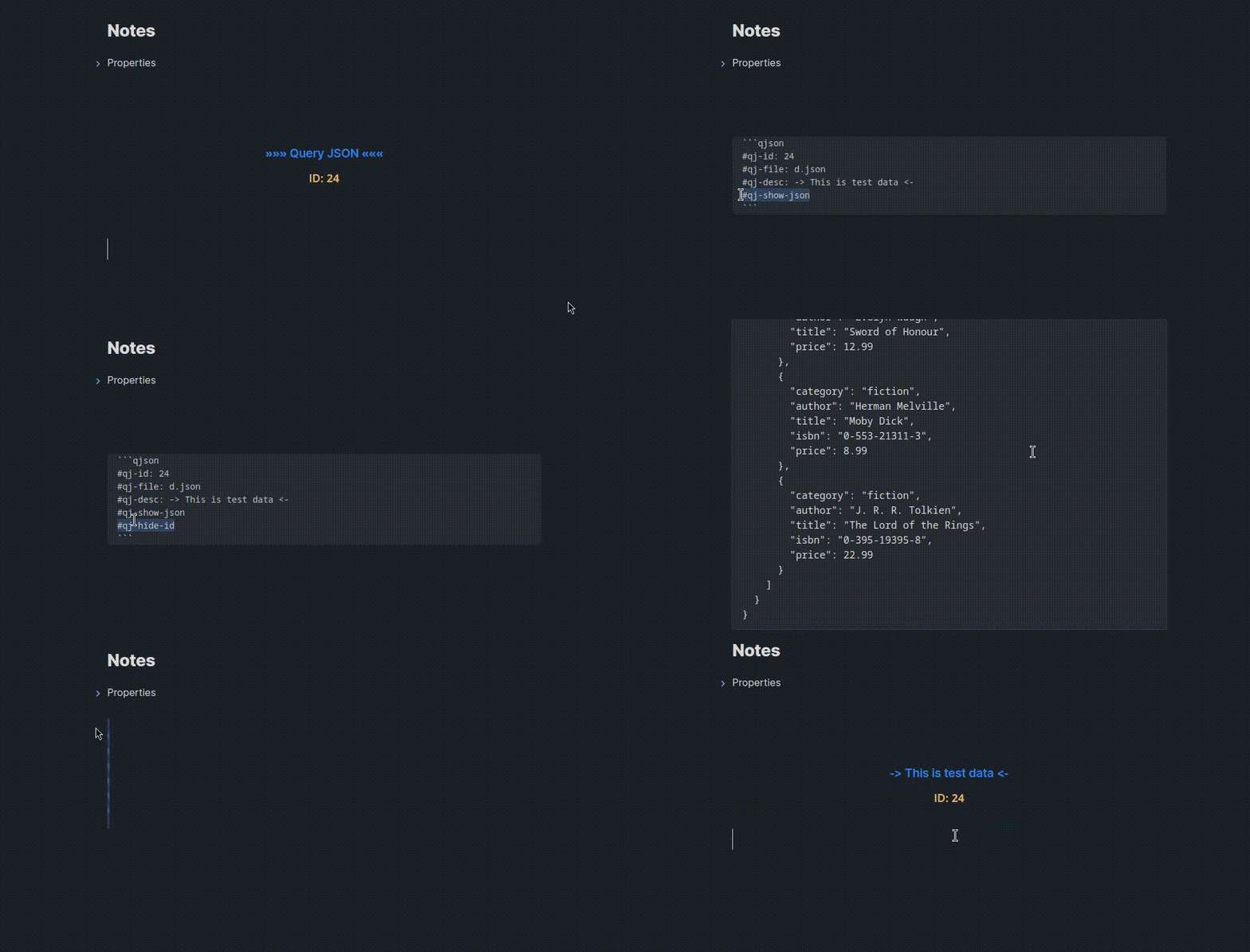
Query JSON (Q-JSON) is an Obsidian plugin that simplifies working with JSON data in your notes. Extract, query, and display JSON data with an intuitive syntax—whether the data is embedded in your notes or stored in external files.
Features
- 📝 Query JSON data inline or from external files
- 🔍 Advanced filtering with logical and comparison operators
- 📊 Multiple display formats (JSON, lists, tables, images)
- 🎨 Customizable table columns and formatting
- 🔗 Support for property substitution from frontmatter
- ⚡ Real-time query expansion as you type
Quick Start
Basic Setup
Create a code block with the qjson language identifier and define your JSON data:
```qjson
#qj-id: 23
#qj-file: data.json
#qj-hide-id
#qj-show-json
```
Inline Queries
Query your JSON data anywhere in your note using the @ syntax:
@23>store.books.0.author;
This will be replaced with the actual value when you type the semicolon.
Core Concepts
JSON Object Identifiers
Each JSON block needs a unique numeric ID specified with #qj-id. This ID allows you to reference the JSON data throughout your note:
```qjson
#qj-id: 42
{
  "name": "John Doe",
  "age": 30
}
```
Query it with: @42>name;
Path Notation
Navigate JSON structures using dot notation:
{
  "store": {
    "books": [
      {
        "author": "John Doe",
        "title": "The Book"
      }
    ]
  }
}
Access nested data:
@23>store;- Returns the entire store object@23>store.books;- Returns the books array@23>store.books.0.author;- Returns "John Doe"
Query Syntax
Direct File Queries
Query JSON files without creating a code block:
@data.json>store.books.0.author;
The plugin will look for data.json relative to your current note.
Array Wildcards
Get all elements from an array using the * wildcard:
```qjson
#qj-id: 24
#qj-file: heroes.json
#qj-query: characters[*]
```
Or query a specific property across all array elements:
@data.json>characters[*].name;
Array Index Selection
Select specific indices from an array:
@data.json>characters[0,3].name;
@data.json>characters.{0,3}.name;
Select a range using slice notation:
@data.json>characters[0:3].name;
Property Substitution
Use frontmatter properties in your queries with {this.PROPERTY}:
Note frontmatter:
---
hero_role: Mage
min_winrate: 55
---
Query:
```qjson
#qj-id: 25
#qj-file: heroes.json
#qj-query: characters[role == {this.hero_role} && win_rate >= {this.min_winrate}]
```
Filtering
Filter array elements using bracket notation with conditions:
```qjson
#qj-id: 26
#qj-file: heroes.json
#qj-query: characters[win_rate >= 55 && role == Mage]
```
Nested keys are supported in conditions, and a leading . is allowed when filtering a top-level array:
@data.json>[.show.ids.trakt == 1 || .show.ids.trakt == 9].show;
Supported operators:
Logical:
&&- AND||- OR
Comparison:
==- Equal to!=- Not equal to>- Greater than>=- Greater than or equal to<- Less than<=- Less than or equal to
Multiple Values
Extract multiple fields using curly braces:
```qjson
#qj-id: 27
#qj-file: heroes.json
#qj-query: characters[win_rate >= 55].{name, id, img}
```
Flags Reference
Required Flags
#qj-id: INT
Required. A unique numeric identifier for the JSON object.
#qj-id: 42
Optional Flags
#qj-file: PATH
Specifies an external JSON file to load. Path is relative to the current note's location.
#qj-file: data.json
#qj-file: ../shared/api-data.json
Note: If no file is specified, the plugin expects JSON data within the code block itself.
#qj-query: QUERY
Execute a query directly in the code block definition.
#qj-query: users[age >= 18].{name, email}
Important: When using
#qj-query, you must also include#qj-show-jsonto see results.
#qj-hide-id
Hides the ID header from the rendered output.
#qj-hide-id
#qj-desc: TEXT
Provides a custom description/title for the JSON block. Default: »»» QJSON «««
#qj-desc: User Database
#qj-show-json
Displays the JSON data in the rendered output (hidden by default).
#qj-show-json
#qj-format: FORMAT
Controls how the query results are displayed.
Available formats:
json(default) - Pretty-printed JSONlist- Unordered listtable- HTML tableimg- Display as images (for URL values)
Basic usage:
#qj-format: list
#qj-format: table
#qj-format: img
Advanced table formatting:
Customize table columns with detailed control:
#qj-format: table[FLAGS:FIELD:LINK_FIELD=CUSTOM_NAME,...]
Format syntax:
FLAGS- Formatting options (see below)FIELD- The JSON field name to displayLINK_FIELD- (Optional) Field containing URL for linksCUSTOM_NAME- (Optional) Custom column header
Flags:
h- Header column (only first entry, uses field value as row header)b- Bold textl- Create hyperlink (requiresLINK_FIELD)c- Comma-separate array valuesn- Newline-separate array values
Examples:
Simple table with custom names:
#qj-format: table[h:name=Hero,b:role=Class,:win_rate=Win Rate]
Table with links:
#qj-format: table[:title=Name,l:title:url,b:author=Author]
Template-based columns:
#qj-format: table[:"Level {level} {class}"=Character]
Array value formatting:
#qj-format: table[:name=Name,c:tags=Tags,n:achievements=Achievements]
Interactive Features
Live Query Expansion
As you type queries, Q-JSON provides helpful feedback:
Typing @42>store.books>:
- Shows available keys in a notice
Typing @42>store.books.:
- Shows "Total Keys: X" with key names
Typing @42>store.books.0.author;:
- Expands to the actual value
Status Bar Counter
The plugin displays a counter in the status bar showing how many Q-JSON blocks are active in the current note:
3 qjson
Complete Examples
Example 1: Simple Embedded JSON
```qjson
#qj-id: 1
#qj-desc: Contact Information
#qj-show-json
{
  "name": "Alice Smith",
  "email": "[email protected]",
  "phone": "+1-555-0123"
}
```

Email: @1>email;
Example 2: External File with Filtering
```qjson
#qj-id: 2
#qj-file: products.json
#qj-query: items[price < 50 && in_stock == true]
#qj-format: table[h:name=Product,b:price=Price,:category=Category]
#qj-show-json
#qj-hide-id
```
Example 3: Property-Based Query
Frontmatter:
---
min_score: 80
subject: Mathematics
---
Query:
```qjson
#qj-id: 3
#qj-file: students.json
#qj-query: students[score >= {this.min_score} && subject == {this.subject}].{name, score}
#qj-format: list
#qj-show-json
```
Example 4: Image Gallery
```qjson
#qj-id: 4
#qj-file: gallery.json
#qj-query: images[featured == true].url
#qj-format: img
#qj-hide-id
```
Performance Considerations
Caution: Large JSON files may slow down rendering. For files with thousands of entries, prefer querying files directly rather than embedding them:
Better:
@large-dataset.json>users.0.name;
Avoid:
```qjson
#qj-id: 100
#qj-file: large-dataset.json
#qj-show-json
```
Troubleshooting
Common Issues
"No ID found"
- Ensure you've included
#qj-id: NUMBERin your code block
"ID must be a number"
- The ID must be numeric only (e.g.,
42, notuser42)
"No file given"
- Check the file path is correct and relative to your note
- Ensure the file has a
.jsonextension
"Field format 'header' is not in first position"
- The
hflag can only be used on the first column in table formatting
Empty results
- Verify your query syntax
- Check that the JSON structure matches your path
- Ensure filter conditions are correct
Debug Tips
- Use
#qj-show-jsonto verify the JSON is loading correctly - Test queries incrementally (e.g.,
@id>, then@id>field>, etc.) - Check the console (Ctrl+Shift+I) for error messages
Contributing
Contributions are welcome! If you encounter bugs or have feature suggestions:
- Check existing issues
- Open a new issue with detailed information
- Submit pull requests for improvements