
- Overview
- Scorecard
- Updates2
A Goodnotes-inspired handwriting experience for Obsidian.
Independently implemented from scratch. Not affiliated with or endorsed by Goodnotes.
Penbook is a local handwriting notebook plugin for Obsidian desktop and Android tablets. It supports pressure input from the S Pen through Pointer Events and does not rely on online services at runtime. Each notebook is a self-contained .penbook JSON file that stores strokes, pages, images, and the original PDF.
The interface follows Obsidian theme variables and adapts to light and dark themes. Icons use the regular Phosphor Icons style; rounded-rectangle and laser-pointer symbols are drawn separately. No remote icon fonts are used.
The toolbar has two rows: primary tools above and a rounded settings bar for the current tool below. Both rows support touch swipes, horizontal trackpad scrolling, and the mouse wheel. The toolbar includes pen styles, three preset widths, custom width, current and recent colors, page navigation, search, selection, drawing, PDF annotation, export, and page options.
Screenshots
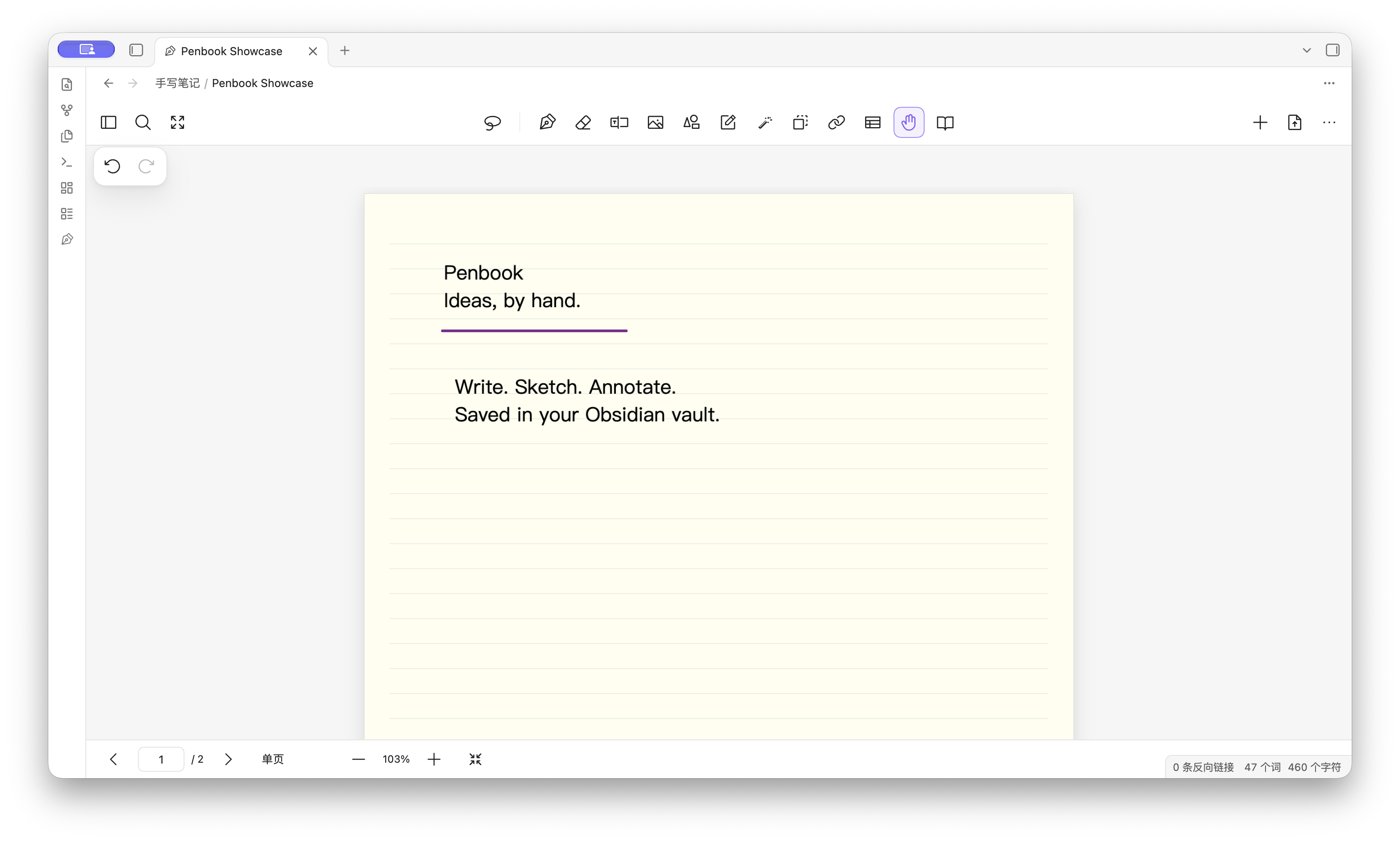
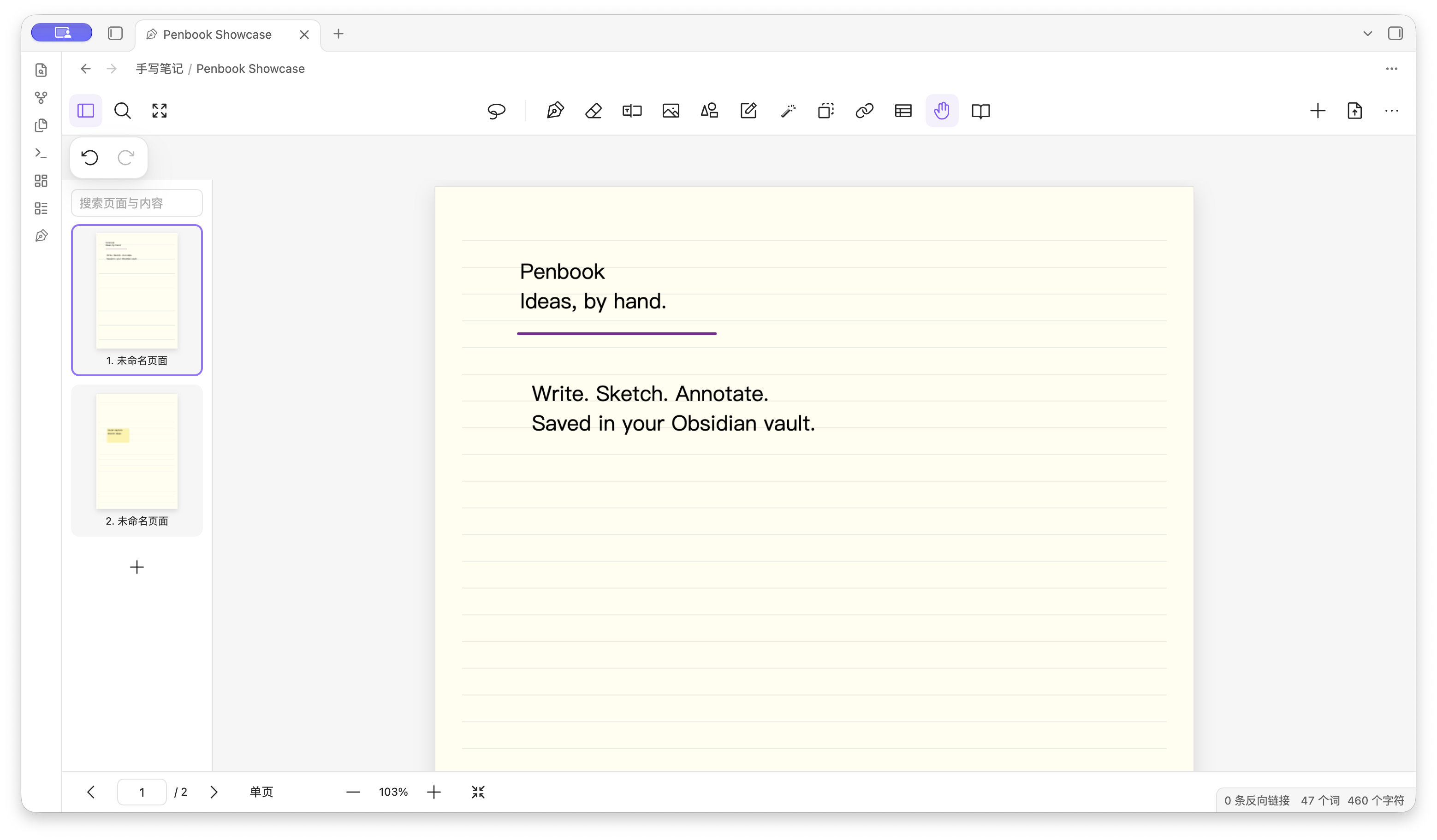
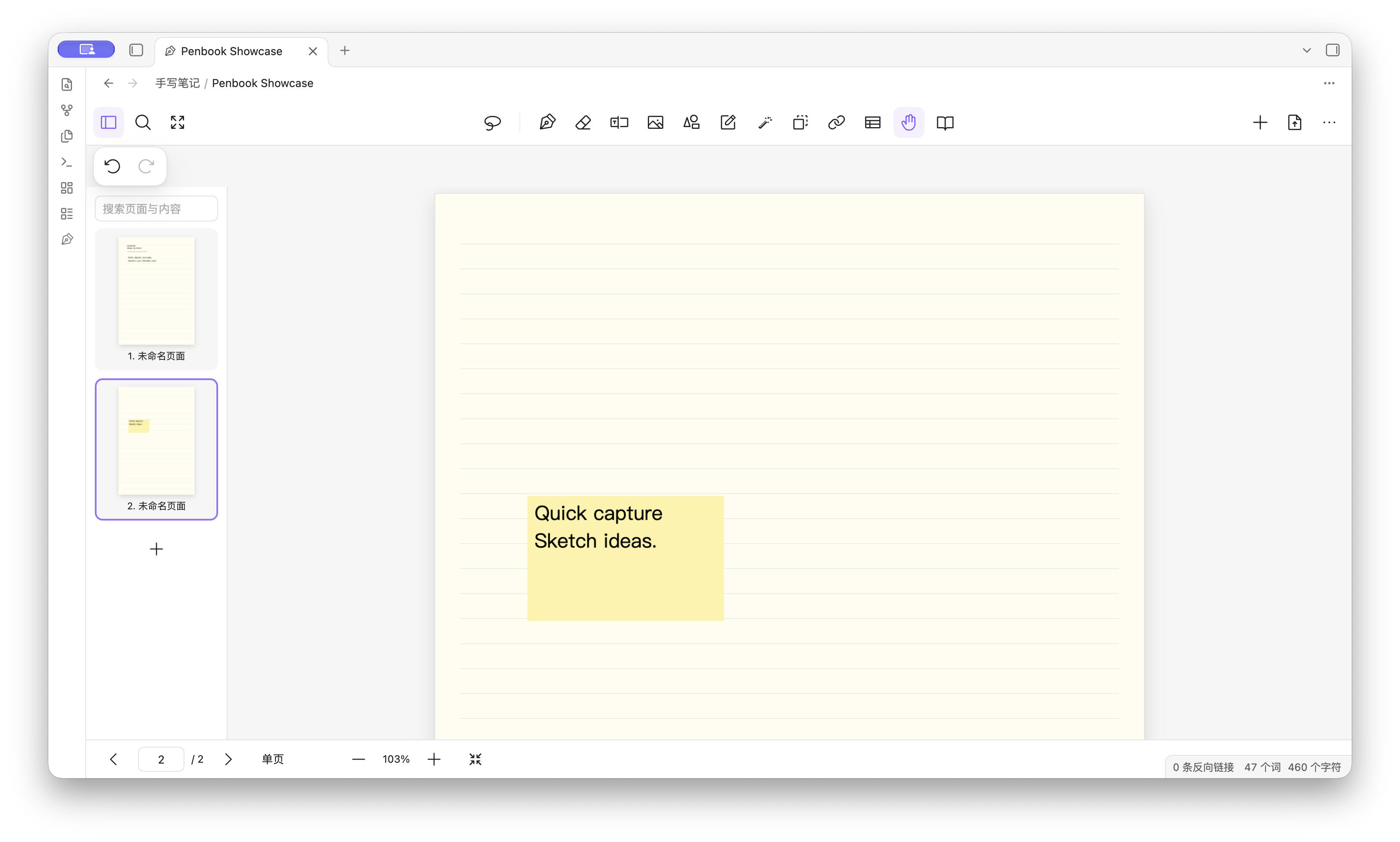
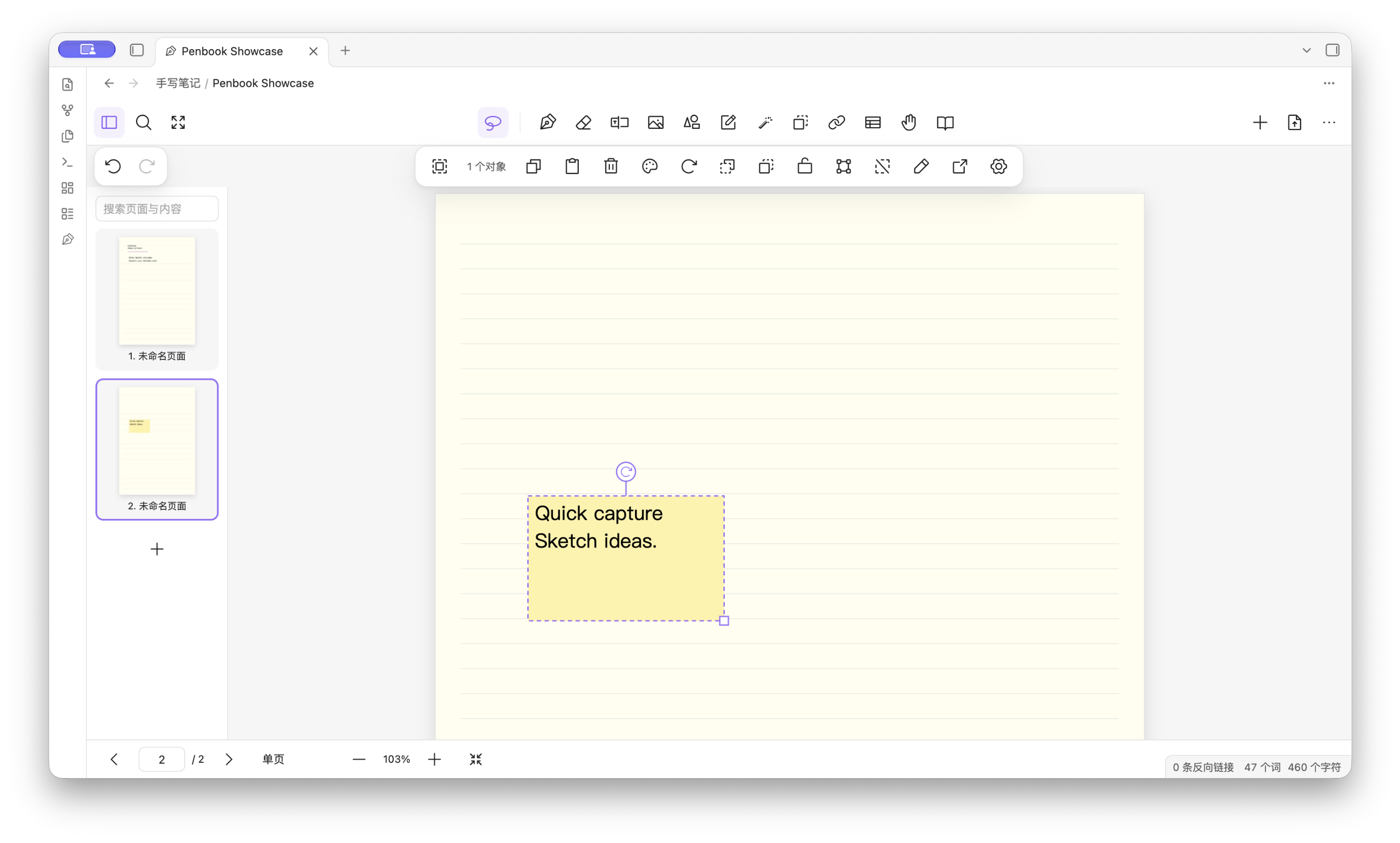
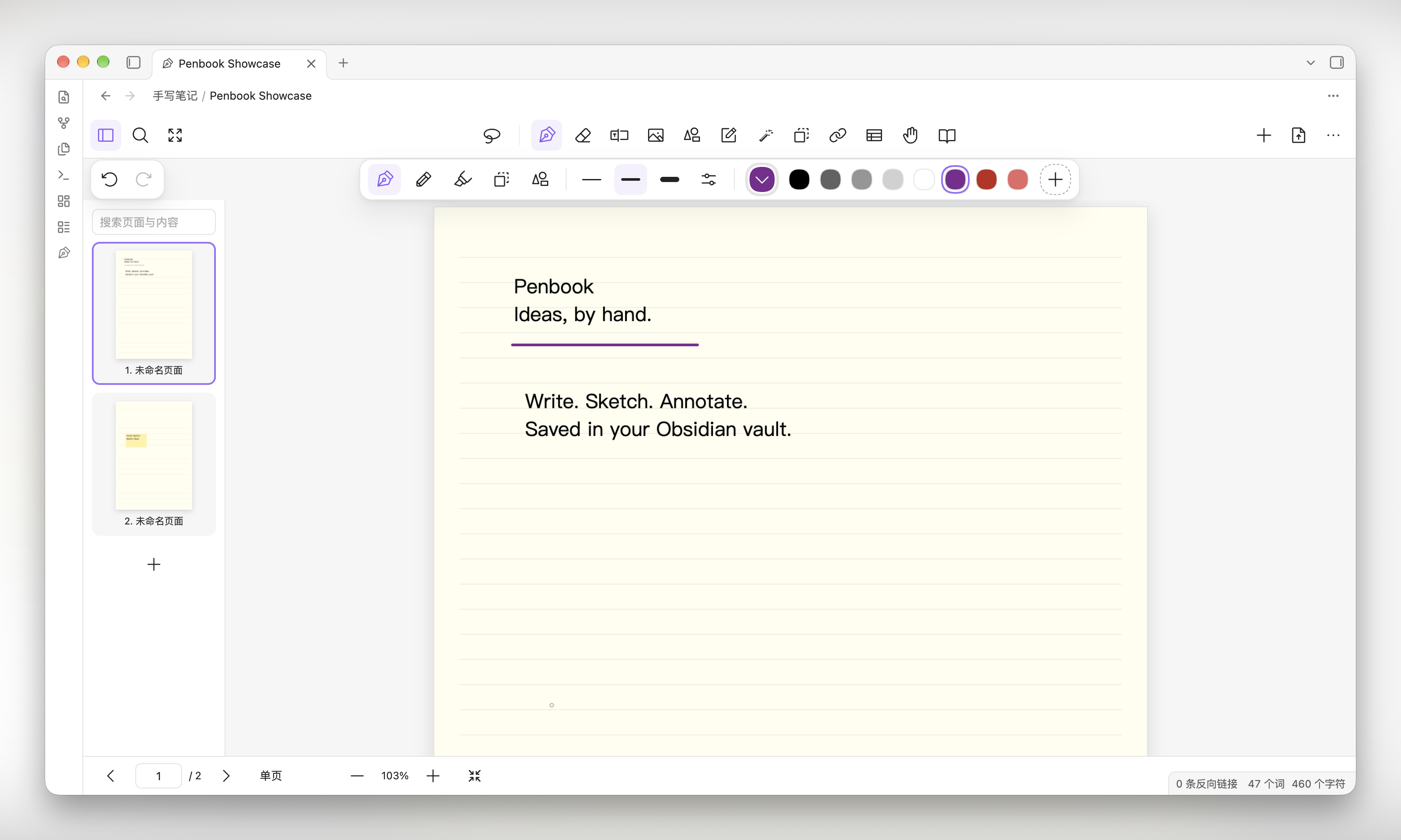
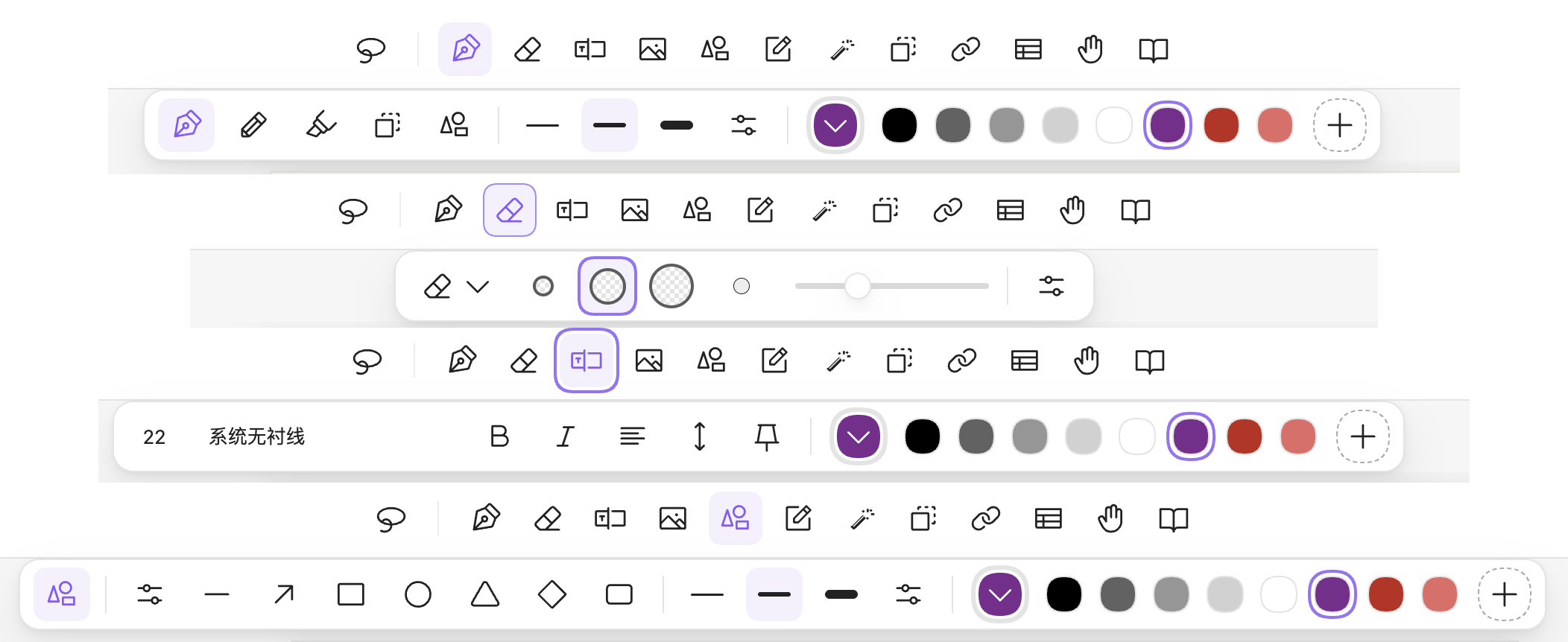
Getting started
- Download the complete penbook.zip package from GitHub Releases, extract it, and copy the
penbookfolder into your vault's.obsidian/plugins/directory. Keep the included PDF resource folders. - Enable Penbook under Obsidian Settings → Community plugins.
- Click the pen icon in the left ribbon or run the Penbook command to create a notebook.
- The default notebook folder is
手写笔记/; you can change it in plugin settings. - Write with an S Pen or mouse. Touch pans by default, and two-finger gestures zoom. Finger writing can be enabled in the toolbar menu.
- If the operating system reports the pen side button or eraser end through Pointer Events, Penbook temporarily switches to the eraser.
- Use the lasso to select objects. Drag the selection to move it or its lower-right handle to resize it. The selection toolbar includes rotation, opacity, grouping, locking, layer order, and moving objects between pages.
- Double-click text, sticky notes, links, or tables to edit them. The table editor supports cell contents and row/column counts. In reading or hand mode, click a native PDF link to follow it.
- Choose a PDF from the vault, import one from the device, or drop it onto the canvas. Penbook creates a background for each page and stores the original PDF in the notebook.
- Reorder pages by dragging them in the page list. Open page options with the context menu or, on touch devices, the menu in the upper-right corner.
- Exports are saved in
手写笔记/导出/; a Markdown index is saved beside the notebook. - Use Copy page link to link to a page from Markdown. You can also embed a page with a
penbookcode block containing手写笔记/Notebook.penbook#PAGE_UUID. Export a preview first to display images.
Default shortcuts include P for pen, E for eraser, L for lasso, H for hand, Ctrl/Cmd+Z to undo, Ctrl/Cmd+Shift+Z to redo, Ctrl/Cmd+C/V for the internal selection clipboard, Delete to remove a selection, PageUp/PageDown to navigate pages, Ctrl/Cmd+S to save, and Escape to cancel the current stroke or selection.
Features
- Fountain, ballpoint, brush, pencil, and highlighter pens with pressure curves, color, width, and local saving.
- Round stroke caps, flatness, pressure sensitivity, stabilization, solid/dashed/dotted lines, and straight-line assistance. Use preset, custom, or recent colors, HEX input, or sample a color from the page.
- Fine, standard, and whole-stroke erasers. Fine mode removes the exact touched area within the cursor radius; standard mode cuts in short segments of about 3 px. Erased strokes split into separate objects where needed. The eraser includes a size preview, highlighter-only and tape-only modes, and an option to return to the previous tool after erasing.
- Notebook covers and paper gallery, spine colors, standard and custom page sizes, orientation, and built-in planner templates.
- Tape that hides and reveals strokes; laser-pointer dots and lines that fade one second after release; sticky-note colors and resolved state.
- In-place text and sticky-note editing. Configure font size, font, bold, italic, alignment, line spacing, and fixed text mode. Desktop font menus read installed fonts locally; Android uses available font families.
- Whole-stroke and partial erasing; lasso selection; move, resize, rotate, opacity, grouping, locking, and layer ordering.
- Lines, arrows, rectangles, ellipses, and triangles, plus text, sticky notes, images, links, and editable tables. Copy or cut selections and paste them into another open notebook.
- Multi-page management, bookmarks, titles, tags, search across text objects and extracted PDF text, a table of contents, and copying or moving pages between notebooks.
- Blank, ruled, grid, dot, Cornell, music, planner, and task-list paper, plus image backgrounds and custom templates.
- Single-page, continuous-scroll, and two-page layouts; reading and immersive modes; left- or right-handed layouts and a bottom toolbar.
- PDF page annotation, merging, reordering, and cropping. Imported bookmarks appear in the table of contents; native internal links follow the corresponding pages. Reading mode supports text selection. Common standard PDF annotations become editable Penbook objects; PDF export writes standard annotation objects and preserves original searchable page text. An embedded annotation archive retains Penbook-specific object details for reimport.
- Native annotations retain their standard subtype, appearance streams, embedded files, comments, and popup/reply relationships. Select, move, resize, rotate, copy, delete, or edit their comments. FreeText text/style edits regenerate the visible appearance. Complex media, 3D, redaction, and form annotations retain their original data and preview; this feature handles interchange rather than adding playback, 3D interaction, form filling, signing, or applying redactions.
- PDF export range and annotation/background options, PNG, SVG with vector strokes, shapes, text, tables, and tape, original-file copies, and Markdown indexes. Images and page backgrounds retain their image representation in SVG.
- No external APIs, CDNs, or online recognition services. The PDF parser, character maps, standard fonts, and WASM resources ship with the plugin.
Build and install
npm install
npm run build
npm run package
The built plugin is written to release/penbook/. Copy the entire folder into your vault at .obsidian/plugins/penbook/, including the cmaps/, standard_fonts/, and wasm/ subdirectories, then enable Penbook in Obsidian. You can also copy the plugin and notebooks to an Android vault.
File format and recovery
format: "penbook" and version: 1 identify the notebook format. Each page stores its paper, background reference, objects, and text index. The resources object stores complete images and PDFs as base64 data, including large PDFs; reopening and exporting a notebook do not require the original source file. There is no fixed 150 MB import cutoff. PDF encoding uses chunks, document and render caches have budgets, and export shares source resources across pages. If parsing fails or the file uses an unknown version, Penbook reports an error and preserves the original instead of replacing it with an empty notebook. Undo history is kept in memory for the current session; paper-template changes and page deletion can be undone before closing.
Notebook changes are written after a short delay, and closing the view saves pending edits. Exports use separate filenames to avoid overwriting existing files. Notebook files are not encrypted; avoid editing the same file on multiple devices before sync has finished.
License
Penbook is licensed under the MIT License. Third-party components retain their own licenses; see THIRD_PARTY_NOTICES.md.
Thanks to the Linux.do community for its support.