Paste Mode
 jglev12k downloads
Paste content and mark block quotes at any level of indentation.
- Overview
- Scorecard
- Updates39
An Obsidian plugin to paste and manage text, including block quotes, at any level of indentation.
Paste modes
Paste Mode takes over paste functionality within Obsidian. It has seven paste modes, which determine what happens when pasting text within a file. All modes honor the cursor's current indentation when pasting, except "Passthrough" mode, which uses Obsidian's default paste behavior.
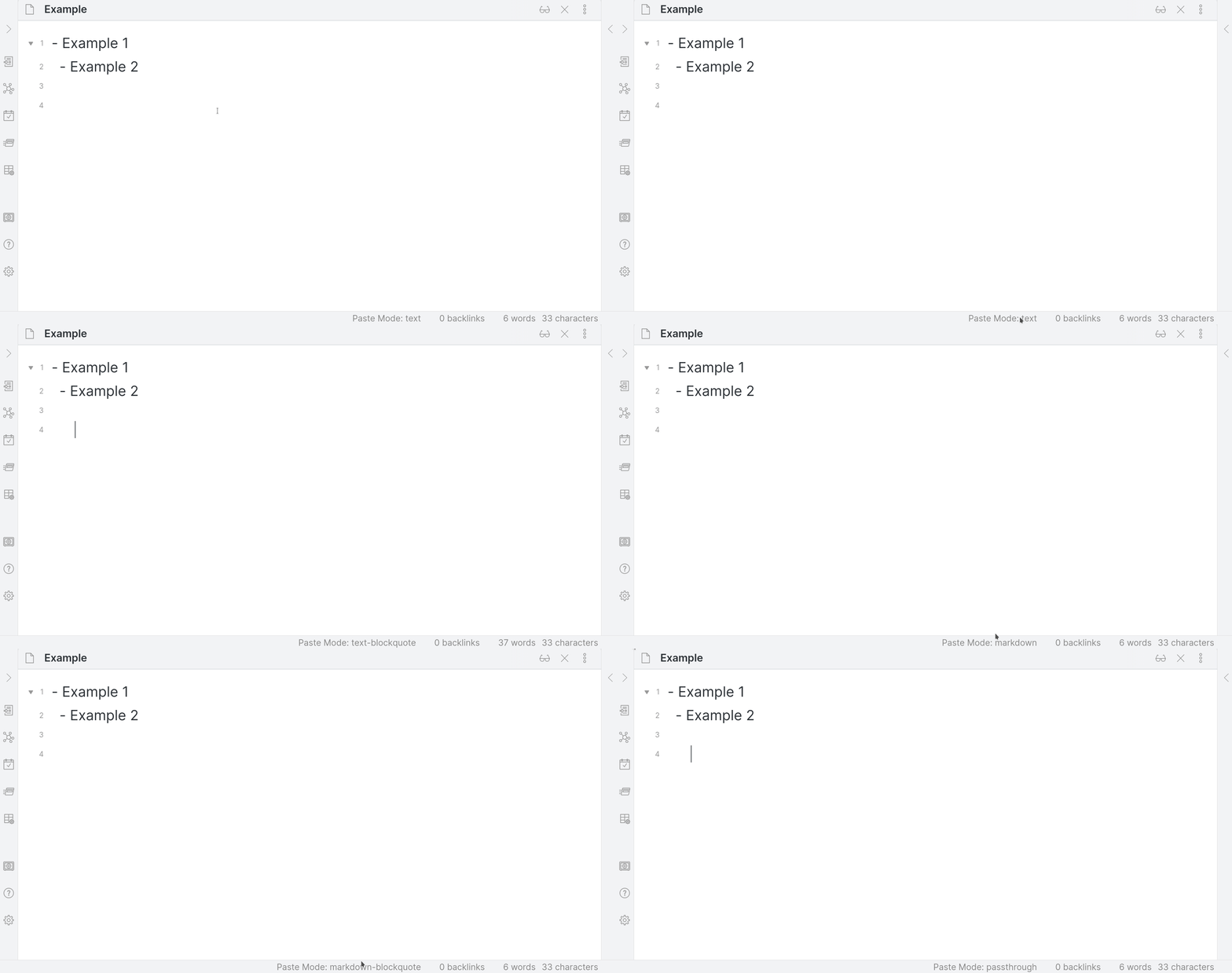
- Text — Paste clipboard text as-is.
- Text (Blockquote) — Paste with blockquote prefix (default
>, configurable). - Markdown — Convert HTML to Markdown before pasting.
- Markdown (Blockquote) — Convert HTML to Markdown, then wrap in blockquote.
- Code Block — Paste within
```code fences. - Code Block (Blockquote) — Paste within code fences, then wrap in blockquote.
- Passthrough — Use Obsidian's default paste behavior.

Switching modes
- Click the status bar indicator to open a searchable mode picker.
Paste Mode: Cycle Paste Modein the Command Palette cycles through all modes.Paste Mode: Set Paste Mode to <mode>commands for direct switching (bindable via, e.g., Quick Add).- Plugin settings tab.
Limitations
- In Obsidian Mobile, "Markdown" and "Markdown (Blockquote)" one-time paste commands are disabled due to clipboard API restrictions.
- Similarly, images/screenshots cannot be pasted from the clipboard on mobile.
Additional commands
Paste Mode: Toggle blockquote at current indentation— toggles blockquote markers on the selected text.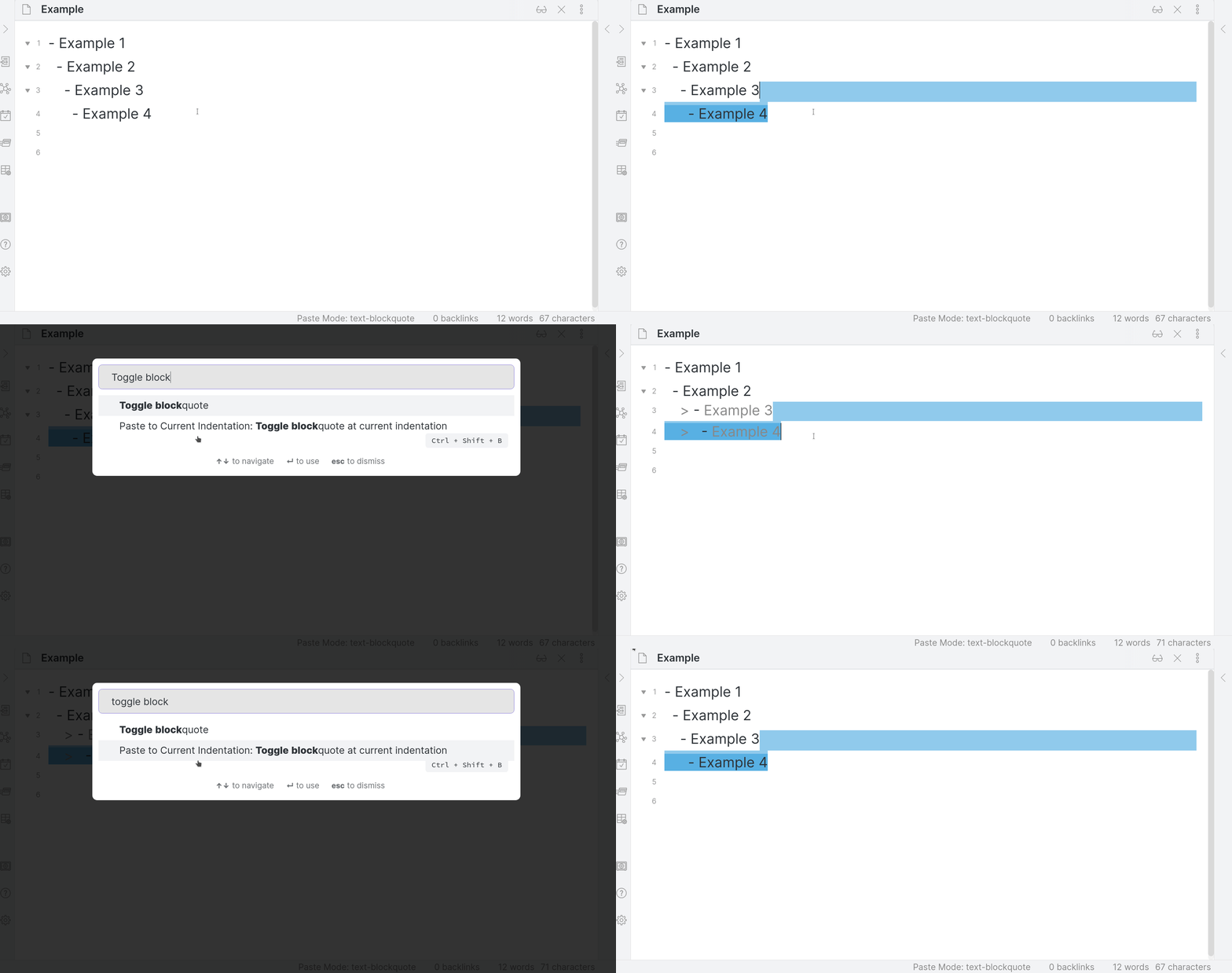
Additional features
- Continue list items — when enabled, if you paste multiple lines into a list item where all lines are at the same indentation level, list markers will be added to each pasted line to continue the list. For bullet lists, the same marker is used. For numbered lists, the numbers are automatically incremented. This setting is enabled by default.
- Download linked files — when pasting Markdown, files referenced via
http://orfile://URLs can be downloaded locally. - Automatic character escaping — escape Markdown-sensitive characters (
==,<, etc.) in blockquotes.
Developing
npm install
npm run dev    # watch mode
npm run build  # production build
Releasing
- Update
manifest.jsonandversions.jsonwith the new version. - Create a GitHub release tagged with the version number (no
vprefix). - Upload
main.js,manifest.json,styles.cssas binary attachments.
Additional contributor acknowledgements
This plugin is substantially better for the contributions of Jason Shelter, who authored a substantial update in 2026.
HealthExcellent
ReviewSatisfactory
About
Control paste behavior with eight modes that honor cursor indentation: plain text, blockquote, Markdown-converted text, fenced code block, and passthrough. Show the active mode in the status bar and switch modes from the status-bar menu or Command Palette.Details
Current version
6.1.2
Last updated
6 days ago
Created
5 years ago
Updates
39 releases
Downloads
12k
Compatible with
Obsidian 1.13.7+
Platforms
Desktop, Mobile
License
BSD-3-Clause