Multi Backup
 xiaofeng hong58 downloads
Back up your vault to local folders, Git hosts, WebDAV, S3 and cloud drives, with optional two-way sync through one primary destination.
- Overview
- Scorecard
- Updates3
Multi Backup
English | 简体中文
Back up your vault to several places at once: local folders, Git hosts, WebDAV, S3-compatible storage and cloud drives. Pick one of them as the primary to keep your devices in sync both ways; the others stay one-way backups you can restore from at any time.
Works on desktop and mobile. Local-folder destinations are desktop only.
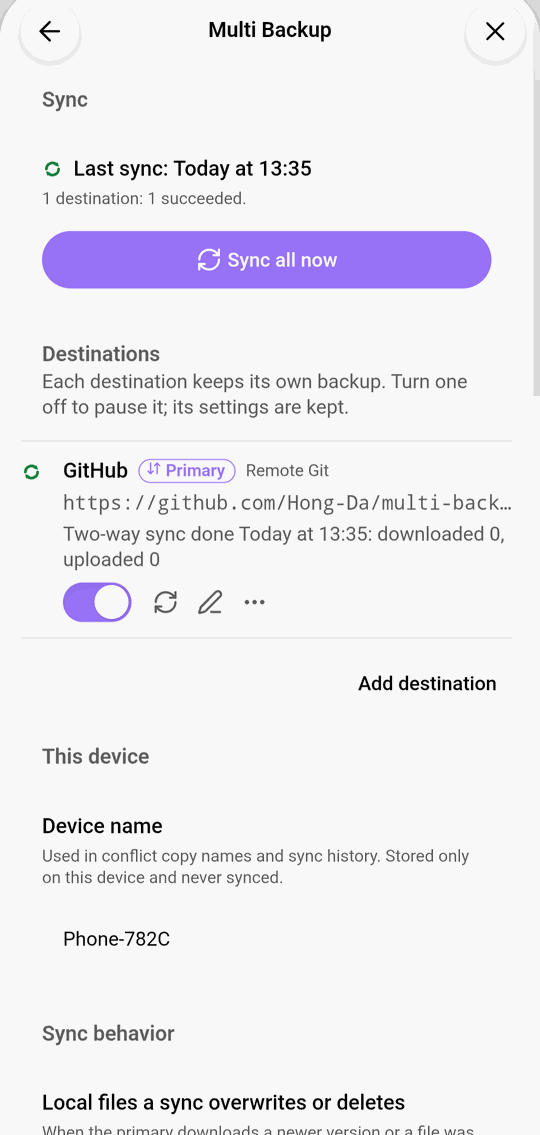
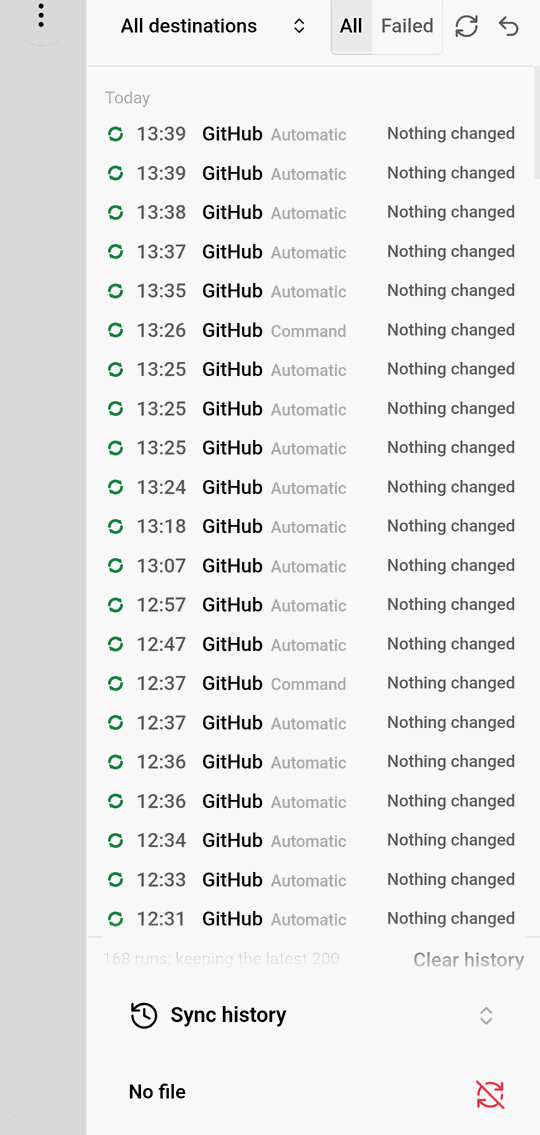
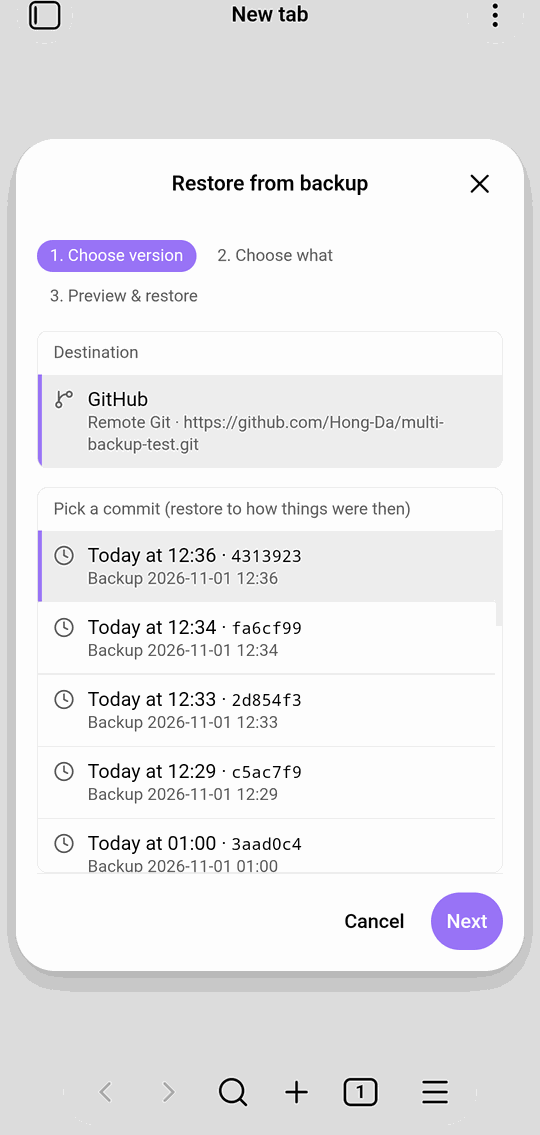
Full walkthrough with screenshots: User guide.
Features
- Many destinations at once
- Local folder mirror, zip snapshots, local Git repository (desktop)
- GitHub, Gitee or any Git host over HTTPS
- WebDAV: Nextcloud, Jianguoyun, and other drives through Alist
- S3-compatible storage: AWS S3, Cloudflare R2, MinIO, Backblaze B2 and others
- Dropbox (OneDrive and Google Drive are not available yet)
- Two-way sync through one primary. Changes, deletions and renames sync between devices. When a file changed on both sides, both versions are kept and listed for you to choose.
- Automatic sync. On a timer, after you stop editing, when Obsidian starts, or daily at a set time. Each destination has its own schedule.
- Restore. Restore the whole vault, a folder or one file from any destination, and see a file's version history. A restore can be undone.
- Safe by design. A failed sync never changes your local files. Before a sync overwrites or deletes a local file, the old version is moved to
.trash/multi-backup/. - Portable settings. The plugin's settings can be uploaded with the backup, exported and imported on a new device. Passwords and tokens are never included.
Install
From Community plugins (after it is accepted): Settings → Community plugins → Browse, search for “Multi Backup”, install and enable.
Manually: download main.js, manifest.json and styles.css from the latest release into <vault>/.obsidian/plugins/multi-backup/, then enable the plugin in Settings → Community plugins.
Requires Obsidian 1.11.4 or later.
Getting started
- Open Settings → Multi Backup and click Add destination.
- Choose a type and fill in the address and account. Click Test connection to check it.
- Run Multi Backup: Sync all now from the command palette, or use the menu on the Multi Backup status bar item (desktop).
- To sync between devices, open the destination's menu and choose Make primary…. The plugin compares both sides first and shows what the first sync will do; nothing is deleted in the first sync. Do the same on each device.
The ribbon icon opens the sync history. The conflict list, restore and a file's version history are in the command palette. See the user guide for every screen.
Privacy, network use and accounts
- Network. The plugin only connects to the destinations you add, to back up and sync your files. For cloud drives it also connects to the provider's sign-in service. It sends no telemetry and contains no ads.
- Accounts. Remote destinations need an account with that service (for example GitHub, an S3 provider or Dropbox). The plugin itself needs no account and is free.
- Credentials. Passwords, tokens and sign-ins are stored only in Obsidian's secret storage on each device. They are never written to the plugin's settings file, logs or backups. Logs mask them.
- Files outside the vault. Local-folder destinations (desktop only) write to the folder you choose, which is outside your vault. Nothing else is read or written outside the vault.
- What is uploaded. Your vault's files, minus the exclusions you set. The
.obsidianconfig folder is included only if you turn it on.
Development
Development notes are in Chinese: see README.zh-CN.md.