Search...Search plugins and themes...
⌘K
Sign in
  • Get started
  • Download
  • Pricing
  • Enterprise
  • Account
  • Obsidian
  • Overview
  • Sync
  • Publish
  • Canvas
  • Mobile
  • Web Clipper
  • CLI
  • Learn
  • Help
  • Developers
  • Changelog
  • About
  • Roadmap
  • Blog
  • Resources
  • System status
  • License overview
  • Terms of service
  • Privacy policy
  • Security
  • Community
  • Plugins
  • Themes
  • Discord
  • Forum / 中文论坛
  • Merch store
  • Brand guidelines
Follow us
DiscordTwitterBlueskyThreadsMastodonYouTubeGitHub
© 2026 Obsidian

Diagram Popup

gitcpygitcpy15k downloads

Show diagrams, from Mermaid, PlantUML, Graphviz and so on, in a draggable and zoomable popup

Add to Obsidian
  • Overview
  • Scorecard
  • Updates31

A plugin for obsidian. Show diagrams, from mermaid, plantuml, graphviz and so on, in a draggable and zoomable popup.

  • Demo

Demo :

View demo

  • Install

You could get it from the BRAT plugin which you could download from the comunity plugins in obsidian.

Other ways to be added...

After installed the BRAT plugin, go to the settings, and click "Commuity Plugins", then go the "Installed Plugins" list.

Click the "Options" button of BRAT plugin, and then click "Add Beta plugin",

just fill in the textbox with the url "https://github.com/gitcpy/obsidian-diagram-popup",

Click "Add Plugin", A fews seconds later, the installing will be completed.

  • Usage

    • Open the popup

      If there is diagram in the markdown file, open the popup up with ctrl+left click, or click the open buttn on top.

    • Popup operation

      It is easy to operate the popup.

      • Use mouse on PC

        Zoom out or zoom in by wheel

        Drag by holding left click

      • Use touching on mobile

        Zoom out or zoom in by touching with two fingers

        Drag by touching and moving with one finger

      • Use UI buttons

        No matter on PC or mobile, You can do it by 7 UI keys in the popup as follows:

        + : zoom in

        - : zoom out

        ← : move left

        → : move ight

        ↑ : move up

        ↓ : move down

        x : close

  • Settings

    These settings are for the users to custom the plugin.

  • Example

    • Add Image

      1. Press shift + ctrl + i to find target class Name and add it to settings.

      2. This example is for image. Because the target, the image element, is not a container, and its container is at the upper level, please check the container checkobx. But don't if the target is a container keep the core element.

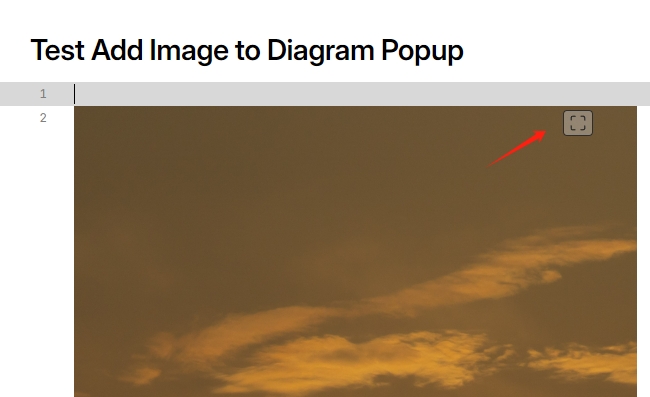
      3. We could see the open popup button after the md file reopen.

        Here is the image in the popup.

      4. Set image max height in md tab win.

        After setting.
        
      5. Set the open button position.

        Settinggs
        
        After setting
        
73%
HealthGood
ReviewCaution
About
Show diagrams from Mermaid, PlantUML, Graphviz and other formats in a draggable, zoomable popup. Open popups via Ctrl+click or the toolbar button and pan/zoom with mouse, touch gestures, or on-screen navigation controls.
VisualizationImages
Details
Current version
0.2.69
Last updated
11 months ago
Created
2 years ago
Updates
31 releases
Downloads
15k
Compatible with
Obsidian 0.12.0+
Platforms
Desktop, Mobile
License
MIT
Report bugRequest featureReport plugin
Author
gitcpygitcpy
GitHubgitcpy
  1. Community
  2. Plugins
  3. Visualization
  4. Diagram Popup

Related plugins

Leaflet

Interactive maps inside your notes.

Note Gallery

A masonry gallery that will visualize your notes, similar to Craft note view.

Advanced Canvas

Supercharge your canvas experience. Create presentations, flowcharts and more.

Excalidraw

Visual PKM powerhouse. Create and edit Excalidraw drawings.

Mermaid Tools

Improved Mermaid.js experience: visual toolbar with common elements and more.

Maps

Adds a map layout to bases so you can display notes as an interactive map view.

Image Converter

Convert, compress, resize, annotate, markup, draw, crop, rotate, flip, align, drag-resize, rename with variables, and batch process images: WEBP, JPG, PNG, HEIC, TIF

Image Context Menus

Image context menus (mostly on right click): Copy to clipboard, Open in default app, Show in system explorer, Reveal file in navigation, Open in new tab.

Life Tracker

Capture and visualize the data that matters in your life.

PlantUML

Generate PlantUML diagrams.