Mermaid Block to Image
 jcmexdev597 downloads
Convert Mermaid code blocks to static image URLs (SVG, PNG, or WebP)
- Overview
- Scorecard
- Updates7

Convert Mermaid code blocks to static image URLs (SVG, PNG, or WebP) using the free Kroki or Mermaid.ink APIs, and restore them back to editable code blocks instantly. This speeds up note loading, keeps your vault clutter-free, and ensures consistent rendering across devices.

Key Features
- ⚡ URL Conversion: Convert any Mermaid block to a hosted image URL (Kroki or Mermaid.ink) in one click.
- 🔁 Instant Restore: The diagram code is embedded in the URL — restore it back to a code block anytime, no extra comments needed.
- 💾 Direct Downloads: Export diagrams as SVG, PNG, or WebP straight to your computer.
- 🎨 Theme-Aware Rendering: Automatically applies your Obsidian light or dark theme when rendering or downloading.
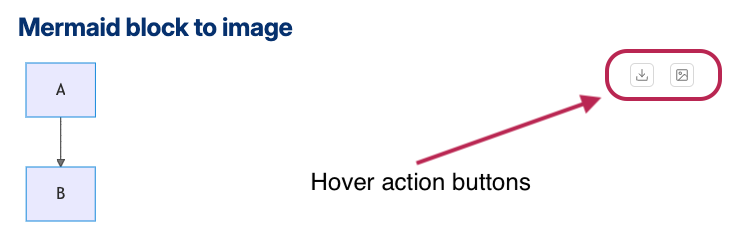
- 🖱️ Hover Action Buttons: Convert, download, or restore diagrams using buttons that appear on hover — no commands needed.
- 📏 Drag-to-Resize: Drag the edge of any converted image to resize it. Width is saved directly in the Markdown link (
).
How It Works
1. Active Diagram
You start with a standard Mermaid code block:
```mermaid
graph TD
    A --> B
```
2. Convert to URL
Click the Convert to URL hover button or right-click and select Convert to URL. The block is replaced by a clean markdown image link containing the compressed diagram code:

3. Restore to Code Block
When you want to edit the diagram, click the Restore URL to Mermaid button (indicated by the history icon ↩️) or right-click the image and select Restore URL to Mermaid. The diagram code is decoded directly from the URL and restored back to a clean code block!
[!TIP] Use diagram metadata to control naming, sizing, and alt text Add a title and/or width to your diagrams to control how they are converted and displayed. See the Diagram Metadata section below for the full syntax reference.
Usage
In Live Preview & Reading Mode (Hover Buttons)
- Active Blocks: Hover over any Mermaid block to see two buttons:
- Convert to URL (image icon): Replaces the block with a remote image URL.
- Download image (download icon): Downloads the diagram to your computer.
- Converted Images: Hover over any converted diagram image to see:
- Restore URL to Mermaid (history/revert icon): Restores the image link back to a Mermaid code block.
- Download image (download icon): Downloads the diagram to your computer.
- Resize Handle: Click and drag the border handle at the right/bottom-right edge of the image to adjust its width, showing a real-time pixel tooltip. Persists the size in standard markdown layout syntax (e.g.
).
In Source Mode & Context Menu
- Right-click an active Mermaid code block to select:
- Download image
- Convert to URL
- Right-click a converted image link (
) to select:- Restore URL to Mermaid

Command Palette
Open the Command Palette (Ctrl/Cmd + P) and run:
Mermaid Block to Image: Download imageMermaid Block to Image: Convert to URLMermaid Block to Image: Restore URL to Mermaid
Diagram Metadata
You can embed metadata directly inside your Mermaid code block to control the title, file name, and initial display width of any converted diagram. The plugin reads this before conversion and applies it automatically.
Title
The title is used as the alt text of the generated image link and as the file name when downloading. Without a title, the plugin falls back to Mermaid Diagram and a generic hash for file names.
[!IMPORTANT] Always use YAML frontmatter to set the title. It is the most reliable syntax and works consistently across all diagram types and Mermaid versions.
Recommended — YAML frontmatter:
```mermaid
---
title: "My Network Architecture"
---
flowchart TD
    A --> B
```
Result: 
Download: my-network-architecture.png
Initial Width
Set a default display width for the image at conversion time. The plugin embeds it in the alt text as , which Obsidian uses to size the image. You can always adjust it later with the drag-to-resize handle.
YAML frontmatter:
```mermaid
---
title: "CI/CD Pipeline"
width: 800
---
flowchart TD
    A --> B
```
[!NOTE] Width values are in pixels. If omitted, the default is
500px. Percentage values (e.g.width: 100%) are also accepted and will use a fixed1200pxAPI width for rendering.
Settings & Configuration
To customize the plugin, go to Settings ➔ Mermaid Block to Image:
- Download image format: Choose between SVG, PNG, or WebP for direct downloads.
- Mermaid theme: Choose which theme to apply to rendered diagrams (Default, Dark, Forest, Neutral, Base, or Match Obsidian Theme).
- URL service provider: Select whether to use the official Mermaid.ink service or the Kroki.io service.
- URL image format: Choose the image type used for generated links (PNG or WebP).
- Custom server URL: Configure a custom self-hosted instance of Kroki or Mermaid.ink for complete privacy and offline setups.
Installation
- Open Obsidian and go to Settings ➔ Community plugins.
- Click Browse and search for Mermaid Block to Image.
- Click Install, then click Enable.
Support
If you encounter any issues or have feature requests, please open an issue on GitHub.