Logically AI Research Assistant
 afforai3k downloads
Use Logically's AI Research Assistant to conduct citation-backed research on the files in your vault.
- Overview
- Scorecard
- Updates8
We're in beta! Thank you for trying out the Logically AI Research Assistant in Obsidian. We'd love your feedback on features, bugs, and ideas for improvement. Please reach out to us at [email protected] to share your thoughts, or visit logically.app see how you can use Logically to help you research, cite, and write with AI.
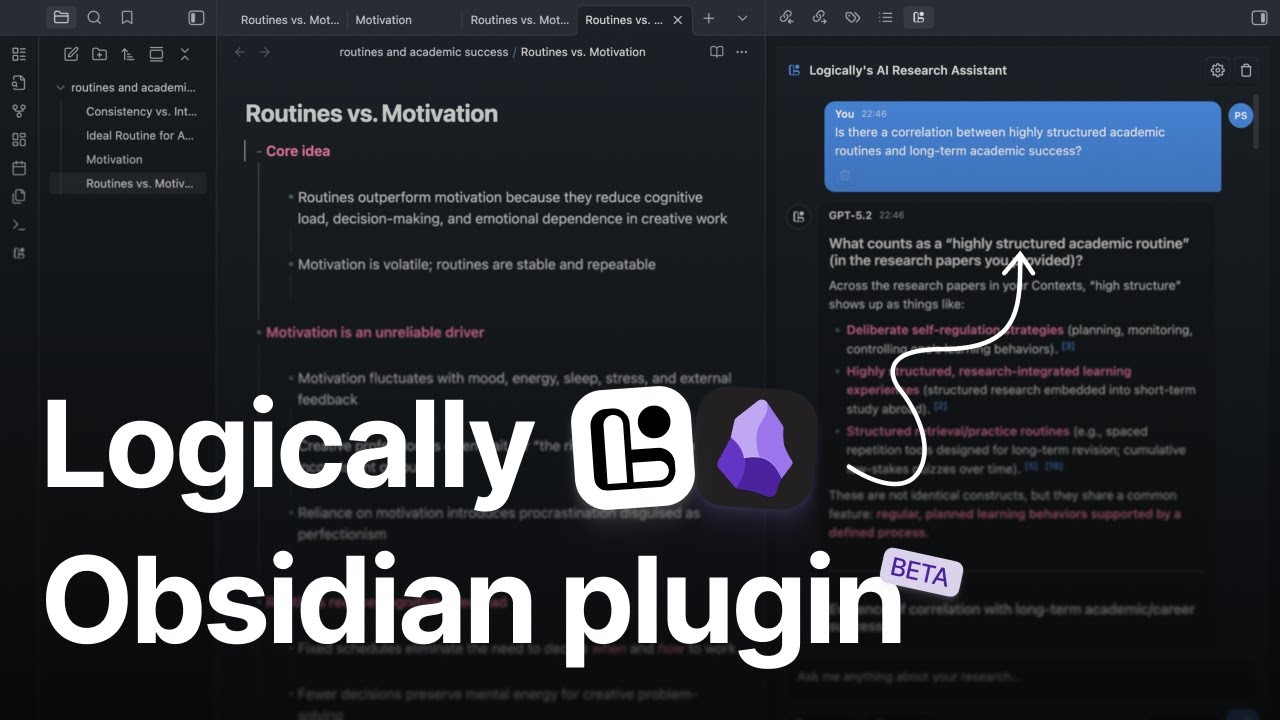
Use Logically’s AI Research Assistant directly inside Obsidian and conduct citation-backed research on the files in your vault.
Features
- Access to Logically AI Research Assistant next to your writing canvas.
- All search modes, including Semantic Scholar Mode, Google Mode, and Document Retrieval Mode, where you can connect files from your vault.
- The latest AI models from OpenAI, Anthropic, and Gemini.
- Access to standard AI models if you're subscribed to the Free plan, and access to standard, advanced, and reasoning AI models if you're subscribed to the Unlimited plan.
- Inline citations and data sources with every answer. Data sources will appear inside a table when shown.
- The ability to add your chat output to your active Obsidian document in one click.
- Custom instructions for your chat, which can be edited at any time.
Requirements
- Obsidian.
- A Logically (https://www.logically.app) account.
- Internet access (messages are sent to Logically’s API).
Installation Guide
Option A - Community Plugins
- Inside Obsidian, open Settings → Community plugins
- Select Browse and search for Logically AI Research Assistant
- Install, then enable the plugin
Option B - How to install the Beta version directly
If you don’t see Logically listed in the Community Plugins browser, you can install the plugin directly via this guide instead https://github.com/afforai/obsidian-logically-plugin/blob/master/how-to-install-beta.md
Set Up
- Inside Obsidian, Open Settings → Logically AI Research Assistant
- Sign in with your Logically email and password (or paste a token under Advanced → Login with token)
- (Optional) Use Verify connection to test your login/API
Using The Plugin
- Open the AI Research Assistant by clicking the Logically ribbon icon or using the command palette (if using the command palette, type: Logically: Open Research Assistant / Logically: Toggle Research Assistant)
- Select a search mode (Document Retrieval, Google, Semantic Scholar).
- Select an AI model.
- Ask your question.
Using Document Retrieval Mode
- When in Document Retrieval mode, click "Files" to open the file picker. From here, you can (search your vault and select notes) or drag a note from Obsidian’s file explorer into the assistant panel.
Notes:
- Dropping files that are already selected won’t error; the plugin will add the new ones and tell you which were already added.
- When the limit is reached, additional dropped/selected files are skipped.
Citations & Sources
- When the backend returns citations, the plugin renders citation markers as clickable superscripts.
- Messages with sources included show a Sources table where you can:
- Open external links (Google / Scholar).
- Open vault notes used as reference files.
Inserting an Answer into Your Note
Press the ”Insert into active note” icon button to add a chat output to your note.
- Citation markers are converted into Obsidian footnotes (
[^1],[^2], …). - Footnote definitions will appear at the bottom of your note.
- A dedicated Sources section will be added with links to reference files and/or external URLs.
Settings panel (in the AI Research Assistant Header)
- Shows the signed-in email
- Lets you logout
- Lets you edit and save a Custom Instruction (applied to every message)
Privacy & data
- When you send a message, the plugin sends your prompt and relevant chat history to Logically’s API.
- If you add reference files from external sources, the contents of those selected notes are included with the request.
- Avoid adding sensitive/private content you don’t want processed remotely.
Account switching & history
- If you sign in to a different Logically account than the one you used last time, the plugin will clear the existing chat history to protect your privacy.
- If after logging out, you log back in to your account, your chat history will be preserved.
Troubleshooting
- Google Sign-In: the button is visible, but Google Sign-In isn’t available in Obsidian yet. For now, please sign in using email + password (you can set this up at https://logically.app under Account Details) or use a login token (see Advanced → Log in with token in plugin settings).
- Login fails: confirm your credentials work on https://logically.app and try Verify connection in settings.
- Network / connection errors: check your internet connection and try Verify connection.
- Dragging notes doesn’t add them: only Markdown notes can be added; try dragging a
.mdnote from the Obsidian file explorer. - File picker is empty: ensure your vault contains Markdown files and Obsidian has finished indexing.