Fretboard Renderer
 Hiroshi Watanabe1k downloads
Render guitar fretboard diagrams from lightweight YAML in fenced code blocks.
- Overview
- Scorecard
- Updates14
Render guitar fretboard diagrams as SVG in your Obsidian notes, from a lightweight YAML syntax inside fenced code blocks. From analyzing chord progressions to checking pentatonic/mode positions, the goal is clean-looking diagrams with minimal typing.
Getting started
Install
Open Settings → Community plugins → Browse, search for "Fretboard Renderer", and install it. (Or see Development below to run it from source.)
Your first diagram
Add a fenced code block with the language set to fretboard, and list the notes you want to show — that's the only required part:
```fretboard
notes:
  - {s: 6, f: 0, label: root}
  - [5, 2]
  - [4, 5]
  - [3, 2]
  - [2, 0]
  - [1, 0]
```
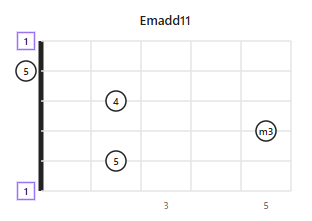
s is the string number (1 = highest-pitched string) and f is the fret (0 = open, x = muted). Marking one note label: root is enough for the plugin to work out the chord name and highlight every note that shares that root, automatically.
Feature highlights
Automatic root highlighting & degree labels
Mark any note label: root and the plugin computes each note's interval (1, b2, 2, m3, 3, ...) relative to it, and highlights notes sharing the root's pitch (including other octaves) with a different shape/color — no manual styling needed.
Absolute or relative (movable) diagrams
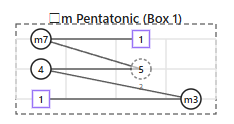
Give a startFret (or use an open string) for a real, fixed-position chord name like Cmaj7. Omit it for a movable pattern — the plugin infers the position and labels it generically (□...) instead, since the same shape means a different chord depending on where you play it. boxes and paths pair well with relative mode, for outlining a scale position and tracing a run through it:
Name a chord or a scale
By default the auto-generated title names a chord/arpeggio (e.g. Am7add11) — the same notes read as a scale would be called something else (e.g. minor pentatonic). Switch Naming mode to scale (Settings, fretboard-renderer.yaml, or namingMode: scale on one diagram) and the title always names the best-fitting scale instead (e.g. A Minor Pentatonic, or □ Minor Pentatonic for a movable pattern) — handy for reverse-engineering a copied phrase/solo against its backing chord's root. Any note that doesn't fit the matched scale is called out as a passing note, e.g. A Minor Pentatonic (+2), and ghosted on the diagram. See Naming mode in the reference for the full scale list and how the best fit is chosen.
Accurate chord names: sus, add, tensions, slash chords
The auto-generated title infers real chord theory, not just root + basic quality: sus2/sus4/power chords when there's no 3rd, add9/add11 when there's no 7th, folded dominant tensions (C9, C11, C13) vs. parenthesized ones on maj7/m7 (Cmaj7(9)), 6/6/9, and a /bass suffix when the lowest-sounding note isn't the root (Cmaj7/E, or □m7/bVII in relative mode). Switch the notation itself — pop Standard, Berklee, or Jazz (Real Book) — with Chord symbol style (Settings, fretboard-renderer.yaml, or chordSymbolStyle on one diagram). See Chord symbol style & advanced inference for the full rules.
Analyze against a key (Roman-numeral degree names)
Set key: C and switch Root notation to degree (Settings, fretboard-renderer.yaml, or rootNotation: degree on one diagram) to spell a title's root — and slash bass, if any — as a Roman-numeral scale degree relative to that key instead of a real letter name, e.g. Bm7(b5) becomes VIIm7(b5) for key: C (the vii° chord). Works for scale titles too (VII Locrian). Setting key alone, even with the default absolute notation, still draws a small "Key: C" label in the diagram's top-left corner. See Degree Name root notation for the full rules.
Multiple diagrams side by side
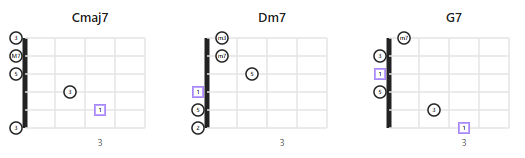
Use diagrams: to lay out several charts in one block — handy for a progression like Cmaj7 → Dm7 → G7 — without fighting Obsidian's block layout:
```fretboard
diagrams:
  - {title: Cmaj7, startFret: 0, size: 0.6, notes: [{s: 5, f: 3, label: root}, [4, 2], [3, 0], [2, 0]]}
  - {title: Dm7, startFret: 0, size: 0.6, notes: [{s: 4, f: 0, label: root}, [3, 2], [2, 1], [1, 1]]}
  - {title: G7, startFret: 0, size: 0.6, notes: [{s: 6, f: 3, label: root}, [5, 2], [4, 0], [3, 0], [2, 0], [1, 1]]}
```
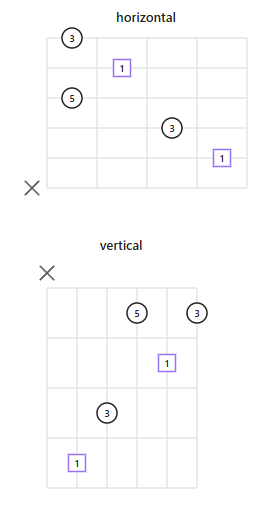
Horizontal or vertical orientation
Switch the whole vault (Settings, or a vault-wide fretboard-renderer.yaml), or just one diagram with orientation: vertical.
Fine control when you need it
Per-note color, fillStyle, sizeAdjust; barres, boxed scale positions, dot-to-dot paths, custom tuning, note-name vs. degree labels, and more — see Reference below.
Configuration, in brief
Settings are layered in three tiers, each overriding the last: Local (this block's YAML) > Global (a fretboard-renderer.yaml file at the vault root, for vault-wide defaults) > System (the plugin's Settings tab, for install-wide defaults). Most people only ever need Local (in the code block) and the Settings tab — Global is there for when you want one vault-wide look without repeating YAML in every note. Full details in Reference.
Reference
Everything below is the complete option reference — skip to whatever you need.
Configuration layers (System / Global / Local)
Configuration is layered in three tiers, each one overriding the last:
Local (YAML inside a single ```fretboard block)
  ↑ overrides
Global (fretboard-renderer.yaml at the vault root)
  ↑ overrides
System (the plugin's Settings tab)
| Layer | Defined in | Scope |
|---|---|---|
| System | Obsidian's Settings tab for this plugin | Fallback for every ```fretboard block in the vault |
| Global | fretboard-renderer.yaml at the vault root |
Every ```fretboard block in that vault |
| Local | YAML inside each ```fretboard code block | That one block only |
System (Settings tab)
Change these under Settings → Fretboard Renderer. They're the defaults for every diagram in the vault. The settings tab is organized into four sections: "Layout & dimensions", "Display & style", "Note appearance", and "Tuning & fallback".
| Setting | Values | Default |
|---|---|---|
| Orientation | horizontal / vertical |
horizontal |
| Strings | Number of strings | 6 |
| Fret count | Fret width to draw | 4 |
| String spacing | Spacing between strings (px) | 24 |
| Fret spacing | Spacing between frets (px) | 40 |
| Size | Overall multiplier on top of the pixel values above (and Note size/Label font size below), for every diagram vault-wide, e.g. 0.7 to shrink everything. A diagram's own Local size multiplies further on top of this rather than replacing it |
1 |
| Label mode | interval (degree) / note (note name) / none |
interval |
| Accidental | sharp (#) / flat (b) |
sharp |
| Naming mode | chord (name a chord) / scale (name a scale, see below) |
chord |
| Chord symbol style | standard / berklee / jazz, see below |
standard |
| Omit notation | On/off toggle — marks a chord missing an expected tone, e.g. C(omit3), G7(omit3), (omit5). Off by default (guitarists very commonly omit the 5th — marking every such chord would be noisy). See below |
Off |
| Show inversions | On/off toggle — shows the slash bass when it's just an inversion (the chord's own 3rd, 5th, or 7th as the lowest note, e.g. C/E). Off by default (real-world chord charts very often skip notating this). See below |
Off |
| Root notation | absolute (real letter name) / degree (Roman-numeral scale degree relative to a per-diagram key), see below |
absolute |
| Default shape | circle / square / triangle / diamond / octagon / doublecircle (◎, a fixed ring + center dot) / x / none (no outline, label only — see below) |
circle |
| String note default shape | Same shape choices — separate default just for stringNotes entries (see below); their label is always drawn in a muted color regardless of this setting |
none |
| Fill style | filled / outlined |
outlined |
| Nut style | thick / double |
thick |
| Fret numbering | all / dotted (only fretted columns) / inlay (standard inlay positions: 3,5,7,9,12,15,17,19,21,24,...) / none |
inlay |
| Default tuning | Comma separated, lowest string first | E,A,D,G,B,E |
| Omitted string behavior | open (treat as f:0) / muted (treat as f:x) / none (draw nothing) |
open |
| Note size (px) | Base radius of each note dot; a note's sizeAdjust (-5..5) is added to this |
9 |
| Label font size (px) | Base font size for note labels; a note's labelSizeAdjust (-5..5) is added to this (floored at 4px so it never shrinks to unreadable/negative) |
11 |
Label mode: note only shows note names in absolute mode (startFret given, or an explicit open string f: 0 present). In relative/movable mode (startFret omitted and no open string), the actual notes depend on where the shape is played, so note mode shows no automatic label either (interval labels are unaffected, since the same relationship holds wherever the shape is played).
Global (vault-wide YAML config file)
Create a file named fretboard-renderer.yaml at the vault's root (not inside .obsidian/) to override System values for the whole vault. It accepts the same keys as the System table above (key is Local-only, since a diagram's key is a per-diagram fact — songs modulate — not a sensible vault-wide default).
# <vault root>/fretboard-renderer.yaml
orientation: vertical
fretCount: 5
labelMode: note
- Any key that's absent, or if the file doesn't exist, falls back to the System value.
- Saving the file takes effect on the next render — no need to reload the plugin.
- A syntax error shows a one-time Obsidian notice and falls back to System settings (it won't break every diagram in the vault).
Local (YAML inside each ```fretboard block)
Write this directly inside each note's ```fretboard code block. It has the highest priority, overriding both System and Global. Only notes is required.
When startFret is given, fret numbers in notes/boxes/paths/barre are relative to position 1 (see startFret below) — so this exact block plays the same shape starting anywhere on the neck just by changing startFret:
title: Am Pentatonic (Box 1)
visible: 1-6
startFret: 5
frets: 4
boxes:
  - {frets: "1-4", style: dashed}
paths:
  - [[6,1], [6,4], [5,1], [5,3]]
notes:
  - {s: 6, f: 1, label: root, shape: square}
  - [6, 4]
  - {s: 5, f: 1}
  - {s: 5, f: 3, finger: 3, ghost: true}
notes (required)
An array of note placements. Both object form and a positional shorthand array are accepted.
notes:
  - {s: 6, f: 1, label: root, shape: square, finger: 1, ghost: false, class: "highlight"}
  - [6, 4]              # [s, f]
  - [5, 1, "root"]       # [s, f, label]
  - [5, 3, "3", "square", 3]  # [s, f, label, shape, finger]
  - {s: 4, f: 3, color: red, fillStyle: outlined, sizeAdjust: -3, labelSizeAdjust: 2}
| Key | Required | Description |
|---|---|---|
s |
Yes | String number (1..N, 1 is the highest-pitched string) |
f |
Yes | Fret number. 0 = open, 1+ = fretted, x = muted. 0 and x are not grid columns — they're always drawn in a special header lane outside the grid, and are never counted as fret-number labels |
label |
– | root auto-computes the interval degree. Any other string (e.g. "maj7", "9") is shown verbatim, bypassing auto-calculation |
shape |
– | circle / square / triangle / diamond / octagon / doublecircle / x / none — none draws no outline, just the label (or finger number, or any value that would otherwise sit inside the shape). Still rendered as a borderless filled circle underneath — with or without a label — so it isn't literally invisible and text doesn't collide with the fret/string line behind it. x is a crossed-lines mark usable on any fretted note (separate from the muted-string f: "x" header-lane cross). doublecircle (◎) is a fixed ring + center dot that ignores Fill Style, the same way x does |
finger |
– | Finger number, printed small just outside the dot |
ghost |
– | true draws a dashed/translucent outline |
virtual |
– | true marks this as a reference pitch, not an actually-fretted/sounding note — see Virtual notes below |
class |
– | Arbitrary CSS class name, for highlighting via a CSS snippet |
color |
– | CSS color for just this note (red, #ff0000, var(--color-red), ...). Overrides System/Global fill style and the root-highlight color |
fillStyle |
– | filled / outlined. Overrides System/Global Fill style for just this note |
sizeAdjust |
– | Integer -5..5. Nudges just this note's dot size (px) from Note size |
labelSizeAdjust |
– | Integer -5..5. Nudges just this note's label font size (px) from Label font size |
opacity |
– | Number 0..1. Fades this note's shape+label together as one unit, e.g. 0.4 for a faint passing/optional tone. Independent of ghost — if both are set, they compose (multiply) rather than one overriding the other |
color, fillStyle, sizeAdjust, labelSizeAdjust, opacity, and virtual are only available in object form ({s: ..., f: ...}) — not in the [s, f, label, shape, finger] shorthand array.
Notes highlighted as the root (same pitch class as the label: root note, including octaves) use the System accent color by default (Obsidian's --interactive-accent theme variable, typically purple/blue) — this is intentional default behavior. Use color above to override the color of any specific note, e.g. to make it red.
Other Local options (all optional)
| Key | Type | Description |
|---|---|---|
title |
String / false |
Title printed above the diagram. Auto-generated if omitted (see below). title: false still computes it internally but never draws it — see Chord progression sheet |
startFret |
Number | Leftmost fret number of the grid. Omitting it switches to relative mode (see below). When given, every other fret number in the block (notes, boxes, paths, barre) is read as relative to position 1 and transposed: absolute = f + max(startFret, 1) - 1. 0 (open) and x (muted) are never transposed. This is a no-op for startFret: 0 or 1, so plain fixed-position chords written with real fret numbers are unaffected |
frets |
Number | Fret width to draw (overrides System Fret count for this diagram only). If omitted, the grid auto-expands past Fret count when needed so no fretted note is clipped — an explicit value is never auto-expanded |
orientation |
horizontal / vertical |
Overrides orientation for this diagram only |
namingMode |
chord / scale |
Overrides Naming mode for this diagram's auto-generated title only |
chordSymbolStyle |
standard / berklee / jazz |
Overrides Chord symbol style for this diagram's auto-generated title only |
omitNotation |
Boolean | Overrides Omit notation for this diagram's auto-generated title only — see Chord symbol style & advanced inference |
showInversions |
Boolean | Overrides Show inversions for this diagram's auto-generated title only — see Chord symbol style & advanced inference |
rootNotation |
absolute / degree |
Overrides Root notation for this diagram's auto-generated title only — see Degree Name root notation |
key |
String | Tonic note name (e.g. "C", "F#") this diagram is analyzed against. Local-only. Enables rootNotation: degree and draws a "Key: X" label — see Degree Name root notation |
omittedStringBehavior |
open / muted / none |
Overrides System/Global Omitted string behavior for this diagram's auto-filled (not written in notes) strings only. To change one specific omitted string instead, write it out explicitly (e.g. {s: 4, f: 0, shape: none}) rather than using this |
size |
Number | Overall scale for this diagram (e.g. 0.6 = 60% size). Useful for fitting several small diagrams together. Multiplies with the System/Global "Size" setting rather than replacing it |
fretSpacingAdjust |
Integer -5..5 | Pixel nudge to fret spacing, applied before size |
stringSpacingAdjust |
Integer -5..5 | Pixel nudge to string spacing, applied before size |
visible |
String | Range of strings to draw, e.g. "1-4" |
barre |
Array | {fret, start, end} — draws a barre marker |
boxes |
Array | Outlines a region. Either the rectangle form {frets: "5-8", strings: "1-6", style: "dashed"}, or a polygon {points: [[6,5],[3,5],[3,8],[6,8]], style: "dashed"} (3+ [string, fret] pairs — triangle and up), mutually exclusive with frets/strings. Both forms accept color and fill: true (fixed low-opacity fill) — see below |
paths |
Array | Connects dots with a line. Either the bare shorthand [[6,5],[6,8],[5,5]] (solid, default color), or {points: [[6,5],[6,8]], style: "dashed", color: "red", arrow: "single", curve: true} for a styled path — style is solid (default) / dashed / thick (barre-weight); arrow is none (default) / single / double; curve draws a smooth curve instead of straight segments — see below |
stringNotes |
Array | {s, label?, shape?, ghost?, class?, color?, fillStyle?, sizeAdjust?, labelSizeAdjust?, side?} — a per-string annotation drawn outside the grid, not tied to any fret. side is trailing (default — right in horizontal, below in vertical) or leading (left in horizontal, above in vertical). Same shape/style vocabulary and defaults as a note. See below |
size / fretSpacingAdjust / stringSpacingAdjust (whole diagram) and each note's sizeAdjust / labelSizeAdjust exist so you can fine-tune appearance from a note's YAML instead of editing the plugin's own styles.css — that file isn't meant to be edited by users. Fine-grained color is likewise handled per-note via color, not CSS.
Absolute mode vs. relative mode
- Absolute mode:
startFretis given, or — even without it —notescontains an explicit open string (f: 0), since a shape with an open string can't physically be moved up the neck. Generates a real chord name (e.g.Cmaj7), and only draws the nut (thick/double line) when the left edge is truly fret 0. - Relative mode:
startFretis omitted and no open string is present. Treated as a movable pattern: the leftmost fret is set automatically to the lowest fretted note (excluding 0 and x), no fret numbers are printed, and a relative chord name is generated (e.g.□maj7).
When startFret is given explicitly, every other fret number in the block (notes, boxes, paths, barre) is read as relative to position 1 and transposed: absolute = f + max(startFret, 1) - 1. 0 (open) and x (muted) are never transposed. This is a no-op for startFret: 0 or 1, so a plain fixed-position chord written with real fret numbers is unaffected — but for anything higher, it means the same notes block plays the same shape starting anywhere on the neck just by changing startFret (see the Local example above).
Interval auto-calculation and root highlighting
Marking any note with label: root auto-computes each note's interval degree (1, b2, 2, m3, 3, 4, b5, 5, m6, 6, m7, M7) relative to the tuning, and shows it when label mode is interval. Notes matching the root's pitch class (including other octaves) are automatically highlighted (different shape and/or color).
Two display-only adjustments on top of that degree list: the root itself is printed as R, not 1 — finger numbers already use 1–4 on the diagram, and the two easily get confused. And when the surrounding chord is recognized as diminished (a minor 3rd + flatted 5th, no other 7th), the note that would otherwise show 6 — 9 semitones from the root, enharmonic with a diminished 7th's bb7 — is printed as bb7 instead, since that's the reading that actually matches the chord. Neither of these touches the chord title logic or scale matching below, which both keep using the plain 1/6 degrees internally.
This calculation can't distinguish tensions beyond one octave — e.g. a 9th looks the same as a 2nd, an 11th the same as a 4th. To show them correctly, override a note's label (e.g. label: "9") or the diagram's title (e.g. title: Cmaj9) explicitly.
Naming mode (chord vs. scale)
The same set of notes can be read two ways: as a chord/arpeggio (e.g. Am7add11), or — useful when you've copied a played phrase/solo onto the diagram and marked its backing chord's root — as the scale it most likely came from. Naming mode controls which one the auto-generated title uses:
chord(default): names the chord/arpeggio, same as before.scale: reverse-engineers the best-fitting scale for the notes present, even when they don't exactly match one — it always commits to its best guess rather than falling back to a chord name. Notes outside the matched scale are reported as passing notes in parentheses, e.g.A Minor Pentatonic (+2)(or□ Minor Pentatonic (+2)in relative mode; no suffix at all on an exact match), and rendered ghosted on the diagram — same look as a manually-markedghost: truenote — so they're easy to spot at a glance.
Set it in Settings, in fretboard-renderer.yaml for the whole vault, or per diagram with namingMode: scale.
How the best fit is chosen: for each scale below, its score is +1 for each of its own notes that's present in the input, -1 for each that's missing, and -1 for each present note it doesn't contain (an outlier/passing-note candidate). The highest-scoring scale wins, ties favor the smaller/simpler one. Penalizing outliers matters: without it, a scale that leaves one note unexplained (e.g. minor pentatonic + a stray 2nd, reported as (+2)) could tie with — and by the size tie-break, beat — a scale that explains that same note as one of its own (e.g. Dorian, which contains that 2nd), even though the latter is clearly the tighter fit. With the penalty, Dorian wins outright. This still guarantees an exact match always wins outright — nothing can score higher, since any bigger superset loses points for its own unplayed notes and any smaller subset loses points for the notes it leaves as outliers.
scaleAnalyze: true(local-only, off by default): instead of just the #1 pick, stacks the top 5 ranked candidates as separate title lines (1. E Dorian,2. E Aeolian (Natural Minor), ...) — useful for comparing close calls rather than committing to a single guess.
Covers standard Western scale families plus the Japanese Hirajoshi and Ryukyu pentatonic families, each expanded to every rotation/mode, not just the traditionally-named ones — since the root here is always the one you assign, the same collection of notes read from a different root is a different row in this table:
| Category | Scales |
|---|---|
| Pentatonic (5 rotations) | Major Pentatonic, Minor Pentatonic, Suspended Pentatonic (Mode 2), Phrygian Pentatonic (Mode 3), Mixolydian Pentatonic (Mode 4) |
| Dominant Pentatonic (5 rotations) | Dominant Pentatonic (Modes 1–5) |
| Japanese pentatonic — Hirajoshi family (5 rotations) | Hirajoshi, Iwato (Hirajoshi Mode 2), Hon-Kumoi-joshi (Hirajoshi Mode 3), In Sen / Kumoi / Miyakobushi (Hirajoshi Mode 4), Lydian Pentatonic / Chinese (Hirajoshi Mode 5) |
| Japanese pentatonic — Ryukyu family (5 rotations) | Ryukyu, Ryukyu (Mode 2), Ryukyu (Mode 3), Hindu Pentatonic (Ryukyu Mode 4), Ryukyu (Mode 5) |
| Diatonic modes (7 rotations) | Ionian (Major), Dorian, Phrygian, Lydian, Mixolydian, Aeolian (Natural Minor), Locrian |
| Melodic minor (7 rotations) | Melodic Minor, Lydian Dominant, Altered (Super Locrian), Half-Diminished (Locrian ♮2), Dorian b2, Lydian Augmented, Mixolydian b6 |
| Harmonic minor (7 rotations) | Harmonic Minor, Phrygian Dominant, Locrian ♮6, Ionian #5, Dorian #4, Lydian #2, Ultralocrian (Altered Diminished) |
| Harmonic Major (7 rotations) | Harmonic Major (Modes 1–7) |
| Double Harmonic Major (7 rotations) | Double Harmonic Major (Modes 1–7) — aka Byzantine/Arabic/Gypsy Major scale |
| Neapolitan Major (7 rotations) | Neapolitan Major (Modes 1–7) |
| Symmetrical | Whole Tone (only 1 unique rotation), Augmented (2), Diminished Whole-Half / Half-Whole (2) |
| Bebop (8 rotations each) | Bebop Dominant (Modes 1–8), Bebop Major (Modes 1–8) |
| Other | Blues, Major Blues |
For the newer families above (Harmonic Major, Double Harmonic Major, Neapolitan Major, Dominant Pentatonic), only the well-attested parent-scale name is used — derived-mode nicknames vary too much across sources to assert confidently, so modes 2+ are labeled generically (Harmonic Major (Mode 2), etc.) rather than risk a wrong nickname. "In Sen" (陰音階) turned out to share its exact note collection with an existing Hirajoshi rotation, so it's folded into that row's name instead of listed separately.
Other traditional Japanese scales (miyako-bushi, inaka-bushi, ritsu, min'yo, ...) aren't included yet.
Chord symbol style & advanced inference
Beyond root + basic quality, the auto-generated title works out real chord theory from the notes present:
- No 3rd:
sus4(a 4th is present),sus2(a 2nd is present), or a power chord5(neither). A 7th is never dropped even here — e.g. root+5th+m7 with no 3rd or sus tone names as7, not a bare5. On top ofsus4specifically, a dominant 7th folds in a natural 9th/13th the same way as the tension-folding rule below —9sus4,13sus4, or a bare7sus4— since sus4's 4th and a 9th occupy different slots (unlikesus2, where the 2nd already is the 9th, so a 7th there just stays bare:7sus2). A 6th with no 7th is never dropped either:6sus4,6sus2, or — with neither sus tone present —5(add6)(omit notation off) /6(omit3)(omit notation on, since(omit3)already says the 3rd's role is unfilled, so the 6th can lead instead of being parenthesized onto5). - No 7th: extra notes become
add9/add11. - 7th present, dominant (major 3rd + m7): a 9th folds the whole chord into
C9(orC11/C13if an 11th/13th is present too). An 11th or 13th without a 9th can't fold in this way, so it's parenthesized onto7instead:C7(11),C7(13). - 7th present,
maj7orm7: the base quality always stays intact, with the highest tension parenthesized on top, e.g.Cmaj7(9),Cm7(11)(bare, no parens, in Jazz style:CΔ79,C-711). - Altered tensions (
b9/#9/#11/b13/b5): always appended as independent extras, in every case above — includingsus4/sus2/power chords — never silently dropped. Each shares a degree label with something else in this one-octave system, so most only read as the altered tension when something disambiguates them:b9(theb2degree) has no such ambiguity and always reads as an altered 9th;#9(them3degree) only reads as#9when a major 3rd is also present — otherwise it's just the chord's own minor 3rd;#11(theb5degree) only reads as#11when a plain 5th is also present — otherwise it's the chord's own flatted 5th;b13(them6degree) reads asb13whenever a plain 5th or a 7th is present — a guitarist very commonly mutes the plain 5th on an altered 7th-chord voicing while keeping the tension, so a 7th alone is enough. Only with neither a plain 5th nor a 7th does that samem6note read as#5/augmented instead (see Interval auto-calculation). E.g.C9(b5),Cm7(9, b5),Csus4(b13),G7(#9, b13)(C9b5,Csus4b13in Jazz style). - 6th chords:
6(a 6th, no 7th), or6/9if a 2nd is present too — never parenthesized. - Omit notation (off by default — see Settings): marks a chord tone that theory implies but isn't actually present.
(omit3)when nothing fills the 3rd's role: a bare power chord's5is replaced outright (C(omit3), notC5(omit3)— the marker alone already says "just root+5"), while a 7th chord voiced without a 3rd keeps its7/maj7and gets(omit3)appended (G7(omit3)). A 6th without a 3rd follows the same "replace, don't append" idea:6(omit3), not5(add6)(omit3).(omit5)when no 5th-family degree (plain, flat, or sharp) is present at all.(omit1)when the root was only supplied by a virtual note (see below), never an actually-fretted one. Always parenthesized — even in Jazz style, where compact tensions normally go bare — since these are full words, not tension symbols, and(omit1)sits before any slash bass, e.g.G7(#9, b13)(omit1)/B. - Slash chords: when the lowest-sounding note isn't the root, it's appended after
/— an absolute note name in absolute mode (Cmaj7/E), or a Roman-numeral degree in relative mode, where no real pitch is known (□m7/bVII). A virtual note is never counted as the lowest-sounding note. Show inversions (off by default) controls whether this shows at all when the bass is just an inversion — the chord's own 3rd, 5th, or 7th played as the lowest note, not new harmonic information; real-world chord charts very often skip notating it. A bass note that isn't one of the chord's own tones (a true slash chord, e.g. a 9th or an unrelated pitch underneath) is always shown regardless of this setting, since the plain chord symbol can't otherwise convey it.
Chord symbol style controls the notation itself, independently of the rules above:
| Standard (pop) | Berklee | Jazz (Real Book) | |
|---|---|---|---|
| Minor | Cm7 |
C-7 |
C-7 |
| Half-diminished | Cm7(b5) |
C-7(b5) |
Cø7 |
| Diminished 7th | Cdim7 |
Cdim7 |
C°7 |
| Augmented | Caug |
C+ |
C+ |
| Major 7th | Cmaj7 |
Cmaj7 |
CΔ7 |
| Added tension | Cmaj7(9) |
Cmaj7(9) |
CΔ79 (no parens) |
Set it in Settings, in fretboard-renderer.yaml for the whole vault, or per diagram with chordSymbolStyle: jazz.
Degree Name root notation (key-relative Roman numerals)
Root notation (absolute by default, or degree) controls how the auto-generated title spells its root — and slash bass, if any — for chord functional analysis (e.g. "the vii° of C major") or modal scale analysis ("the 7th mode of C major, i.e. B Locrian"). This is a different mechanism from the Roman-numeral slash bass that relative/movable-mode diagrams already show (□m7/bVII, relative to that diagram's own root) — Degree Name notation is relative to a key you set explicitly, and works in absolute mode too.
key(Local-only YAML field, e.g.key: "C",key: "F#"): the tonic this diagram is analyzed against. Setting it draws a small "Key: C" label in the top-left corner, regardless ofrootNotation.rootNotation: degreeonly actually spells the root as a Roman numeral (I, bII, II, bIII, III, IV, bV, V, bVI, VI, bVII, VII, same table as the relative-mode slash bass) when all of these hold:rootNotationisdegree, the diagram has akeyset, and the diagram is in absolute mode. A relative/movable-mode diagram's real pitch (and so its scale degree) isn't determined, so it always falls back to□regardless ofkey/rootNotation. Missing any of the other conditions falls back to the real letter name.- A slash chord's bass is spelled the same way — relative to
key, not the chord's own root — so the whole title stays consistently key-relative, e.g.VIIm7(b5)/I(bass on the key's own tonic). - Applies to
namingMode: scaletitles too:key: C+ a B Locrian shape readsVII Locrianinstead ofB Locrian.
key: "C"
rootNotation: degree
startFret: 0
notes:
  - {s: 2, f: 0, label: root}
  - {s: 4, f: 0}
  - {s: 1, f: 1}
  - {s: 5, f: 0}
This renders as VIIm7(b5) with a Key: C label — the same shape without key/rootNotation set renders as Bm7(b5).
Virtual notes
Altered dominant chords like G7(#9, b13) are commonly played without the root at all — it's hard to reach, and the tension notes carry the color. But the root still has to be specified somewhere for interval math to work. Mark a note virtual: true and it stops being an actually-fretted, physically-sounding note — no shape/dot is drawn for it, just its computed label in parentheses at its fretboard position (e.g. (R) for a virtual root, (5) for a virtual 5th) — while still fully counting toward interval/chord-name calculation, exactly like a real note:
omitNotation: true
notes:
  - {s: 6, f: 3, label: root, virtual: true}
  - [5, 2]
  - [4, 1]
  - [3, 3]
  - [1, 1]
This renders as G7(#9, b13)(omit1)/B — the virtual root establishes the reference pitch (so #9/b13 can be computed at all), (omit1) shows the root itself isn't actually fretted (since Omit notation is on here), and the slash names whichever note actually ends up lowest.
A virtual note:
- Draws no shape, no finger number — just
(label), in a muted color, so it can't be mistaken for a played note. - Is excluded from the "lowest sounding note" bass/slash-chord calculation.
- Still occupies its (
s,f) position for grid sizing (fretsauto-expansion,visible, etc.) like any other note. - Is available in object form only (
{s: ..., f: ..., virtual: true}) — not in the shorthand array.
Polygon boxes: points, fill, and color
boxes supports two mutually-exclusive forms: the original rectangle (frets/strings), or a polygon points list of 3+ [string, fret] pairs — triangle up to an arbitrary shape:
visible: 1-6
boxes:
  - points: [[1, 1], [3, 1], [3, 3], [6, 3], [6, 6], [1, 6]]
    style: dashed
notes:
  - {s: 6, f: 1, label: root}
  - [3, 3]
  - [1, 6]
points uses the exact same coordinate convention as paths' points — real numbers allowed, not just integers, so e.g. 4.5 lands exactly on the boundary between fret 4 and 5. That means it's a strict superset of the rectangle form: {frets: "1-4", strings: "2-5"} can be reproduced exactly as {points: [[1.5, 0.5], [5.5, 0.5], [5.5, 4.5], [1.5, 4.5]]}.
Both forms accept:
color: overrides the outline color, and the fill color too whenfillis set.fill:true/false(defaultfalse, unchanged). Fills the box at a fixed, low opacity — a translucent highlight, not an opaque block over the notes/grid underneath.
Every box — rectangle or polygon — now draws with gently rounded corners (including concave ones, e.g. an L-shape) instead of sharp right angles; this isn't configurable.
Dot-to-dot paths: style, color, arrows, and curves
Each entry in paths is either the plain shorthand array of [string, fret] pairs (solid line, default color — unchanged from before), or an object with points plus a per-path style/color/arrow/curve:
style:solid(default) /dashed/thick— athickpath renders at the same stroke weight and opacity as a barre marker, for tracing a diagonal barre or emphasizing a group of dots as a set.color: a CSS color overriding this path's stroke (and its arrowhead, if any), independent of its style.arrow:none(default) /single(an arrowhead at the last point inpoints) /double(arrowheads at both ends). There's no separate direction field — to flip asinglearrow, writepointsin the opposite order.curve:truedraws a smooth curve through the points instead of straight segments — a gentle bow for exactly 2 points (a straight line has no interior points to derive curvature from), or a spline through every point for 3+ (it passes through each point exactly, not just near them).
visible: 3-6
notes:
  - {s: 6, f: 1, label: root}
  - [5, 3]
  - [4, 3]
  - [3, 1]
paths:
  - {points: [[6, 1], [3, 1]], style: thick}
  - {points: [[5, 3], [4, 3]], style: dashed, color: red, arrow: single, curve: true}
Per-string annotations (stringNotes)
An annotation tied to a whole string, not any particular fret — drawn just outside the grid's trailing edge for that string's row: right of the grid in horizontal orientation, below it in vertical (the side opposite the open/muted-string header lane):
startFret: 10
visible: 3-6
notes:
  - {s: 6, f: 10, finger: 1}
  - {s: 5, f: 12, finger: 4}
  - {s: 4, f: 11, finger: 2}
  - {s: 3, f: 12, finger: 3}
stringNotes:
  - {s: 5, label: "4"}
  - {s: 3, label: "3"}
Each entry takes s (required) plus the exact same shape/style vocabulary as a note — label, shape, ghost, class, color, fillStyle, sizeAdjust, labelSizeAdjust — reusing the same System/Global note-appearance defaults, so it reads as visually consistent with the rest of the diagram. Unlike a note, there's no f (not tied to a fret/pitch), so no auto-computed label (no "root" concept) and no finger field (the annotation's own label already serves that purpose, e.g. label: "4"). Object form only — no shorthand array, since this is meant for a handful of hand-placed annotations per diagram, same reasoning as barre/boxes.
shape defaults to the System/Global "String note default shape" (none by default), not the regular-note "Default shape". Unlike a real note, shape: none here skips the background circle entirely — regardless of Fill Style — for a genuinely bare, text-only look (a real note's shape: none still always draws an invisible-outline background, since its position must stay discoverable; a stringNotes entry isn't a real fretted pitch, so it has no such requirement). Fill Style only comes into play once you override shape to circle/square/triangle. The label itself is always drawn in a muted color.
Add side: "leading" to draw it on the other edge instead — left of the grid in horizontal orientation (past the open/muted-string lane), above it in vertical. Handy for labeling the actual string numbers when visible restricts a diagram to a subset of strings (e.g. visible: "4-6" alone gives no visual cue that the top row is string 4, not string 1):
startFret: 0
visible: "4-6"
notes:
  - {s: 5, f: 3, label: root}
  - {s: 4, f: 2}
  - {s: 6, f: 7}
stringNotes:
  - {s: 6, label: "6", side: leading}
  - {s: 5, label: "5", side: leading}
  - {s: 4, label: "4", side: leading}
The immediate use case is hand-placed finger numbers a barre chord's main shape doesn't reach, but it's deliberately general — any short label or shape per string. It's also intended as groundwork for a future auto-fingering feature to target.
Multiple diagrams side by side (diagrams)
Writing separate ```fretboard blocks back to back doesn't reliably place them side by side — that depends on how Obsidian itself wraps markdown blocks, which a CSS snippet can't always override (Obsidian sometimes wraps each code block in an outer element the plugin has no access to).
To make this reliable, use the diagrams syntax: several diagrams in one ```fretboard block. The plugin builds its own flexbox layout entirely inside that one block's container, so it doesn't depend on how Obsidian wraps blocks at all.
diagrams:
  - title: Cmaj7
    startFret: 0
    size: 0.6
    notes:
      - {s: 5, f: 3, label: root}
      - [4, 2]
      - [3, 0]
      - [2, 0]
  - title: Dm7
    startFret: 0
    size: 0.6
    notes:
      - {s: 4, f: 0, label: root}
      - [3, 2]
      - [2, 1]
      - [1, 1]
  - title: G7
    startFret: 0
    size: 0.6
    notes:
      - {s: 6, f: 3, label: root}
      - [5, 2]
      - [4, 0]
      - [3, 0]
      - [2, 0]
      - [1, 1]
- A block using
diagrams(a list) can't mix in other top-level keys likenotes— it's treated purely as a multi-diagram block. - Each entry in
diagramsaccepts exactly the same keys as a single diagram (title,startFret,notes,size,orientation, ...). - Wrapping happens automatically based on the available width.
- Errors are reported with the diagram's index, e.g.
diagrams[0].notes. - The list form above is actually shorthand for
diagrams: {fretboards: [the same list]}. Written out that way, you can add a siblingsizeto set a shared default for every entry, instead of repeating it on each one:
An entry's owndiagrams: size: 0.6 fretboards: - {title: Cmaj7, startFret: 0, notes: [...]} - {title: Dm7, startFret: 0, notes: [...]}sizestill overrides this default rather than combining with it.
Chord progression sheet (experimental)
Experimental — syntax may still change. diagrams also accepts an object (instead of the list above) to pair a chord progression header line with the fretboards realizing it — the kind of layout found in a lot of method books (a row of chord names, a matching row of diagrams underneath). This isn't staff notation (pair it with something like abcjs if you need that) — just enough structure to keep a progression line and its diagrams lined up without hand-tweaking layout.
diagrams:
  progression:
    - [Cmaj7]
    - [Dm7, G7]
  fretboards:
    - - {startFret: 0, title: false, notes: [{s: 5, f: 3, label: root}, {s: 4, f: 2}, {s: 2, f: 0}]}
    - - {startFret: 0, title: false, notes: [{s: 5, f: 5, label: root}, {s: 4, f: 3}, {s: 3, f: 5}]}
      - {startFret: 0, title: false, notes: [{s: 3, f: 0, label: root}, {s: 2, f: 0}, {s: 1, f: 1}]}
progressionis a list of measures; every measure is written as its own list of "slots", even a one-chord measure (e.g.[Cmaj7]above) — more than one slot in a measure means a chord change mid-bar (e.g.[Dm7, G7]). There's deliberately no bare-string shorthand for a one-slot measure: a flatprogression: [Cmaj7, Dm7]would be ambiguous between "two one-chord measures" and "one measure changing Cmaj7 to Dm7", so it's rejected — write[[Cmaj7], [Dm7]]or[[Cmaj7, Dm7]]to say which you mean.- A slot is an explicit chord name,
_N(auto-derive this slot's text from afretboardsdiagram —Nmust equal that slot's own position counting the whole progression in order), or%(repeat the previous slot's resolved text verbatim). fretboardsis index-aligned 1:1 withprogression's measures;fretboards[i]must have exactly as many cells asprogression[i]has slots. A cell is one diagram (shorthand) or a list of diagrams — the same chord shown as multiple voicings side by side.variations(mutually exclusive withfretboards) stacks several full passes under one shared header —[{fretboards: [...]}, {fretboards: [...]}, ...]— for something like a chord-melody exercise showing the same progression in several positions.- A sheet's shared header never silently hides a diagram's own title — set
title: falseper diagram if you don't want it repeated.title: "$N"designates that specific diagram as the source for progression slot N's_N(overriding the default, which is the first pass's diagram in that slot) and also hides that diagram's own title. size(sibling ofprogression/fretboards/variations) sets a defaultsizefor every cell in the sheet, so it doesn't have to be repeated on each one — a cell's own explicitsizestill overrides it (they don't multiply together).
Error handling
- Local (a block's YAML): A syntax error or invalid value doesn't crash the plugin — it shows a red error message inside that code block.
- Global (vault-wide file): A syntax error in
fretboard-renderer.yamldoesn't break every diagram in the vault — it shows a one-time Obsidian notice and falls back to System settings. - Unknown keys (typo detection): Both Local and Global reject unrecognized keys (e.g.
fletsinstead offrets) with an explicit error, rather than silently ignoring them — a silently-ignored typo looks like nothing happened, which is much harder to debug. This also applies to keys insidenotes/barre/boxesentries.
Development
npm install    # install dependencies
npm run dev    # esbuild watch build (keep this running while developing)
npm run build  # type-check + production build (produces main.js)
The parsing/rendering/music-theory core (and its test suite) lives in a separate package, fretboard-renderer-core — this repo just consumes it. See doc/TECH_STACK.md for the toolchain, dependencies, and source layout.