Search...Search plugins and themes...
⌘K
Sign in
  • Get started
  • Download
  • Pricing
  • Enterprise
  • Account
  • Obsidian
  • Overview
  • Sync
  • Publish
  • Canvas
  • Mobile
  • Web Clipper
  • CLI
  • Learn
  • Help
  • Developers
  • Changelog
  • About
  • Roadmap
  • Blog
  • Resources
  • System status
  • License overview
  • Terms of service
  • Privacy policy
  • Security
  • Community
  • Plugins
  • Themes
  • Discord
  • Forum / 中文论坛
  • Merch store
  • Brand guidelines
Follow us
DiscordTwitterBlueskyThreadsMastodonYouTubeGitHub
© 2026 Obsidian

Flow Edit

live233live23327 downloads

Edit Markdown with slash insertion, block actions, callout type selection, and selection formatting.

Add to Obsidian
  • Overview
  • Scorecard
  • Updates4

为 Obsidian 提供斜杠插入、块操作和选区格式工具。建议使用「实时预览」。

插件功能

  • 斜杠插入:标题、列表、任务、引用、代码、表格、图片、链接、公式和高亮块。
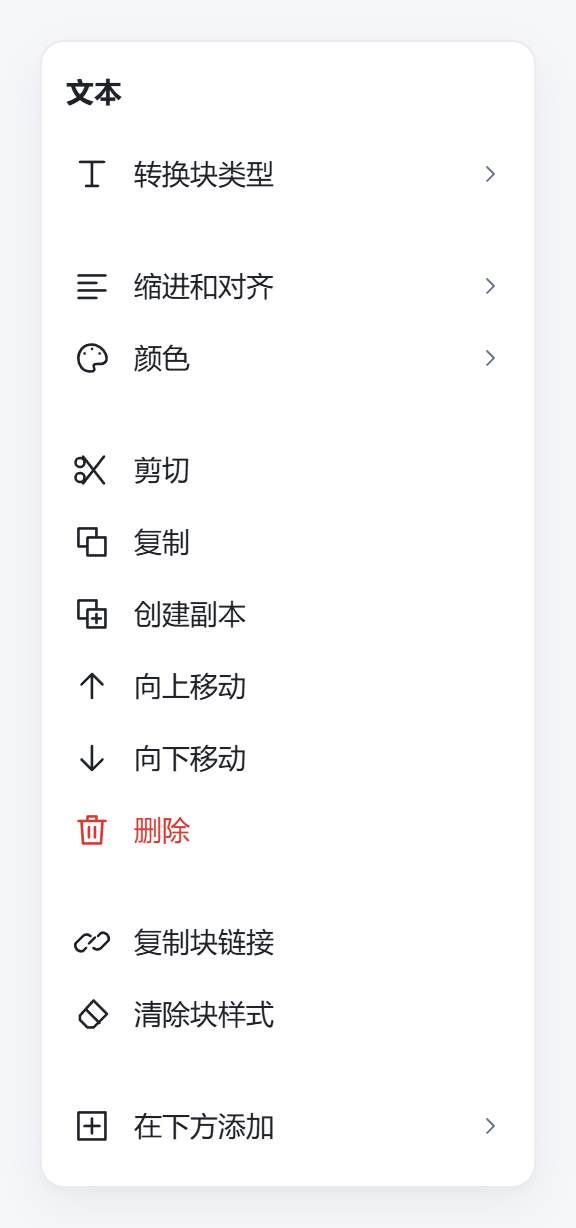
  • 块操作:转换类型、剪切、复制、创建副本、上下移动、删除及复制块链接。
  • 文字格式:加粗、斜体、删除线、高亮、行内代码和链接。
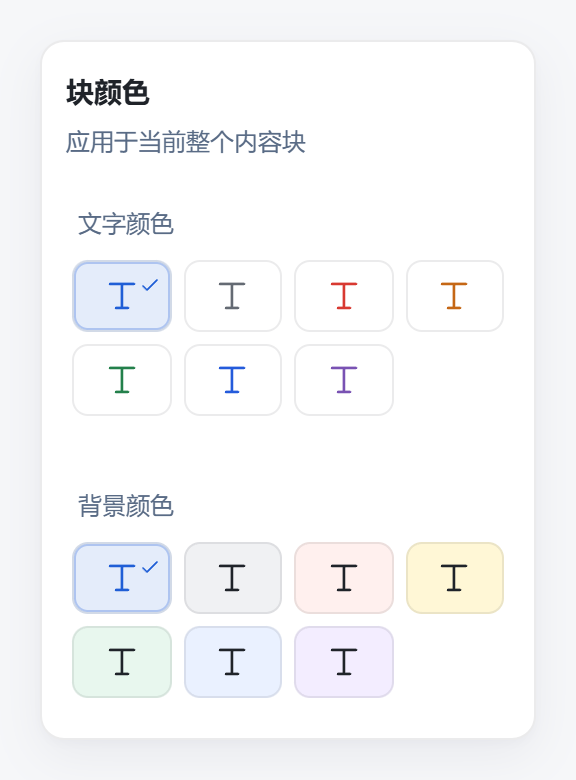
  • 块排版:设置整块文字色、背景色和对齐,调整列表缩进。
  • 高亮块:创建或切换 Callout 类型,保留标题和正文。
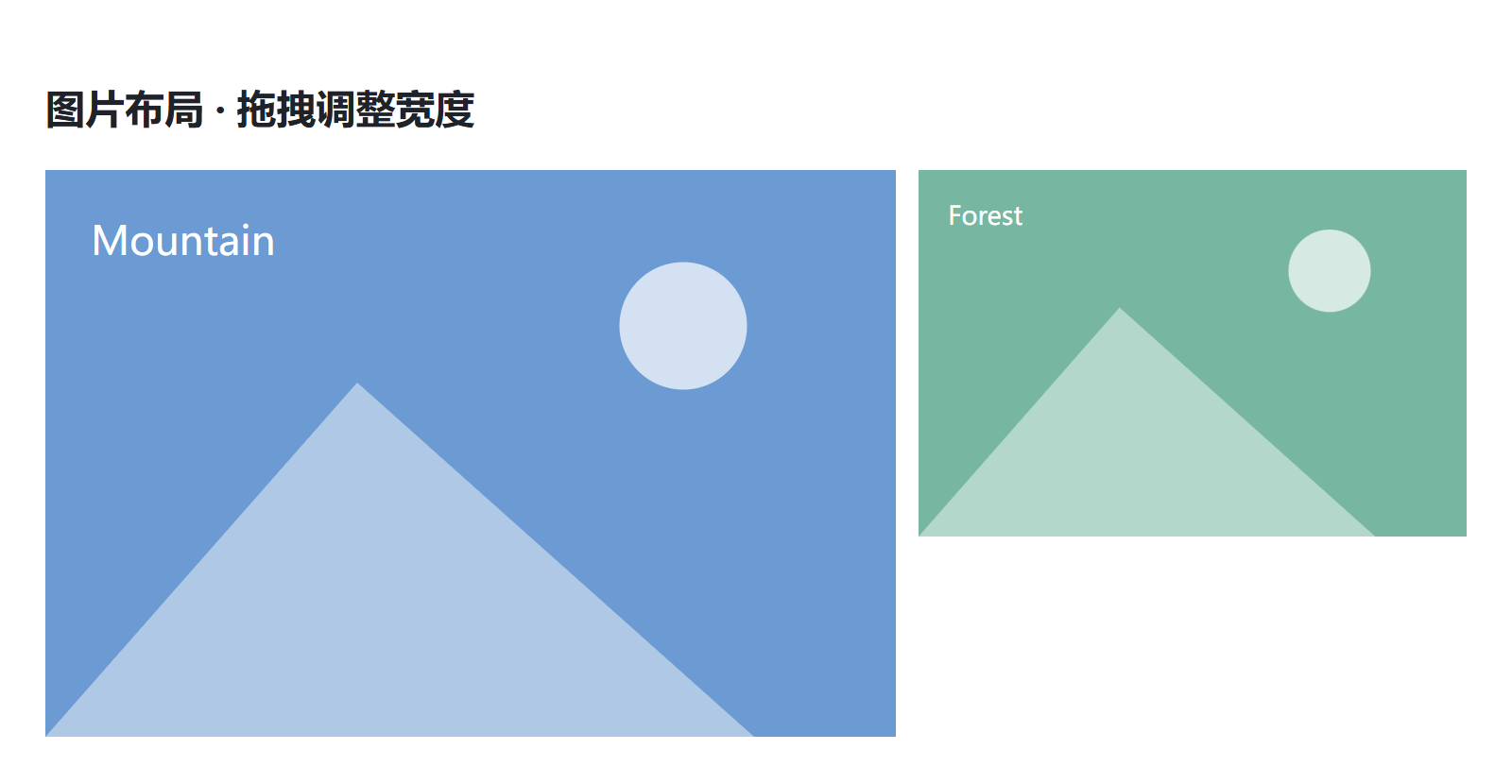
  • 图片布局:多张图片同行,支持 1–4 列;拖拽图片之间的边缘调整宽度比例。

功能截图

基于 0.0.4 源码的浏览器演示,截图以 2 倍像素导出,无鼠标指针。

内容插入
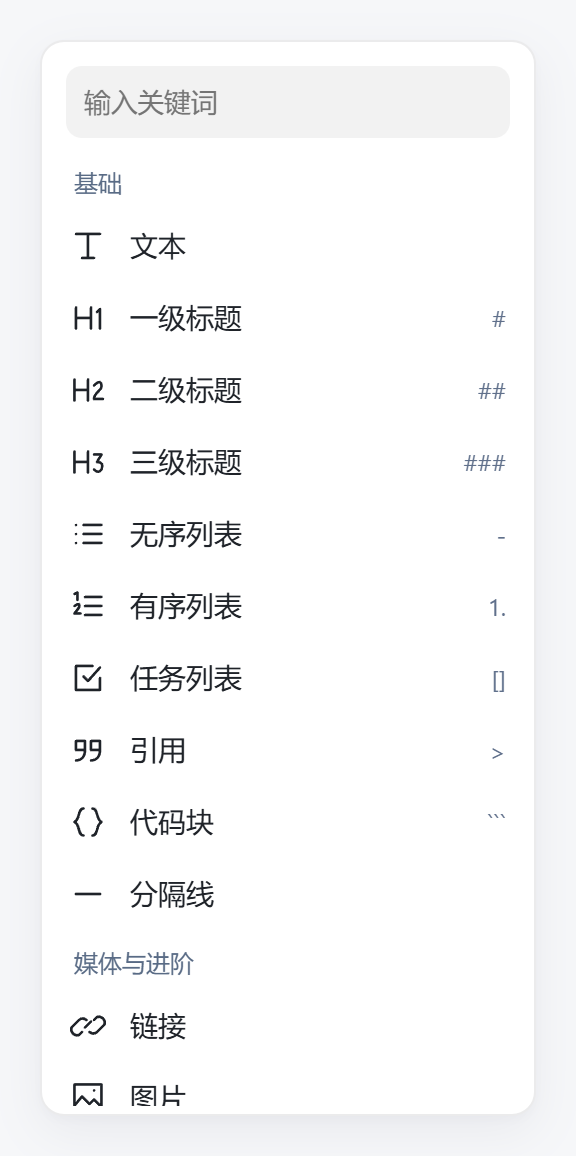
搜索并插入内容块

块操作

块类型转换、复制、移动和删除

文字格式

纯图标文字格式工具栏

颜色与对齐

统一的块颜色面板 带选中勾的块对齐面板

高亮块类型

高亮块类型面板

图片布局

两张图片同行,拖拽后保留不同宽度比例

使用方法

安装与升级

  1. 从 Releases 下载同一版本的 main.js、manifest.json 和 styles.css。
  2. 将三个文件放入 <笔记库>/.obsidian/plugins/flow-edit/。使用自定义配置目录时,替换其中的 .obsidian。
  3. 在「设置 → 第三方插件」中启用 Flow Edit。未出现时重启 Obsidian。

升级时先停用插件,覆盖这三个文件,保留 data.json,再启用。旧开发版 0.1.x–0.3.x 也需手动覆盖安装。

编辑

  • 插入内容:空行输入 /,输入关键词筛选;方向键选择,Enter 插入,Escape 关闭。若与核心「斜杠命令」冲突,请停用核心插件。
  • 设置文字格式:选中文字并松开鼠标,点击浮动工具栏;再次点击已启用的文字格式可取消。
  • 操作整块:点击正文左侧手柄,或右键选择「Flow Edit · 块操作」。边距不足时可使用右键菜单。
  • 调整排版:在工具栏或块菜单中设置颜色、背景和对齐;这些设置作用于整个块。
  • 使用高亮块:点击工具栏的方框加号图标;已有高亮块显示当前类型图标,点击可切换类型,也可点击左侧图标。悬停按钮可查看操作说明。
  • 多图同行:完整选中多张图片,右键「Flow Edit · 图片布局」选择列数;也可把光标放在相邻图片段落中。拖拽图片之间的边缘调整宽度,松开保存,Esc 取消;聚焦边缘后可用左右方向键微调。在图片组内再次打开菜单,可均分列宽或恢复普通图片。

图片组保存在原生 Callout 中,支持 ![[图片.png]] 和 ![说明](图片地址),保留图片顺序和路径。窄窗格自动换行;停用插件后图片仍可作为普通 Callout 查看。拖拽修改的是显示比例,不修改原图。

复杂嵌套内容建议直接编辑 Markdown 源码;代码、公式和表格不支持通过菜单整体转换类型。

HealthExcellent
ReviewSatisfactory
About
Insert headings, lists, tasks, quotes, code, tables, images, links, math and highlight blocks via a slash menu. Manipulate blocks — convert, cut/copy/duplicate, move, delete and copy block links — format selections and set block color, background, alignment and list indent, and toggle callout-style highlight blocks while preserving title and body.
EditingFormattingCommands
Details
Current version
0.0.4
Last updated
6 days ago
Created
2 weeks ago
Updates
4 releases
Downloads
27
Compatible with
Obsidian 1.5.0+
Platforms
Desktop, Mobile
License
MIT
Report bugRequest featureReport plugin
Author
live233live233beta-zheng
GitHubbeta-zheng
  1. Community
  2. Plugins
  3. Editing
  4. Flow Edit

Related plugins

Sort and Permute lines

Sort and Permute lines in whole file or selection.

Text Format

Format selected text upper/lower/capitalize.

Editing Toolbar

The Editing Toolbar is modified from cMenu, which provides more powerful customization settings and has many built-in editing commands to be a MS Word-like toolbar editing experience.

Underline

Add underline with shortcut.

Heading Shifter

Easily Shift and Change Markdown headings.

Keyshots

Add classic hotkey/shortcuts commands from popular IDEs like Visual Studio Code or JetBrains Family.

Paste URL into selection

Paste URL "into" selected text.

Admonition

Admonition block-styled content.

LanguageTool Integration

Advanced grammar and spell checking, powered by LanguageTool.

Linter

Format and style your notes. Linter can be used to format YAML tags, aliases, arrays, and metadata; footnotes; headings; spacing; math blocks; regular Markdown contents like list, italics, and bold styles; and more with the use of custom rule options.