Advanced Markdown Blocks
 HPuntu199 downloads
Create, customise and style visual blocks with simple fenced Markdown.
- Overview
- Scorecard
- Updates5
Advanced Markdown Blocks makes ::: the block-level counterpart to **, ==, backticks, and $$ in Obsidian.
[!NOTE] This is an alpha release. The core syntax and settings format are stable enough for real notes, but visual and compatibility refinements are still in active development.
:::definition
A probability distribution describes the relative likelihood of possible outcomes.
:::
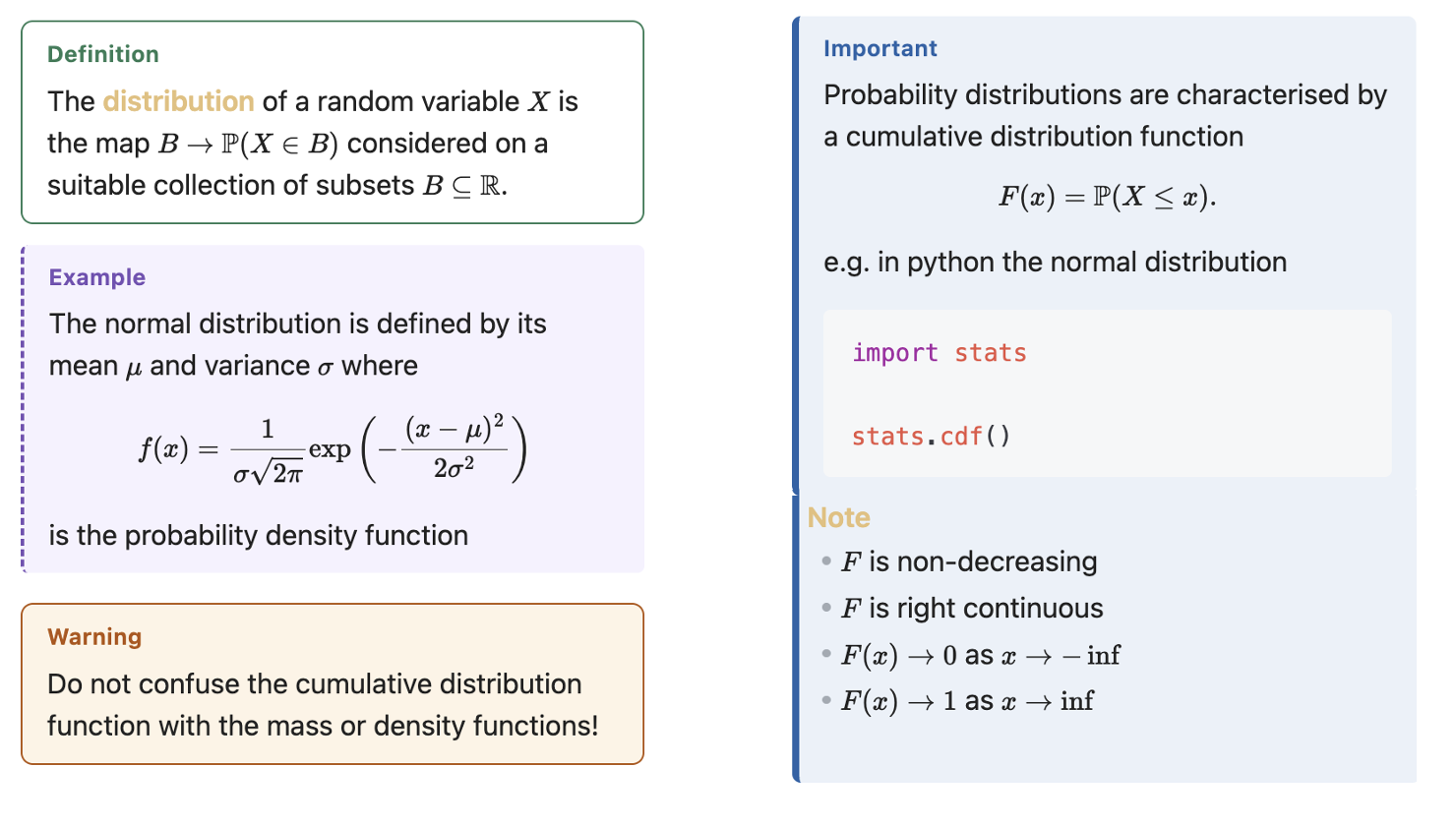
The Markdown stays readable and portable. Inside a fence you can use ordinary Obsidian Markdown, including paragraphs, lists, links, images, callouts, code, and maths. Fences can be nested.
The important difference from general extended-Markdown plugins is that a visual block style is the first-class object. Users create, duplicate, adjust, apply, import, and export styles from Obsidian's interface without learning CSS selectors or maintaining snippets.
Highlights
- Exact paired
:::name … :::fences, including nested blocks. - Consistent styling in Live Preview, Reading View, print, and PDF export.
- Six focused presets: Definition, Comment, Important, Warning, Example, and Aside.
- Visual light/dark colour, border, spacing, radius, and typography controls.
- One searchable Apply fenced block… command plus a command for every style.
- Wraps selected text—or the current paragraph when there is no selection.
- Tab-first autocomplete after typing
:::at the beginning of a line. - Apply, change, and remove actions in the editor context menu.
- Create or duplicate styles without leaving the writing workflow.
- Validated JSON import/export.
- Explicit vault-wide fence renaming that ignores code blocks and comments.
- Restricted advanced CSS declarations for users who need an escape hatch.
- Offline-only: no telemetry, network requests, external processes, or hidden file writes.
Quick start
- Enable Advanced Markdown Blocks under Settings → Community plugins.
- Select a paragraph and run Advanced Markdown Blocks: Apply fenced block….
- Choose Definition, Comment, or another style.
- Open Settings → Advanced Markdown Blocks to change its appearance.
With no selection, the apply command wraps the current paragraph. On an empty line it inserts a paired fence and places the cursor inside it.
You can also type ::: at the start of a line, use the arrow keys to choose a style, and press Tab to insert it:
:::warning
This approximation fails near the singularity.
:::
Presets
| Fence | Intended use | Default treatment |
|---|---|---|
:::definition |
Terms and formal definitions | Minimal green outline |
:::comment |
Commentary and annotations | Muted shaded text |
:::important |
Key information | Blue accent rail |
:::warning |
Risks and failure conditions | Warm outlined block |
:::example |
Worked examples | Purple dashed accent |
:::aside |
Supplementary material | Quiet neutral rail |
Presets are starting points, not locked themes. Duplicate one, rename the copy, and tune it visually.
Syntax rules
- An opening fence is
:::nameon its own line. - A closing fence is
:::on its own line. - Fence names start with a lowercase letter and contain lowercase letters, numbers, or hyphens.
- Fences inside backtick/tilde code blocks and Obsidian
%%comments are ignored. - Unmatched or disabled fences remain ordinary source text.
- Nested blocks close in last-opened, first-closed order.
:::definition
A **Markov process** obeys the Markov property.

:::example
Brownian motion is a Markov process.
:::

The future depends only on the current state.
:::
Advanced CSS
Each style accepts CSS declarations such as:
font-family: var(--font-text);
letter-spacing: 0.01em;
You do not need to provide a selector. Advanced Markdown Blocks validates the declarations and rejects selectors, braces, @ rules, URL loading, and executable legacy CSS. This keeps the escape hatch local and intentionally narrower than a general CSS snippet.
Installation from source
Requirements: Node.js 20.19 or newer and npm.
npm ci
npm run build
Copy main.js, manifest.json, and styles.css to:
<vault>/.obsidian/plugins/fenced-blocks/
Reload Obsidian and enable Advanced Markdown Blocks.
Development
npm run dev       # watch build
npm run check     # typecheck, lint, tests, production build
npm run package   # create the release zip in dist/
See CONTRIBUTING.md, RELEASING.md, and SAFETY_REVIEW.md for the project standards and release model.
Compatibility and scope
Advanced Markdown Blocks targets Obsidian 1.13.1 or newer on desktop and mobile. It deliberately focuses on reusable visual formatting rather than Pandoc export semantics, theorem numbering, citations, or definition lists.
Privacy and vault access
Advanced Markdown Blocks works offline and makes no network requests. Normal editing and rendering operate only on the note Obsidian is currently processing. The plugin does not scan the vault in the background.
The Rename :::id in vault action is the sole vault-wide operation. It runs only after the user explicitly requests and confirms a rename, enumerates Markdown files, and updates matching fences through Obsidian's Vault API. Fences inside code blocks and comments are ignored. The action does not create, move, or delete files.
License
MIT © 2026 Hew Phipps.