Daily notes calendar
 bartkessels19k downloads
Navigate to your weekly- and daily-notes using a calendar view.
- Overview
- Scorecard
- Updates44
The Daily note calendar plugin started as a hobby project because another calendar plugin to open daily notes couldn't
handle my own date format for daily notes which is (yyyyMMdd - eeee e.g. 20241231 - Saturday). Therefore, I decided to
write my own plugin which allows you to customize the format of your daily and even weekly notes.
Table of contents
- 1. Features
- 2. External dependencies
- 3. Build and test
- 4. Contribute
- 5. Create a new release
1. Features
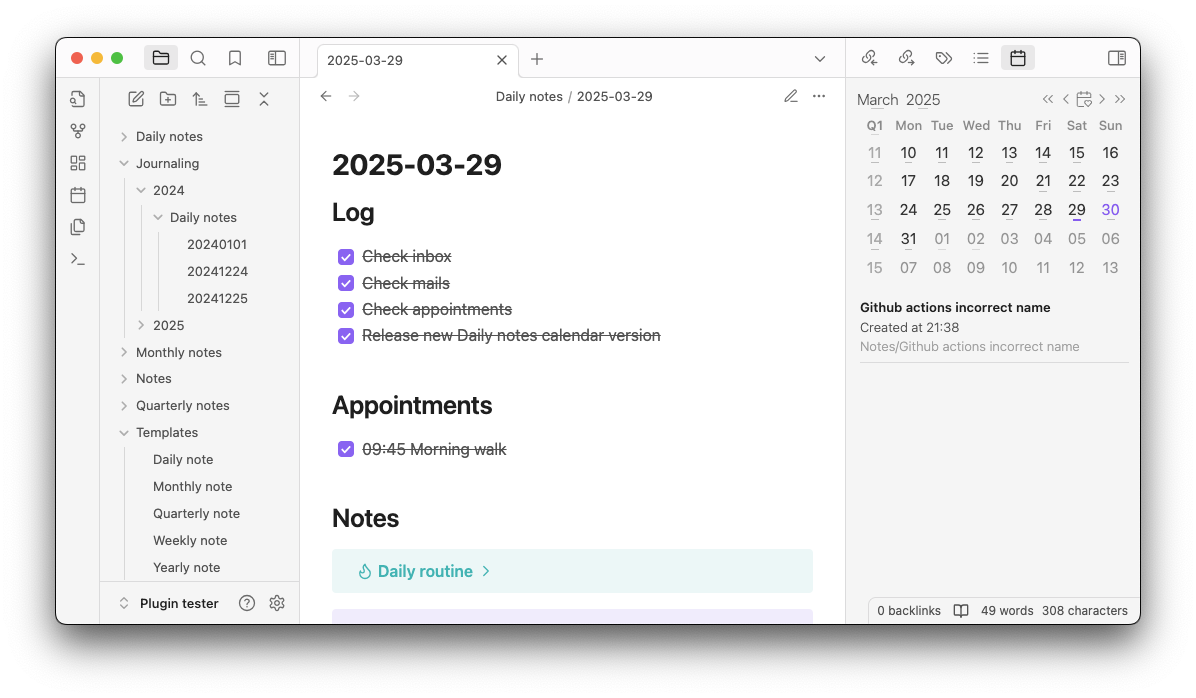
1.1 Periodic notes
Quickly navigate your vault using a calendar view, this plugin allows you to create and navigate to your periodic notes such as
- Daily notes
- By clicking on a specific date
- Weekly notes
- By clicking on the week number
- Monthly notes
- By clicking on the month name
- Quarterly notes
- By clicking on the quarter name in the upper-left corner
- Yearly notes
- By clicking on the year number
For each note, you can specify the template of the name yyyy-MM-dd - eeee and the folder where the newly created
periodic note should be stored.
The path is also customizable using the date formatting rules of date-fns.
Below each date, you can choose to display an indicator whether or note that date already has a note.
1.2 Variables
All the notes that you create must be based on a template, this allows you to create your periodic note based on the same template every time. Inside your template-file you can use the following variables:
| Variable | Description | Template |
|---|---|---|
{{date:<template>}} |
The date of the note. This date is based on the date that you've clicked on in the calendar. | You can use the same date templating rules of date-fns that you use in the name or the folder. Thus {{date:yyyy-MM-dd - eeee}} would turn into 2024-12-31 - Monday. |
{{today:<template>}} |
The date of today. This date is based on the date and time of creation of the note. | You can use the same date templating rules of date-fns that you use in the name or the folder. Thus {{today:yyyy-MM-dd - eeee, HH:mm}} would turn into 2024-12-31 - Monday, 12:59. |
{{title}} |
- | This will take the title of the note you had opened before clicking a date in the calendar. |
1.2.1 Calculating dates
For the {{date:<template>}} and {{today:<template>}} variables, you can add or subtract days, weeks, months
and years.
You can subtract or add a period using the + or - sign followed by the period and the amount of that period
you want to add or subtract.
| Period | Variable | Template example |
|---|---|---|
| Day | +1d or -1d |
{{date+1d:yyyy-MM-dd - eeee}} |
| Week | +1w or -1w |
{{date+1w:yyyy-MM-dd - eeee}} |
| Month | +1m or -1m |
{{date+1m:yyyy-MM-dd - eeee}} |
| Year | +1y or -1y |
{{date+1y:yyyy-MM-dd - eeee}} |
Where the number is the amount of the period you want to add or subtract.
The complete template would look like {{date+1y:<template>}} or {{today+1y:<template>}}. to add one year to the
date. You can change the amount or the period in the above example to any period from the above table.
1.3 Notes created on a specific day
For each day you select, you can enable the feature to display all the notes created on that specific day below the calendar. This allows you to easily navigate your vault using the calendar view and quickly find the notes you've created on any day.
In the settings, you can specify how you want the plugin to find the notes created on a date. Either use the default created date of the actual file or use a specific property in the front matter of the note.
The created on time displayed below each note can be customized using the date formatting rules of date-fns.
You can always navigate to created notes by pressing the shift key and clicking on the date. This will only list the notes created on that date and not open or create the daily note.
1.4 Commands
To navigate your vault even faster, the Daily Notes Calendar plugin offers a couple of commands to navigate your periodic notes.
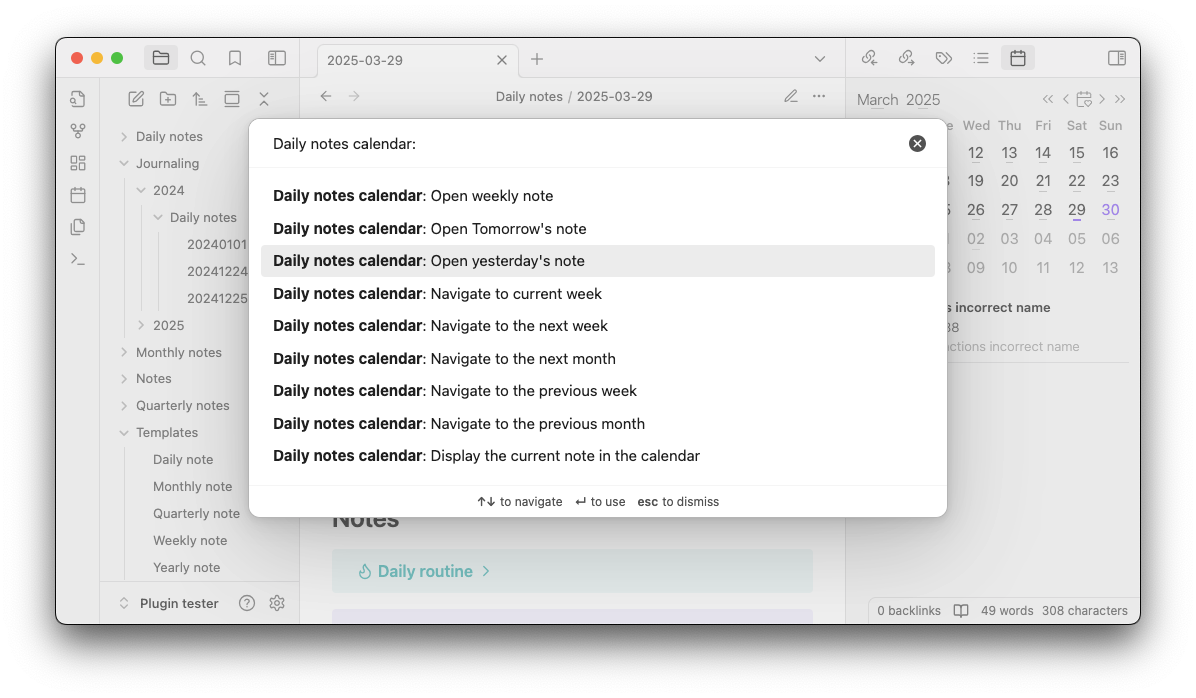
1.4.1 Open periodic notes
You can open your weekly, monthly, quarterly or yearly note by using the one of the following commands
Open weekly note
Daily notes calendar: Open weekly note
If today is 2024-12-31, the command will open the note
2024-W52in the folder specified in the settings.
Open monthly note
Daily notes calendar: Open monthly note
If today is 2024-12-31, the command will open the note
2024-12in the folder specified in the settings.
Open quarterly note
Daily notes calendar: Open quarterly note
If today is 2024-12-31, the command will open the note
2024-Q4in the folder specified in the settings.
Open yearly note
Daily notes calendar: Open yearly note
If today is 2024-12-31, the command will open the note
2024in the folder specified in the settings.
1.4.2 Navigate to the next or previous week
You can navigate the calendar to the next or previous week by using the following commands
Daily notes calendar: Navigate to the next week
This will navigate to the next week relative to the current weeks in the calendar.
Daily notes calendar: Navigate to the previous week
This will navigate to the previous week relative to the current weeks in the calendar.
1.4.3 Navigate to the next or previous month
You can navigate the calendar to the next or previous month by using the following commands
Daily notes calendar: Navigate to the next month
This will navigate to the next month relative to the current month in the calendar.
Daily notes calendar: Navigate to the previous month
This will navigate to the previous month relative to the current month in the calendar.
1.4.4 Display the current note in calendar
You can navigate to the current note's date in the calendar using the following command
Daily notes calendar: Display the current note in calendar
This will navigate the calendar to the date of the currently opened note. This will either take the creation date of the note, or the created date property if you've enabled that setting.
1.5 Displaying notes created on a specific day
When you've enabled the feature to display notes created on a specific day, you can also choose to display the current opened note in the calendar. This can be done by using the command Daily notes calendar: Display the current note in calendar.
This will highlight the date of the current note in the calendar, and below the calendar all notes that are created on the same date as the currently opened note.
The command will either use the date that the note was created on, or the property specified in the plugin settings.
2. External dependencies
The Daily note calendar plugin uses npm as a package manager, so most dependencies required by the plugin can be installed using the following command:
$ npm install
To locally test your plugin, you need to have Obsidian (which is pretty self-explanatory why). For more information about the process of developing an Obsidian plugin, I'm happy to refer you to the Obsidian documentation.
3. Build and test
To build and test the daily-note-calendar plugin, you can use the following commands:
$ npm install
$ npm run build
$ npm run test
Only the business logic is tested that doesn't depend on anything from Obsidian.
4. Contribute
Is there a feature you'd like to see, or a bug you've encountered? Please let us know, and help us make the Daily note calendar great for everyone! Or, if you're a developer, try to fix it yourself! If you'd like to contribute back to the project, but you're not quite sure yet what you can add, take a look at the roadmap.
All contributions are welcome, so feel free to join the open source community and support Daily note calendar through your expertise!
To make sure everyone can contribute to Daily note calendar we value the quality and understandability of our code and
repository.
So when you're building a feature, or patching a bug, and you've made a decision, please document that decision in the
docs/design.md document. This will help future contributors to understand your rationale. If you've
updated some logic in the code, please check the decision records and update the related ones. If you've done all this,
update the test-suite and validate that your newly created code does exactly what you'd documented.
4.1 Branching strategy
So now that your idea is implemented, documented and tested, it's time to merge it into the project! To help you out a bit on how to set up a branch, we've got you covered in this chapter!
The Daily notes calendar project does not use a development branch but instead uses short-lived feature branches which
are directly merged into the main-branch. We've chosen this strategy 'cause we believe in release often, release
fast. There's no need for your feature to gather dust in a stale development branch while waiting on some arbitrary
date to be released. But, we do however, have some guidelines:
- If you're contributing a feature use the
feature/<your-feature-name>naming convention - If you're contributing a bug fix use the
bugfix/<the-name-of-the-bug>naming convention. - If you're contributing to documentation use the
documentation/<name-of-change>naming convention. - If you're contributing a hot fix use the
hotfix/<hotfix-type>-<name>naming convention- These can be useful for updating dependency versions
5. Create a new release
To create a new release of the plugin, edit the package.json file and update the version property. Then run
npm run version to update the version in the manifest.json and versions.json file.
Once the release is completed, merge the branch back into the main branch.
For versioning Daily note calendar uses semantic versioning. Which, given the documentation on semver.org, means that the version number consists of MAJOR.MINOR.PATCH.
When creating a release of Daily note plugin, check what kind of changes have been applied since the previous version and categorize these in one of the following segments:
- Incompatible API change, or a user interface change
- New functionality which doesn't break existing functionality
- Bug fix
These can be mapped on the semantic versioning scheme in the following ways:
- Update the MAJOR version when you've made a breaking change either in the interfaces or in the UI.
- Update the MINOR version when a new feature is introduced
- Update the PATCH version when a bug is resolved
When you've updated the version in package.json create a new tag in Git using the
following structure: MAJOR.MINOR.PATCH.
For version 5 with a bugfix this would be 5.0.1.
This can be created using the following Git-command:
$ git tag -a 5.0.1
$ git push -u origin 5.0.1
This will create the tag locally and then push it to Github which in turn will kick off the required pipelines to create the new release and add the build artifacts.