Glass
 Scott Kosman2k downloads
Run Claude Code inside Obsidian on macOS, Linux, and Windows: interactive terminal, quick-ask modal, and a built-in MCP server for structured vault access.
- Overview
- Scorecard
- Updates52
Glass puts Claude Code inside Obsidian with a built-in MCP server that gives Claude direct access to your vault — reading, searching, and writing notes without any configuration on your part. Not a chat UI, not a reimplementation: the actual Claude Code CLI running in a real terminal alongside your notes.
Every slash command, every MCP tool, every session you'd have in a standalone terminal. If you already use Claude Code, there's nothing new to learn.
| Light | Dark |
|---|---|
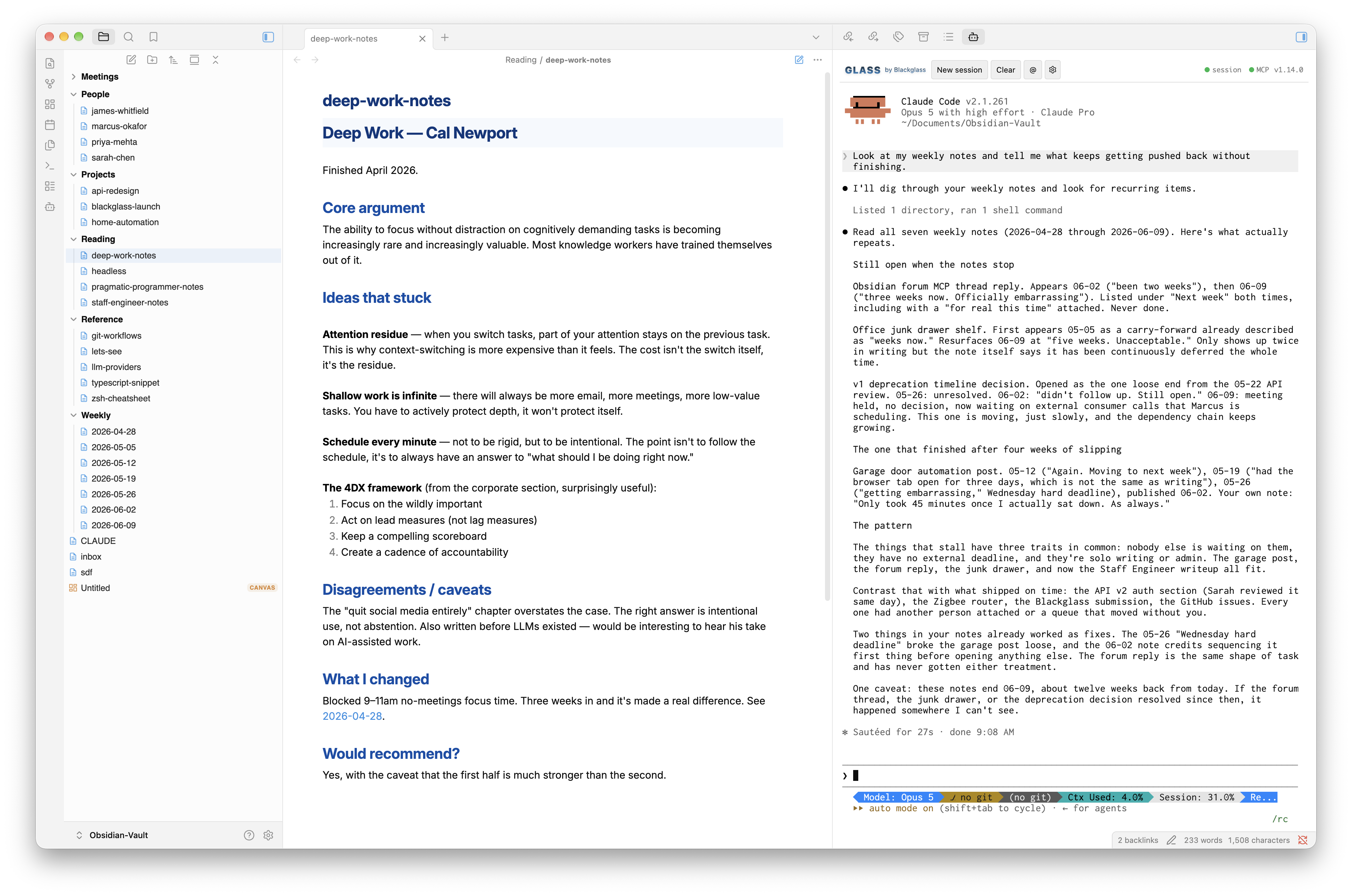 |
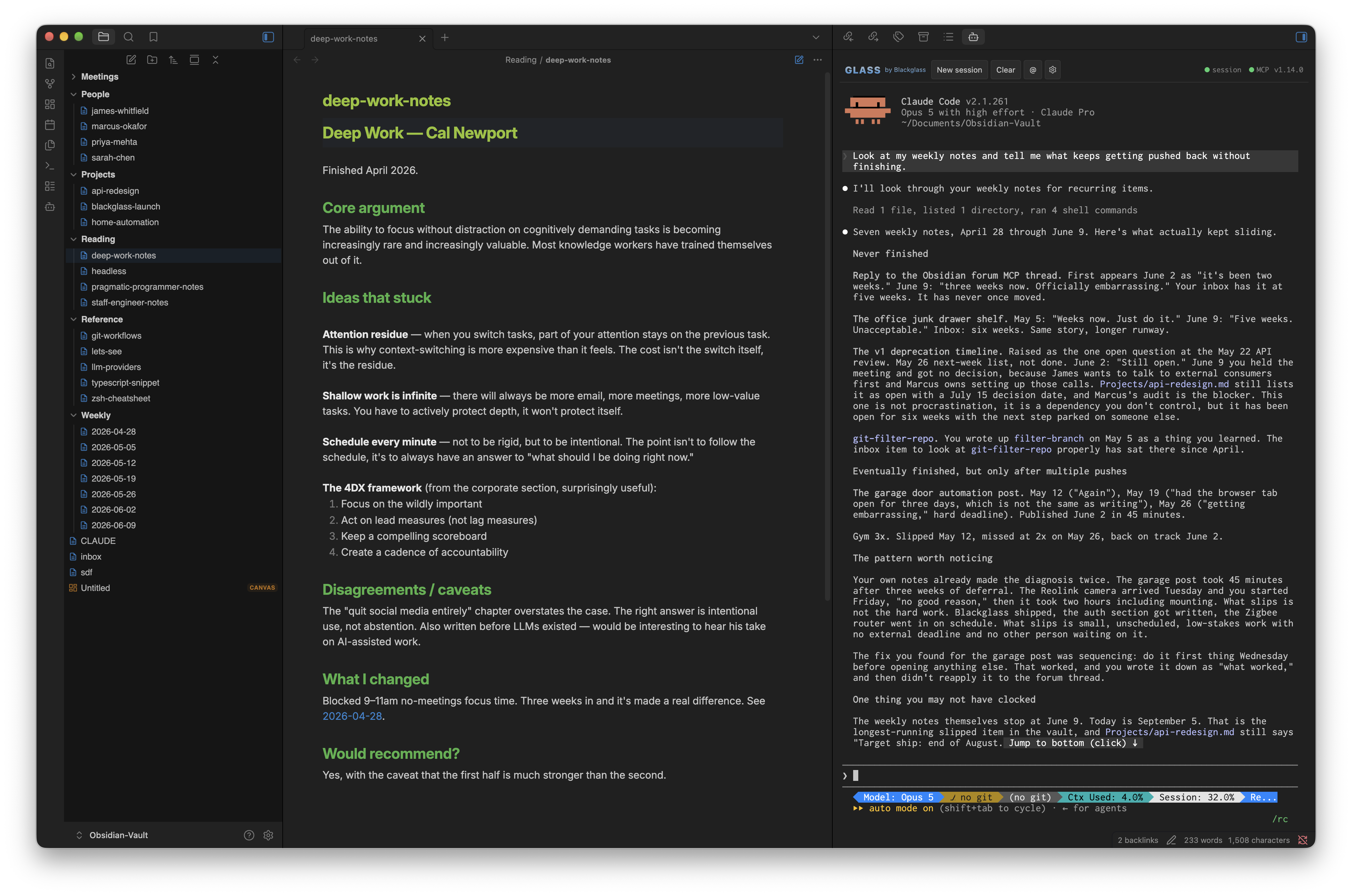 |
Note: This plugin was formerly called Blackglass. The name has been shortened to Glass; the plugin ID remains blackglass so existing installations update seamlessly.
What's new in 1.15.0
- Canvas MCP tools — Claude can now create, read, and update Obsidian Canvas files: spatial boards of cards connected by arrows, not just linear notes. Ask it to turn a note into a mind map, lay out a project as a kanban board, or read back an existing canvas to reason about its structure.
- Read-only mode covers canvases too — the Read-only vault access setting now also hides
create_canvasandupdate_canvas, matching how it already handles notes.
1.15.1
- Localized UI — Glass now follows Obsidian's configured display language, with machine-translated drafts for German, Spanish, Dutch, and French (falls back to English for anything untranslated). See
src/i18n/README.mdfor translation status or to contribute a correction.
1.15.2
- Fixed a first-run error — opening the terminal in a brand-new vault could show a bare error instead of starting a session, since Claude Code registering the vault's MCP server for the first time could take longer than Glass's window for detecting "no previous session to resume." Widened that window so it no longer requires manually clicking "New session" to recover.
1.15.3
- Fixed garbled terminal display — the terminal could occasionally scramble mid-session, most often while typing a longer message, and only clearing up after resizing the pane. The cause was multi-byte characters (emoji, accented letters, CJK text, box-drawing borders) being split across chunks of output and turning into broken replacement symbols. They now render correctly.
1.15.4
- Quick-ask models: The quick-ask model picker now offers Sonnet 5.5, Opus 5.5, and Fable 5.1.
Features
- Real Claude Code terminal: not a chat UI or a wrapper; the actual Claude Code CLI running in a full xterm.js terminal in your sidebar. All slash commands, all MCP tools, full session continuity.
- Built-in vault MCP server: gives Claude structured read/write access to your notes the moment the plugin loads; no configuration required
- Authenticated MCP server: auto-generated Bearer token written to
.mcp.jsonon every launch; any other local process is denied access - Read-only vault mode: optional setting to hide write tools from Claude entirely, limiting it to read and search only
- Quick ask modal: one-shot queries using Claude Code's
--printmode; no terminal required; renders responses as Markdown - File explorer context menu: right-click any
.mdfile and choose "Ask Claude about this" to query Claude about it without opening it - Vault-aware quick ask: pre-fill the modal with the active note or selected text
- Per-query model selector: choose the model directly in the quick ask modal; overrides the default without changing your setting
- Session resume: picks up where you left off (
--continue) on every open - CLAUDE.md vault context: offers once, on first install, to generate a CLAUDE.md summarizing your vault's structure and tags — loaded automatically by Claude Code every session; regenerate anytime from Settings
- Theme-adaptive terminal: terminal colors derived from the active Obsidian theme; updates live when you switch themes
- Cross-platform: macOS, Linux, and Windows (Windows requires
pip install pywinpty) - Localized UI: follows Obsidian's configured display language, with machine-translated drafts available for German, Spanish, Dutch, and French (falls back to English for anything untranslated — see
src/i18n/README.md)
Requirements
- Obsidian desktop app (1.8.7+)
- Claude Code CLI installed and on your PATH (
claude --versionshould work in your terminal) - Python 3 (used by the terminal bridge; ships with macOS, available via your package manager on Linux; install from python.org on Windows)
Platform support: macOS and Linux work out of the box. Windows requires Python 3 and one extra step:
pip install pywinpty
pywinpty is a Python package that provides Windows PTY support, including terminal resize. The Quick Ask modal works on all platforms without it.
Agent SDK credits: The Quick Ask modal runs Claude Code in non-interactive (-p) mode. As of June 15, 2026, Anthropic bills this separately from interactive usage — Pro plans include $20/month of Agent SDK credits (details). The interactive terminal (available on all platforms) draws from your regular Claude subscription, not this pool.
Installation
Search for Glass in Settings → Community Plugins → Browse, then install and enable it.
Manual install: Download main.js, styles.css, and manifest.json from the latest release and copy them into <your-vault>/.obsidian/plugins/blackglass/.
Commands
All commands are available via the command palette (Cmd+P):
| Command | Description |
|---|---|
| Open Claude Code terminal | Opens the sidebar terminal panel |
| Ask Claude (quick) | Opens a quick-ask modal (print mode, no terminal needed) |
| Ask Claude about this note | Prefills the modal with the current note's content |
| Ask Claude about selection | Prefills the modal with the selected text |
| Start new Claude Code session | Kills the current session and starts a clean fresh one |
| Insert note reference into terminal | Opens a note picker and inserts @<path> into the terminal; assign a hotkey in Settings → Hotkeys |
A ribbon icon (bot) also opens the terminal panel directly. The terminal toolbar has a New session button that starts a completely fresh session, a Clear button that wipes the terminal output without ending the session, an @ button that opens a fuzzy note picker and writes the selected path as a @filename reference into the terminal (Claude Code reads the file directly — no content dump), a settings button (⚙) that opens Glass settings, and status dots for the session and MCP server (green = active, grey = inactive).
Right-clicking any .md file in the file explorer shows an Ask Claude about this option, which opens the quick ask modal prefilled with that note's content.
Settings
Settings → Glass:
| Setting | Default | Description |
|---|---|---|
| Claude binary path | claude |
Path to the claude CLI. Use full path if not on PATH. |
| Working directory | (vault root) | Directory Claude starts in. Defaults to vault root. |
| Quick ask model | Default | Model used by the quick ask modal. Can be overridden per-query in the modal itself. |
| Terminal font size | 14 |
Font size in pixels. Updates the running terminal immediately. |
| Terminal font family | monospace |
Font family for the terminal. Populated from your system fonts; falls back to a curated list if font enumeration is unavailable. Updates the running terminal immediately. |
| Terminal font weight | Normal |
Weight or style variant for the selected font. Options are derived from your system fonts (e.g. Light, Regular, SemiBold, Bold). Updates the running terminal immediately. |
| Terminal letter spacing | 0 |
Horizontal spacing between characters in pixels. Valid range: 0–3. Updates the running terminal immediately. |
| Terminal line height | 1.0 |
Vertical spacing multiplier for lines. Valid range: 1.0–1.4. Updates the running terminal immediately. |
| Terminal scrollback | 5000 |
Number of lines kept in scroll history. Takes effect on next terminal open. Valid range: 100–100,000. |
| Open panel on startup | off | Auto-open the terminal when Obsidian launches. |
| Resume last session | on | Passes --continue to resume the previous conversation. |
| Enable vault MCP server | on | Starts the built-in MCP server. Disable to run without vault tool access. |
| MCP server port | 27123 |
Port the MCP server binds to. Increments automatically if the port is in use. Valid range: 1024-65535. |
| Read-only vault access | off | Hides create_note, update_note, create_canvas, and update_canvas from Claude. Claude can still read and search notes and canvases. |
| Skip permission prompts | off | Passes --dangerously-skip-permissions to Claude Code. Claude will execute tool calls without asking for confirmation. Only enable for trusted tasks. |
Vault MCP server
Glass includes a built-in MCP server that gives the embedded Claude Code session structured access to your vault. When enabled (on by default), the plugin:
- Starts a local HTTP server on
localhost:27123(or the next available port) - Generates a random Bearer token and writes it alongside the server address into
.mcp.jsonso Claude Code authenticates automatically - Removes the entry when the plugin unloads
The server requires a valid Authorization: Bearer <token> header on every request. The token is regenerated each time the plugin loads, so any other local process that previously had the token loses access after a restart.
Claude Code gains the following vault tools:
| Tool | Description |
|---|---|
read_note |
Read a note's full content by vault-relative path |
list_notes |
List notes and subfolders at a path (defaults to vault root) |
search_vault |
Find notes whose path or filename matches a query string |
search_note_content |
Full-text search across note content, returns matching lines with context |
get_backlinks |
Find all notes that link to a given note |
get_outlinks |
List the notes (and unresolved link targets) a given note links to |
list_tags |
List tags used across the vault (or a directory), sorted by how many notes use each one |
get_active_note |
Get the path and content of the currently open note |
create_note |
Create a new note at a vault-relative path |
update_note |
Replace the content of an existing note |
open_note |
Open a note in the workspace so you can see it, optionally in a new tab or a specific existing pane |
split_pane |
Split the active pane, optionally opening a note in the new split |
navigate_to_heading |
Open a note and scroll the editor to a specific heading |
show_notice |
Show a transient notice/toast message in the Obsidian UI |
list_panes |
List open panes in the main editor area (not sidebars), with each pane's id, note title, rough screen position, and whether it's active |
create_canvas |
Create a new Obsidian Canvas file (a spatial board of cards connected by arrows) |
update_canvas |
Replace the entire nodes/edges structure of an existing canvas |
read_canvas |
Read an existing canvas's full JSON structure |
search_note_content accepts an optional directory argument to limit the search to a subtree, and an optional max_results argument (default 10, max 50). Each result includes up to 3 matching lines with surrounding context so Claude can decide which notes to read in full.
open_note accepts an optional pane_id (from list_panes) to target a specific existing pane instead of just the active pane or a new tab — handy for multi-pane layouts where "put this in the top pane" needs to resolve to an actual pane. pane_id always replaces that pane's current tab; it can't be combined with new_leaf, since Obsidian's plugin API has no way to open a new tab inside a specific other pane, only to open a new tab in the active one.
create_canvas and update_canvas take a nodes array and an optional edges array following Obsidian's JSON Canvas format: each node is a card with a unique id, a type (text, file, link, or group), position (x/y), and size (width/height), plus a type-specific field (text, file, or url); each edge connects two node ids with fromNode/toNode. Both validate their input and fail with a specific error (missing field, unknown type, duplicate id, an edge pointing at a node that doesn't exist) rather than writing a malformed canvas.
To disable the MCP server, toggle it off in Settings - Glass - "Enable vault MCP server". To use a different port, change the "MCP server port" setting (valid range: 1024-65535). To hide the vault-writing MCP tools (create_note, update_note, create_canvas, update_canvas) from Claude, enable "Read-only vault access" — see Security for why this doesn't actually prevent Claude from writing to your vault if it's asked to.
Note: .mcp.json in the vault root is managed by Glass. If you already have a .mcp.json with other servers, Glass will merge its mcpServers.obsidian entry rather than overwriting the whole file.
Vault context (CLAUDE.md)
Claude Code automatically loads a CLAUDE.md file from its working directory at the start of every session. Glass can generate one for you, summarizing your vault's top-level folder structure, tag usage, and a sample of note paths.
On first install, Glass offers once to generate this file (skipped automatically if a CLAUDE.md already exists at your vault root, or if you dismiss the offer). You can generate or regenerate it anytime from Settings → Glass → "Generate CLAUDE.md" — if one already exists, you'll be asked to confirm, and the current file is saved as CLAUDE.bak.md before being replaced. This is a single rolling backup: regenerating again overwrites CLAUDE.bak.md with whatever was just replaced, rather than accumulating timestamped copies.
The generated file lives at your vault root as a normal note, so you can open and edit it directly in Obsidian. It's a starting point, not something Glass keeps in sync automatically — edit it freely as your vault evolves.
Remote access
Claude Code's built-in /remote-control command lets you access your running Glass session from any device where you're signed into Claude — a phone, tablet, or another computer — with no extra install required.
While Glass is open on your desktop:
- Type
/remote-controlin the terminal - Claude Code displays a URL for the remote session
- Open that URL on any device (any browser, no install)
The vault MCP server keeps running on your desktop, so Claude can still read, search, and write notes from the remote session. You can ask questions about your vault, kick off long tasks, and get results — all from your phone.
Limitation: this requires Obsidian to remain open on your desktop machine. Closing the app or putting it to sleep shuts down the MCP server, and vault access from the remote session is lost.
Network usage
Glass itself communicates only over localhost: the vault MCP server binds to 127.0.0.1 and is never exposed to the network.
The Claude Code CLI that Glass runs is a separate process that sends your prompts and conversation history to Anthropic's API over HTTPS. This is the same network activity that occurs when you use Claude Code in a terminal. Glass does not transmit any data to Anthropic directly; all API communication is handled by the Claude Code CLI using your own account and API credentials.
Security
Glass gives Claude Code full shell access in the context of your vault's working directory. This means a note or canvas containing adversarial instructions (prompt injection) could (if read into Claude's context via read_note, get_active_note, read_canvas, or the quick ask commands) attempt to influence Claude's behaviour, including running shell commands.
What Glass does: All note and canvas content passed to Claude is wrapped in XML-style delimiters with an explicit instruction to treat it as data rather than instructions. This defends against naive and moderately sophisticated injection attempts. It is not a complete solution; a carefully crafted note or canvas could attempt to escape the wrapper, but it meaningfully raises the bar.
What won't protect you: The Read-only vault access setting removes the create_note, update_note, create_canvas, and update_canvas MCP tools from Claude's tool list, but that's all it does. It does not sandbox the filesystem, and it is not a meaningful defence against prompt injection or even your own direct requests. Claude Code has full shell and file access in your vault's working directory regardless of this setting, so if an MCP write tool isn't available for a task, it can and will fall back to Bash/Write and accomplish the same thing directly. This isn't hypothetical: asking Claude to create a canvas with read-only mode enabled resulted in it writing the file straight to disk once it noticed the tool was missing. A successful injection has that same option, and can also exfiltrate data via curl or run any other shell command. Read-only mode only changes what's on the MCP tool list; never treat it as a write-prevention or security boundary.
Recommended practices:
- Be cautious running "Ask Claude about this" on notes from untrusted sources: web clips, shared vaults, downloaded templates
- The terminal panel is interactive; you see Claude's responses before anything executes, which is a meaningful check on unexpected behaviour
Building from source
Prerequisites
- Node.js 18+
- Python 3
- Claude Code CLI on your PATH
Steps
git clone [email protected]:humantorch/glass.git
cd glass
npm install
npm run build   # Produces main.js
Then copy main.js, styles.css, and manifest.json into your vault's plugin directory.
Releasing
npm run release:patch   # 0.2.0 → 0.2.1
npm run release:minor   # 0.2.0 → 0.3.0
npm run release:major   # 0.2.0 → 1.0.0
Bumps the version in manifest.json and package.json, builds, commits, tags, and creates a GitHub release with manifest.json attached. A GitHub Actions workflow then builds the release assets, attests build provenance, and uploads main.js and styles.css. Requires the gh CLI to be authenticated.
Development loop
npm run dev # Watch mode — recompiles on every save
Testing
npm run lint        # Run Obsidian plugin linter (zero errors = ready to submit)
npm test            # Run tests once
npm run test:watch  # Re-run on file changes
Integration tests cover the vault MCP server: auth, all eighteen tools, read-only mode, port fallback, and HTTP edge cases. Tests spin up a real HTTP server against a mock vault — no Obsidian instance required.
The PTY terminal, xterm.js rendering, and Obsidian plugin lifecycle are not covered by automated tests; verify those manually in the test vault.
Install the hot-reload community plugin in a dedicated test vault, symlink this directory into its plugins folder, and the plugin will reload automatically as you edit.
mkdir -p /path/to/test-vault/.obsidian/plugins/
ln -s "$(pwd)" /path/to/test-vault/.obsidian/plugins/blackglass
The symlink folder name should match the plugin ID (blackglass) so Obsidian can locate it correctly.
Never use your main vault for development testing.
Troubleshooting
"pywinpty is not installed": Windows terminal support requires pywinpty. Run pip install pywinpty in a terminal, then reload the plugin. If you have multiple Python installs, make sure you're installing into the same Python that Glass finds on your PATH (where python will show it).
"Python 3 not found": install Python 3 from python.org or via Homebrew (brew install python3). Python 3 ships with macOS 12.3+; if you're on an older version this may be missing.
"Session ended with exit code 1" immediately: Claude is either not on PATH or not found. Obsidian's Electron process does not inherit your full shell PATH. The plugin attempts to supplement PATH with common install locations (~/.local/bin, /opt/homebrew/bin, /usr/local/bin, etc.), but if Claude is installed elsewhere the most reliable fix is to set the full path explicitly in Settings → Glass → "Claude binary path" (use which claude in your terminal to find it).
"No previous session found, starting fresh": expected on first launch or in a new working directory. The plugin retries automatically without --continue and this message can be ignored.
MCP servers not available inside the plugin: Electron's process environment does not inherit your full shell profile, so environment variables like GITHUB_PERSONAL_ACCESS_TOKEN are absent by default. The plugin works around this by capturing the full login shell environment at startup (via zsh -l -c "env"), which should make any MCP servers that rely on shell-profile variables work automatically. If an MCP tool is still missing, check that the relevant environment variable is exported in your shell profile (.zshrc, .zprofile, etc.) rather than set only in a terminal session.
Architecture
src/
├── main.ts                    # Plugin entry, commands, settings load/save
├── types.ts                   # Shared interfaces and constants
├── SettingsTab.ts             # Obsidian settings UI
├── ContextBuilder.ts          # Vault context extraction (file content, selection, paths)
├── ProcessManager.ts          # Claude subprocess management (PTY + print mode)
├── ClaudeTerminalView.ts      # xterm.js interactive terminal view
├── ClaudeQuickModal.ts        # One-shot query modal using --print mode
├── VaultMcpServer.ts          # Built-in MCP server exposing vault tools to Claude
├── ClaudeMdGenerator.ts       # Generates the vault-summarizing CLAUDE.md file
├── ClaudeMdOnboardingModal.ts # First-install offer to generate CLAUDE.md
├── ConfirmModal.ts            # Reusable yes/no confirmation dialog
└── i18n/                      # UI strings and locale resolution (see src/i18n/README.md)
Dual-mode design: The terminal view runs a persistent PTY session (full interactive Claude Code). The quick modal uses claude --print --output-format json for one-shot queries without needing an open terminal session.
License
MIT