Alyok Autotag
 Alexander334 downloads
Automatically adds tags to notes when created or moved into specific folders.
- Overview
- Scorecard
- Updates7
Obsidian plugin that tags notes by folder. You say that notes in Work get #work, and from then on every note created in Work or moved there gets the tag. Works on desktop and mobile.
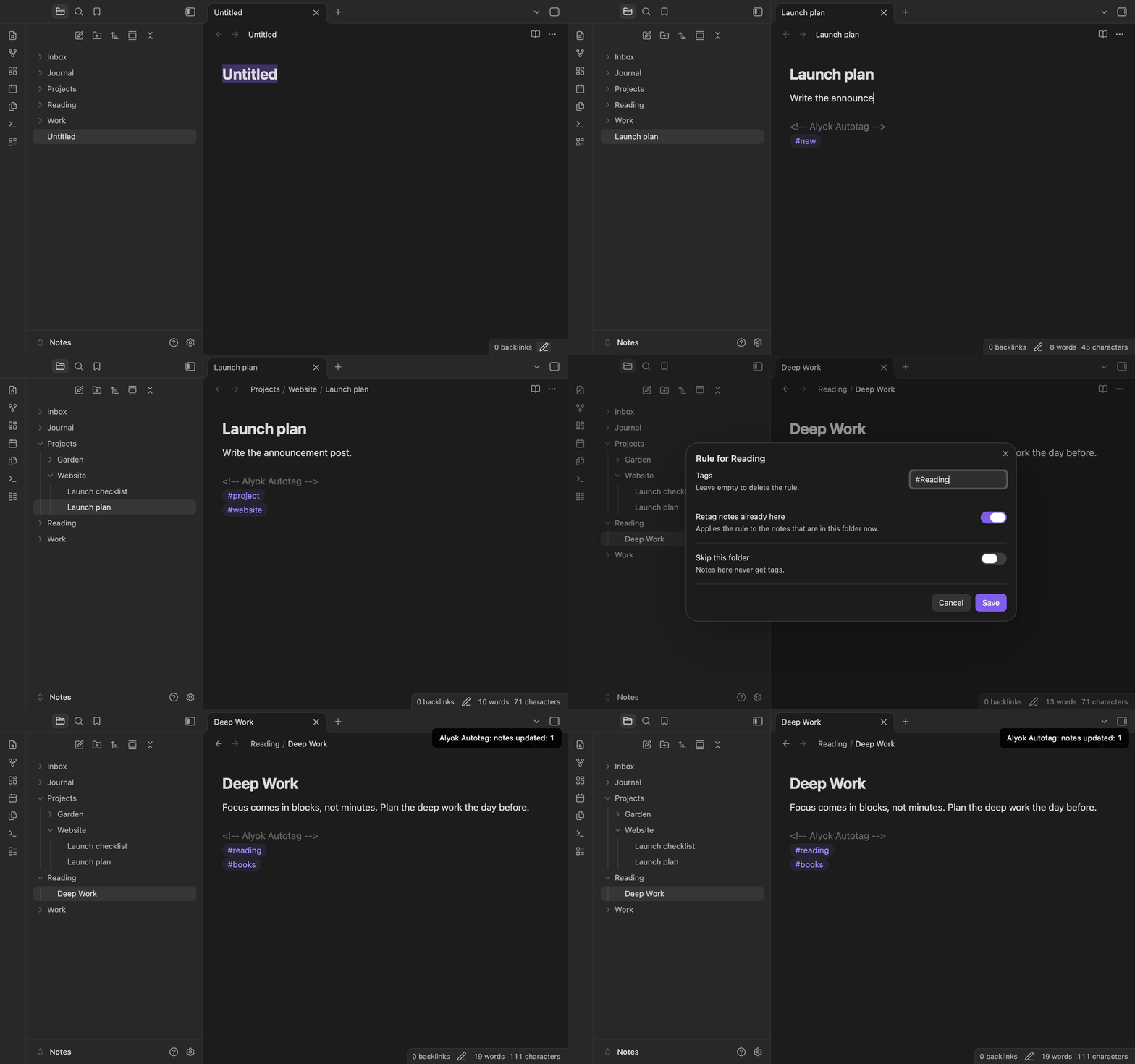
How it works
A rule is a folder plus tags. It covers the folder and everything inside it, so with rules for Projects and Projects/Alpha a note in Projects/Alpha gets the tags of both.
- A new note gets the tags of its folder. If no rule matches, it gets
#new, so unsorted notes are easy to find. - When a note is moved to another folder, the tags of the old folder go away, the tags of the new one are added, and
#newis removed. - Renaming a note changes nothing.
- When you rename or move a folder, its rules follow it.
Tags go either to a block at the end of the note or to the tags property.
The block looks like this:
<!-- Alyok Autotag -->
#work
#new
The plugin rewrites the block, so don't keep your own tags in it. Whatever you write below the block stays.
With the tags property the plugin only adds and removes the tags of its rules, your other tags are left alone. If you switch from the block to the property, run "Apply to all notes" once and the tags move over.
Rules
In the settings: add a rule, pick a folder and type the tags, #tag1 #tag2 or tag1, tag2. A new rule starts with the folder name as its tag. When you close the settings, the notes already in folders whose rules changed get the new tags, and tags you removed are taken off them.
From the file explorer: right-click a folder (long-press on mobile) and choose "Autotag rule". On a phone this is the fastest way. When you save a rule there, the notes already in the folder get the new tags right away, and tags you removed from the rule are taken off them.
"Rules from folder names" makes a rule for every folder with the folder name as the tag, either the name itself (#Design) or the full path as a nested tag (#Projects/Work/Design). "Folders without rules" shows what's left, tap a folder to give it a rule.
Rules are kept in the vault's .obsidian folder and sync with it. Open the same folder as the vault on every device, otherwise each device has its own rules. When rules change on one device, the others pick them up without restarting Obsidian.
Other settings
- Tag for new notes:
newby default. - Creation time tag: new notes get a tag like
#2025-08-31-14-35. It stays the same when the note is moved. - Name new notes by time: an untitled note gets a name like
2025-08-31-14-35. Daily notes and notes created from a link keep their names. - Skipped folders: notes there are never touched. Put your templates folder here.
Templater templates work too, including ones that ask you something before they fill the note. Excalidraw drawings and Kanban boards are always left alone. A note only counts as new when it's created on this device, files that come in through sync are not tagged as new.
Commands
- Retag current note
- Apply rules to all notes
- Show folders without rules
- Rule for the current folder
Installation
In Obsidian: Settings, Community plugins, Browse, search for Alyok Autotag. Until it shows up there, use one of the ways below.
With BRAT, this works on mobile too: "Add beta plugin" and paste 24tiy/Alyok-Autotag.
Manually: download main.js, manifest.json and styles.css from the latest release into <vault>/.obsidian/plugins/alyok-autotag/, then turn on Alyok Autotag in Settings, Community plugins.
Needs Obsidian 1.13 or newer. On older versions Obsidian installs 1.1.1.
Building
See CONTRIBUTING.md for details.
npm install
npm run build
npm run lint
npm run lint runs the official Obsidian ESLint rules, the same ones the community directory checks.
Changelog
1.3.1
- Rules changed on another device are picked up right away. Before, Obsidian kept the old rules until it was restarted and could write them back over the new ones.
1.3.0
- Rule changes made in the settings reach the notes already in those folders when you close the settings, the same way as from the folder menu.
- Fixed: a Templater template that asks a question before filling a new note wiped the note's tags.
1.2.1
- Fixed: right after Obsidian started, settings could show "Folder not found" for folders that exist, and rules didn't update there after a folder was renamed.
- New demo in this README.
1.2.0
- Settings use the new Obsidian settings API, so they show up in the settings search.
- Release files come with GitHub build attestations.
- Needs Obsidian 1.13 or newer, older versions get 1.1.1.
1.1.1
- The interface is English only, the Russian translation is gone.
1.1.0
- Tags can go to the
tagsproperty instead of the block. - Skipped folders.
- "Autotag rule" in the folder menu. Saving a rule there also retags the notes already in the folder.
- Commands.
- Rules follow renamed and moved folders.
- Settings reworked for phones: long folder names and tags are no longer cut off.
- Fixed: text written below the tag block was deleted when the note was moved.
- Fixed: renaming a new note removed
#new. - Fixed: files coming in through sync were tagged as new notes.
- Fixed: Templater folder templates didn't apply to new notes.
- Fixed: the plugin could wipe text you had just typed in an open note.
- Fixed: "Name new notes by time" renamed daily notes, notes created from links and drawings.
- Fixed: folder names with spaces gave broken tags.
1.0.0
First release: folder rules, #new, retag on move, creation time tag, naming by time, folders without rules, rules from folder names, apply to all notes.