Simple Pinned Files
 Matt Maiorana22 downloads
A simple, standalone pinned files view for Obsidian.
- Overview
- Scorecard
- Updates4
A simple Obsidian plugin for pinning important files so they are always easy to find.
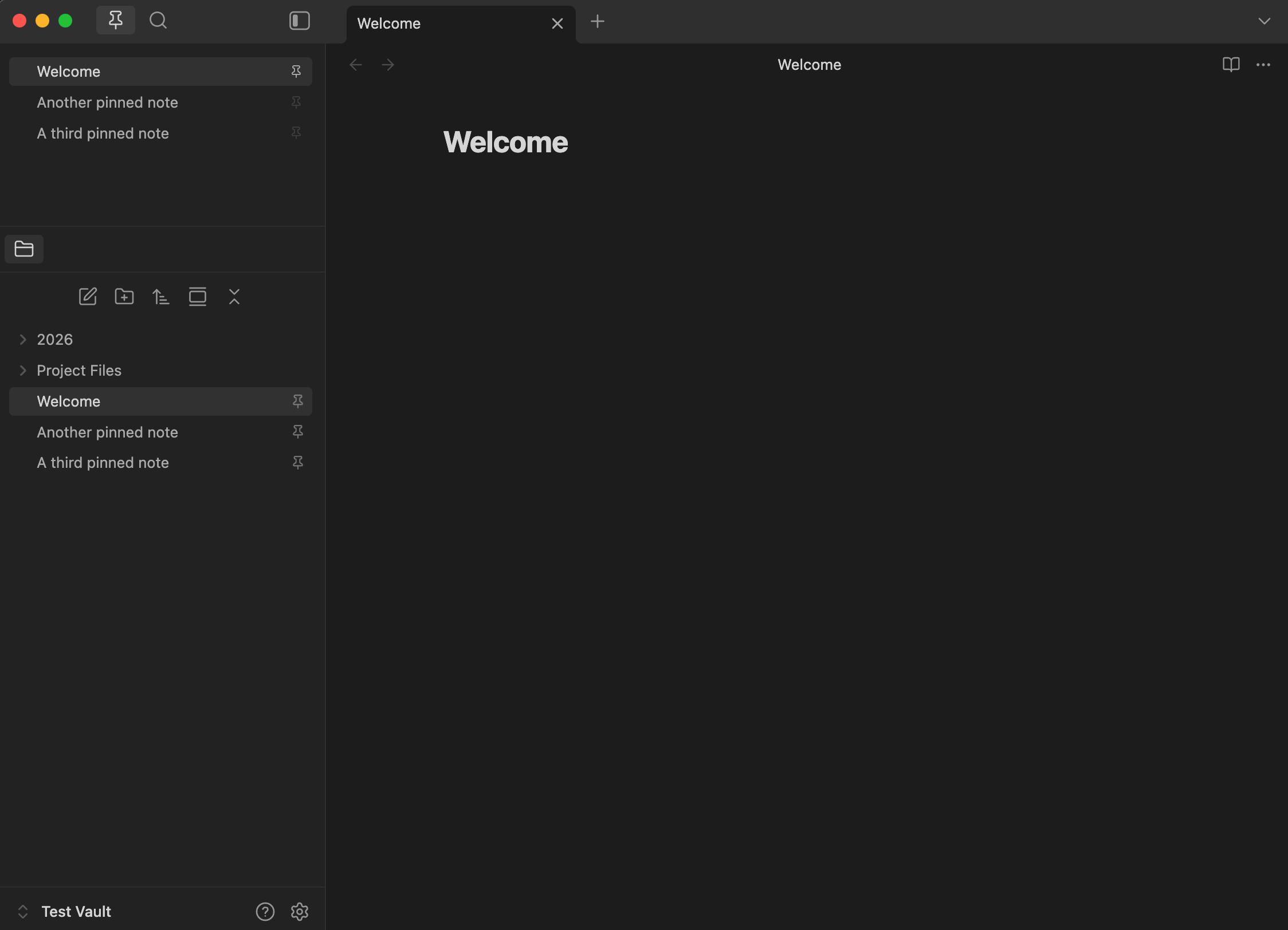
Simple Pinned Files adds a compact Pinned Files view to the sidebar. It is designed to feel native to Obsidian: pinned items use the same compact styling as native file rows, pinned files open with one click, and matching files in the native File Explorer get a subtle pin indicator.
Screenshot
Features
- Pin files from the command palette or File Explorer context menu.
- View pinned files in a compact sidebar list.
- Open pinned files with one click.
- Cmd/Ctrl-click to open in a new tab.
- Right-click a pinned item to unpin it.
- See subtle pin indicators in the native File Explorer.
- Handles renamed or deleted pinned files automatically.
- Supports Obsidian Sync by periodically reloading its own plugin data.
What this plugin does not do
- It does not replace or rebuild Obsidian's File Explorer.
- It does not manage sidebar layout.
- It does not implement search.
- It does not use bookmarks or frontmatter as the source of truth.
- It does not modify vault file contents.
Installation
Manual installation from a GitHub release
- Download
manifest.json,main.js, andstyles.cssfrom the latest release on the GitHub Releases page. - Inside your vault, create the folder
.obsidian/plugins/simple-pinned-files/. - Copy the three files into that folder.
- Reload Obsidian and enable Simple Pinned Files in Settings → Community plugins.
From source
- Clone this repository.
npm installnpm run build- Copy
manifest.json,main.js, andstyles.cssinto the.obsidian/plugins/simple-pinned-files/folder inside your vault. - Enable the plugin in Settings → Community plugins.
Usage
- Open the Pinned Files view from the command palette (Open Simple Pinned Files) or the ribbon pin icon.
- Right-click a file in the native File Explorer → Pin file / Unpin file.
- Click a pinned row to open the file. Cmd/Ctrl-click to open it in a new tab.
- Right-click a pinned row in the Pinned Files view → Unpin.
- Hover a pinned row for a moment to see the file's full vault path in a tooltip.
Settings
- Add Pinned Files to sidebar on startup — adds the Pinned Files view to the left sidebar when Obsidian starts. It will not steal focus from your active sidebar tab.
- Clear pinned files — removes every entry from the pinned list. This only clears the plugin's record; it does not delete the files themselves.
Obsidian Sync
Pinned files are stored in the plugin's own data.json. If Obsidian Sync is configured to sync plugin data, your pinned list will sync between devices. The plugin periodically reloads its own data so synced changes appear without restarting Obsidian.
Data safety
This plugin is intentionally conservative about what it touches.
- It does not create, delete, rename, move, or modify any notes, attachments, folders, frontmatter, or bookmarks.
- The only file it ever writes is its own settings file at
.obsidian/plugins/simple-pinned-files/data.jsoninside your vault. - Rename and delete handlers only update stored pin paths after Obsidian reports that a file or folder has changed. They never originate a vault change.
- Native File Explorer pin indicators are decoration only and do not interfere with native click, right-click, or drag behavior.
Development
npm run dev— watch-mode buildnpm run build— production build (type-checks then bundles)
Release files
For manual installation, users only need these three files from a GitHub release:
manifest.jsonmain.jsstyles.css
Status
v1.0.5 — stable. See CHANGELOG.md for release notes and FUTURE_PLANS.md for ideas under consideration.
License
MIT © Matt Maiorana