Quadro
 Chris Grieser7k downloads
Qualitative Data Analysis (QDA) for social scientists. An open alternative to MAXQDA and atlas.ti, using Markdown to store data and research codes.
- Overview
- Scorecard
- Updates189
Qualitative Data analysis Realized in Obsidian
Quadro is an Obsidian plugin for social-scientific qualitative data analysis (QDA). It is an open alternative to MAXQDA and atlas.ti, using Markdown to store data and codes.
The plugin supports coding in the tradition of Grounded Theory, and data extraction following the principles of Qualitative Content Analysis (as outlined by Gläser and Laudel).
Table of contents
- Introduction
- Usage
- Configuration
- Installation & update
- Development
- Works using Quadro
- Credits
Introduction
For academics not familiar with Obsidian
This plugin utilizes the rich text-processing capabilities of Obsidian to provide a lightweight application for qualitative data analysis.
All data is stored as Markdown files. Markdown is a human-readable, non-proprietary, and commonly used open standard for plain text files. This means:
- There is no lock-in / dependency to a particular app, the data can be
analyzed in any app supporting Markdown. (In fact, the data is stored in
plaintext and can thus even be opened with and read with
Notepad.exeorTextEdit.app.) - The research data is therefore future-proof, fulfilling the requirement of
long-term archiving of qualitative data. It is guaranteed that the data can
still be read even in 50 years, a guarantee that does not exist for research
conducted with proprietary research software such as
MAXQDAoratlas.ti. - The data is interoperable with other applications, meaning it can easily be combined with other text analysis tools such as AntConc.
- The Markdown files are stored offline by default, meeting key requirements for research ethics and protection of research data.
Being an Obsidian plugin, the Qualitative Data Analysis is embedded in the extensive functionality and plugin ecosystem of Obsidian:
- The data analysis can employ the feature-set of Obsidian, which already has a strong focus on linked files. For instance, the Graph View can be used to create a visual network of codes, and Outgoing Links provides an overview of all data files a code is assigned to.
- The qualitative analysis is easily extended with a comprehensive ecosystem of
more than 1000 plugins, for example
Projects for advanced data
aggregation, or Relay for
live-collaboration like in
Google Docs. - Obsidian has been stress tested and confirmed to be able to handle 20 000+ files.
- All this allows the researcher to customize the analysis to the particular needs of their research. Case-specific adaption of research methods is a key demand of qualitative research (which strictly speaking is not truly fulfilled when using standardized, proprietary research software).
- Obsidian, as well as Quadro, both have mobile support (Android and iOS).
- Using Obsidian allows you to employ a keyboard-driven workflow with minimal usage of the mouse.
Obsidian is free to use for academic purposes, and Quadro is also free to use.
- Especially for students writing their theses, this saves a lot of unnecessary hassle with licenses.
- Unlicensed use of research software can lead to journal articles being retracted. Using free or open source tools like Quadro avoids this issue entirely.
If there is a more tech-savvy researcher in the research team, the advantages of Quadro go even further:
- Being Open Source, this plugin can be modified and customized to fit their needs. (It is written is TypeScript / JavaScript, a particularly accessible and commonly used programming language.)
- By storing the data in Markdown files, all research data can be fully
version-controlled with
git.
For Obsidian users not familiar with QDA
In qualitative data analysis, "coding" is a form of fine-grained tagging of text segments, and "extraction" denotes the transforming of prose text into structured data.
Coding is implemented in Quadro via "bidirectional" links between Data Files and Code Files by inserting wikilinks in both files. (Obsidian itself does have backlinks, but those are unidirectional links, since the implicit backlink is only inferred and not stored anywhere in the Markdown file.).
It makes use of Obsidian's note-embedding functionality to keep track of coded text segments.
- Codes are implemented as
[[wikilinks]]instead of#tags, as the former allows for more flexibility, such as having separate file per code. - The distinct feature of this plugin is that its commands always make edits to two files (the data and the code file) at the same time, which is necessary to adequately handle the workflow common to coding in QDA.
Extraction is implemented by creating separate Extract Files for each extraction, using YAML frontmatter to store the data in a structured form. Quadro uses a simplistic templating mechanism to support the creation of those Extraction Files.
Brief methodological comparison with other QDA software
Advantages
- Interoperability: Can be freely combined with other QDA software.
- Flexibility: You can use codes, extractions, or freely combine both.
- Customizability: Implicit assumptions of QDA software, such as the initial order in which codes are presented in the code selection modal, can be customized to deal with different kinds of coder biases.
- Extensibility: Quadro can be easily extended via the Obsidian plugin ecosystem. As opposed to other research software, extending the functionality in most cases does not require technical expertise coding experience.
Disadvantages
- The unit of coding is restricted to paragraphs and to a degree segments of a paragraph. Coding of individual words is not supported.
- Due to the nature of Markdown markup, assigning multiple codes to partially overlapping paragraph segments is not supported. This restriction only applies to partial overlaps, assigning multiple codes to the same paragraph or segment works, of course.
Usage
Getting started
Introduction for academics unfamiliar with Obsidian
- You should familiarize yourself with
Markdown, a
simple standard for human-readable text files, such as
**bold text**for bold text. - A "vault" is a local folder on your device that Obsidian uses as project folder. Obsidian configurations are on a per-vault-basis, so you can have separate configurations for your note-taking and for your data analysis.
Example vault for Quadro
There is a pre-configured example vault to be used with Quadro. Apart from some preinstalled plugins for QDA, it includes some mock data with exemplary codes and extractions, and showcases of extraction capabilities, to demonstrate the capabilities of Quadro.
- Download the vault.
- Open the directory
quadro-example-vaultas an Obsidian vault. (If you are new to Obsidian, see the Obsidian Documentation on how to do that.)
Experienced Obsidian users
If you are experienced with Obsidian, you can also directly install the plugin, though checking out the example vault is nonetheless helpful to get a grasp on the capabilities of Quadro.
Using a separate vault
It is recommended to create a separate vault for data analysis and install the plugin there, for several reasons:
- QDA does not follow the common logic of note-taking, thus often requiring a different set of plugins and settings from your regular vault.
- Separate vaults mean that suggestions, such as for properties, are also separated.
- To make Obsidian easier to use for qualitative research, Quadro also does some (minor) modifications to the core Obsidian behavior, such as all file deletions being monitored.
- For archival purposes, the research data is already separated from your notes.
- For collaborative work in a research team, the data is stored separately from personal notes.
Migrating from an existing project with other QDA software
Unfortunately, this is not supported. The main reason is that commercial QDA software uses proprietary formats, the exact reason why researchers should use research software utilizing open formats to begin with.
If your research data is saved in Markdown, Obsidian is able to import them though. Importing from various other note-taking apps like Notion, Evernote, OneNote, Google Keep, Apple Notes, Bear, or Roam is supported as well.
It is, however, possible to export the results done with Quadro, to collaborate with other researchers. You can either export individual files as PDF, or export aggregated results as CSV.
Modification of Obsidian core behavior
To work correctly, Quadro modifies some behavior of Obsidian core:
- If a Code File or Extraction File is deleted, Quadro will remove all references to it to avoid leaving dead links.
- Since Quadro heavily relies on block references and embedded blocks, their styling is adapted.
As mentioned before it is recommended to use a separate vault for data analysis with Quadro.
Coding
How coding works in Quadro
There are two basic types of files for the analysis, Data Files and Code Files, which are both stored as Markdown files.
Data Files
The empirical material as text files. They can be stored anywhere in the vault
as .md files. (A separate subfolder named Data is recommended though.) As
Quadro assigns codes to whole paragraphs, these data files should
be split up into smaller segments.
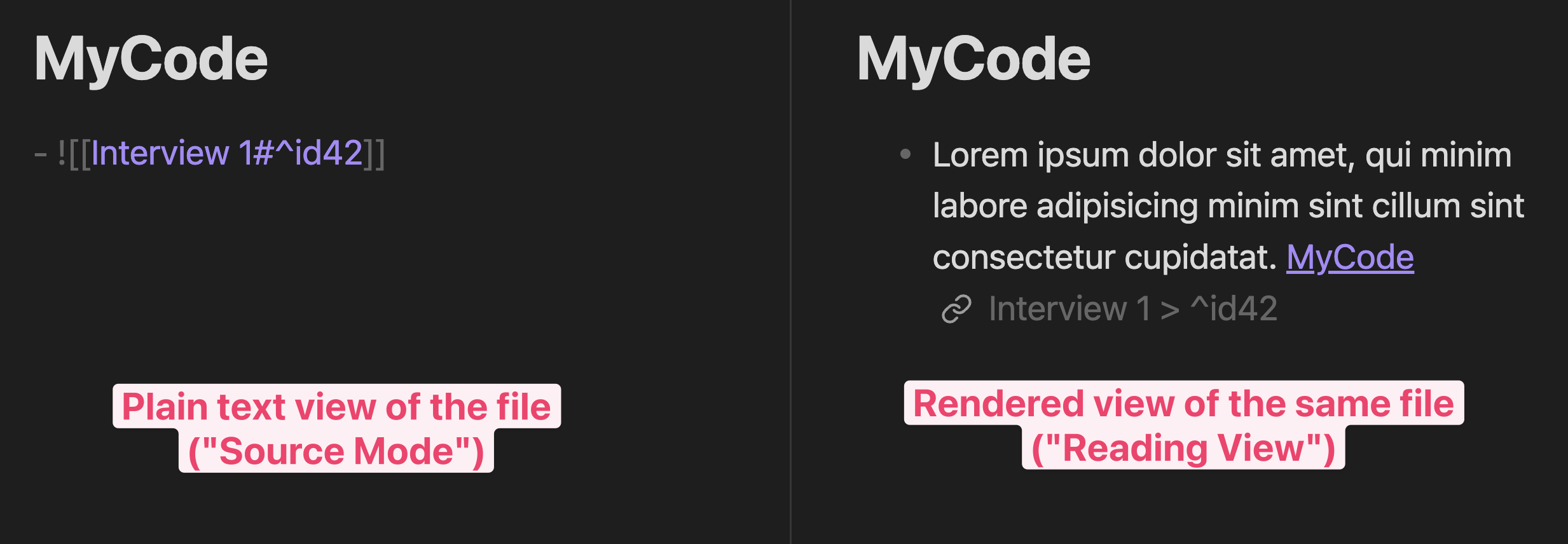
When a code is assigned, a link to the corresponding Code File and a unique ID are appended to the paragraph:
Filename: ./Data/Interview 1.md

Lorem ipsum dolor sit amet, qui minim labore adipisicing minim sint cillum sint
consectetur cupidatat. [[MyCode]] ^id-240302-124012
Code Files
All Markdown files in the folder {vault-root}/Codes are considered code
files. (The folder is configurable.)
When a code is assigned, a link back to the original location in the Data File
is appended to the code file. The link has the format
[[{filename-datafile}#^{id-of-paragraph}]], with the id being a timestamp.
[^1]
Filepath: ./Codes/MyCode.md

![[Interview 1#^id-240302-124012]]
As the link is a so-called embedded link, Obsidian renders the respective paragraph of the Data File inside the Code File:
The underlying folder structure for coding looks like this:
.
├── 📂 Data
│   ├── 📄 Interview 1.md
│   ├── 📄 Field Notes 1.md
│   └── …
└── 📂 Coding
    ├── 📄 code 1.md
    ├── 📄 code 2.md
    └── 📂 Group 1
         ├── 📄 code 3.md
         ├── 📄 code 4.md
         └── …
[!NOTE] The main caveat of this approach is that the assignment of codes is mostly restricted to the paragraph level. Assigning codes to only segments of a paragraph is limited to adding highlights to the respective section. Assignment of codes to individual words and coded segments with overlap is not supported.
Coding capabilities
| Action | Description | Sidebar button | Default hotkey | Capability provider |
|---|---|---|---|---|
| Assign code | Assign a code to the current paragraph, any selected text is highlighted. (overlapping highlights not supported though). Select Create new code or press shift ⏎ to create a new code file and assign it to the paragraph. |
 |
mod+shift+a |
Quadro |
| Rename code | All references to the Code File are automatically updated. (You can also rename by right-clicking a file or link and selecting "Rename.") |  |
Obsidian Built-in | |
| Delete code from paragraph | Removes a code from the current paragraph of a Data File or Code File. The reference is also removed from the corresponding other file. |  |
mod+shift+d |
Quadro |
| Delete Code File and all references to it | Moves the Code File to the trash, and deletes all references to it. |  |
— | Quadro |
| Bulk-create new codes | Create multiple new codes at once (without assigning them to a paragraph). |  |
— | Quadro |
| Merge codes | Merge the current Code File into another Code File. All references from data files are updated to point to the merged file. |  |
— | Quadro |
| Code grouping | Codes can be arranged in subfolders via drag-and-drop in the File Explorer. | — | — | Obsidian Built-in |
| Axial coding | Using the Canvas plugins, you can freely arrange entities on a board, and connect them via lines and arrows, suitable for Axial Coding. Further Documentation |
 |
— | Obsidian Core Plugin: Canvas Obsidian Community Plugin: Semantic Canvas |
| Investigation of code co-occurrences | In the Obsidian Search, use a query such as line:([[MyCodeOne]] [[MyCodeTwo]]). Further Documentation |
— | mod+shift+f |
Obsidian Core Plugin: Search |
| Visualization of code relationships | In the Graph View, use a query like path:Codes OR path:Data, and assign Data and Codes to different groups. Further Documentation |
 |
mod+g |
Obsidian Core Plugin: Graph View |
modrefers thectrlon Windows and tocmdon macOS.- When there is a file
Codes/Template.md, its frontmatter is used as template for any newly created code. - Splitting Code Files is not yet supported. Doing so with any other method (such as another plugin) is likely going to result in broken references.
- ⚠️ Renaming or moving Code/Data Files should be done from within Obsidian. Using the Windows Explorer or macOS Finder does not trigger the automatic updating of references, meaning a loss of information.
Extraction
Quadro implements extraction following the principles of Qualitative Content Analysis as outlined by Gläser and Laudel.
How extraction works in Quadro
Extraction is implemented similarly to coding, using two basic filetypes, Data Files and Extraction Files.
Data Files
The empirical material as text files. They can be stored anywhere in the vault
as .md files.
When making an extraction, a link to the corresponding Extraction File and a unique ID are appended to the paragraph, just like with coding:
Filename: ./Data/Interview 2.md

Lorem ipsum dolor sit amet, qui minim labore adipisicing minim sint cillum sint
consectetur cupidatat. [[Career Visions/1]] ^id-240302-124012
Extraction Files Extraction is implemented via Markdown metadata (YAML frontmatter), which is supported via Obsidian Properties.
When making an extraction, you are presented with a choice of your extraction
types. Upon selection, a new file is created in the folder that groups
extractions, that is {vault-root}/Extractions/{Extraction Group}/. As
such, each file corresponds to a single extraction, with its parent folder
indicating what type of extraction it is.
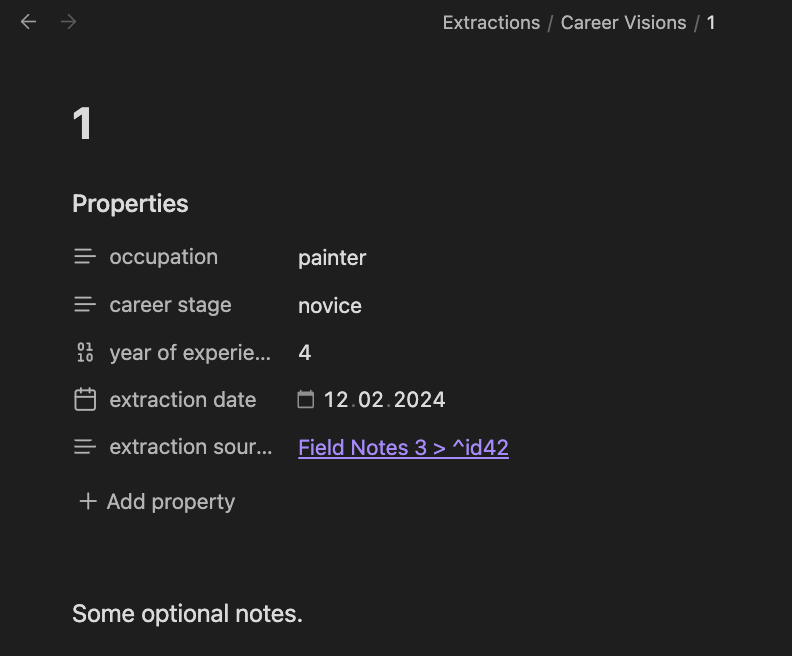
You can then fill out the fields of newly created file. The
extraction-source key contains a link back to the paragraph in the Data File
where you initiated the extraction. In the rendered view, the file contains a
Properties header which can conveniently be filled out:
The underlying plaintext view of the file looks like this:
Filepath: ./Extractions/Career Visions/Career Visions 001.md

---

occupation: "painter"
career stage: "novice"
year of experience: 4
extraction-date: 2024-03-02T12:40:12

Extraction-source: "[[Field notes 3#^id-240302-124012]]"
---

**Paragraph extracted from:** ![[Field Notes 3#^id-240302-124012]]
Extraction Templates (Extraction Types)
The available extraction types are determined by the subfolders of
{vault-root}/Extractions/. The fields that are created for filling in
information are determined by the Template.md file located in that subfolder.
For the example above, the Extraction Template looks like this:
The corresponding template for the extraction type is located in the same
folder, but has the filename Template.md.
Filepath: ./Extractions/Career Visions/Template.md

---

occupation:
career stage:

Year of experience
---
All in all, the underlying folder structure for extractions looks like this:
.
├── 📂 Data
│   ├── 📄 Interview 1.md
│   ├── 📄 Field Notes 1.md
│   └── …
└── 📂 Extractions
    ├── 📂 Career Obstacles
    │    ├── 📄 Template.md
    │    ├── 📄 Career Obstacles 001.md
    │    ├── 📄 Career Obstacles 002.md
    │    └── …
    └── 📂 Career Visions
         ├── 📄 Template.md
         ├── 📄 Career Visions 001.md
         └── …
Aggregate extractions
There are various Obsidian plugins that allow you to get a spreadsheet-like overview of all extractions.
The recommended one is the Obsidian Bases Plugin, due to its first-party support and extensive filtering, sorting, and aggregation features.
Please refer to the Obsidian Bases documentation for details.
Extraction capabilities
| Action | Description | Sidebar button | Default hotkey | Capability provider |
|---|---|---|---|---|
| Extract from paragraph | Creates an Extraction File from Extraction Template. |  |
mod+shift+e |
Quadro |
| Add paragraph to last Extraction File | Adds a reference to the last modified Extraction file to the current paragraph. Useful when information is spread across to paragraphs. |  |
mod+shift+l |
Quadro |
| Merge extractions | Merge the current Extraction File into another Extraction File. All references from data files are updated to point to the merged file. |  |
— | Quadro |
| Create new extraction type | Creates a new Extraction Type (= a new subfolder in "Extractions," alongside a new Extraction Template). |  |
— | Quadro |
| Co-occurrent extraction dimensions | Find extractions where two dimensions have a specific value, by using a query such as ["cause of the issue": fragmentation] ["type of compatibility":backward] in the Obsidian Search. Further Documentation |
— | mod+shift+f |
Obsidian Core Plugin: Search |
| Rename dimension globally | Renaming a property field within a file only affects the property for that file. To rename a property globally, use the Command Palette (mod+p), and search for Properties View: Show all Properties. A list of properties pops up in the sidebar, where you can rename properties via right-click. |
— | — | Obsidian Core Plugin: Properties View |
Export all extractions as .csv |
All extractions for all extraction types are exported as .csv. |
 |
— | Quadro |
| Show theoretical saturation | Percentage of new extractions to all extraction activities. |  |
— | Quadro (using Chart.js) |
modrefers thectrlon Windows and tocmdon macOS.- For overviews and
.csvexports, the included properties are determined by the properties of the template files (Template.md). - ⚠️ Renaming or moving Extraction/Data Files should be done from within Obsidian. Using the Windows Explorer or macOS Finder does not trigger the automatic updating of references, meaning a loss of information.
Auxiliary commands
Open random data files
Depending on methodological considerations, it can make sense to analyze Data files in random order.
| Action | Description | Sidebar button | Default hotkey |
|---|---|---|---|
| Open random unread Data File | Open a random file in the vault that has the property read set to false |
 |
mod+shift+n |
Progress tracking & theoretical saturation
Quadro also offers some basic progress tracking capabilities. Most coding and
extraction actions are counted in a JSON file progress.json. Furthermore, the
command Mark current Data File as read also increments the count of read Data
Files in the progress.json file.
| Action | Description | Sidebar button | Default hotkey |
|---|---|---|---|
| Mark current Data File as read | Sets a property read for the current file to true and increments the progress.json. |
 |
mod+shift+r |
| Show data analysis progress file | Reveals the progress.json file in the system explorer. |
 |
The progress tracking is not only useful for accountability and planning, but also has methodological value. For instance, you could operationalize theoretical saturation for a coding-based investigation by examining the ratio of newly created codes to paragraphs being assigned to existing codes. Or you could investigate the theoretical saturation of an extraction-based project by looking at the ratio of newly created extractions to paragraphs only being assigned to existing extractions.
Configuration
Buttons
To remove or rearrange buttons, go to the Obsidian settings: Appearance →
Ribbon Menu → Manage.
Hotkeys
Every hotkey can be customized by searching for the name of the respective
action in the Obsidian settings under Hotkeys.
Plugin-behavior
The plugin behavior can be customized in the Quadro tab of the Obsidian
settings. Aside from folder locations, there are a few settings which change the
way codes and extractions are presented. Note that these are not technical or
personal decisions, but methodological decisions as they may change your
choice of codes and extraction values.
Installation & update
- Requirements: The oldest Obsidian version Quadro supports is 1.5.8. Recent versions of Quadro require at least Obsidian version 1.7.4.
- Installation: Install in Obsidian
- Update: In Obsidian, go to
Settings→Community plugins→Check for updates→Update all. - Bug reports & feature requests: GitHub issue tracker.
- Questions & general discussion GitHub discussion forum.
Development
Contribute
git clone "[email protected]:chrisgrieser/obsidian-quadro.git"
just init
just format    # run all formatters
just build     # builds the plugin
just check-all # runs the pre-commit hook (without committing)
[!NOTE] This repo uses a pre-commit hook, which prevents commits that do not pass all the checks.
CSS classes
Every single modal, prompt, settings-tab, or button added by this plugin has
the class .quadro, so theme designers can easily change the appearance of this
plugin.
Works using Quadro
If you have completed a research project with Quadro or a plugin/app that uses Quadro, feel free to reach out and let me know about it to include it here.
Research
Other Obsidian plugins
Credits
Acknowledgments
Thanks to Ryan Murphy who gave me the idea for this project with a blog post of his.
Recommended citation of this project
Please cite this software project as (APA):
Grieser, C. (2024). Quadro – Qualitative Data Analysis Realized in Obsidian [Computer software].
https://github.com/chrisgrieser/obsidian-qualitative-data-analysis
About the developer
I am a sociologist studying the social mechanisms underlying the digital economy. For my PhD project, I investigate the governance of the app economy and how software ecosystems manage the tension between innovation and compatibility. If you are interested in this subject, feel free to get in touch.
For bug reports and features requests, please use the GitHub issue tracker.
If you find this project helpful, you can support me via 🩷 GitHub Sponsors.
[^1]: Note that the timestamp is assigned the first time the paragraph is assigned a code. The timestamp is not updated when the paragraph you remove the code or assign another code, since the paragraph ID needs to be immutable to ensure reliable references to it.