Pen Ink
 Zach H43 downloads
Draw, highlight, and add shapes on top of your notes in reading view with Apple Pencil, a stylus, or a mouse. Ink is saved separately and never changes your notes.
- Overview
- Scorecard
- Updates6
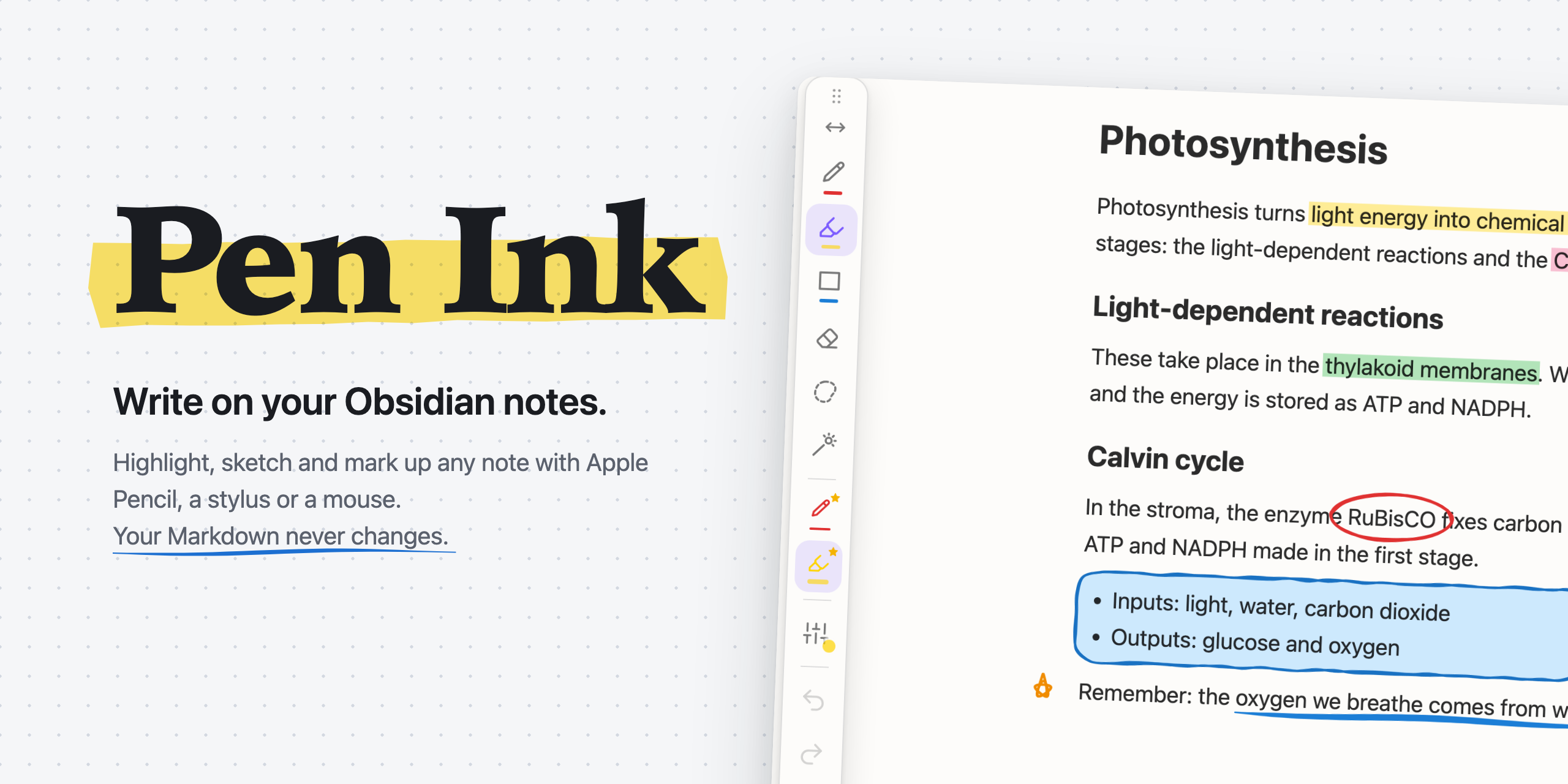
Pen Ink lets you write on your notes the way you would on paper. Circle the idea that matters, highlight the line you'll want during review, sketch the diagram the text can't explain. Your ink floats over the note in reading view and is saved in its own file, so the Markdown underneath stays exactly as you wrote it.
It's made for the iPad and Apple Pencil, and it works just as well with a mouse or another pen on desktop.
New in 1.16: draw with a finger on your phone. 1.15: ink follows your edits, and ink from a rewritten paragraph can be brought back. See what's new
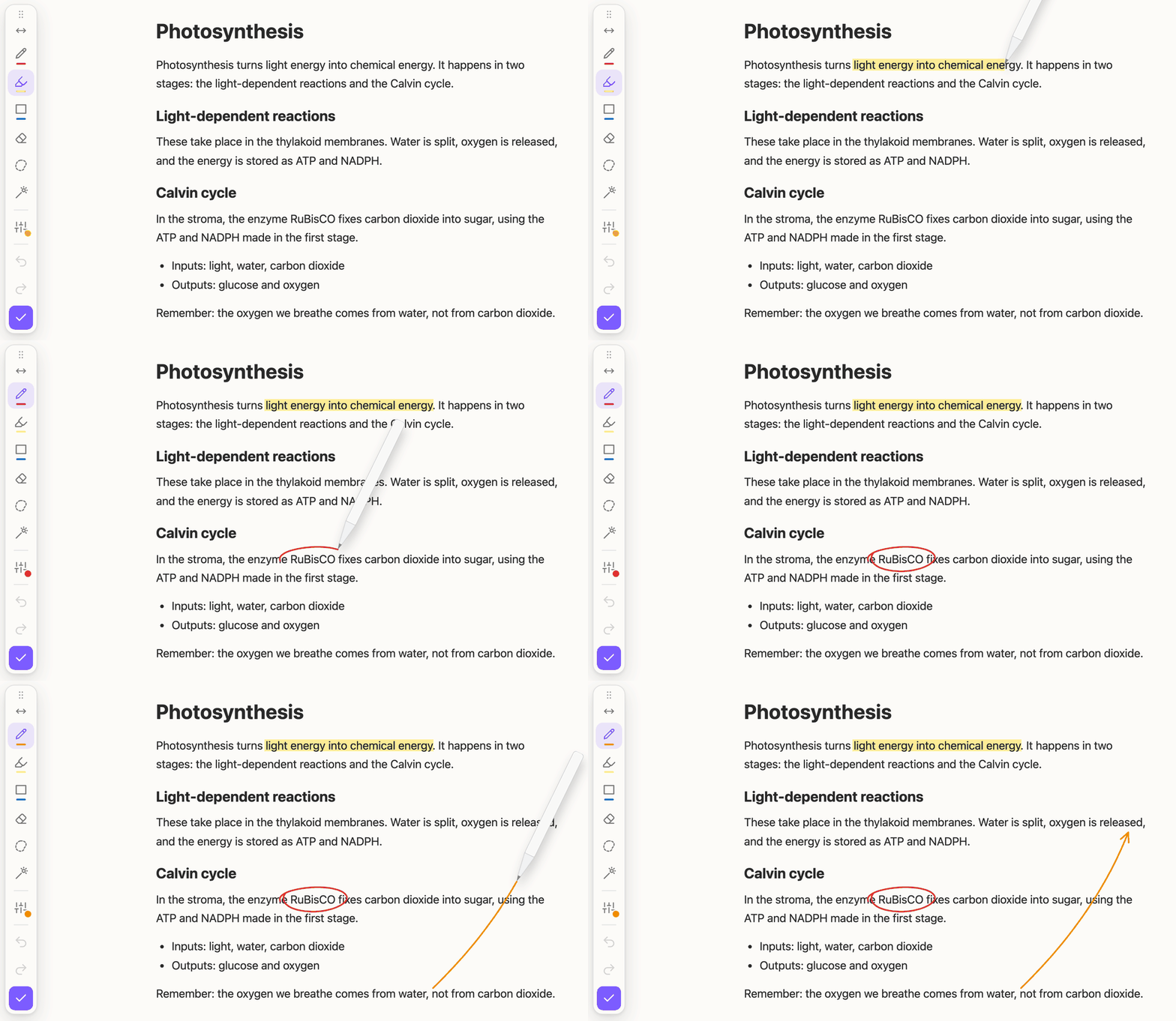
Write and highlight
- Ballpoint pen in solid, dashed or dotted lines, in any color, at four sizes and any opacity.
- Fountain pen that follows your Pencil's pressure, thin on light strokes and full on firm ones.
- Highlighter that sits behind the text, so the words stay crisp instead of turning muddy.
- Hold to straighten. Pause at the end of a line and it snaps perfectly straight.
- Smoothing you can dial from "exactly what I drew" to "steady hand".
- Erasers that remove whole strokes or cut away only what you touch, with an optional pen-only or highlighter-only filter.
Shapes with a hand-drawn feel
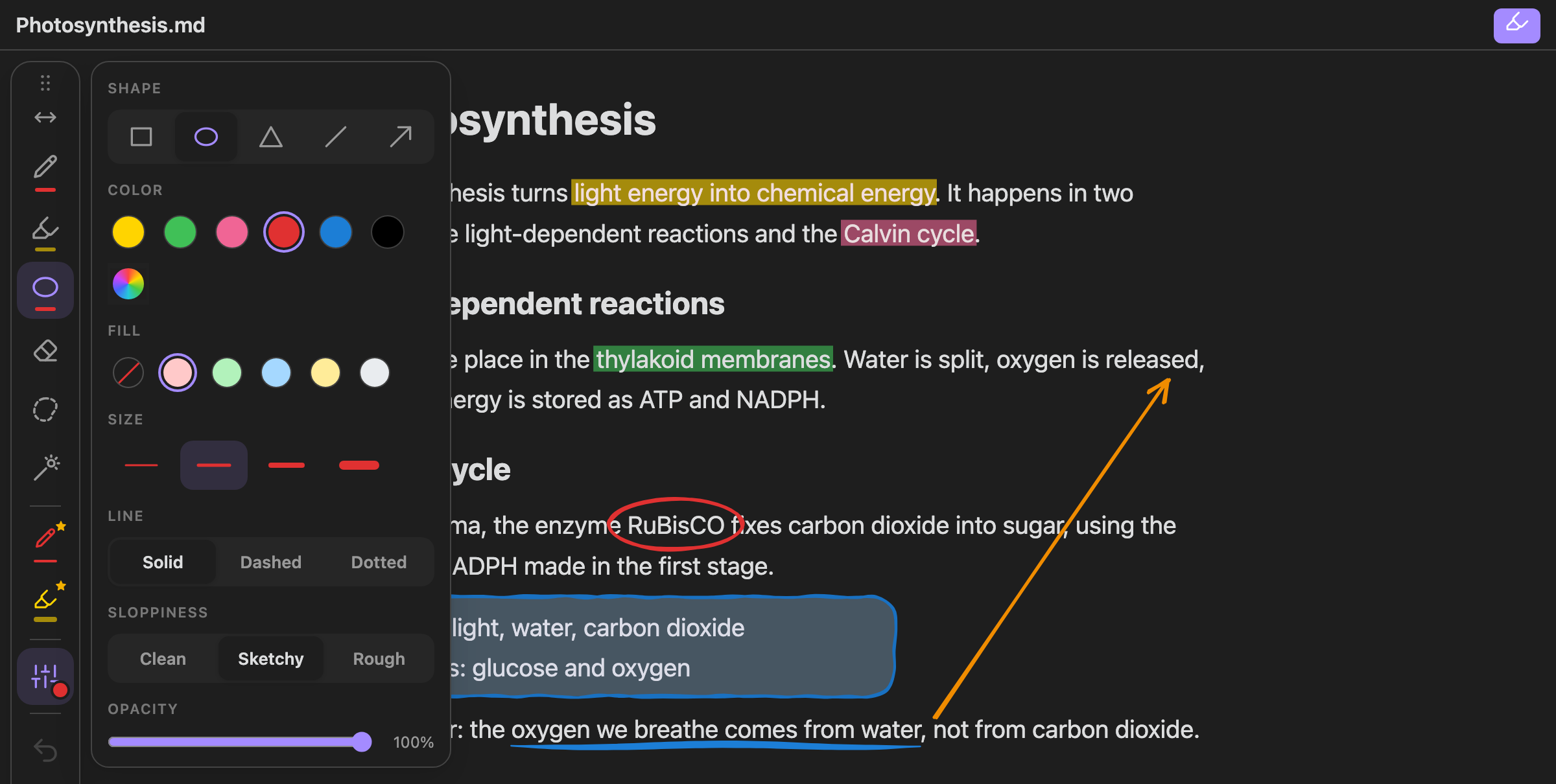
Rectangles, ellipses, triangles, diamonds, pentagons, hexagons, stars, lines and arrows. Press and drag. Near-squares snap to squares and near-circles to circles. Give them a fill, pick clean, sketchy or rough lines, choose sharp or round corners, and set the opacity. They look like they belong in a notebook, not a slide deck.
Select, restyle, rearrange
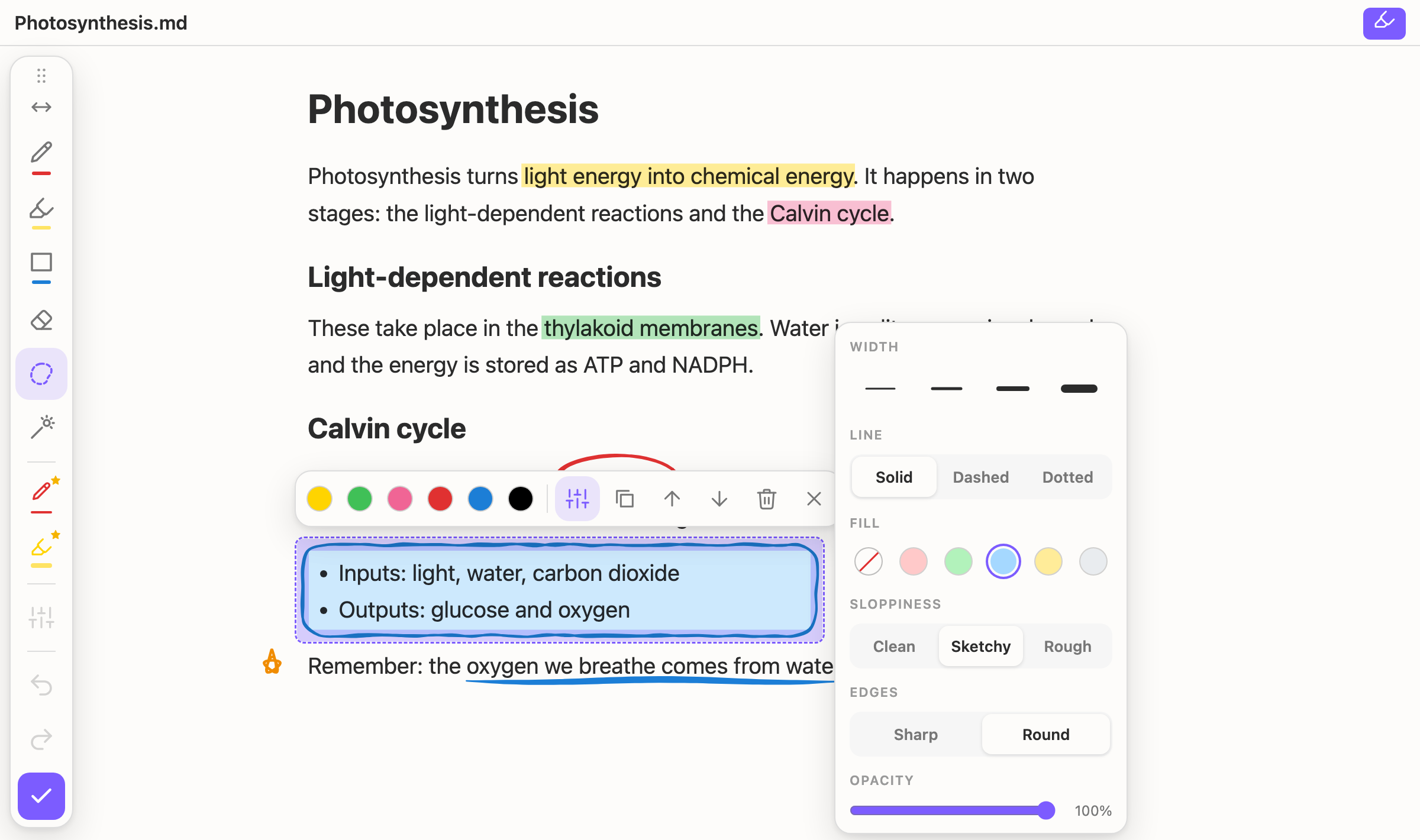
Draw a loop around any ink to pick it up. Then move it, resize it from a corner, turn it with the rotate knob, change its color, restyle its width, line, fill or edges, duplicate it, bring it to the front, send it back, or delete it. Copy it and paste it anywhere, in the same note or another one (Cmd/Ctrl + C, X and V work on a Mac too).
At home on the iPad
- Pencil draws, fingers scroll. Rest your palm and swipe with a finger. Only the Pencil leaves ink.
- No stylus? Draw with a finger. On phones one finger draws and two fingers scroll and zoom. Tap the hand to scroll with one finger, and a tool to draw again (turn finger drawing on for tablets in settings).
- Pinch to zoom up to 4× for small, neat details. Ink is always saved at its real size. Tap the zoom badge to jump back to 100%.
- Two-finger tap to undo, plus undo and redo buttons.
- Favorites. Save up to six pen and highlighter setups and switch with one tap.
- A toolbar that gets out of the way. It docks as a column on the side; drag it anywhere or flip it into a row.
- Laser pointer with a fading trail for walking someone through a note. It's never saved.
On a Mac, a mouse draws, and a trackpad pinch or Ctrl/Cmd + scroll zooms. With an S Pen, Surface or Wacom pen, the eraser end or a held side button erases without switching tools.
Your notes stay yours
Pen Ink never edits a note. Each note's ink is a small .json file in an Annotations folder that mirrors your
vault, for example Annotations/Biology/Photosynthesis.json for Biology/Photosynthesis.md.
- Rename or move a note and its ink moves with it.
- Ink is pinned to the paragraph you drew on, so it stays put when you scroll or when other parts of the note change.
- Edit a paragraph (fix a typo, add a sentence) and its ink stays with it. Rewrite it completely and the ink is hidden, never deleted: tap Bring it back on the notice, or run Pen Ink: Bring back hidden ink.
- No network requests, no telemetry, no dependencies. It's one plain JavaScript file you can read end to end.
Getting started
- Install Pen Ink from Settings → Community plugins → Browse, then enable it.
- Open a note and tap the marker icon in the note's header, or run Pen Ink: Toggle annotation mode from the command palette. The note switches to reading view and the toolbar appears.
- Draw. Tap a tool a second time, or the sliders button, to change its color, size and style.
- Tap Done (✓) when you're finished. Your ink is saved as you go.
Settings
| Setting | What it does |
|---|---|
| Ink folder | Where drawings are saved. Annotations by default. |
| Draw with finger | One finger draws, two scroll and zoom. On by default on phones; once you use a pen, fingers scroll again until Done. |
| Hold to straighten | Pause at the end of a stroke to snap it straight. |
| Straight highlighter | Every highlight is drawn as a straight line. |
| Smoothing | From 0 (exactly what you draw) to 80 (very smooth). |
| Eraser switches back | After erasing, return to the pen you were using. |
Devices
| Device | Status |
|---|---|
| iPad with Apple Pencil | Tested |
| Mac with mouse or trackpad | Tested |
| Android tablets with a stylus | Should work, not yet confirmed |
| Windows pen devices | Should work, not yet confirmed |
| iPhone (draw with a finger) | Should work, not yet confirmed |
| Linux | Should work, not yet confirmed |
If you try one of the unconfirmed setups, an issue saying whether it worked is a big help.
Questions
Does my ink sync between devices?
Yes, if your sync tool syncs .json files. With Obsidian Sync, turn on Settings → Sync → Sync all other types on
every device. iCloud, Dropbox and Git sync them by default.
Can I draw in Live Preview or Source mode?
Pen Ink works in reading view, where the page holds still under your Pencil. Turning on annotation mode switches the note to reading view for you.
My Pencil strokes turn into typed text, or a scribble deletes something
That's iPadOS Scribble, which turns handwriting into typing. Pen Ink draws in reading view, where there's no text to type into, so it usually stays out of the way. If it does grab your Pencil, turn it off in iPad Settings → Apple Pencil → Scribble.
Can I print or export a note with its ink?
Yes. Use Obsidian's own Export to PDF (or print): your highlights, pen ink and shapes come along, and the toolbar doesn't. Ink is placed by paragraph, so if the PDF page is much narrower than your screen and a long paragraph wraps onto more lines, marks inside that paragraph can sit a little off from their words.
What if I uninstall the plugin?
Your notes are untouched, because nothing was ever written into them. The ink files stay in the Annotations folder
until you delete them. Reinstall and point it at the same folder, and every drawing comes back.
Installing by hand
Copy main.js, manifest.json and styles.css from the latest release
into <your vault>/.obsidian/plugins/pen-ink/, then enable Pen Ink in Settings → Community plugins.
Development
Plain JavaScript, no build step and no dependencies.
node test/load.test.jschecks that the plugin loads against a minimal mock of the Obsidian API.test/harness.htmlis a fake reading view for the browser. Serve the repo folder (for examplepython3 -m http.server) and opentest/harness.html?test=1to run the full set of scripted checks (pointer input, placement, tools, undo, performance).test/harness.html?demoshows the sample note used for the screenshots.