Note & Folder State Icons
 swefpifh164 downloads
Add a state icon to the left of a note's or folder's title.
- Overview
- Scorecard
- Updates2
Note & Folder State Icons is an open-source plugin for Obsidian that allows you to assign a visual state indicator to notes and folders using additional icons displayed in the File Explorer.
This plugin is designed to provide clear, immediate visual cues about the editorial or semantic state of a note or folder (draft, review, validated, etc.), without altering the note content, metadata, or file structure.
It does not replace tags, properties, or folder organization.
It complements them with a lightweight visual layer.
✨ Features
- Assign an icon-based state to any note or folder
- Icons are displayed exclusively in the File Explorer
- Does not modify:
- note content
- frontmatter
- file names
- native Obsidian icons
- States are persistent across Obsidian restarts
- Designed to remain efficient with large vaults
- Lightweight, non-intrusive behavior
- Desktop-focused UI integration
🧠 How It Works
- Right-click a note or folder in the File Explorer
- Open the State menu
- Select an icon from the list
- The selected icon appears to the left of the note or folder title
To remove a state, choose None.
All states are stored internally and automatically restored when Obsidian is restarted.
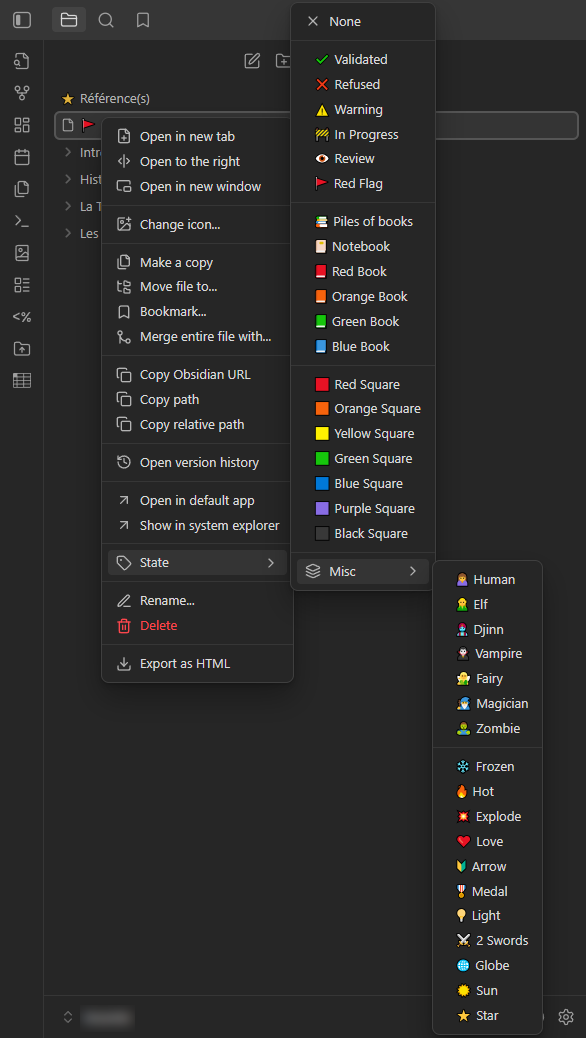
🗂 Available States (default)
States are currently defined directly in the plugin source.
Each state consists of:
- an icon
- a label
- a color (currently uniform)
Validation & Status
- ✔ Validated
- ❌ Refused
- ⚠️ Warning
- 🚧 In Progress
- 👁 Review
- 🚩 Red Flag
Books & Documents
- 📚 Piles of books
- 📔 Notebook
- 📕 Red Book
- 📙 Orange Book
- 📗 Green Book
- 📘 Blue Book
Visual Markers
- 🟥 Red Square
- 🟧 Orange Square
- 🟨 Yellow Square
- 🟩 Green Square
- 🟦 Blue Square
- 🟪 Purple Square
- ⬛ Black Square
Species
- 🙍 Human
- 🧝 Elf
- 🧞 Djinn
- 🧛 Vampire
- 🧚 Fairy
- 🧙 Magician
- 🧟️ Zombie
Miscellaneous
- ❄️ Frozen
- 🔥 Hot
- 💥 Explode
- ❤️ Love
- 🔰 Arrow
- 🎖️ Medal
- 💡 Light
- ⚔️ 2 Swords
- 🌐 Globe
- 🔅 Sun
- ⭐ Star
The list can be freely modified or extended by editing the plugin source code.
🌍 Language Support
- 🇬🇧 English
- 🇫🇷 Français
🖥 Compatibility
| Platform | Supported |
|---|---|
| Windows | ✅ |
| macOS | ✅ |
| Linux | ✅ |
| Android | ❌ |
| iOS | ❌ |
This plugin is desktop-only.
Why desktop-only?
It relies on the desktop File Explorer and context menu system, which are not available on Obsidian Mobile.
🔒 Data & Privacy
- No network access
- No telemetry
- No external services
- All data is stored locally using Obsidian’s plugin data store
📦 Installation
Manual Installation
- Download or clone this repository
- Copy the folder into:
<YourVault>/.obsidian/plugins/obsidian-note-folder-state-icons - Restart Obsidian
- Enable Note & Folder State Icons in
Settings → Community plugins
🛠 Development Notes
- Written in JavaScript
- Built using Obsidian’s official Plugin API
- Adds state icons by injecting minimal DOM elements into the File Explorer
- Designed to be:
- predictable
- readable
- easily extensible
📜 License
Released under the MIT License.
You are free to use, modify, redistribute, or integrate this plugin into other projects.
🤝 Contributing
Contributions, forks, and improvements are welcome.
This project intentionally remains simple and permissive.
✍️ Author
Initial implementation generated with AI assistance and refined manually.
Maintained by swefpifh.
🛠 Changelog
v0.1.6 | 2026/01/24
- Fixed an issue where the icon remained visible during note or folder title editing and duplicated upon confirmation.
v0.1.5 | 2026/01/12
- Plugin renamed
- [QOL] Fixed state icons refresh on plugin enable/disable (no restart required)
v0.1.4 | 2026/01/02
- State icons can now be applied to folders
- New state icons added (Human)
- [QOL] Species and Misc icons grouped in a submenu
v0.1.3 | 2026/01/01
- New state icons added (Elf, Djinn, Vampire, Magician, Zombie, Arrow, Medal, 2 Swords)
v0.1.2 | 2025/12/30
- [QOL] Visual separators added between state groups
v0.1.1 | 2025/12/30
- English and French localization added
v0.1.0 | 2025/12/29
- Initial state system for note titles